
DiviFlash Image Mask module lets you apply mask effects to any image to create attractive and visually engaging designs.
Let’s see the settings in brief and how to make better use of it —
Content Tab
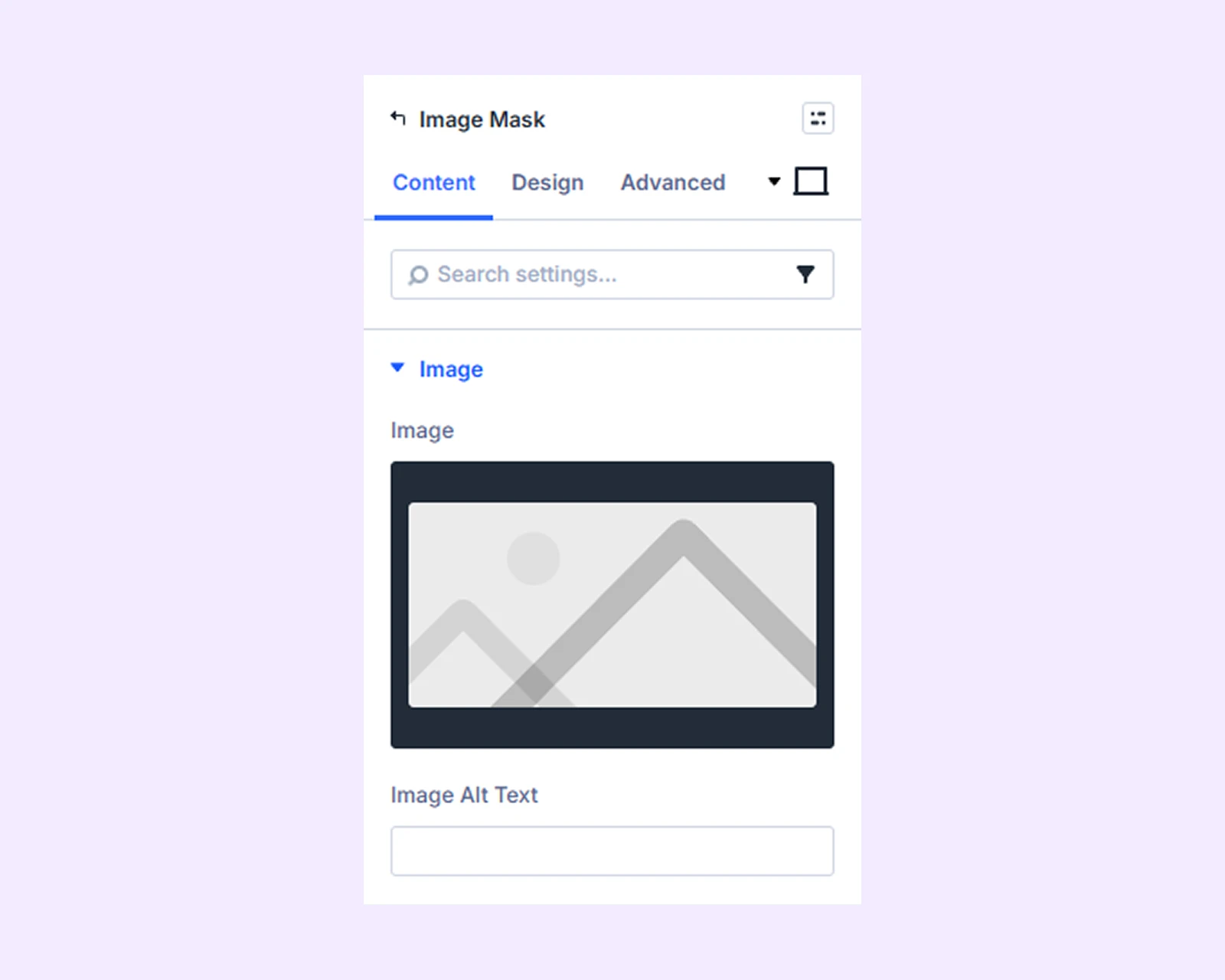
This tab contains the settings to add the image, configure mask effects, and manage basic module options.
Image
Image: Upload the image you want to apply the mask effect to.
Image Alt Text: Add alternative text to describe the image.
Mask Settings
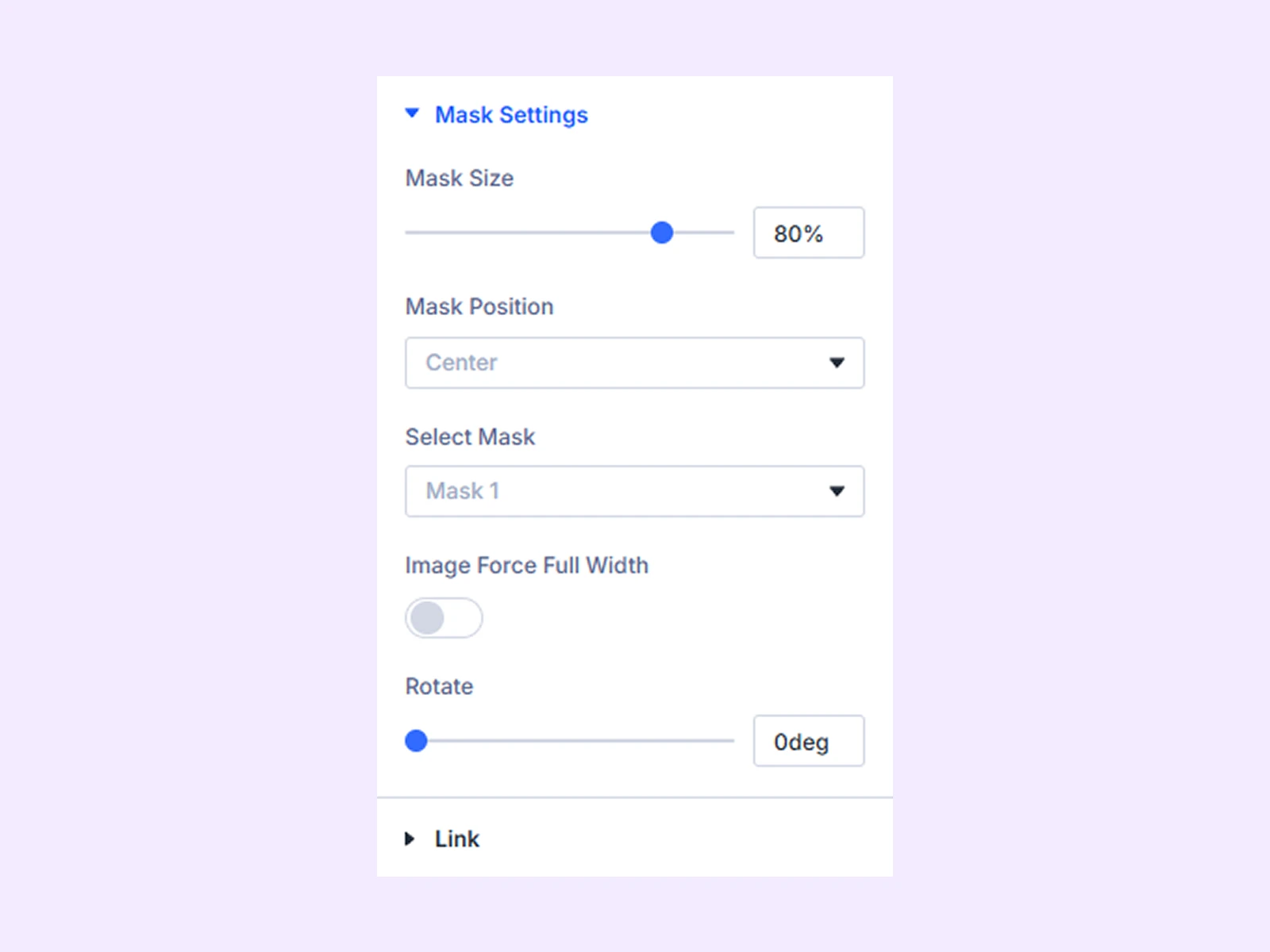
- Mask Size: Adjust how much the mask will reveal of the image.
- Mask Position: Choose where you want to place the mask relative to the image.
- Select Mask: Choose from 30 different mask presets.
- Image Force Full Width: Enable this option to make the image and mask span the full width.
- Rotate: Rotate both the mask and the image.
Link: Use this default Divi setting to add a link to the entire module.
Background: Add a background color, gradient, image, video, pattern, or mask to the module.
Element Label: Rename the module to organize it more easily in the Divi Builder. (Only you can see this label.)
Design Tab
This tab lets you customize the visual appearance of the module.
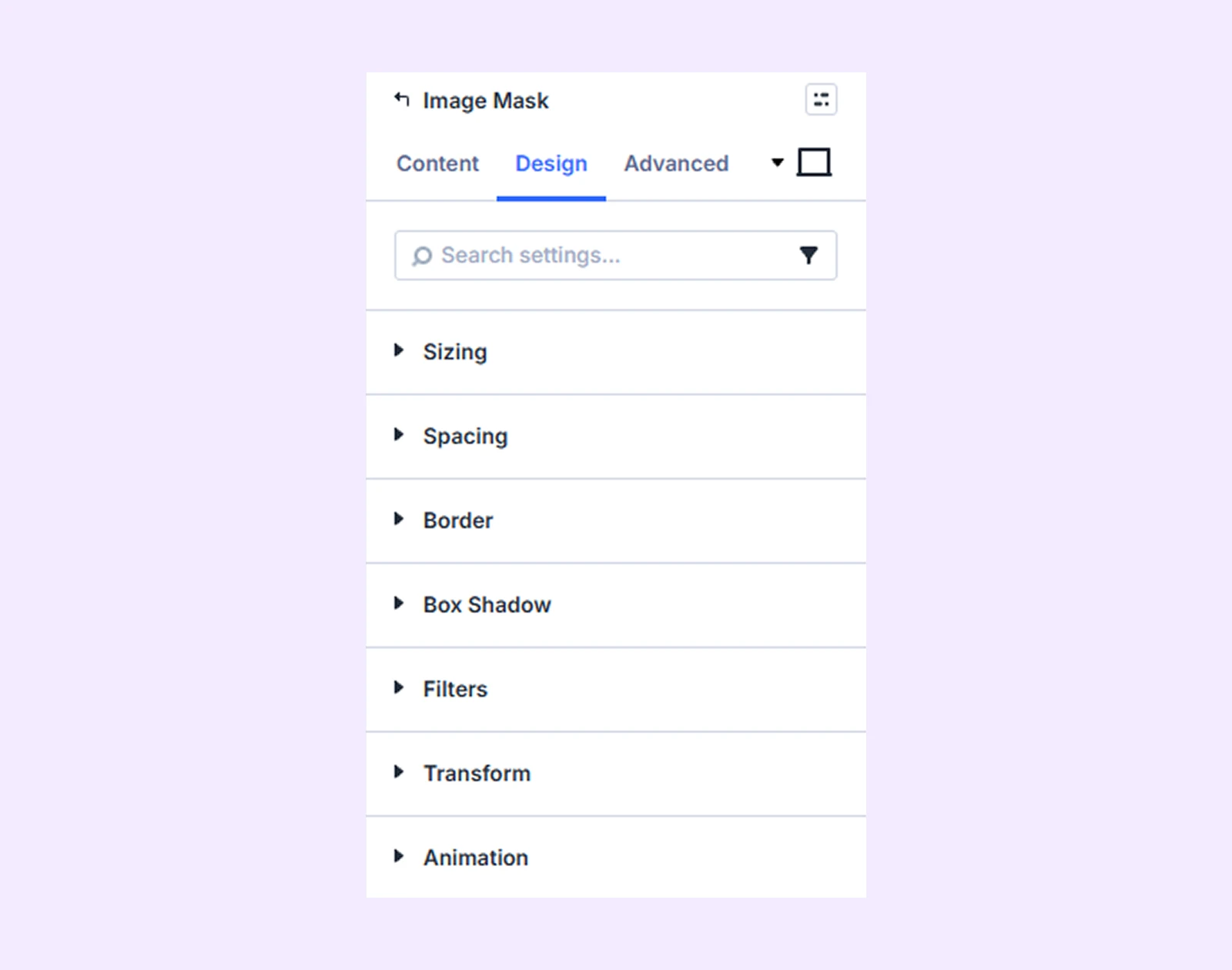
Sizing: Adjust the width, height, and alignment of the module.
Spacing: Adjust the margins and padding of the module container.
Border: Customize the border using radius, style, width, and color settings.
Box Shadow: Add shadow effects to the module.
Filters: Apply color filter effects to the module.
Transform: Adjust the scale, position, rotation, and size of the module.
Animation: Add reveal animation effects and control the animation style, delay, duration, and more.
Advanced Tab
This tab provides additional settings for advanced users who want greater control over the widget with custom code, conditions, and more.
Need Help?
If you have any questions or need assistance, contact our support team: [email protected]