


You type a search term you know exists on your site. You hit enter. "No results found."
If that's how you landed here, you're not imagining things, and you're not alone. Divi search not working is one of the most common frustrations Divi users run into, and it usually isn't your fault. It's a mix of how WordPress search was built in the first place and a few specific gaps in how Divi handles it.
Let's walk through why this actually happens, then look at how DiviFlash's new Advanced Search module fixes it, feature by feature.
Summary: Why Divi Search Breaks & How to Fix It
| Problem | Why It Happens | The Fix |
|---|---|---|
| "No results found" for content that exists | WordPress's default search only matches exact words, with no typo tolerance | Advanced Search includes typo tolerance and a smarter fallback search |
| WooCommerce products missing from search | Divi's Theme Builder doesn't pass the search term to the product query, a known Divi limitation | Advanced Search searches Products directly and shows price and Add to Cart in results |
| Search icon does nothing, or shows a blank page | Theme, child theme, or plugin conflicts | Advanced Search runs as a native Divi 5 module, so there's no separate plugin to conflict with |
| Search feels slow or clunky | Default search reloads the whole page for every search | Advanced Search shows live results while visitors type, no reload |
| Visitors can't find content in custom fields | Default search only checks title, content, and excerpt | Advanced Search can include custom fields and ACF field keys |
Why Divi Search Doesn't Work the Way You'd Expect
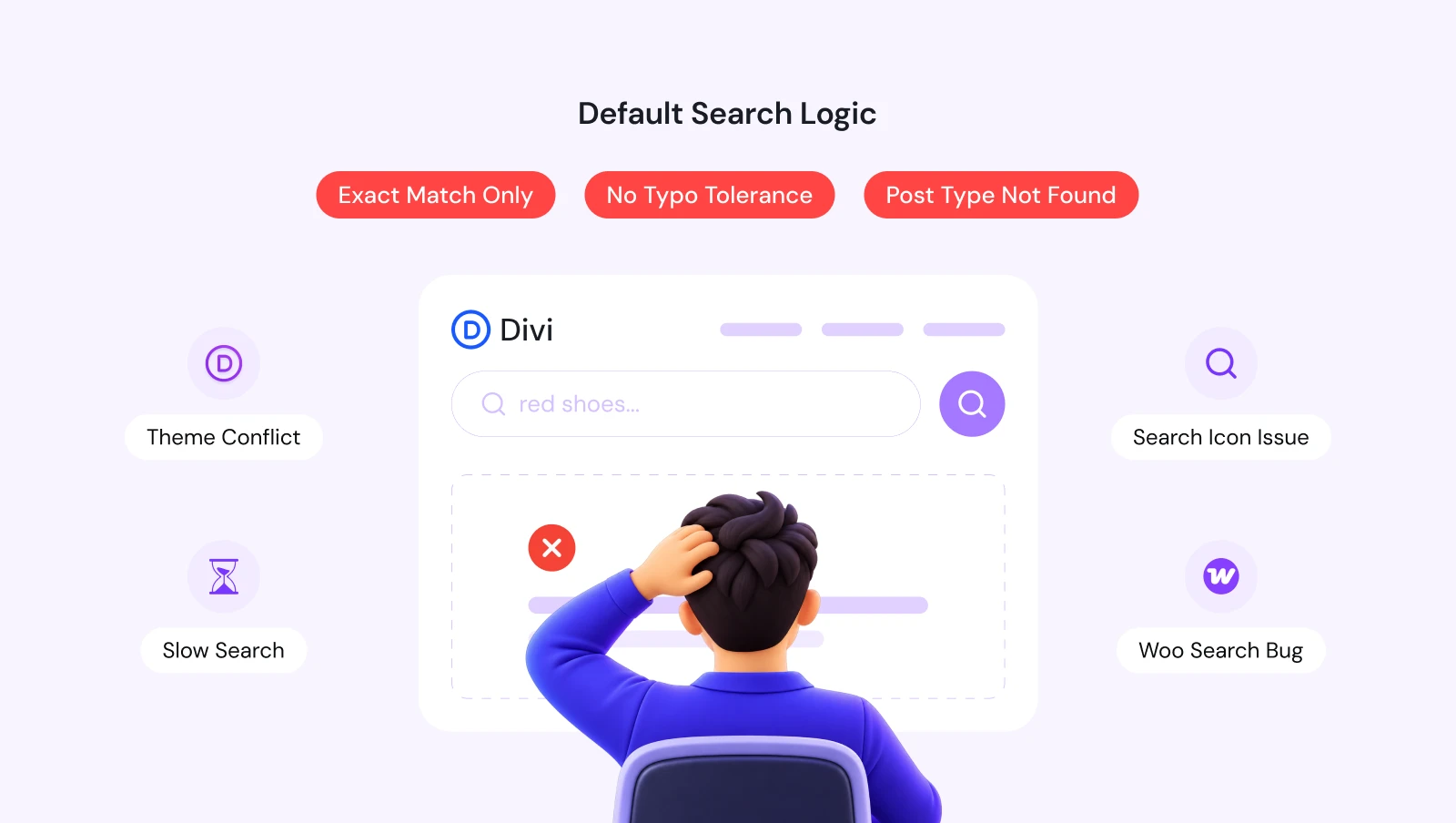
Here's the part most people don't realize: a lot of "broken" Divi search isn't actually broken. It's working exactly as built, and what it was built to do just isn't very good.
WordPress's Default Search Was Never Very Smart
Out of the box, WordPress search only looks for exact matches in a post's title, content, and excerpt. It doesn't understand synonyms, it doesn't tolerate typos, and it doesn't rank results by how relevant they actually are.
Search for the right idea in slightly the wrong words, and you'll often get nothing back. Even if the exact content you're looking for is sitting right there on the site.
Since Divi's built-in Search module and Search Bar module both rely on this same underlying WordPress search, they inherit every one of these limitations.
The WooCommerce Product Search Bug
This one is specific, well-documented, and catches a lot of store owners off guard. When Divi's Theme Builder handles a search results page, it doesn't correctly pass the search term along to the WooCommerce product query.
In practice, that means a shopper can search for a product that's clearly in your catalog and see "No results found" anyway, not because the product isn't there, but because Divi never actually asked WooCommerce to look for it.
This is a known Divi limitation, not a bug in WooCommerce itself. And, it's frustrating because it looks exactly like your store is missing inventory it actually has.
Blank Pages and Search Icons That Do Nothing
Another common pattern: the search icon sits there looking fine, but clicking it does nothing, or the results page loads completely blank. This usually comes down to a conflict between Divi, your active theme (especially child themes), or another plugin running on the site.
WordPress support forums are full of threads where a site owner tested with every plugin disabled and a default theme active, only to find the search issue disappears, then slowly re-enables plugins one at a time to find the culprit.
No Live Results, Just a Slow Reload
Even when Divi's default search works correctly, it's still built around the old model: type a term, hit enter, wait for a full page reload, then see results. There's no live preview, no instant feedback, and no way to refine a search without starting over.
The Real-World Result
Put these together, and you get the actual outcomes site owners report: visitors leaving after a search comes up empty, shoppers assuming a product is out of stock when it isn't, support tickets asking "why can't I find anything on your site," and in some cases, entire businesses of third-party plugins and custom code snippets built specifically to patch this one feature.
That last part is telling. If fixing "basic" search required an entire cottage industry of workarounds, the problem was never really basic to begin with.
Introducing DiviFlash's Advanced Search Module
Instead of patching around these limitations with a code snippet or a separate search plugin, we built Advanced Search directly into DiviFlash.
Advanced Search, introduced in DiviFlash 5.5.0, is a native Divi 5 module that creates a live search experience: as a visitor types, matching results appear instantly, without reloading the page. It's built to work the way people actually expect search to work in 2026, and it's designed specifically to close the gaps we just walked through, including the WooCommerce product issue.
One thing worth knowing upfront: Advanced Search is disabled by default, so you'll need to turn it on manually before it appears in the Divi Builder. That's a deliberate choice to keep DiviFlash lightweight for users who don't need it, not a bug.
How DiviFlash's Advanced Search Works
At a basic level, you drop the Advanced Search module onto any page in the Divi Builder, choose what it should search, and configure how results are displayed. From there, every keystroke a visitor types triggers a live check against your site's content, and matching results appear in a results panel right below the search field, no page reload required.
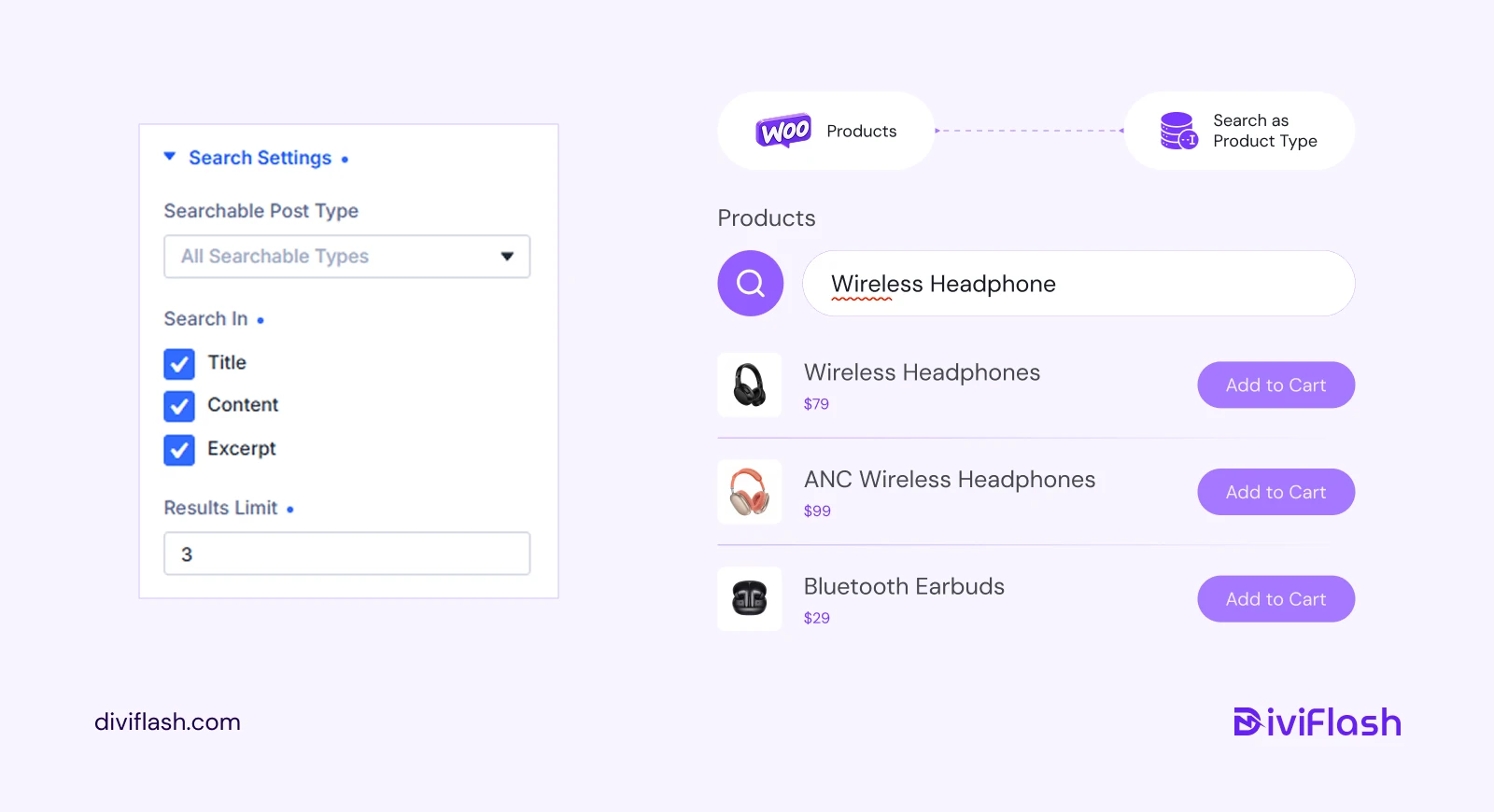
You control exactly what counts as a match: search by Title, Content, Excerpt, or a combination, across Posts, Pages, Projects, Products, or any custom post type on your site. You can also set how long the module waits after someone stops typing before it searches, and how many characters they need to type before results start appearing, so the search doesn't fire on every single keystroke.
Key Features That Solve These Problems
Here's how the module's features map directly to the frustrations covered above.
Typo Tolerance
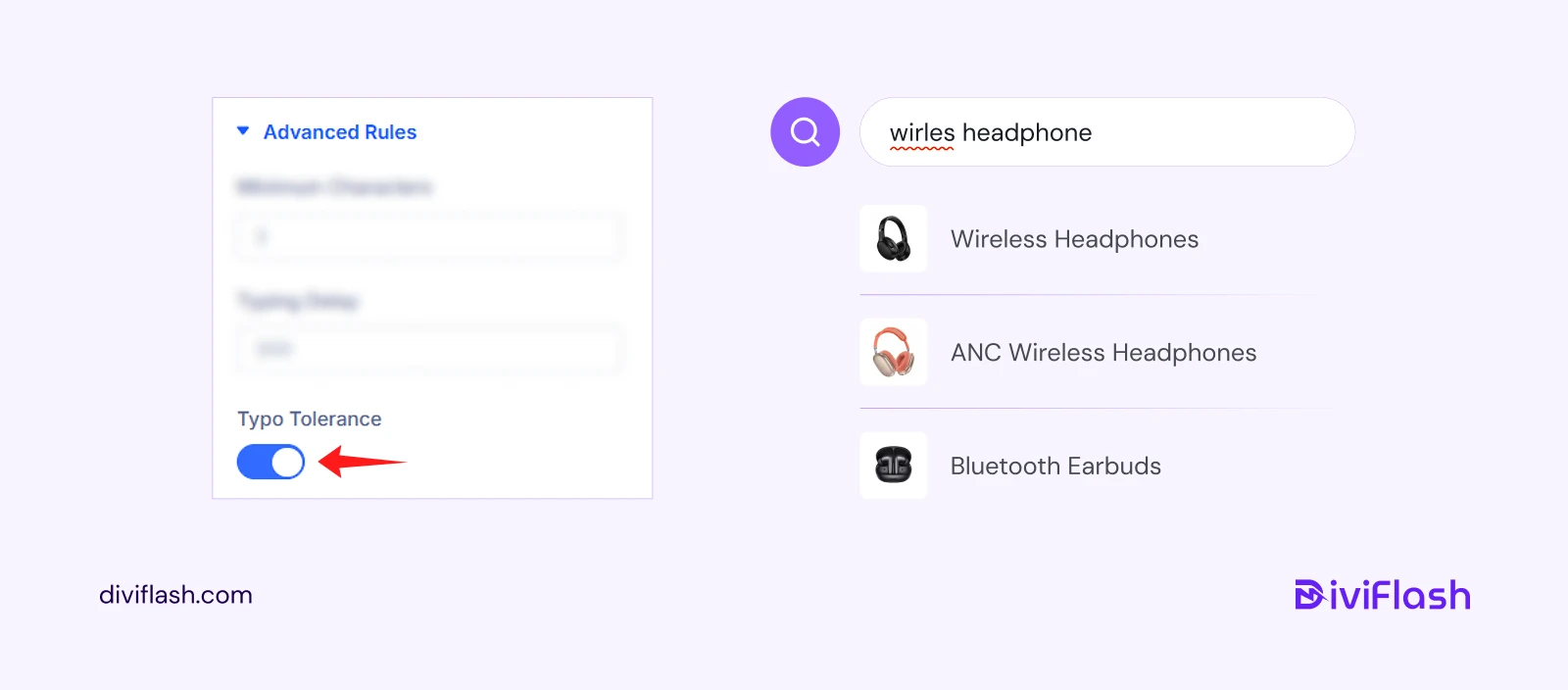
When a search returns no results, Advanced Search can automatically fall back to a more forgiving search instead of just showing "nothing found." This directly addresses the exact-match weakness baked into WordPress's default search.
Full Product Search Support
Advanced Search can search Products directly as a post type, and results can display Product Price and an Add to Cart button right in the results panel. This is the direct fix for the WooCommerce search issue described above: your shoppers actually find the products you have.
Custom Fields and ACF Search
If your site stores important content in custom fields or Advanced Custom Fields, you can include those field keys in what Advanced Search checks, so content isn't invisible to search just because it lives outside the main content area.
Live, Instant Results
No more type-and-wait-for-reload. Results appear as visitors type, which is both faster and far less frustrating than the traditional WordPress search flow.
Search Filters by Taxonomy
A filter dropdown lets visitors narrow results by category, tag, product category, or any other public taxonomy on your site, so a broad search term doesn't return an unmanageable wall of results.
Recent and Popular Searches
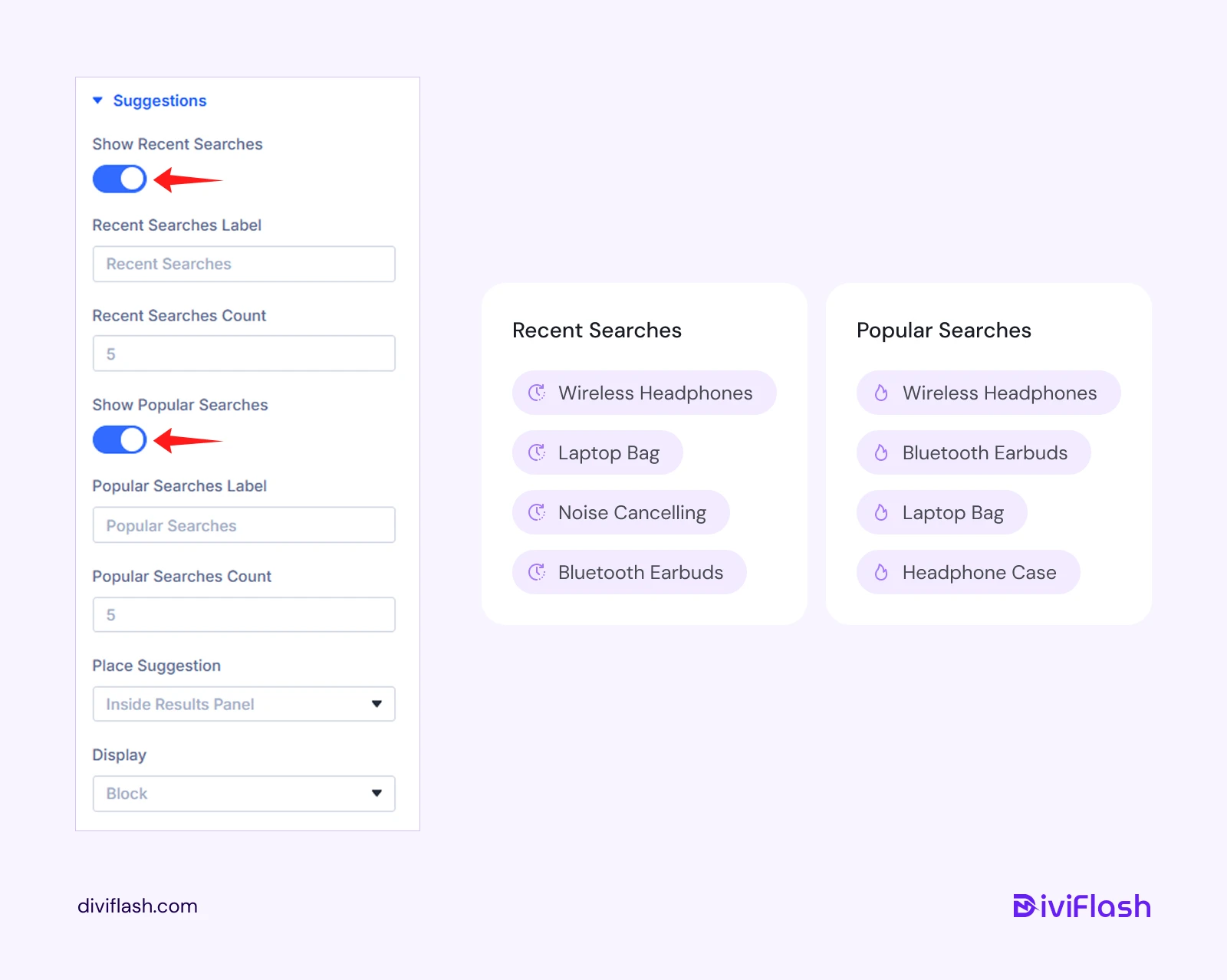
The module can show recent searches, plus the most popular searches across your whole site, helping people find what they need even before they finish typing.
Multiple Form Layouts
Choose a full search bar, an icon that expands on click, or a fullscreen overlay, whichever fits your site's design. Voice search is also available for visitors who'd rather speak their query.
Grouped Results & "View All" Link
Matched terms are highlighted inside titles and excerpts, results can be grouped by post type so Pages don't get mixed in with Products, and a "View All" link sends visitors to the full WordPress search results page when they want to see everything.
Custom "No Results" Messaging
When a search genuinely doesn't match anything, you control exactly what visitors see instead of a generic, unhelpful default message.
How This Actually Benefits Your Site
The practical upside here isn't abstract. A visitor who finds what they're looking for on the first try is a visitor who stays on your site. A shopper who actually sees the product they searched for is a shopper who can complete a purchase instead of assuming you're out of stock.
Every one of these improvements is also one less support ticket asking why your site's search "doesn't work."
For content-heavy sites, faster and smarter search means people spend less time hunting and more time reading. For WooCommerce stores specifically, fixing the product search gap alone can be the difference between a completed sale and a visitor who leaves thinking you don't carry what they wanted.
How to Enable Advanced Search on Your Site
Since Advanced Search is disabled by default, you'll need to turn it on before it shows up as an option in the Divi Builder. The exact steps are covered in our step-by-step enabling guide, but the short version is: enable the module from DiviFlash's settings, then add it to any page like any other Divi module, and configure your Content tab settings from there.
Keep in mind Advanced Search is built for Divi 5 only. If you're still on Divi 4, this specific module won't be available until you upgrade.
Frequently Asked Questions
Why does my Divi search show "no results" for content that exists?
Most often, this is because Divi's default search only looks for exact word matches, with no tolerance for typos or close variations.
Why can't visitors find WooCommerce products when they search?
This is a known Divi limitation: when Divi's Theme Builder generates a search results page, it doesn't correctly pass the search term to the WooCommerce product query. DiviFlash's Advanced Search module fixes this by searching Products as their own post type.
Is Divi's search broken, or is this a WordPress-wide issue?
Both, in different ways. The core weakness (no typo tolerance, no relevance ranking) comes from WordPress's default search engine. The WooCommerce product search issue is specific to how Divi's Theme Builder handles the search query.
Do I need a separate plugin to fix Divi search?
Not if you're using DiviFlash. Advanced Search is a native Divi 5 module built into DiviFlash, so there's no extra plugin to install, update, or troubleshoot for conflicts.
Is Advanced Search compatible with Divi 4?
No. Advanced Search is built specifically for Divi 5 and isn't available on Divi 4 or older versions.
Can Advanced Search search custom post types and custom fields?
Yes. Beyond Posts, Pages, Products, and Projects, you can set it to search any custom post type on your site, and you can include custom fields or ACF field keys so content stored outside the main content area is still searchable.
Will enabling live search slow down my site?
Advanced Search includes settings for minimum character count and typing delay specifically to control this, so searches don't fire on every single keystroke. You can tune both to balance responsiveness against how often searches run.
Why is Advanced Search disabled by default?
To keep DiviFlash lightweight for users who don't need it. You can turn it on manually in a few steps whenever you're ready to use it.
Final Thoughts
"Divi search not working" almost never means your site is broken. It usually means you're running into the same handful of well-known gaps that WordPress's default search, and Divi's handling of it.
The issue has been there for years: weak exact-match-only searching, a real bug that keeps WooCommerce products out of search results, and an experience that still relies on a full page reload for every query.
DiviFlash's Advanced Search module was built to close those specific gaps, not just add another search box to the page. If search on your Divi site has been frustrating your visitors, or quietly costing you sales in your WooCommerce store, this is the fix built to solve it directly, right inside the builder you're already using.


0 Comments