

A plugin like DiviFlash's Reading Progress Bar lets you display scroll progress across your website. But if you don't want to use a plugin, you can display it with a CSS and JavaScript snippet.
In this guide, we will show you how to display reading progress bar in Divi with and without using a plugin. We will cover step by step processes that anybody can follow.
Let’s start with the plugin method first.
Method 1: Add a Reading Progress Bar in Divi with a Plugin (Beginner Friendly)
DiviFlash’s Reading Progress Bar extension lets you display a horizontal or circular reading progress indicator on your Divi website without writing any code.
Here is the step-by-step process.
Step 1: Install DiviFlash (or Update to 5.5.0 or Higher)
Get DiviFlash from its official website, then install and activate it. If you already use DiviFlash, just update to version 5.5.0 or higher.
Step 2: Access and Enable Reading Progress Bar
You can access the Reading Progress Bar settings in two ways:
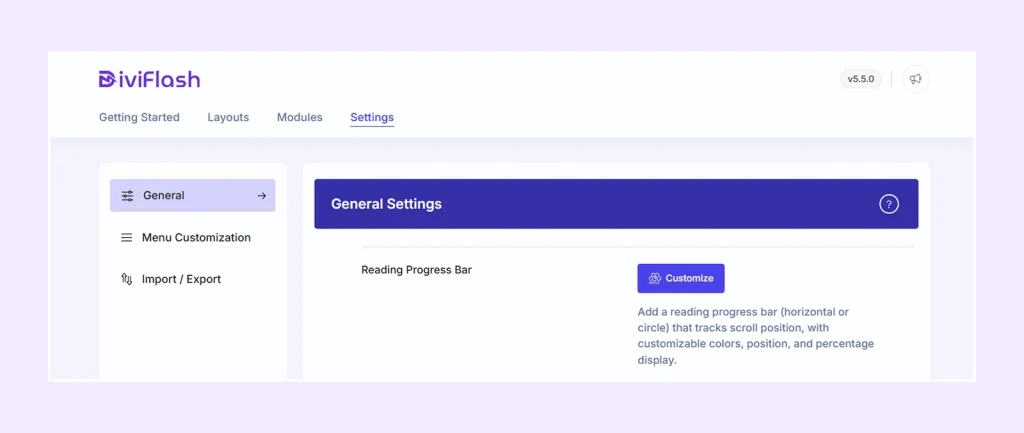
- From DiviFlash Dashboard: Go to DiviFlash Dashboard > General > Reading Progress Bar > Customize
- From Divi Theme Customizer: Go to Divi > Theme Customizer > Advanced General Settings > Reading Progress Bar.
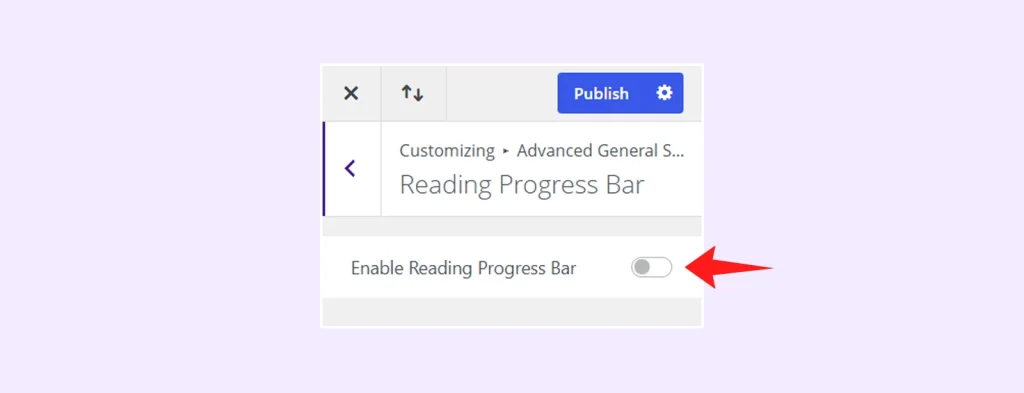
After opening the settings, turn on Enable Reading Progress Bar to activate the feature.
Step 3: Choose the Progress Bar Type
Open the Content tab and choose a Bar Type:
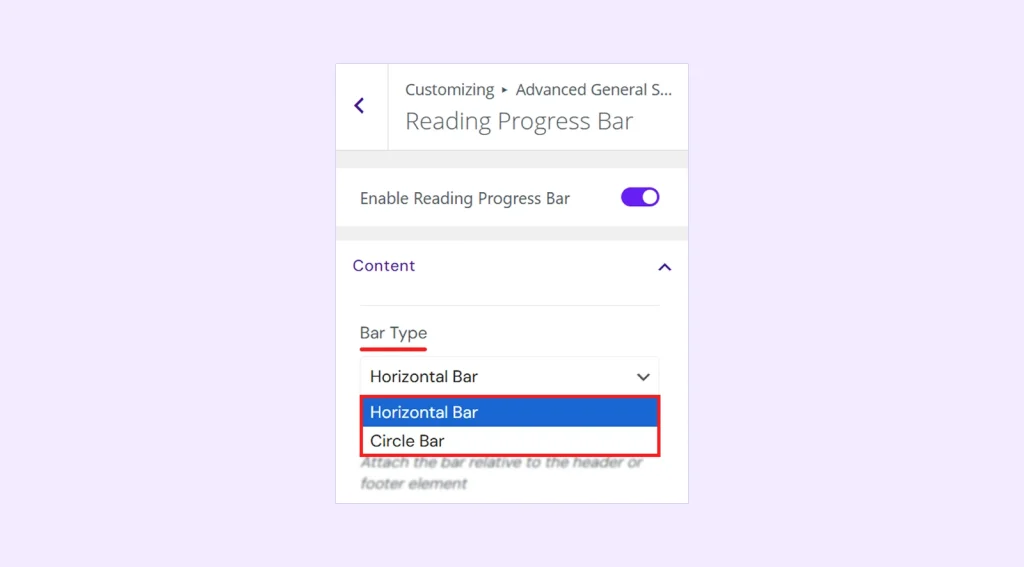
- Horizontal Bar
- Circle Bar
The available settings will change based on the type you select.
Step 4: Configure the Progress Bar
Now adjust the main settings for your selected bar.
- For a Horizontal Bar, you can set its position, height, percentage display, and header/footer exclusion to match your page layout
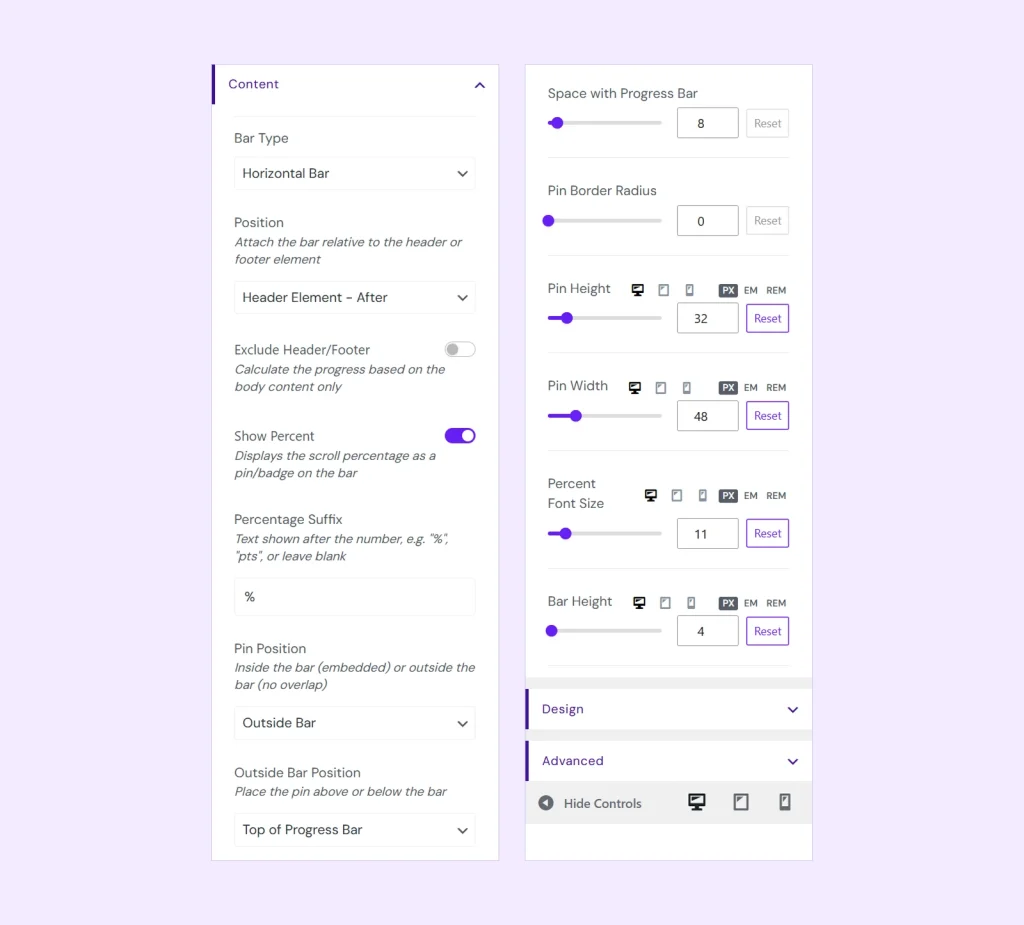
- For a Circle Bar, you can set its screen position, size, stroke width, percentage display, and header/footer exclusion.
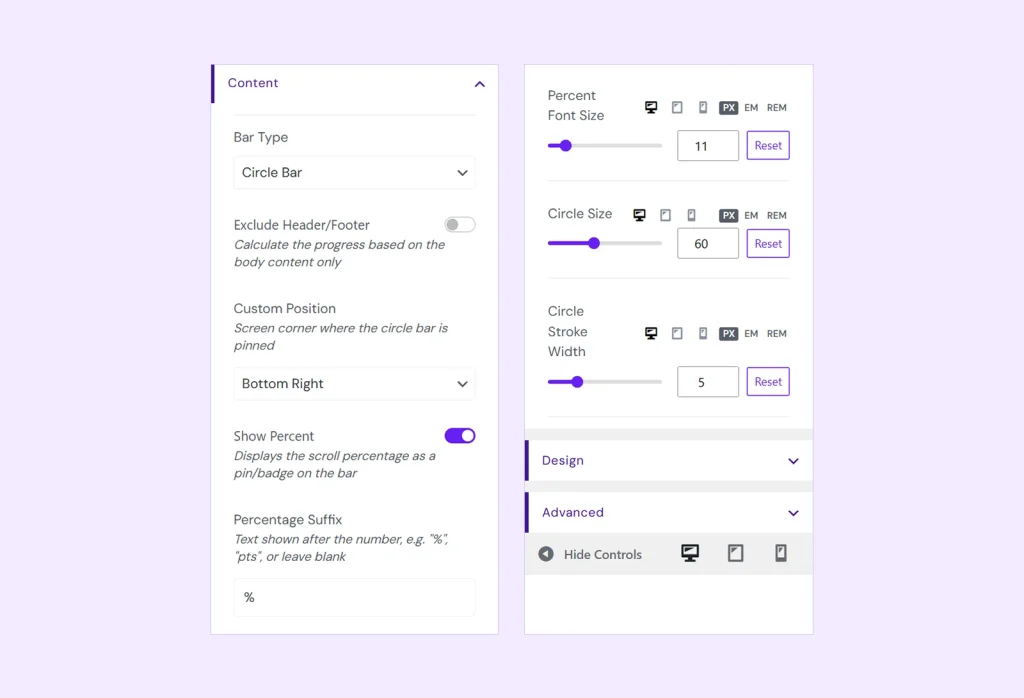
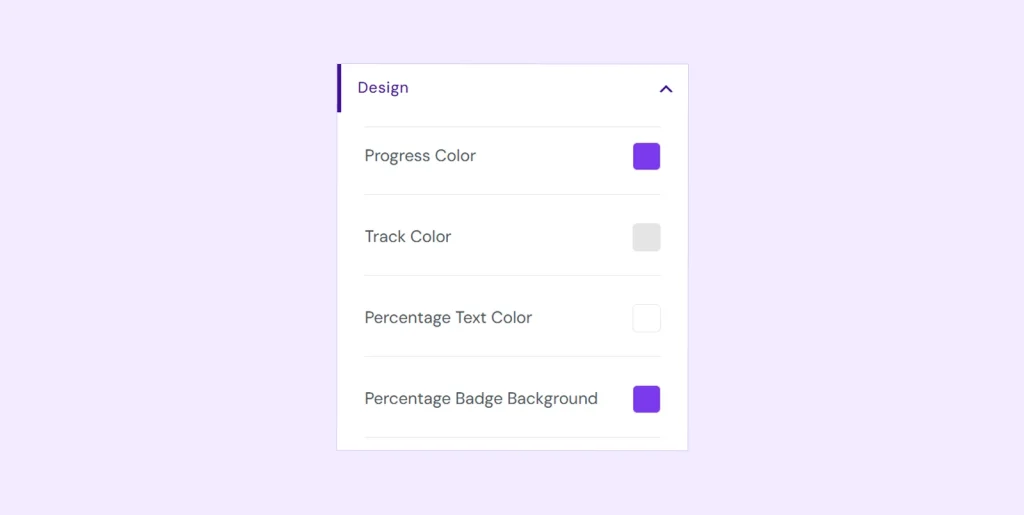
Step 5: Customize the Design
Open the Design tab to change the progress bar colors and percentage styling. You can customize the Progress Color, Track Color, text color, badge background, and other available design options.
Step 6: Choose Where to Display the Progress Bar
Open the Advanced tab and use Display On to show the progress bar on:
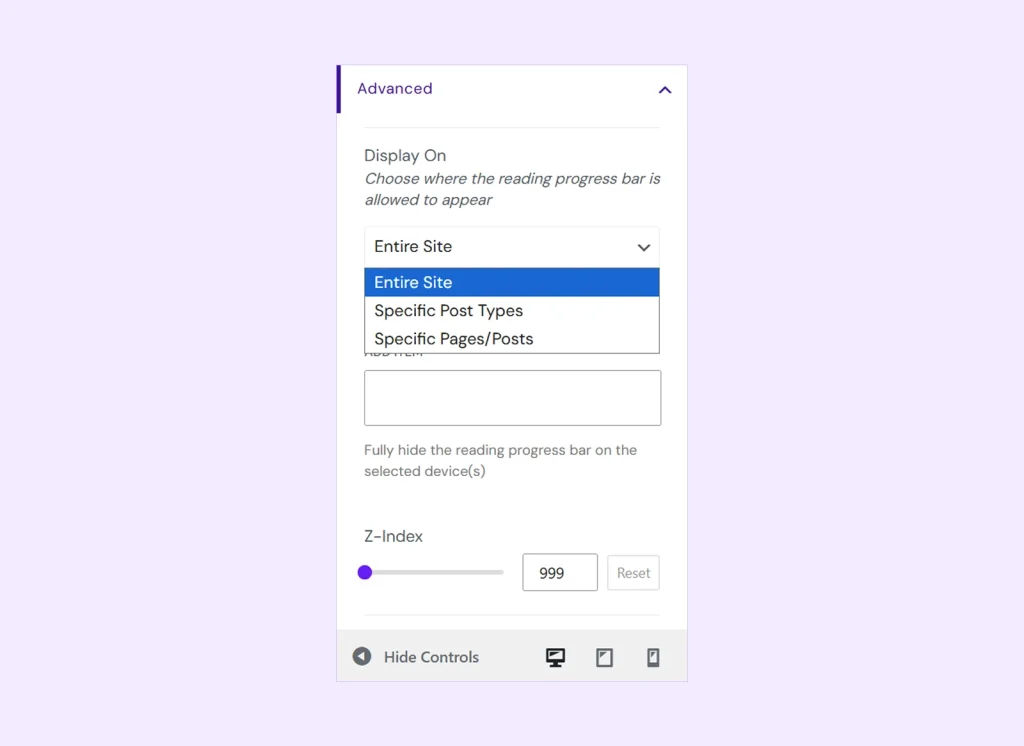
- Entire Site
- Specific Post Types
- Specific Pages/Posts
You can also hide it on specific devices or adjust the Z-index if needed.
Step 7: Publish and Test
Click Publish, then open the page on the frontend and scroll. Make sure the progress bar appears in the right place and updates correctly as you move down the page.
Note: Along with the Reading Progress Bar, DiviFlash also includes 80+ modules and 20+ extensions for adding more functionality and design options to your website.
Method 2: Add a Reading Progress Bar in Divi Without a Plugin
You can also add a reading progress bar in Divi without installing a plugin. This method uses custom CSS and JavaScript to track the visitor’s scroll position across the entire page.
You can write your own code or use the ready-made snippet below.
Step 1: Create the Reading Progress Bar Code
First, create the CSS and JavaScript for the progress bar. You can write your own code or use the ready-made snippet below.
(This custom-code version tracks the full document, including the header, article content, sidebar, and footer. It does not measure article text only.)
<style>
#divi-reading-progress {
    position: fixed;
    top: 0;
    left: 0;
    width: 0%;
    height: 4px;
    background: #559131;
    z-index: 999999;
    pointer-events: none;
    transition: width 0.08s linear;
}

/* Adjust for WordPress admin bar */
.admin-bar #divi-reading-progress {
    top: 32px;
}

@media (max-width: 782px) {
    .admin-bar #divi-reading-progress {
        top: 46px;
    }
}
</style>

<script>
document.addEventListener('DOMContentLoaded', function () {

    const progressBar = document.createElement('div');
    progressBar.id = 'divi-reading-progress';
    document.body.appendChild(progressBar);

    function updateReadingProgress() {

        const scrollTop =
            window.pageYOffset ||
            document.documentElement.scrollTop ||
            0;

        const documentHeight =
            document.documentElement.scrollHeight;

        const viewportHeight =
            window.innerHeight;

        const scrollableHeight =
            documentHeight - viewportHeight;

        let progress = 0;

        if (scrollableHeight > 0) {
            progress = (scrollTop / scrollableHeight) * 100;
        }

        progress = Math.max(0, Math.min(100, progress));

        progressBar.style.width = progress + '%';
    }

    window.addEventListener(
        'scroll',
        updateReadingProgress,
        { passive: true }
    );

    window.addEventListener(
        'resize',
        updateReadingProgress
    );

    updateReadingProgress();

});
</script>
Note: This snippet runs site-wide and tracks the full page, including the header and footer. To show the bar only on specific pages or post types, you’ll need to add custom JavaScript conditions.
Step 2: Add the Code to Divi
- Go to: Divi > Theme Options > Integration
- Enable body code, then paste the complete snippet into: Add code to the <body>
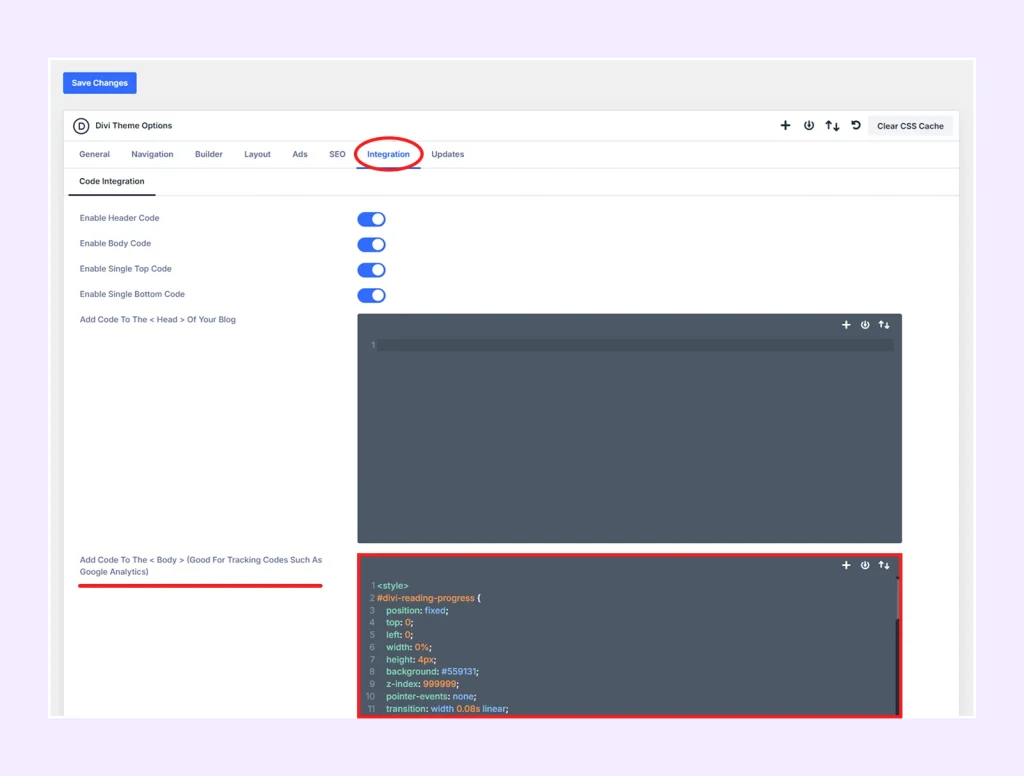
Step 3: Test the Reading Progress Bar
Open any page on the frontend and scroll from top to bottom. The bar should fill as you scroll and reach 100% at the bottom. (If it doesn’t appear, clear your site and browser cache, then test again.)
Bonus: Customize the Progress Bar
To change the progress bar color, find:
- background: #559131;
- Replace #559131 with your preferred color.
To change the bar thickness, find:
- height: 4px;
Use a smaller value such as 3px for a thinner bar or a larger value such as 5px for a thicker one.
Plugin vs Custom Code: Which Method Is Better for Displaying Reading Progress Bar?
| Feature | DiviFlash | Custom Code |
| Coding required | No | Yes |
| Horizontal bar | Yes | Yes |
| Circle bar | Yes | No |
| Percentage display | Yes | No |
| Header/footer exclusion | Yes | Requires custom JavaScript |
| Multiple positions | Yes | Requires CSS |
| Display conditions | Yes | Requires code |
| Device visibility | Yes | Requires CSS/code |
| Color customization | Yes | Edit the CSS |
| Z-index control | Yes | Via CSS |
| Visual settings | Yes | No |
FAQ
What Is a Reading Progress Bar?
A reading progress bar is a visual indicator that shows how much of a page or post a visitor has viewed. It updates as they scroll and can appear as a horizontal bar or circular indicator.
Does Divi Have a Reading Progress Bar?
No. Divi by Elegant Themes doesn’t include a native reading progress bar. You can add one with a plugin like DiviFlash or with custom CSS and JavaScript.
Can I Display a Reading Progress Bar on Every Divi Page?
Yes. With DiviFlash, select Display On > Entire Site. With custom code, create a site-wide CSS/JavaScript progress bar and add it through Divi > Theme Options > Integration.
Can I Add a Reading Progress Bar Only to Blog Posts?
Yes. DiviFlash supports post-type targeting, while custom JavaScript can limit the bar to single blog posts.
Where Should a Reading Progress Bar Be Positioned?
The best position for a Divi reading progress bar is usually at the top, below the header, or at the bottom, depending on your layout.
Do I Need a Child Theme for the Custom-Code Method?
No. You can add the code directly through Divi > Theme Options > Integration. DiviFlash also works without a child theme.
Is a Reading Progress Bar the Same as a Scroll Progress Bar?
Not exactly. Reading progress usually focuses on the main content, while scroll progress often tracks the full page. DiviFlash can exclude the header and footer, while the custom code in this guide tracks the full page by default.
Final Thoughts
You can add a Divi reading progress bar with either DiviFlash or custom code.
DiviFlash is the better choice if you want a no-code setup with more control over the bar type, position, percentage display, visibility conditions, device settings, and header/footer exclusion.
The custom-code method is better if you only need a simple horizontal progress bar and want to avoid installing another plugin.
If you prefer the plugin approach but want to compare more options before choosing one, see our guide to the best WordPress reading progress bar plugins.


0 Comments