

Read Meter and Reading progressbar are the known names, but they are not the only strong options worth considering in 2026.
There are also options with deeper design control, per-device visibility, sticky-header support, and page-specific display settings.
In this guide, you will find 7 best WordPress reading progress bar plugins. We have tested and listed top options so you can choose one that fits your site’s design and performance needs.
Let’s see what each one has to offer.
Top Reading Progress Bar Plugins at a Glance
- Best for Divi: DiviFlash Reading Progress Bar
- Best free all-round option: Read Meter
- Most customizable free option: Worth The Read
- Best for sticky headers: WP Reading Progress
Best Reading Progress Bar Plugins for WordPress Compared
| Plugin Name | Progress Style / Position | Tracking / Display Control | Numeric Percentage | Device Visibility |
| DiviFlash Reading Progress Bar | Horizontal / Circle | Header/footer exclusion + content targeting | Yes | Desktop, Tablet & Mobile |
| Read Meter | Top / Bottom | Post-type targeting + images/comments controls | No | No dedicated control |
| Reading progressbar | Top / Bottom / Custom | Front page, blog, archives, taxonomies & post types | No | No dedicated control |
| Worth The Read | Top / Bottom / Left / Right | Main content/comments + custom start/end control | No | Touch / non-touch controls |
| WP Reading Progress | Top / Bottom / Sticky element | Article or whole-page tracking + post/archive targeting | No | No dedicated control |
| Catch Scroll Progress Bar | Top / Bottom Bar | Homepage, blog, archives & post-type conditions | No | No dedicated control |
| EA Reading Progress Bar | Top / Bottom | Site-wide control + per-page override | No | No dedicated control |
We checked each plugin’s WordPress.org page for its active installs, ratings, latest update, and WordPress compatibility. We then installed and tested each one on a test site to review its features and settings. We also checked how each plugin handles scrolling and what CSS and JavaScript it loads. Where we could not verify a performance claim, we left it out.
DiviFlash Reading Progress Bar - Best overall for Divi websites
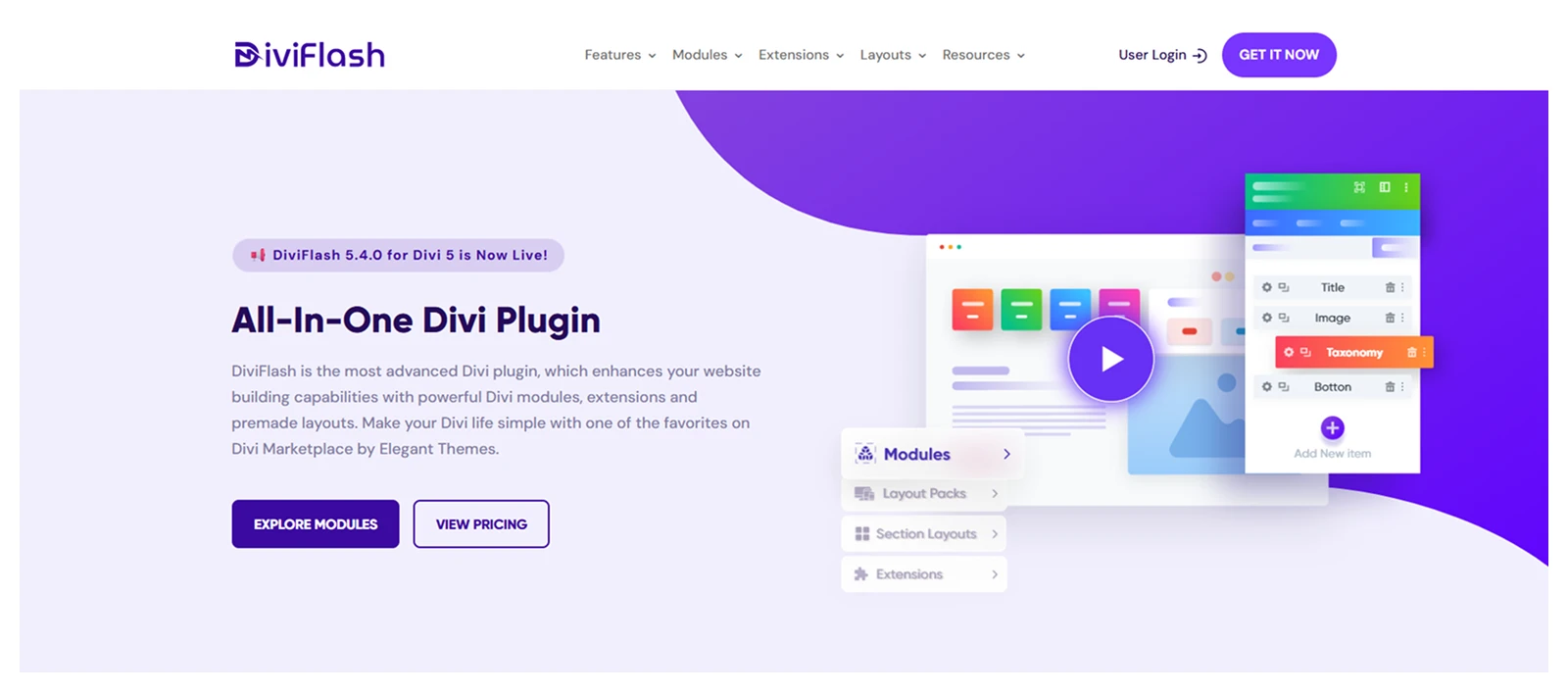
DiviFlash Reading Progress Bar is our top pick for Divi websites. It gives you detailed control over how progress appears, where it shows, and how it behaves across different devices.
You can choose between a horizontal progress bar and a circular indicator, control which parts of the page count toward progress, display the current percentage, and decide exactly where the indicator should appear.
All these makes it useful for blog posts, tutorials, documentation, landing pages, and other long-form Divi content.
Key Features of DiviFlash Reading Progress Bar
- Target the entire site, specific post types, pages, or posts
- Exclude the header and footer from progress calculations
- Add a custom suffix to the percentage value
- Adjust progress bar height, circle size, and stroke width
- Customize progress, track and percentage colors
- Control the z-index for proper layering
- Disable the indicator on desktop, tablet, or mobile
What We Liked Most
DiviFlash gives you plenty of control over the reading progress bar. You can adjust its appearance, position, progress calculation, visibility, and responsive behavior to match your Divi layout.
What Could Be Better
It is built specifically for Divi. If you use another page builder or theme, you will need a different solution.
Pricing
Reading Progress Bar is included with the DiviFlash pack and its pricing starts at $49 per year for one website.
Our Verdict
DiviFlash Reading Progress Bar is a strong choice for Divi users who want flexible progress bar placement, controls, and detailed customization. With 75+ modules and 20+ extensions, it also adds more value to your Divi toolkit.
Note: We also have a blog on how to display reading progress bar in Divi that you can explore.
Read Meter - Best Free Reading Progress Plugin
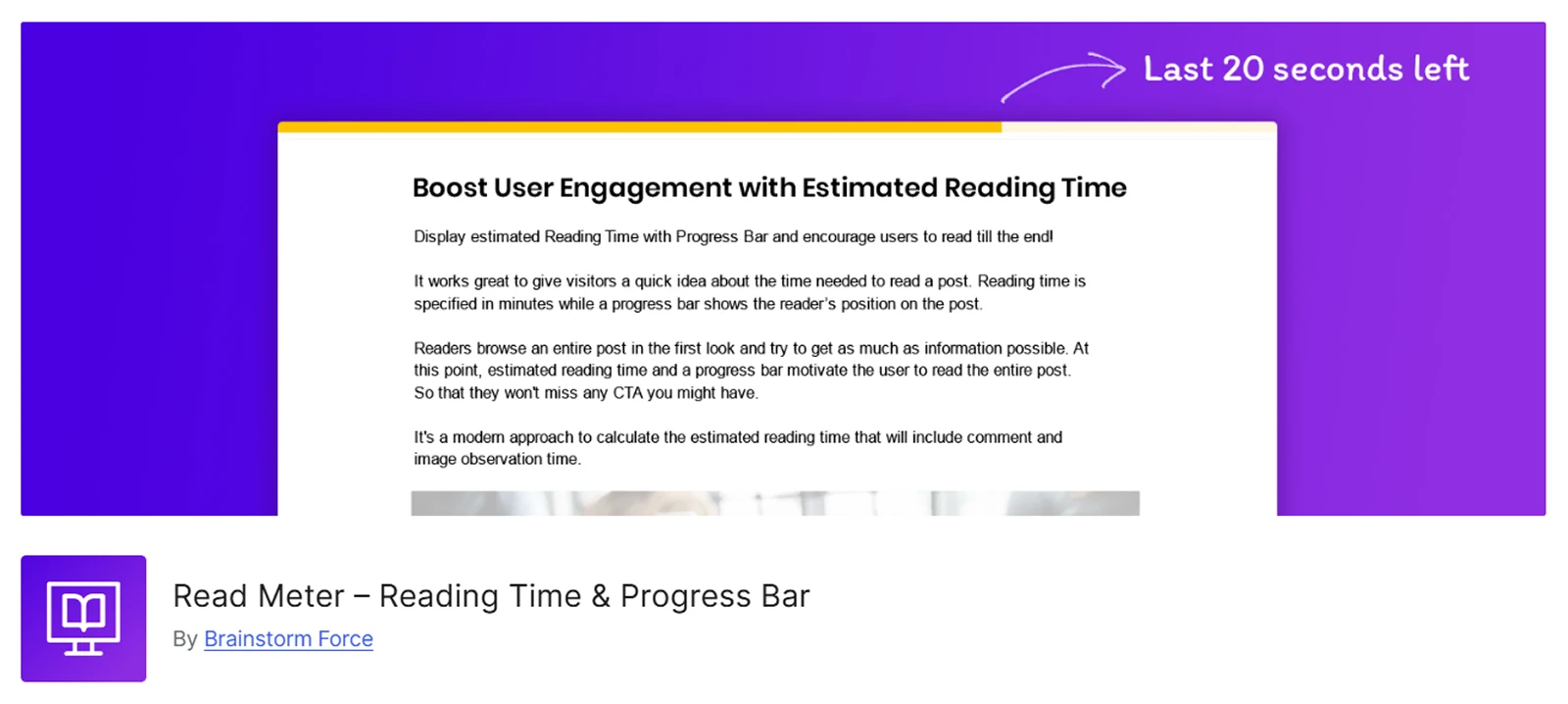
Read Meter is a simple choice if you want to show readers both how long a post may take to finish and how far they have already read.
You can place the progress bar at the top or bottom, change its colors and thickness, and even use a gradient style.
It also lets you decide whether images or comments should be included while calculating the estimated reading time. That means your readers will get a more realistic estimate based on the actual type of content in the post.
Key Features of Read Meter
- Display the progress bar at the top or bottom of the page
- Choose between normal and gradient progress bar styles
- Customize the bar’s primary, secondary and background colors
- Adjust the bar thickness to match your site design
- Enable the progress bar only on selected post types
- Support posts, pages, and custom post types such as Projects
- Turn the progress bar off completely when it is not needed
What We Liked Most
Read Meter keeps progress-bar setup simple without making it too limited. And beyond the progress bar, it also gives you a separate reading-time feature that you can use alongside the progress bar or on its own.
What Could Be Better
The progress bar only works on individual posts and pages, so you cannot use it on archive or blog listing pages. It is also limited to top or bottom placement.
Pricing
Read Meter is completely free and available from the WordPress plugin directory.
Our Verdict
Read Meter is a reliable free option for bloggers who need a straightforward progress bar with separate reading-time support and basic customization. It is also backed by Brainstorm Force and has 10,000+ active installations.
Reading Progressbar - Best for Flexible Progress Bar Placement
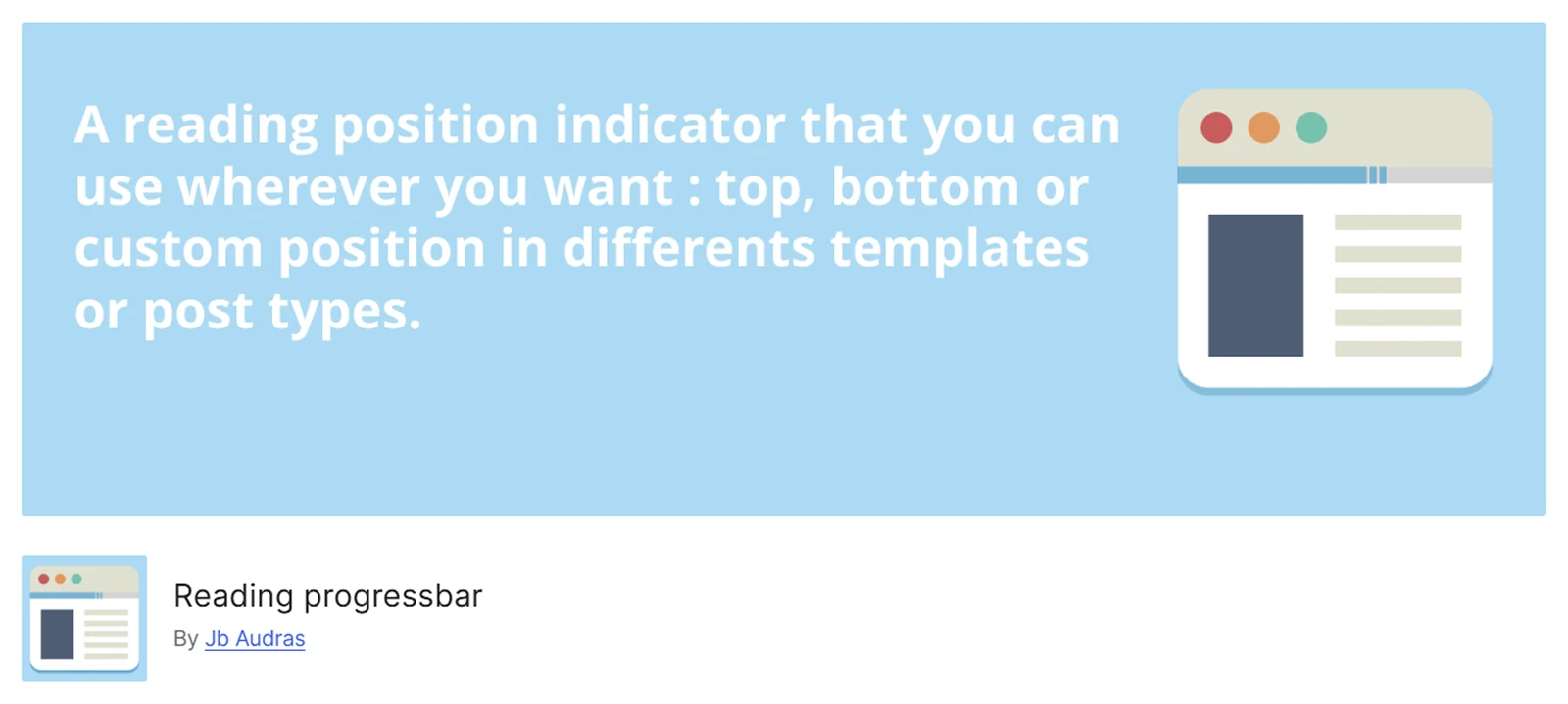
Reading Progressbar is a lightweight WordPress plugin built for one job: showing readers how far they have moved through a page. You can place the bar at the top, bottom, or a custom position and control where it appears across different templates and post types.
It uses the HTML5 <progress> element with only a small amount of JavaScript. That means it adds a reading progress indicator without loading a lot of extra code or unnecessary features.
Key Features of Reading Progressbar
- Set a custom height for the progress bar
- Customize foreground and background colors
- Place the bar at the top, bottom, or a custom position
- Attach a custom-positioned bar to a specific HTML class or ID
- Enable the bar on the front page or blog page
- Show it on archives, categories, and taxonomy pages
- Enable it on individual posts, pages, and custom post types
- Choose specific post types such as Posts, Pages, Media, or Projects
What We Liked Most
Its biggest advantage is where you can use it. Unlike plugins that only work on posts, Reading Progressbar also works on archive, taxonomy, blog, and front-page templates.
What Could Be Better
The custom position option may not work the same with every theme. You may need some CSS to place the bar correctly because it uses a fixed HTML element and absolute positioning.
Pricing
Reading Progressbar is available as a free WordPress plugin.
Our Verdict
Reading Progressbar is a good choice if you want a lightweight progress bar with support for more templates and flexible placement. Its 6,000+ active installations also show that it has a well-established user base.
Worth The Read - Best for Advanced Reading Progress Controls
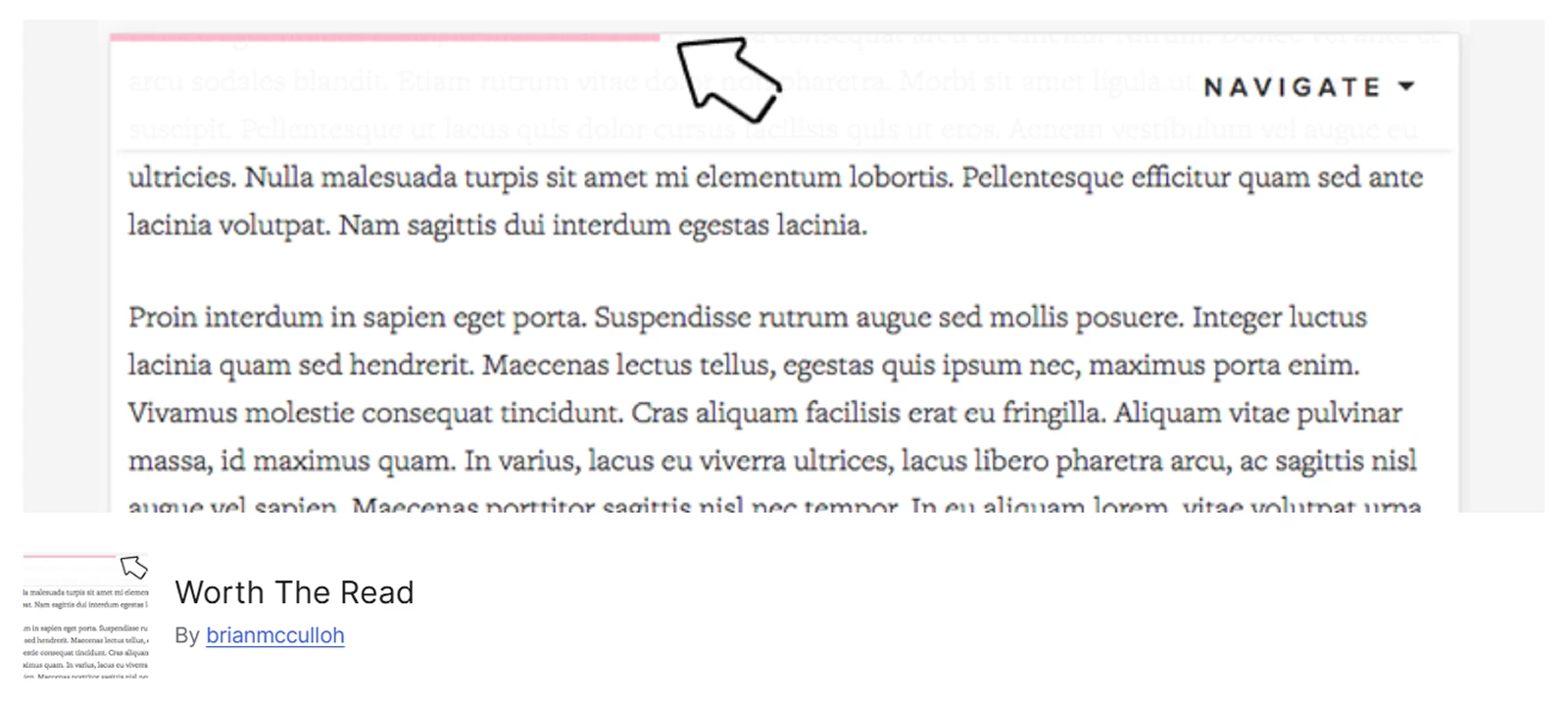
Worth The Read is a good fit if you want more control over how your progress bar looks and behaves.
You can place it at the top, bottom, left, or right, and add an offset so it does not clash with fixed headers or menus.
It also lets you include comments in the total progress and choose exactly where the bar appears, including specific posts, pages, and custom post types.
You can even control visibility for touch and non-touch devices, which gives you more flexibility across desktop and mobile.
Key Features of Worth The Read
- Support RTL progress direction for right-to-left websites
- Customize bar thickness, foreground color, background color, and opacity
- Use a transparent background for a cleaner look
- Set a separate muted color and opacity when scrolling stops
- Change the foreground color when readers reach the end of the content
- Control whether the bar appears on touch and non-touch devices
What We Liked Most
The bar adjusts its visibility based on scrolling. It appears when readers scroll, then becomes less noticeable when they stop or reach the end of the content. This keeps it useful without being distracting.
What Could Be Better
The progress bar only works with content added through WordPress’s the_content() function. This means some custom layouts or plugin-generated content may not work automatically.
Pricing
Worth The Read is completely free and available from the WordPress plugin directory.
Our Verdict
Worth The Read is a good choice if you want more control over the bar’s placement, behavior, and visibility. With 3,000+ active installations and a 4.3/5 rating, it also has an established track record among WordPress users.
WP Reading Progress - Best for Websites with Sticky Headers
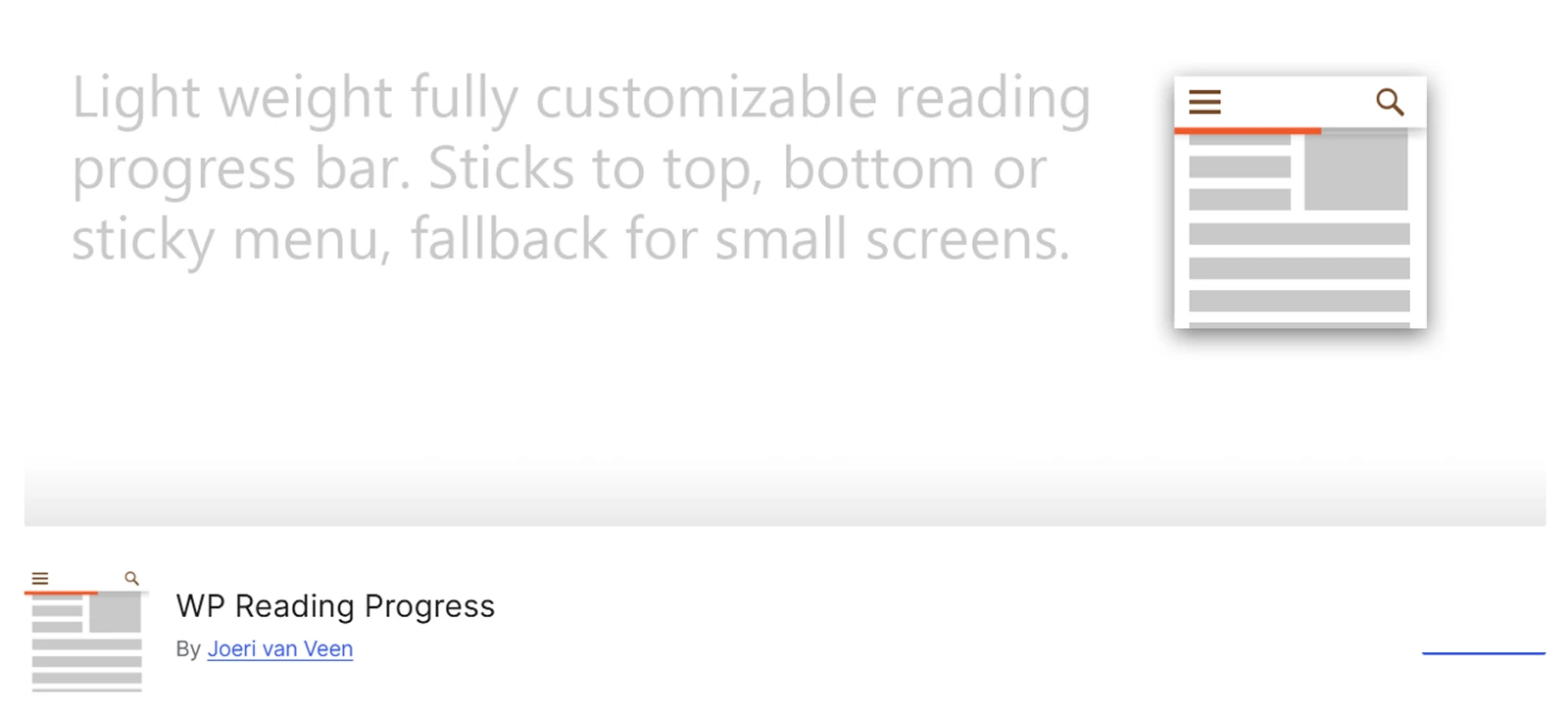
WP Reading Progress gives you more control over where the reading bar appears. You can place it at the top or bottom, or attach it to a fixed element like a sticky header using a CSS selector.
It can also move between multiple target elements and fall back to the top when none are visible. You can enable it for selected post types, archives, or individual posts.
On top of that, you can adjust the bar color, thickness, starting behavior, and ARIA label for better accessibility.
Key Features of WP Reading Progress
- Calculate progress from the article content or the whole page
- Enable the bar per post even when its post type is disabled globally
- Support native and custom post types
- Show the bar on post-type archive pages
- Use relative positioning when the default attachment becomes too wide
- Support right-to-left languages with dir="rtl" on the HTML tag
What We Liked Most
The sticky-element support stands out. You can attach the bar to a header or menu, so it stays in the right place as visitors scroll.
What Could Be Better
Custom placement depends on CSS selectors. A wrong selector can hide the bar, while some layouts may need extra positioning adjustments.
Pricing
WP Reading Progress is completely free and available from the WordPress plugin directory.
Our Verdict
Best for sites with sticky headers, because the bar can attach directly to them instead of being limited to the page edge. It also has 3,000+ active installations and is tested with current WordPress versions.
Catch Scroll Progress Bar - Best for Simple Visual Customization

Catch Scroll Progress Bar keeps things simple while giving you enough control to match your site’s design.
You can place the bar at the top or bottom and adjust its colors, opacity, height, and border radius. You can also choose where it appears, from the homepage and blog to archives, posts, pages, and supported custom post types.
The setup stays simple, making it a good choice if you want a polished progress bar without a long list of settings.
Key Features of Catch Scroll Progress Bar
- Set separate opacity levels for the foreground and background
- Add border radius for a softer, rounded look
- Display the bar on the homepage and blog page
- Show it on archives and category pages
- Enable it for selected post types
- Reset all settings from the plugin panel
What We Liked Most
The styling controls give a basic progress bar more personality. You can fine-tune its opacity and shape to better match your site.
What Could Be Better
You can only place the bar at the top or bottom. There are no options for custom placement or sticky-header positioning.
Pricing
Catch Scroll Progress Bar is completely free.
Our Verdict
Catch Scroll Progress Bar is a good fit for simple designs. It offers useful styling controls and broad page support without adding unnecessary complexity. It also has a 4/5 rating and is tested with current WordPress versions.
EA Reading Progress Bar - Best for Elementor Users
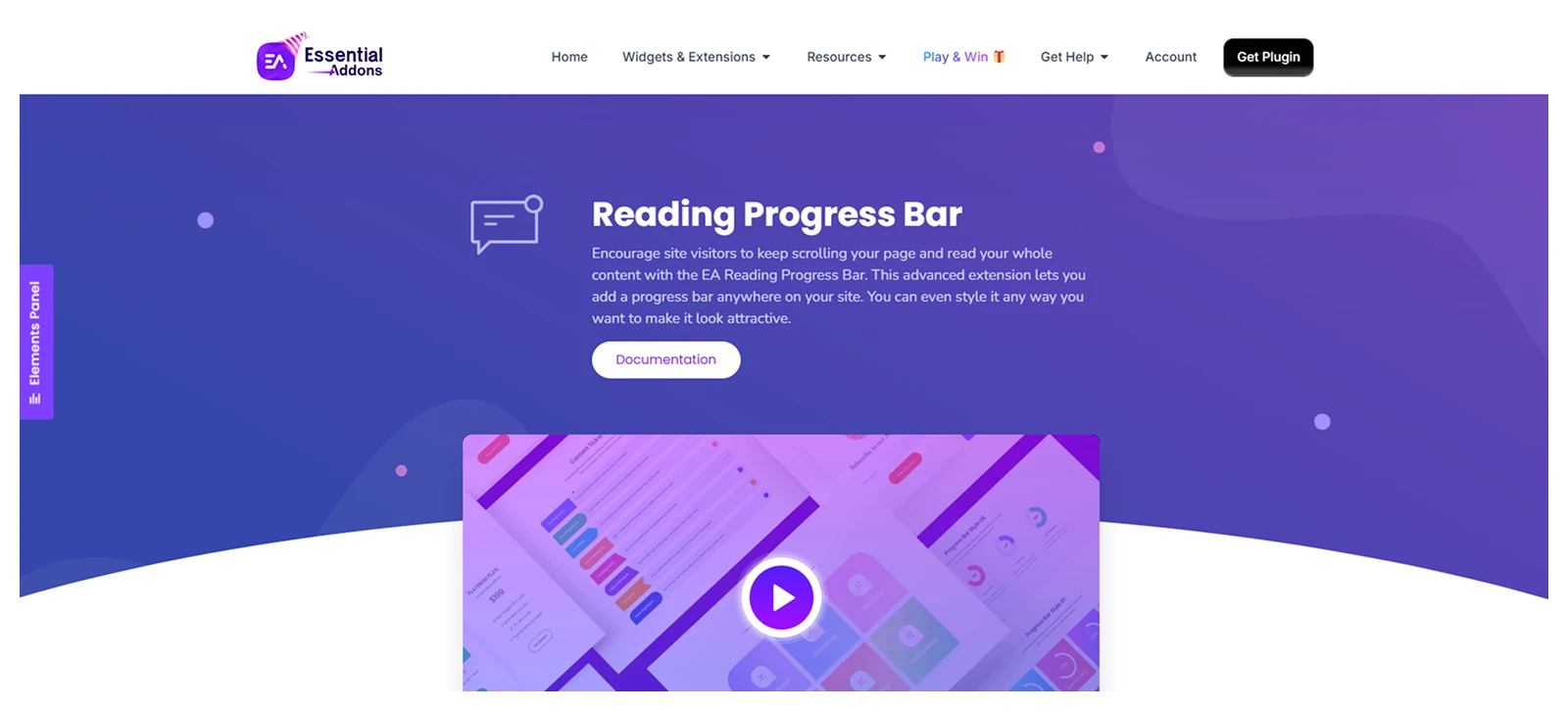
EA Reading Progress Bar is a practical choice for Elementor websites. You can manage it from the same Elementor settings you use to build your pages.
You can place the bar at the top or bottom, adjust its colors, and control the animation speed. A global option lets you apply it across the site, while individual page settings give you more control when needed.
Key Features of EA Reading Progress Bar
- Manage the bar from Elementor page settings
- Set a custom animation speed
- Apply it across the entire website
- Customize its colors to match your design
- Control it on individual pages when needed
- Support desktop, tablet, and mobile layouts
What We Liked Most
The reading progress bar is available in the free version of Essential Addons. You get useful progress controls without paying for a premium plan.
What Could Be Better
The progress bar is not available as a standalone plugin. You need to install Essential Addons just to use this feature, which may feel unnecessary if you do not need its other features.
Pricing
EA Reading Progress Bar is available for free with Essential Addons for Elementor. Premium plans add more widgets and extensions.
Our Verdict
EA Reading Progress Bar is a good choice for Elementor users who want a simple progress bar without paying extra for it. It’s also part of Essential Addons for Elementor, a widely used plugin suite with 1M+ active installations.
What to Look for in a WordPress Reading Progress Bar Plugin
- Accurate progress tracking: The percentage should reflect the content readers actually need to complete. DiviFlash’s reading progress bar lets you exclude the header and footer, while Worth The Read can include comments in the calculation.
- Flexible placement: Top and bottom placement works for most sites, but sticky headers may need more control. WP Reading Progress can attach to fixed elements, while Reading Progressbar supports custom placement through an HTML class or ID.
- Display control: Check where the bar can appear before choosing a plugin. Reading Progressbar and WP Reading Progress support archives and custom post types, while Read Meter focuses on individual posts and pages.
- Responsive behavior: The bar should remain clear and unobtrusive on smaller screens. DiviFlash’s reading progress bar provides separate visibility controls for desktop, tablet, and mobile.
- Design flexibility: If branding matters, look for a customizable progress bar with control over color, thickness, shape, opacity, and placement. DiviFlash offers circular progress indicators, while Catch Scroll Progress Bar adds opacity and border-radius controls.
- Maintenance and compatibility: Check the plugin’s WordPress.org listing for its update history, active installs, ratings, and WordPress compatibility. A plugin that has not been updated for a long time deserves extra caution on a live site.
- Lightweight setup: A progress bar should not add unnecessary complexity. Reading Progressbar uses the native HTML5 <progress> element with minimal JavaScript. If you already use DiviFlash or Essential Addons, their built-in progress bar can also save you from installing another plugin.
FAQ
What Is a Reading Progress Bar?
A WordPress progress bar is a visual reading position indicator that shows how far a visitor has moved through an article. It updates as readers progress through a post, helping them see how much content remains.
When Should You Add a Reading Progress Bar in WordPress?
Use a reading progress bar on long-form content such as blog posts, tutorials, guides, documentation, or lengthy landing pages where readers may benefit from seeing their progress.
Are Reading Progress Bars Mobile-Friendly?
Yes, most reading progress bar plugins work on mobile. However, you should still test the bar to make sure it does not overlap sticky headers, menus, or other mobile elements.
Do Reading Progress Bars Actually Help?
Yes, especially on long-form content. A progress bar gives readers a clear sense of how much content is left, which can make longer articles feel easier to finish. It also helps set expectations without interrupting the reading experience.
Do Reading Progress Bar Plugins Slow Down a WordPress Site?
Usually, the impact is small if the plugin is lightweight and loads its assets efficiently. Avoid plugins that add unnecessary scripts or styles across the entire site.
How Do You Add a Reading Progress Bar to a WordPress Website?
Install a reading progress bar plugin, enable it, choose where the bar should appear, customize its design, and select the pages or post types where you want to display it.
What Is the Difference Between Reading Time and Reading Progress?
Reading time estimates how long the content may take to finish, such as “5 min read.” Reading progress shows how much of the content the visitor has already completed.
Does a Reading Progress Bar Improve SEO?
Not directly. A reading progress bar is mainly a user-experience feature and does not automatically improve Google rankings.
Is There a Free WordPress Reading Progress Bar Plugin?
Yes. Several free options are available, including Read Meter, Reading progressbar, Worth The Read, WP Reading Progress, and Catch Scroll Progress Bar.
Can I add a reading progress bar without a plugin?
Yes. You can add a basic progress bar with HTML, CSS, and JavaScript. This keeps the setup lightweight, but you will need to maintain the code yourself if your theme or site structure changes.
Final Verdict: Which Reading Progress Bar Plugin Should You Choose?
The best reading progress bar plugin depends on how your WordPress site is built and how much control you need over placement, styling, and tracking.
| If You Need... | Choose |
| Best option for Divi | DiviFlash Reading Progress Bar |
| Best standalone all-round option | Read Meter |
| A lightweight progress bar | Reading progressbar |
| Advanced progress bar controls | Worth The Read |
| Sticky-header support | WP Reading Progress |
| Simple page/post display controls | Catch Scroll Progress Bar |
| Best option for Elementor | EA Reading Progress Bar |
For Divi websites, DiviFlash is our first choice. It’s one of the best Divi plugins that offers horizontal and circular indicators, percentage display, responsive controls, and better control over what counts toward progress.
For a regular WordPress blog, Read Meter is easier to recommend if you want a straightforward free progress bar with enough styling options and a separate reading-time feature.
Choose Reading Progressbar if keeping things lightweight matters most, or Worth The Read if you want deeper control over placement, scroll behavior, opacity, and visibility.
If your site uses a sticky header, WP Reading Progress is particularly useful because the bar can attach directly to a fixed element instead of being limited to the edge of the screen.


0 Comments