


To add animated number counter in Divi, you will need a plugin like DiviFlash that has an Animated Number Counter module. It lets you display numbers with rolling, odometer, count-up, and typewriter effects.
Although you can also use Divi’s default Number Counter module, it only offers a count-up animation. Such style will not create enough visual impact to make important statistics stand out.
That’s why using a plugin will be the smart move. In this guide, we will show you how to add animated number counter in Divi by applying each DiviFlash animation style.
Let’s get started.
Our Created Animated Number Counter Demo Design
Have a look at the demo below, where each number uses a different animation style. It’s a pre-made animated number counter demo design from DiviFlash.

Required Setup
To create a similar demo like ours, make sure you have these set up on your website:
- Latest version of Divi (Divi 5) is installed and activated.
- DiviFlash version 5.2.0 or higher is installed and activated.
Step 1: Design the Structure & Add Modules
Open the page or post with the Divi Visual Builder. Then follow the steps below to create a layout similar to our demo design:
- Add a row with three columns.
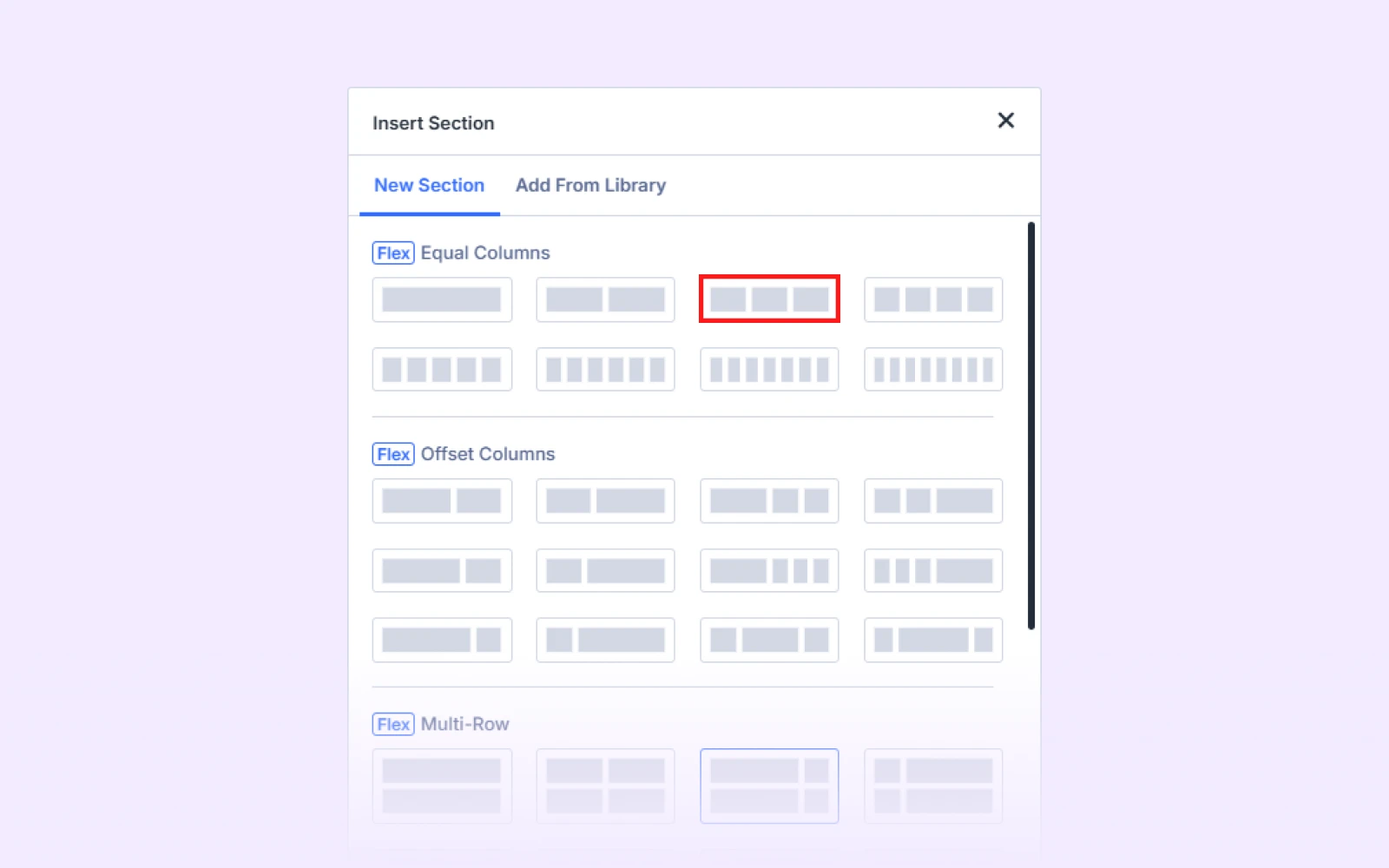
- Add Group module to each column. In the second column, add two separate Group modules.

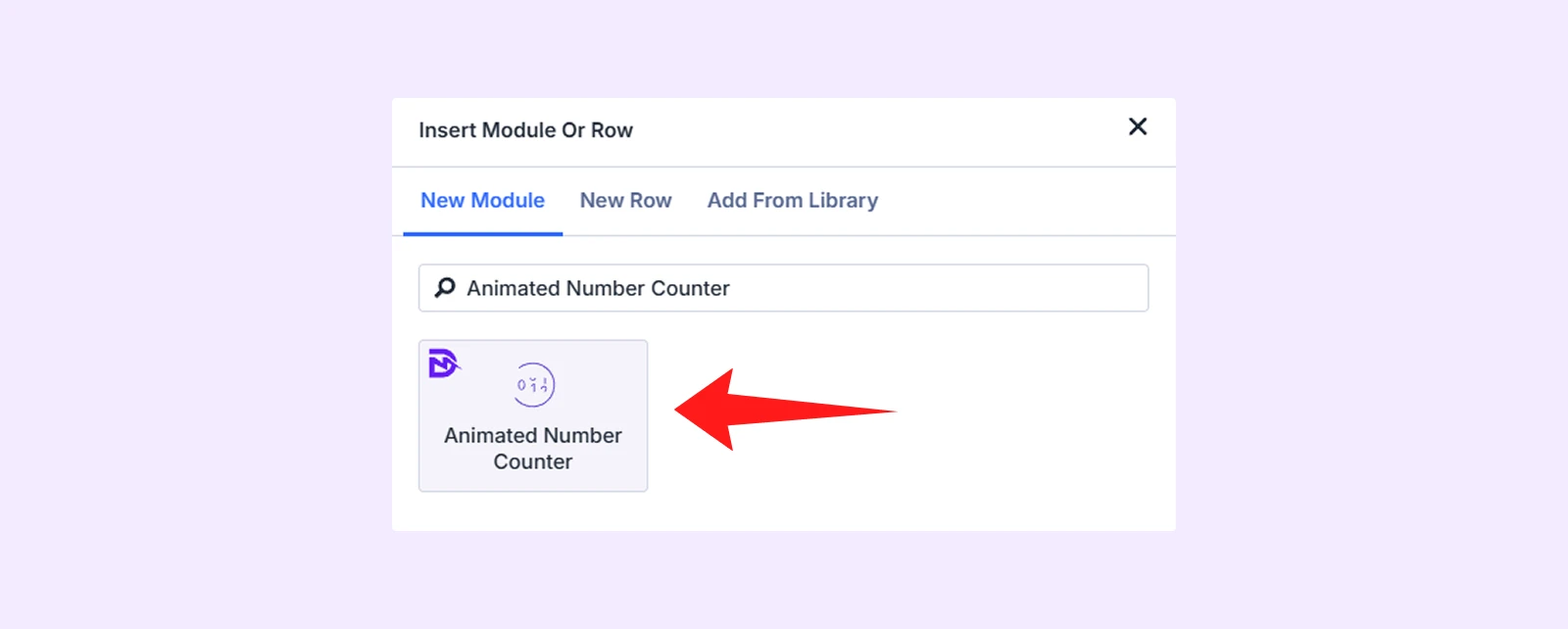
- Insert Animated Number Counter module inside each Group module. (Cannot find the module? go to WordPress Dashboard > DiviFlash > Modules and enable Animated Number Counter.)
- Add supporting Text and Image modules to match the demo.
- Customize the columns, Group modules, and supporting modules to complete the layout.
Step 2: Apply the Animation Effects
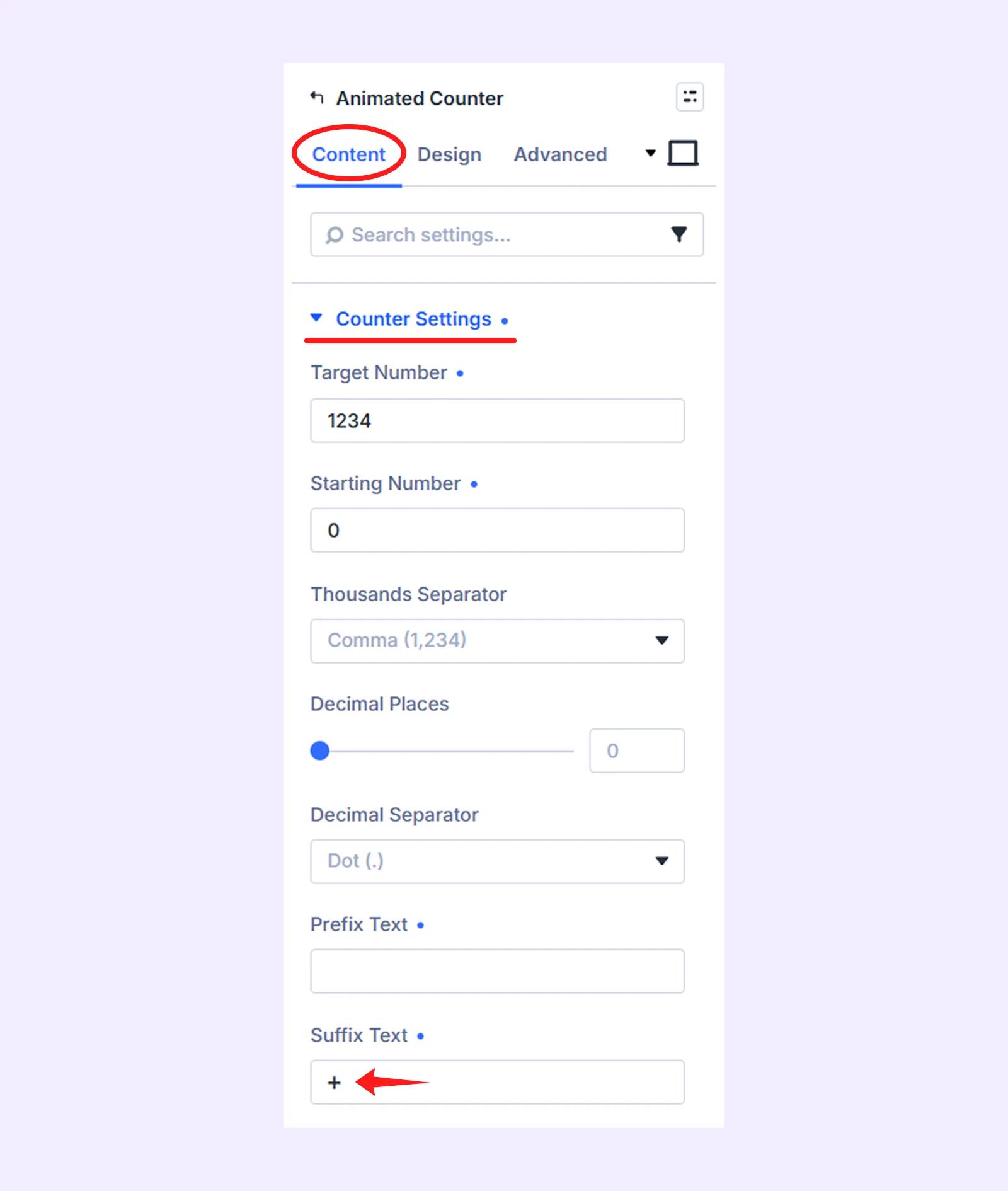
Click the settings icon of each Animated Number Counter module and configure these two settings:
- Counter Settings: Set the Starting Number (for example, 0), Target Number (for example, 500), and Suffix Text (for example, +).
- Animation: Select the effect and adjust its behavior. Here is how to apply each animation effect:
2.1 Add the Rolling Effect
Open the Animated Number Counter module in the first column. Then, go to Content > Animation and apply:
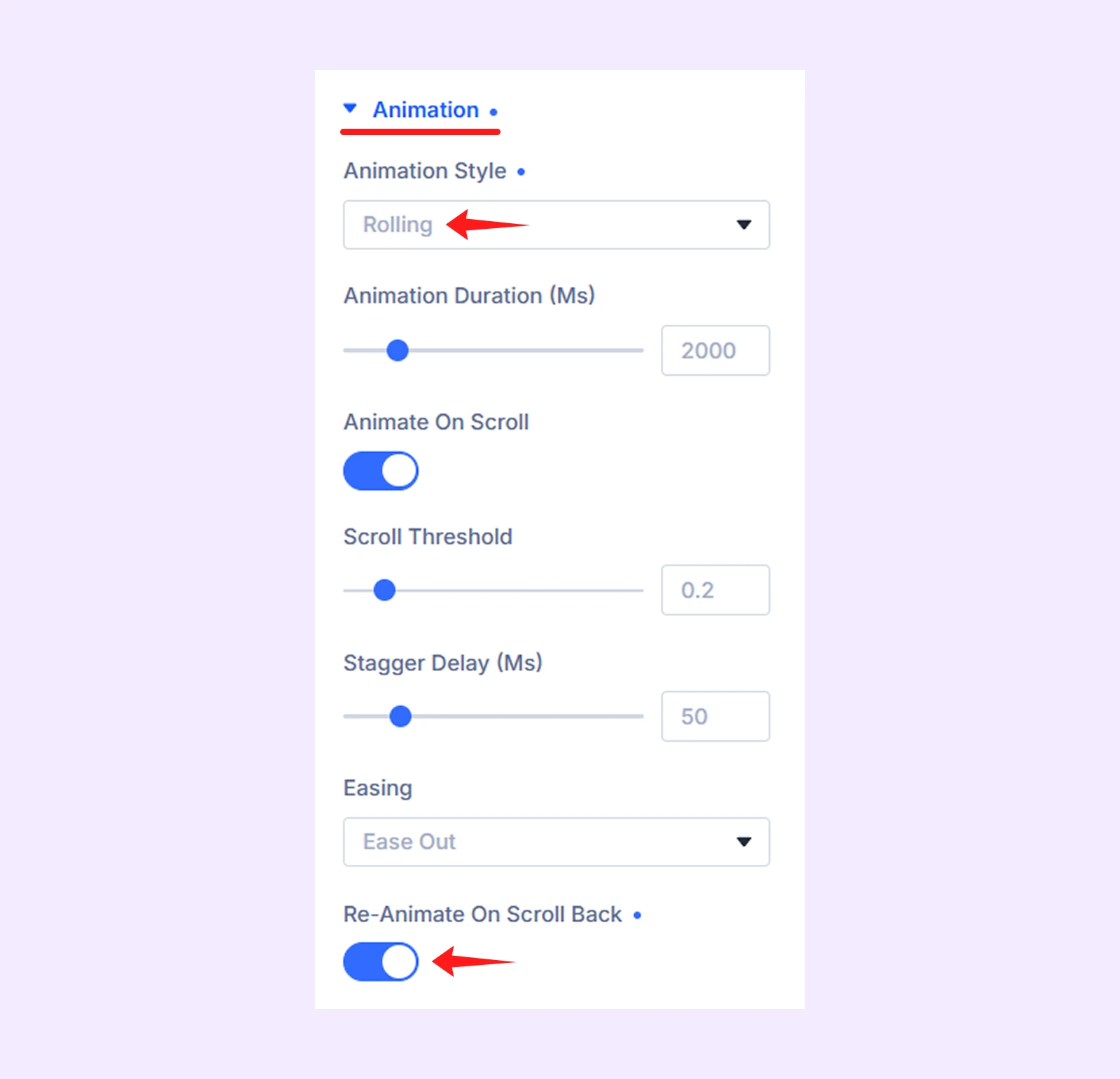
- Animation Style: Rolling
- Re-Animate On Scroll Back: On
2.2: Add the Typewriter Effect
Open the module inside the first Group module of the second column. Then, go to Content > Animation and apply:
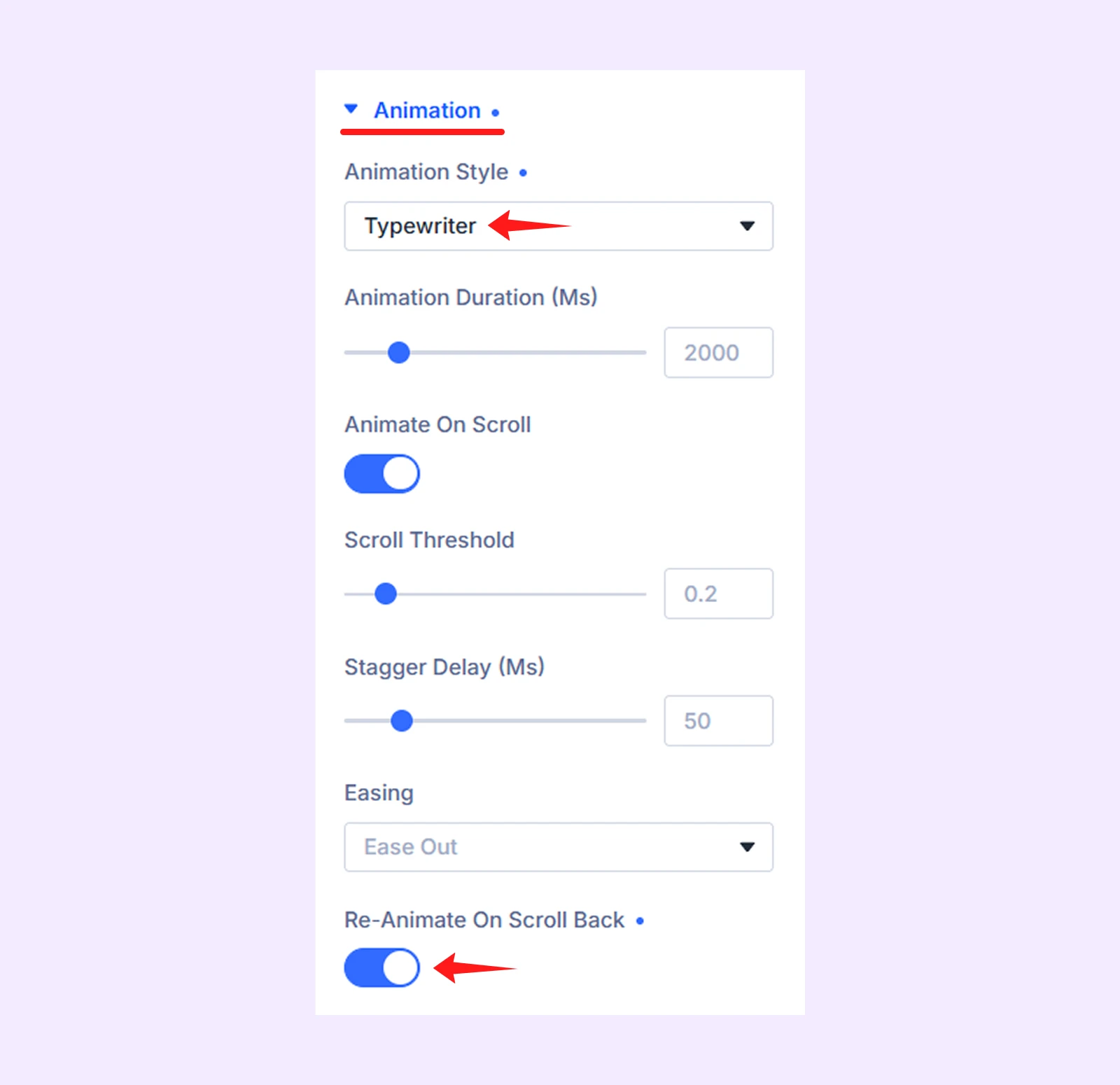
- Animation Style: Typewriter
- Re-Animate On Scroll Back: On
2.3: Add the Count Up Effect
Open the module inside the second Group module of the second column. Then, go to Content > Animation and apply:
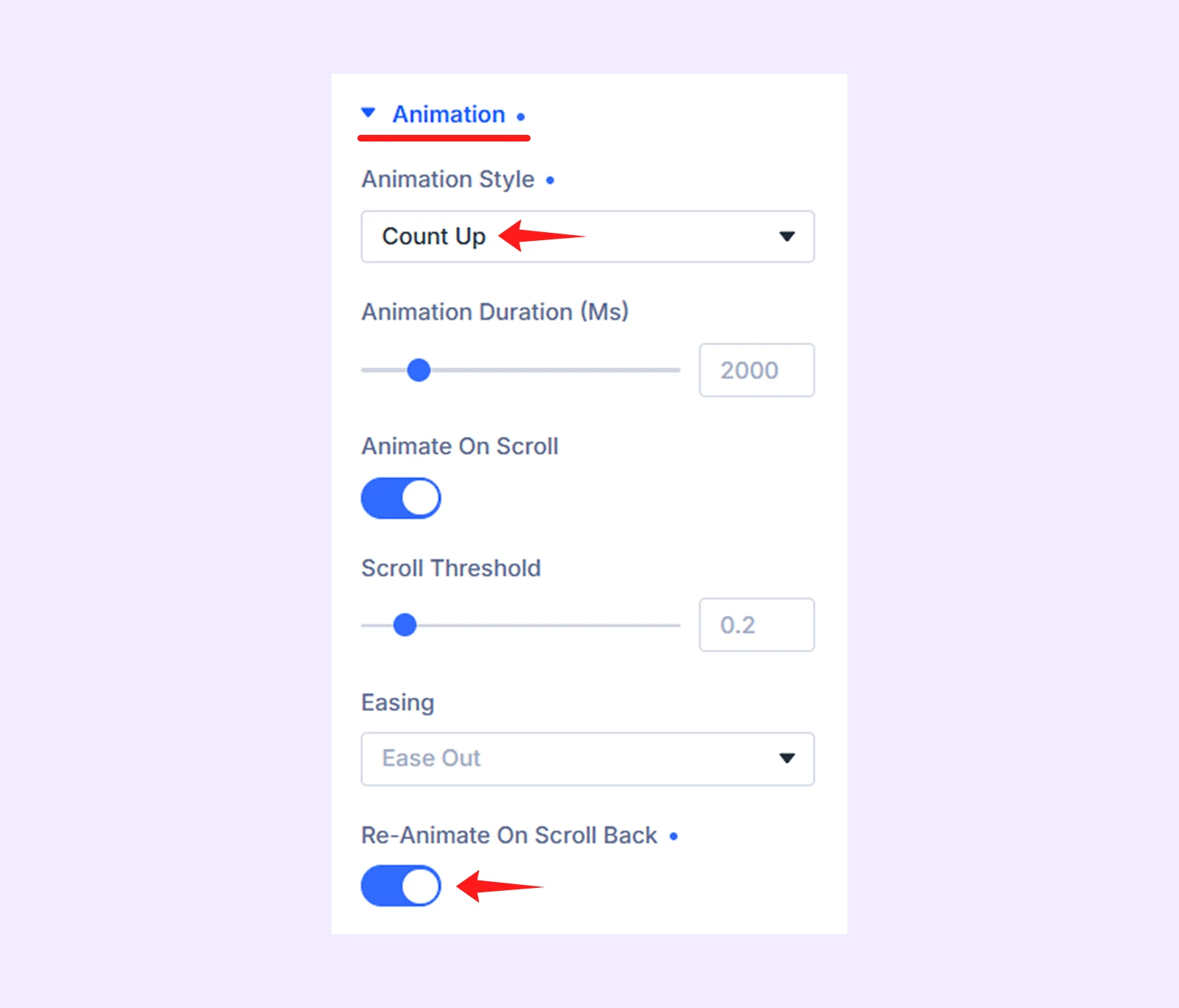
- Animation Style: Count Up
- Re-Animate On Scroll Back: On
2.4: Add the Odometer Effect
Open the Animated Number Counter module in the third column. Then, go to Content > Animation and apply:
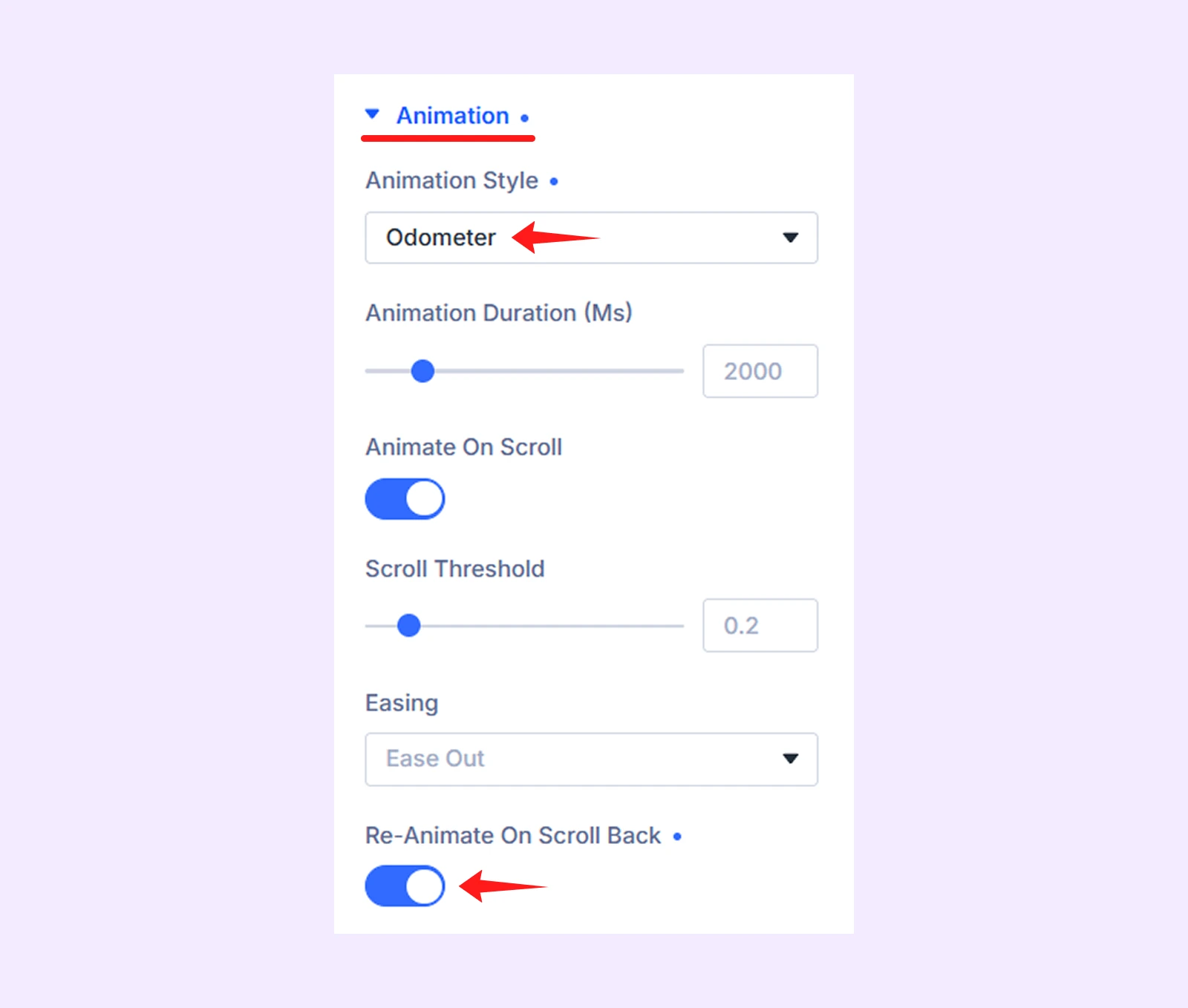
- Animation Style: Odometer
- Re-Animate On Scroll Back: On
Step 3: Style Number Counters Appearance
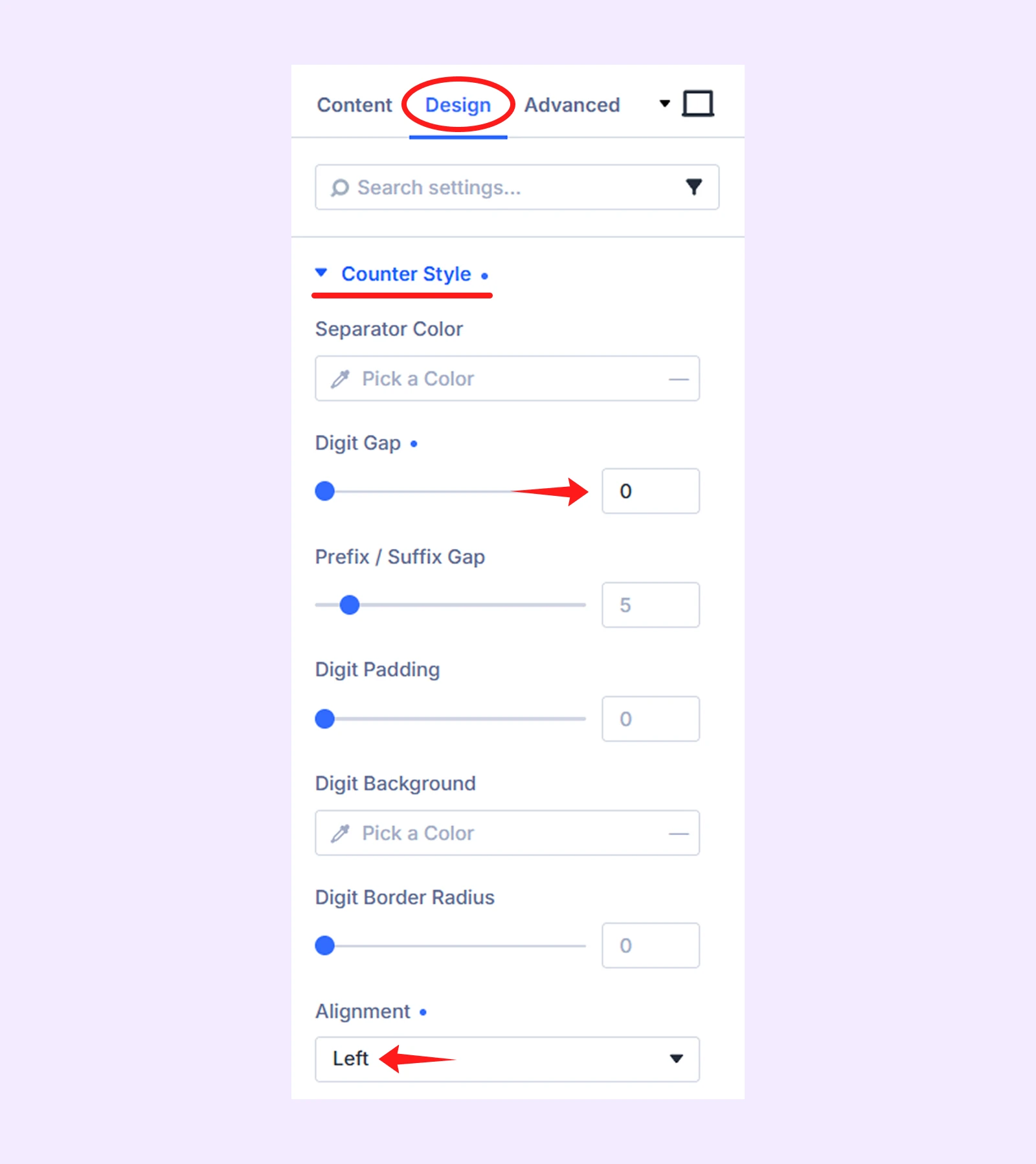
After configuring the animations, open each Animated Number Counter module and go to the Design tab.
3.1: Adjust the Counter Style
Open Counter Style and set:
- Digit Gap: 0
- Alignment: Left
3.2: Customize the Typography
Click on Typography in the Design tab and use the Number Font and Suffix Font settings to customize:
- Font
- Size
- Weight
- Color

Step 4: Customize Other Modules’ Appearance
Next, customize the additional modules used alongside the Animated Number Counter, such as the Text and Image modules.
Step 5: Save and Publish
Once you are satisfied with the design and animations, save your changes and publish the page.
Final Thoughts
In this guide, we showed you how to add an animated number counter in Divi using four different effects. We used DiviFlash because its Animated Number Counter module provides rolling, odometer, count-up, and typewriter animations.
While Divi’s default Number Counter module is suitable for a basic count-up effect, DiviFlash is a better choice when you need multiple effects.
Moreover, DiviFlash also has a module for countdown timer that lets you create evergreen countdown, fixed date, recurring and count up timers. So if you wish to add a countdown timer alongside your animated counters, DiviFlash has you covered as well.


0 Comments