

There are two ways to get X (Twitter) content onto a Divi page: a dedicated module like DiviFlash X (Twitter) Feed, or X's own embed codes.
You can try both but the plugin method gives you more control, easier setup, and design flexibility inside Divi, while X embed codes are simpler but offer limited control.
In this guide, we will show you how to embed Twitter feed in Divi with and without a plugin.
Let’s get started.
Method 1: Embed X Feed in Divi with Plugin (Beginner Friendly)
DiviFlash’s X Feed module lets you easily display X (Twitter) content on your Divi website without dealing with manual embed codes.
Here is the step by step process.
Step 1: Install DiviFlash (or update to 5.1.0 or Higher)
Get DiviFlash from its official website, then install and activate it like any other premium WordPress plugin. (If you already use DiviFlash, just update to the version 5.1.0 or higher)
Step 2: Copy the X Content URL or Username
Now go to X and copy the content details you want to display.
- To display a post (tweet): Copy your post’s URL
- To display a share button: copy the URL you want to share
- To display a follow button: Copy the user name
Note: Make sure the account or post is public, or it will not display properly.
Step 3: Initiate X Feed Module
- Open the Divi Visual Builder, then:
- Add a Section, Row and Column
- Search for “X Feed”
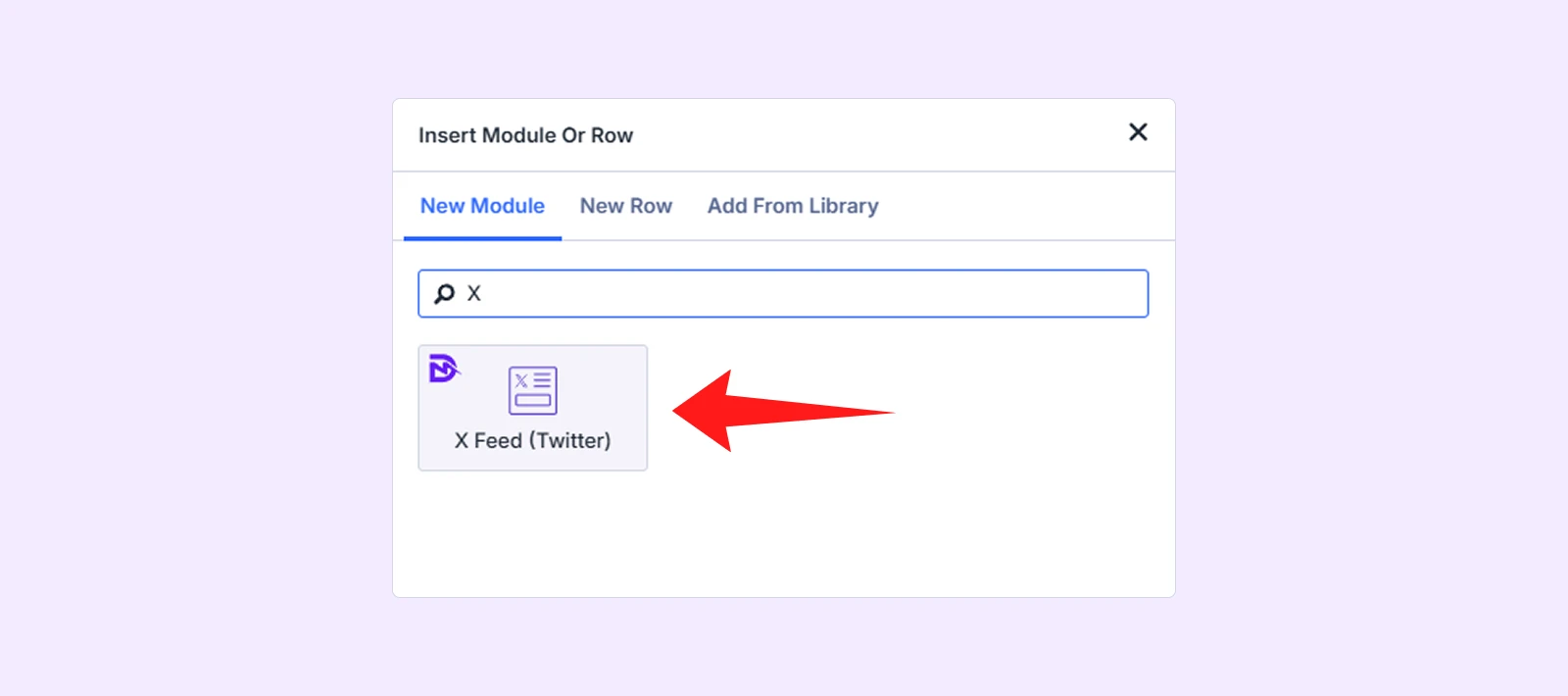
Note: If you cannot find the module, go to WordPress Dashboard > DiviFlash > Modules and toggle on X Feed
Step 4: Choose the Plugin Type
In the module settings, go to the Content Tab and click on the Plugin Type. And then choose one of the available options:
- Tweet/Post: shows a single X post on the page
- Follow Button: lets visitors follow your account in one click
- Share Button: lets visitors share a specific URL to X
Step 5: Add the Required Details
Based on your selected plugin type, you will see settings related to that option. Here is what you will get for each type.
- If you choose Tweet/Post: You can configure Language, Alignment, Tweet URL, Theme (light/dark), Media Cards (toggle images and video on/off), Width.
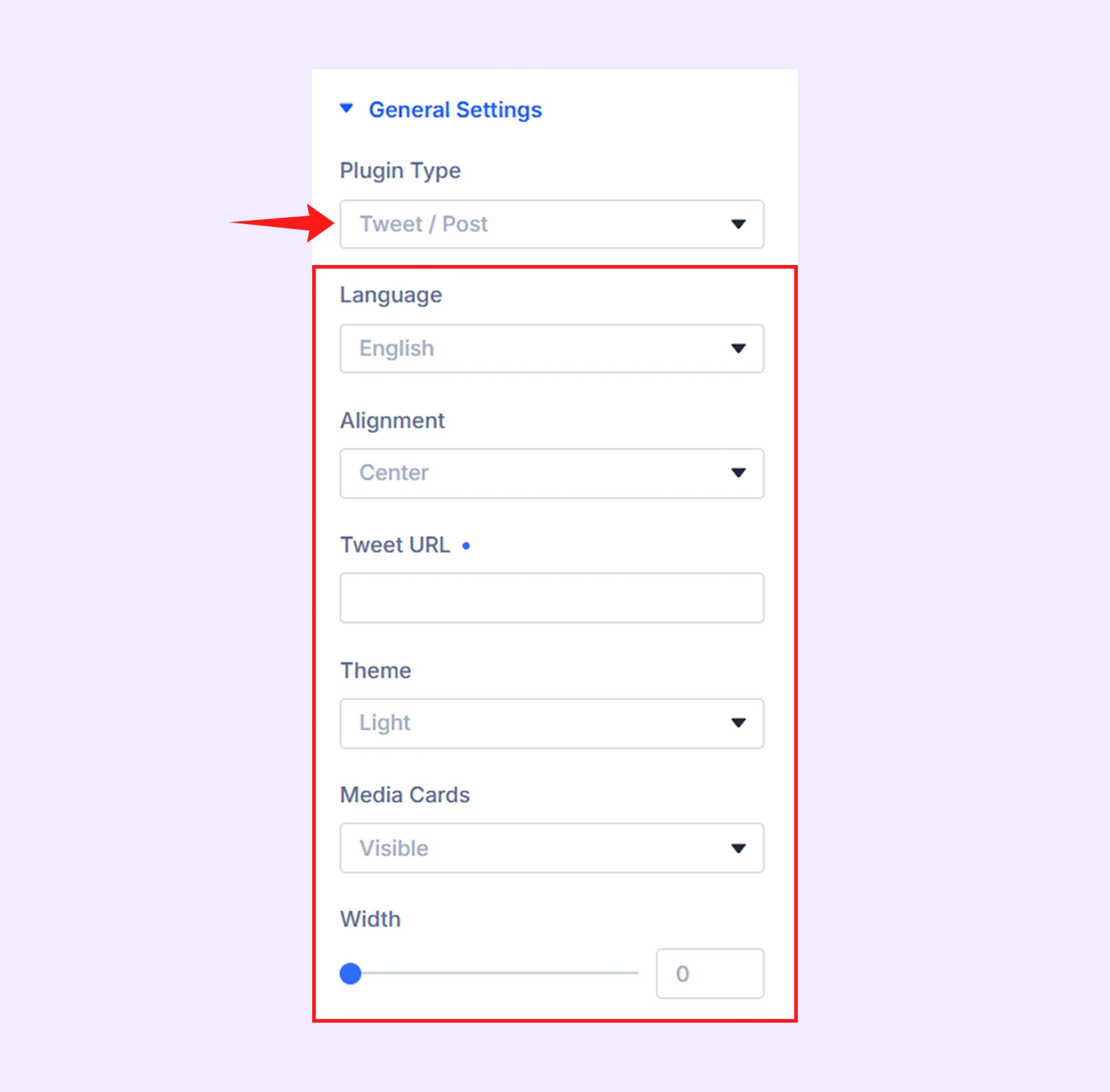
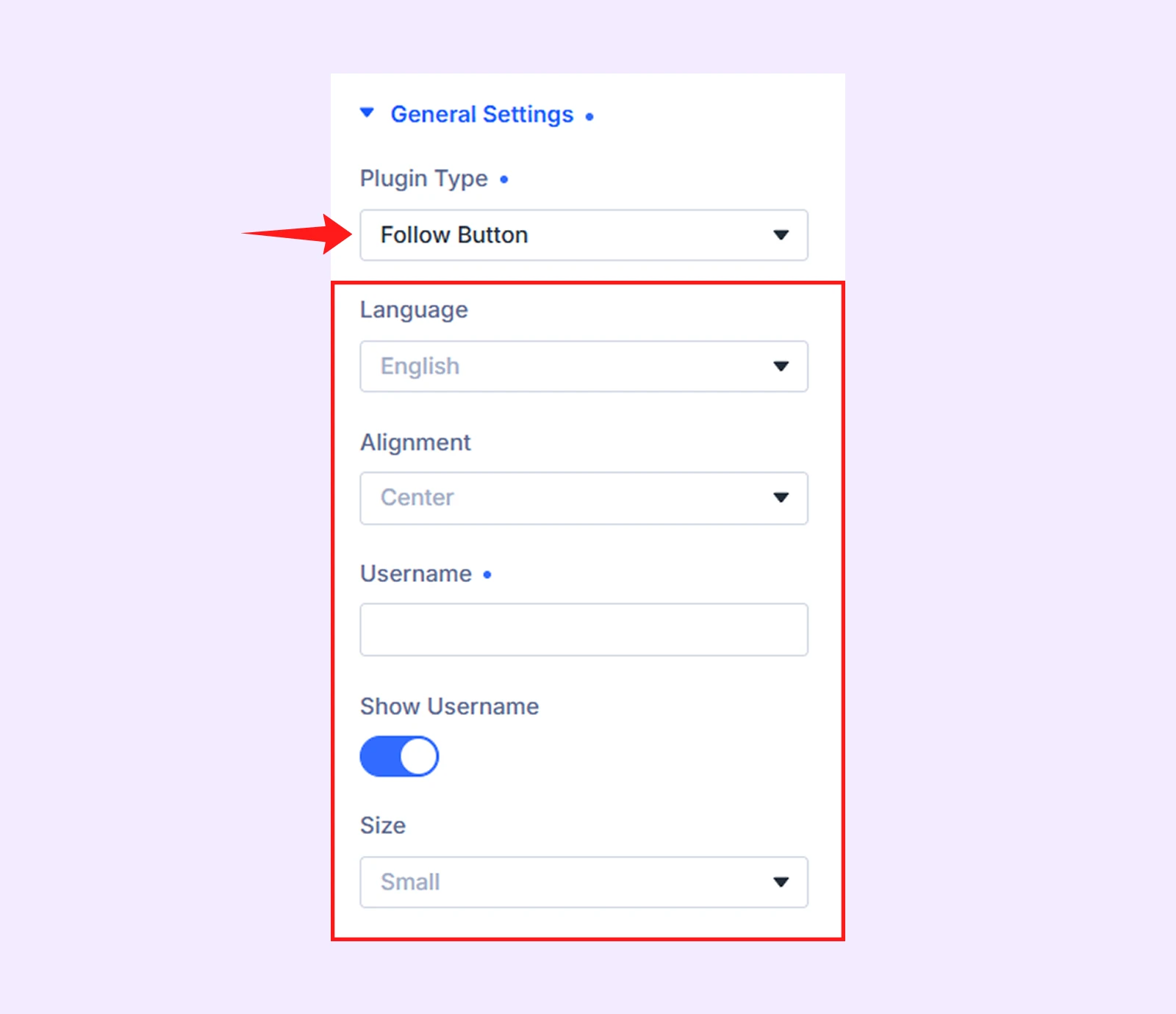
- If you choose Follow Button: You can configure Language, Alignment, Username, Show Username (toggle the @handle on/off), Size.
- If you choose Share Button: You can configure Language, Alignment, URL to Share, Pre-Filled Text, Hashtags, Via (the account credited as the source), Size.
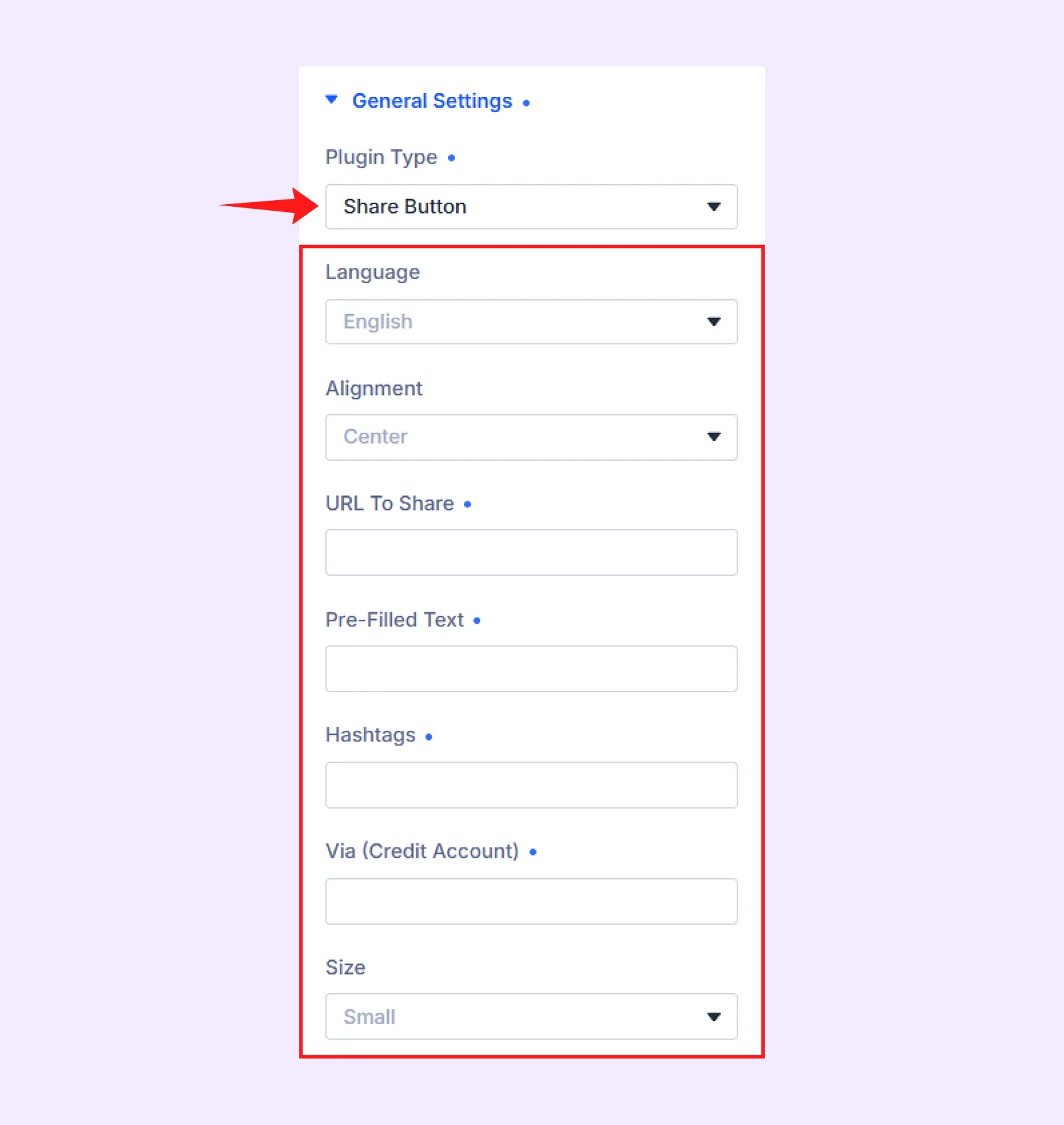
Step 6: Customize the Design
Navigate to the Design tab and this is where you match the module to the rest of your page.
Step 7: Save and Publish
Save, exit the Visual Builder, and load the front end. The X content should be live.
Note: You can check the demo page to see real examples of X (Twitter) feed layouts and how each option looks when used on a website.
Method 2: Embed Twitter/X Feed Using X’s Official Embed Tool
Using X’s (formerly Twitter) official embed tool, you can embed different types of content, including posts, videos, timelines, buttons, and broadcasts.
Here is how to do it:
Step 1: Copy the Content URL
Go to X and copy the URL of the content (video, post, timeline, button, or broadcast.) For example, you want to embed a video, copy it’s URL.
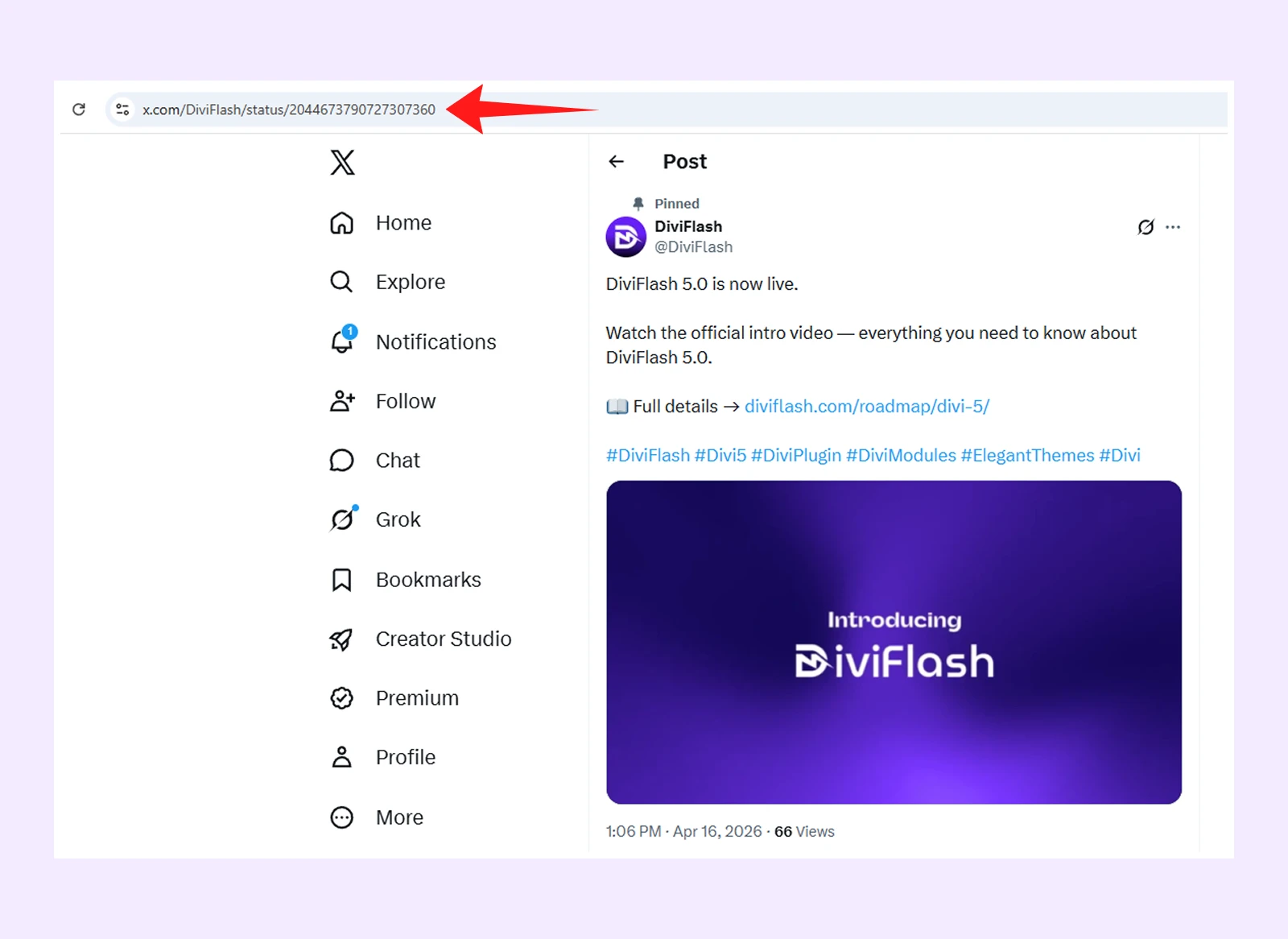
Step 2: Open X’s Official Embed Tool
Navigate to X Publish and choose the type of content you want to embed. Clicking an option will open a popup where you can paste the URL you copied earlier.
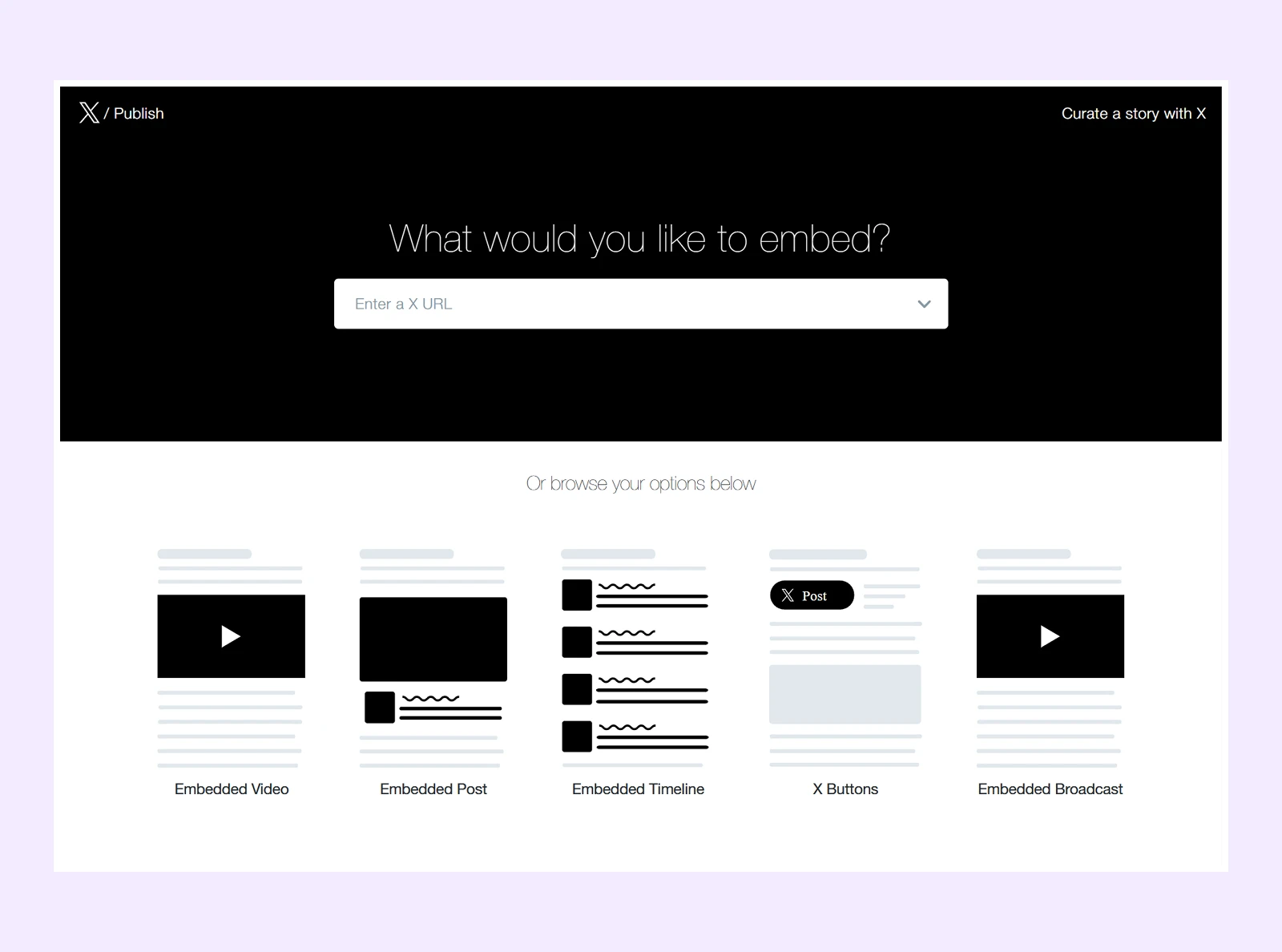
Step 3: Copy the Generated Embed Code
After pasting the URL, X will generate a ready-to-use embed code. Simply click “Copy Code.”
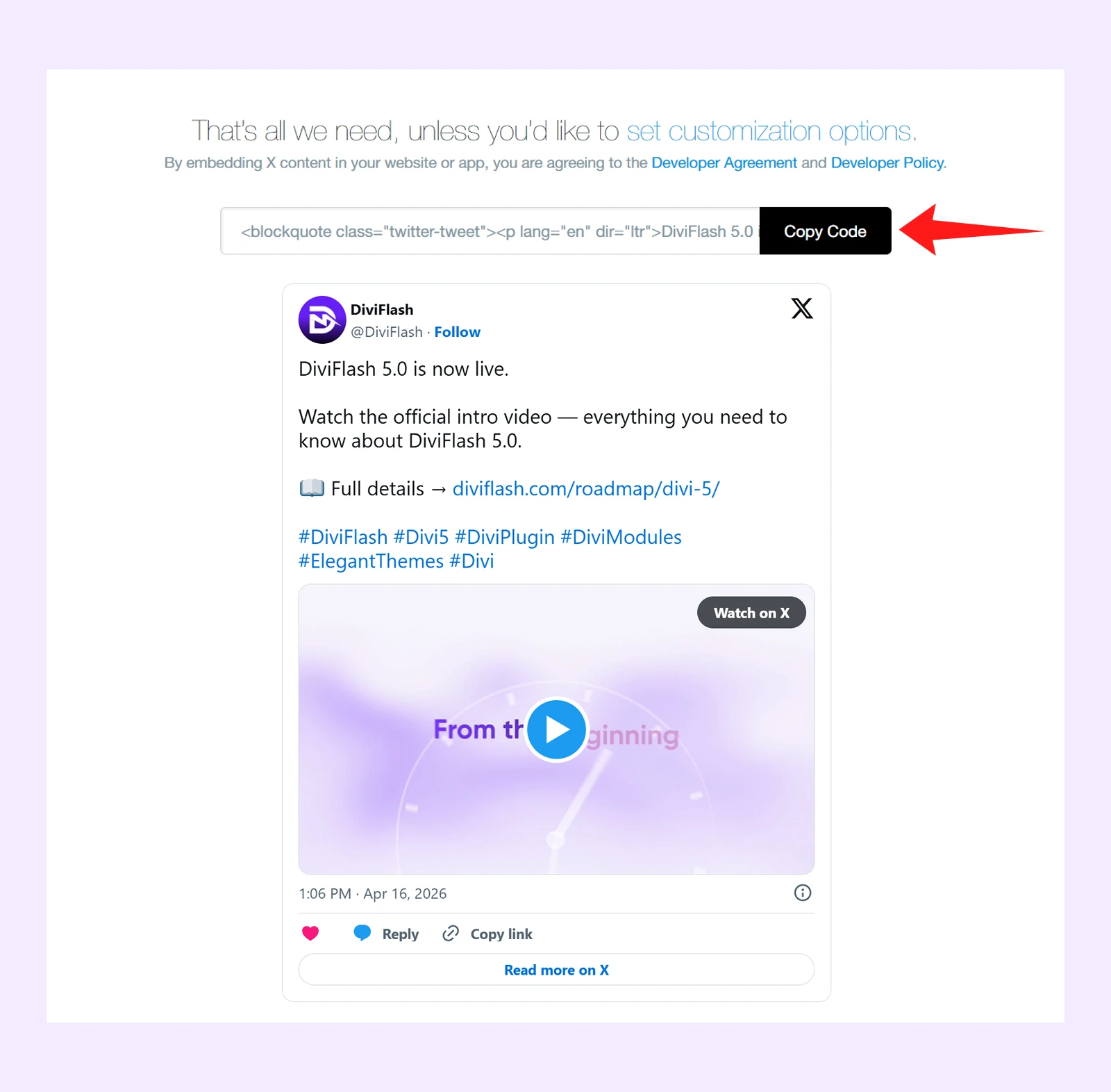
Note: The “set customization options” section lets you adjust the appearance of the embed, such as its theme, height, and display settings.
Step 4: Paste the Code into Divi
- Open your page in the Divi Visual Builder.
- Add a Code Module, paste the embed code, then save and publish your page.
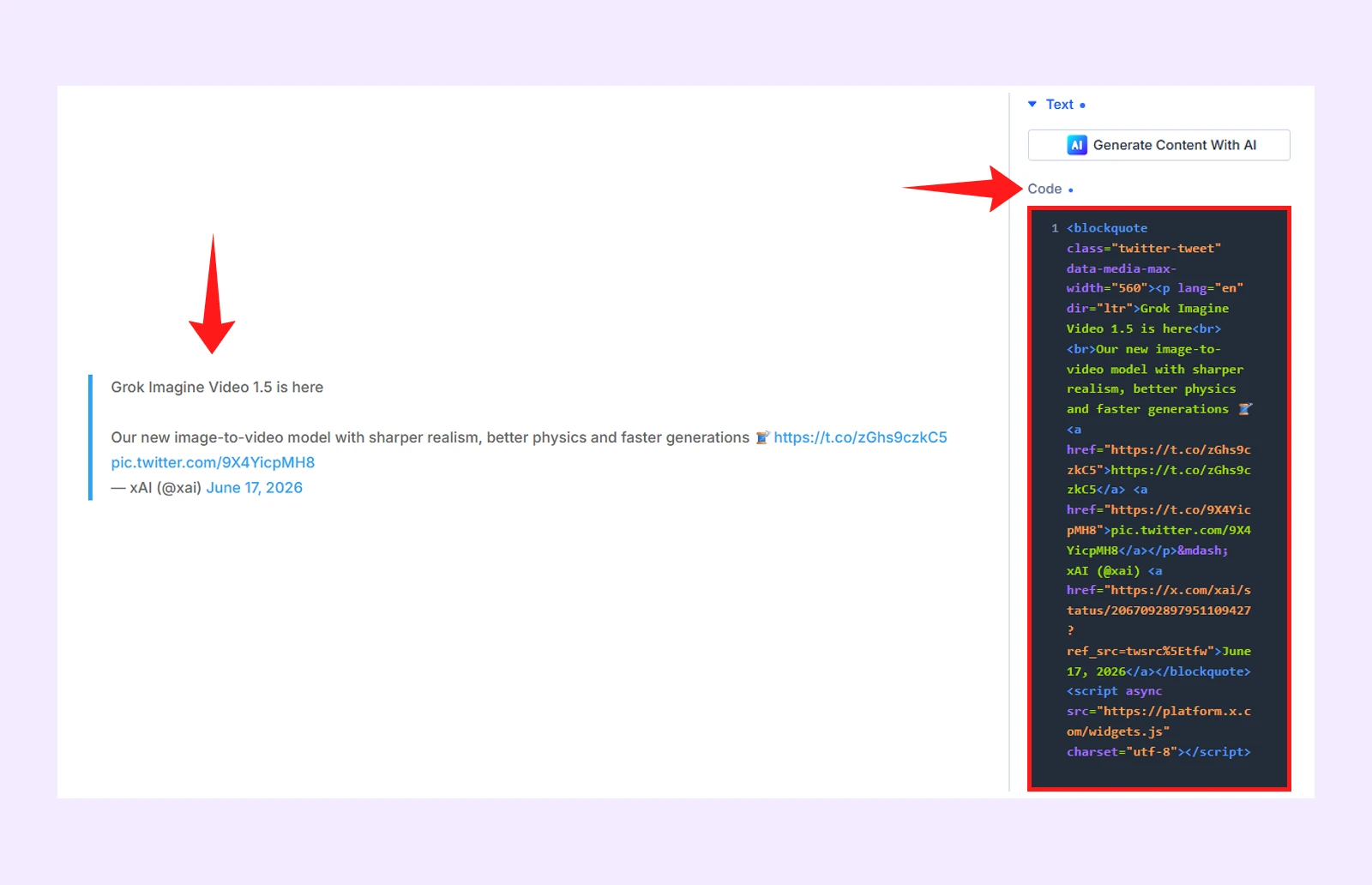
Your X content will now be embedded and visible to visitors on the front end of your website.
Note: X timeline embeds may not always render properly. If you only see “Posts by username,” the widget script is not loading the full timeline. Try clearing cache, and disabling JavaScript optimization.
Final Thoughts: Which Method Should You Choose?
You can use X’s official embed tools if you only need to add a single post, video, button, or timeline and don’t mind handling everything manually. But keep in mind that the timeline embed may not always render properly
And for a smoother Divi workflow, DiviFlash’s X Feed module is a better option. It makes embedding and managing X content much easier without switching between different embed tools.
Moreover, this module also lets you control design, layout, and display settings directly inside Divi for a more flexible and consistent look.
If you also want to add Facebook feed, you can check our guide on embedding Facebook feed in Divi.


0 Comments