

You can use Facebook’s page plugin tool to embed a full page with tabs like timeline, events and messages. And to embed posts or videos, you have to copy its embed code.
As you can see the process is a bit confusing as you have to switch between different embed methods.
However, you can simplify everything with DiviFlash’s Facebook Feed. It lets you manage all Facebook content from one place and gives you extra features like language and alignment controls, lazy loading, and easy design customization.
In this guide, we will show you how to embed Facebook feed in Divi step by step using both the plugin and manual methods.
Let’s get started.
Method 1: Embed Facebook Feed in Divi Using the DiviFlash Plugin
DiviFlash’s Facebook Feed module gives you the easiest way to embed any type of Facebook content, like pages, posts, videos, or reels, into your Divi website.
Here is how:
Step 1: Install DiviFlash (or update to 5.1.0 or Higher)
Get DiviFlash from its official website, then install and activate it like any other premium WordPress plugin. (If you already use DiviFlash, just update to the version 5.1.0 or higher)
Step 2: Copy the link of page, post, & video
Go to Facebook and open the content you want to embed (Page, Post, or Video), then copy its URL.
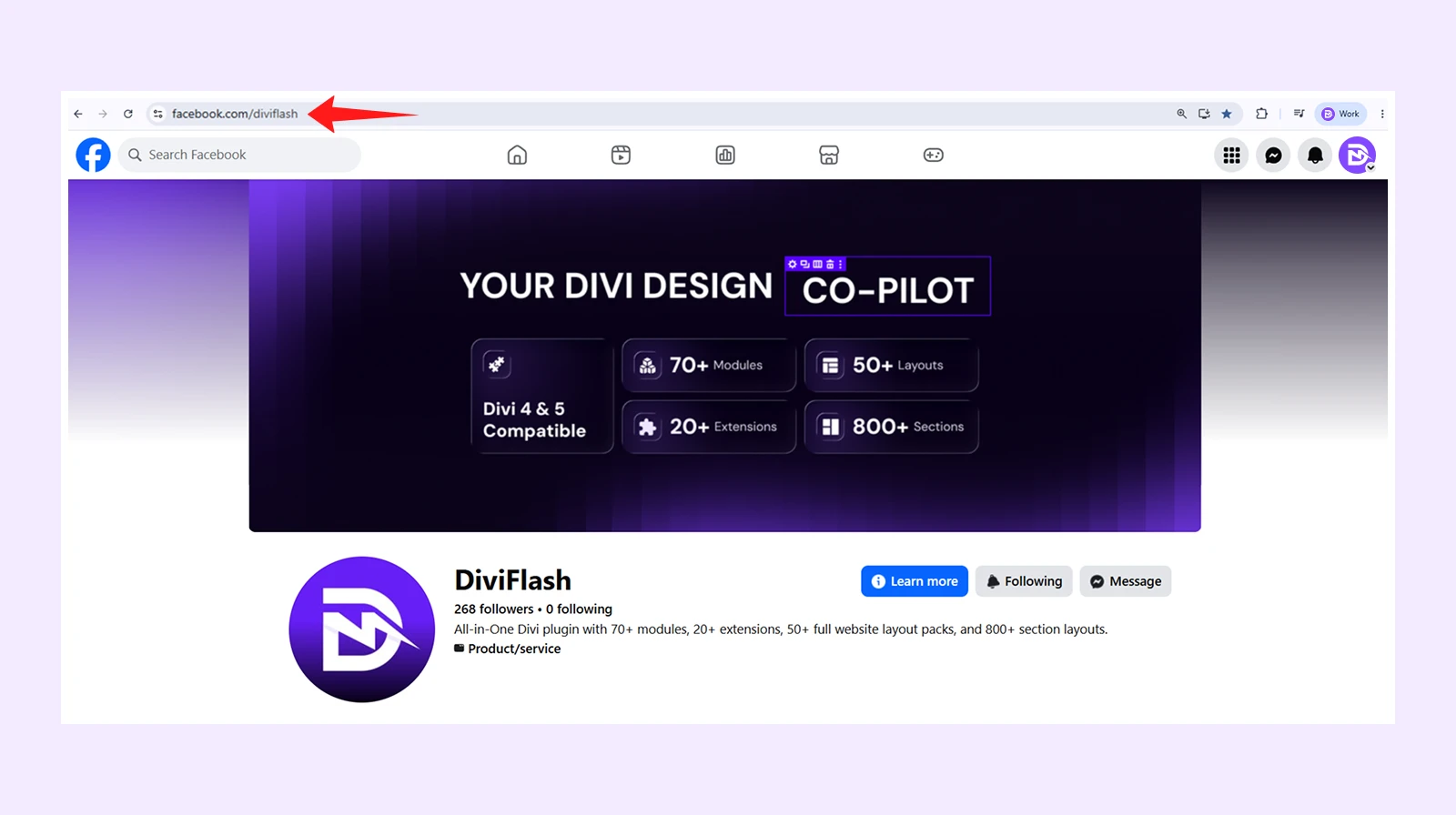
Note: The content must be set to Public, otherwise it will not display correctly on your website.
Step 3: Initiate Facebook Feed Module
Open your page using the Divi Visual Builder. Then:
- Add a Section, Row, and Column
- Search for “Facebook Feed” module and insert it
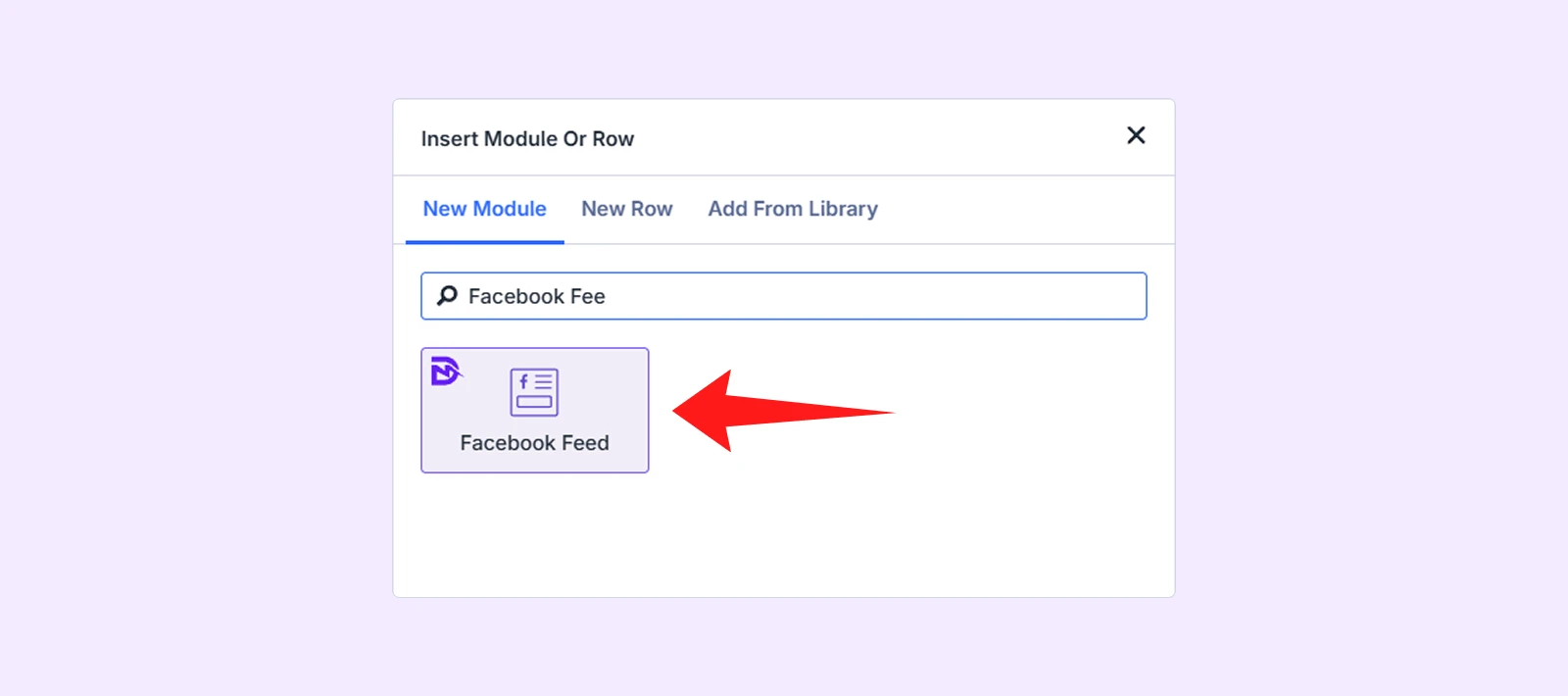
Note: If you cannot find the module, go to WordPress Dashboard > DiviFlash > Modules and toggle on Facebook Feed
Step 4: Choose the Content Type and Add Link
In the module settings and click Plugin Type and choose the content you want to display. Available options are:
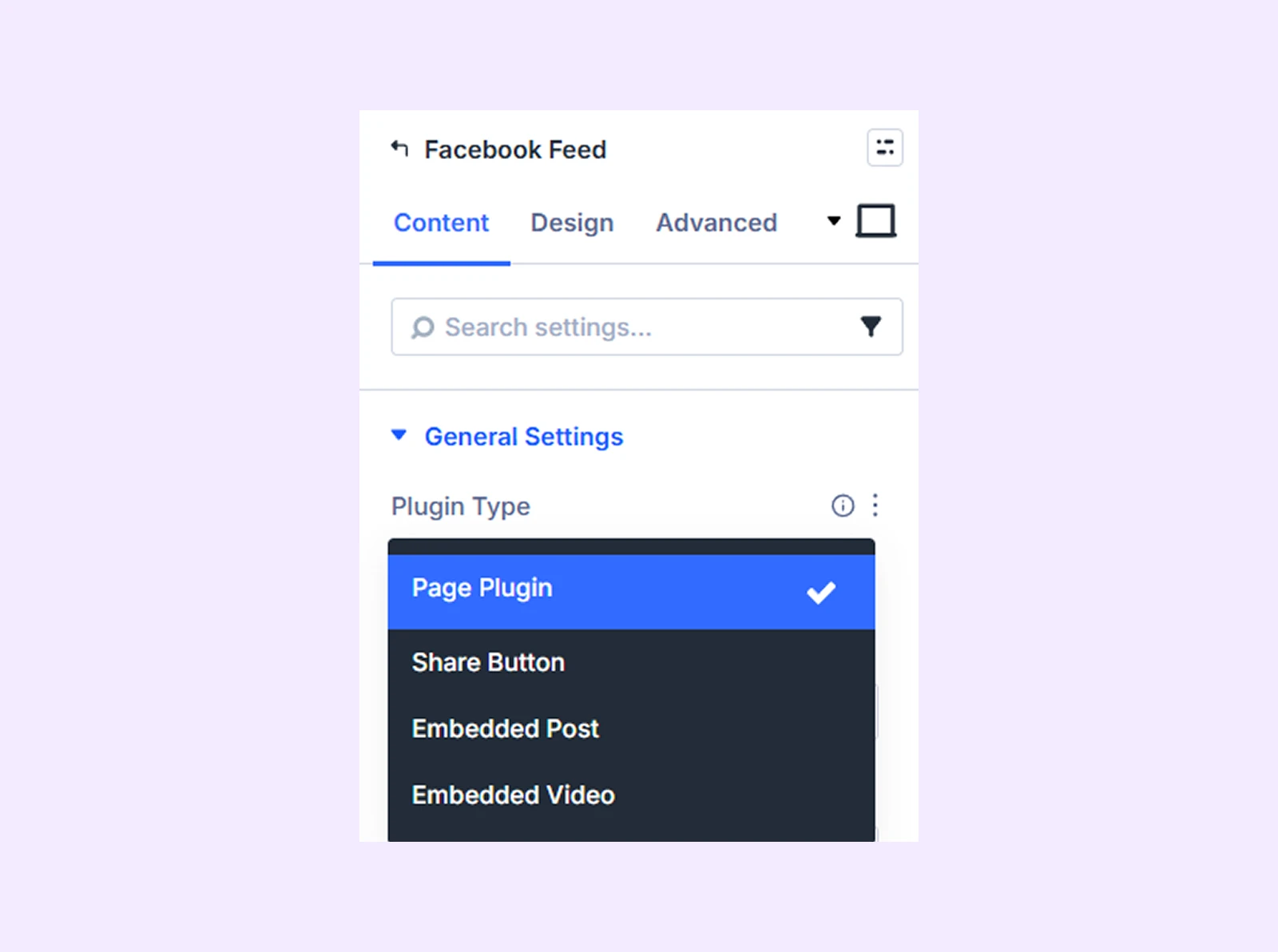
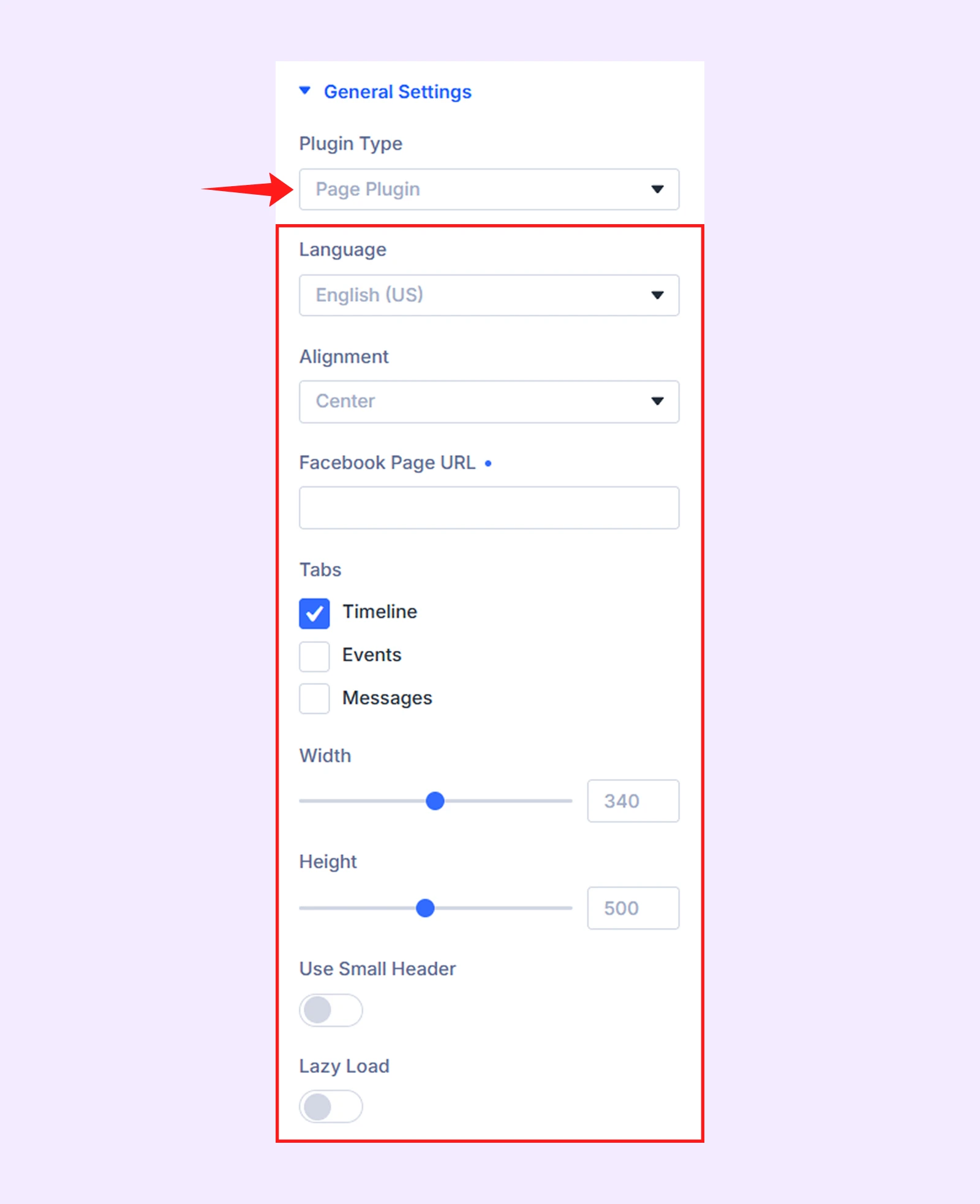
- Page Plugin: Display an entire Facebook Page feed, including its timeline, event, or message tabs.
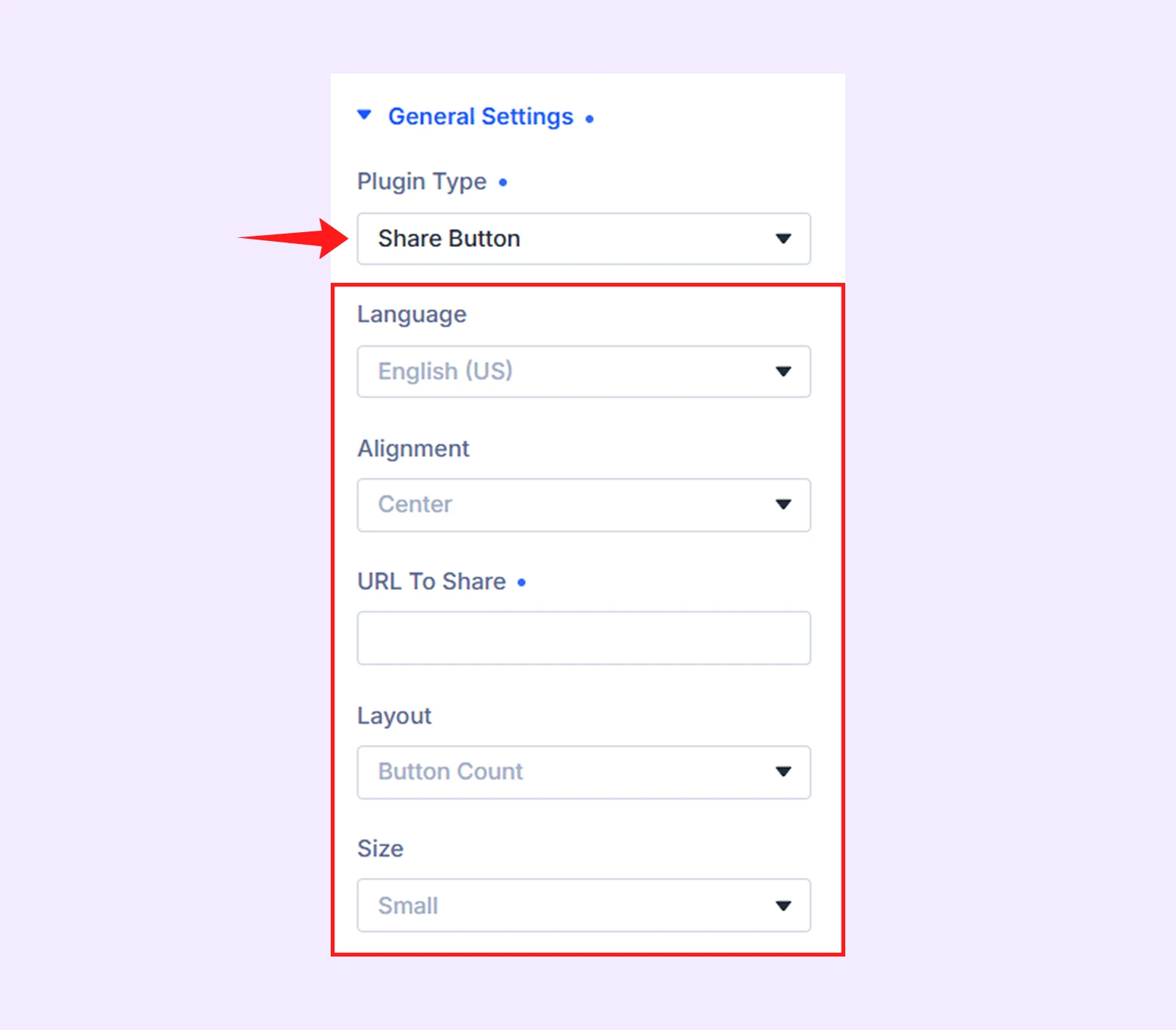
- Share Button: Add a Facebook share button
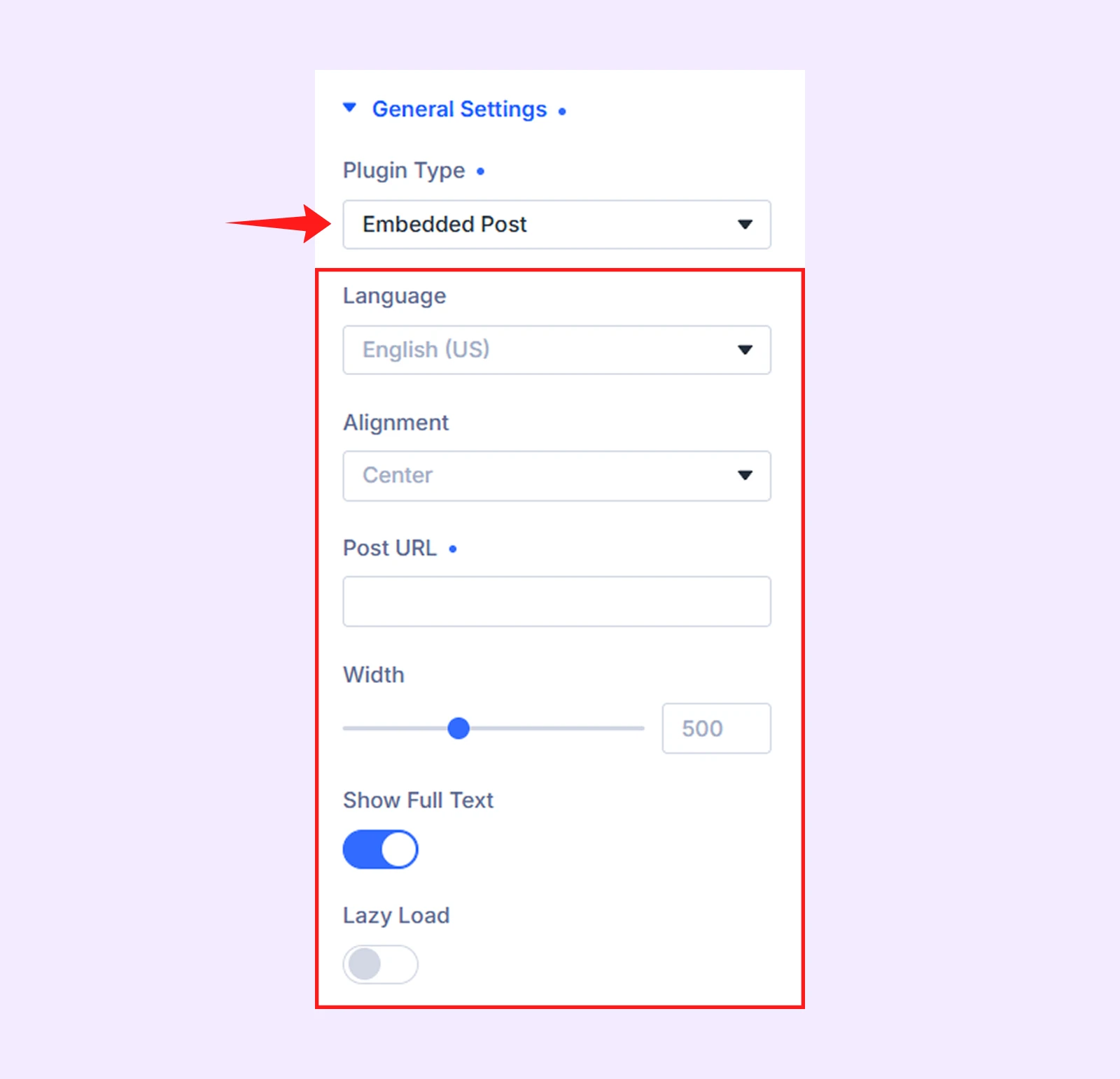
- Embedded Post: Display a specific Facebook post.
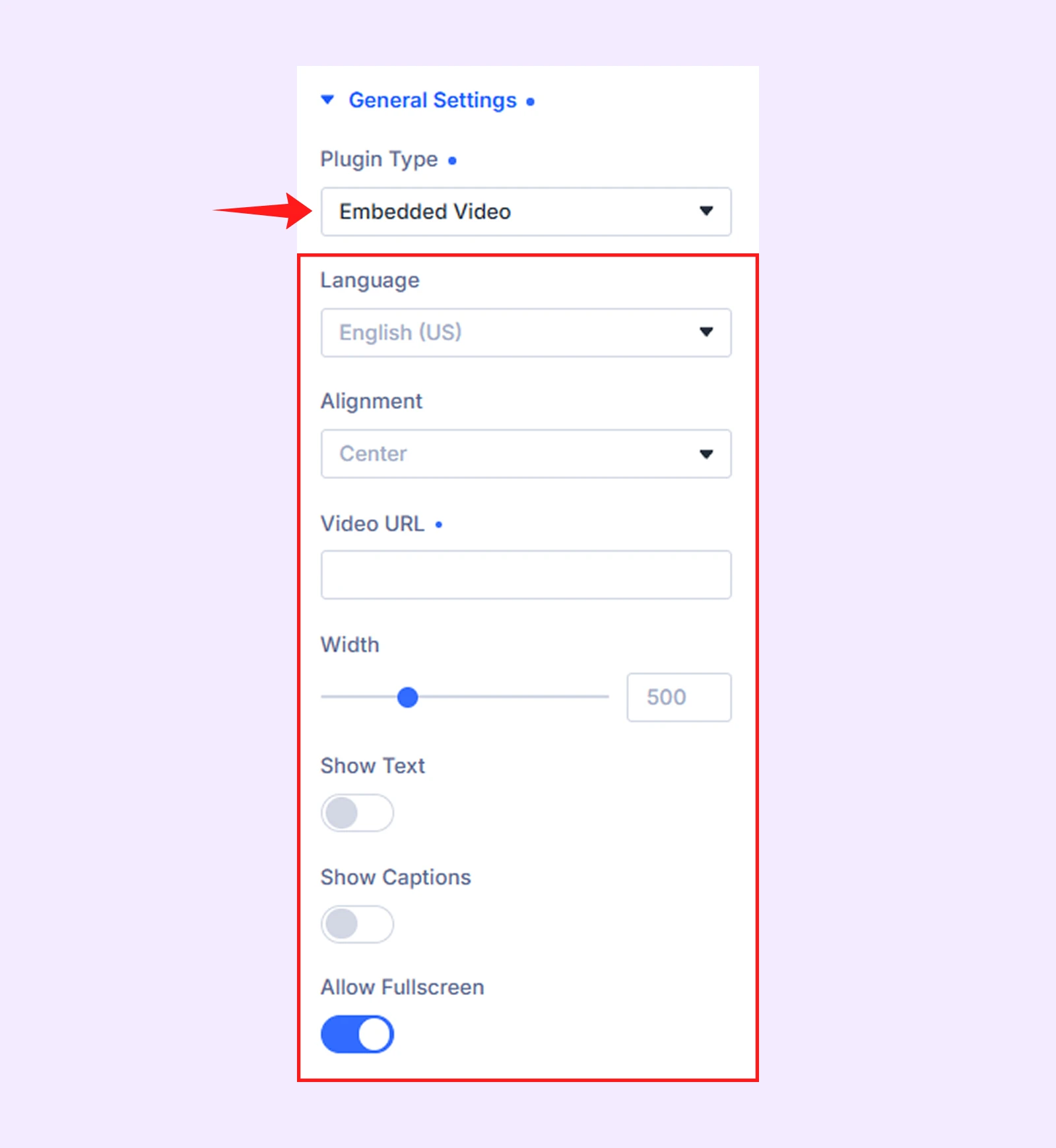
- Embedded Video: Display a Facebook video or reel.
After selecting, paste the URL you copied in Step 2 into the correct field.
Step 5: Configure Display Settings
Based on your selected Facebook content type, you will see different settings options. Here is what settings you will get depending on your choice:
- If you choose Page Plugin: You can set language, alignment, tabs (select what to show timeline, events, messages or all), width, height, small header (show a compact page header), lazy load (load the section only when users scroll to it).
- If you choose Share Button: You can set language, alignment, layout (box count shows count in box, button count shows count next to button, or simple button), size (button size).
- If you choose Embedded Post: You can set language, alignment, width, show full text, lazy load.
- If you choose Embedded Video: You can set language, alignment, width, show text, show caption, allow fullscreen.
Step 6: Customize the Design
Now switch to the Design tab to style your Facebook feed. There you can adjust spacing, alignment, and more.
Step 7: Save and Publish
Click the save button, exit visual builder and preview your website
Note: If anything about the module is confusing, you can check the Facebook Feed module documentation for help.
Method 2: Embed Facebook Feed in Divi Using Facebook's Embed Tools
You can use Facebook’s official embed tools to manually add Facebook content to your Divi website. However, to add different types of Facebook content like post, video and timeline, you need to use different Facebook embed tools.
Here is how:
Option 1: Embed a Single Facebook Post in Divi
If you wish to show a single Facebook post on your Divi website, you can do it. Here is how:
Step 1: Open the Facebook Post
Go to the public Facebook post you want to embed.
Note: Make sure the post is set to public.
Step 2: Copy the Embed Code
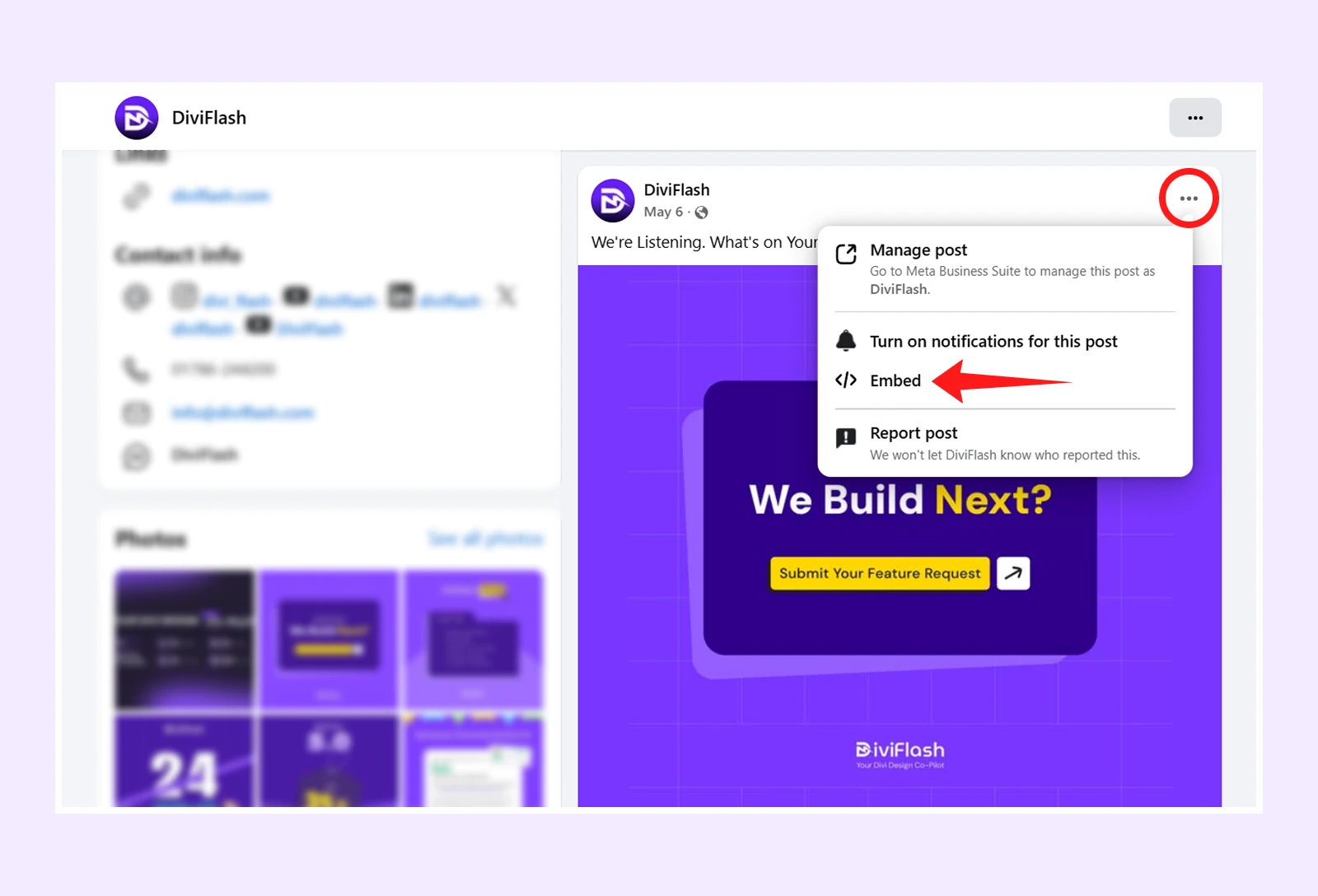
- Click the ⋯ (three dots) icon on the post and select Embed.
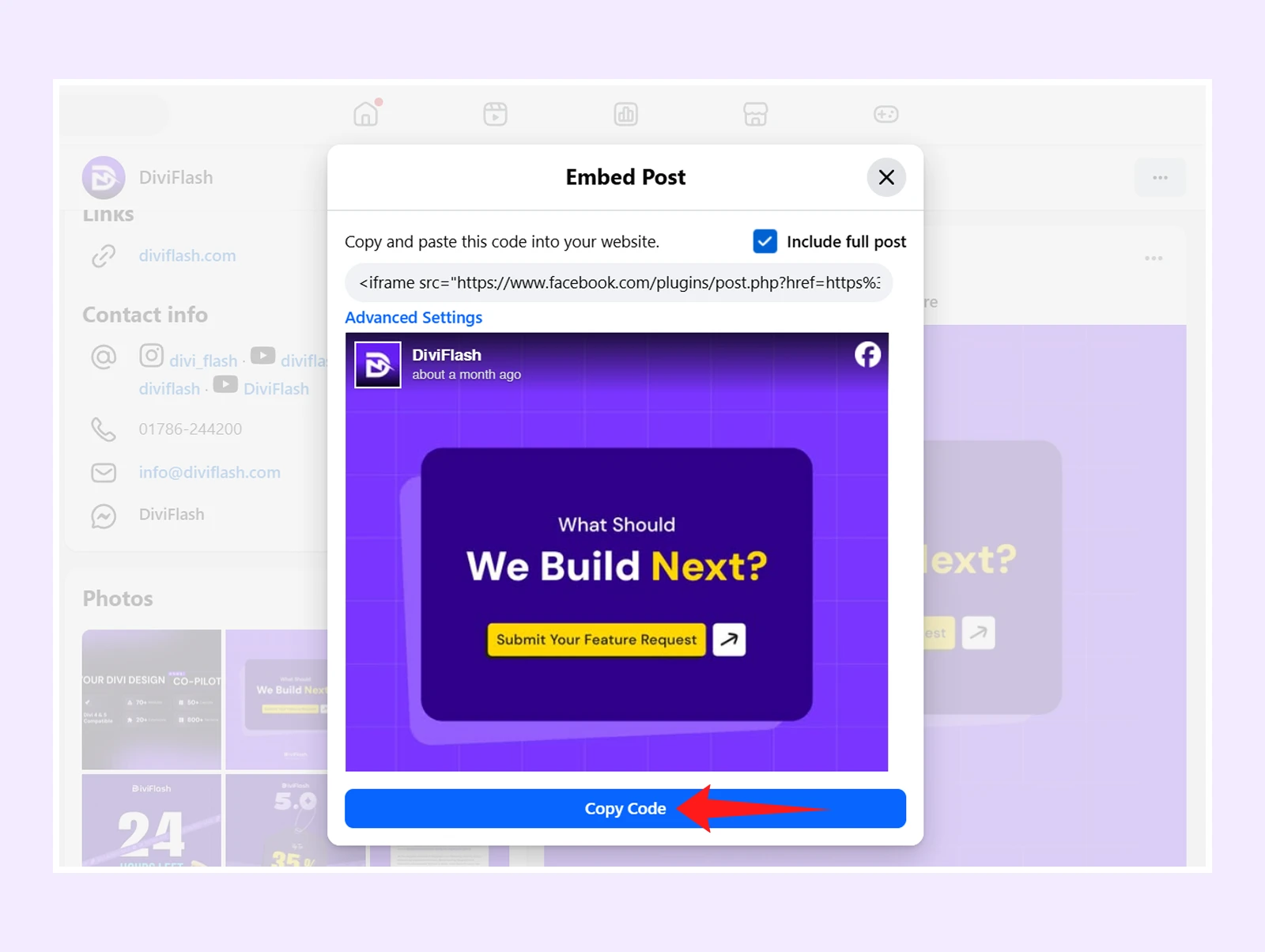
- Then click on “Copy Code”
Step 3: Add the Code to Divi
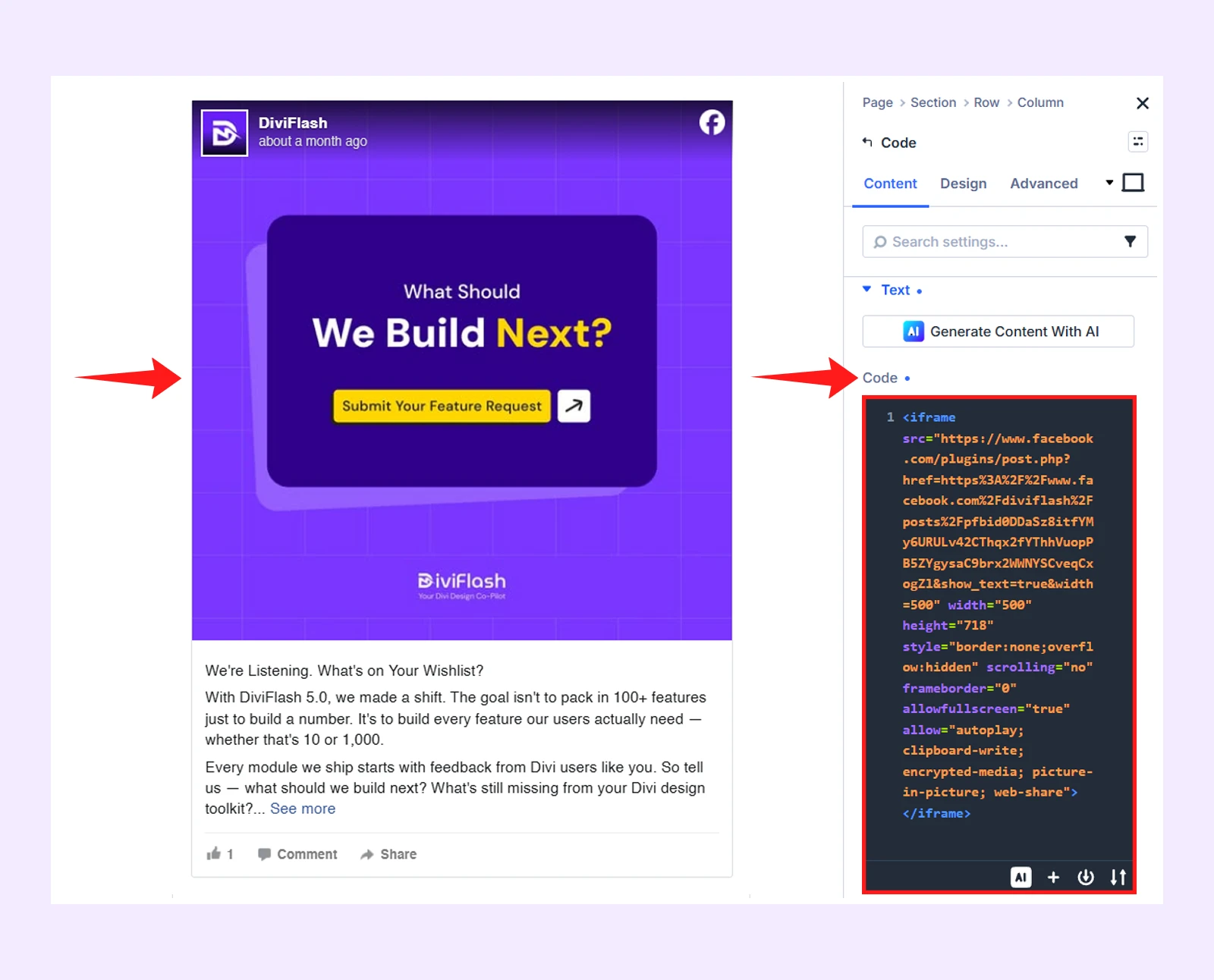
Open your page with Divi visual builder, add a Code Module, and paste the copied embed code inside it.
Step 4: Save and Preview
Save your page and preview it on the front end. You should now see the Facebook post displayed on your website.
Option 2: Embed a Facebook Video or Reel in Divi
You can easily embed any Facebook video (including regular videos and reels) into your Divi page using the embed code.
Here is how:
Step 1: Open the Facebook Video
Go to the Facebook video you want to embed.
Note: The video or reel must have its privacy set to Public.
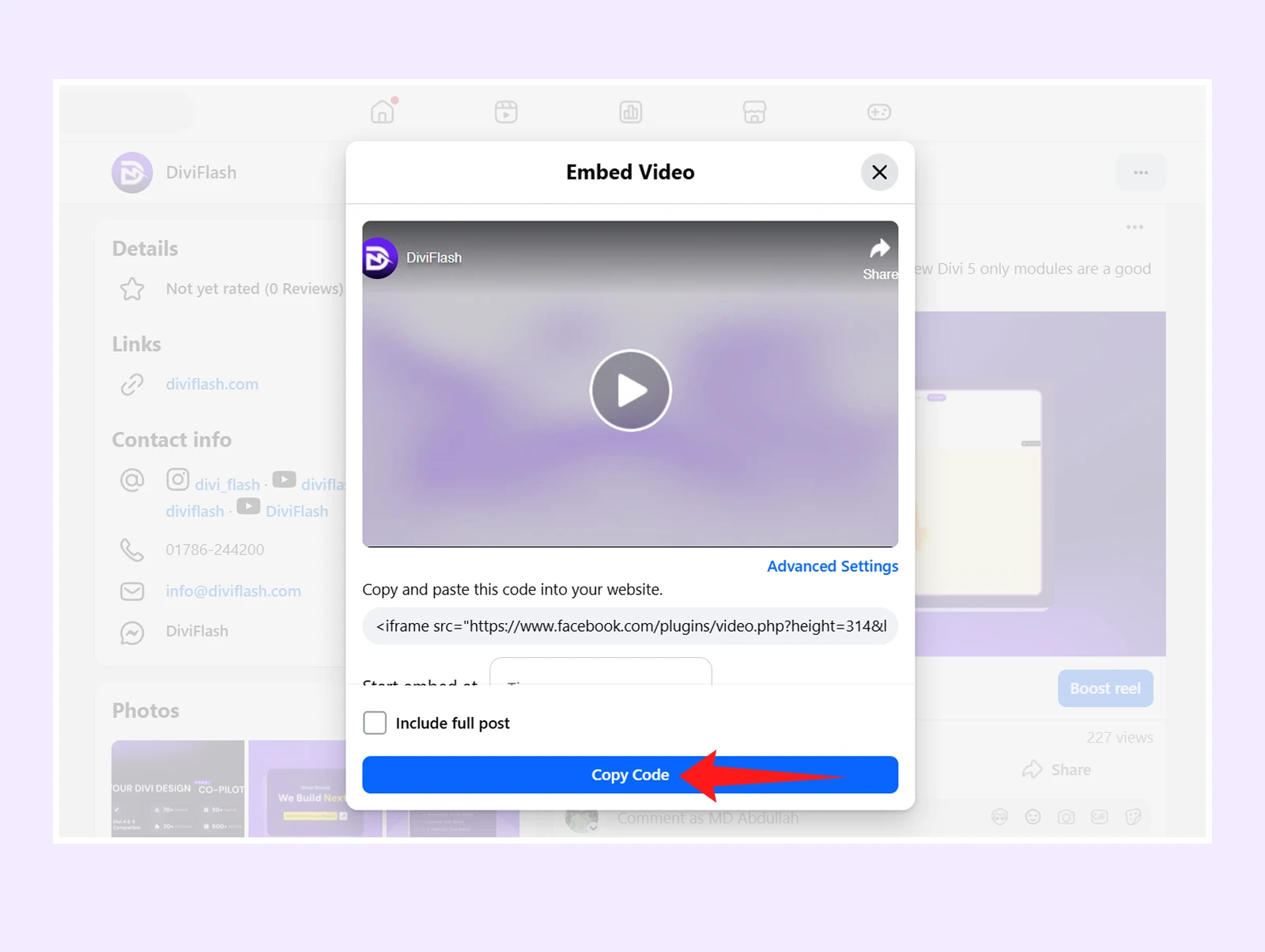
Step 2: Copy the Embed Code
Click the ⋯ (three dots) icon on the post and choose Embed.
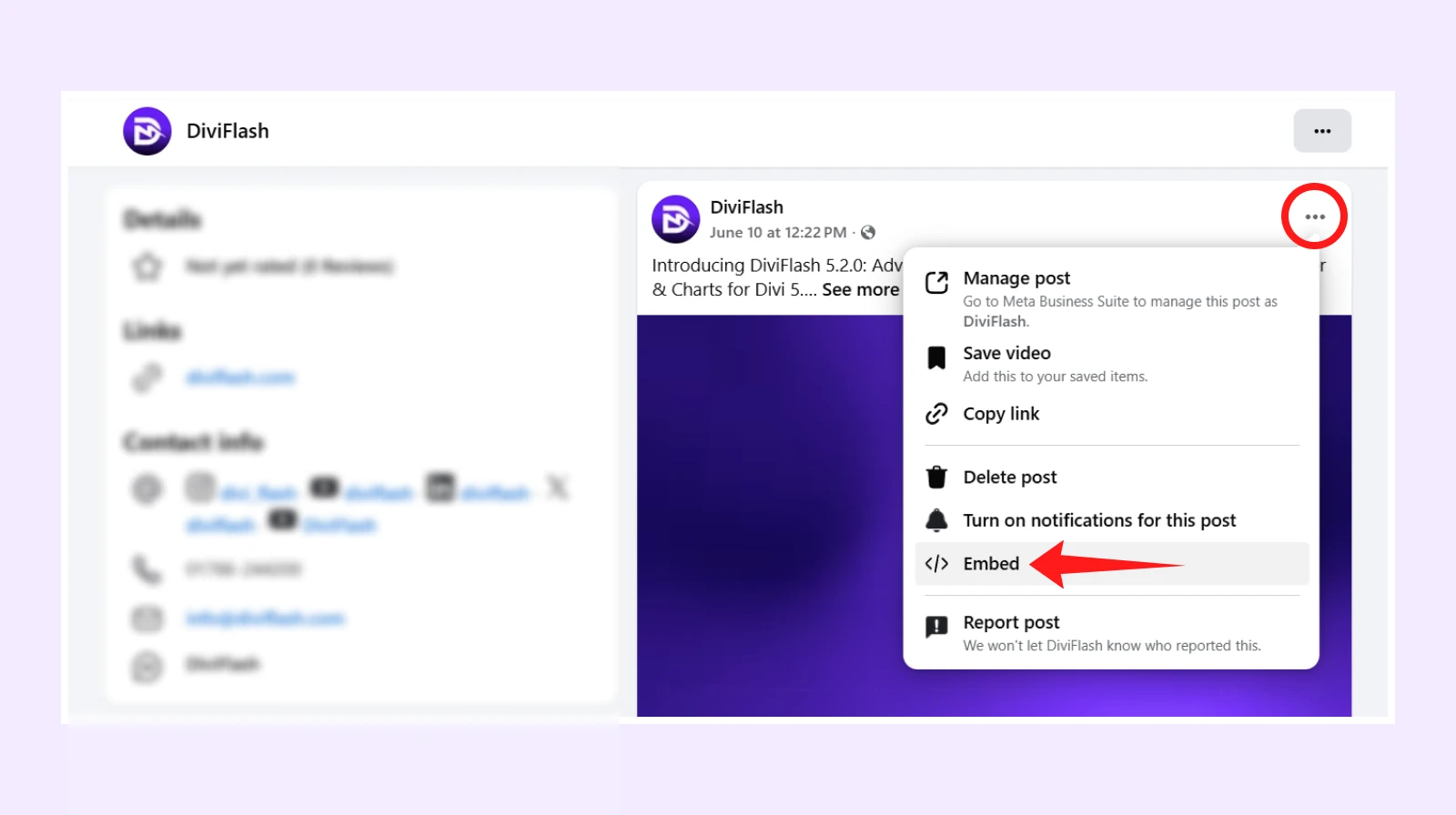
Then click Copy Code. (You can also set the video to start playing from a specific time.)
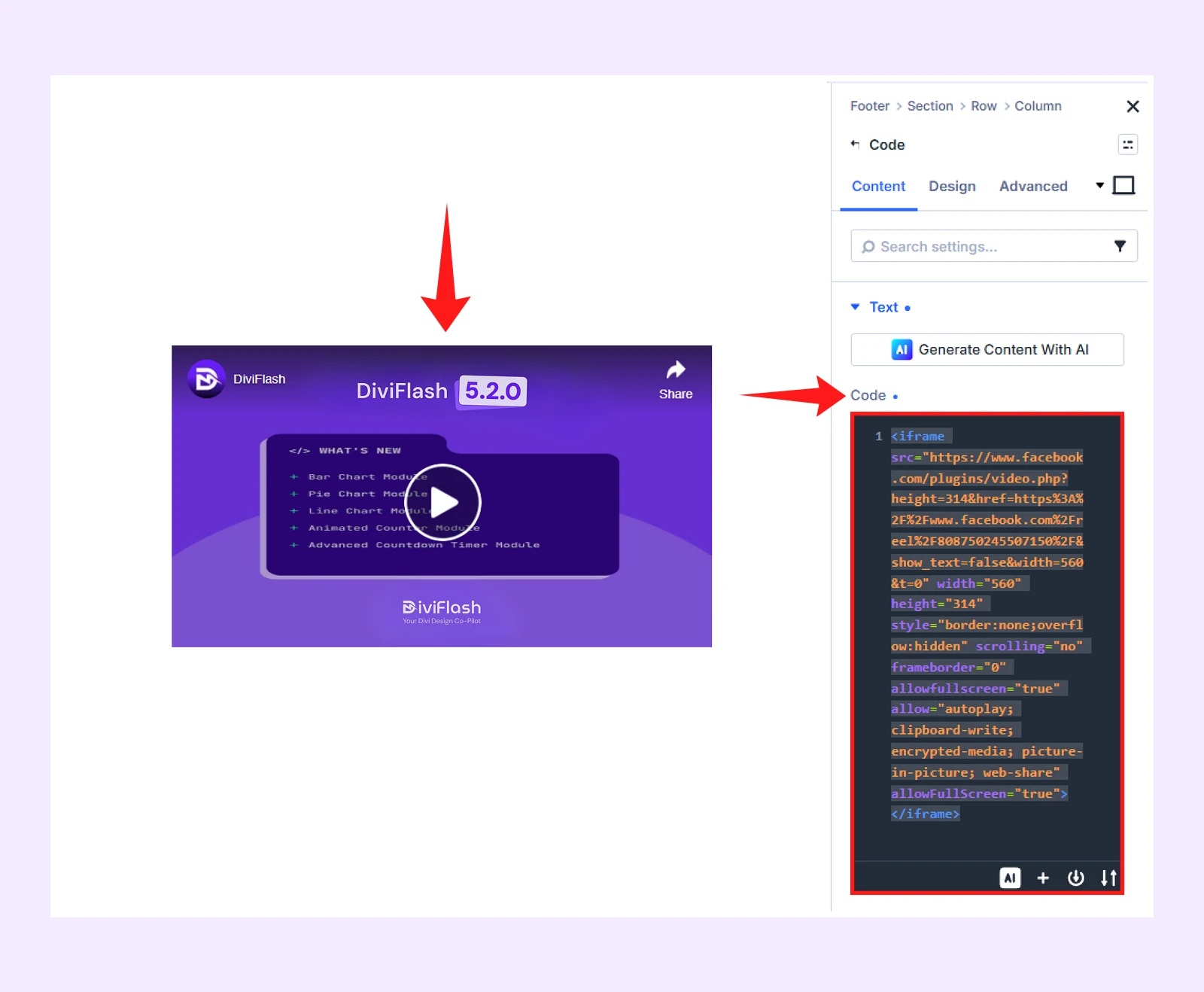
Step 3: Paste the Code in Divi
Open your page in the Divi Builder, add a Code Module, and paste the copied embed code into it.
Step 4: Save and Preview
Save your page and preview it on the front end. The Facebook video or reel will now appear on your website.
Option 3: Embed a Full Facebook Page Feed in Divi
You can embed an entire Facebook Page feed (timeline, posts, and optional tabs) into your Divi website using Facebook’s Page Plugin.
Here is how to do it:
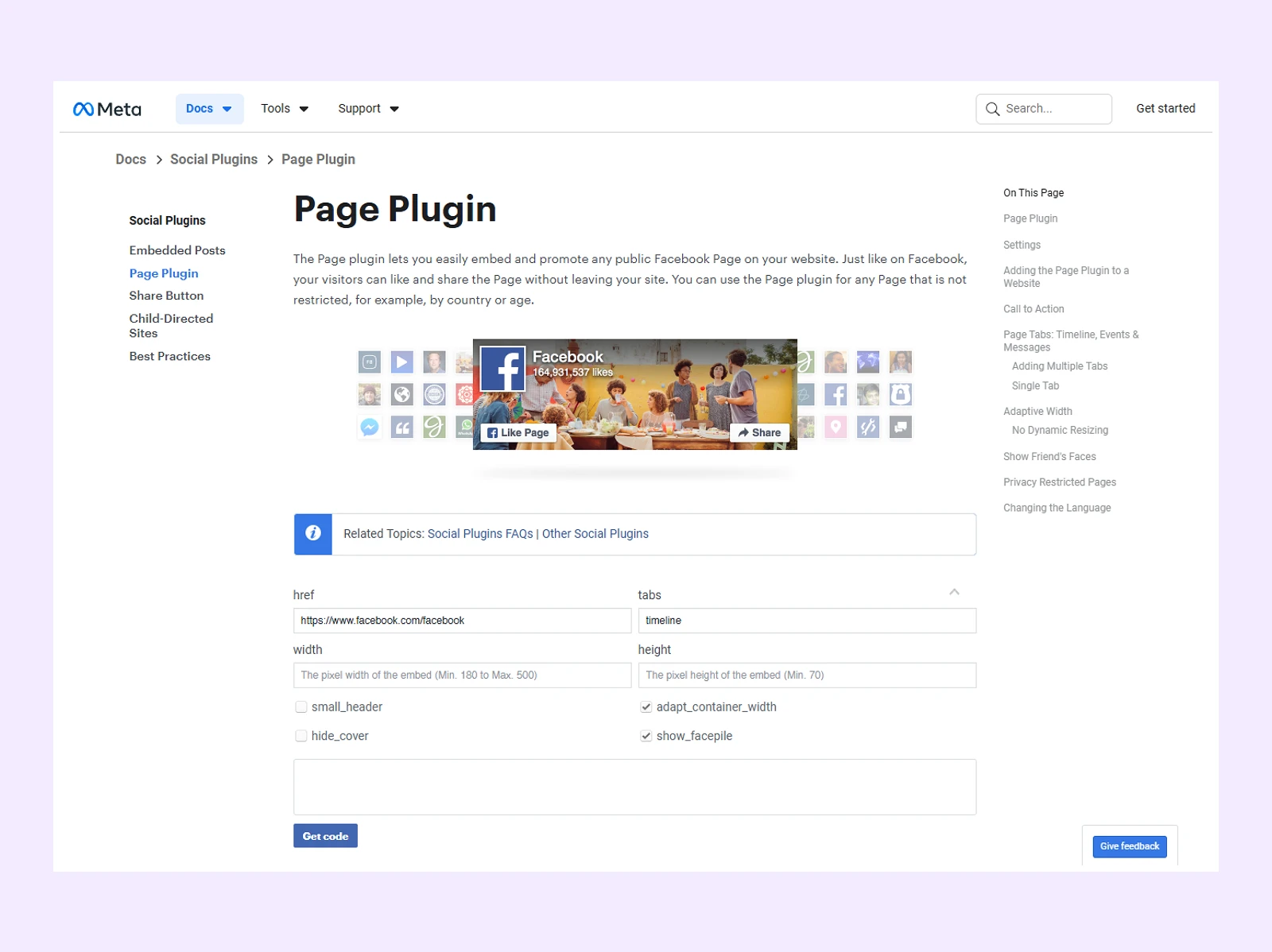
Step 1: Open Facebook Page Plugin Generator
Go to Facebook’s official Page Plugin. This one will let you create an embed code for your Facebook Page feed.
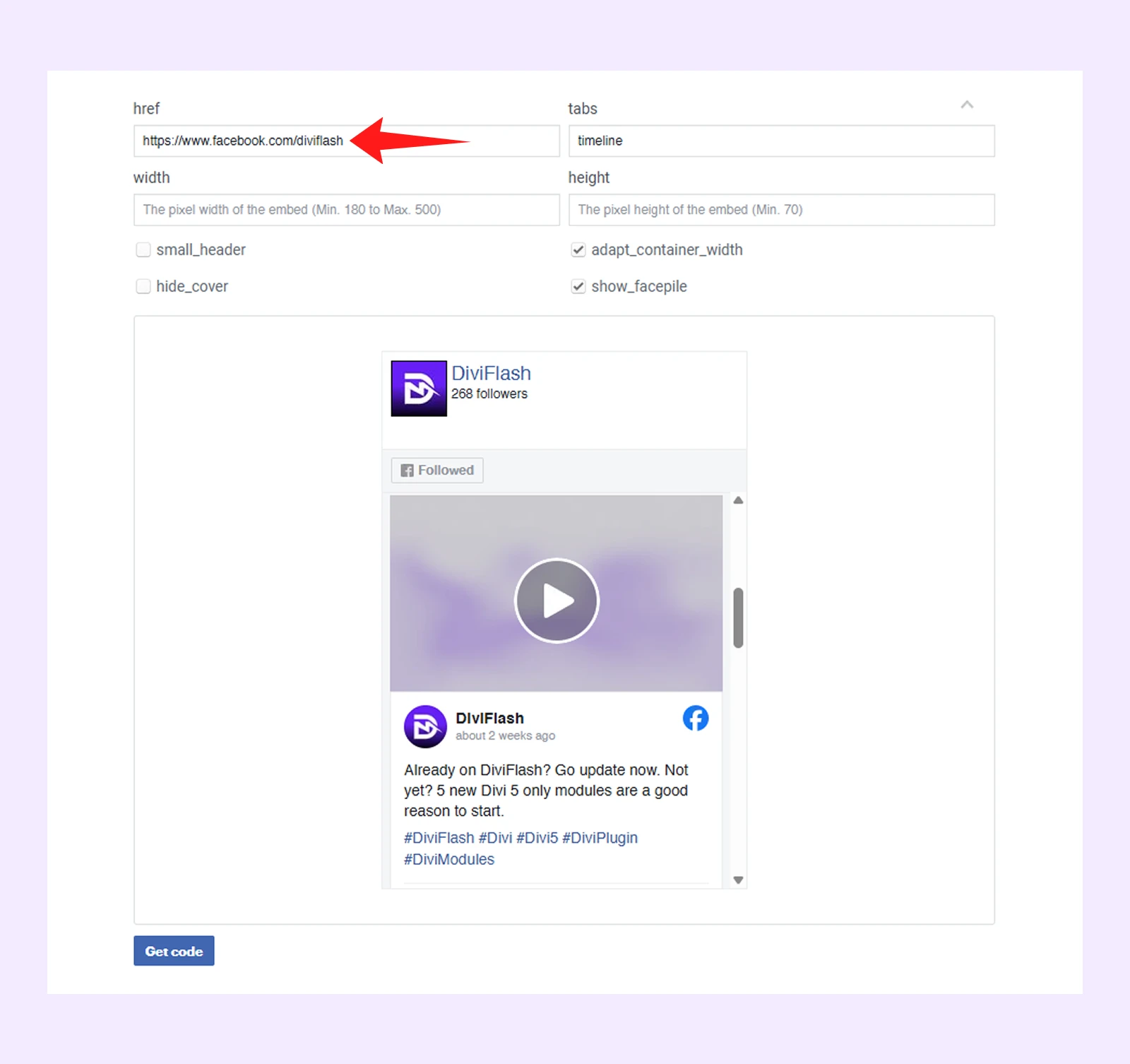
Step 2: Enter Your Facebook Page URL
Copy your Facebook Page link and paste it into the URL (href) field.
Note: Your Facebook Page must be set to public, otherwise the feed will not display on your website.
Step 3: Customize the Display Settings
Adjust how your feed looks by selecting options such as:
- Tabs (Timeline, Events, Messages)
- Width and height
- Small header
- Hide cover photo
- Show facepile
These settings control how your Facebook Page feed appears on your site.
Step 4: Generate the Embed Code
Click Get Code to generate the HTML embed code, then copy it.
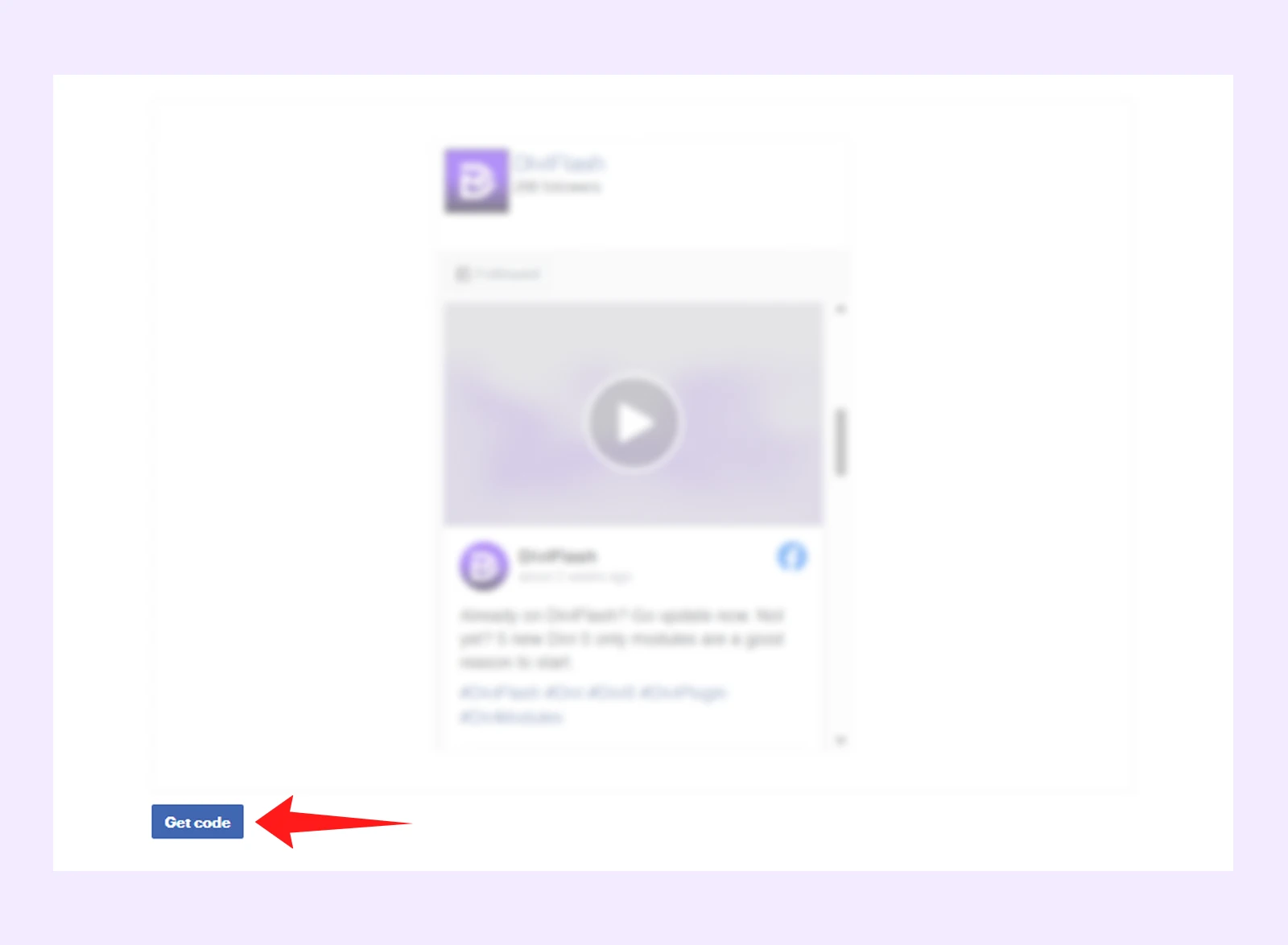
Note: If the “Get Code” button doesn’t work, it’s usually an issue with Facebook’s Page Plugin tool, not a problem with Divi or WordPress.
Step 5: Open Your Divi Page and Add a Code Module
- Open your page using the Divi Builder. Add a section, row, and then insert a Code Module.
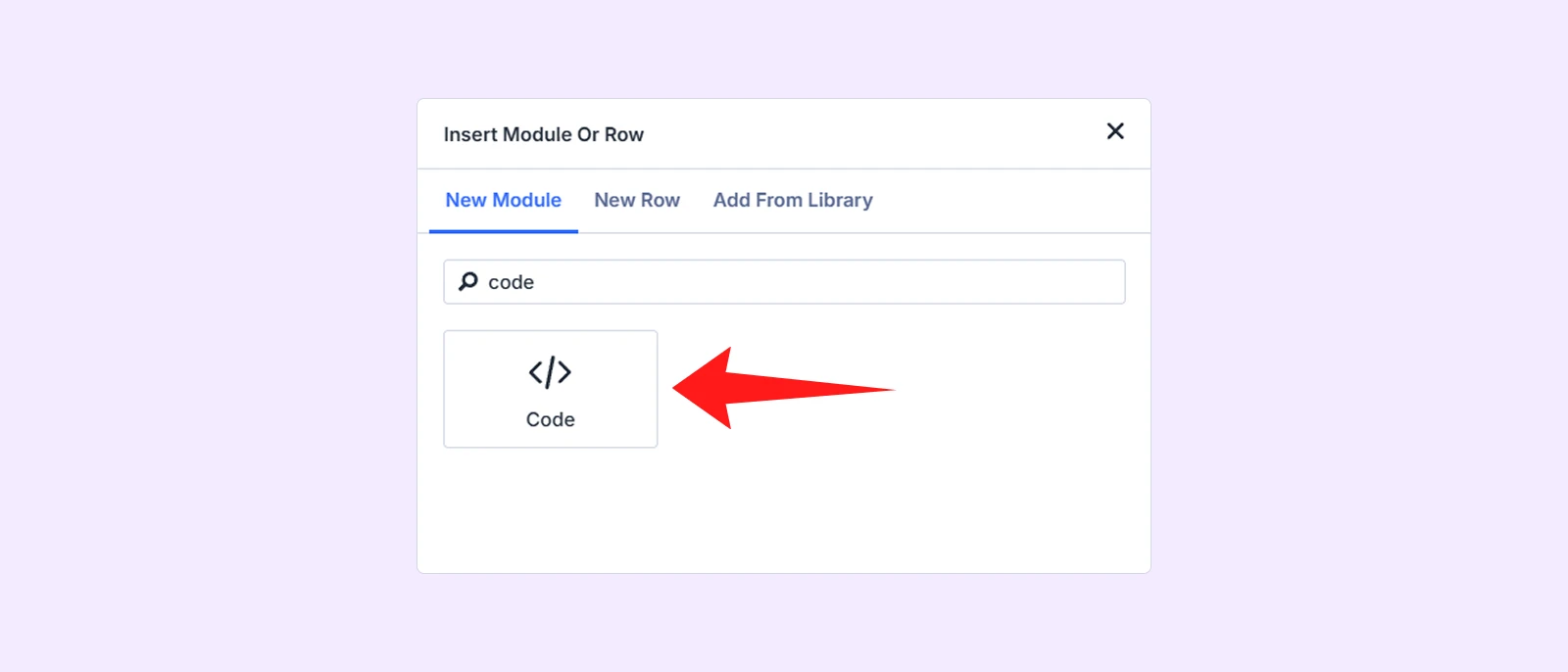
Step 6: Paste the Facebook Code
Paste the copied Facebook embed code into the Code Module.
Step 7: Save and Publish
Save your page, exit the builder, and refresh your website. Your Facebook Page feed should now be visible on your Divi site.
Final Thoughts: Which Method to Choose
Now you know how to embed Facebook feed in Divi and how many ways there are. Both methods let you embed Facebook content in Divi, but they are quite different.
Facebook’s official tools work for single items like a post and video. But whenever you try to embed a full page, you may face issues like not getting the embed code, which is something that can happen with Facebook’s tool.
On the other hand, DiviFlash handles all Facebook content (pages, posts, videos, and share buttons) from a single module. It also offers useful controls like alignment, language, lazy loading, and basic design customization.
You can look at some pre-made demos from DiviFlash’s Facebook Feed to understand how it works in real use cases and what you can achieve with it.
Besides Facebook, if you also want to embed Twitter feed on your site, you can explore how to embed Twitter feed in Divi.


0 Comments