

Divi's built-in Video module lets you paste a URL, upload a file, or pick one from your Media Library and set a thumbnail. That’s it.
But the moment you need autoplay, loop, lightbox, or lazy loading, the built-in module has nothing to offer. You will either need a separate plugin for each one or do custom coding.
So what to do?
In that case, you can use DiviFlash. Its Advanced Video module has all of these features built in. No extra plugins. No custom code.
We will show you how to embed video in Divi using the plugin along with the built-in Video module.
Let’s dive in.
Method 1: Embed Video in Divi Using the Built-in Video Module (Quick & Simple)
Use this method when you just need a video on the page and nothing more. Here is how to do it:
Step 1: Get Your Video URL or File
Copy the URL from YouTube, Vimeo, or Dailymotion. For self-hosted video, upload your MP4 or WebM file to the WordPress Media Library first.
Step 2: Insert the Module & Add Your Video
- Open the Divi Visual Builder and insert the Video module.
- Inside the module settings, go to Content > Video, delete the default video
- Click Add Video to paste your URL or select your file from the Media Library
Step 3: Add a Thumbnail
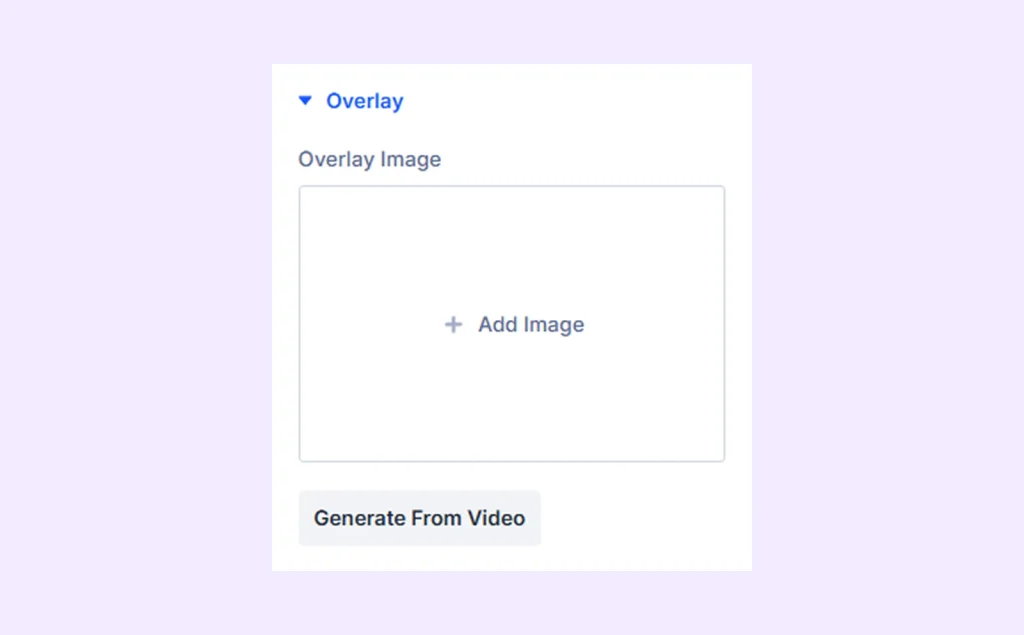
In the module setting’s Content tab, click on Overlay to add a custom thumbnail or click on “Generate From Video.”
Step 4: Save and preview
Save the page and check the front end. That's it, your video is live.
Method 2: Embed Video in Divi Using a Plugin (Best for Control)
DiviFlash's Advanced Video module gives you everything a modern video experience needs. We will show you how to install it, add your video, and enable features.
Let’s get started:
Step 1: Install DiviFlash (or update to 5.1.0 or Higher)
Get DiviFlash from its official website, then install and activate it like any other premium WordPress plugin. (If you already use DiviFlash, just update to the version 5.1.0 or higher)
Step 2: Get Your Video Ready
You can use videos from popular video hosting platforms, or a self-hosted source. Here is how you can prepare your video:
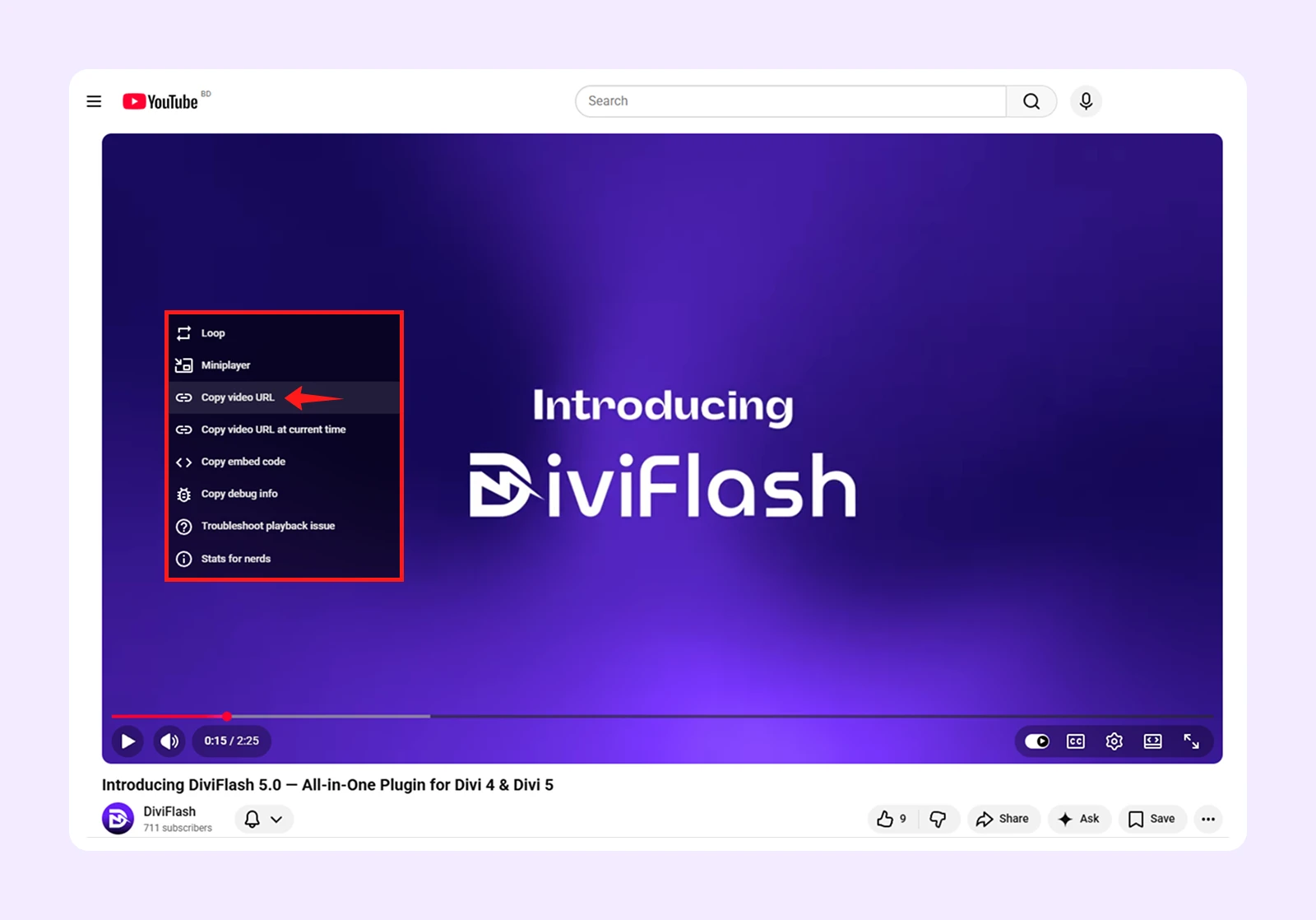
- To embed a video from YouTube, Vimeo, or Dailymotion, open the video and copy its URL.
- For self-hosted videos, go to Media > Add New in your WordPress dashboard, then upload your MP4 or WebM file.
Step 3: Add the Advanced Video Module
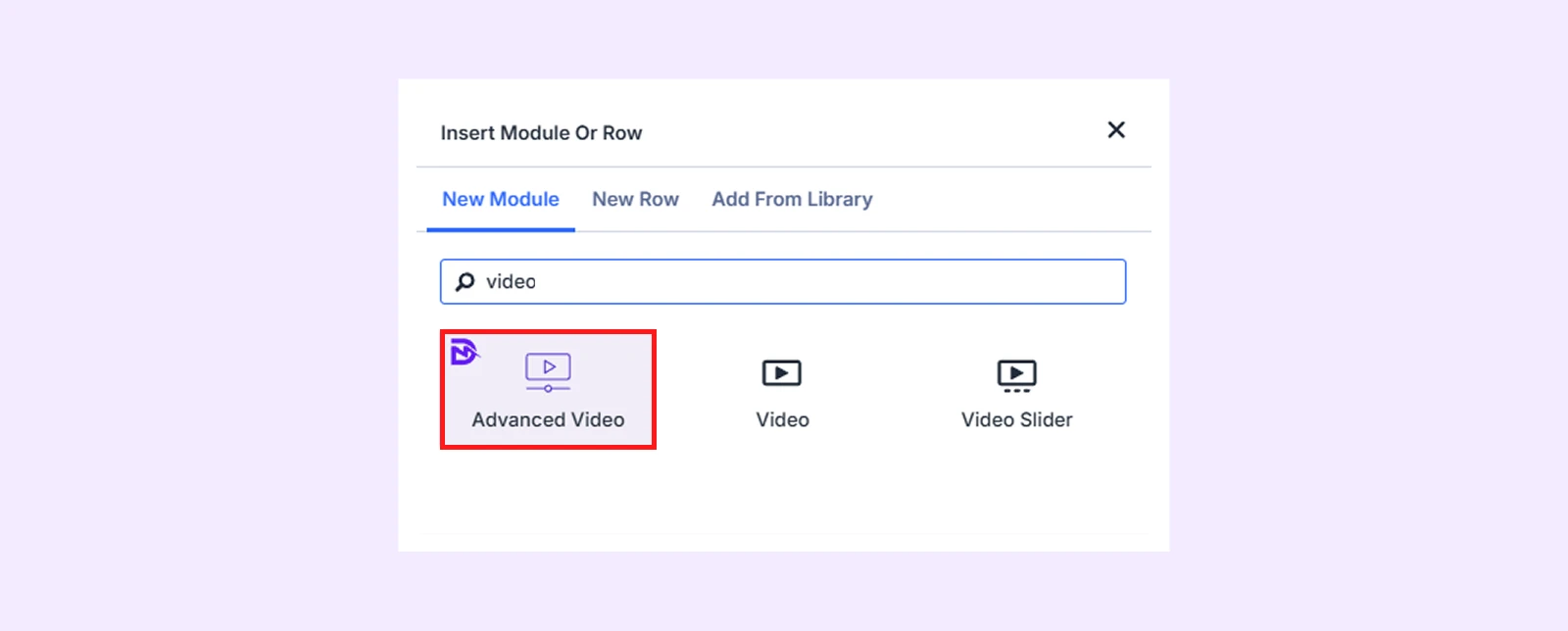
Open the Divi Visual Builder, and search for "Advanced Video" in the module inserter. (If you cannot find the module, go to WordPress Dashboard > DiviFlash > Modules and toggle on Advanced Video)
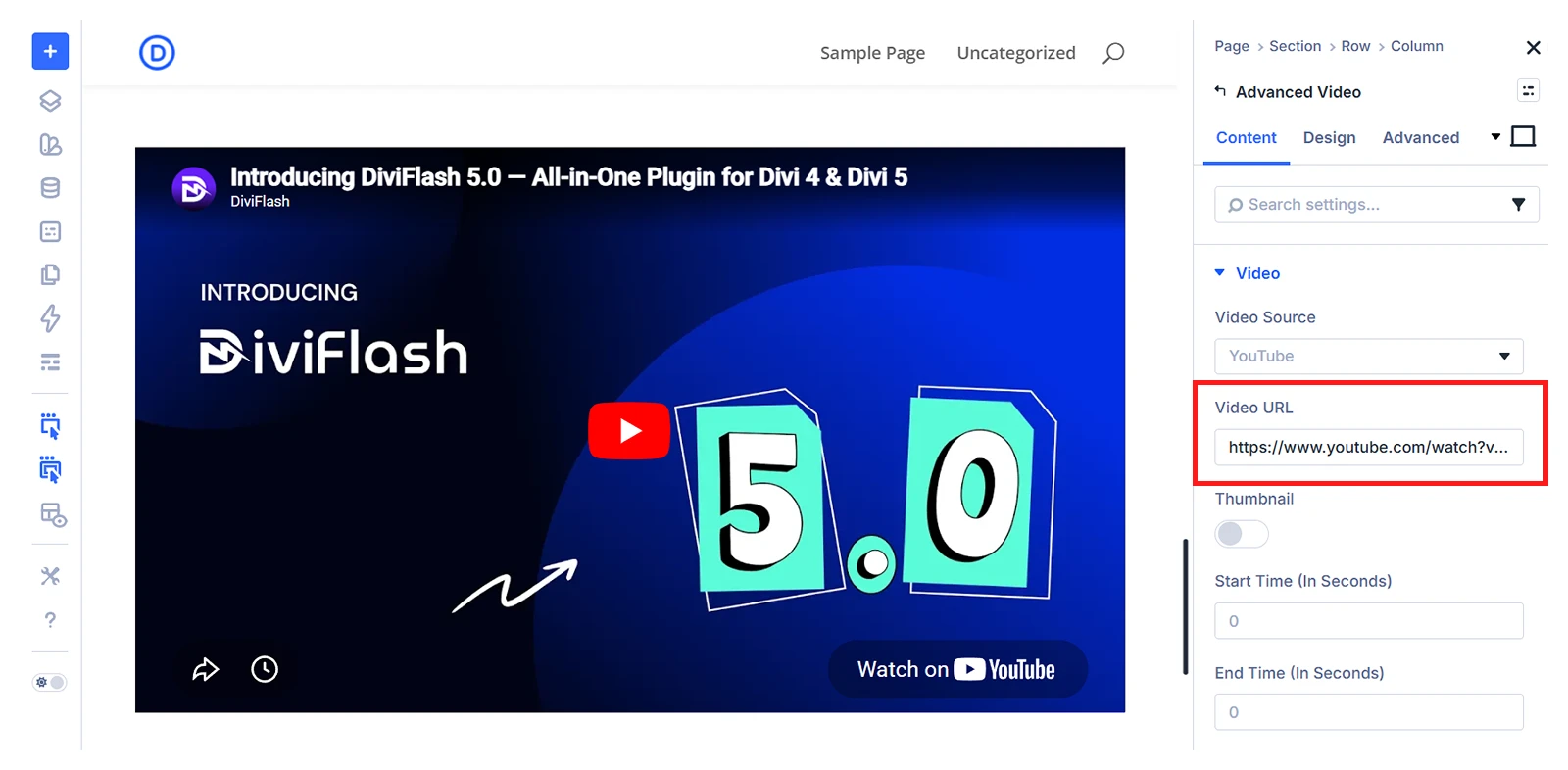
Step 4: Add your video
Open the module settings, then select Video Source and choose your preferred platform.
- For hosted platforms: Paste your copied YouTube, Vimeo, or Dailymotion URL to the Video URL field. (Use the Start Time and End Time feature to play a specific clip.)
- For self-hosted: Choose MP4 or WebM, then select your file from the Media Library.
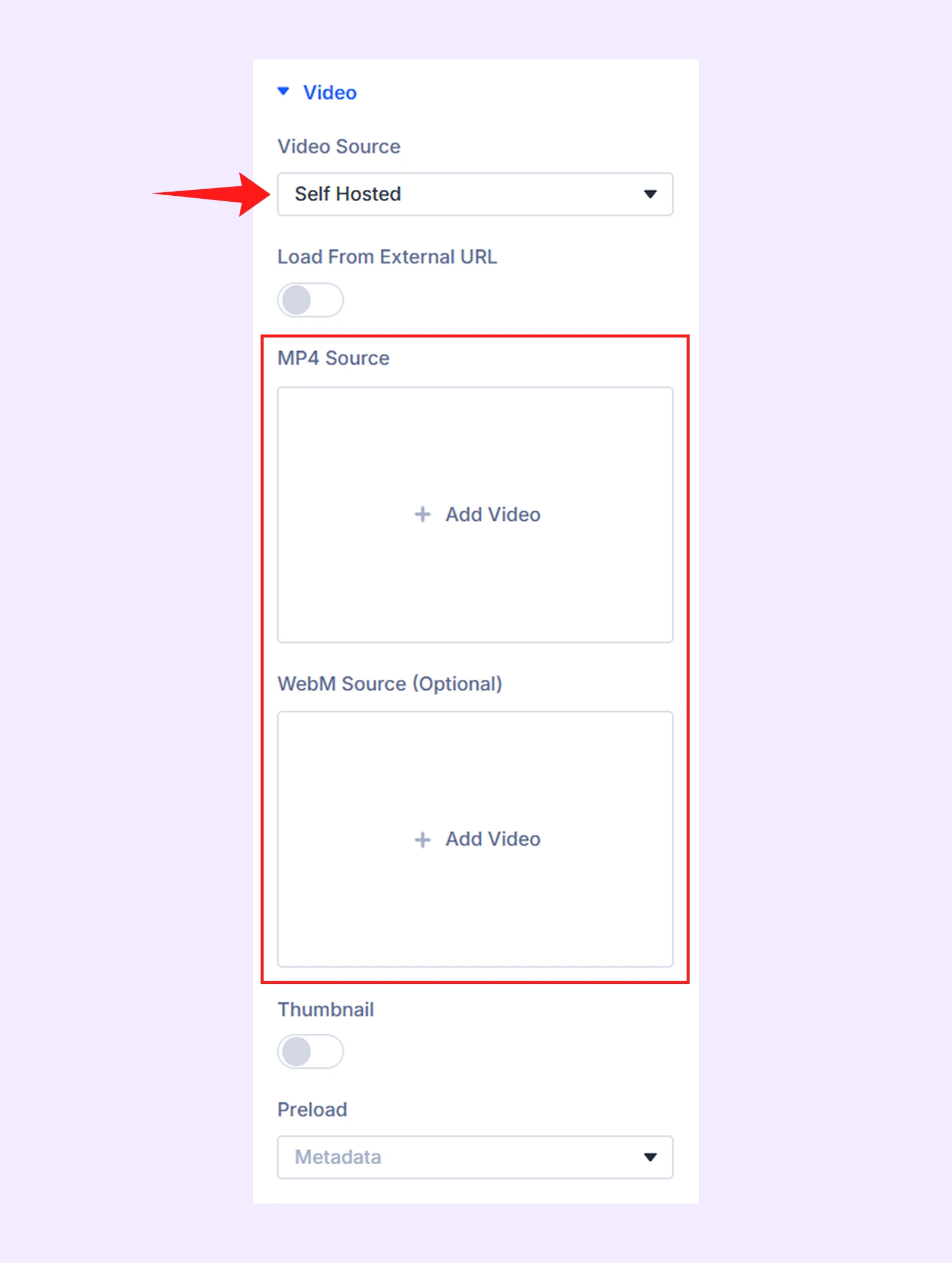
Note: If you want, you can also use a custom thumbnail for your video. To do that, enable Thumbnail and then enable Custom Thumbnail and upload your image.
Step 5: Set up Video Settings
Click on Video Settings inside the module. Here is what you will find and what each one does:
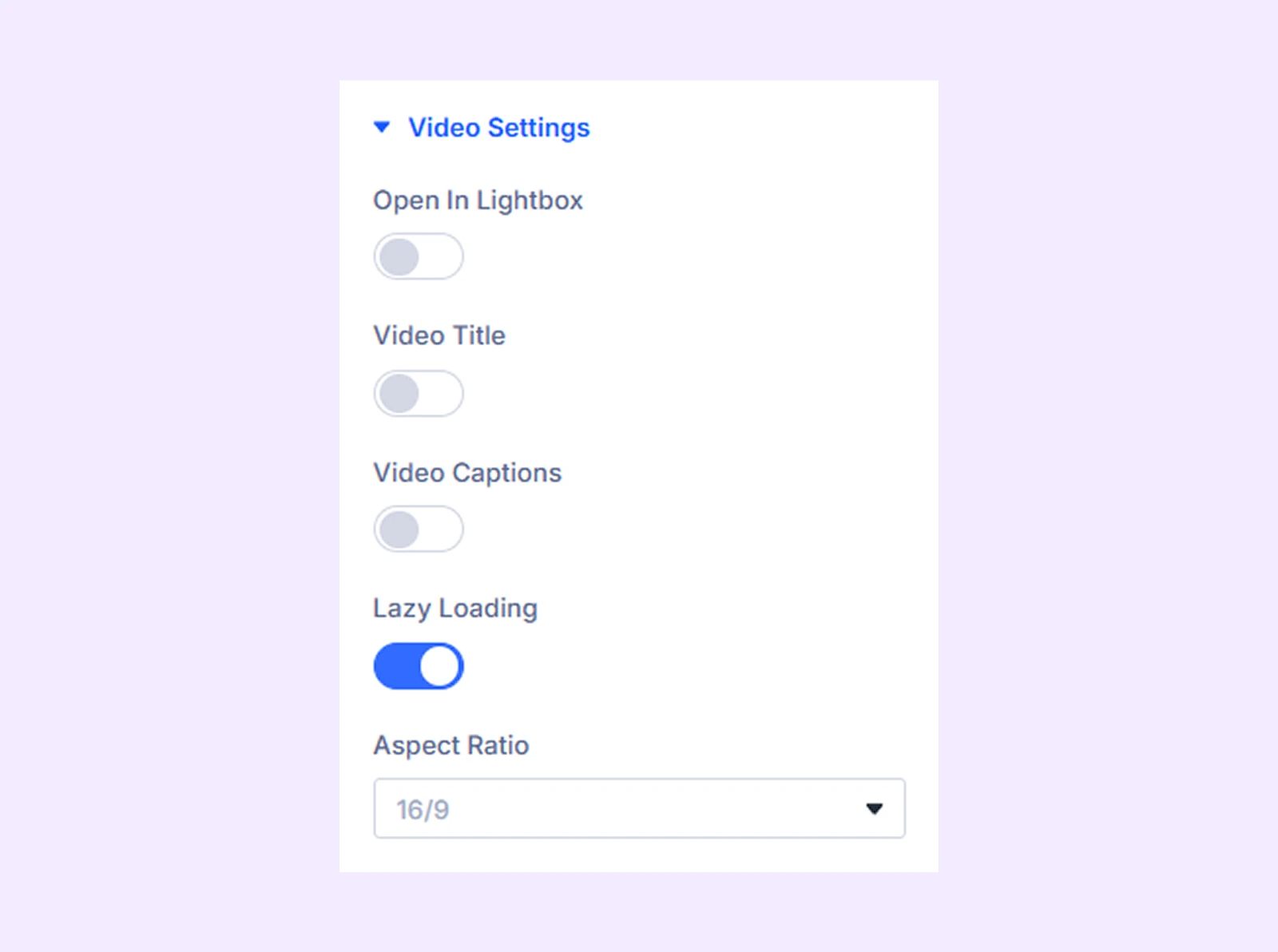
- Open in Lightbox: The video will open in a full-screen popup when clicked, which is great for keeping visitors on the page.
- Title & Caption: This will let you show a short description above or below the video player.
- Lazy Load: Let your video only load when the visitor scrolls near it. This will keep your page fast, especially if you have multiple videos.
- Aspect Ratio: With this, you can lock the player to a fixed ratio like 16:9 or 1:1 so it never looks stretched or cropped.
- Custom Play Button: You can swap the default play icon with your own design. (Available for self-hosted videos.)
- Allow Download: Add a download button so visitors can save the video. (Available for self-hosted videos.)
Step 6: Control How the Video Plays
Click “Playback Options” from the module settings to fine-tune playback behavior with these:
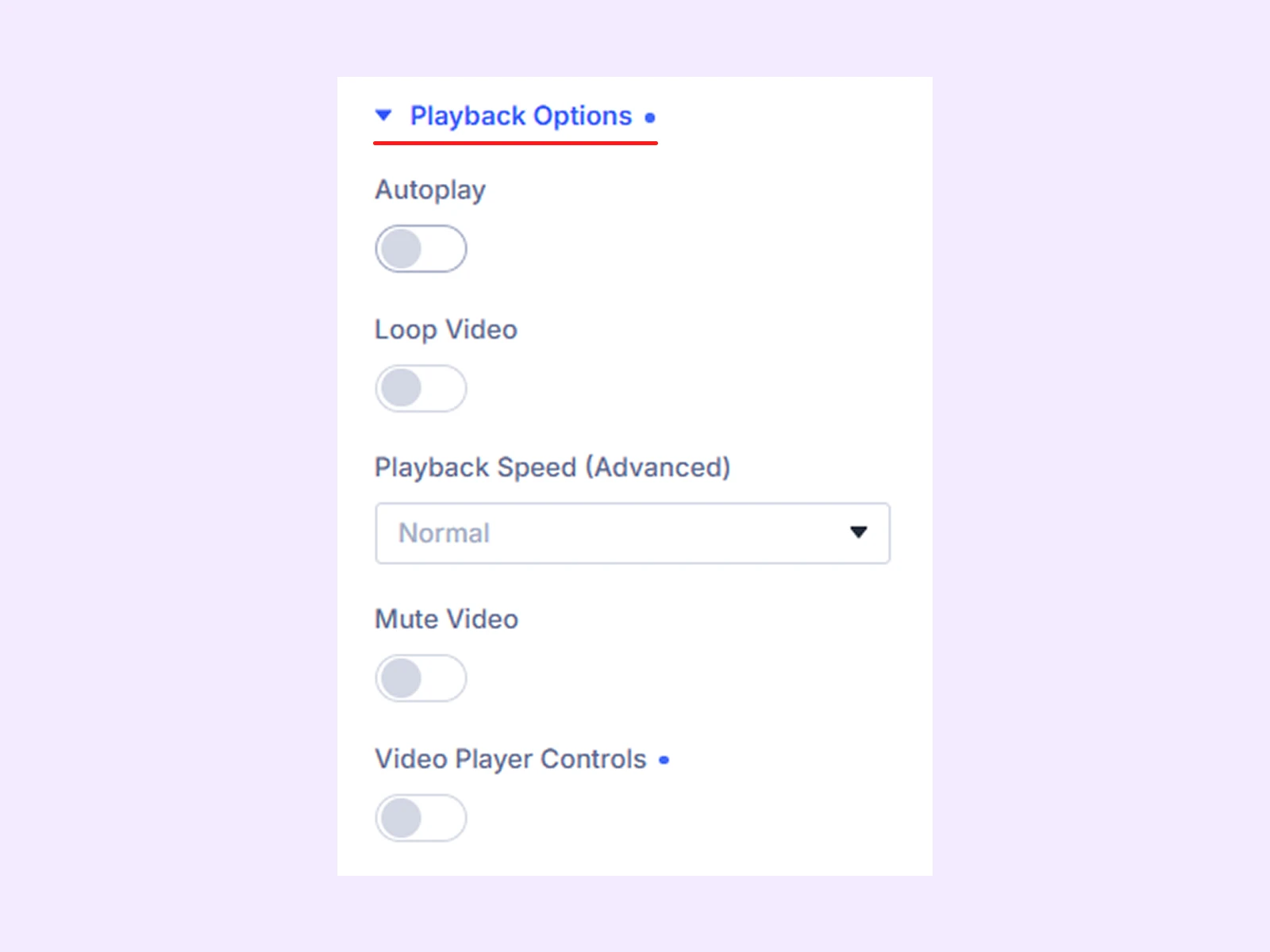
- Autoplay: Your video will start automatically when the page loads.
- Loop: The video will restart automatically when it ends.
- Playback Speed: Define the speed at which the video plays.
- Mute: Enable this to silence the audio on load.
- Player Controls: This one lets you show or hide the play, pause, and volume buttons on the player.
Step 7: Save and preview
Hit Save and exit the Visual Builder. Open the page on the front end and check that the video loads correctly, the thumbnail shows up, and your playback settings work as expected.
Final Thoughts
Now you know how to embed video in Divi using both methods. If you just need a simple video, the built-in module works fine. But if you want more control over playback and design, DiviFlash’s Advanced Video module is a better choice.
Both methods are easy to use and take only a few minutes. No coding needed. Just pick what suits your needs and you’re good to go.
And if you choose DiviFlash, you get more than just a video module. It's one of the best Divi plugins that also includes 75+ modules, 20+ extensions, 50+ full website and 800+ ready-made layouts.


0 Comments