

To open a video in Divi lightbox, you have to use Divi’s built-in settings like position, visibility, and interaction settings. It works, but it takes time to set up.
In that case, you can use DiviFlash‘s Advanced Video module that lets you enable lightbox in Divi 5 with just a single toggle on. It’s that simple.
We will show you how to open a video in Divi lightbox using both methods in this guide.
Let’s get started.
Method 1: Using the Advanced Video Module (Easiest Way)
The simplest way to add a video lightbox in Divi is with the DiviFlash Advanced Video module. All you have to do is toggle on one setting and your video will open in a lightbox.
To make it work, here is what you need to do.
Step 1: Install DiviFlash (or Update to 5.1.0 or Higher)
Get DiviFlash from its official website, then install and activate it like any other premium plugin. (If you already use DiviFlash, just update to the version 5.1.0 or higher.)
Step 2: Add the Advanced Video Module
Open the Divi Visual Builder, add your section, row, and column, then search for "Advanced Video." (If you cannot find the module, go to WordPress Dashboard > DiviFlash > Modules and toggle on Advanced Video)
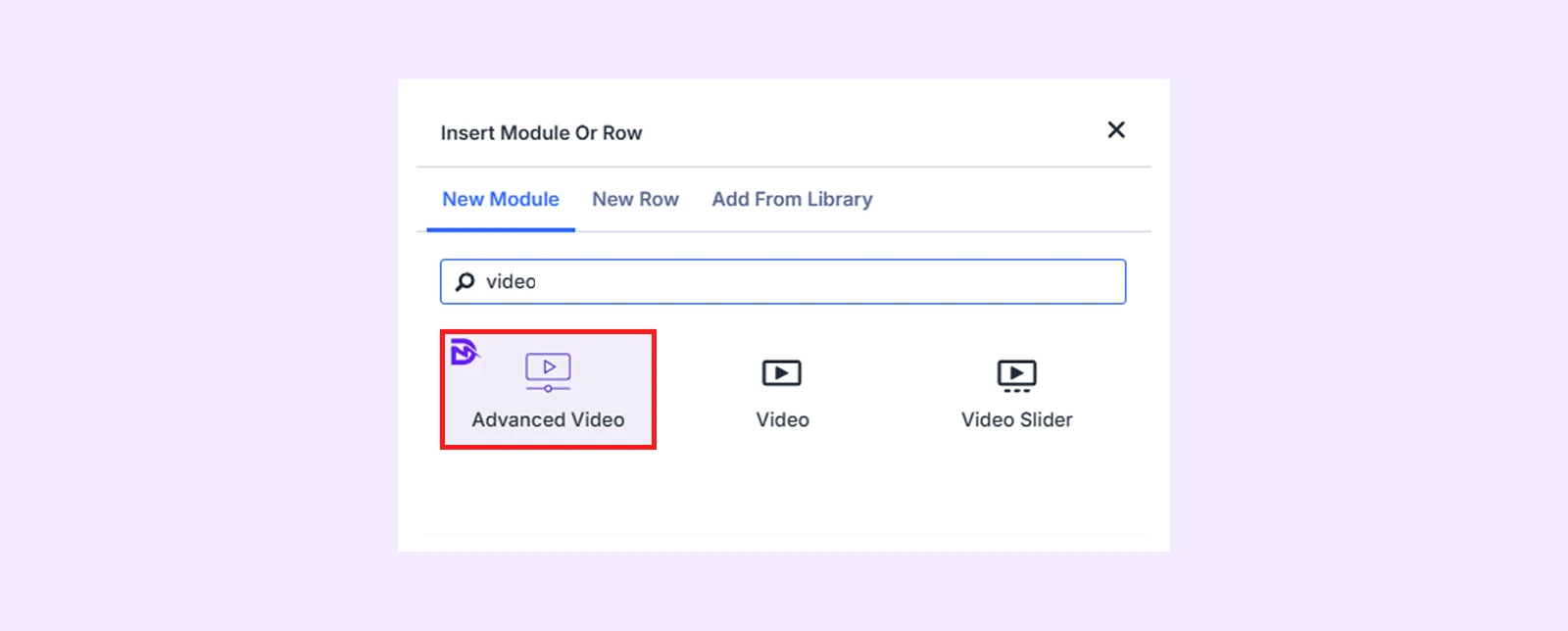
Step 3: Connect or Add Your Video
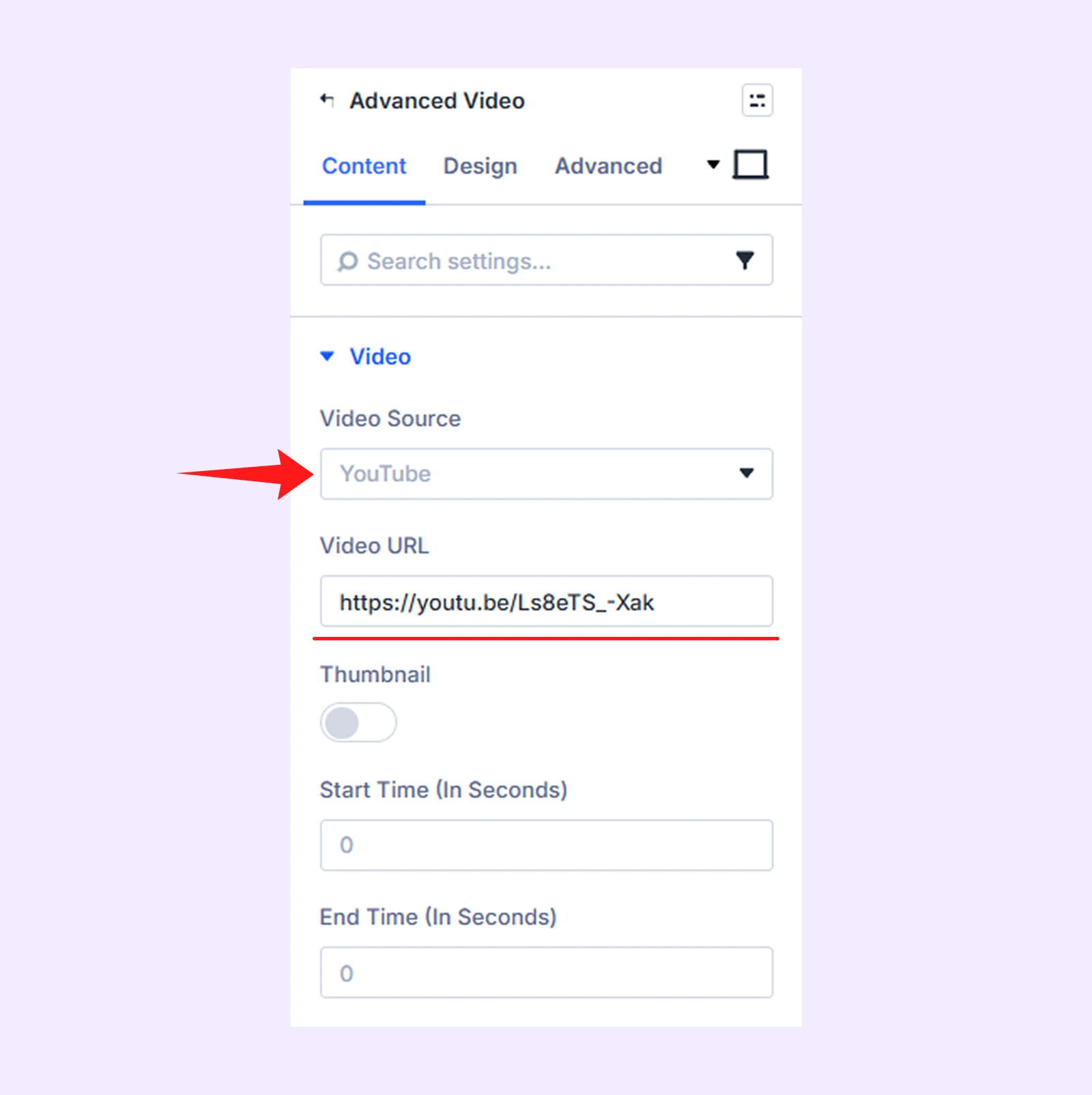
In the module settings, click Video and choose your video source. You can embed a video from self-hosted files or external platforms.
- If you choose YouTube, Vimeo, or Dailymotion, make sure to copy the video URL beforehand. Then paste it into the “Video URL” field.
- If you choose self-hosted, upload or select your MP4 or WebM video from your WordPress media library.
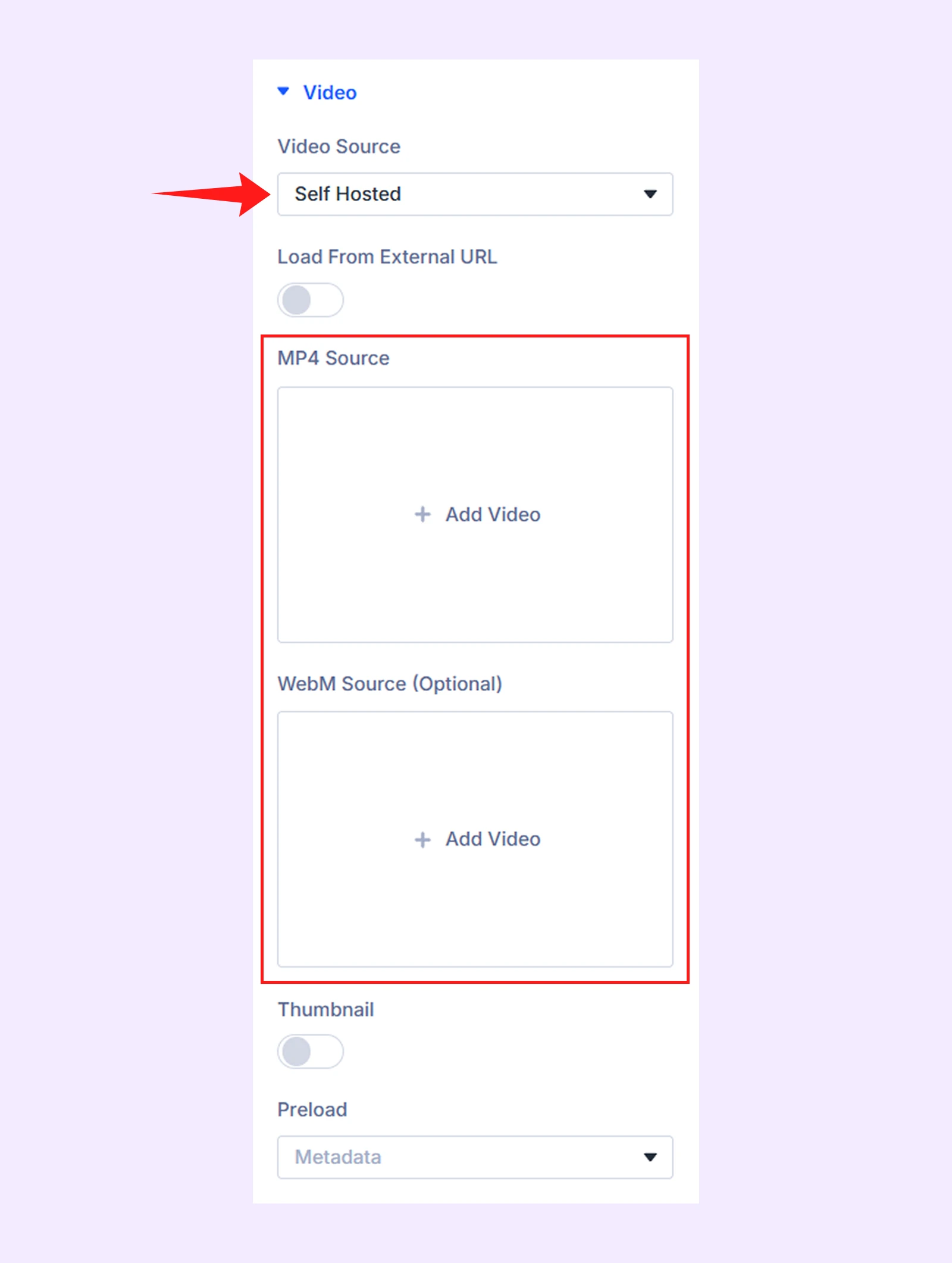
Note: Inside the video settings, you will find “Thumbnail” and “Custom Thumbnail” options, along with start and end time controls to play only a specific part of the video in the lightbox.
Step 4: Turn On the Lightbox
- Scroll down to “Video Settings” and toggle on “Open In Lightbox”
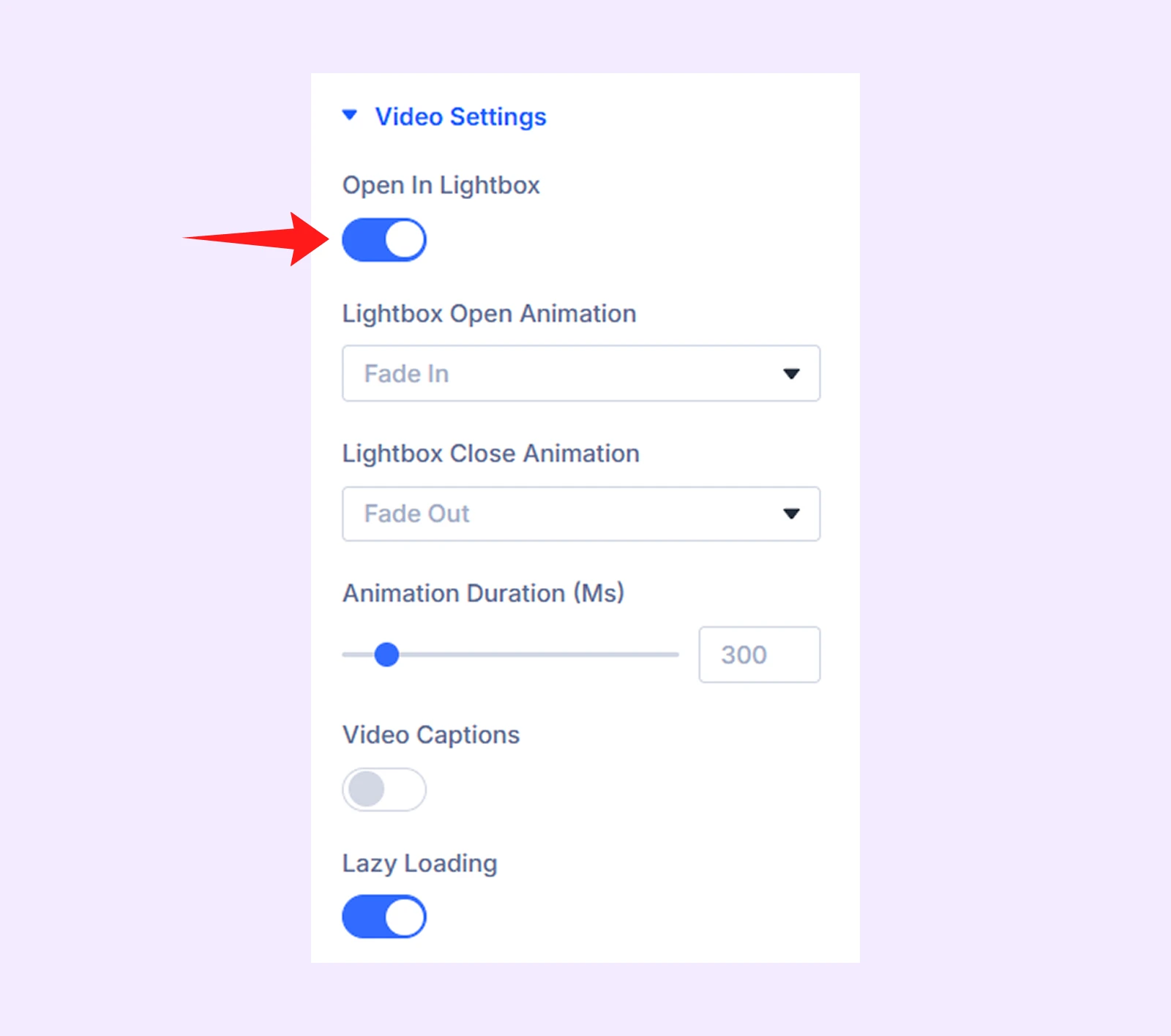
Note: There you will also see setting options to set animations for how the lightbox opens and closes.
Step 5: Customize the Play Icon (Optional)
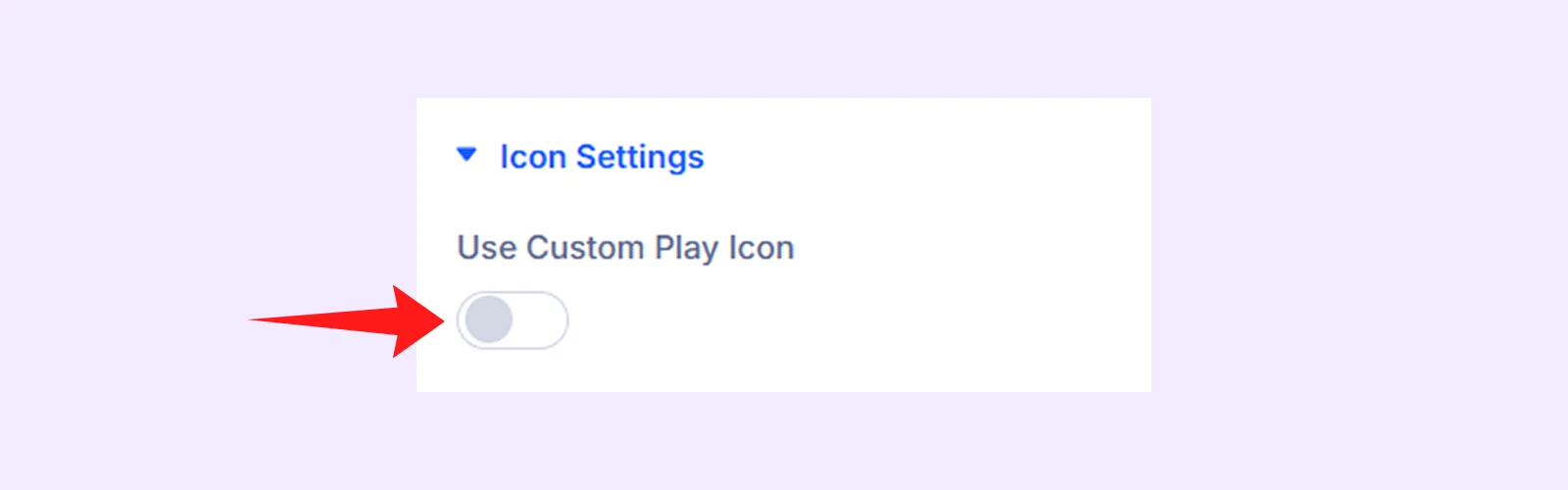
- Scroll down in the module setting panel, click on “Icon Settings” and toggle on “Use Custom Play Icon”
- Pick your custom play icon from the icon library
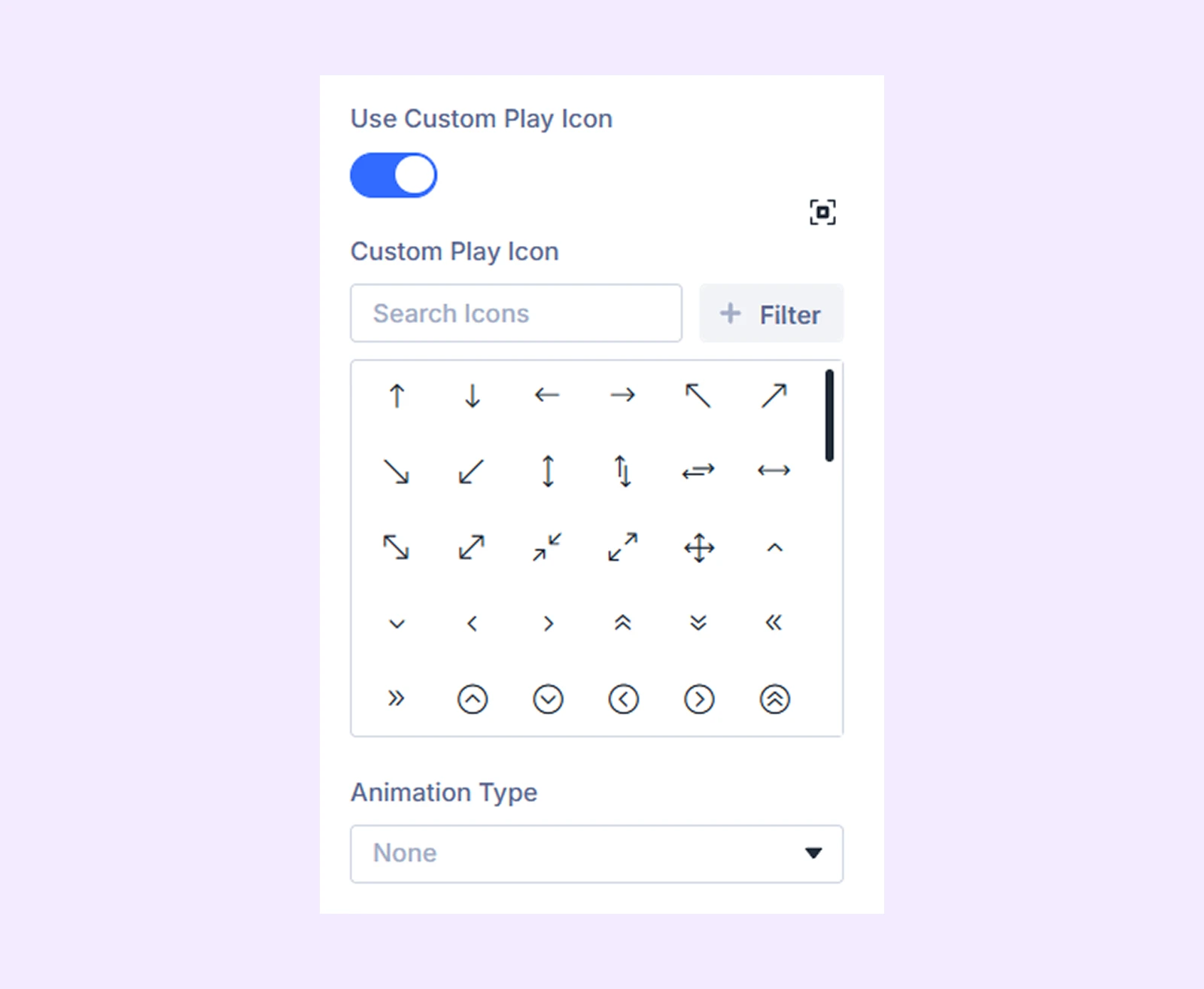
There if you click on “Animation Type” you can choose how the play icon animates when users interact with it.
Step 6: Save and Check It Works
Hit Save, then preview the page. Click the play icon, and the video will open in a lightbox with the animations you configured.
Here is the final Output of our created video lightbox:
Method 2: Using Divi’s Built-in Settings (Complex Manual Setup)
If you don’t want to use a plugin, you can still create a working lightbox using Divi’s built-in Interactions and Visibility settings. The idea is simple: you hide a section on page load, then reveal it when a user will click a trigger.
We will show you how to set it up step by step:
Step 1: Create the Lightbox Section
- Add a new Section > Row > Column > Video module to your page and add your video.
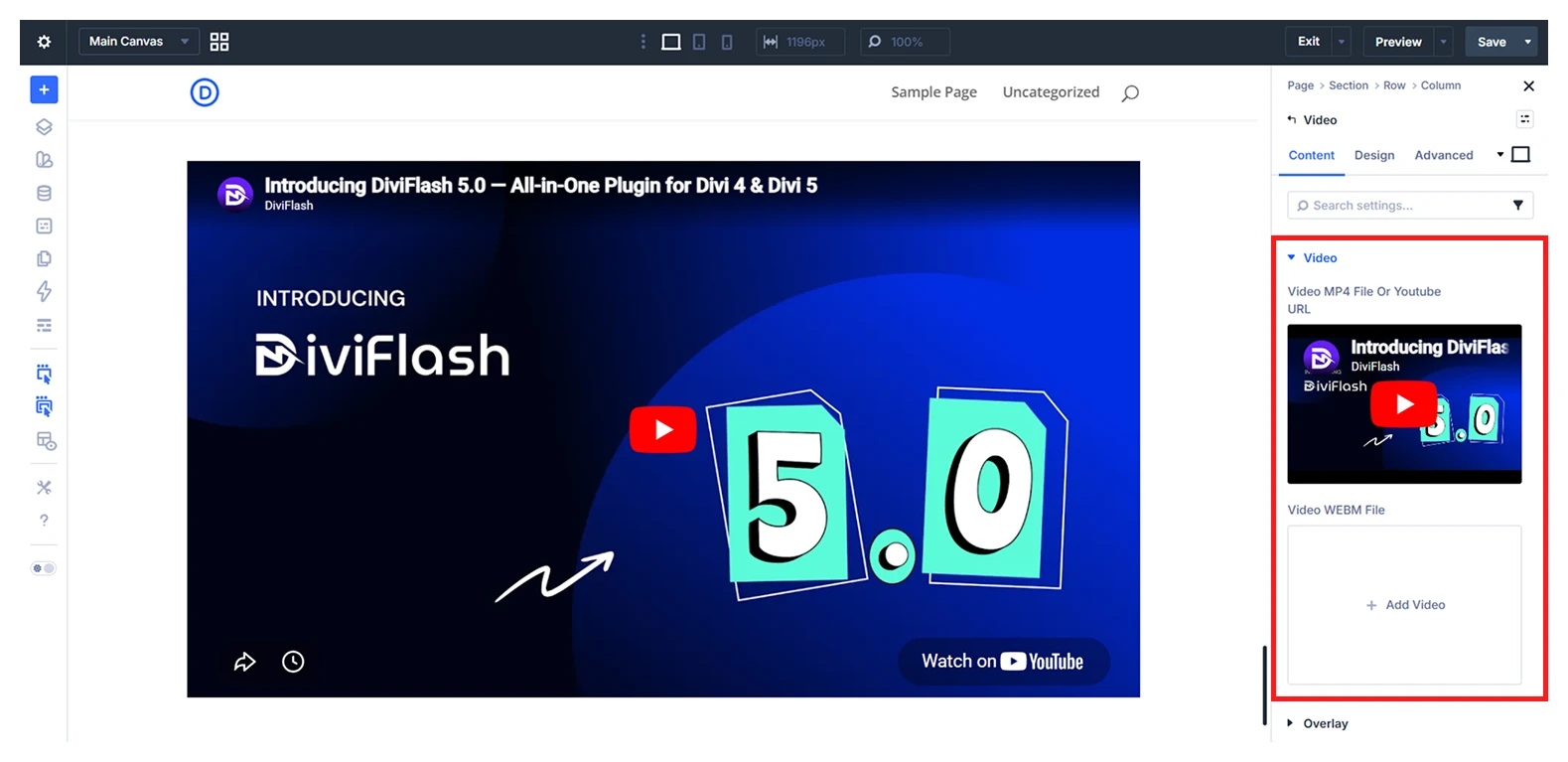
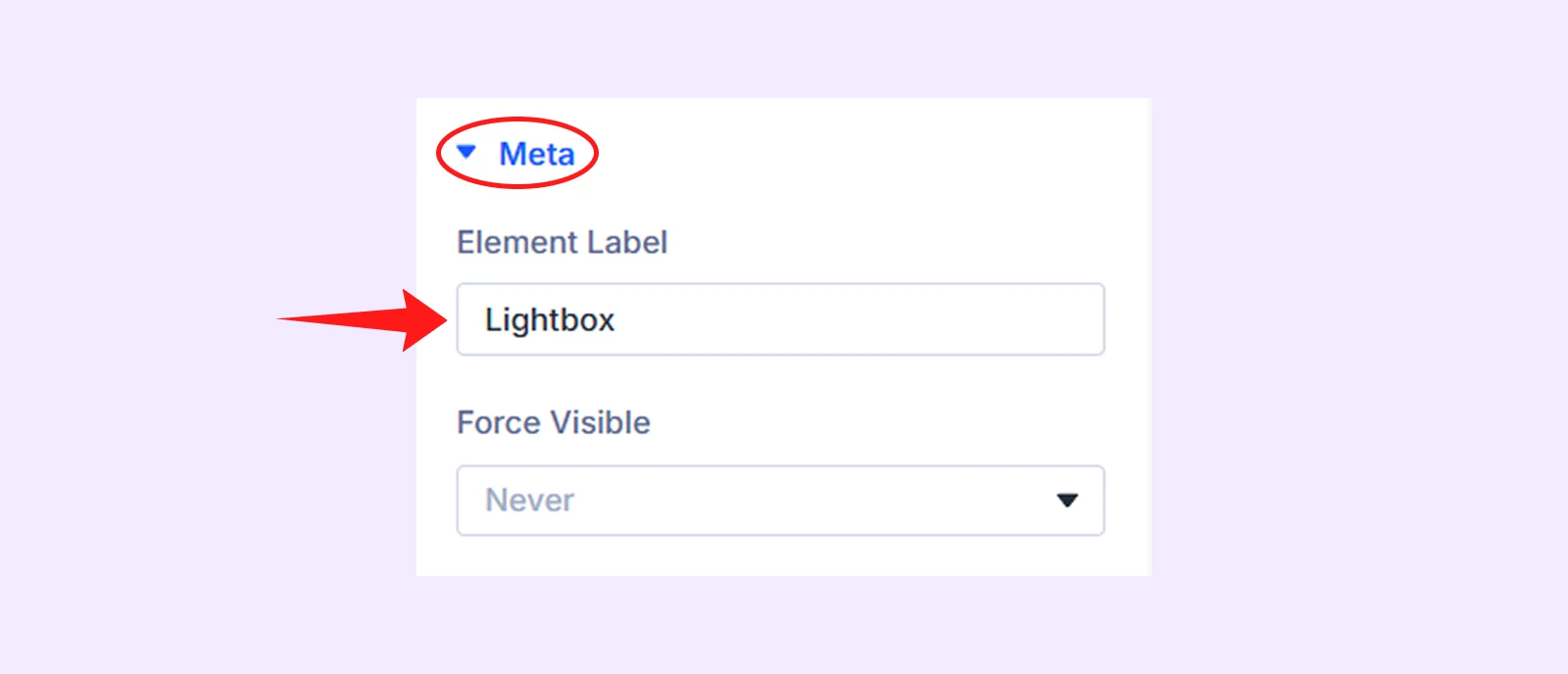
- Click on the section's setting icon. Then in the Content tab, click on “Meta” and set the section name as Lightbox for easy identification.
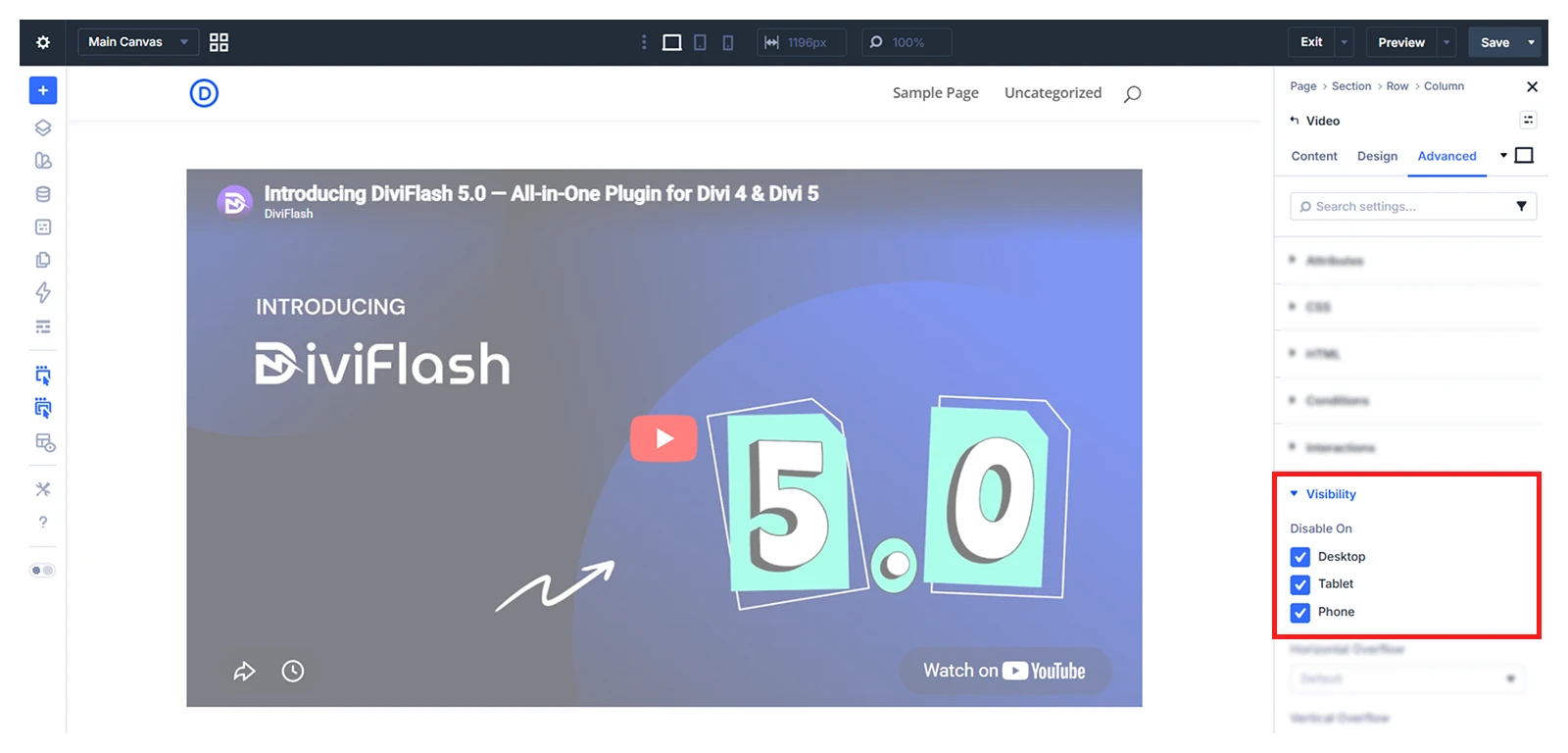
- Go to Advanced tab > Visibility and enable all devices
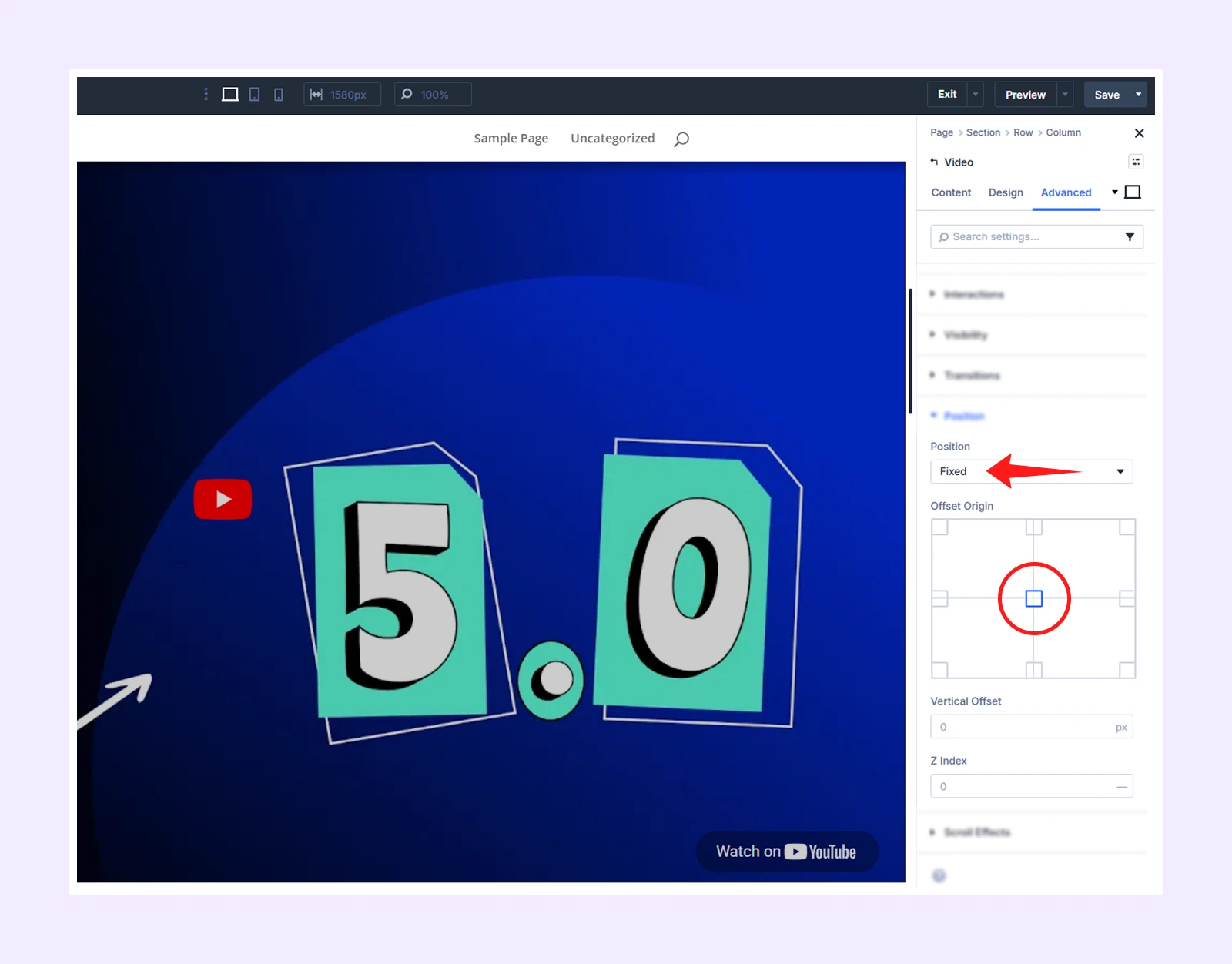
- In the Advanced tab, click on Position and set Position to Fixed, alignment to Center
- Set Z Index to 10 so the lightbox appears above all other page elements when triggered

Step 2: Add Close Button (Very Important)
In the same lightbox section, you have to add a close button so users can easily exit the lightbox. Here is how to do it:
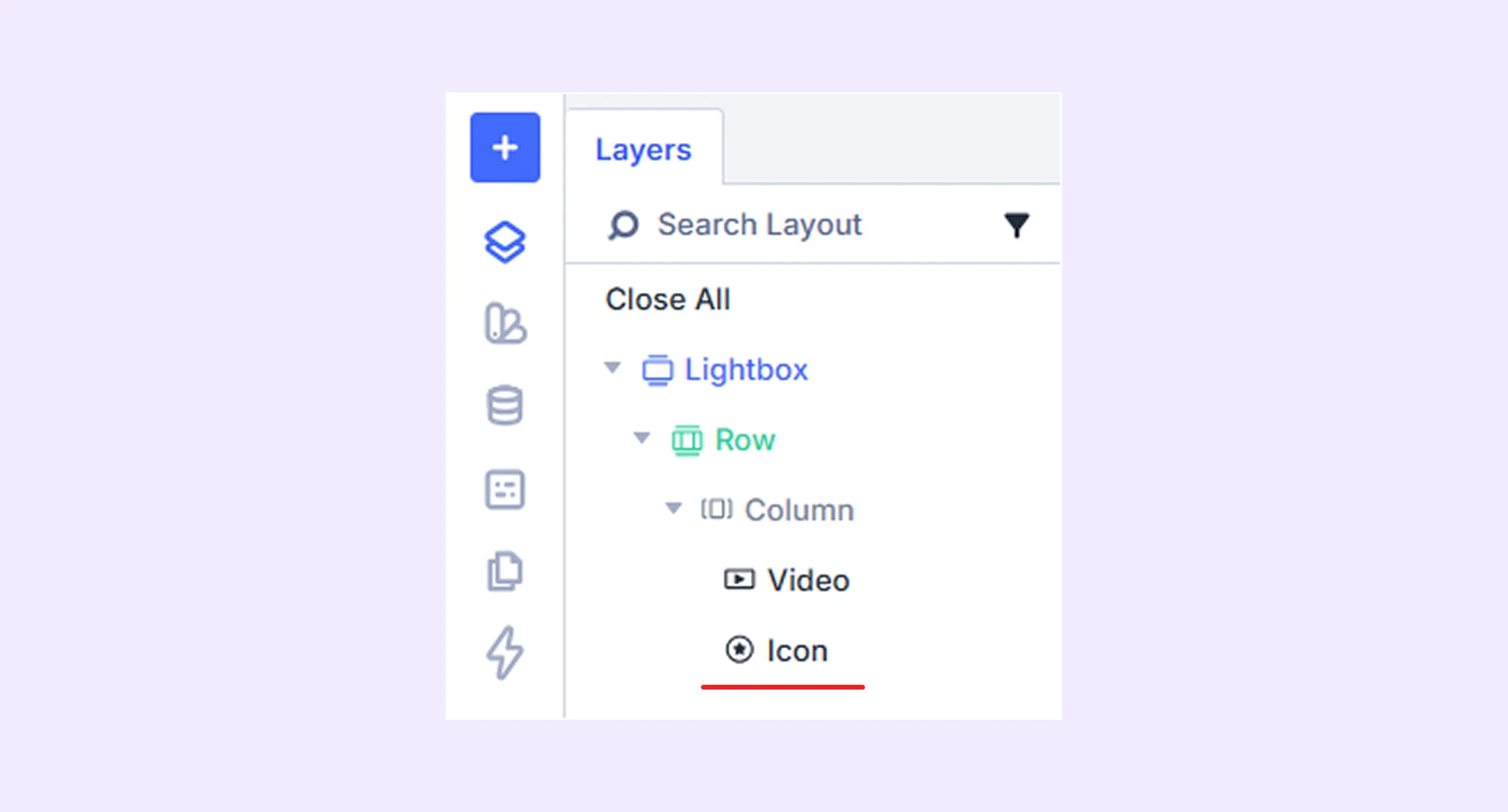
- Inside the Lightbox section, add an Icon Module and choose your preferred icon.
- Then go to Advanced tab > Position. Select “Fixed” and choose the top-right corner from Offset Origin.
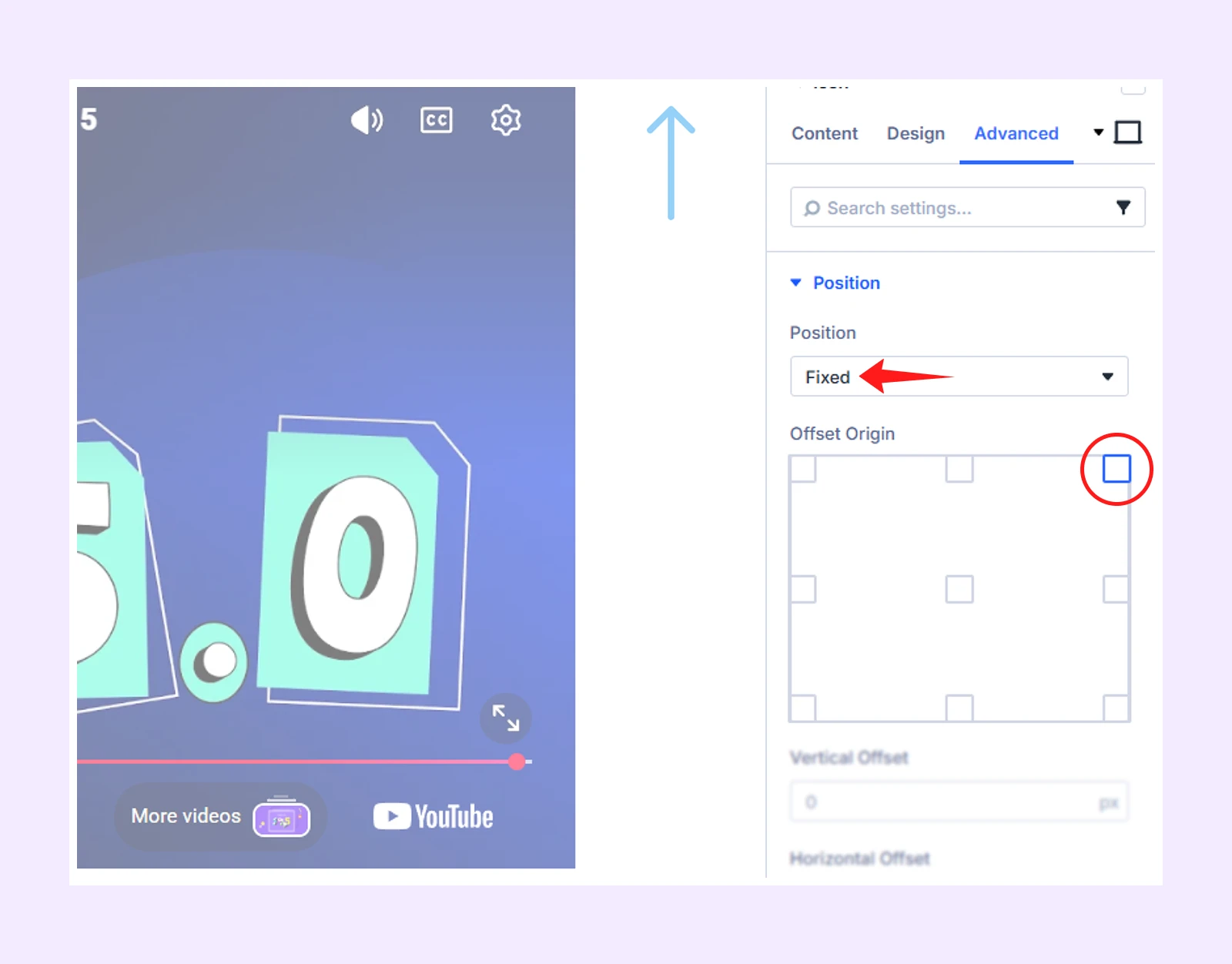
- In the Advanced tab, click on Interaction and do as follow:
- Trigger Event: Click
- Effect Action: Toggle Visibility
- Target Module: Lightbox Section
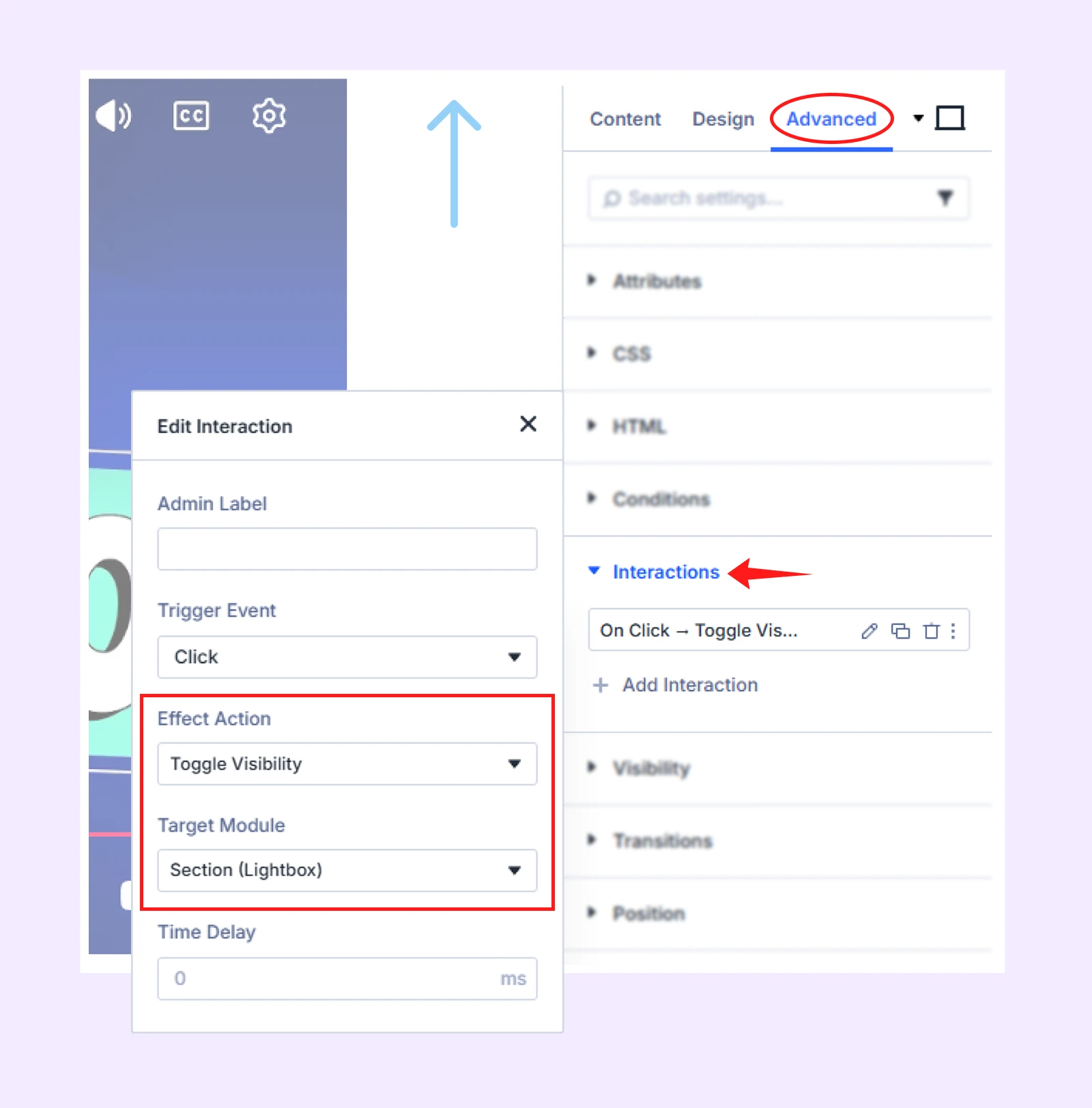
This will add a functional close button that lets users easily close the lightbox.
Note: Use the icon settings, including size, color, and spacing, to style the close button so it fits your lightbox design.
Step 3: Create the Trigger (What Users Click)
In a separate section on your page, add the module users will click to open the video. You can add any module, but these three are most commonly used:
- Button module: Use it to create a clear call-to-action to open the video
- Text module: Use it for a simple inline link-style trigger
- Image module: Use it to make a video thumbnail clickable as the trigger
We used the button module to show you the process.
Step 4: Connect the Trigger to the Lightbox
Open your Button, Text, or Image module settings and go to Advanced tab > Interaction. Then set it up as follows:
- Trigger Event: Click
- Effect Action: Show Element
- Target Module: Lightbox section
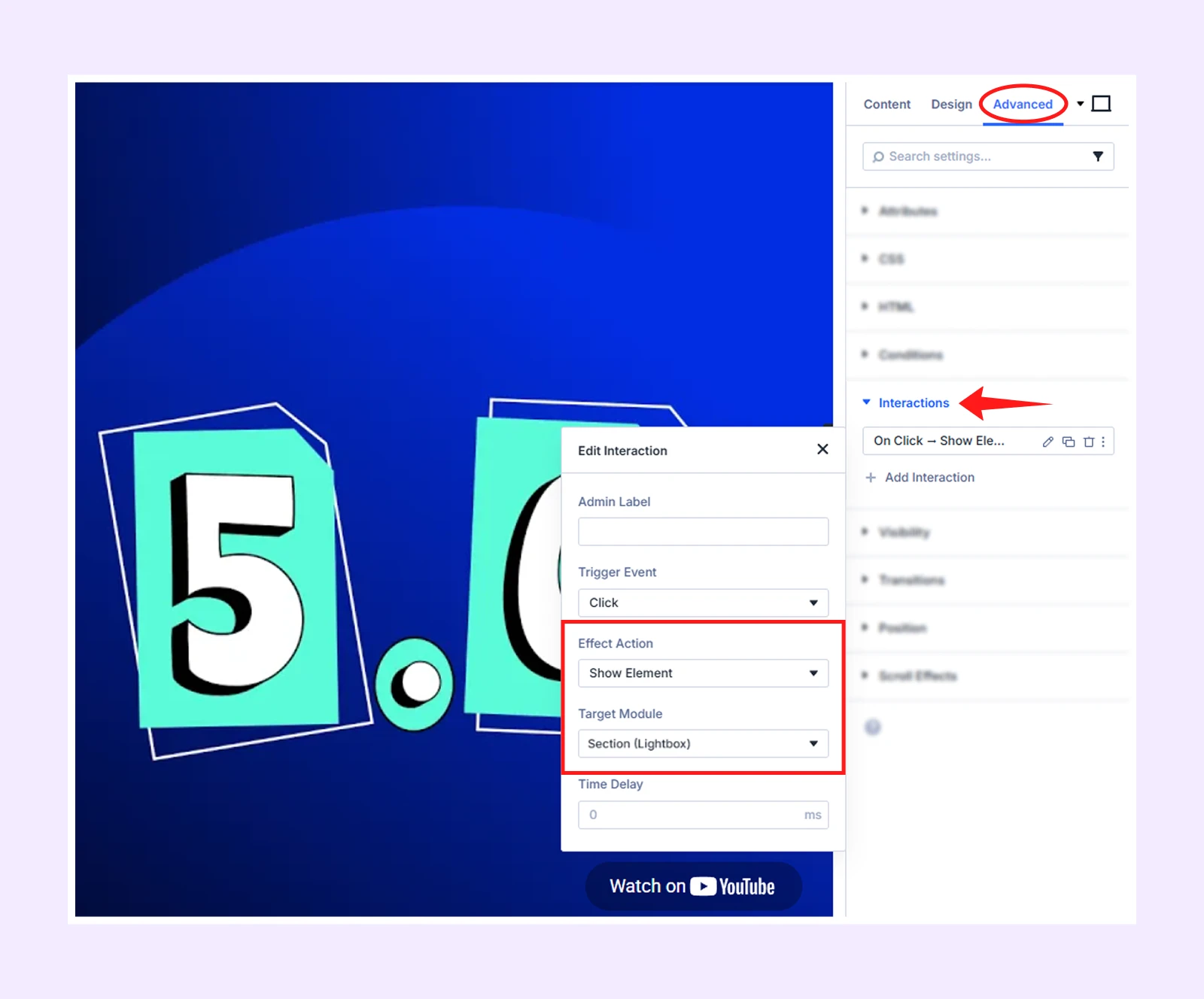
Note: Divi 5 supports multiple triggers, but Click is best for lightboxes because it only opens when users intentionally click.
Step 5: Save and Test
- Save and preview the page
- Click the trigger to open the lightbox
- Click the close icon to close it
Here is the final output of our created lightbox for video using Divi’s built-in settings options:
If it doesn’t work, check again that both interactions (trigger and close icon) are targeting the same Lightbox Section.
Final Thoughts: Which Method You Should Choose
Both methods work, and the best choice depends on what you need.
If you are building a quick one-time page and don’t mind a few extra steps, the manual Divi Interactions method (Method 2) will do the job.
But, if you want a faster and more reliable setup, the DiviFlash Advanced Video module is the better option. You can set it up in less than a minute. What’s more is that the same module also lets you autoplay videos and enable lazy loading, so you can use it for different video use cases.
Now it’s just a matter of choosing the approach that fits your workflow.
If you have tried either method, let us know in the comments which one worked best for you.


0 Comments