


You have two easy options. Divi’s native Loop Builder works well for simple CPT lists, while DiviFlash gives you more flexibility for grids, filters, carousels, pagination, and polished card layouts. In this blog, we’ll show you how to display custom post types in Divi with both methods, so you can choose the one that fits your site best.
Method 1: Display Custom Post Types With Divi's Native Loop Builder
This is the no-code, built-in-into-core option. It's a solid choice for a basic CPT listing on a page, landing page, archive-style layout, or custom Divi Theme Builder template, especially if you just need to get something functional on the page quickly.
Here's the process:
- Open the page, post, or Theme Builder template where you want to display the custom post type.
- Add a Divi module that supports Dynamic Content: an Image, Text, Blurb, or Button module all work well as card elements.
- Open the module settings and click the Dynamic Content icon beside the field you want to populate.
- Select the content you want to pull in (featured image, title, excerpt, custom field, etc.).
- Go to the module's Loop settings and enable the Loop toggle.
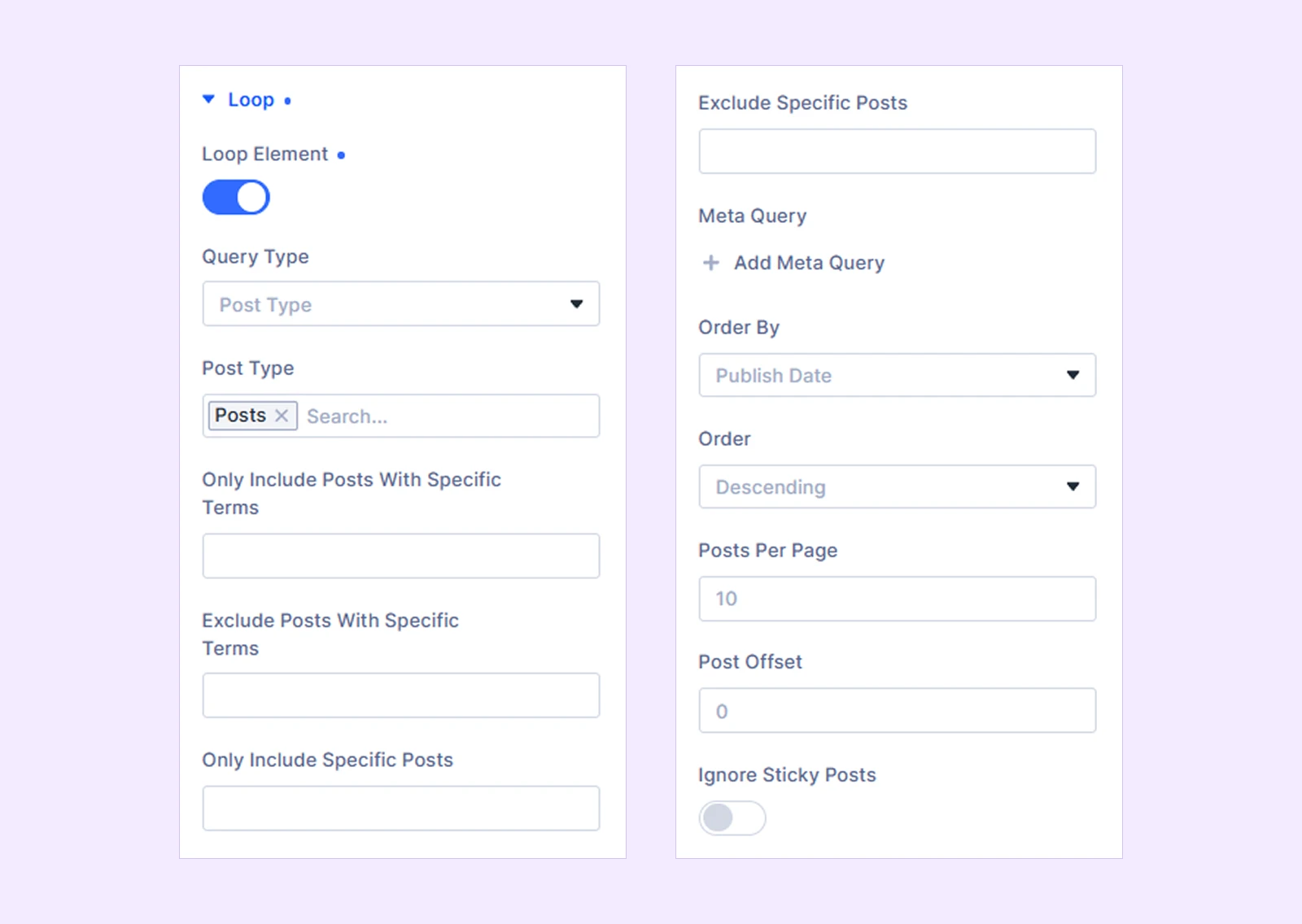
- Select your Query Type and choose the custom post type you want to loop through.
- Configure the query settings: post count, order, and any basic filtering the Loop Builder supports.
- Return to the module's Dynamic Content field and choose Loop Content from the Dynamic Content tag so it pulls the correct value for each repeated item.
- Repeat this setup for every element in the card (image, title, excerpt, button, and so on).
- Style the layout using Divi's built-in design options, then save and publish.
Where this approach runs into limitation:
Loop Builder genuinely works for straightforward query-and-repeat display. But it starts to feel restrictive once your project needs any of the following:
- Advanced layouts: masonry grids, uneven card heights, or anything beyond a simple row/column structure
- Taxonomy-based filtering: letting visitors filter the CPT archive by category, tag, or custom taxonomy without a page reload
- Carousel or slider behavior: Loop Builder has no native slider transitions, navigation arrows, or autoplay controls
- Pagination styles: "Load More" buttons, infinite scroll, or numbered pagination aren't built in
- Post-card level controls: per-card hover effects, overlays, watermarks, or conditional element visibility
- Performance at scale: stacking multiple Dynamic Content modules per card can get slow to build and maintain as your CPT list grows
- Repetitive setup: every single card element needs its own manual Dynamic Content + Loop configuration, which adds up fast on complex cards
If any of that sounds like your project, it's worth moving to a purpose-built solution rather than fighting the native builder, like DiviFlash. Next we’ll explore its powerful CPT modules to go beyond what native divi offers.
Method 2: Display Custom Post Types in Divi With DiviFlash Modules
There are four CPT modules in DiviFlash, and each one is built for a different kind of display:
| Module | Best for |
| Smart CPT | An all-in-one, highly interactive CPT showcase |
| CPT Grid | Structured grid or masonry archives |
| CPT Carousel | Sliders, featured content, and carousels |
| Filterable CPT | Taxonomy-based filtering and browsable archives |
Let's walk through each one.
Module 1: Smart CPT
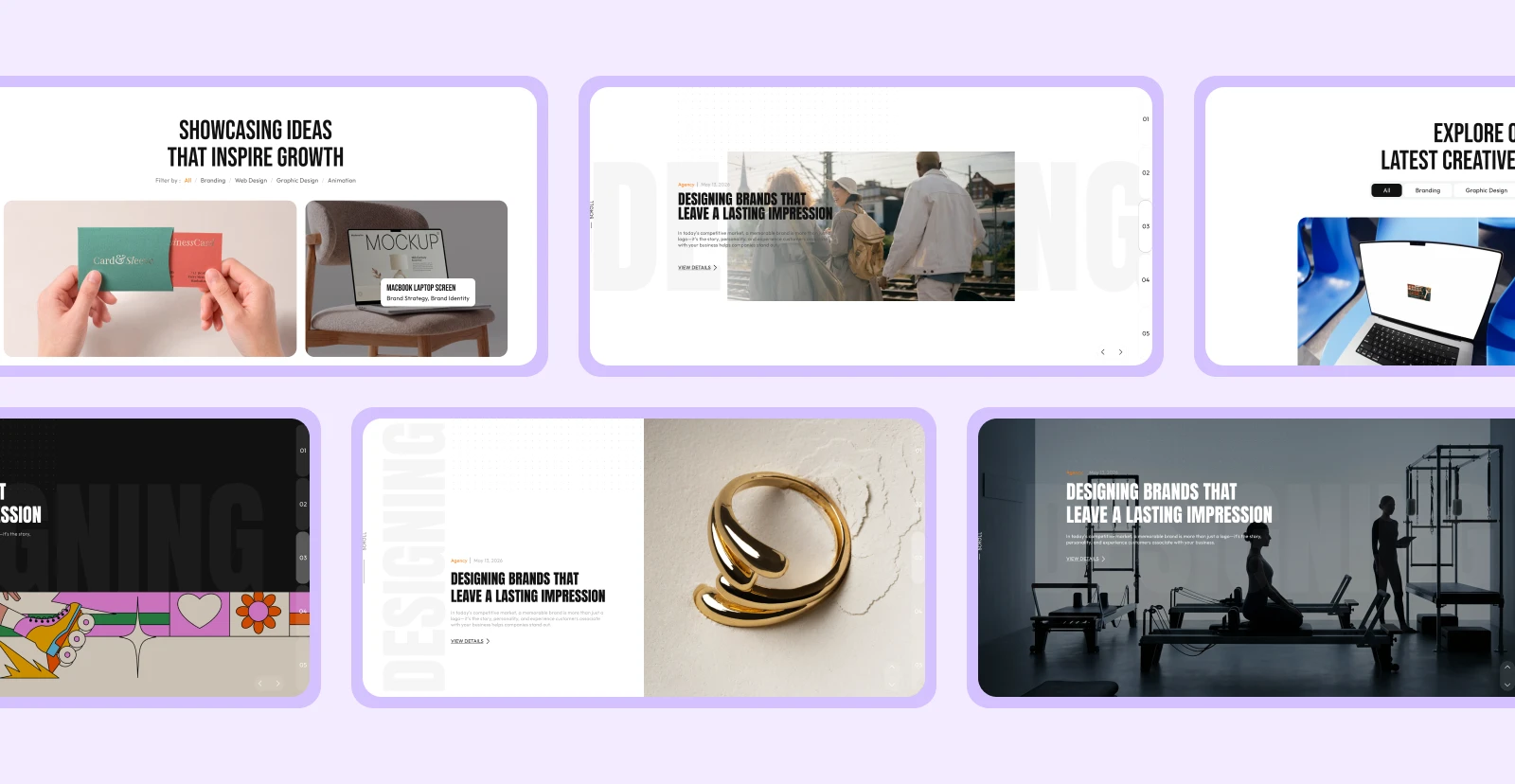
Smart CPT is the module to start with if you want one flexible tool that can handle nearly any CPT display scenario without needing to switch modules later.
- Open the page, post, or Theme Builder template where you want to display your custom post type.
- Add the DiviFlash Smart CPT module.
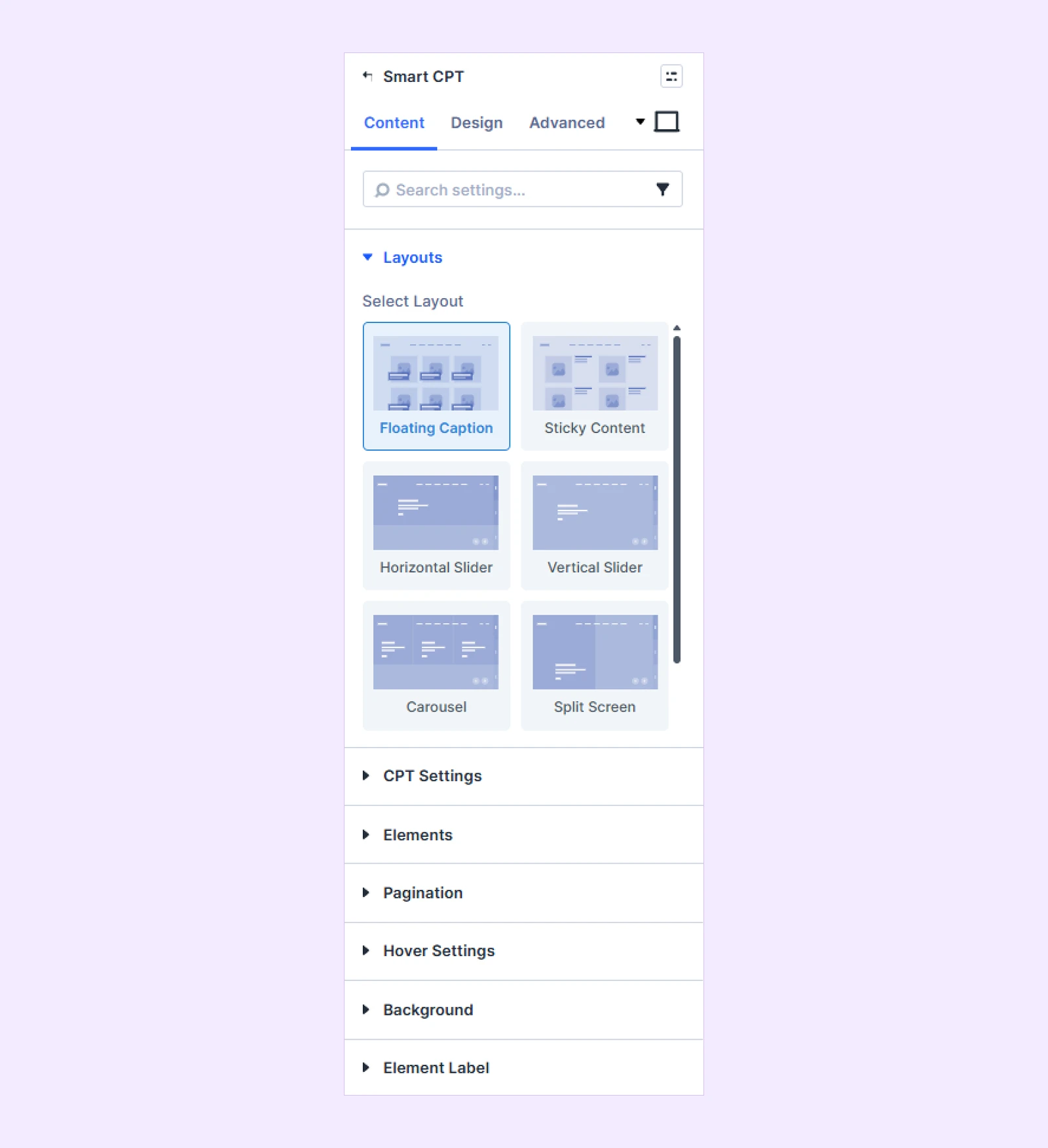
- In the Content settings, choose a layout that fits your content and page design.
- Go to CPT Settings and select the custom post type you want to display.
- Choose whether to show all entries or restrict the output using a custom taxonomy.
- Set the post count, offset, ordering, and order direction.
- Choose a thumbnail resolution, image ratio, and image-fit setting to keep featured images visually consistent across cards.
- Enable or disable card elements such as the title, taxonomy, excerpt, publication date, author, Read More button, watermark, overlay, navigation arrows, filter bar, and pagination.
- Use the Design settings to style card wrappers, images, titles, meta information, filters, pagination, spacing, borders, shadows, hover states, and responsive columns.
- Save the page and publish your CPT showcase.
Read our detailed documentation for step-by-step instructions.
Module 2: CPT Grid
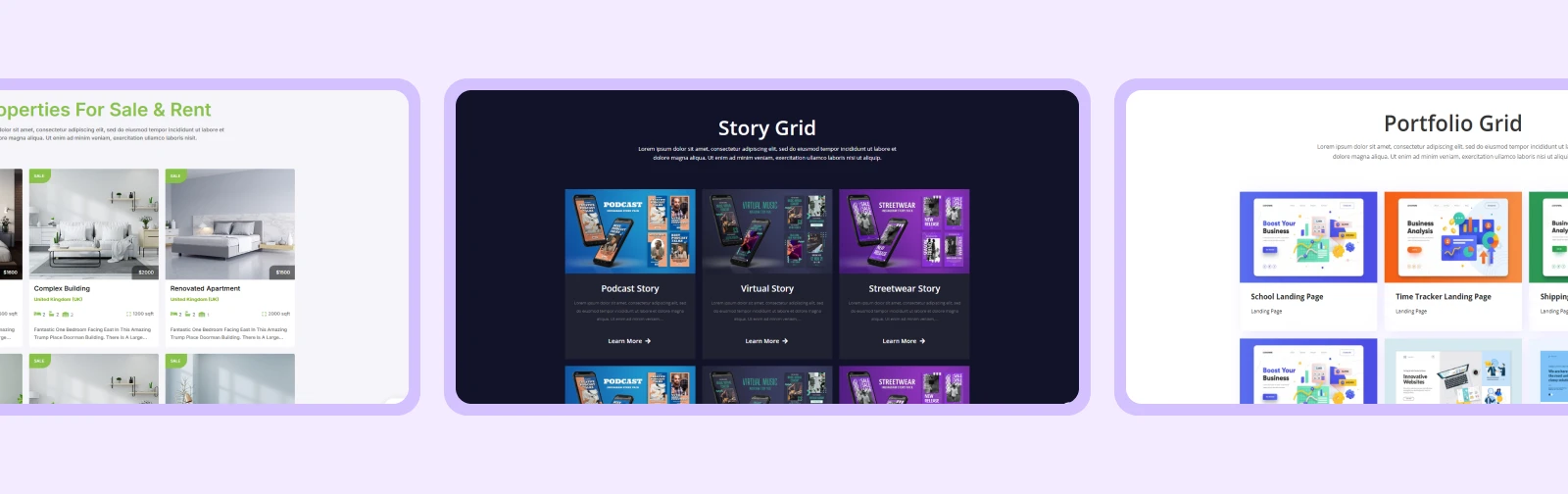
CPT Grid is the right call when you need a clean, structured way to show multiple CPT entries at once. The priority here is helping visitors scan a lot of content quickly while the section still looks polished.
- Open the page or Theme Builder template where you want to show your custom post type.
- Add the DiviFlash CPT Grid module.
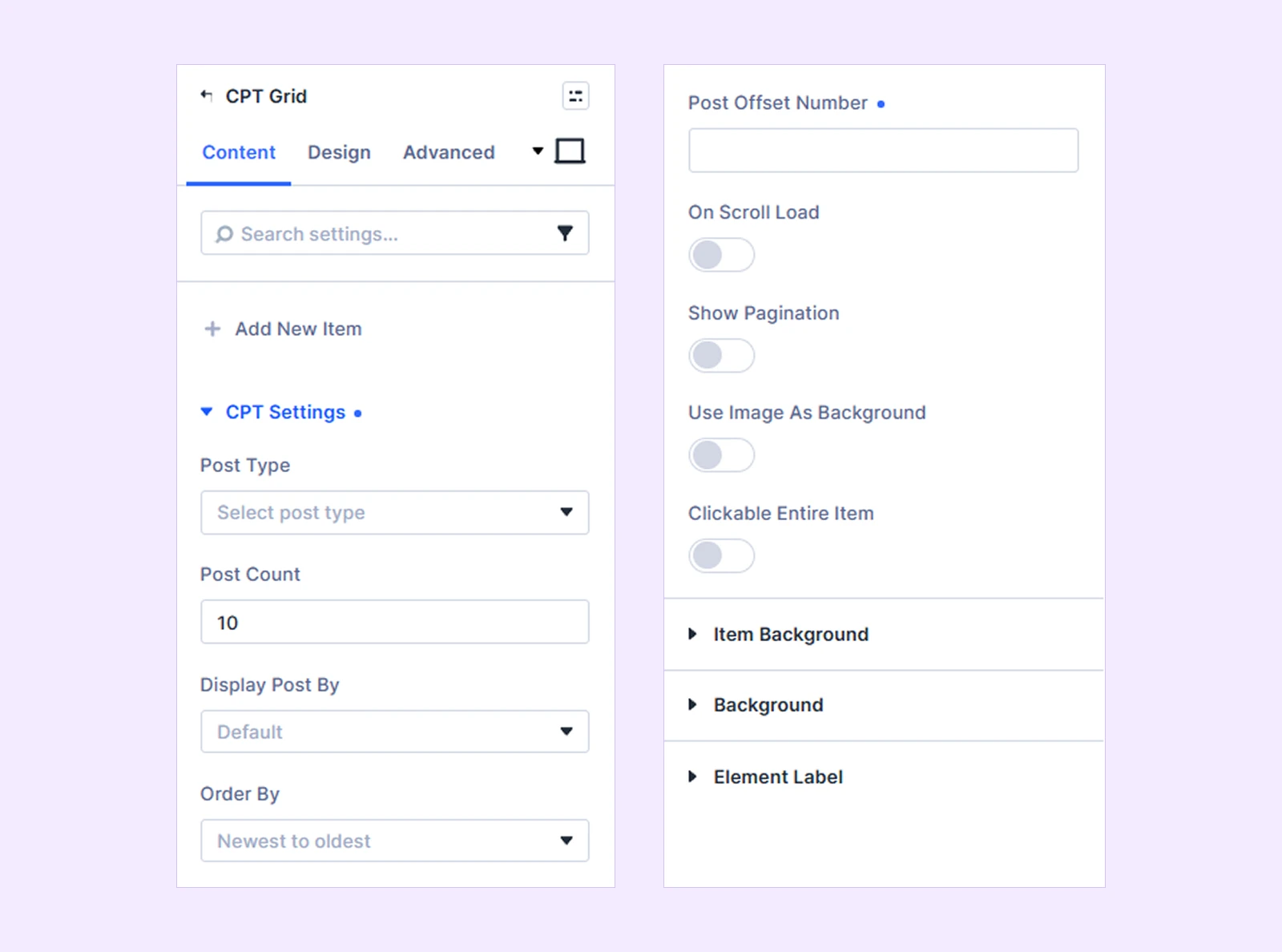
- Under CPT Settings, choose the post type you want to display standard WordPress posts, Projects, Products, or any custom post type registered on your site.
- Set the number of posts to display, choose the order, and use the post offset option if you want to skip a number of recent items.
- Choose whether to display all entries or filter the initial query by taxonomy. If you select By Taxonomy, choose the relevant taxonomy and terms: Web Design, Branding, E-commerce, UI/UX, or whatever fits your content.
- Click Add New Item to build the content inside each CPT card.
- Add, reorder, and customize the post elements you need, CPT Grid gives you 11 element types to work with.
- Choose Grid for a traditional structured archive, or Masonry for a more editorial, uneven-height layout.
- Set the number of columns, spacing between items, and equal-height cards where needed.
- Style the card wrappers, featured images, typography, borders, shadows, colors, spacing, and hover behavior.
- Enable pagination or on-scroll loading if you're displaying a larger collection of CPT entries.
Read our detailed documentation for step-by-step instructions.
Module 3: CPT Carousel
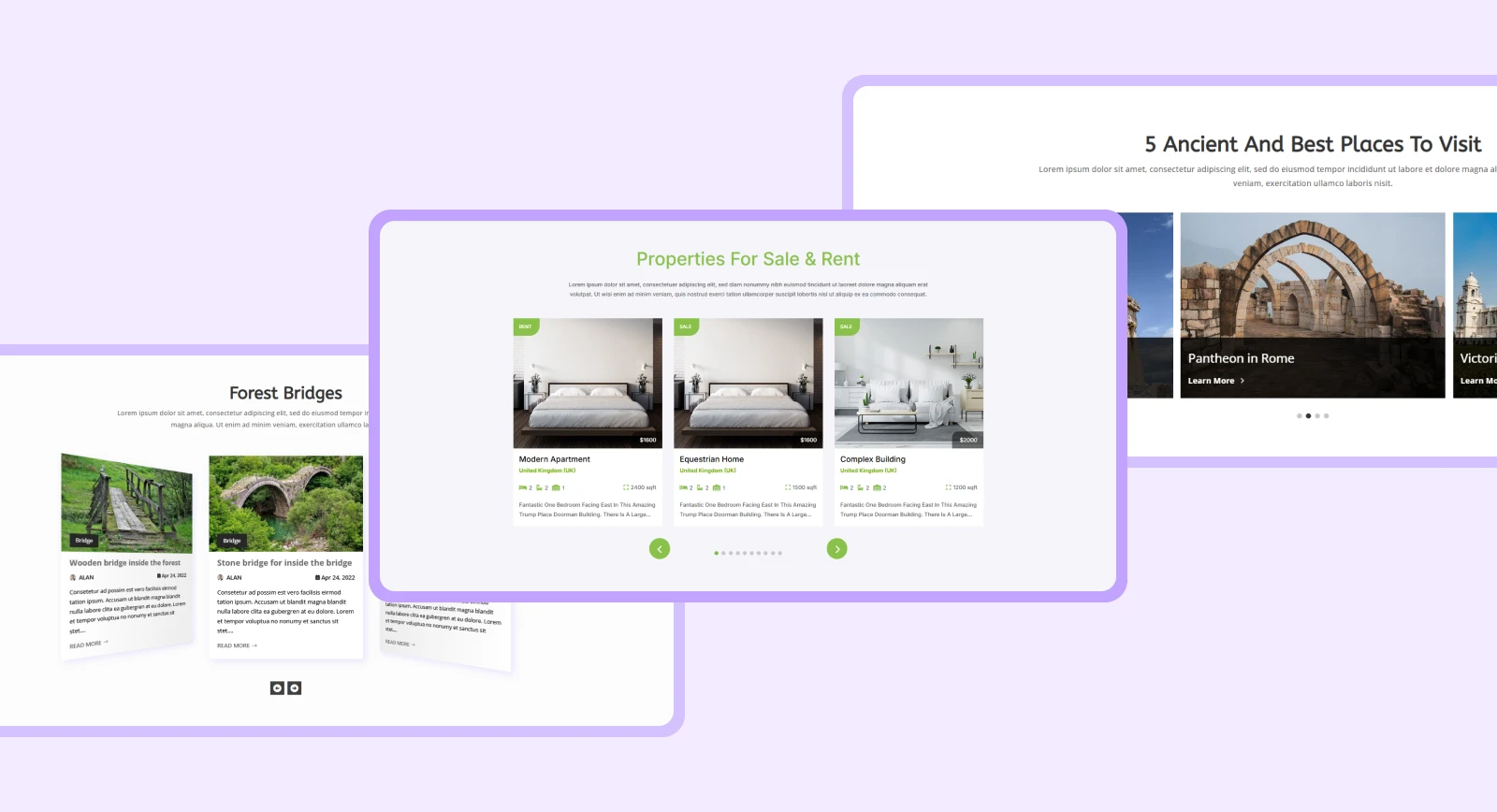
CPT Carousel is built for showcasing a curated set of CPT entries in a responsive slider ideal for featured projects, highlighted products, or a "recent case studies" section on a homepage.
- Open the page or Theme Builder template where you want to add the carousel.
- Add the DiviFlash CPT Carousel module.
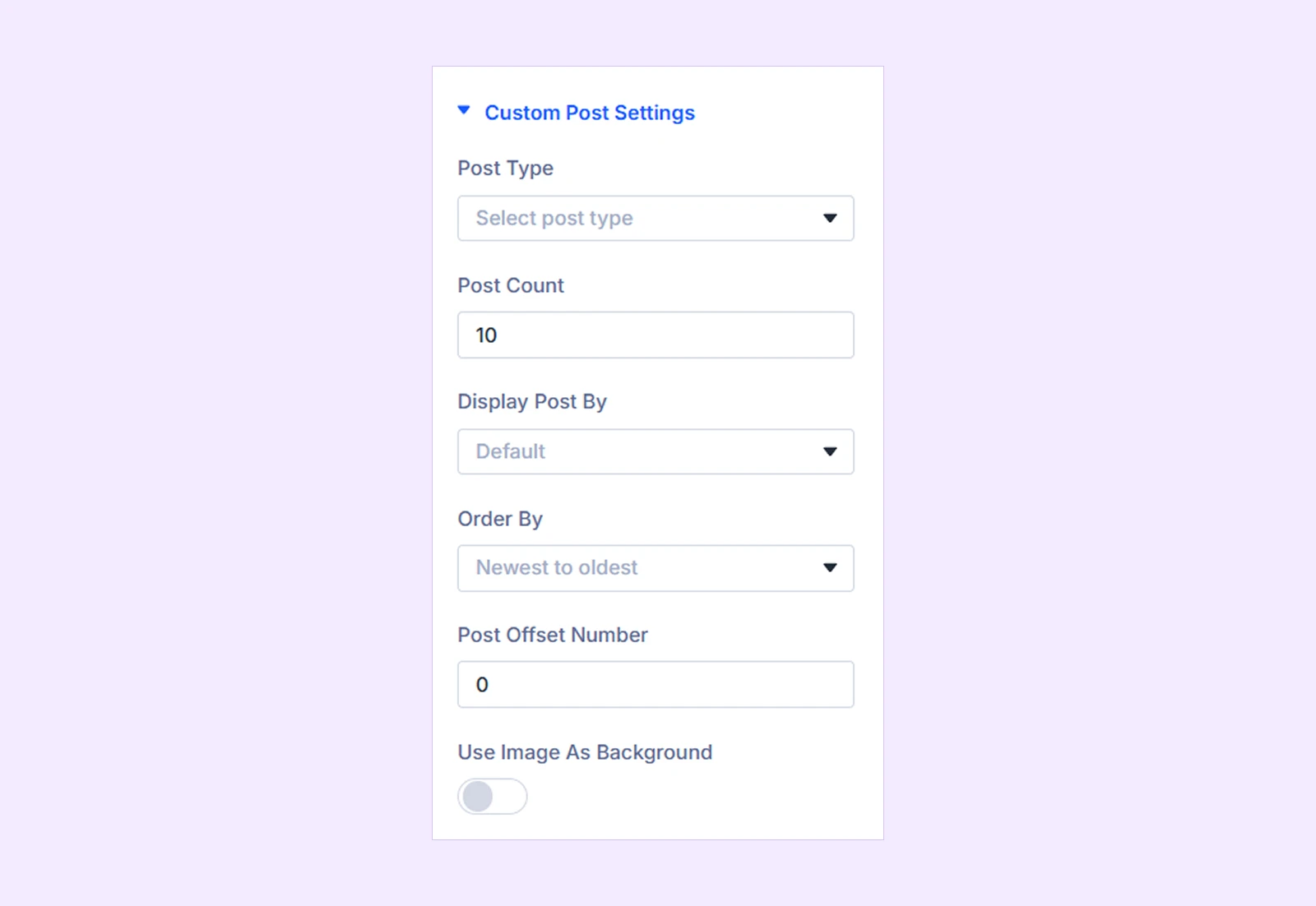
- Configure the Custom Post Settings to select your post type, define the post count, choose the ordering, set an offset, and optionally restrict the displayed entries by taxonomy.
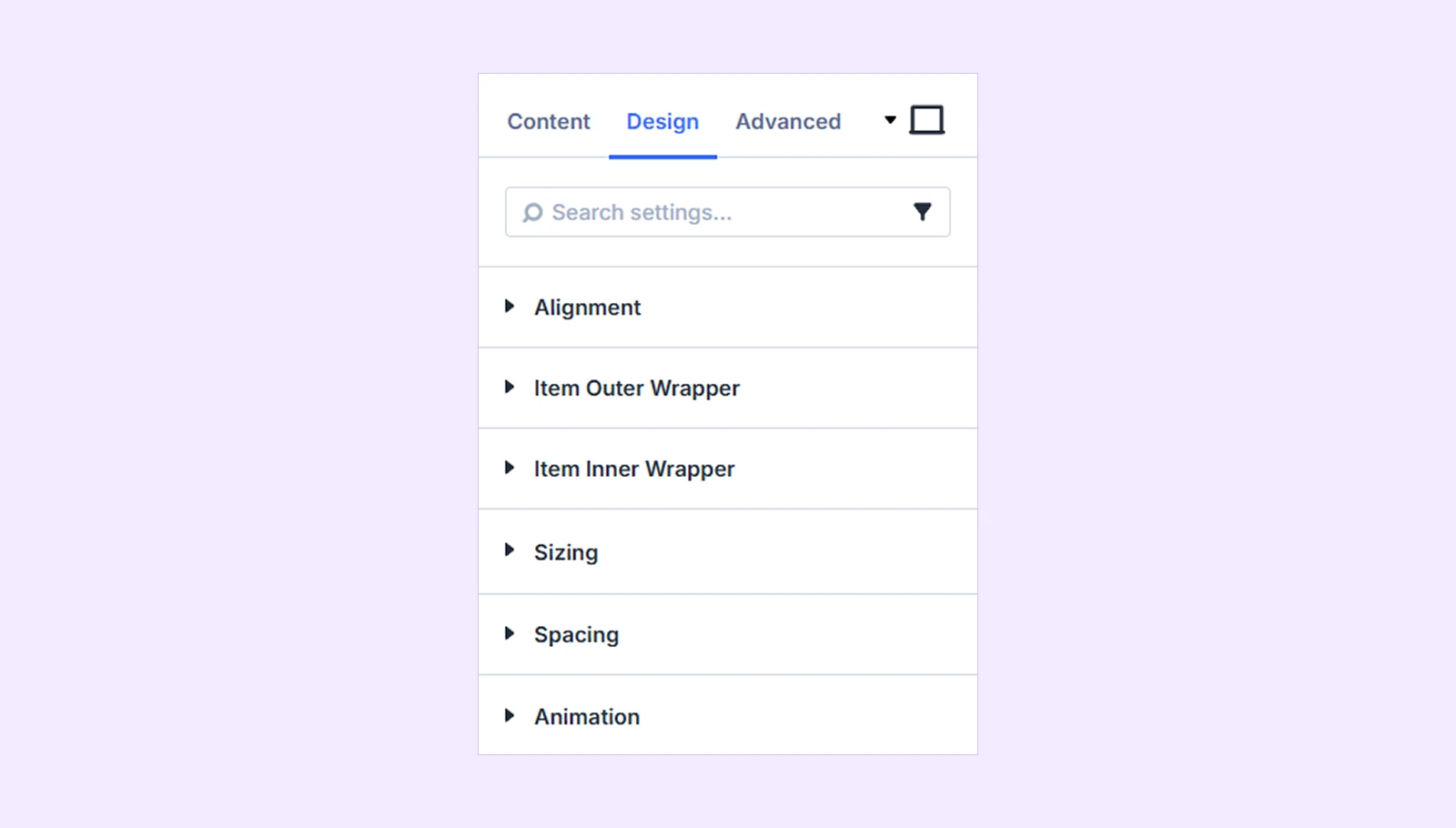
- Add the content elements for each carousel card. CPT Carousel's child items use the same core element system as CPT Grid, so you can add and style elements the same way.
- Arrange and style the card elements to match the rest of your site.
- Configure the carousel behavior number of slides, transitions, navigation controls, and layout effects.
- Style the outer and inner card wrappers, images, text, arrows, dots, spacing, borders, and shadows.
- Save and test the carousel across desktop, tablet, and mobile carousel behavior is one of the easiest things to get wrong on smaller screens, so this step matters.
Read our detailed documentation for step-by-step instructions.
Module 4: Filterable CPT
If your custom post type spans multiple categories or taxonomies, Filterable CPT is the simplest way to let visitors self-select the content they actually want to see.
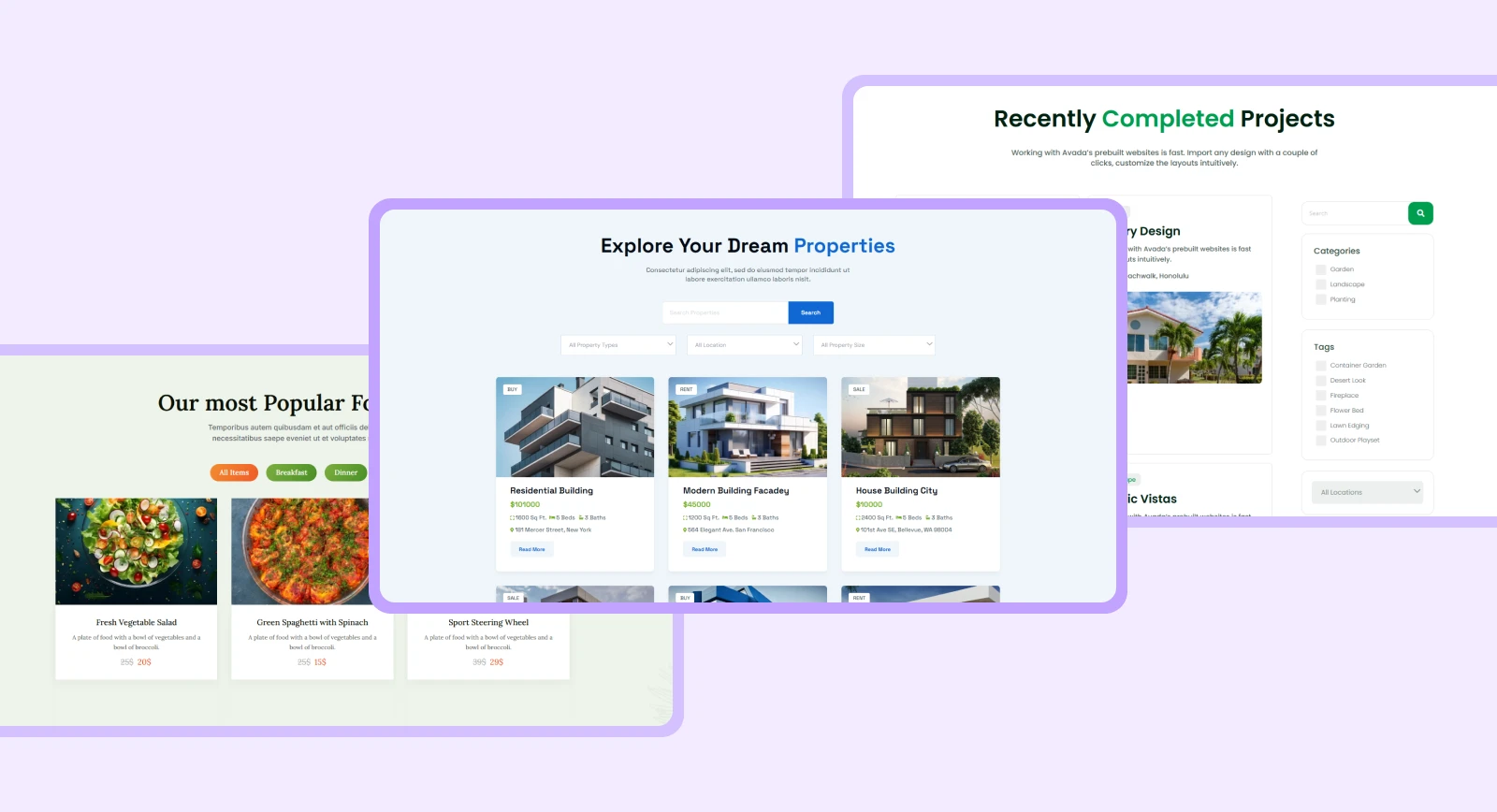
- Add the DiviFlash Filterable CPT module to the relevant page or Theme Builder template.
- In CPT Settings, select the content type you want to show: Posts, Projects, Products, or your custom post type.
- Define the post count, ordering, and post offset.
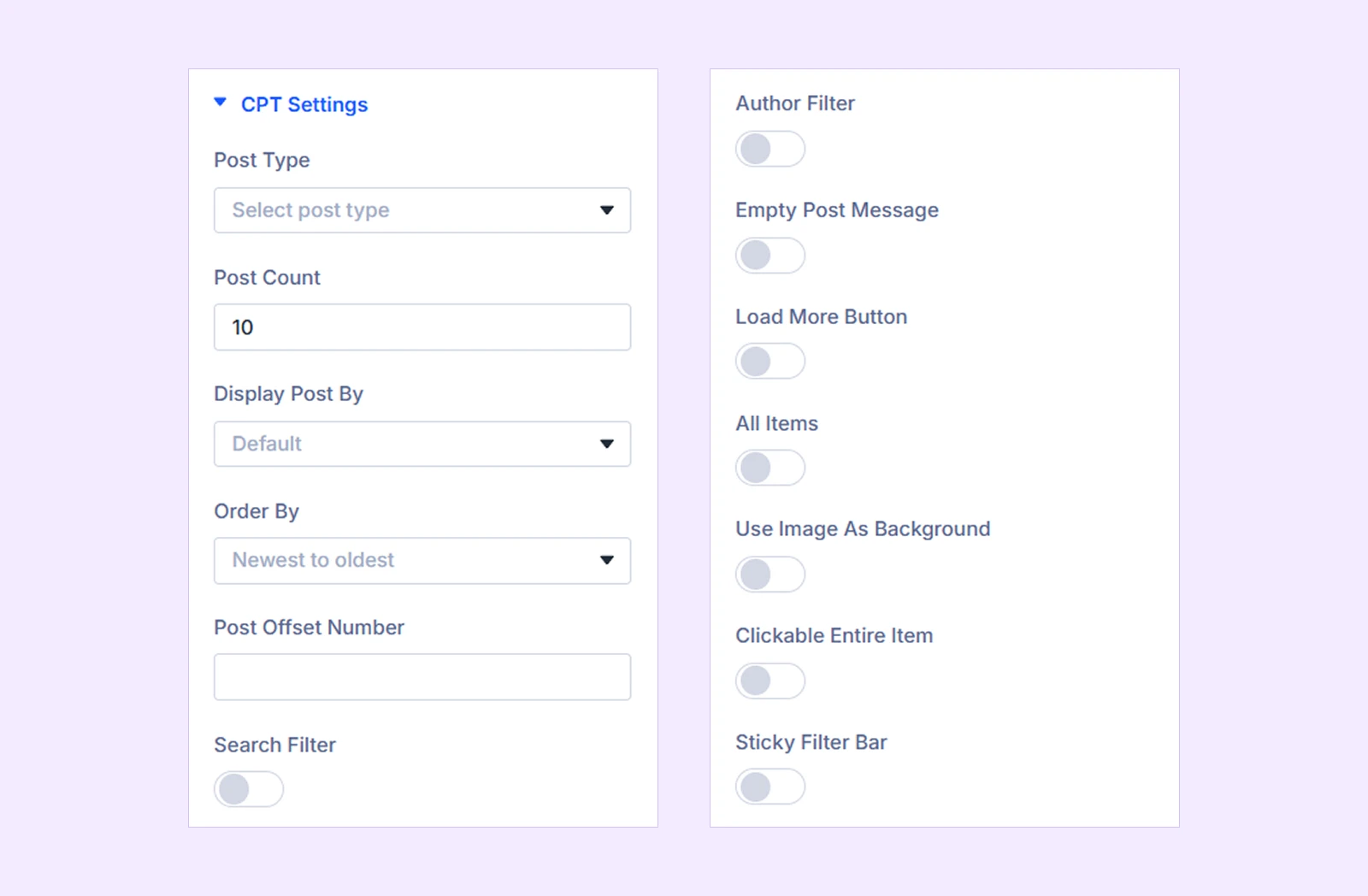
- In Display Post By, select the filtering method that matches your content.
- For taxonomy filtering, choose the taxonomy and terms you want to use.
- Add your CPT card elements through Add New Item, and drag child elements to control display order.
- Choose Grid or Masonry layout, then configure columns, spacing, and equal-height cards.
- Enable the All Items option and write a custom label for the main reset filter.
- Enable Load More if you want visitors to reveal more results without navigating to another page.
- Optionally enable Search Filter to add a keyword search field, then customize the button label and placeholder text.
- Optionally enable Author Filter if visitors should be able to filter content by author.
- Add a custom empty-post message for cases where no CPT items match a visitor's selected filters.
Read our detailed documentation for step-by-step instructions.
Which Method Should You Actually Use?
Use this as a quick gut check:
| Display need | Recommended module | Why it fits |
|---|---|---|
| A basic one-time list with no filtering or elaborate styling | Loop Builder | A straightforward option for showing CPT entries without overbuilding the layout or interactions. |
| One flexible module that can handle most custom post type display requirements | Smart CPT | A versatile all-purpose choice when you want broad CPT display capability in a single module. |
| A large archive where visitors need to scan many entries | CPT Grid | Designed for high-volume browsing; use Masonry when featured images have varying dimensions. |
| A curated, smaller selection of entries, such as featured work or top products | CPT Carousel | Best for spotlighting a limited collection in a compact, visually prominent rotating display. |
| A CPT with multiple taxonomies that visitors should be able to filter themselves | Filterable CPT | Lets visitors narrow entries by taxonomy terms, making complex or multi-category content easier to explore. |
In practice, most sites end up using a mix Filterable CPT for the main archive page, CPT Carousel for a "featured" section on the homepage, and Smart CPT for anything in between.
FAQ
Can Divi Loop Builder display custom post types?
Yes. Select your custom post type in the Loop Builder query settings, then use Dynamic Content to show its fields.
Can I filter custom post types by category in Divi?
Yes. Use Loop Builder for fixed taxonomy filtering, or DiviFlash Filterable CPT for clickable, on-page category filters.
Can I display ACF fields in a Divi CPT layout?
Yes. Use Divi Dynamic Content or DiviFlash CPT modules to display ACF and Meta Box field values.
What is the best Divi CPT module for a large directory?
Use Filterable CPT. It adds filtering, search, and load-more options for large directories, listings, and archives.
Should I use CPT Grid or CPT Carousel?
Use Grid for browsing multiple items. Use Carousel to showcase a small, curated group of featured posts.
Does Divi Loop Builder support pagination?
Yes. Set posts per page in the loop, then connect a Pagination module to the Loop Builder layout.
Can I use Divi Loop Builder instead of DiviFlash?
Yes, for basic CPT lists and grids. Use DiviFlash when you need filters, carousels, masonry, search, or load-more features.
Final Thought
Divi's native Loop Builder is a genuinely useful starting point to display custom post type in Divi, and for simple CPT listings, it's all you need. But as soon as your project calls for filtering, masonry, carousels, or a more designed card experience, trying to force that out of Loop Builder usually costs more time than it saves. DiviFlash's CPT modules exist specifically to close that gap so you can build the display you actually pictured, without waiting on a developer.


0 Comments