
DiviFlash Justified Gallery module helps you create responsive image galleries where images are automatically arranged into justified rows.
Let’s see the settings in brief and how to make better use of it —
Content Tab
This tab contains the settings for adding images and configuring the gallery behavior.
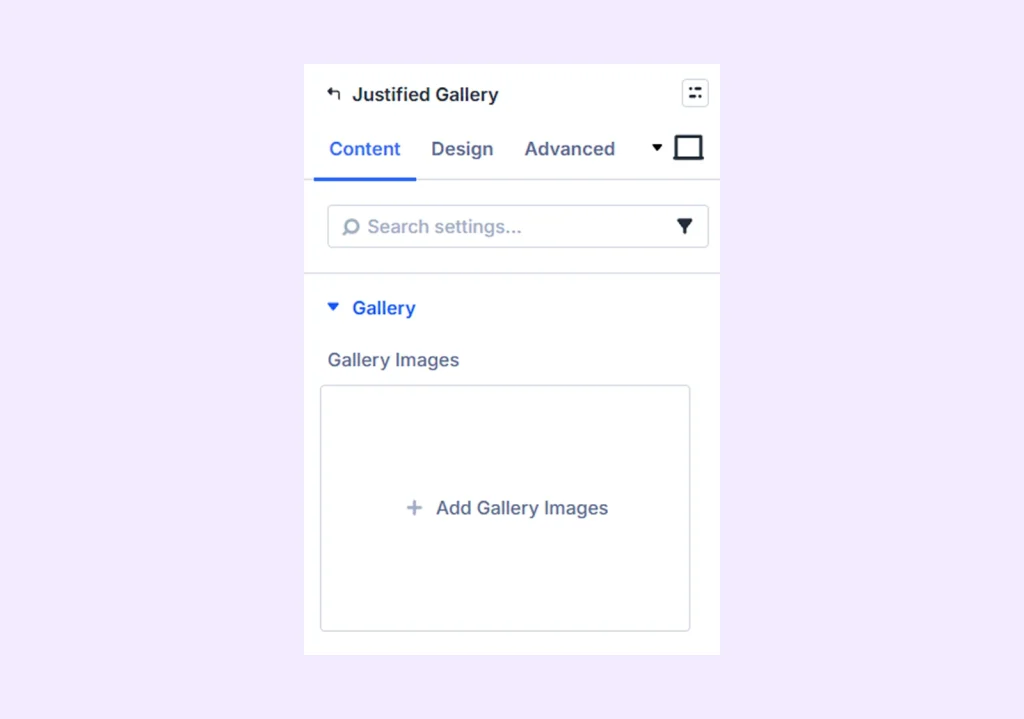
Gallery
Upload the images you want to display in the justified gallery.
Gallery Settings
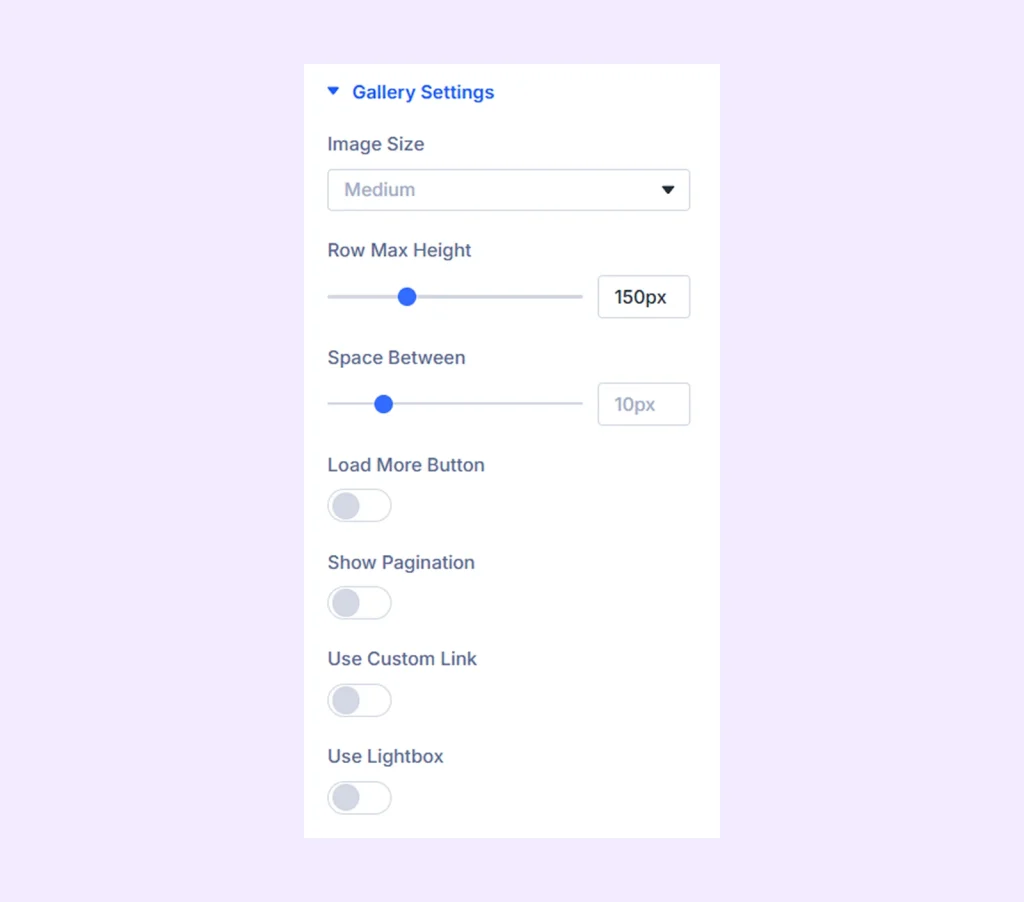
- Image Size: Choose the size of the gallery images. Available options are Medium, Large, and Original.
- Row Max Height: Set the maximum height of each gallery row.
- Space Between: Adjust the spacing between images in the gallery.
- Load More Button: Enable this option to display a Load More button.
- Initial Image Load: Define how many images will load initially.
- Load More Image Count: Define how many images will load each time the Load More button is clicked.
- Load More Button Text: Enter the text displayed on the Load More button.
- Show Pagination: Enable pagination instead of the Load More button. (This option is not available when Load More is enabled.)
- Pagination Image Count: Define how many images appear on each page.
- Use Number Pagination: Display page numbers along with the previous and next buttons.
- Use Icon Only in Next and Previous Button: Display icons instead of text for the previous and next buttons.
- Older Entries Button Text: Enter the text for the previous button.
- Next Entries Button Text: Enter the text for the next button.
- Custom Link: Enable this option to use the image links defined in the WordPress media library.
- Link Target: Choose whether the image link opens in the same tab or a new window. (Available only when Custom Link is enabled.)
- Use Lightbox: Enable this option to display images in a Lightbox when clicked. (Not available when Custom Link is enabled.)
- Lightbox Download Button: Display a download button inside the Lightbox.
- Show Content On Lightbox: Display image captions along with the image in the Lightbox.
Hover Settings
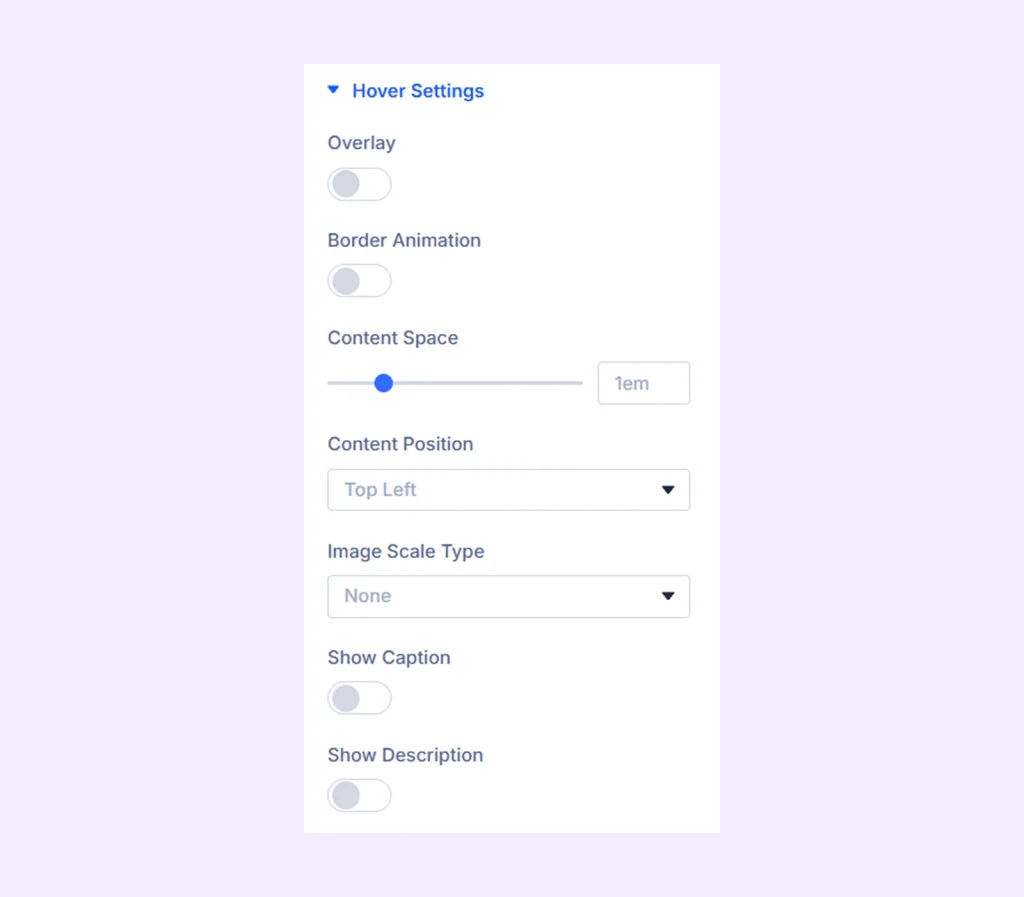
- Overlay: Enable a gradient overlay on gallery images.
- Overlay Primary Color: Choose the starting color of the gradient.
- Overlay Secondary Color: Choose the ending color of the gradient.
- Overlay Gradient Direction: Adjust the gradient direction.
- Overlay Spacing: Adjust the distance between the overlay and the image border.
- Border Animation: Enable a border animation effect on hover.
- Border Color: Choose the color of the border.
- Border Width: Adjust the thickness of the border.
- Border Space: Adjust the distance between the border and the image edge.
- Border Animation Style: Choose from 19 available border animation styles.
- Content Space: Adjust the spacing for captions and descriptions inside the image.
- Content Position: Choose where the content appears inside the image.
- Image Scale Type: Choose how the image scales on hover. Nine different scale effects are available.
- Show Caption: Display the image caption on hover.
- Caption Reveal: Choose an animation style for the caption. (Available only when Show Caption is enabled.)
- Show Description: Display the image description on hover.
- Description Reveal: Choose an animation style for the description. (Available only when Show Description is enabled.)
Link: Use this default Divi setting to add a link to the entire module.
Background: Add a background color, gradient, image, video, pattern, or mask to the module.
Element Label: Rename the module to organize it more easily in the Divi Builder. (Only you can see this label.)
Design Tab
Customize the appearance of the Justified Gallery module with advanced design settings.
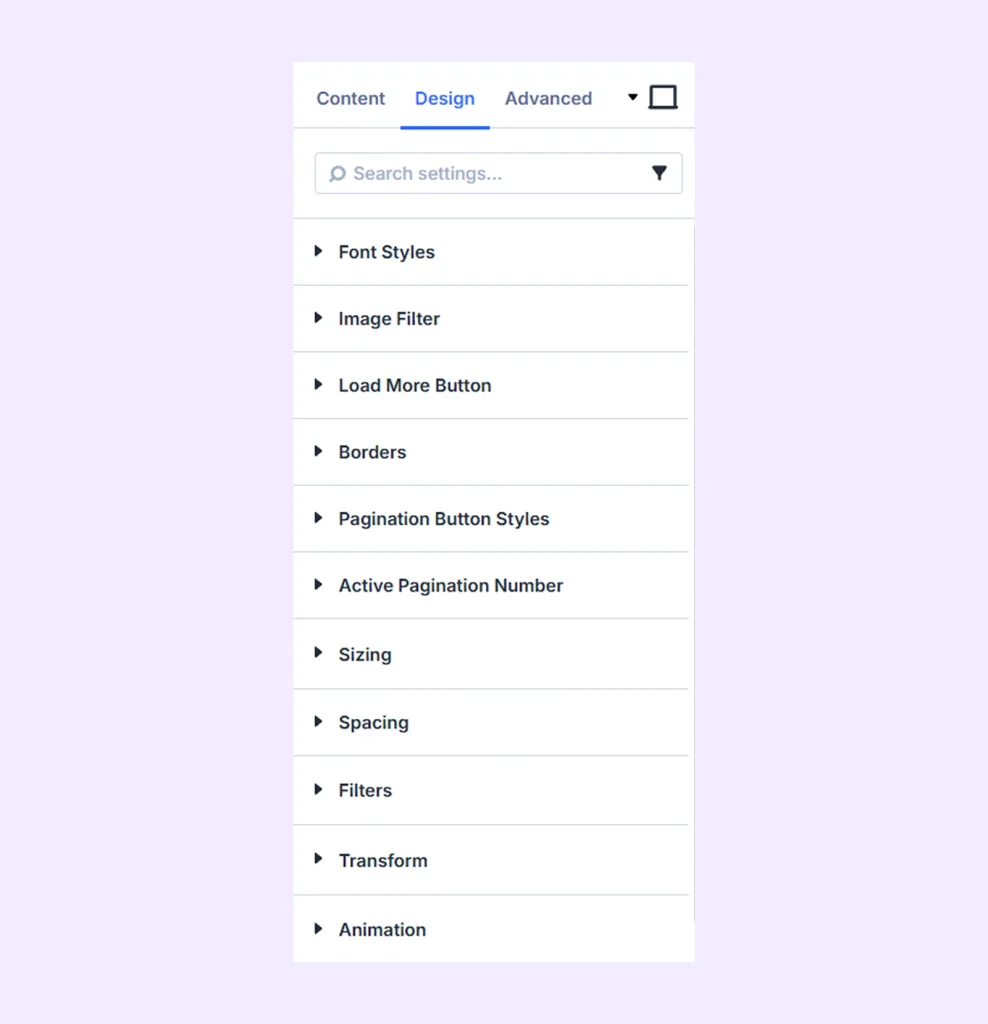
Font Styles: Customize the typography of image captions and descriptions.
Image Filter: Apply color filters and shadow effects to gallery images.
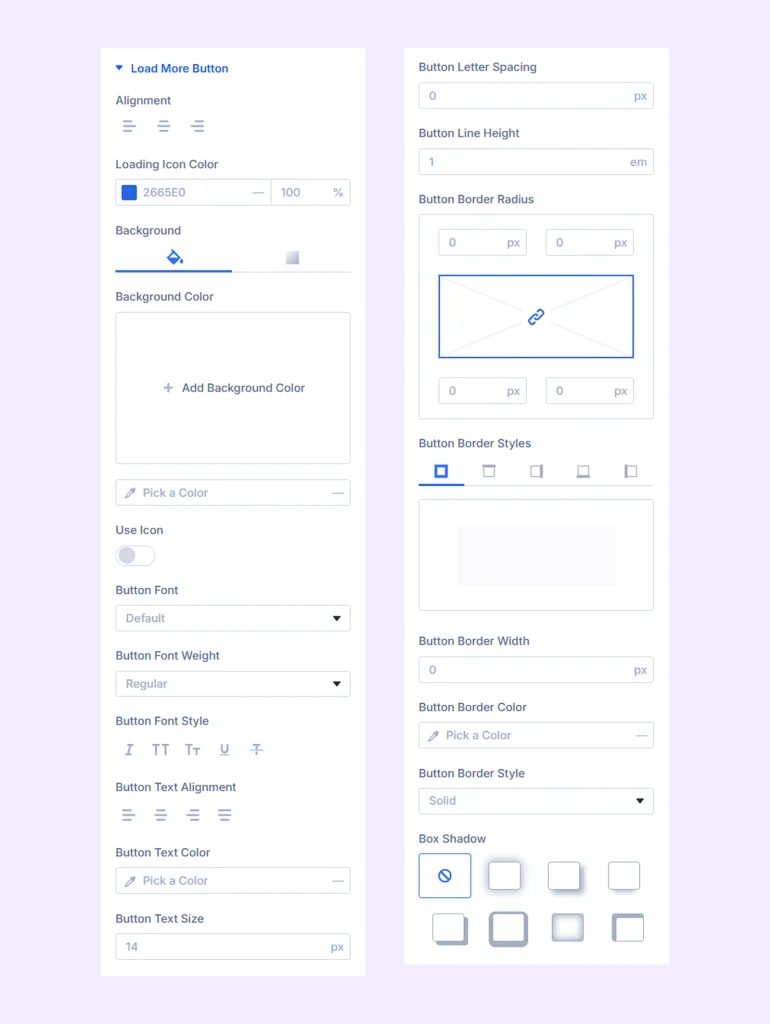
Load More Button
Enable the Load More Button in the Content tab to access these options.
- Alignment: Adjust the horizontal alignment of the Load More button.
- Loading Icon Color: Choose the color of the loading icon.
Additional settings allow you to customize the button typography and border.
Borders: Customize the border styling of gallery images.
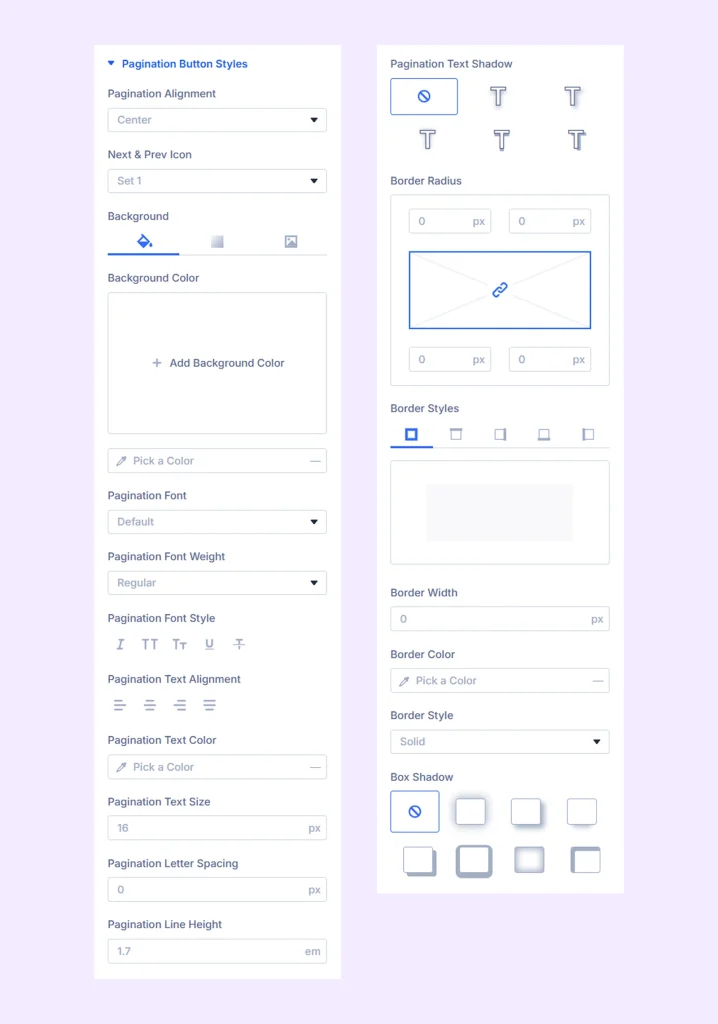
Pagination Button Styles
Enable pagination to access these settings:
- Pagination Alignment: Adjust the horizontal alignment of the previous and next buttons.
Note: If alignment is set to anything other than Justified, the buttons appear together. Selecting Justified keeps them separated on opposite sides of the gallery.
- Next & Prev Icon: Choose from four icon styles for pagination buttons.
Additional options allow you to customize button background, typography, and borders.
Active Pagination Number
Customize the background, typography, and border of the active page number. (Available when number pagination is enabled.)
Sizing: Adjust the width, height, and alignment of the module.
Spacing: Adjust the margins and padding of the module container.
Filters: Apply color filter effects to the module.
Transform: Adjust the scale, position, rotation, and size of the module.
Animation: Add reveal animation effects and control the animation style, delay, duration, and more.
Advanced Tab
This tab provides additional settings for advanced users who want greater control over the module with custom code, conditions, and more.
Need Help?
If you have any questions or need assistance, contact our support team: [email protected]