
You can add the Medical Layout to your Divi website using one of these two simple methods
- Method 1: Using the DiviFlash layout importer (recommended).
- Method 2: Manually importing the layout.
Let’s guide you through each method in detail.
Method 1: Using DiviFlash Layout Importer
Step 1: Install and activate the Divi theme.
Step 2: Install and activate the DiviFlash plugin.
Step 3: In your WordPress dashboard, go to DiviFlash > Layouts, then search for "Medical."
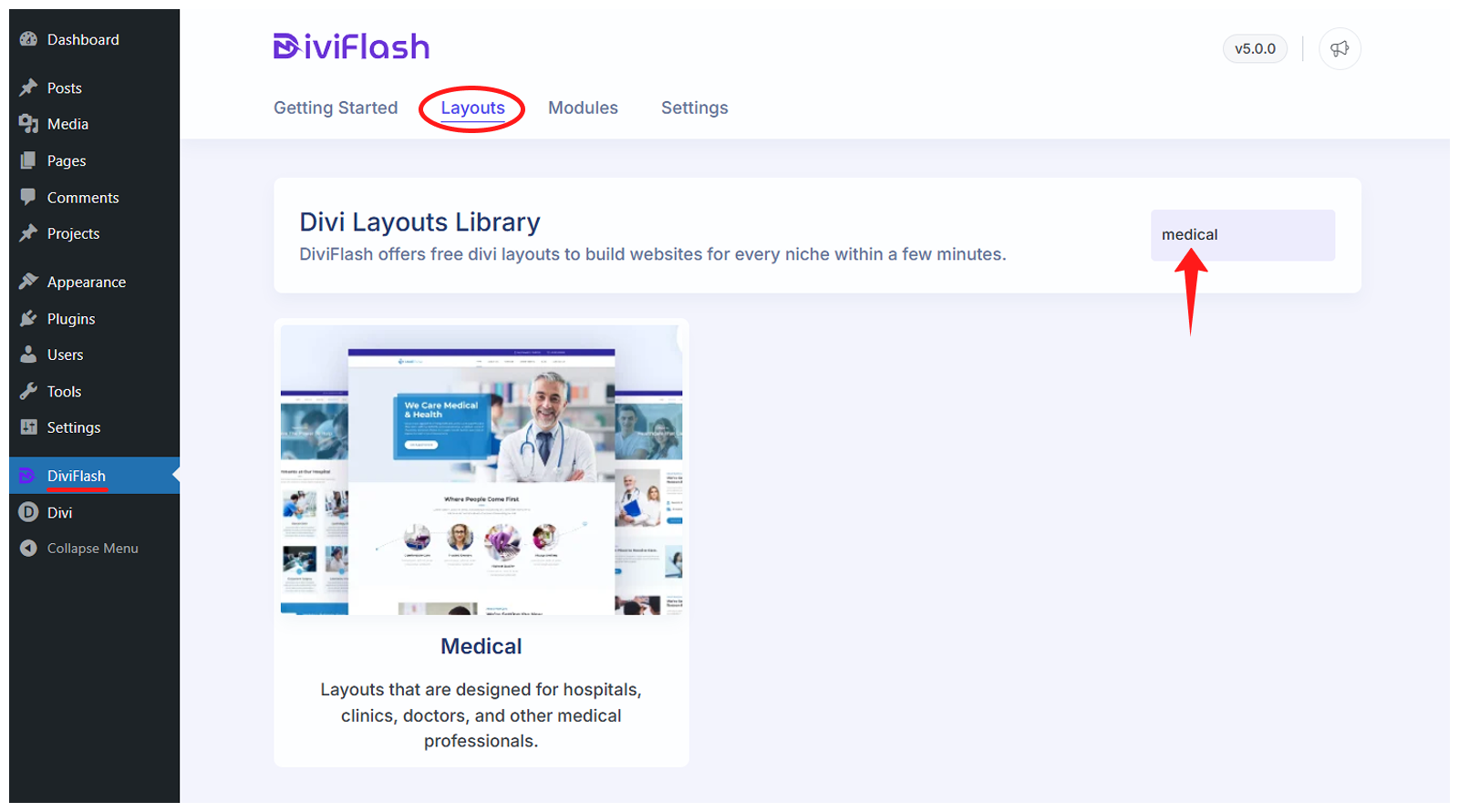
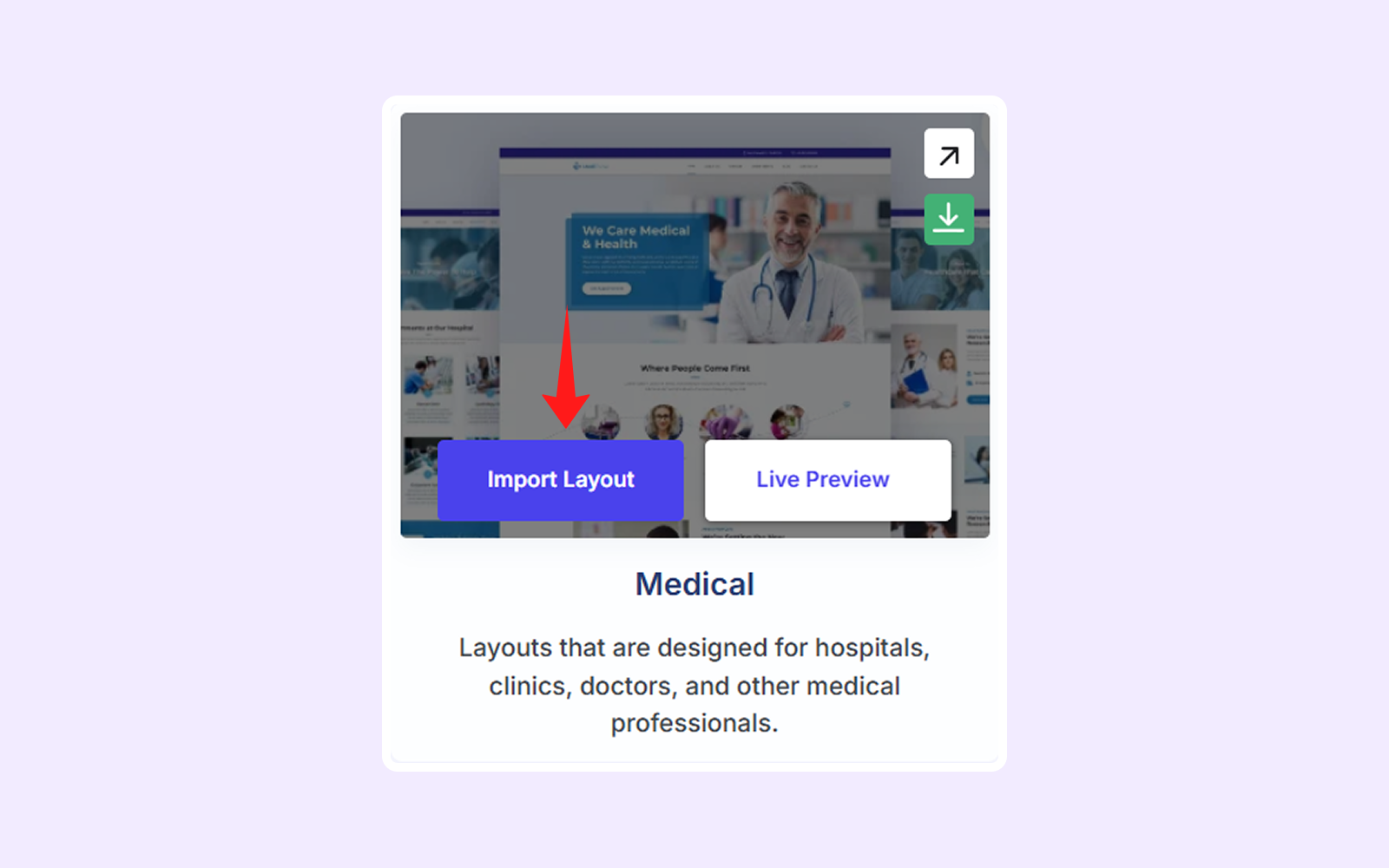
Step 4: Hover over Medical layout and click Import Layout.
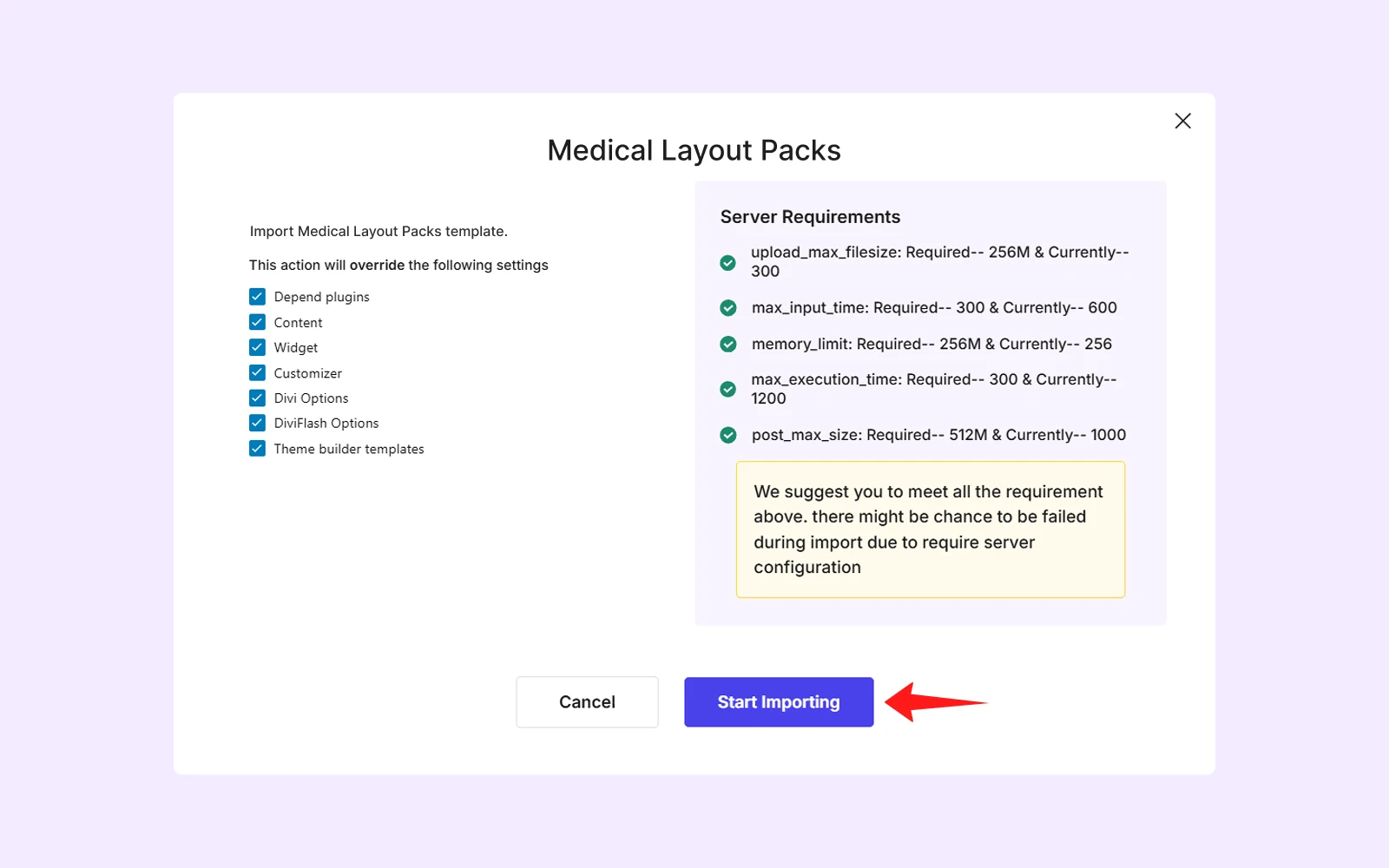
- A popup will show layout settings and server requirements. Ensure all items display green checkmarks. If you see red crosses, fix your server settings, then click “Start Importing.”
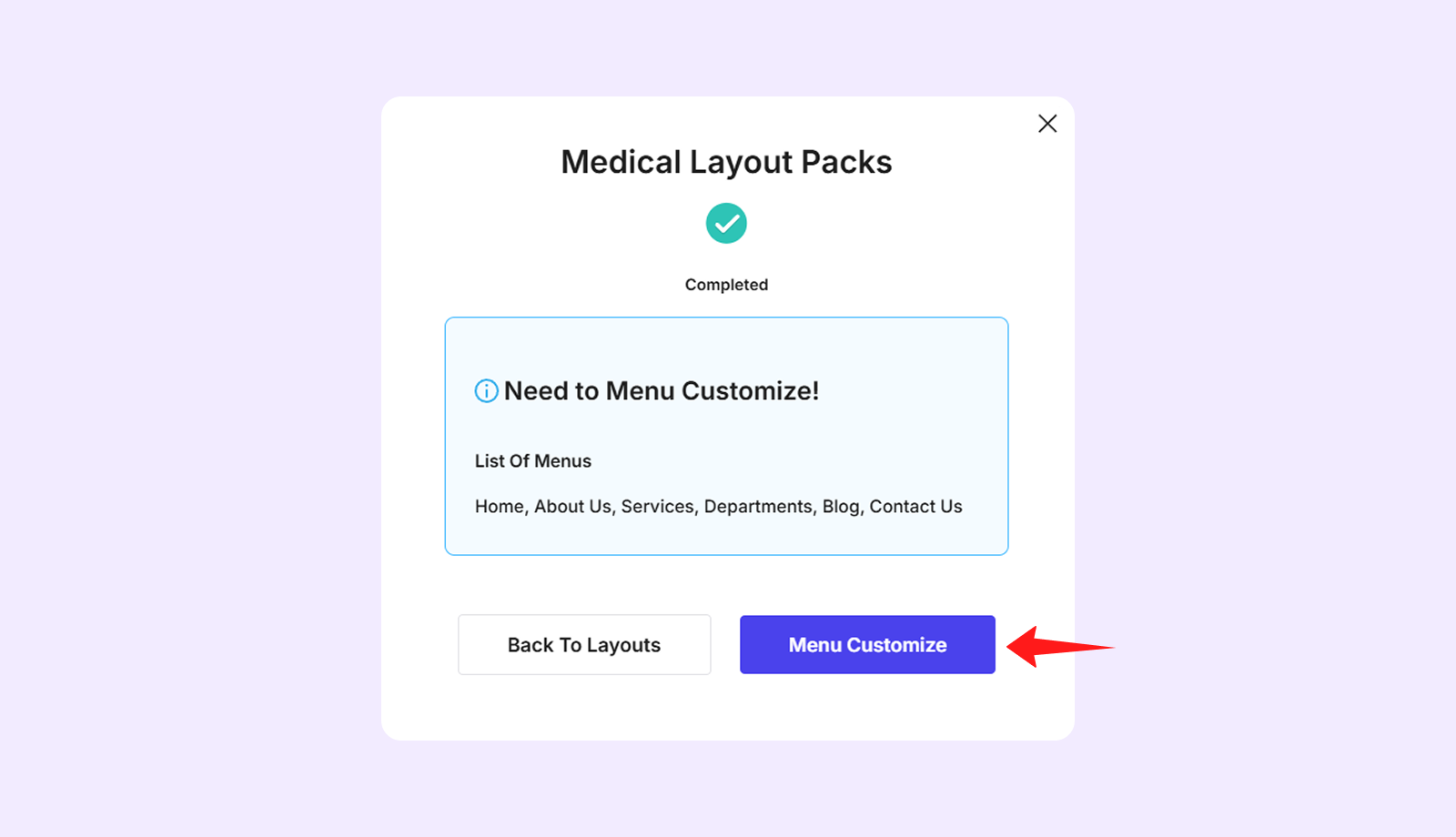
- This importing process may take a few minutes.

- Once import is done, next click "Menu Customize" to customize the menu for your layout. You can follow our Divi Layout Menu Customization guide.
Step 5: Set your homepage and blog page.
- Go to WordPress Dashboard > Settings > Reading.
- Below “Your homepage displays,” select “A static page.”
- Choose “Home” from the homepage dropdown menu.
- Choose “Blog” from the post page dropdown menu.
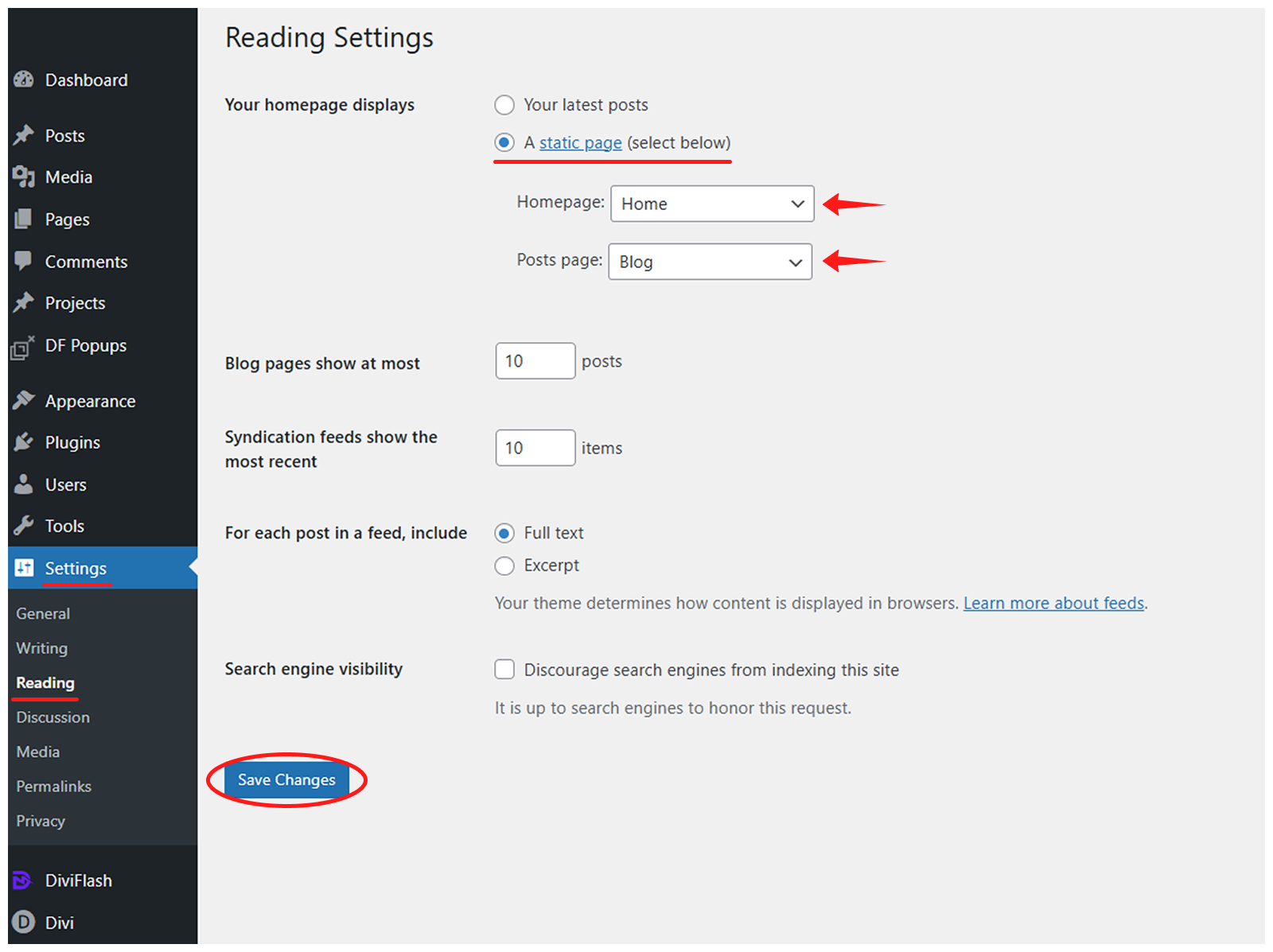
- Click on “Save Changes” to save it.
The Medical layout has been successfully imported and is now live on your website.
Method 2: Manually Import the Layout
For those who prefer a manual approach, here is how to import the Medical layout:
Step 1: Install and activate the Divi theme.
Step 2: Install and activate the DiviFlash plugin.
Step 3: Download the Medical Layout file from the DiviFlash website and unzip it.
Step 4: Import the “DiviFlash’s Dashboard” settings file into DiviFlash’s dashboard panel:
- Navigate to WordPress Dashboard > DiviFlash > Settings > Import/Export.
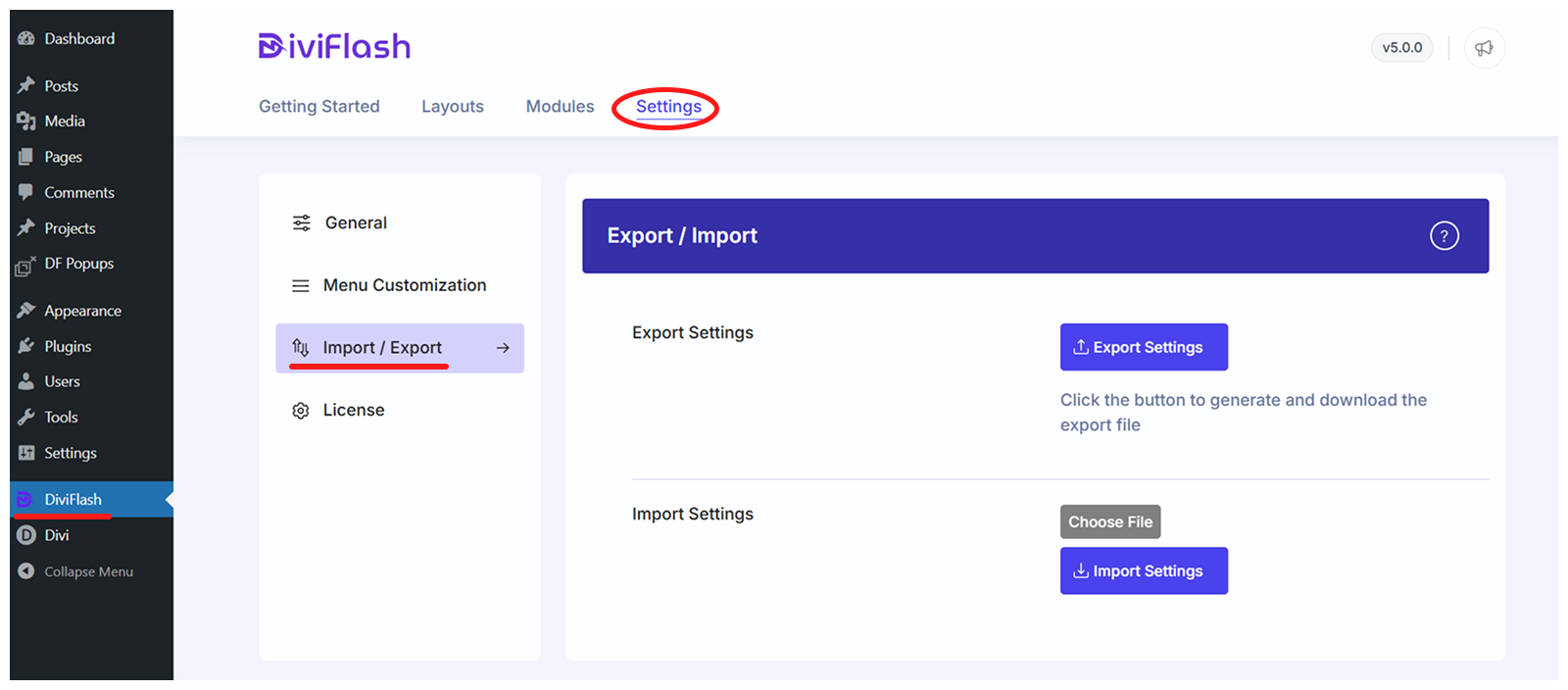
- Click on “Choose File” and select “diviflash_dashboard_settings.json”
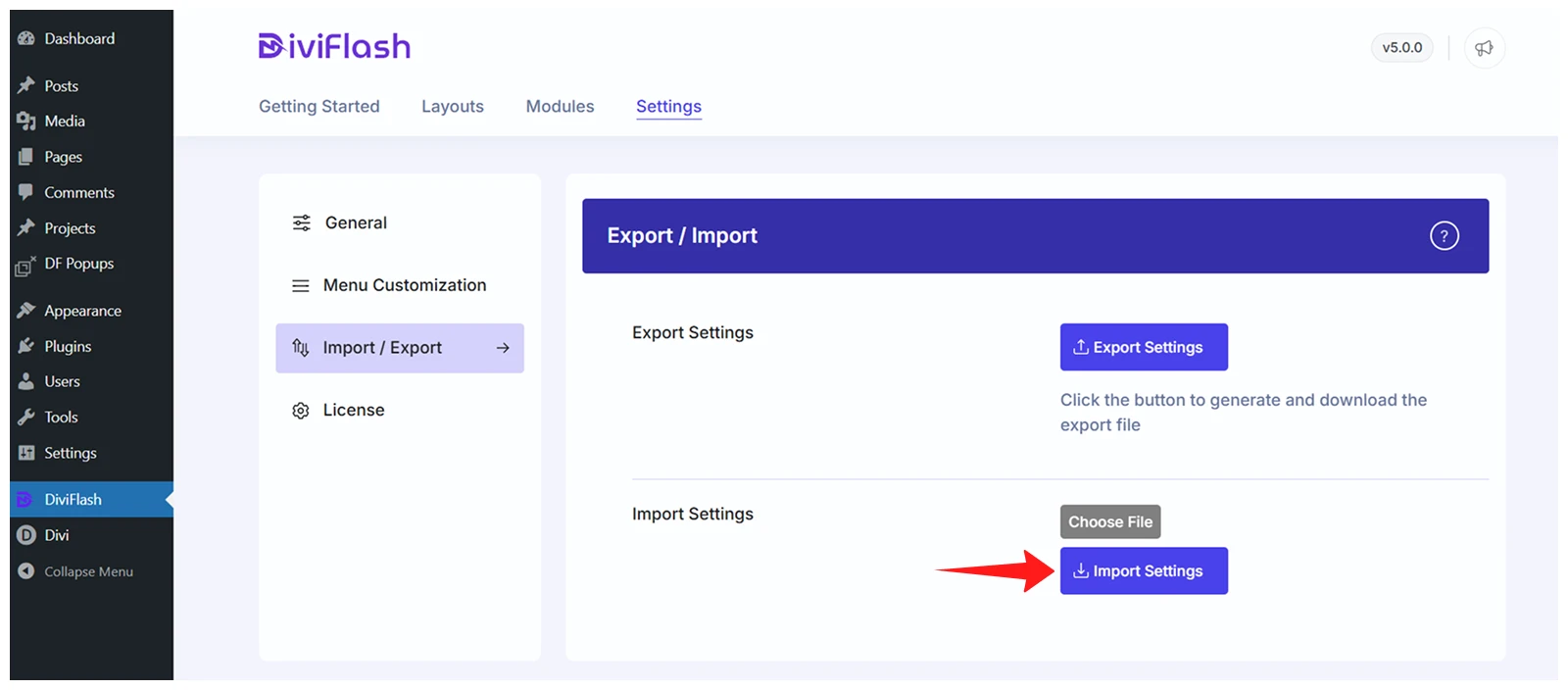
- Click on the “Import Settings” button
Step 5: Import the "Divi Theme Options" file into the Theme Options panel:
- Navigate to WordPress Dashboard > Divi > Theme Options
- Click on the “Import & Export” icon in the top right corner
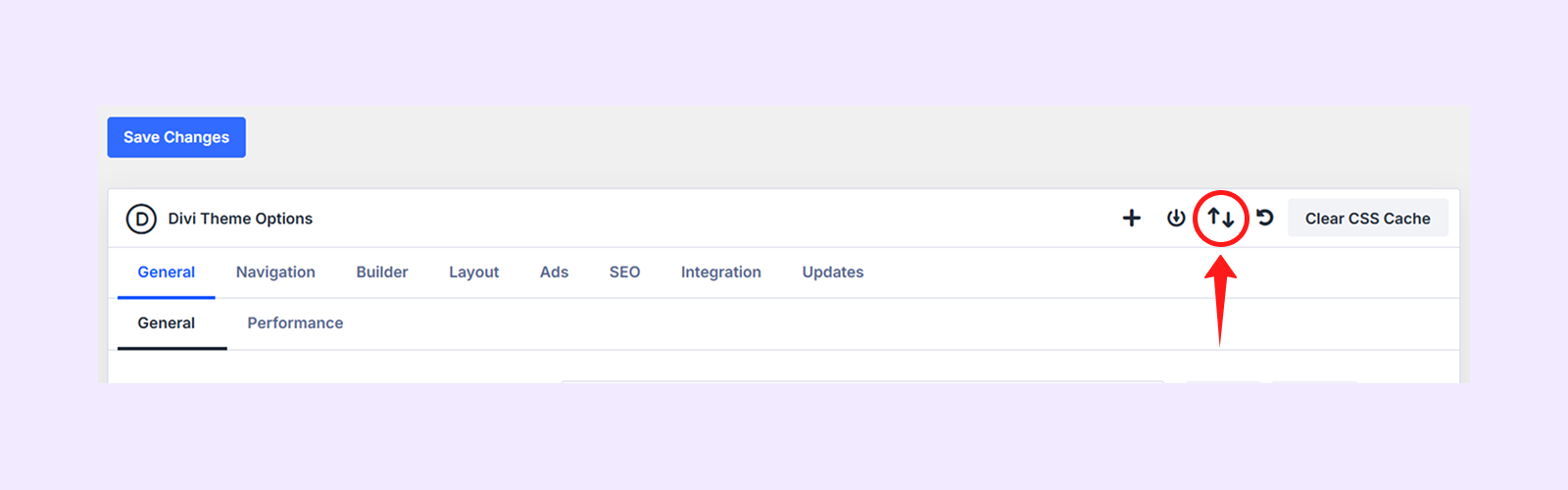
- Select the Import tab and click “Choose Files” to upload the JSON file named “Divi Theme Options Settings - Medical Layout - Diviflash.json”
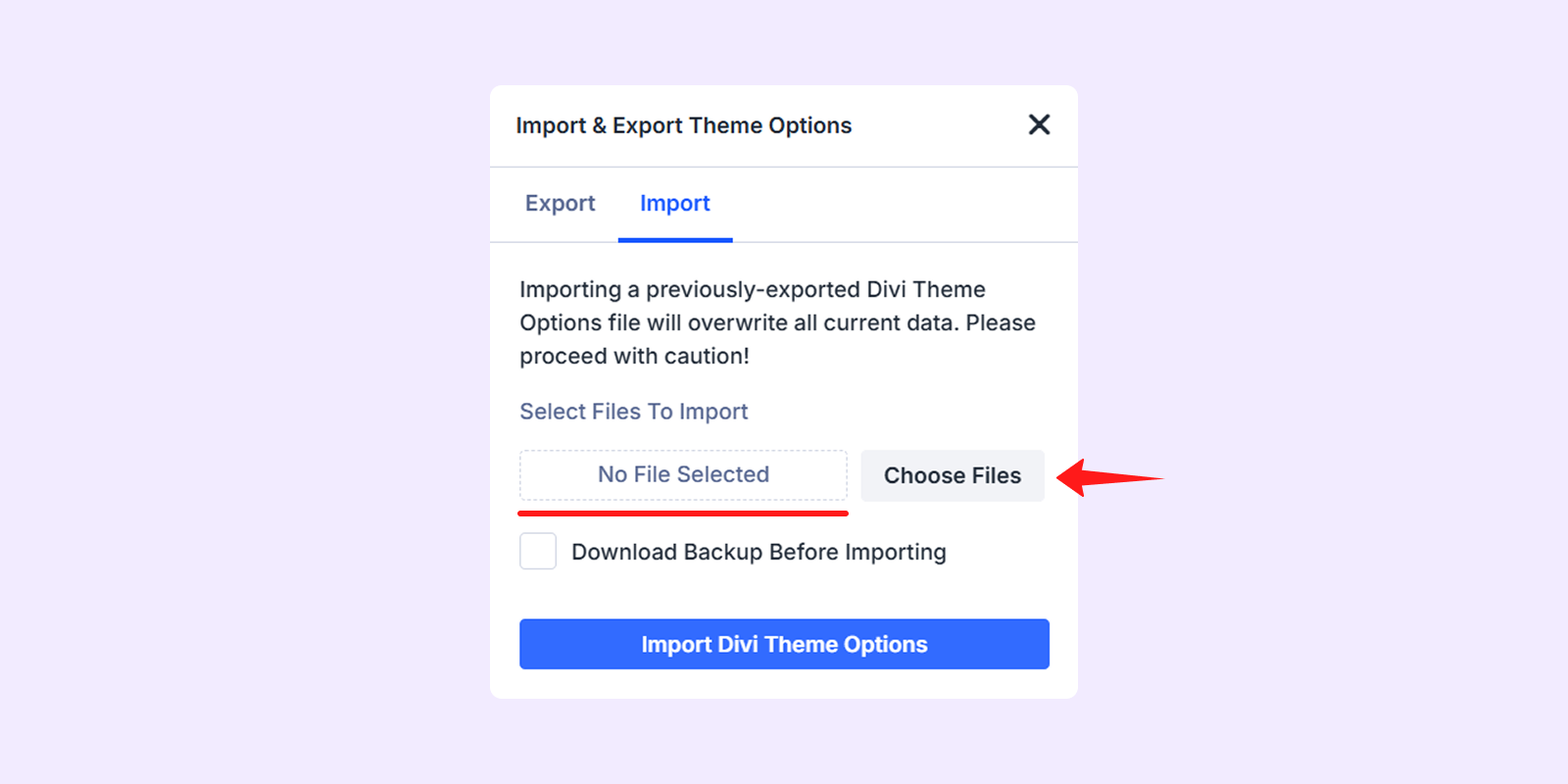
- Finally, click on “Import Divi Theme Options”
Step 6: Import the "Theme Builder" file into the Divi Theme Builder panel:
- Navigate to your WordPress dashboard and go to Divi > Theme Builder
- Click on the “Import & Export” icon in the top right corner
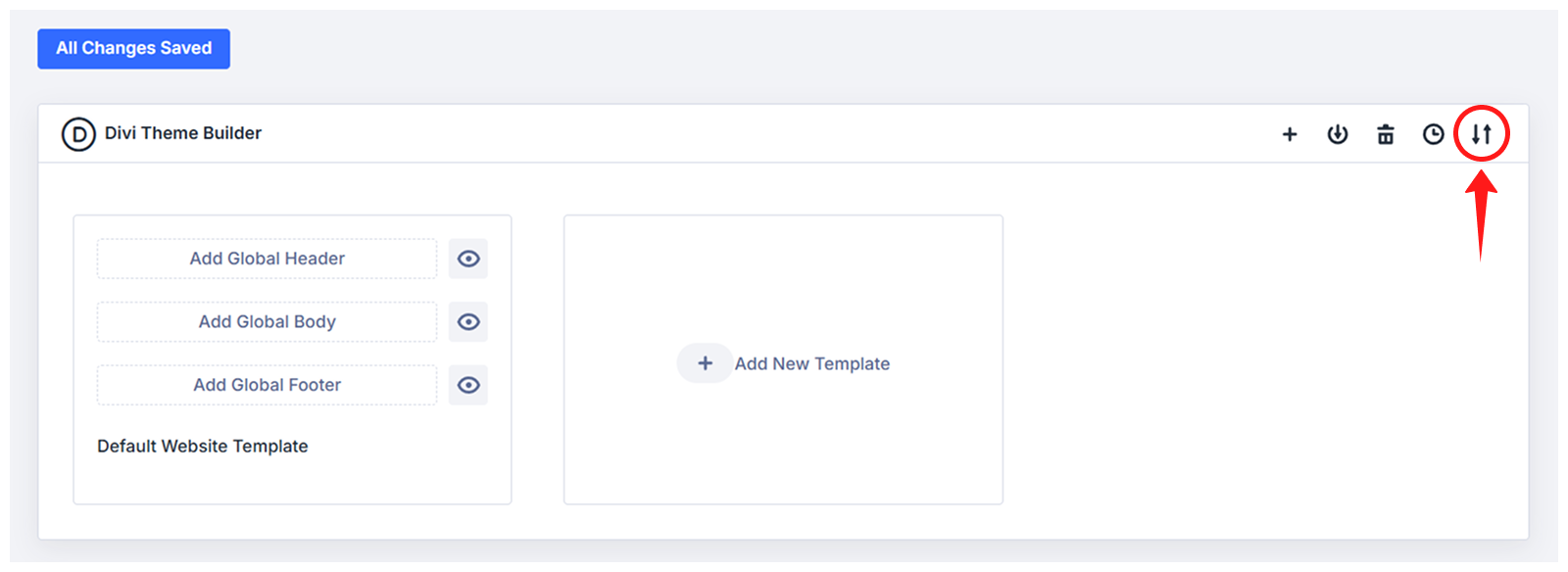
- Select the Import tab and click “Choose Files” to upload the JSON file named “Divi Theme Builder Templates - Medical Layout - Diviflash.json”
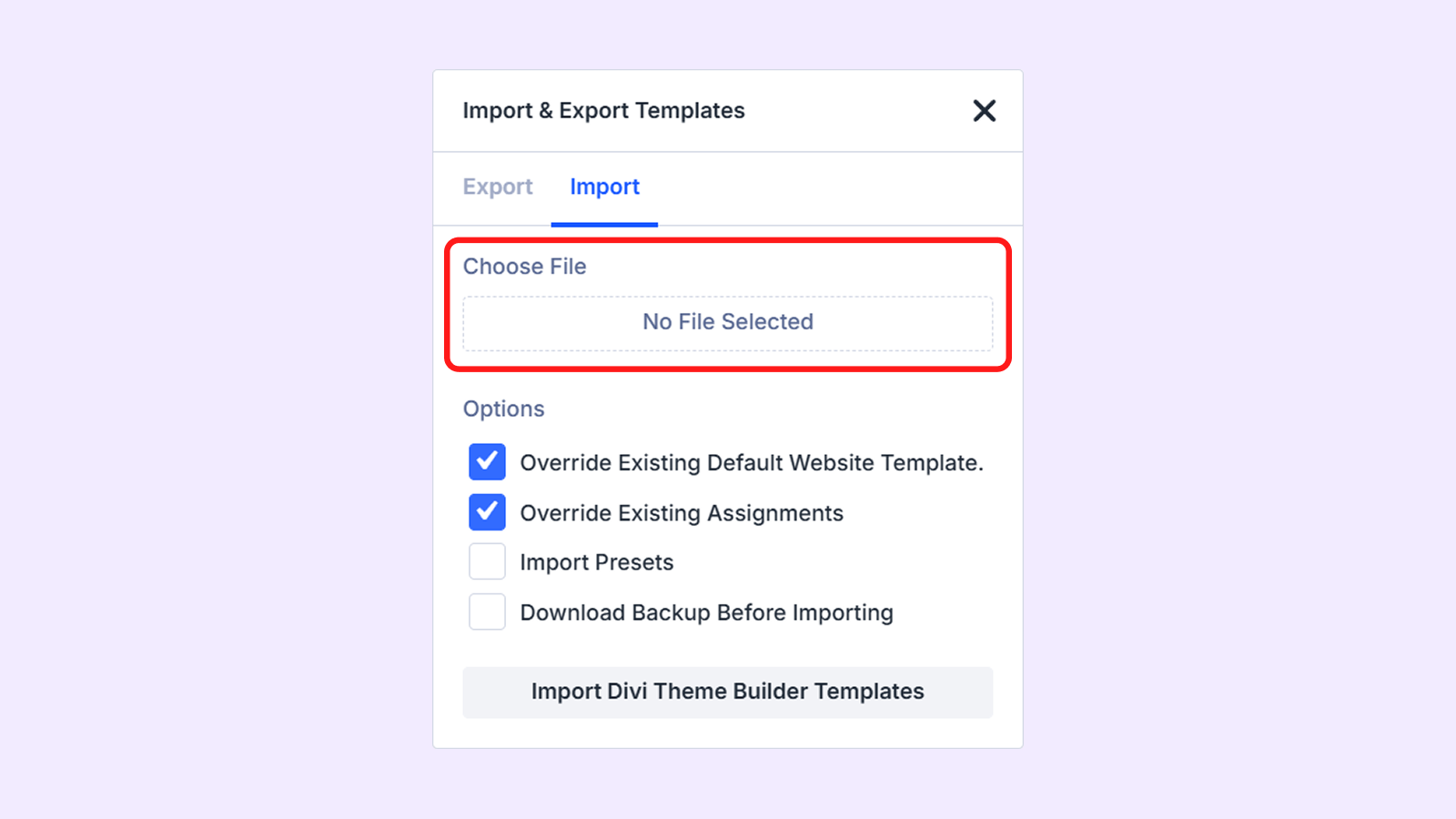
- Click on “Import Divi Theme Builder Templates”.
Step 7: Import Medical layout’s Page File into Divi Library:
- Navigate to your WordPress dashboard and go to Divi > Divi Library
- Click on the “Import & Export” button on the top left

- Select the Import tab and click “Choose Files” to upload the JSON file named “All In One - Medical Layout - Diviflash.json” (You can also import individual layout pages one by one by using their respective JSON files.)
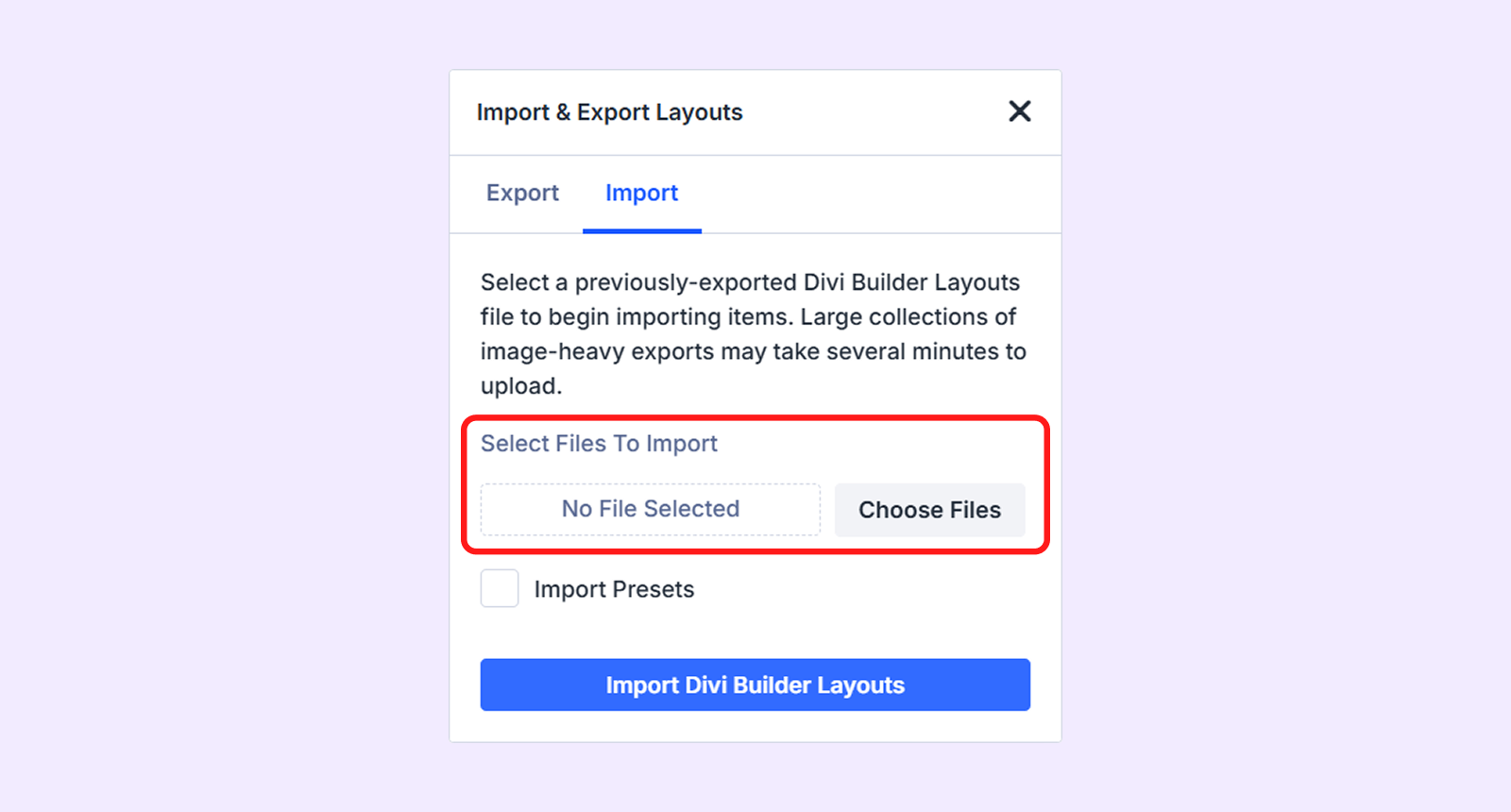
- Click on the “Import Divi Builder Layouts” button.
Now, create new pages using the layout items you imported into the Divi Library. You can follow our doc - how to create pages with items from the Divi Library.
Step 8: Import the “Theme Customizer Settings” file into the Theme Customizer
- Navigate to WordPress Dashboard > Divi > Theme Customizer
- Click on the “Import & Export” icon on the top left corner.

- Select the Import tab and click “Choose Files” to upload the JSON file named “Divi Customizer Settings - Medical Layout - Diviflash.json”
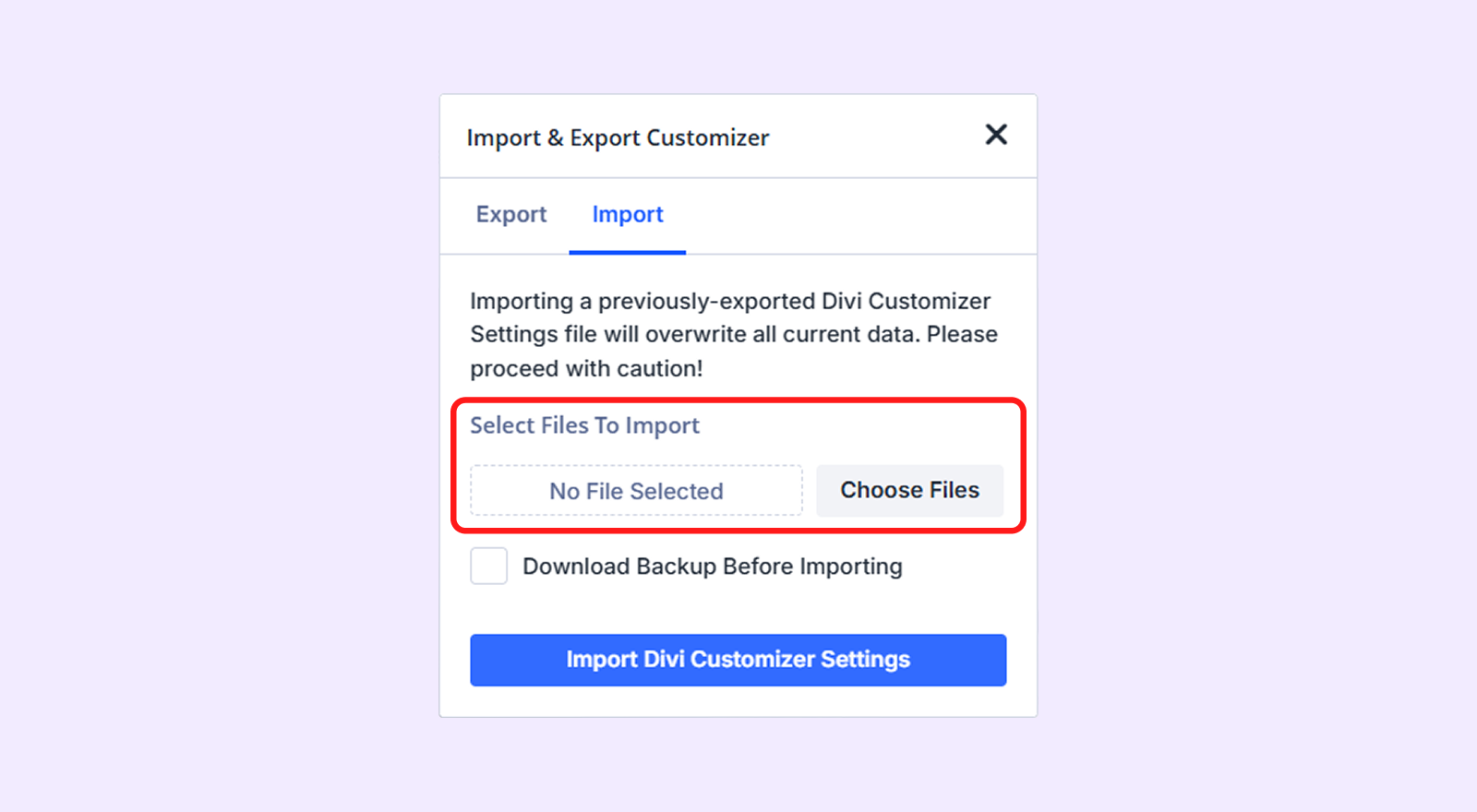
- Finally, click on “Import Divi Customizer Settings”.
Step 9: Set your homepage and blog page.
- Go to WordPress Dashboard > Settings > Reading.
- Below “Your homepage displays,” select “A static page.”
- Choose “Home” from the homepage dropdown menu.
- Choose “Blog” from the post page dropdown menu.
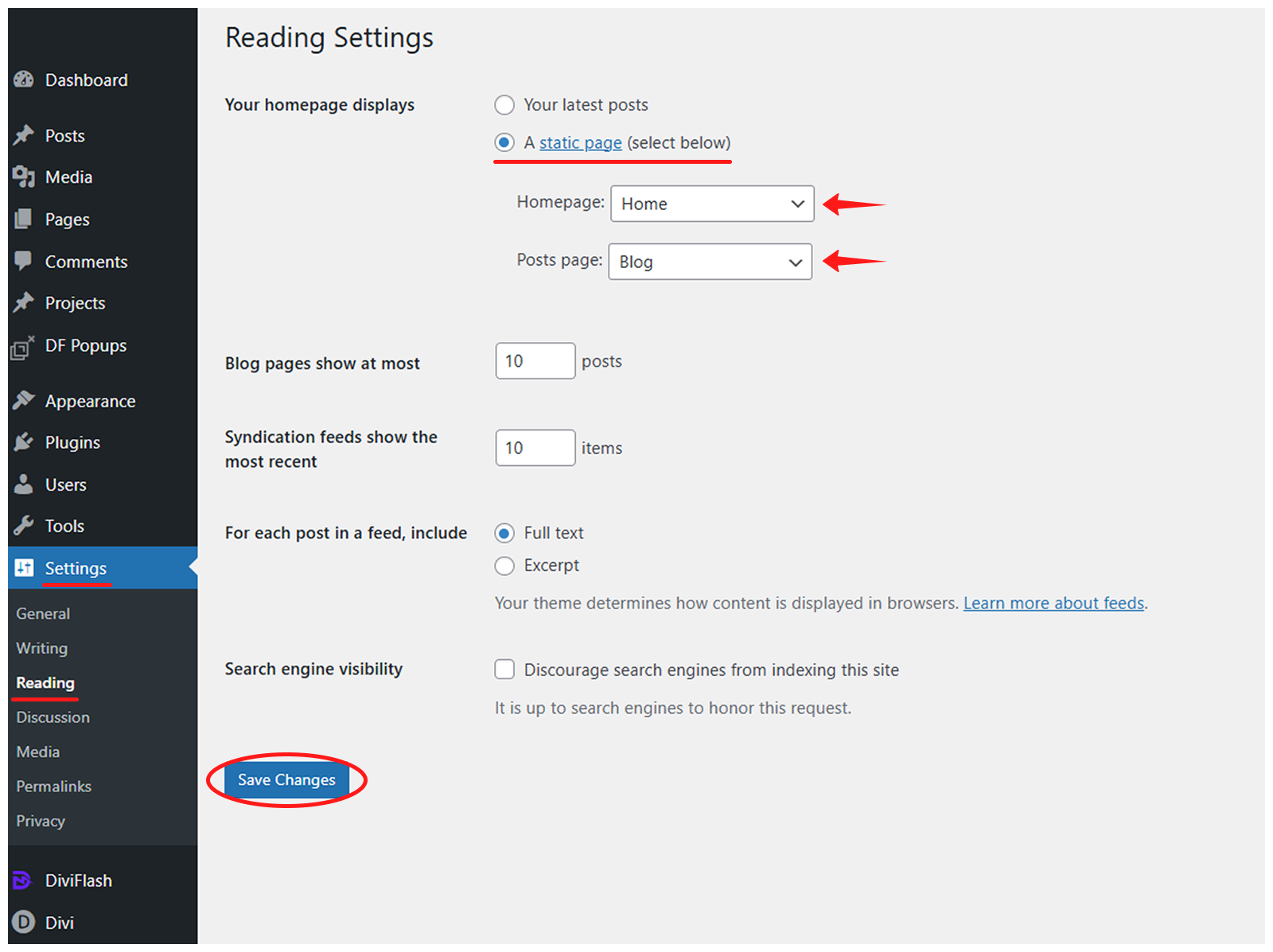
- Click on “Save Changes” to save it.
Step 10: Create a menu for the imported layout. You can follow the Divi Layout Menu Customization guide.
Now your website should look exactly the same as the Medical layout!
Any Questions?
If you have any questions, please feel free to contact our support team at [email protected]