
The DiviFlash Social Chat extension lets you add a customizable floating chat button to your website, allowing visitors to contact you through WhatsApp, Messenger and other messaging platforms. You can manage multiple contact options and customize the chat button's appearance and visibility.
Important Note:
- It’s available in DiviFlash 5.7.0 and later, and supports Divi 5 only.
- The extension is disabled by default and must be enabled manually.
- At least one chat item with contact information must be added for the chat button to appear.
- The extension opens messaging apps or links. It does not provide a built-in live chat inbox.
Let’s see the settings in brief and how to make better use of them.
Enable the Social Chat Extension
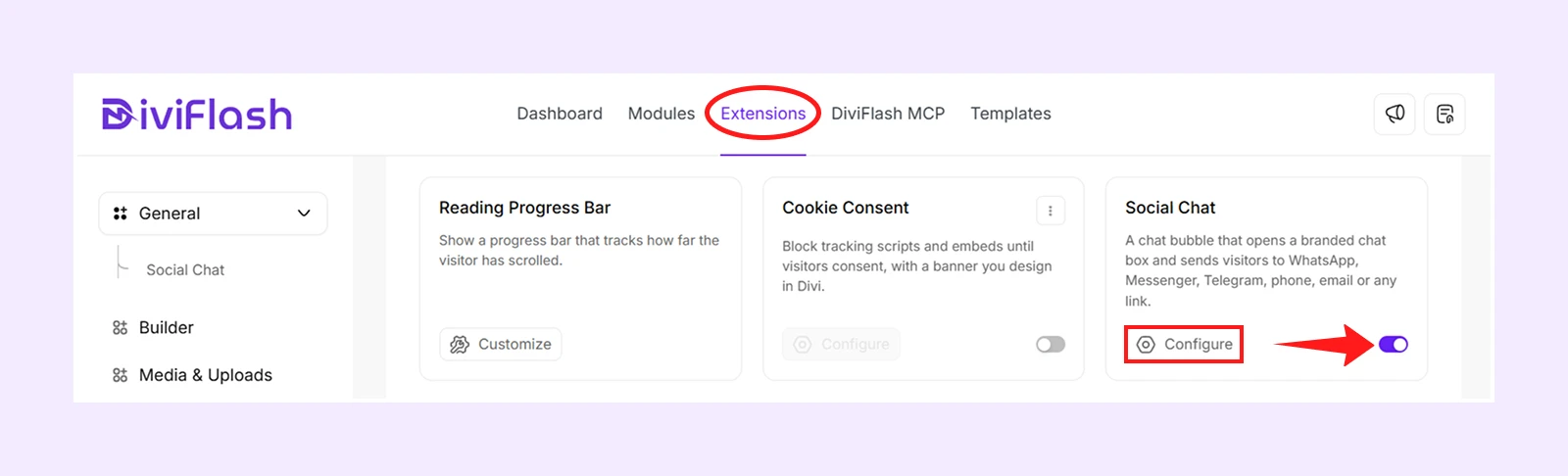
- Go to your WordPress Dashboard.
- Navigate to DiviFlash > Extensions > General.
- Find Social Chat and enable it.
- Click Configure to access the Chat Items, Texts, Design, and Display settings.
Note: Click Save Now after making changes. The chat button appears automatically on your website without placing a Divi module.
Chat Items Tab
These settings let you add and manage the messaging platforms visitors can use to contact you. Click Add chat item to create a new contact option.
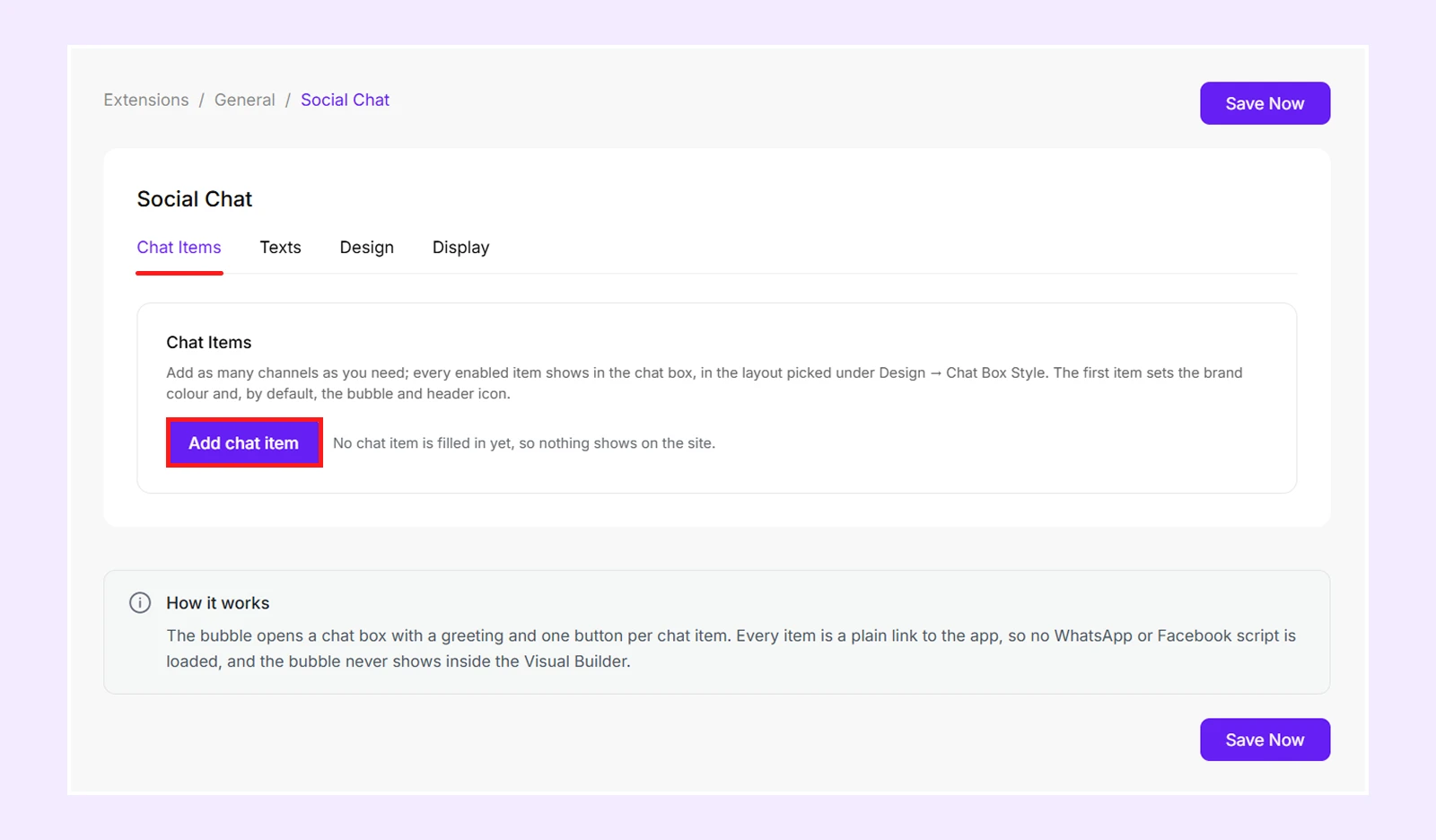
Each chat item appears as a button or icon in the chat box, depending on the selected Chat Box Style.
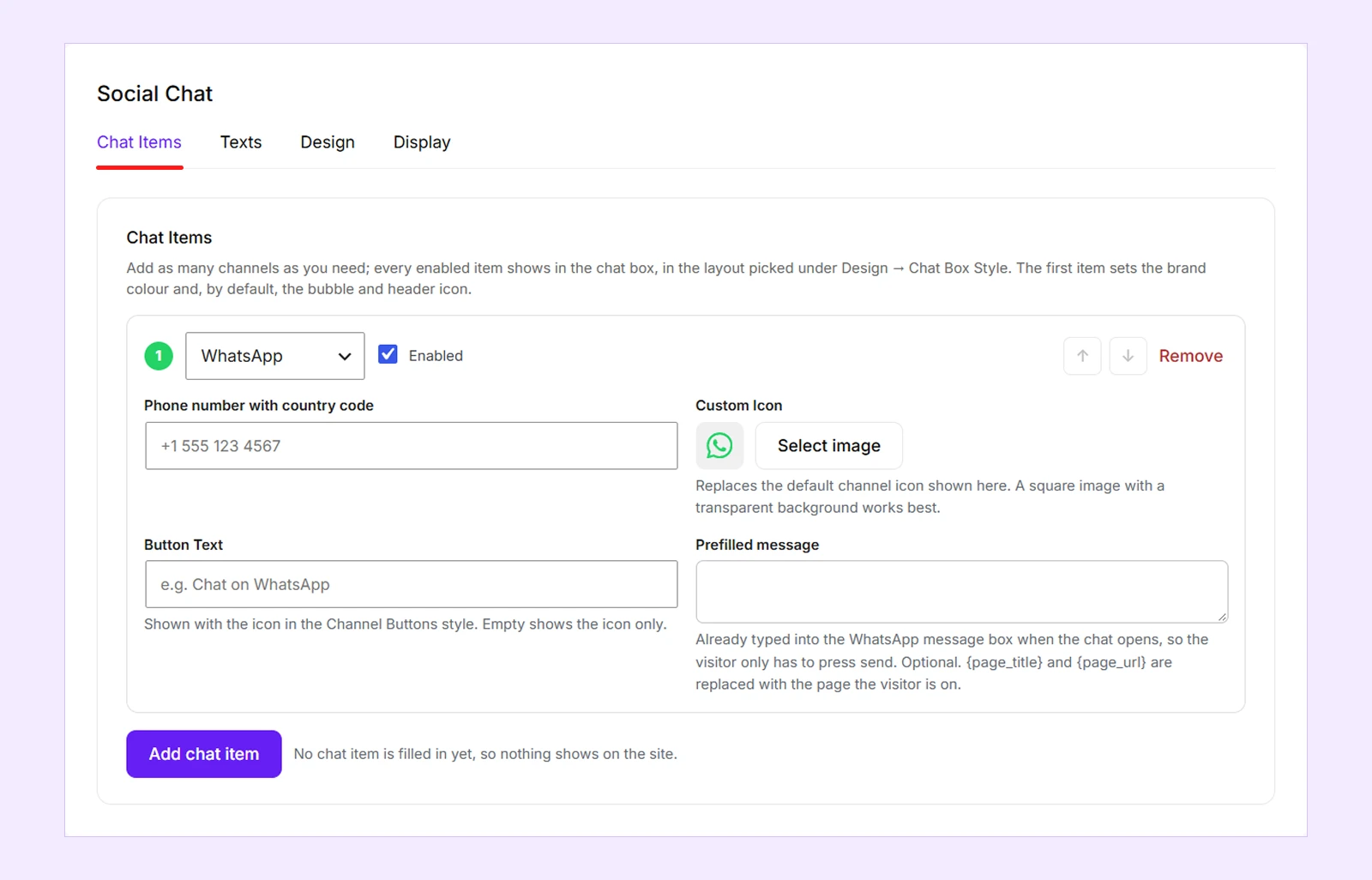
- Channel: Choose WhatsApp, Messenger, Telegram, Viber, WeChat, LINE, Instagram, or Custom Link.
- Enabled: Show or hide a chat item without deleting it.
- ↑ / ↓: Change the order of chat items.
- Remove: Delete a chat item.
- Contact Field: Enter the phone number, username, account ID, or URL required by the selected channel. The required information varies by channel:
| Channel | Required Information |
| Phone number with country code | |
| Messenger | Facebook Page username or ID |
| Telegram | Telegram username |
| Viber | Phone number with country code |
| WeChat ID | |
| LINE | LINE Official Account ID or personal ID |
| Instagram username | |
| Custom Link | Any valid website URL |
Note: You can use profile URLs for Messenger, Telegram, Instagram, and LINE. Phone number formatting is handled automatically, and items without contact information won't appear on your website.
- Custom Icon: Upload an image to replace the channel's default icon.
- Button Text: Add text beside the channel icon, such as "Chat on WhatsApp." (Used only with the Channel Buttons style.)
- Prefilled Message: Write a message that visitors can send without typing it themselves. (Available for WhatsApp and Messenger.)
Note: For WhatsApp and Messenger, you can use {page_title} and {page_url} in the Prefilled Message to automatically insert the title and URL of the page a visitor is viewing.
Texts Tab
These settings control the text, icons, and messages displayed in the chat box and floating bubble.
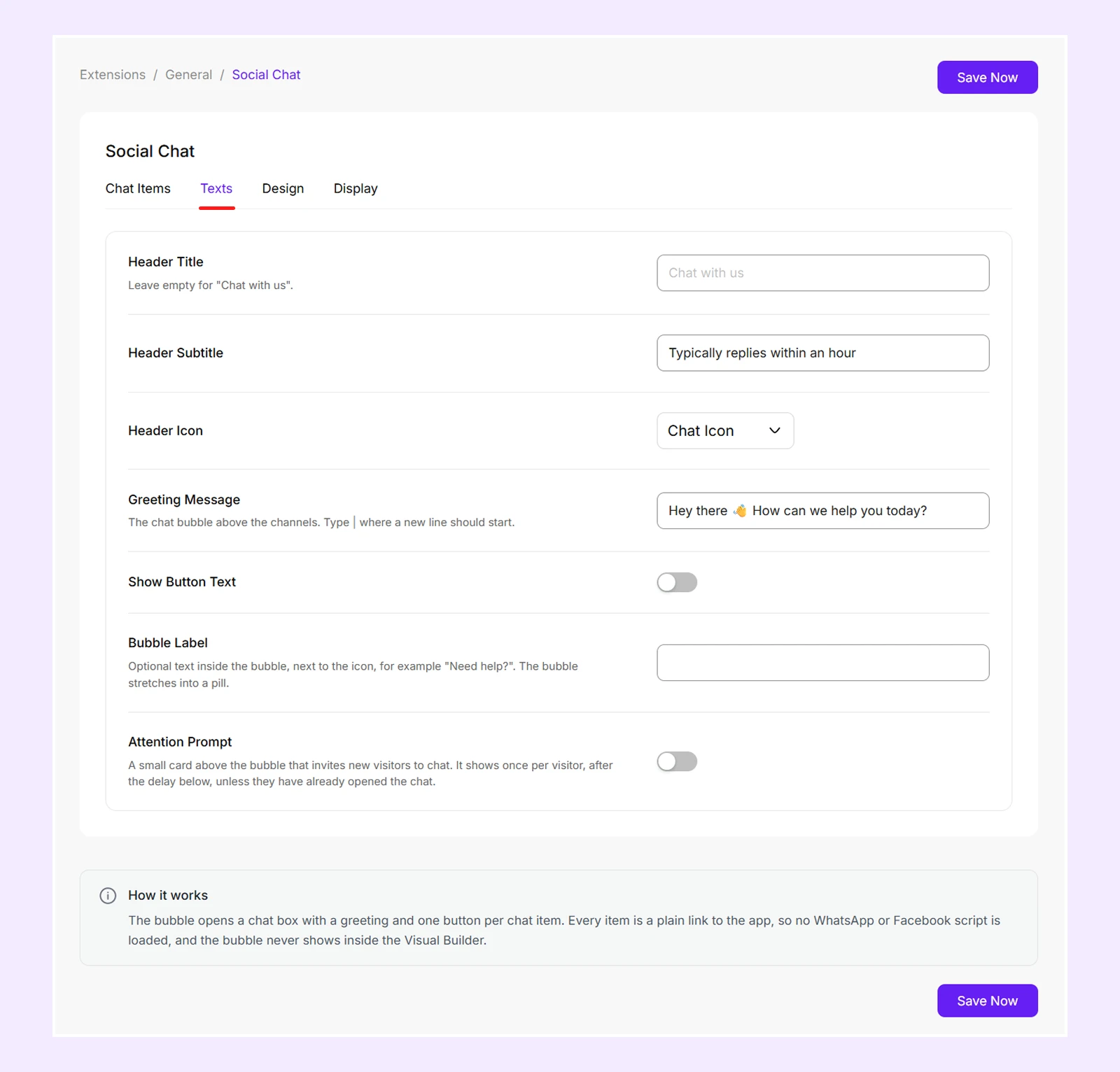
- Header Title: Change the main heading at the top of the chat box.
- Header Subtitle: Add a short message below the heading.
- Header Icon: Choose what appears beside the header text:
- Chat Icon: Display the default chat icon.
- First Chat Item Icon: Use the icon of your first chat item.
- Custom Image: Display an uploaded image.
- Header Image: Upload an image for the header. (Available when Header Icon is set to Custom Image.)
- Greeting Message: Add a welcome message above the chat buttons. Use | to insert line breaks.
- Show Button Text: Show or hide a heading for the chat buttons.
- Button Text: Customize the heading displayed above or inside the chat buttons.
- Bubble Label: Add text inside the floating chat bubble, such as "Need help?"
- Show Label: Choose Always to keep the bubble label visible or On Hover to show it when visitors hover over the bubble.
- Attention Prompt: Enable a small message card above the floating chat bubble to encourage visitors to start a conversation.
- Prompt Message: Customize the message displayed in the prompt.
- Prompt Button Text: Change the button text that opens the chat box.
- Prompt Delay: Set how many seconds to wait before displaying the prompt.
- Show Prompt: Choose how often the prompt appears: Once Per Visitor, Every Day, Every 7 Days, Every 30 Days, or Every Page Load.
- Prompt Image: Upload an image to temporarily replace the floating bubble icon while the prompt is visible.
Design Tab
These settings let you customize the chat box's appearance, including its position, colors, animations, buttons, and spacing.
General
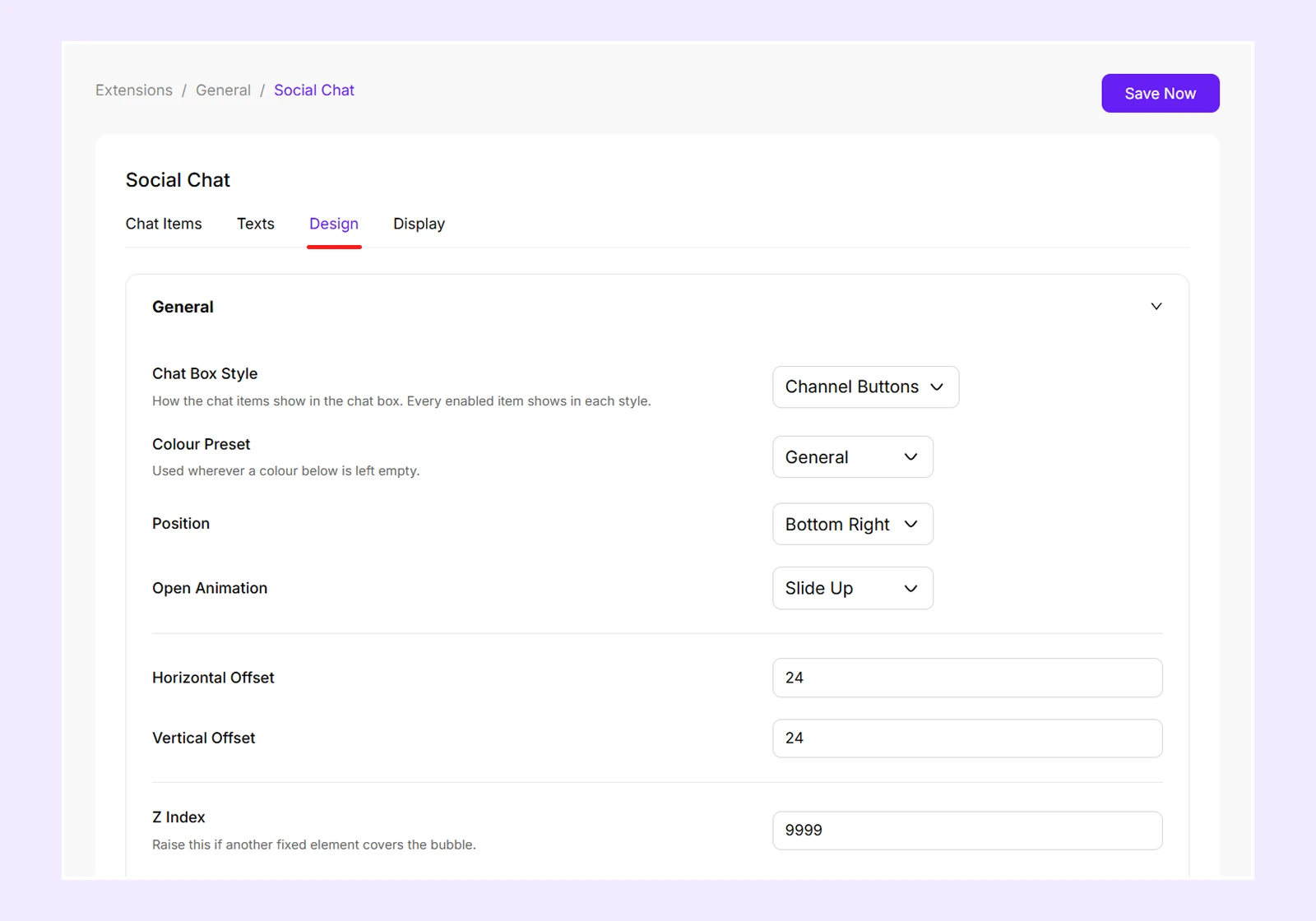
- Chat Box Style: Choose how the contact options appear:
- Channel Buttons: Display each messaging channel as a separate button.
- Start Chat Bar: Display all channel icons inside a single bar.
- Colour Preset: Choose a predefined color scheme: General, Support, Feedback, Sale, or First Chat Item Brand Colour.
- Position: Place the floating chat button at the Bottom Left or Bottom Right.
- Open Animation: Choose Fade, Slide Up, or Zoom for the chat box opening animation.
- Horizontal Offset: Adjust the distance between the chat bubble and the side of the screen.
- Vertical Offset: Adjust the distance between the chat bubble and the bottom of the screen.
- Z Index: Set the stacking order of the chat bubble relative to other website elements.
Bubble
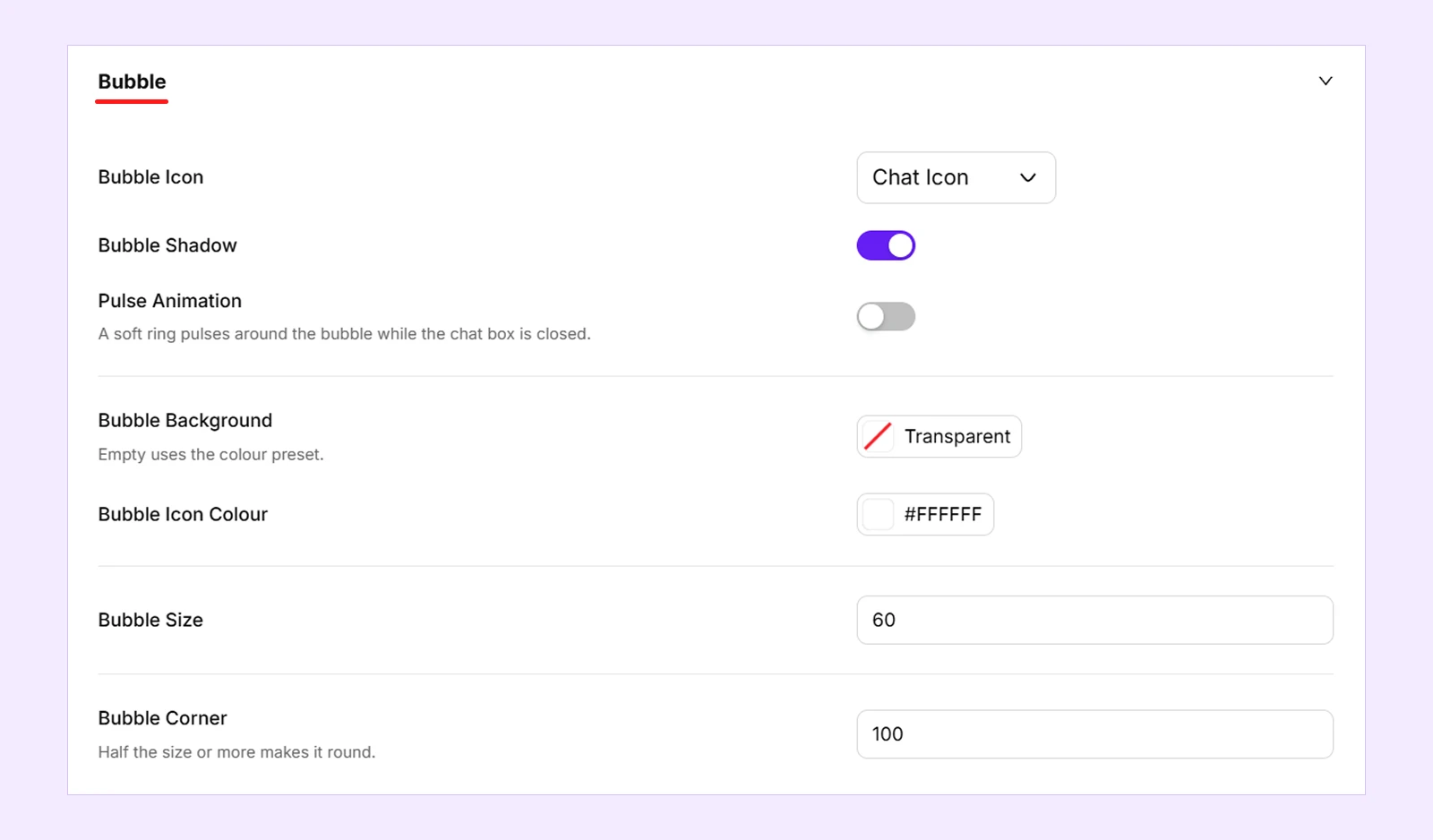
- Bubble Icon: Choose Chat Icon, First Chat Item Icon, or Custom Image.
- Bubble Image: Upload an image for the floating chat bubble.
- Bubble Shadow: Add or remove the bubble's shadow.
- Pulse Animation: Enable a pulsing effect around the chat bubble while the chat box is closed.
- Bubble Background: Set the background color of the floating bubble.
- Bubble Icon Colour: Change the color of the bubble icon.
- Bubble Size: Adjust the size of the floating chat bubble.
- Bubble Label Font Size: Adjust the size of the bubble label text. (Available when a Bubble Label is added.)
- Bubble Corner: Adjust the corner rounding of the chat bubble.
Chat Box
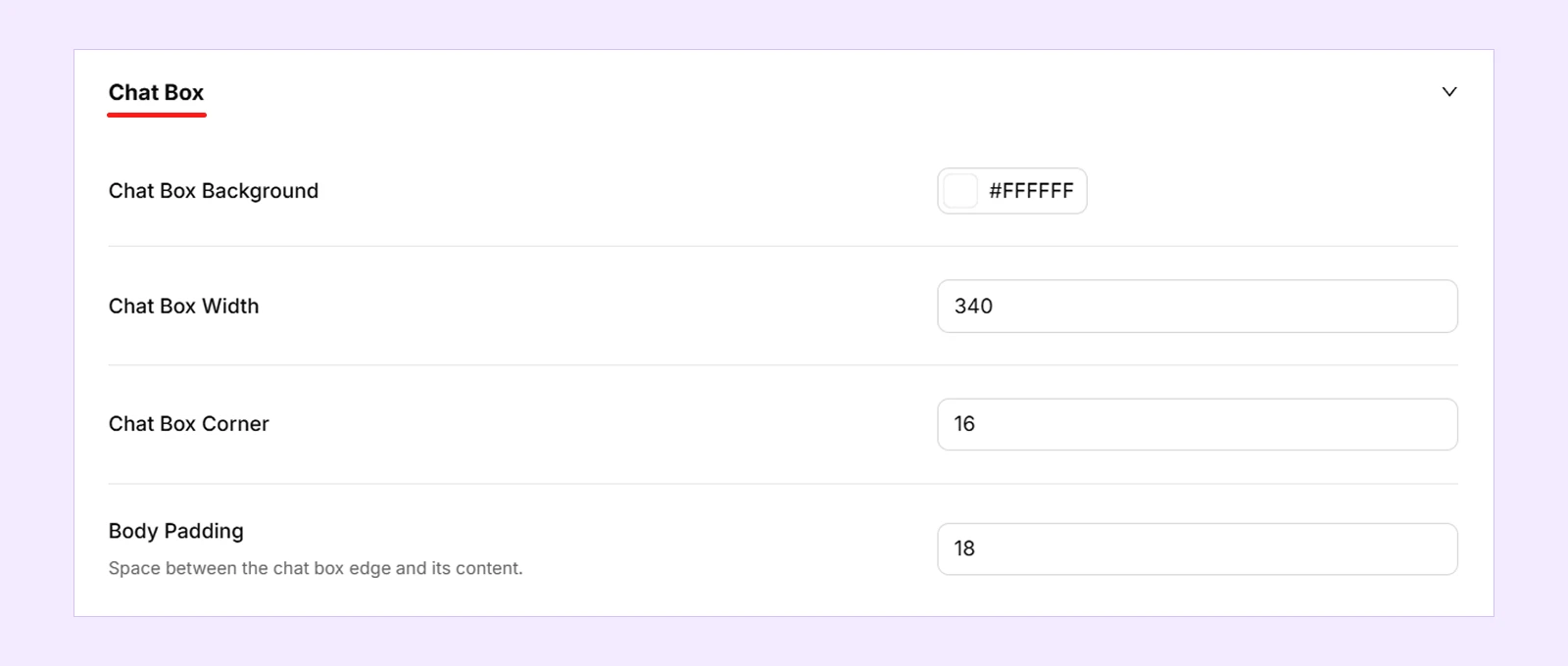
- Chat Box Background: Set the chat box background color.
- Chat Box Width: Adjust the width of the chat box.
- Chat Box Corner: Adjust the corner rounding of the chat box.
- Body Padding: Adjust the spacing between the chat box edges and its content.
Header
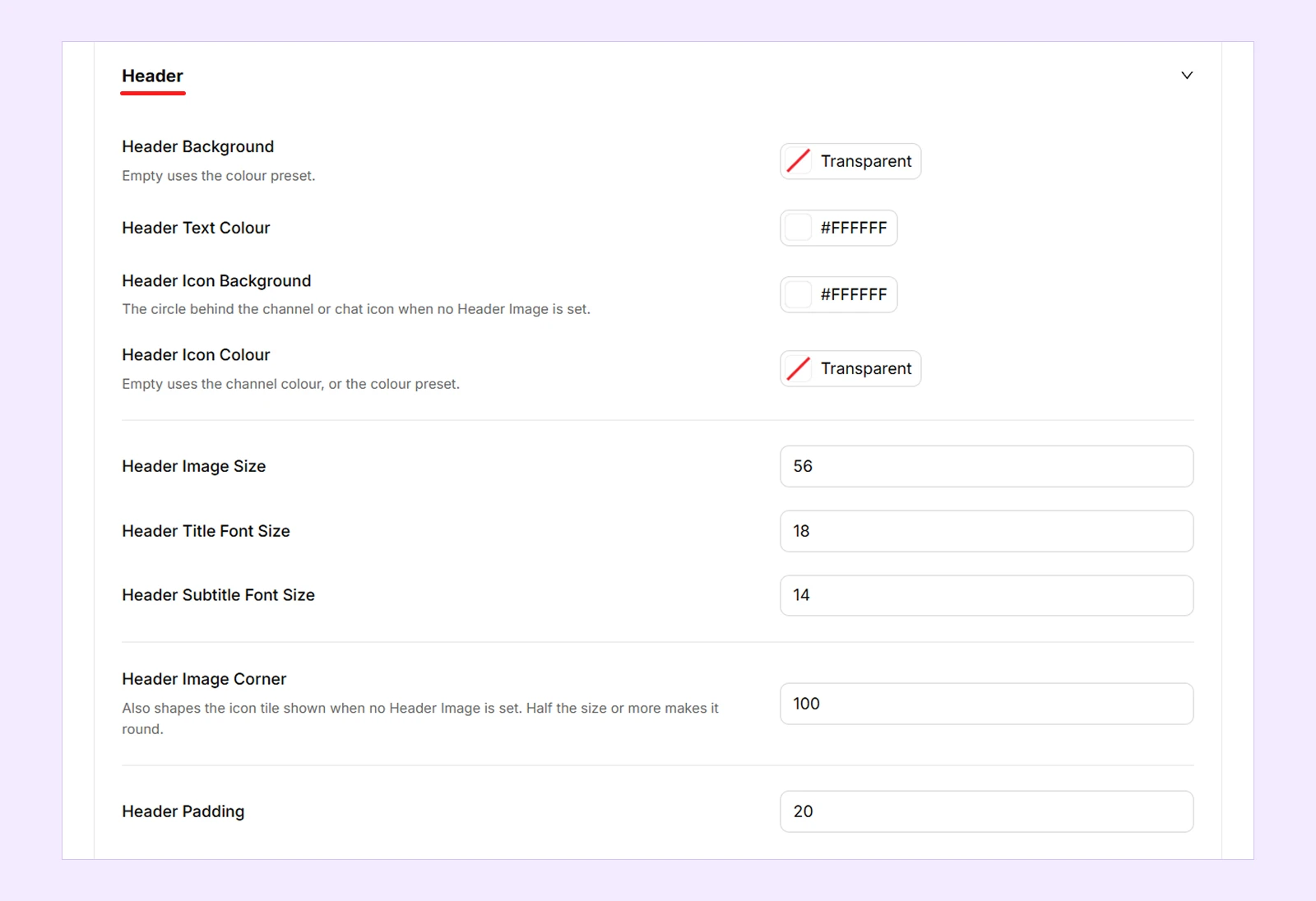
- Header Background: Set the header background color.
- Header Text Colour: Change the header text color.
- Header Icon Background: Set the background color behind the header icon.
- Header Icon Colour: Change the header icon color.
- Header Image Size: Adjust the size of the header icon or image.
- Header Title Font Size: Adjust the header title font size.
- Header Subtitle Font Size: Adjust the header subtitle font size.
- Header Image Corner: Adjust the corner rounding of the header icon or image.
- Header Padding: Adjust the internal spacing of the header.
Note: Header Icon Background and Header Icon Colour are available when Header Icon is set to Chat Icon or First Chat Item Icon in the Texts tab.
Message
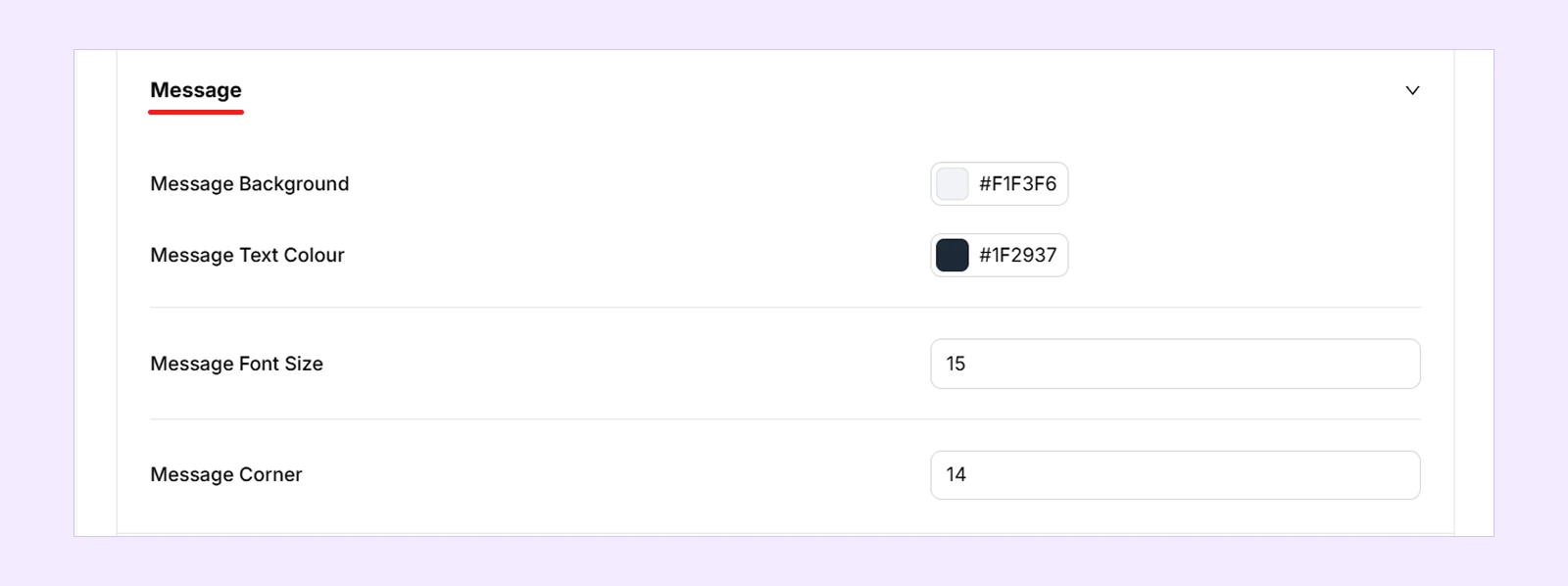
- Message Background: Set the greeting message background color.
- Message Text Colour: Change the greeting message text color.
- Message Font Size: Adjust the greeting message font size.
- Message Corner: Adjust the corner rounding of the greeting message.
Buttons
The available settings depend on the selected Chat Box Style.
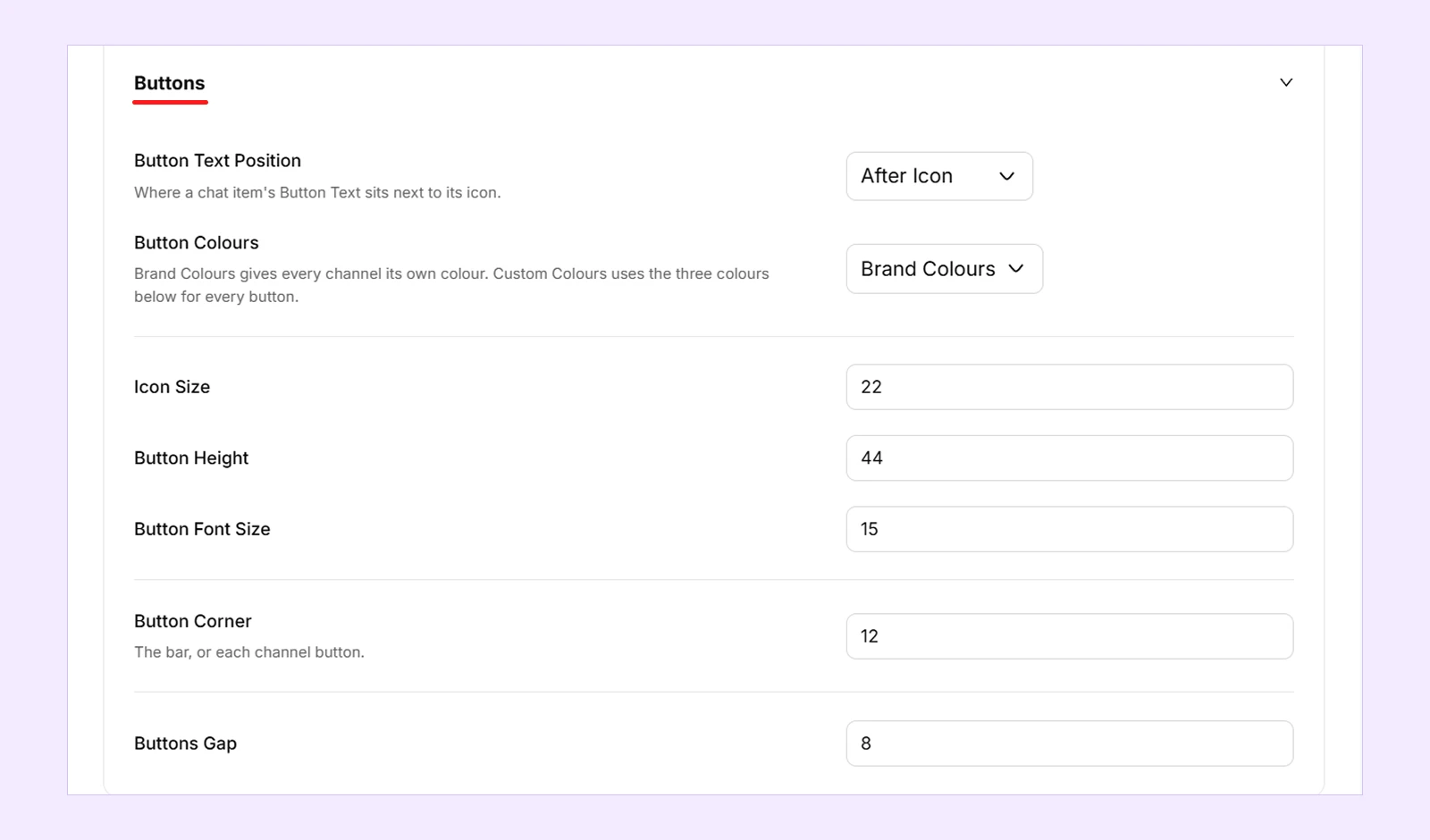
- Button Text Position: Choose whether the button text appears before or after the channel icon.
- Button Colours: Choose Brand Colours to use each platform's color or Custom Colours to apply your own colors.
- Button Background: Set the background color of the channel buttons. (Available when Button Colours is set to Custom Colours.)
- Button Icon Colour: Set the color of the channel icons. (Available when Button Colours is set to Custom Colours.)
- Button Text Colour: Set the button text color. (Available when Button Colours is set to Custom Colours.)
- Icon Size: Adjust the size of the channel icons.
- Button Height: Adjust the height of the channel buttons.
- Button Font Size: Adjust the button text size.
- Bar Background: Set the background color of the chat bar. (Available when Chat Box Style is set to Start Chat Bar.)
- Bar Text Colour: Set the chat bar text color. (Available when Chat Box Style is set to Start Chat Bar.)
- Button Corner: Adjust the corner rounding of the buttons or chat bar.
- Buttons Gap: Adjust the spacing between buttons or icons.
Attention Prompt
These settings control the appearance of the attention prompt. (Available when Attention Prompt is enabled in the Texts tab.)
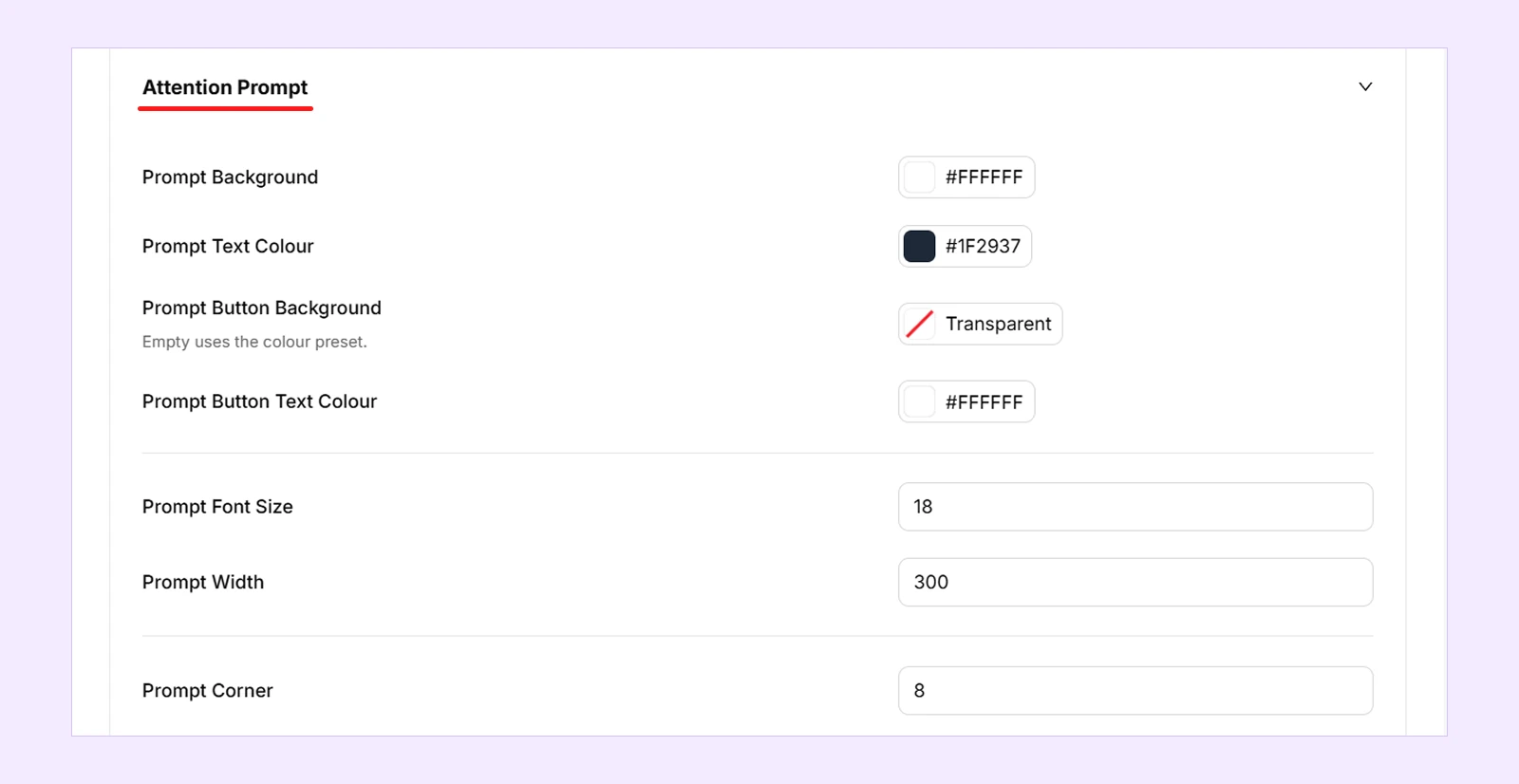
- Prompt Background: Set the prompt background color.
- Prompt Text Colour: Change the prompt message color.
- Prompt Button Background: Set the prompt button background color.
- Prompt Button Text Colour: Change the prompt button text color.
- Prompt Font Size: Adjust the prompt message font size.
- Prompt Width: Set the width of the prompt card.
- Prompt Corner: Adjust the corner rounding of the prompt.
Note: Leaving a color setting empty uses the selected Colour Preset or its default color.
Display Tab
These settings control where the chat button appears and which devices can display it.
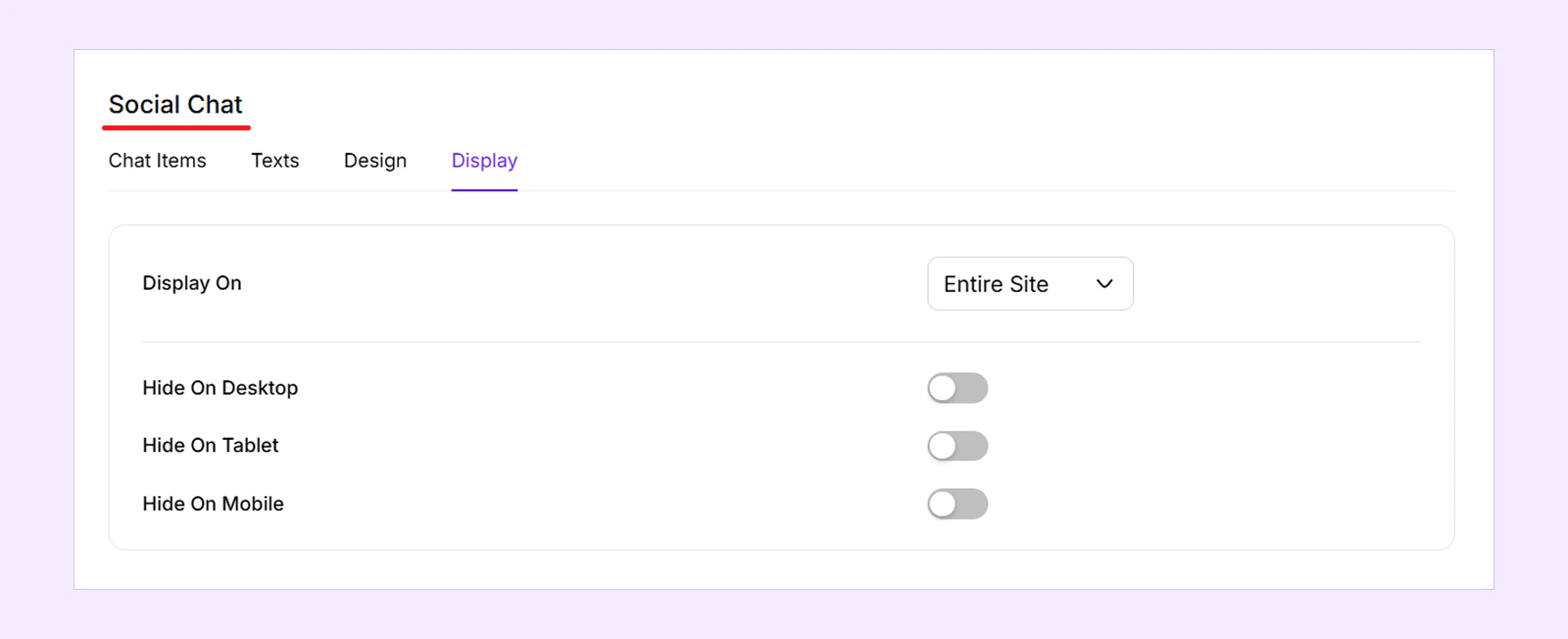
- Display On: Choose where to display the chat button:
- Entire Site: Display it across your website.
- Specific Post Types: Display it only on selected post types.
- Specific Pages/Posts: Enter page or post IDs, separated by commas.
- Hide On Desktop: Hide the chat button on desktop devices.
- Hide On Tablet: Hide the chat button on tablets.
- Hide On Mobile: Hide the chat button on mobile devices.
Additional Notes
- The social chat button appears on live pages, not inside the Divi Visual Builder or Theme Builder.
- Messaging links open in the visitor's browser or corresponding app. Viber and WeChat require their apps to be installed.
- Visitors can close the chat box by clicking the close button, clicking outside it, clicking the floating bubble again, or pressing Esc.
- The extension supports keyboard navigation, right-to-left languages, and reduced-motion preferences.
Need Help?
If you have any questions or need assistance, contact our support team: [email protected].