
DiviFlash Animated Number Counter module (introduced in DiviFlash 5.2.0) lets you display animated numeric counters.
Important Note: Advanced Counter module is built for Divi 5 only. Also, it will be disabled by default and to use it, you must enable it manually. Refer to our guide for step-by-step instructions.
Let’s see the settings in brief and how to make better use of it —
Content Tab
This tab contains all the essential settings to control the number, animation, and how the counter behaves.
Counter Settings
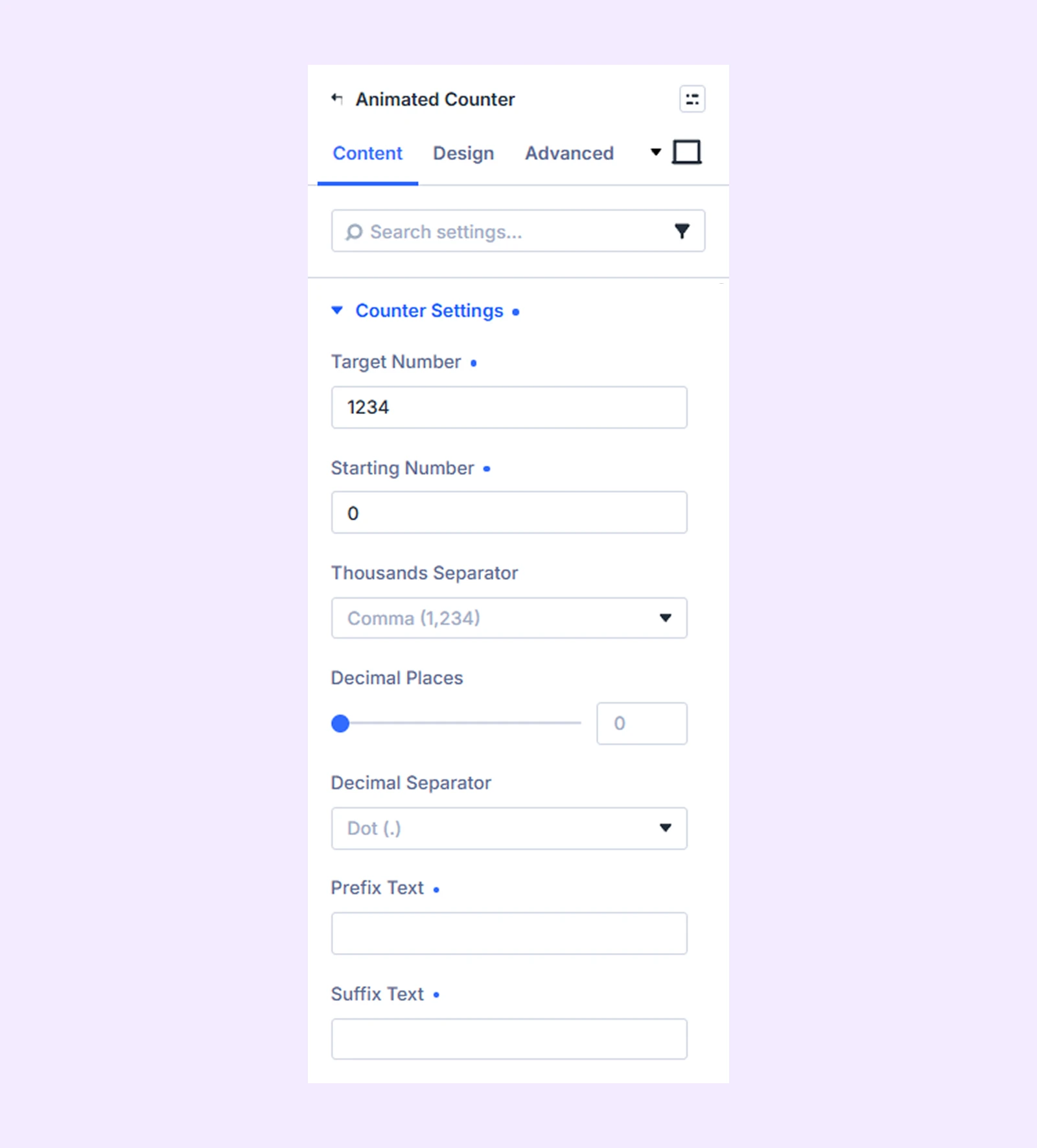
- Target Number: Set the final number the counter will reach.
- Starting Number: Set the number the counter starts from.
- Thousands Separator: Choose how large numbers are grouped (comma, dot, or space).
- Decimal Places: Set how many decimal digits to show.
- Decimal Separator: Choose the symbol for decimal values (dot or comma).
- Prefix Text: Add text before the number.
- Suffix Text: Add text after the number.
Animation
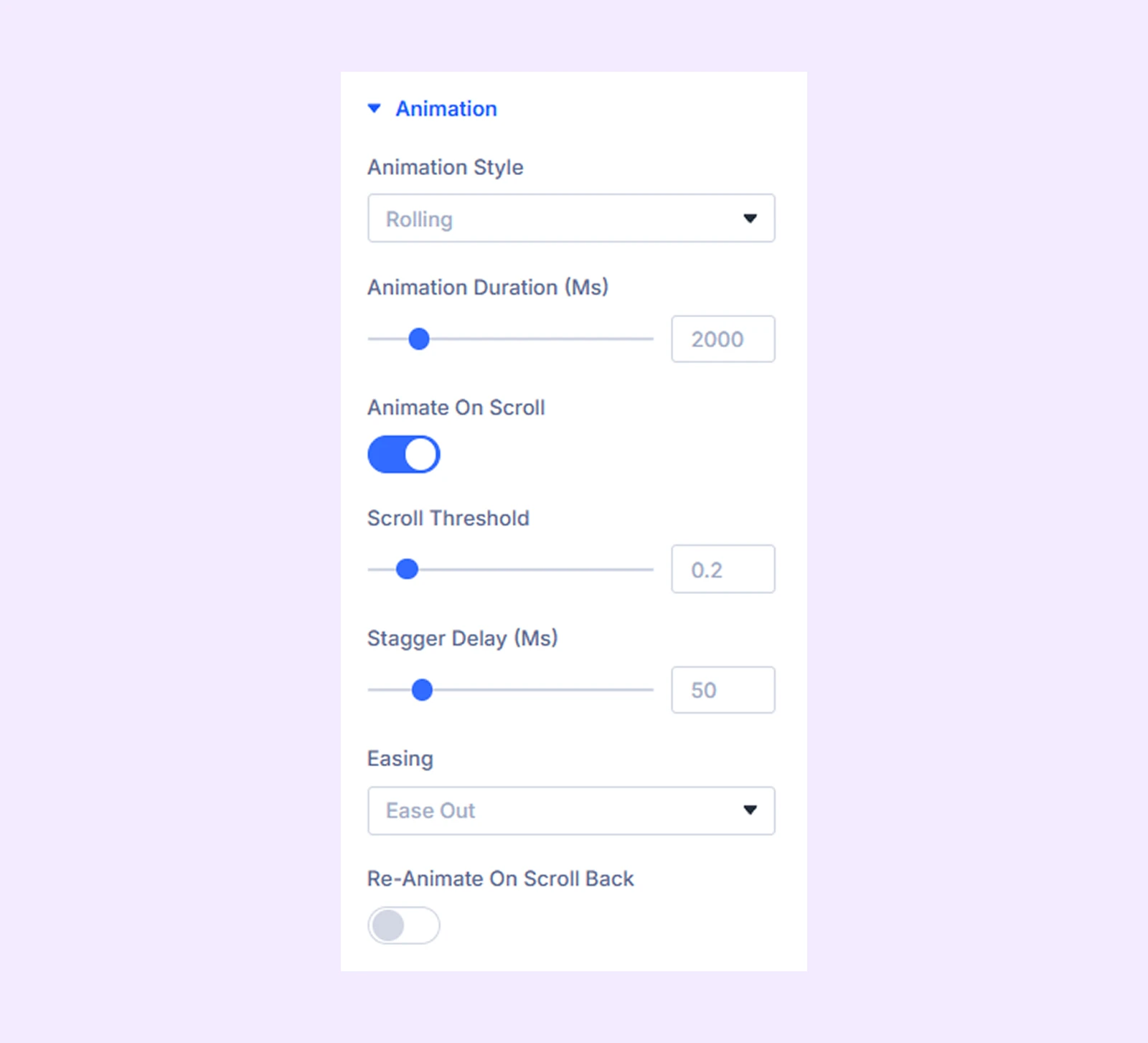
- Animation Style: Choose the visual style of the number animation (4 options available).
- Animation Duration (Ms): Set how fast or slow the counter animation will run.
- Animate On Scroll: Start the animation only when the counter will appear in the viewport.
- Scroll Threshold: Set how much of the module must be visible before the animation starts.
- Stagger Delay (Ms): Set the delay between each digit’s animation start.
- Easing: Choose how smooth the animation transition feels (4 options available).
- Re-Animate On Scroll Back: Replay the animation when the user scrolls back to the module.
Link: Use this default Divi setting to add a link to the entire module.
Background: Add a background color, gradient, image, video, pattern, or mask to the module.
Meta: Rename the module to organize it more easily in the Divi Builder. (Only you can see this label.)
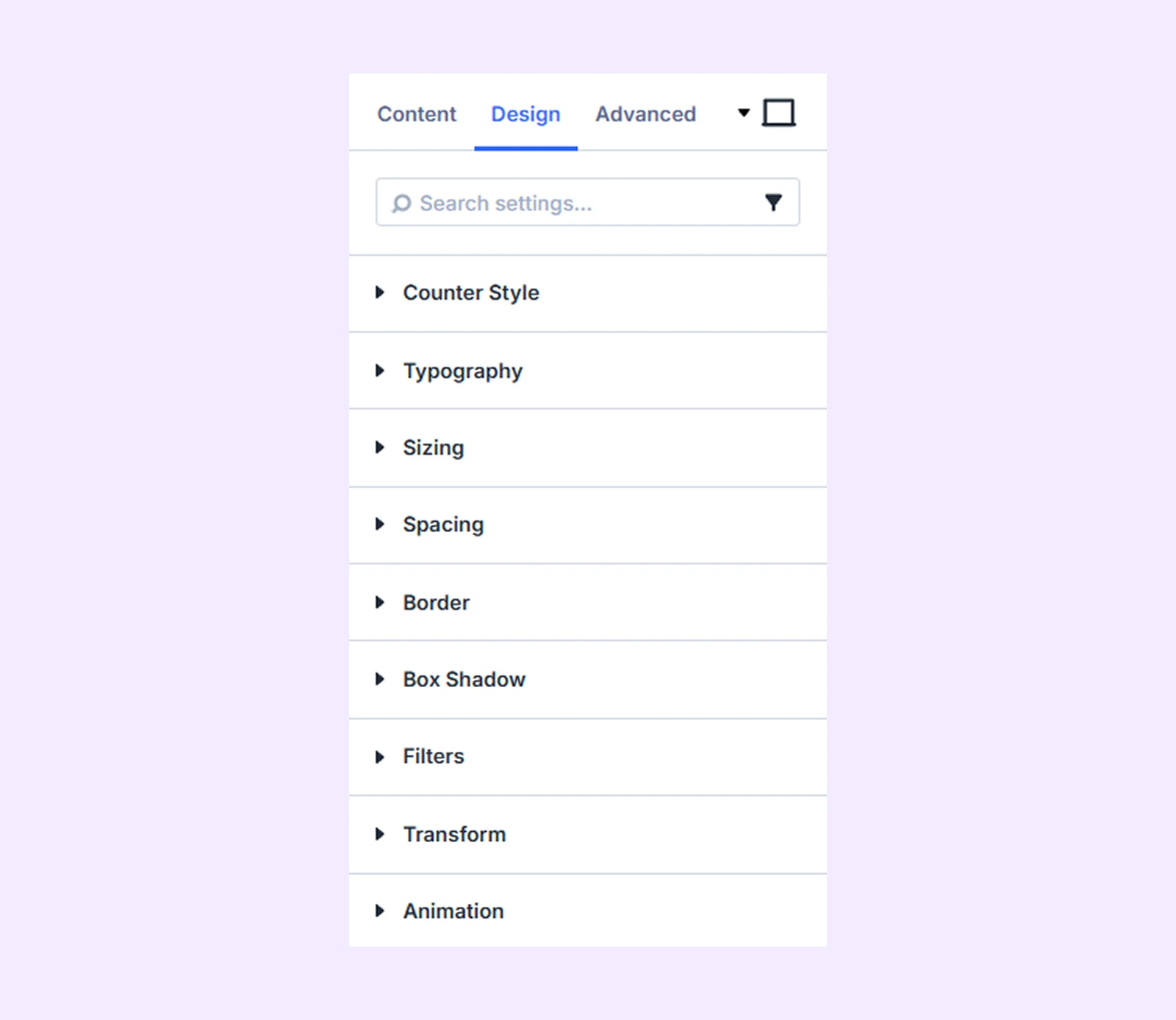
Design Tab
Customize the visual appearance of the Animated Number Counter module.
Counter Style
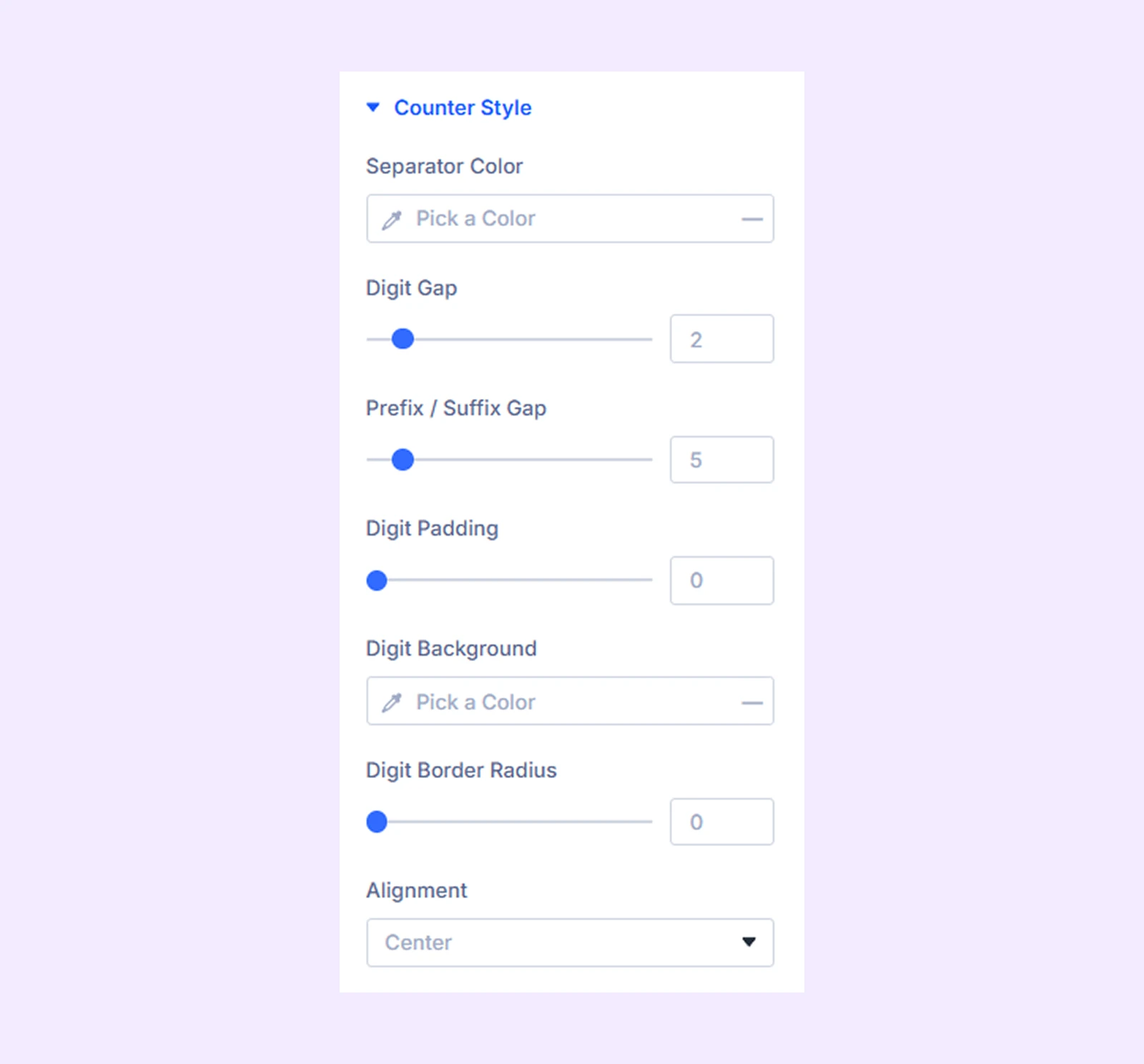
- Separator Color: Set the color of the separators between digit groups.
- Digit Gap: Adjust spacing between each digit.
- Prefix/Suffix Gap: Set spacing between the number and the prefix or suffix text.
- Digit Padding: Add space inside each digit box.
- Digit Background: Set the background color of each digit.
- Digit Border Radius: Round the corners of the digit boxes.
- Alignment: Set the counter alignment (left, center, or right).
Typography: Customize the font style for the number, prefix, and suffix text.
Sizing: Adjust the width, height, and alignment of the module.
Spacing: Add custom margin and padding to the module’s container.
Border: Customize the border style, width, and color. And style each border separately or apply the same style to all sides.
Box Shadow: Add shadow effects to the module.
Filters: Apply color filters to enhance the appearance.
Transform: Scale, rotate, move, or skew the module.
Animation: Apply reveal animation effects and customize delay, duration, repeat settings, and animation type.
Advanced Tab
This tab provides additional settings for advanced users who want greater control over the module with custom code, conditions, and more.
Need Help?
If you have any questions or need assistance, contact our support team: [email protected]