
To import the Fitness layout into your website, you can choose between two methods:
- Method 1: Using the DiviFlash layout importer (recommended).
- Method 2: Manually importing the layout.
In this doc, we will explain both methods step by step.
Method 1: Using DiviFlash Layout Importer
Step 1: Install and activate the Divi theme.
Step 2: Install and activate the DiviFlash plugin.
Step 3: In the WordPress Dashboard, go to DiviFlash > Layouts and search for “Fitness.”
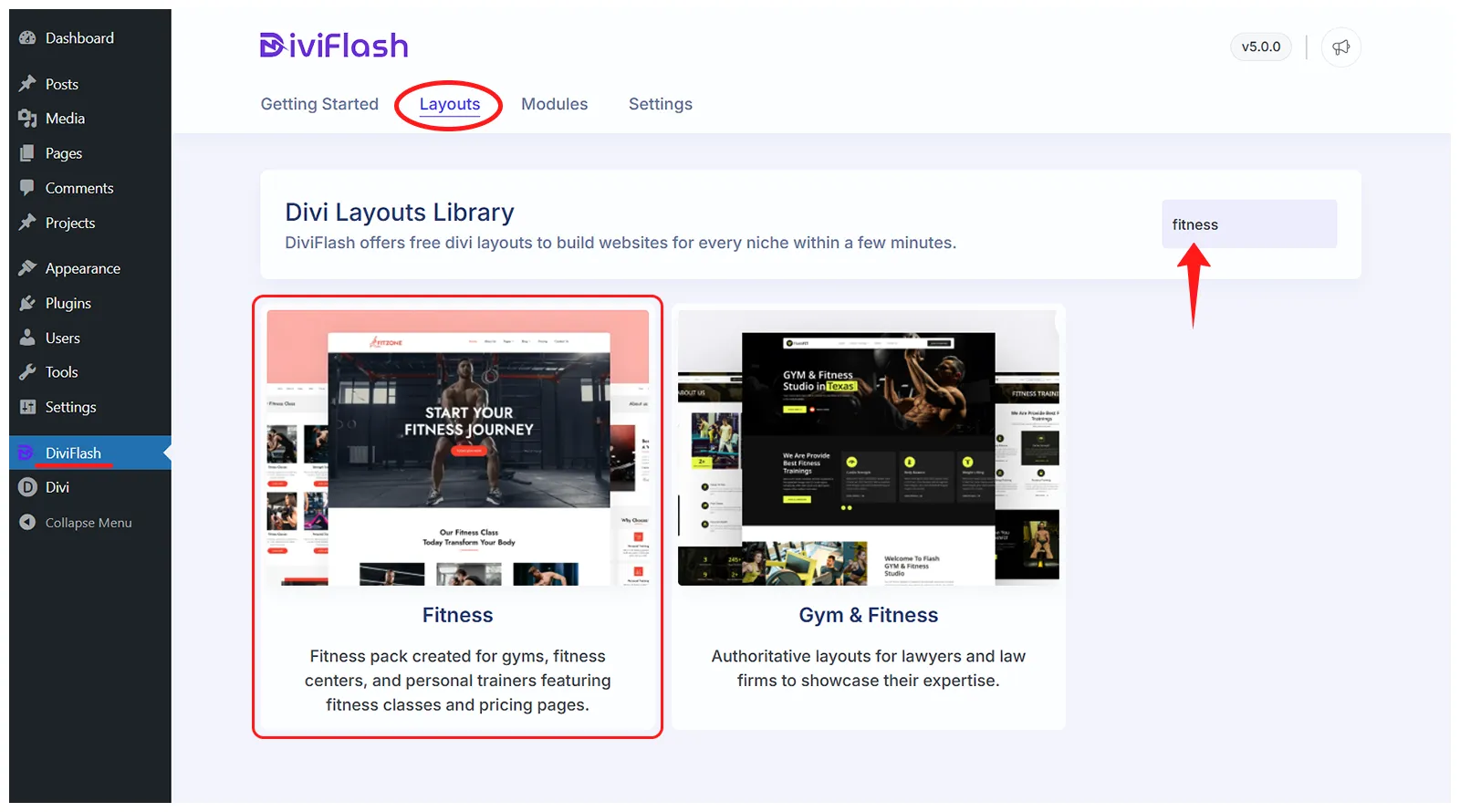
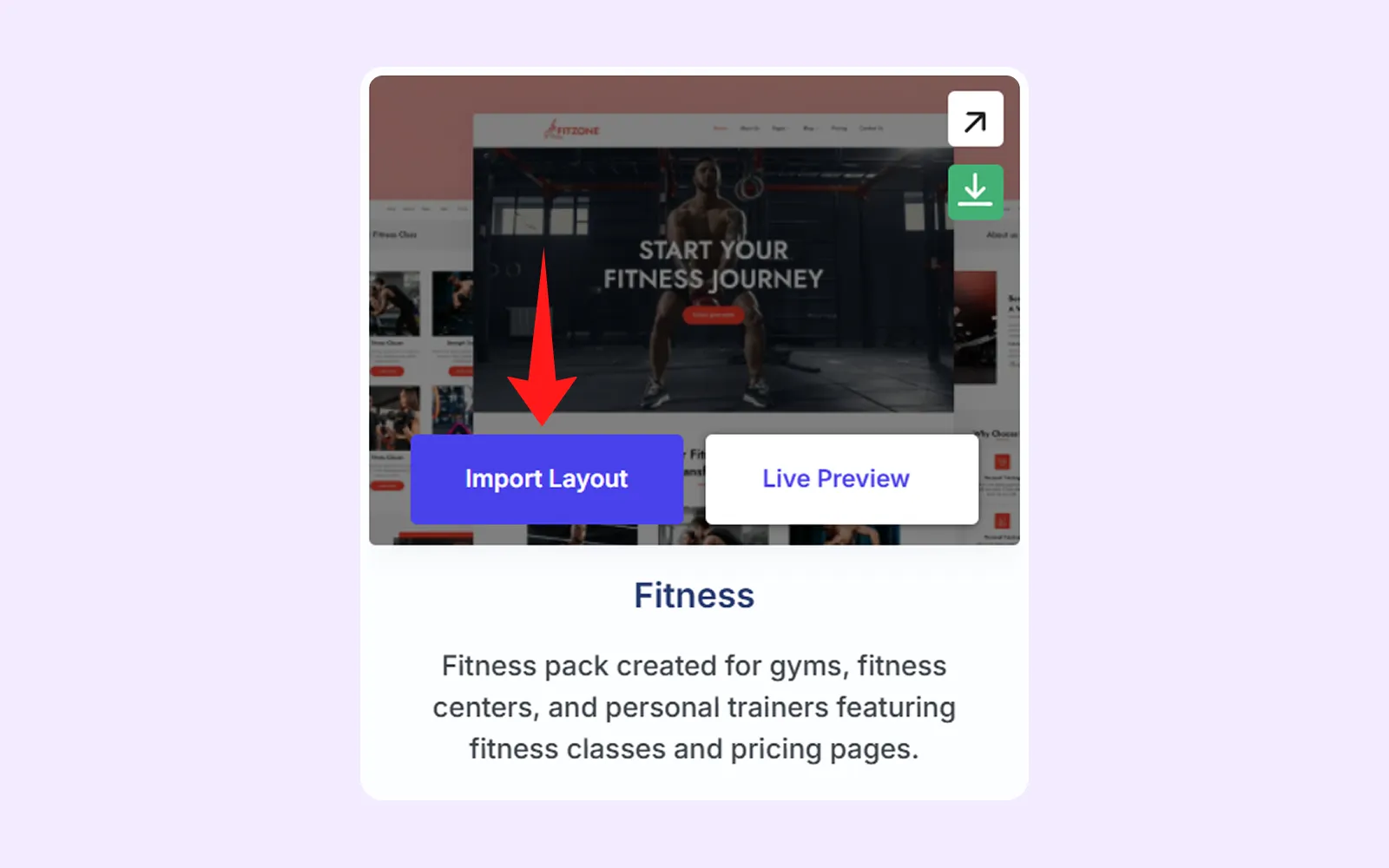
Step 4: Hover over the Fitness layout and click “Import Layout.”
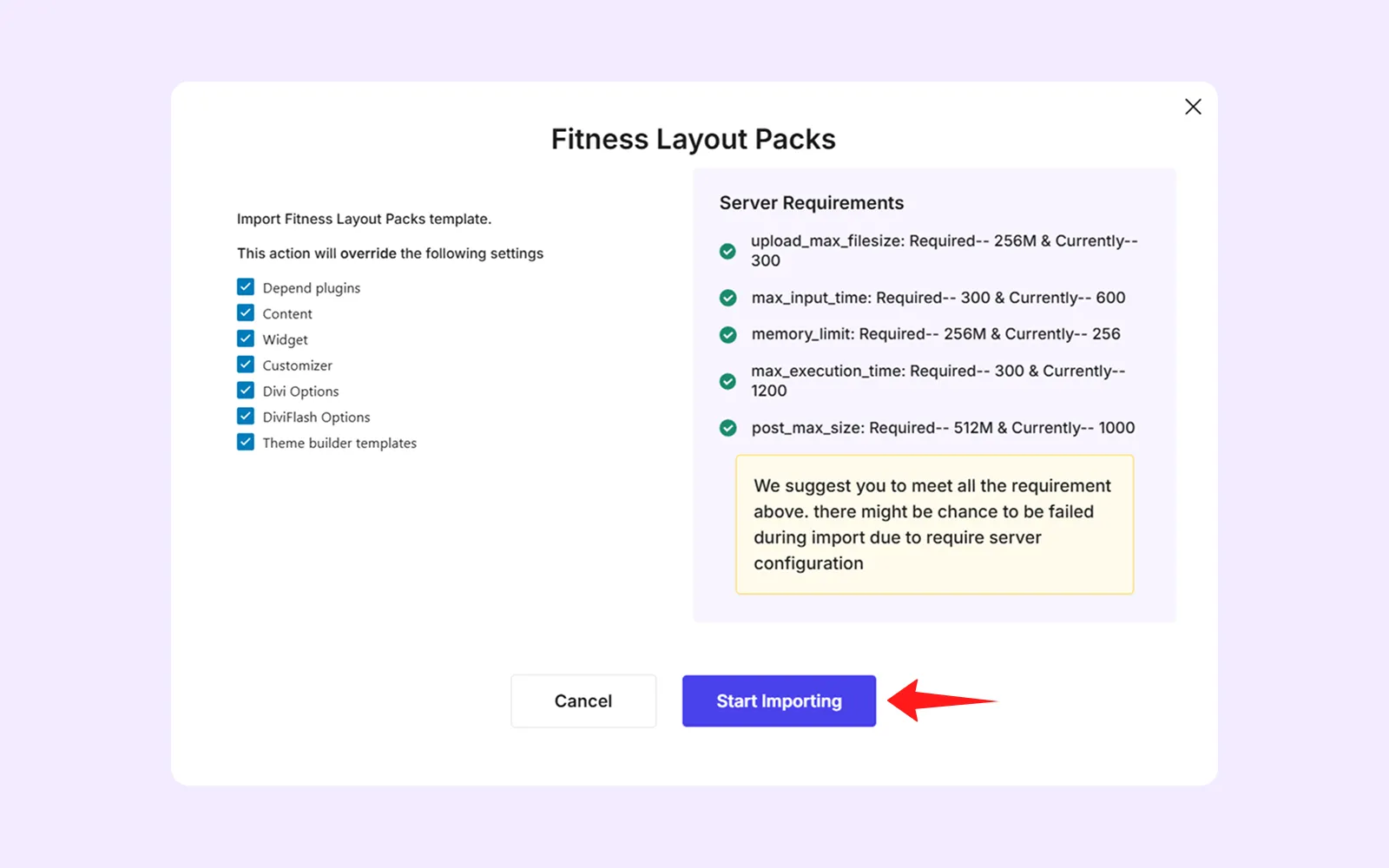
- A popup will appear showing the layout settings and server requirements. Make sure all items show green checkmarks. If you see any red crosses, update your server settings and refresh the page. Once everything turns green, click “Start Importing.”
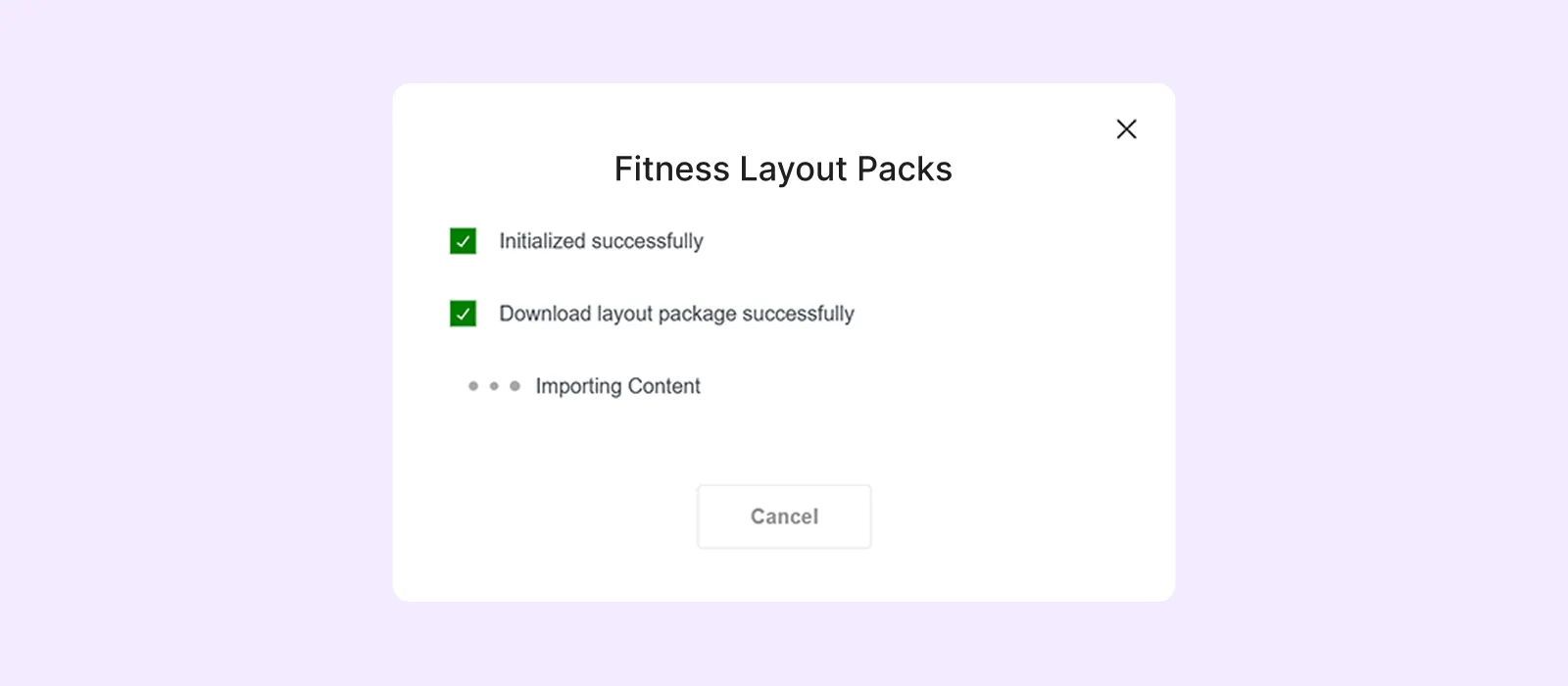
- Allow a few moments for the import to complete.
- Once imported, select “Menu Customize” to configure your menu. You can follow Divi Layout Menu Customization guide.
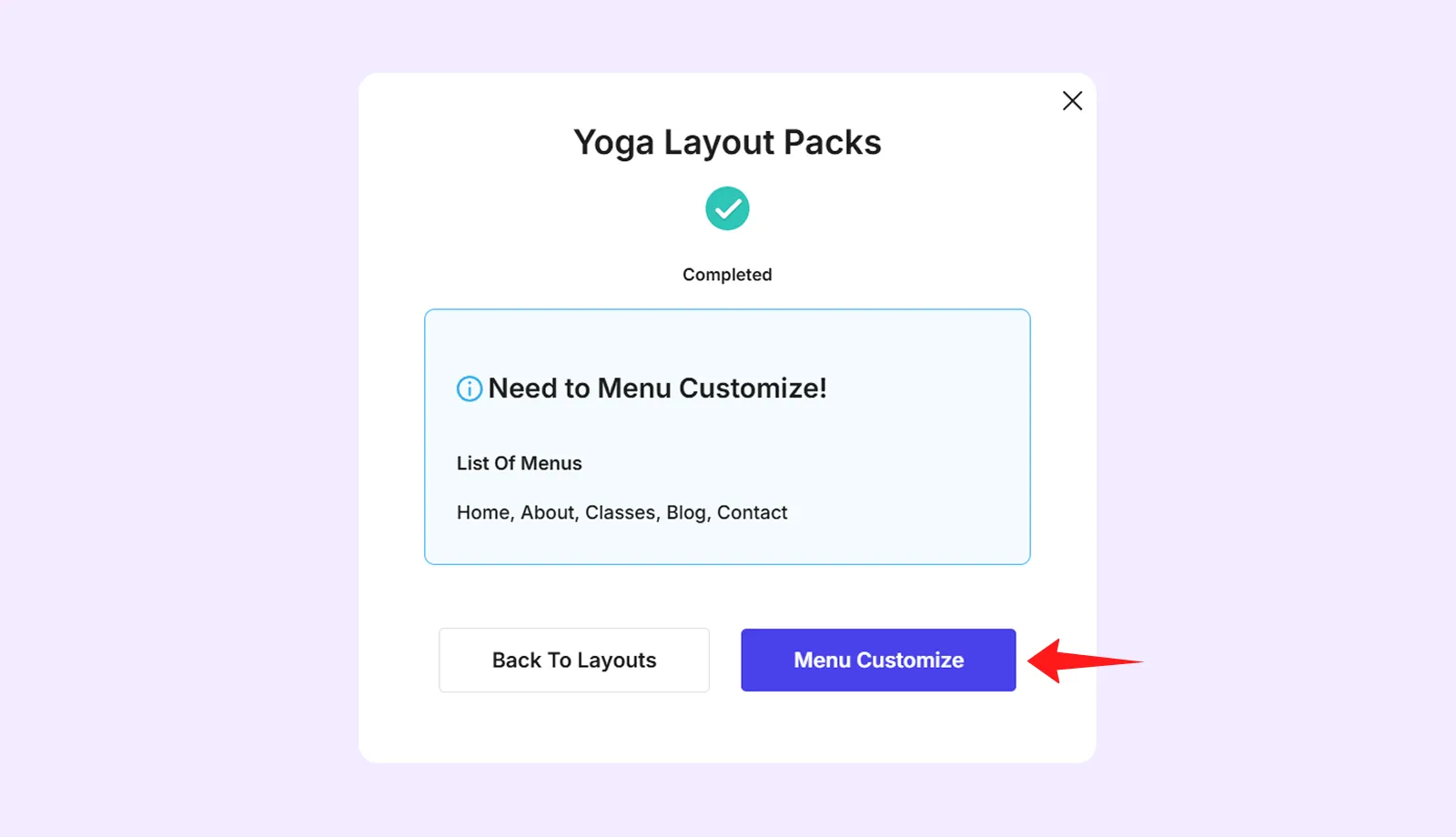
Step 5: Set your homepage and blog page.
- Go to WordPress Dashboard > Settings > Reading.
- Below “Your homepage displays,” select “A static page.”
- Choose “Home” from the homepage dropdown menu.
- Choose “Blog” from the post page dropdown menu.
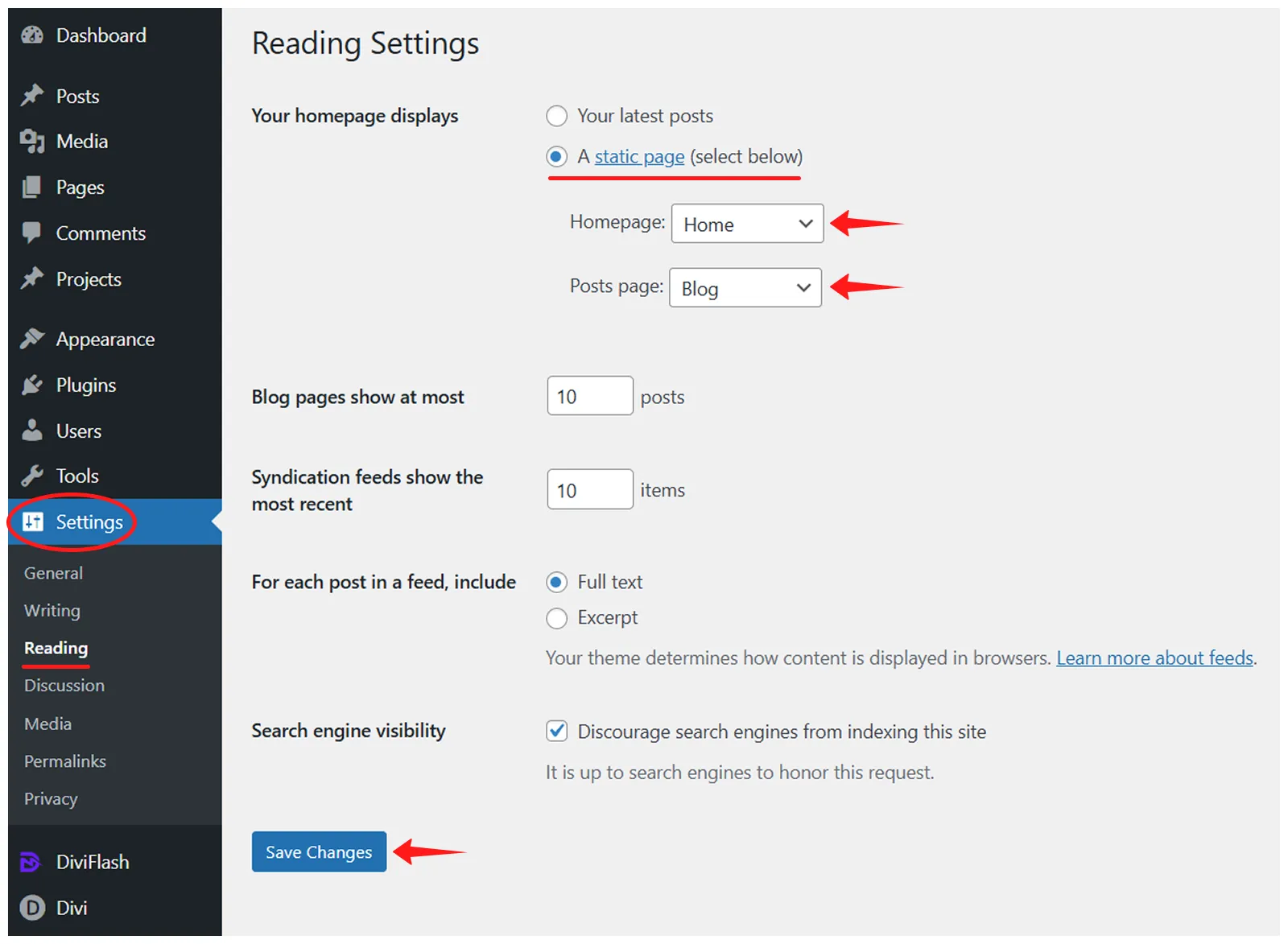
- Click on “Save Changes” to save it.
Step 6: Set the Popup
The Fitness layout includes a popup in the hero section of the homepage. To display the popup to your visitors, you need to manually update the popup ID.
Here is how to do it:
- From the WordPress dashboard, go to the DF Popups > All Popups.
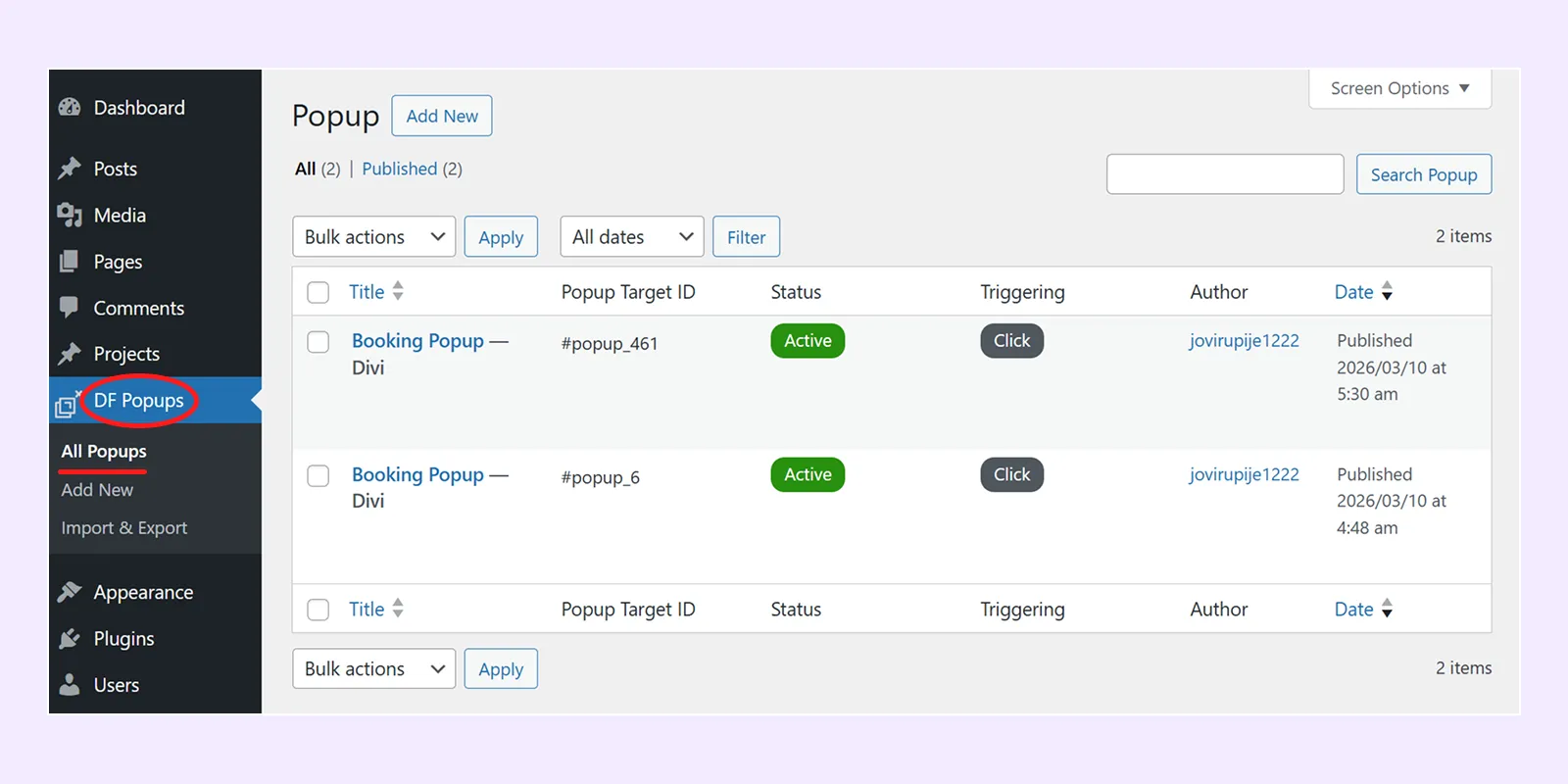
- Copy the Popup Target ID.
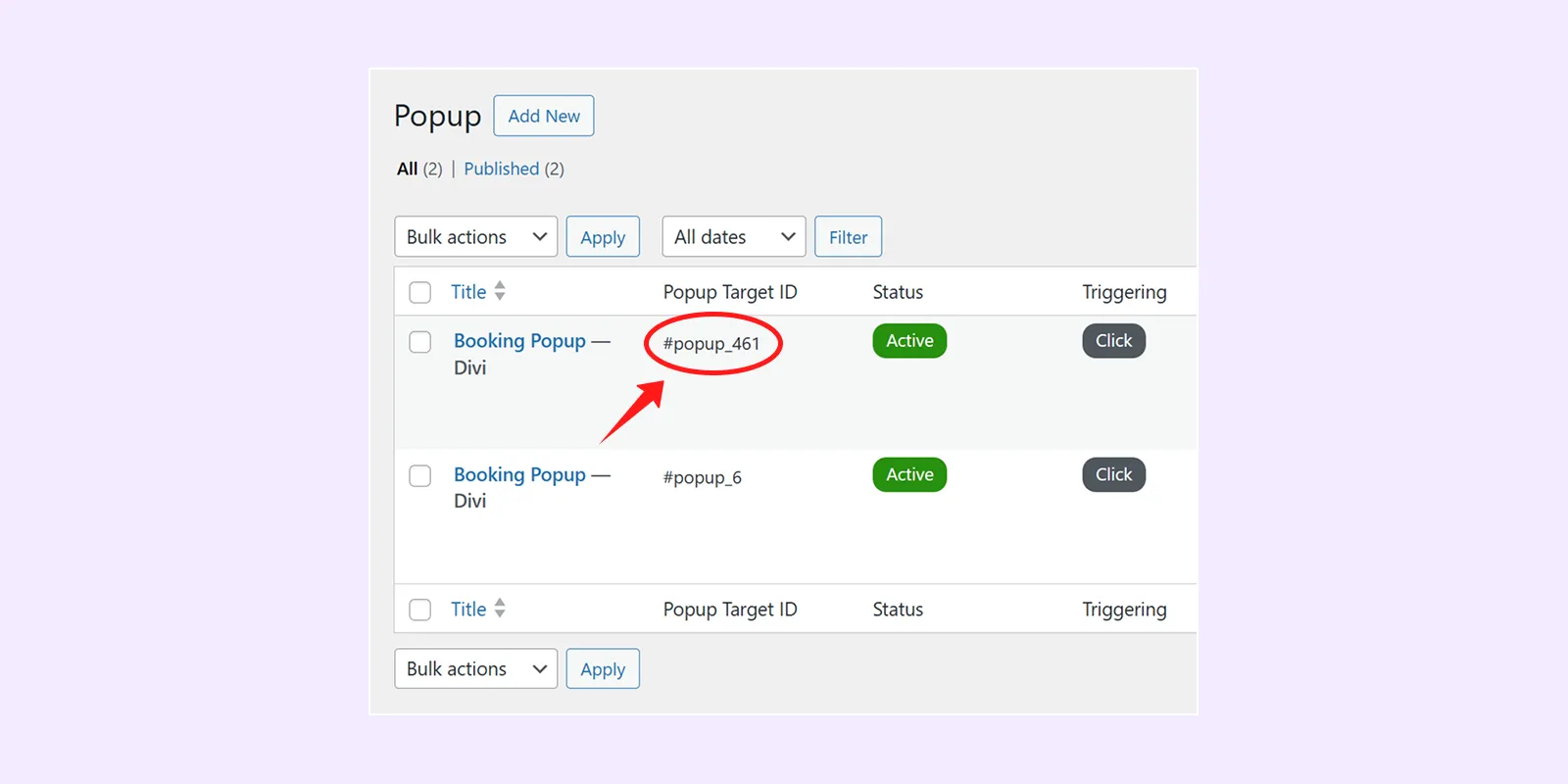
- Next, go to the homepage with the Visual Builder enabled.
- Hover over the “Join Now” button and click on its settings icon.

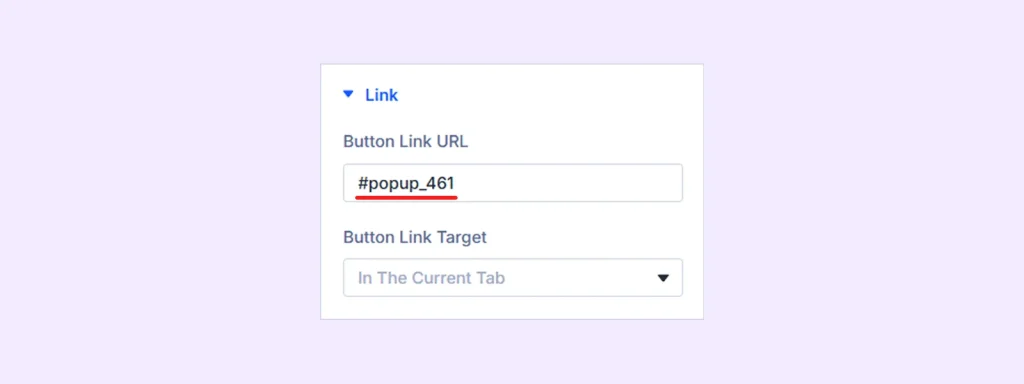
- In the button settings panel, click on “Link.”
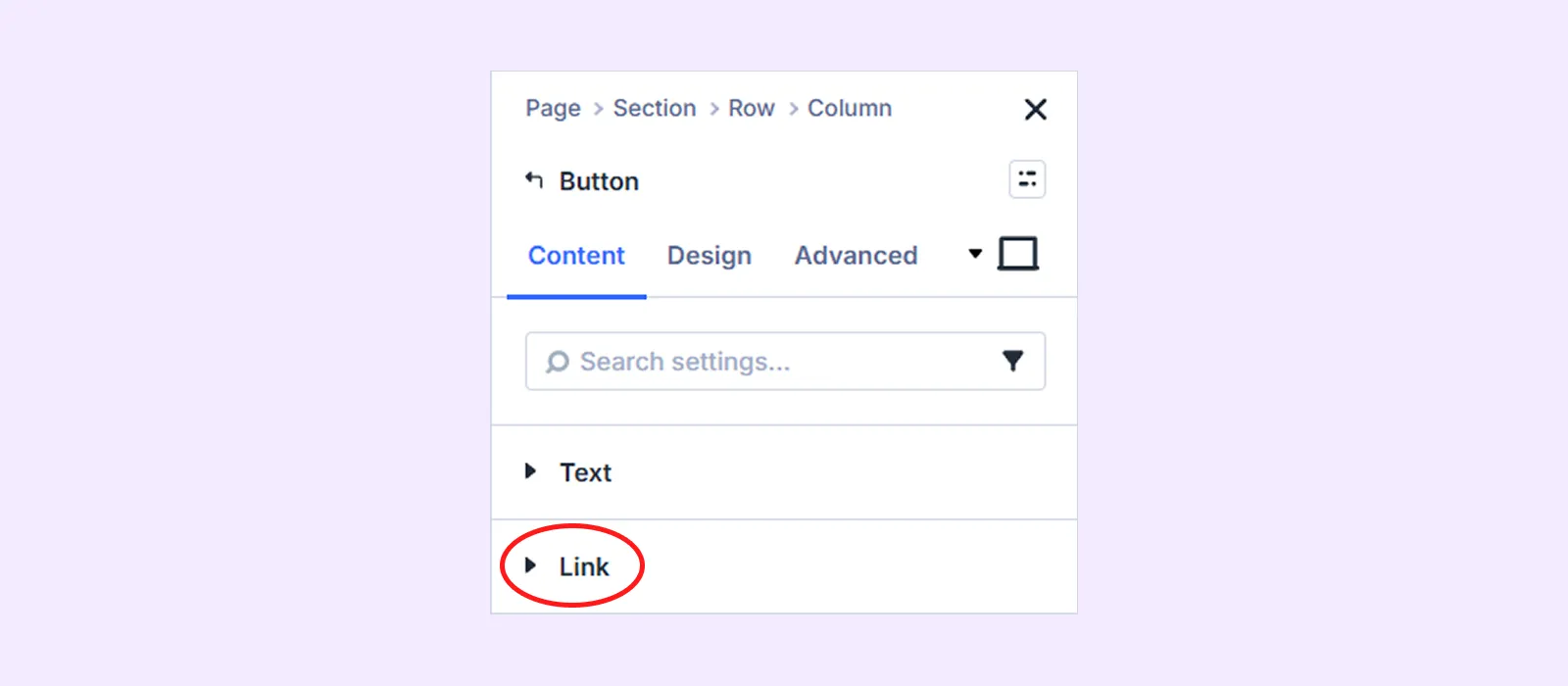
- Paste the copied popup ID into the “Button Link URL” field.
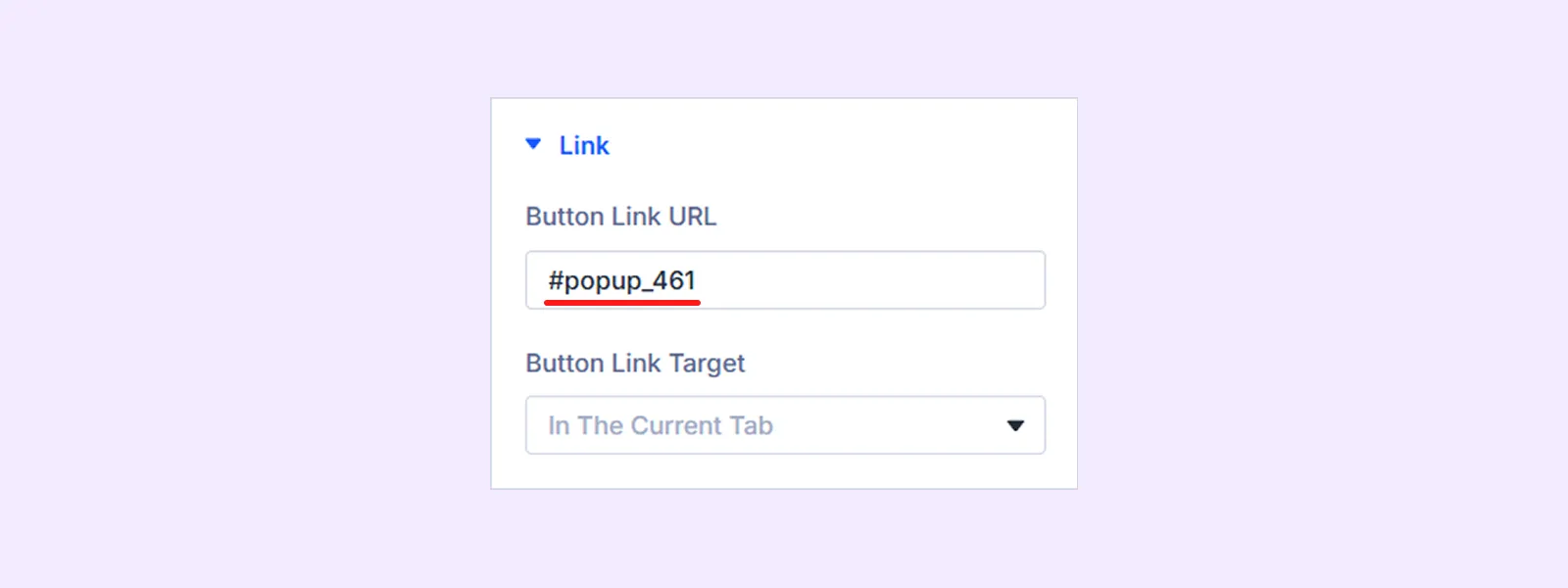
- Save the page.
The Fitness layout has been successfully imported and is now live on your website.
Method 2: Manually Import the Layout
You can also import the “Fitness” layout manually by following the steps below:
Step 1: Install and activate the Divi theme.
Step 2: Install and activate the DiviFlash plugin.
Step 3: Download the Fitness layout file from the DiviFlash website and unzip it.
Step 4: Import the “DiviFlash’s Dashboard” settings file into DiviFlash’s dashboard panel:
- Navigate to WordPress Dashboard > DiviFlash > Settings > Import/Export.
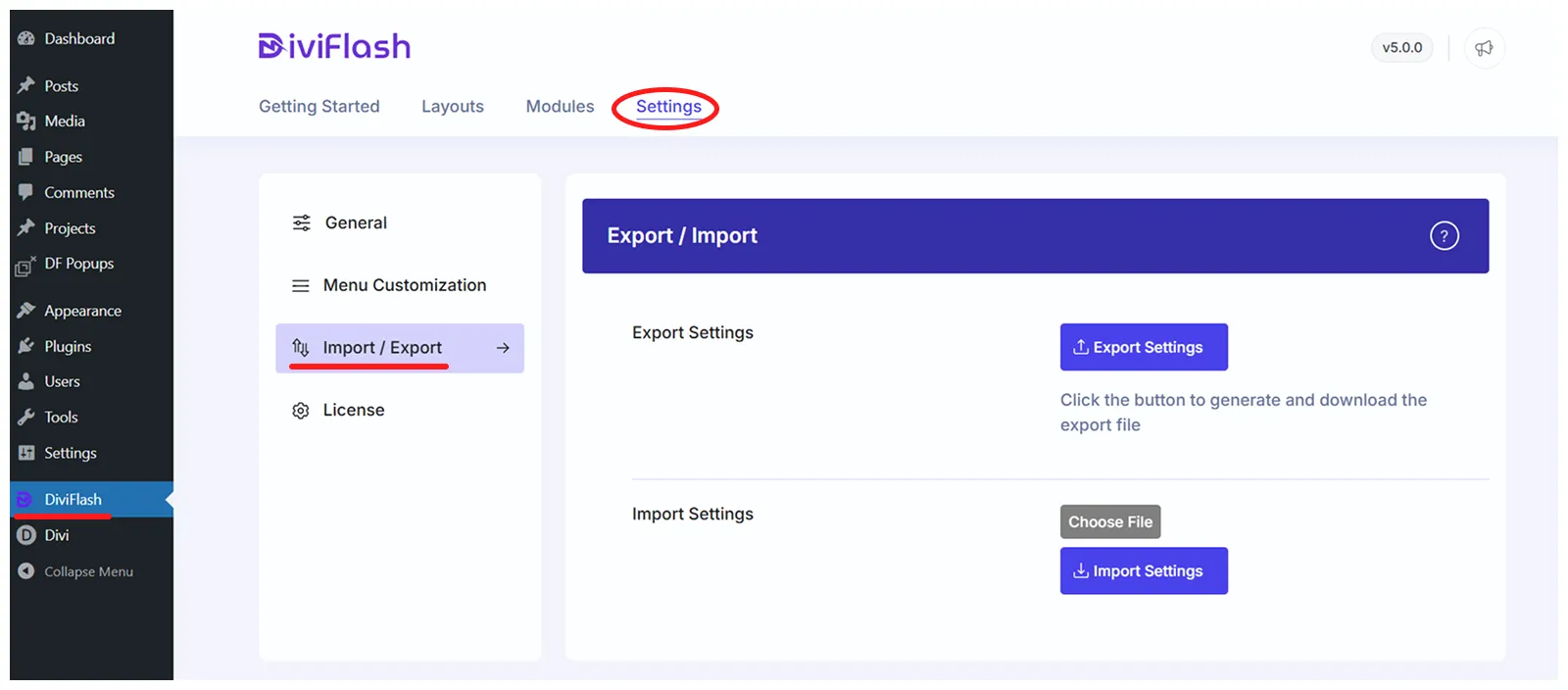
- Click on “Choose File” and select “DiviFlash Dashboard - Fitness Layout Packs - DiviFlash.json”
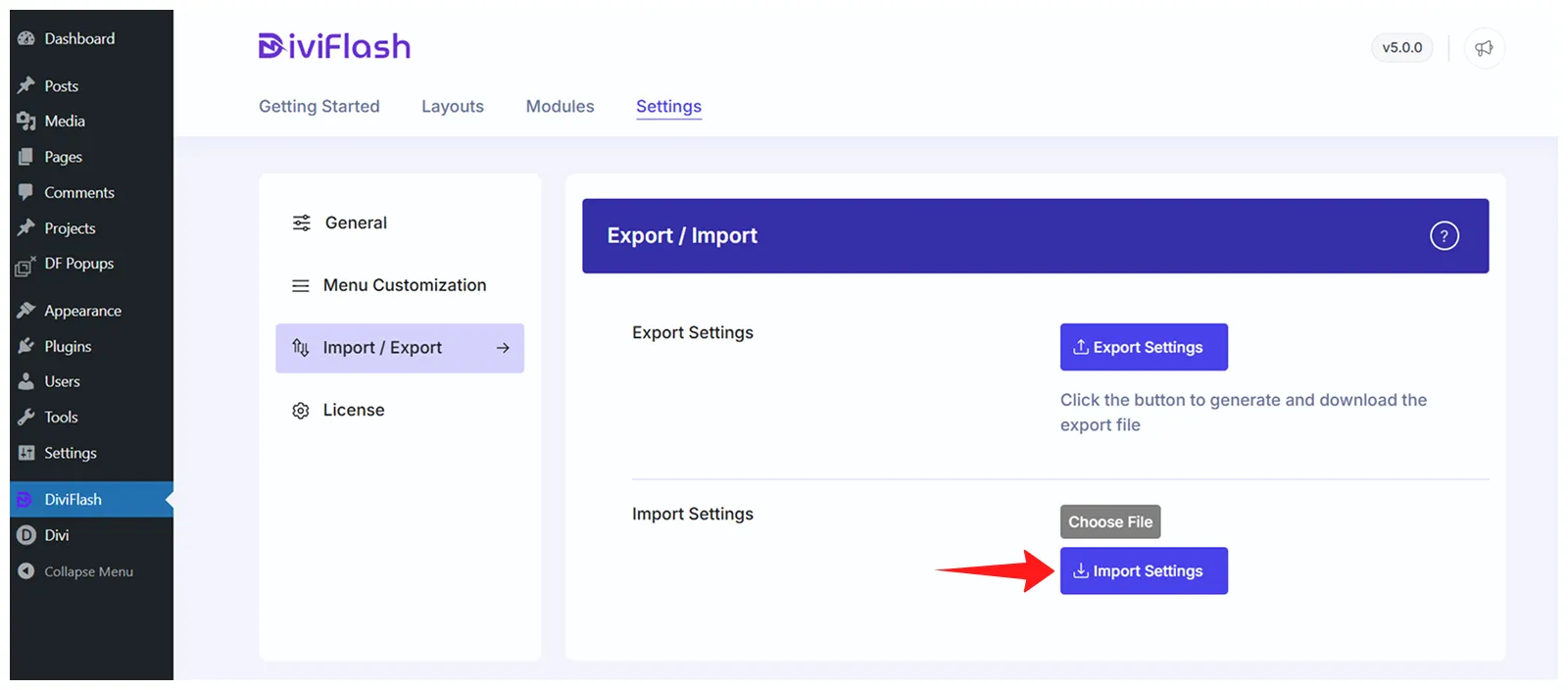
- Finally, click on the “Import Settings” button
Step 5: Import the “Divi Theme Options” settings file into the Divi Theme Options panel:
- Navigate to WordPress Dashboard > Divi > Theme Options
- Click on the “Import & Export” icon in the right side corner
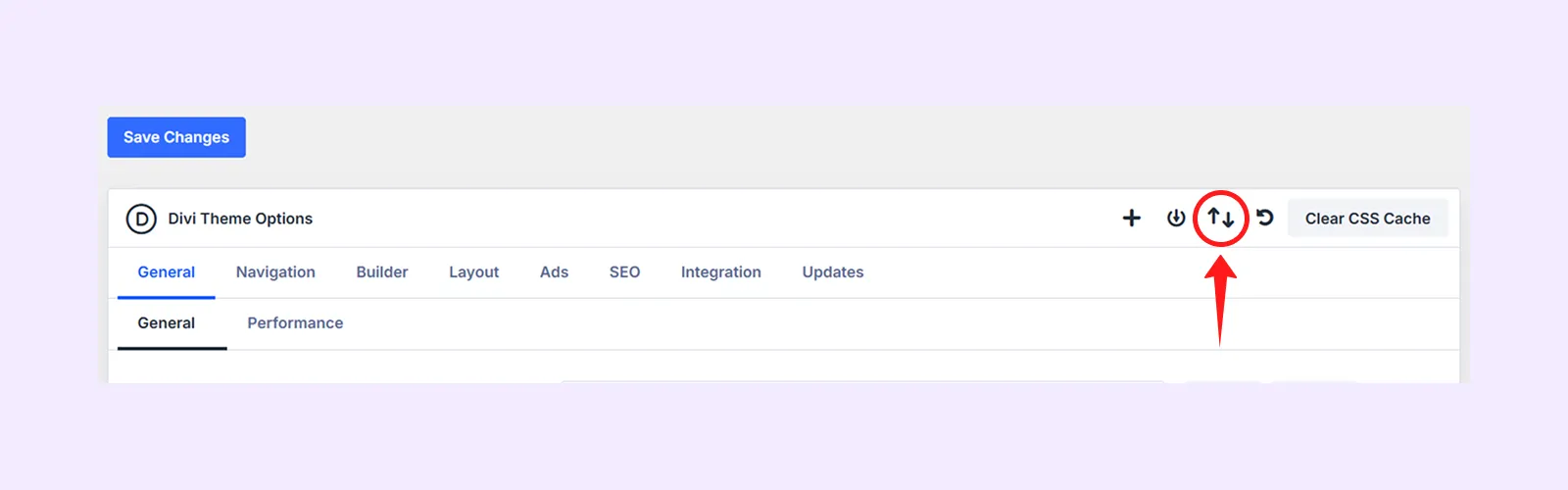
- Select the Import tab and click “Choose Files” to upload the JSON file named “Divi Theme Options Settings - Fitness Layout Packs - DiviFlash.json”
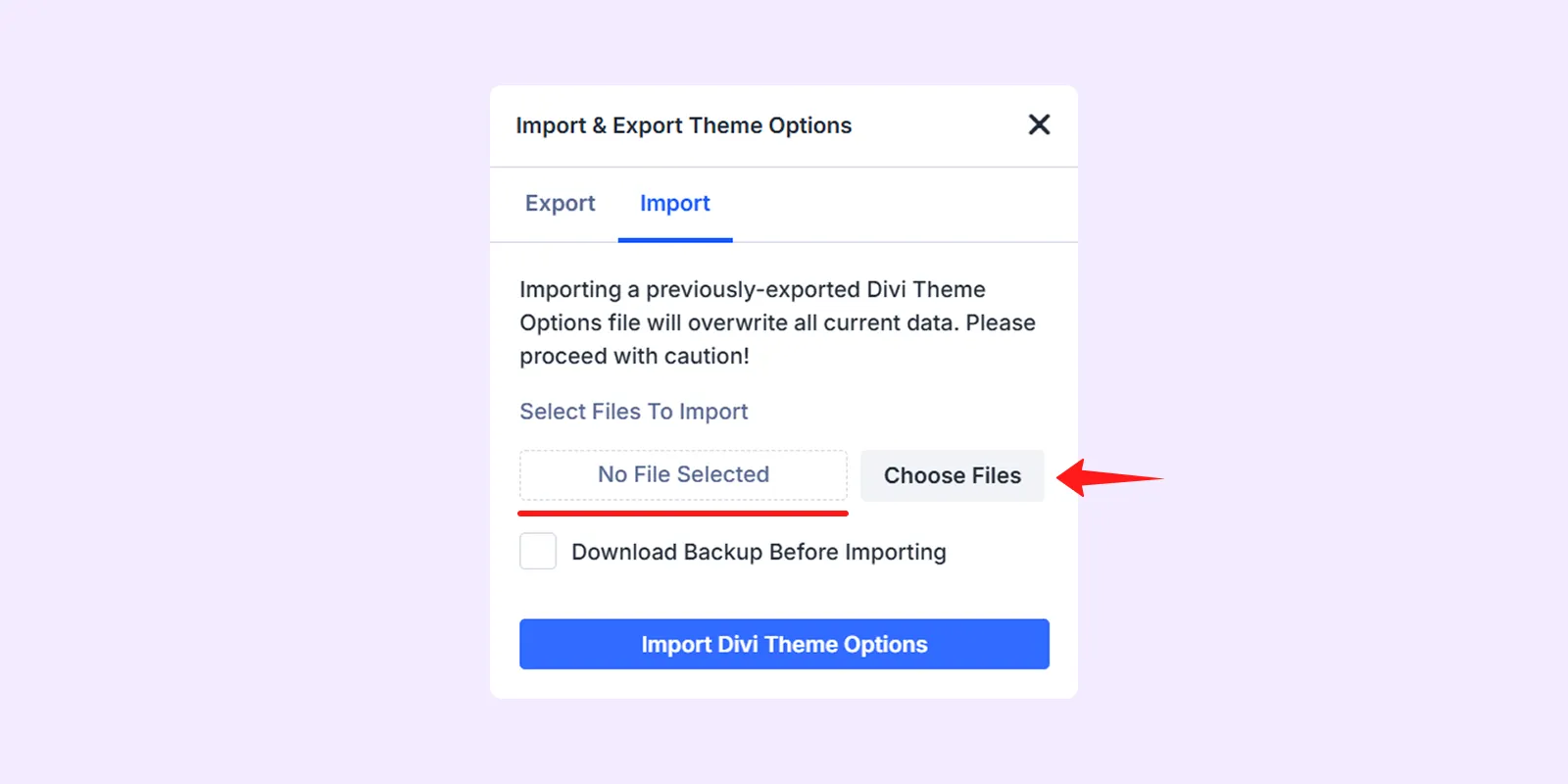
- Finally, click on “Import Divi Theme Options”
Step 6: Import the “Theme Builder” file into the Divi Theme Builder panel:
- Navigate to your WordPress Dashboard and go to Divi > Theme Builder
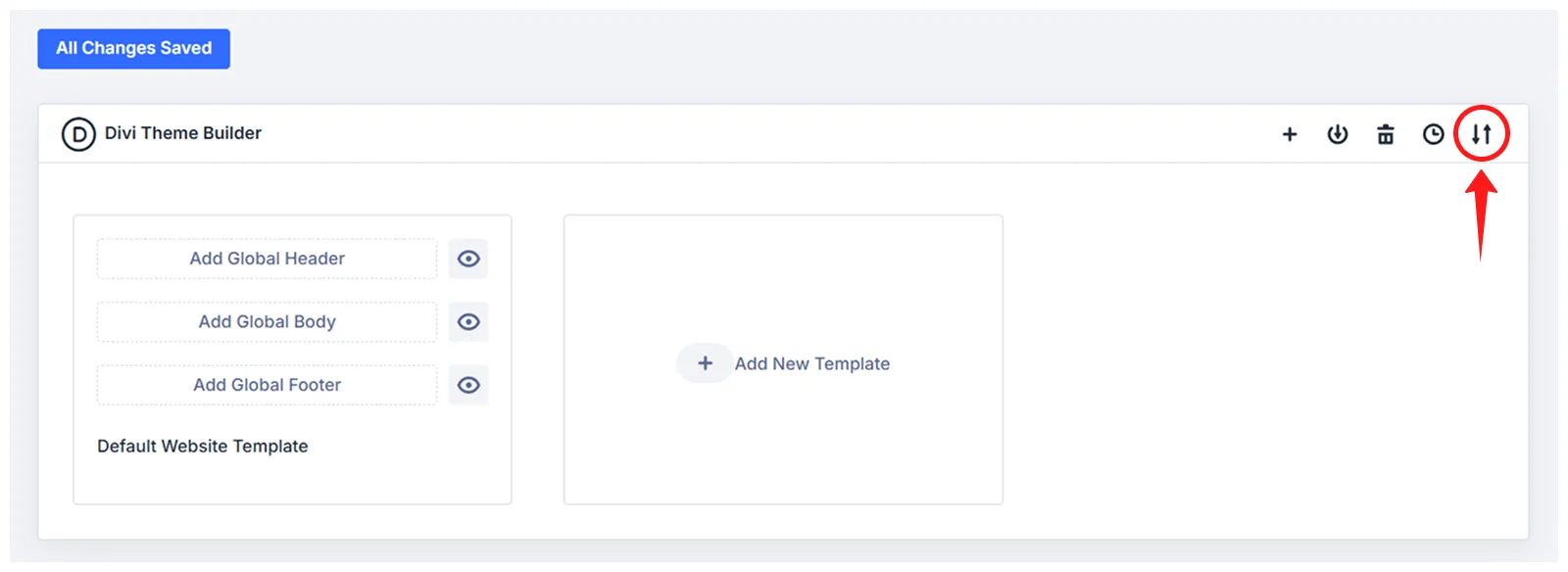
- Click on the “Import & Export” icon in the right side corner
- Select the Import tab and click “Choose Files” to upload the JSON file named “Divi Theme Builder Settings - Fitness Layout Packs - DiviFlash.json”
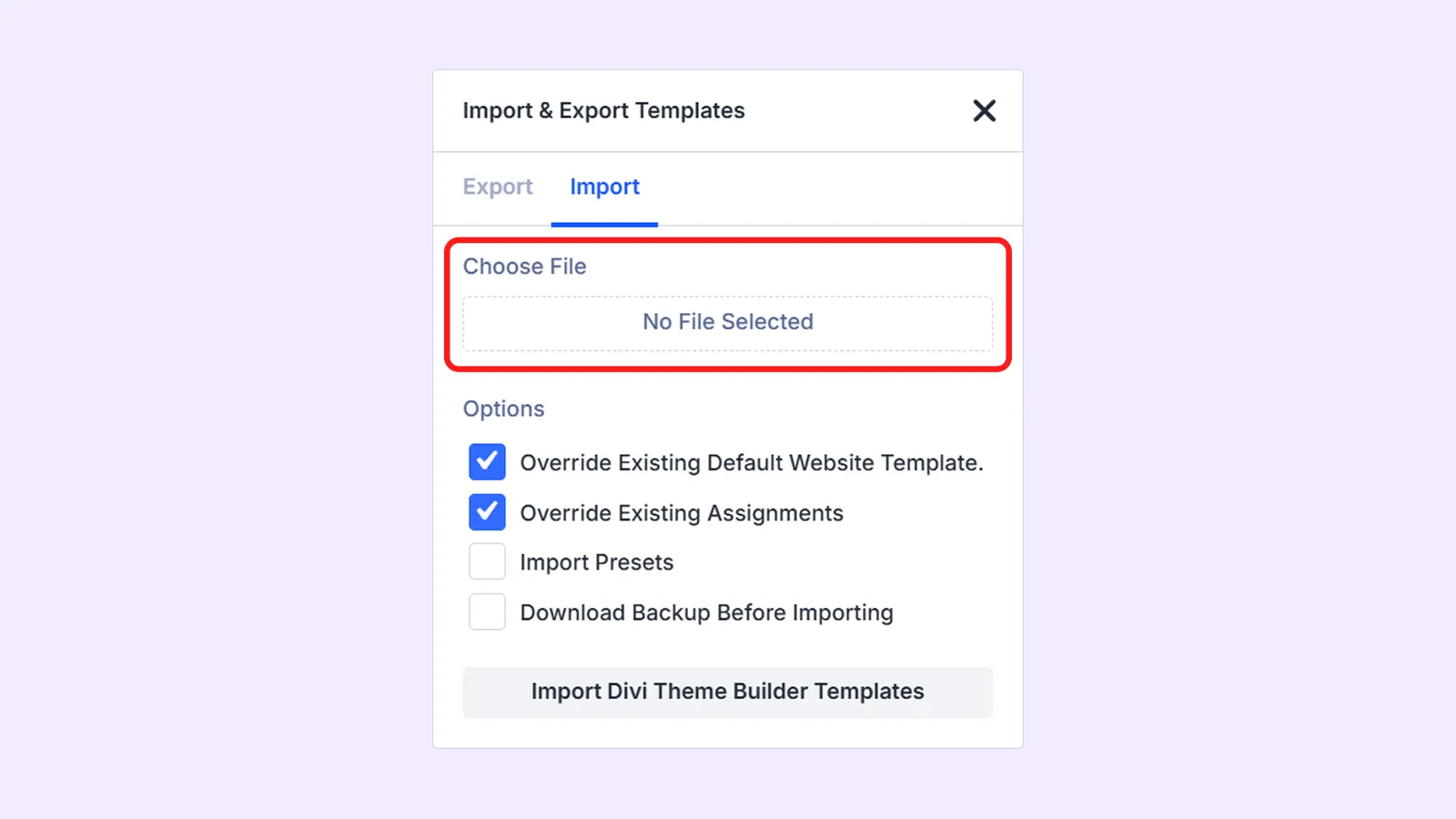
- Finally, click on “Import Divi Theme Builder Templates”.
Step 7: Import the layout pages file into the Divi Library:
- Navigate to your WordPress Dashboard and go to Divi > Divi Library
- Click on the “Import & Export” button on the top left
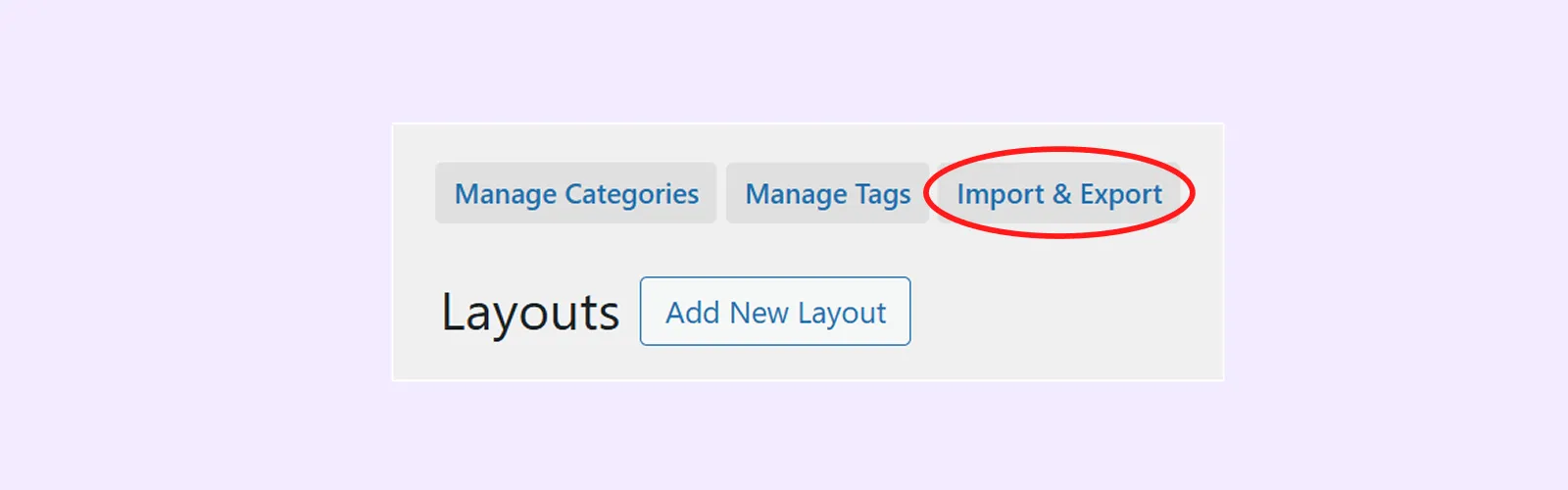
- Select the Import tab and click “Choose Files” to upload the JSON file named “All In One - Fitness Layout Packs - DiviFlash.json” (You can also import individual layout pages one by one by using their respective JSON files.)
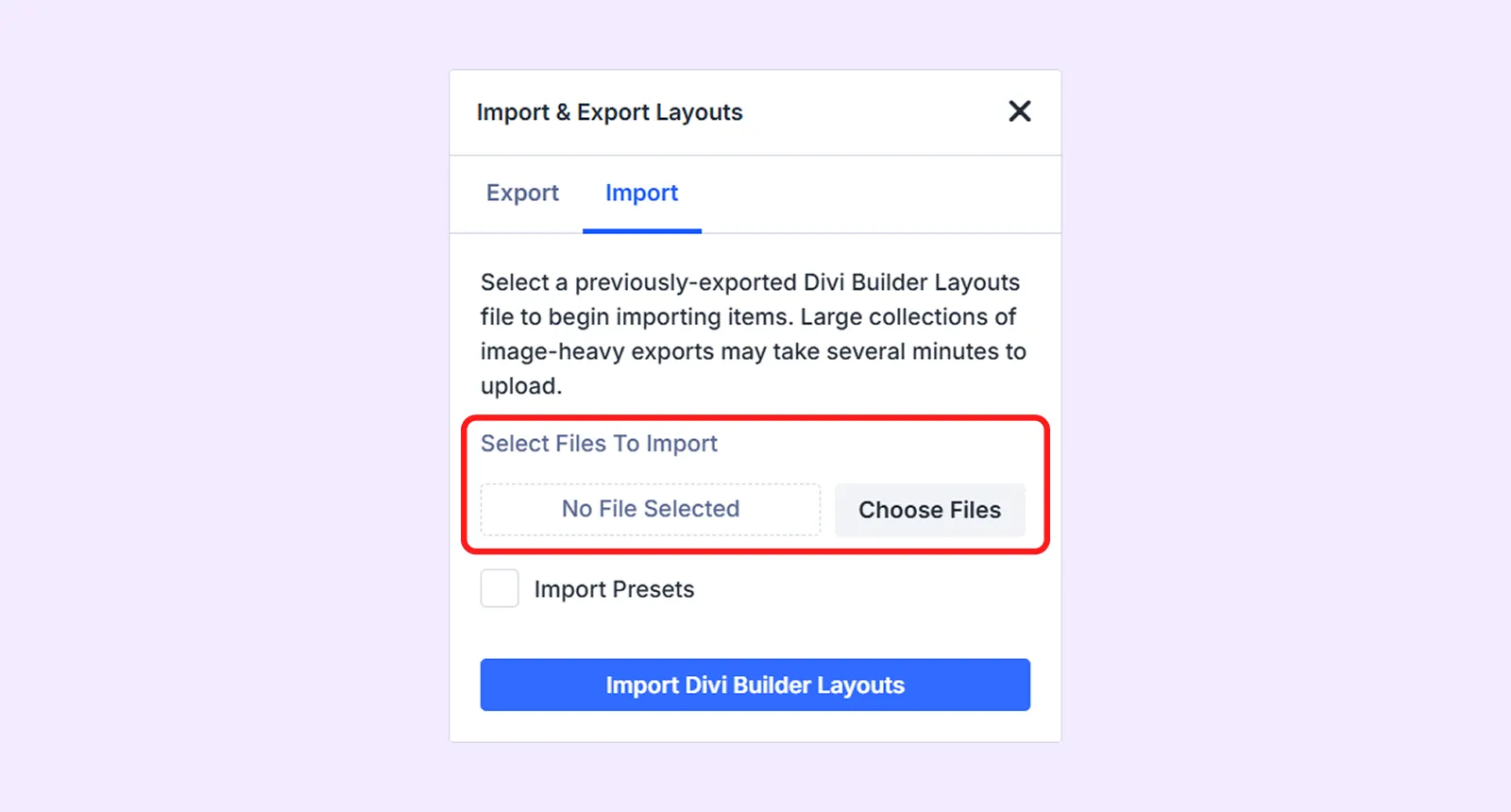
- Click on the “Import Divi Builder Layouts” button.
- Now, create new pages based on the items you imported from the Divi Library. Follow this doc on how to create pages with Divi Layouts from the Library.
Step 8: Import the “Theme Customizer Settings” file into the Theme Customizer
- Navigate to WordPress Dashboard > Divi > Theme Customizer
- Click on the “Import & Export” icon on the top left corner.

- Select the Import tab and click “Choose Files” to upload the JSON file named “Divi Theme Customizer Settings - Fitness Layout Packs - DiviFlash.json”
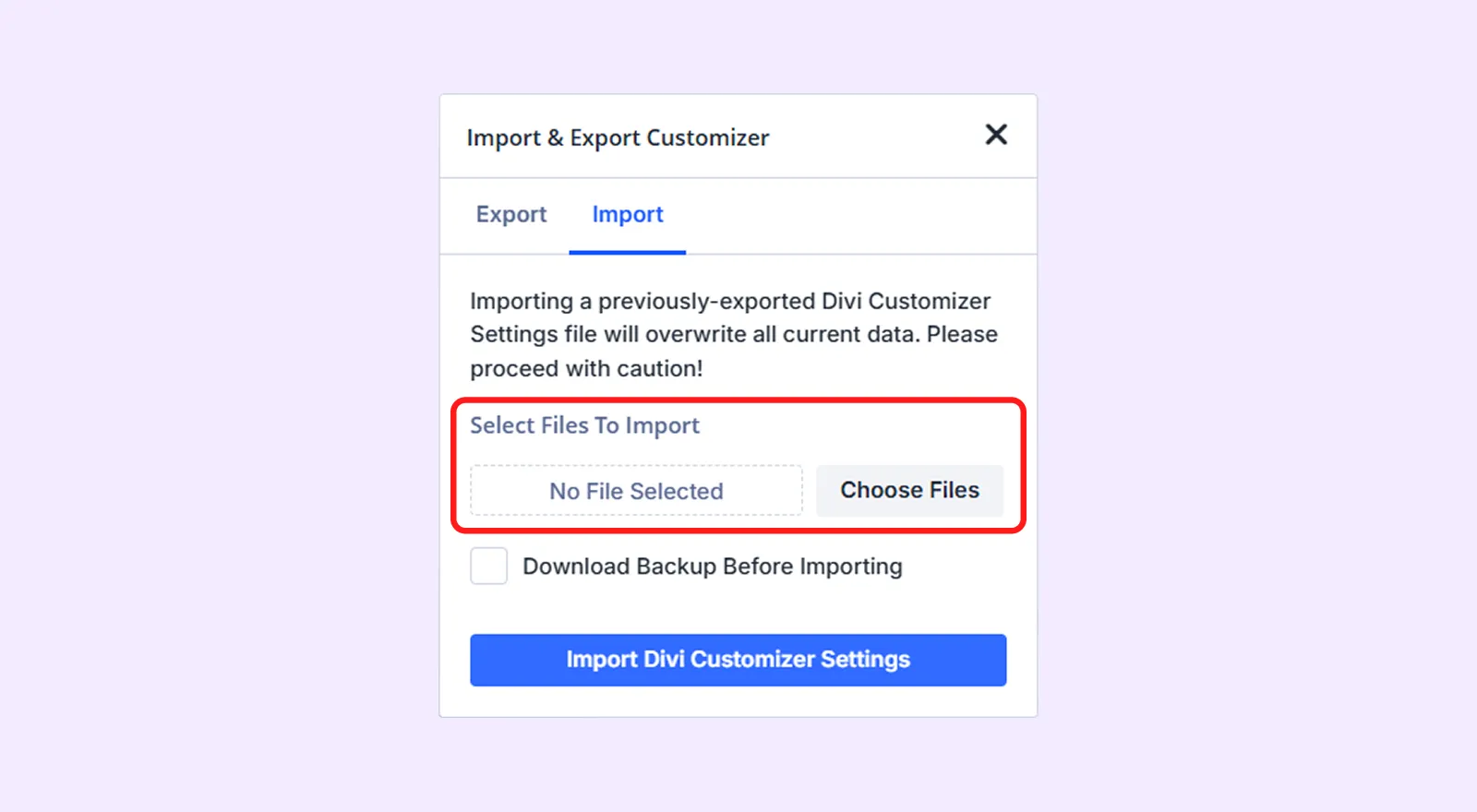
- Finally, click on “Import Divi Customizer Settings”.
Step 9: Import the Media file for the layout
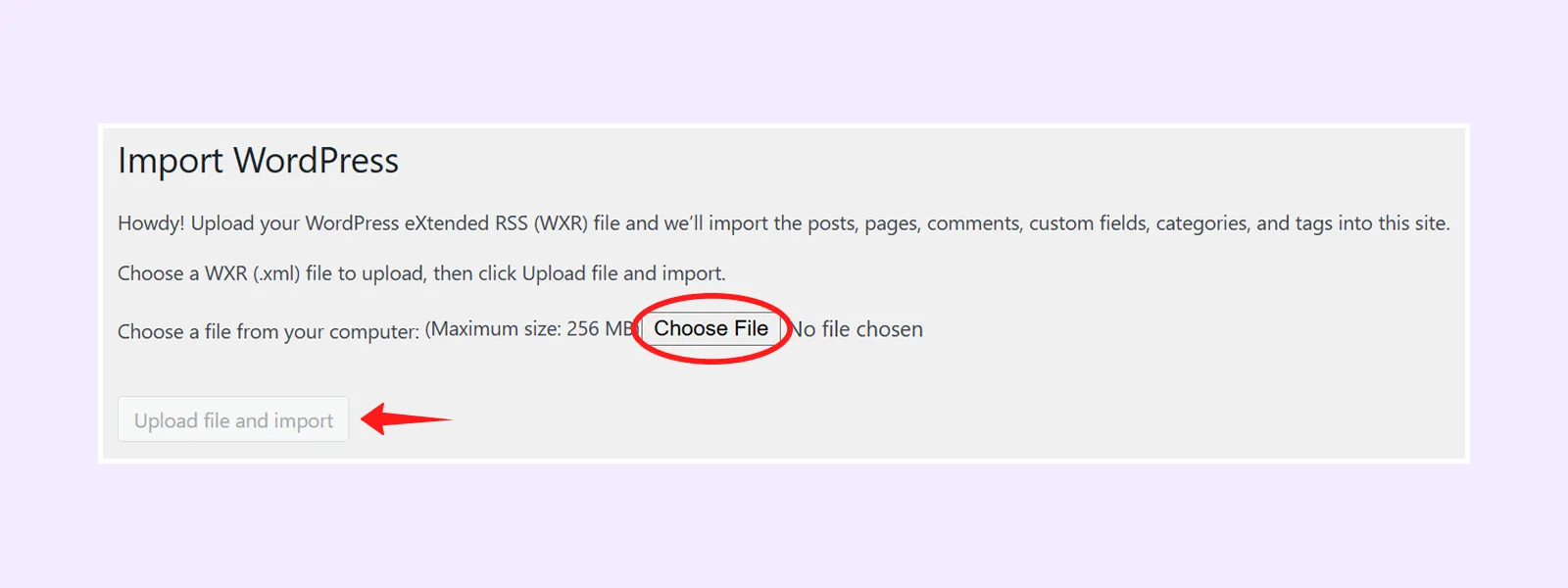
- Navigate to WordPress Dashboard > Tools > Import
- Click on Run Importer under the WordPress
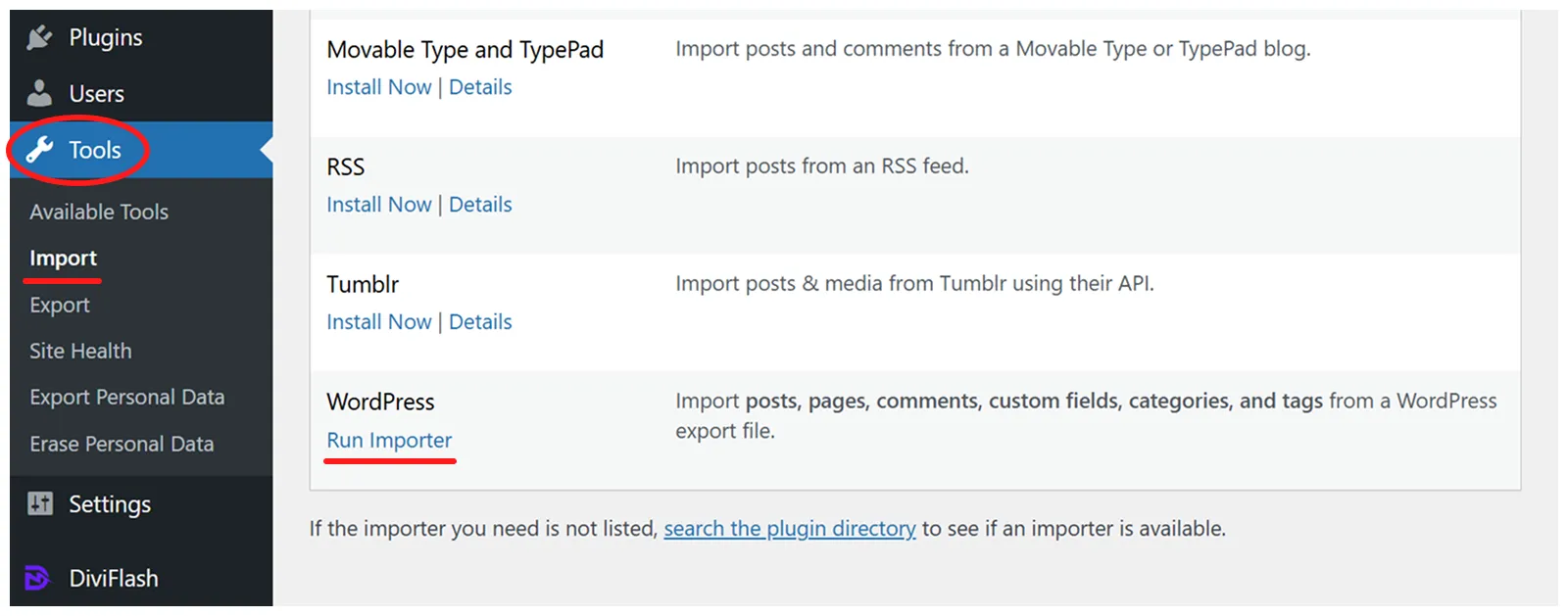
- Click on “Choose File” and import the “Media - Fitness Layout Packs - DiviFlash.xml” file and click “Upload file and import”.
- Assign the author (or skip this step), then check the "Import Attachment" option and click "Submit" to save your changes.
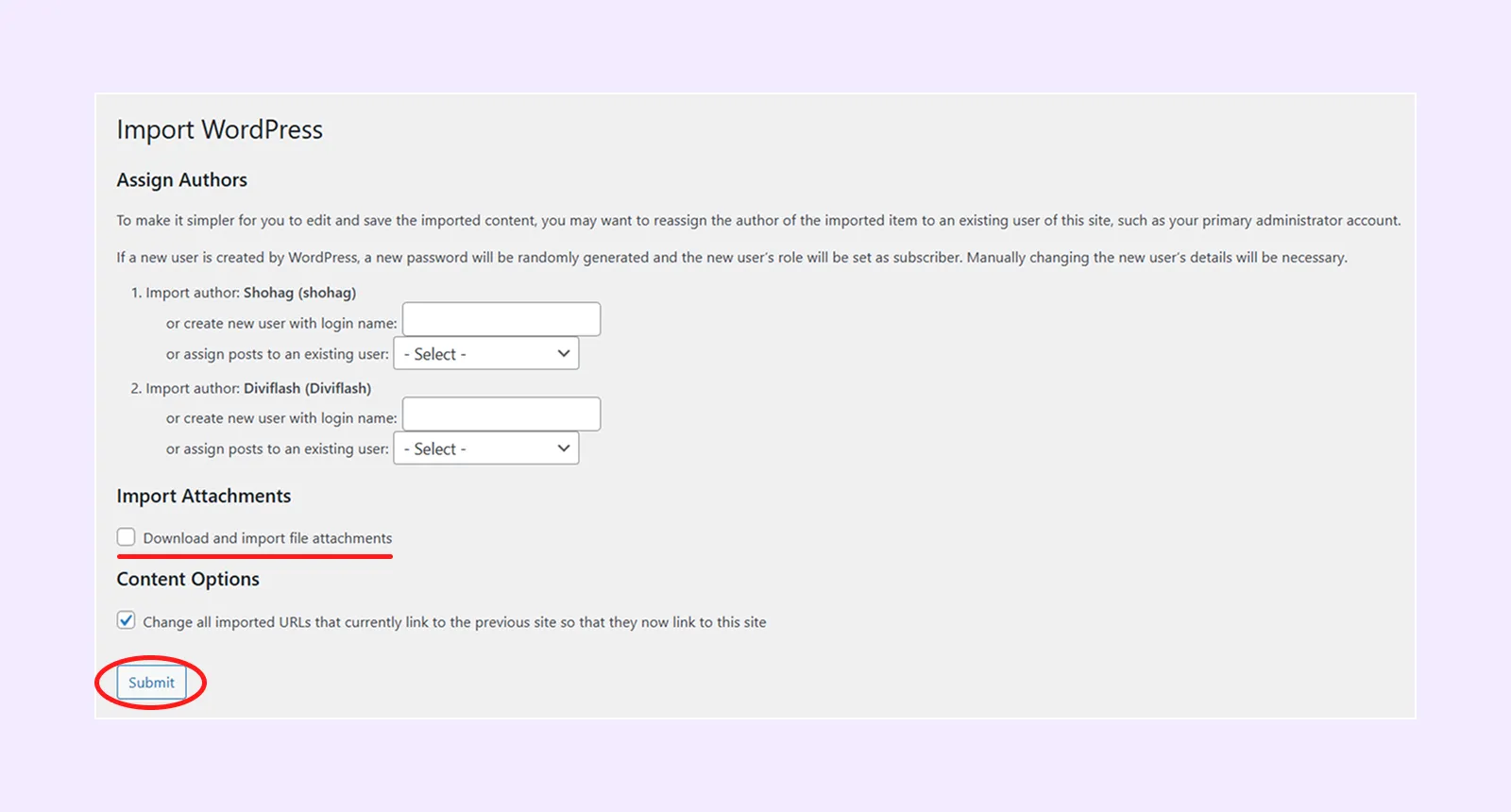
By following the same steps (WordPress dashboard > Tools > Import > Run Importer under WordPress), you have to import the Posts.xml file.
Step 10: Import the Popup File
To use the popup settings, first enable the Popup feature by going to WordPress Dashboard > DiviFlash > Settings > Popup Enable.
- Navigate to WordPress Dashboard > DF Popups > Import & Export
- Under the Import section, click on “Choose File” and select “Df-Popup - Fitness Layout Packs - DiviFlash.json” JSON file.
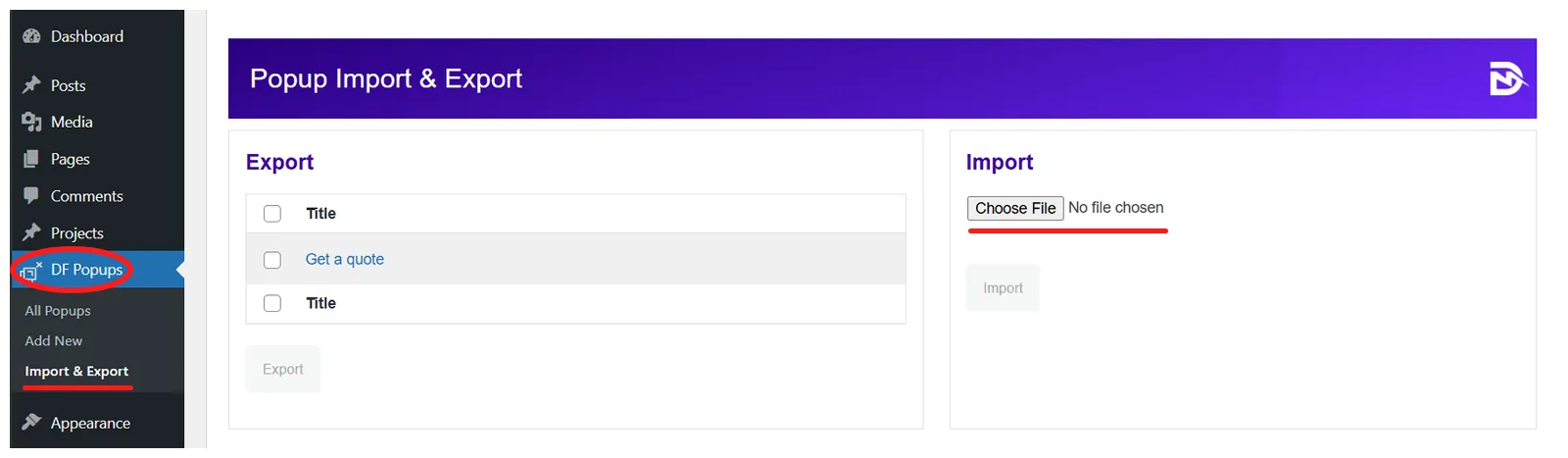
- Click the “Import” button.
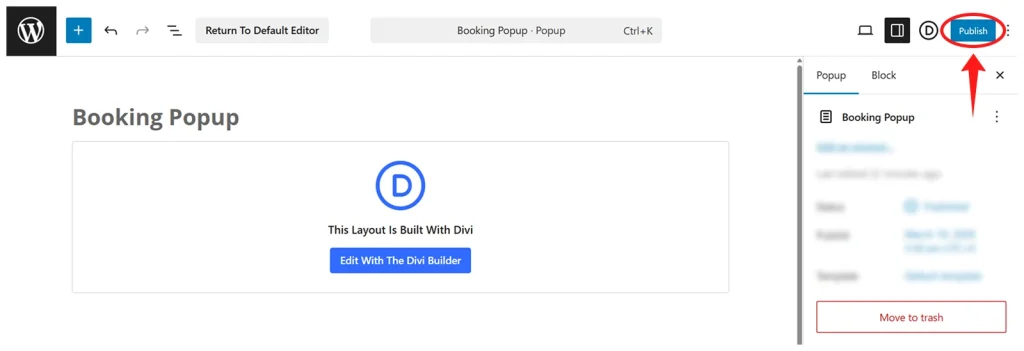
Step 11: Publish the Imported Popup
- Go to WordPress Dashboard > DF Popups > All Popups
- Click Edit below the popup name.
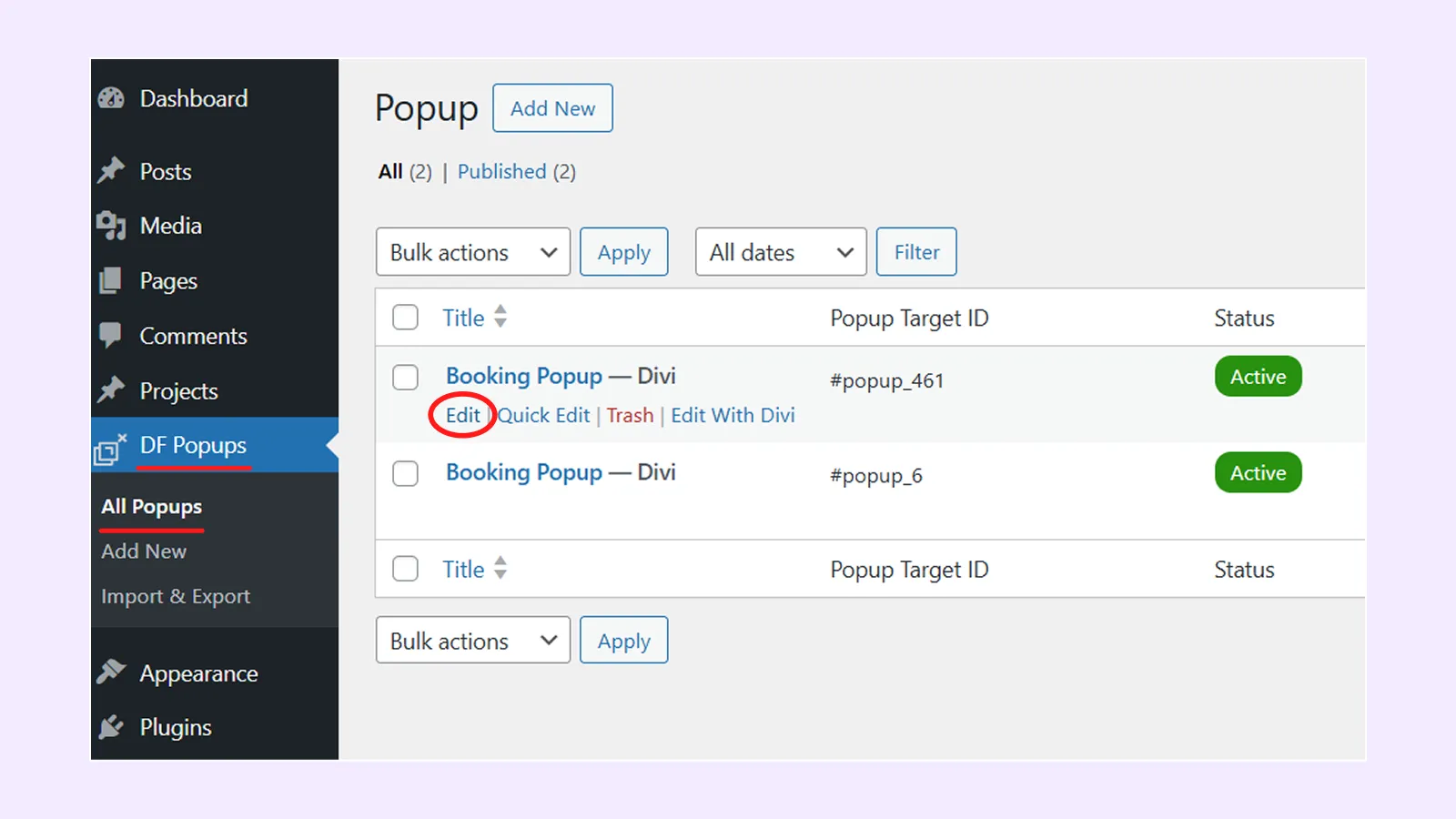
- Click the Publish button.
Step 12: Set the Popup
To display the popup to your visitors, you need to manually update the popup ID. Here is how to do it:
- From the WordPress dashboard, go to the DF Popups > All Popups.
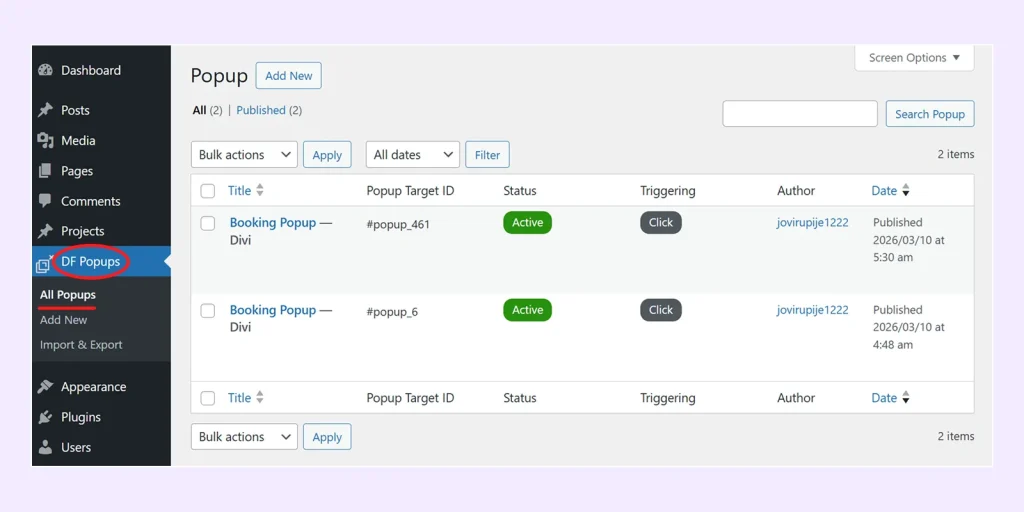
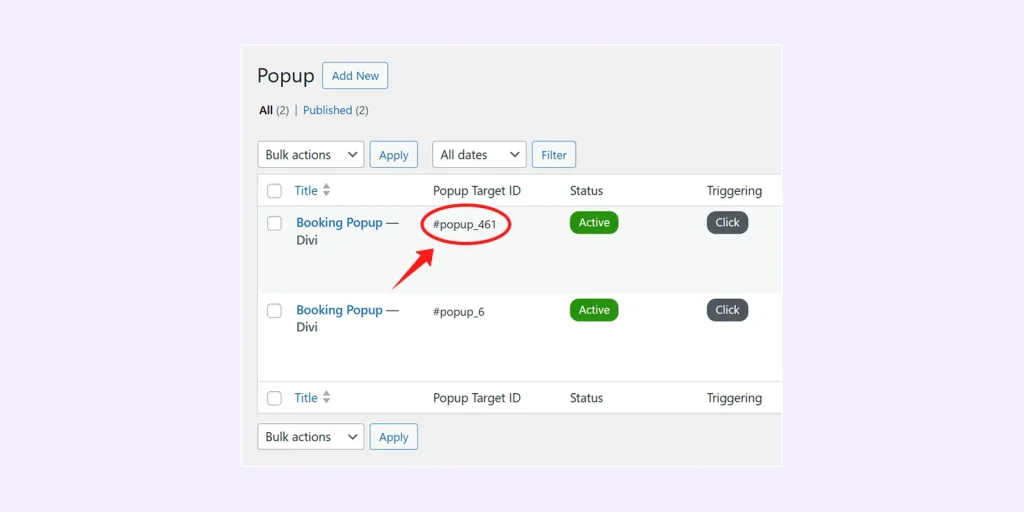
- Copy the Popup Target ID.
- Next, go to the homepage with the Visual Builder enabled.
- Hover over the “Join Now” button and click on its settings icon.

- In the button settings panel, click on “Link.”
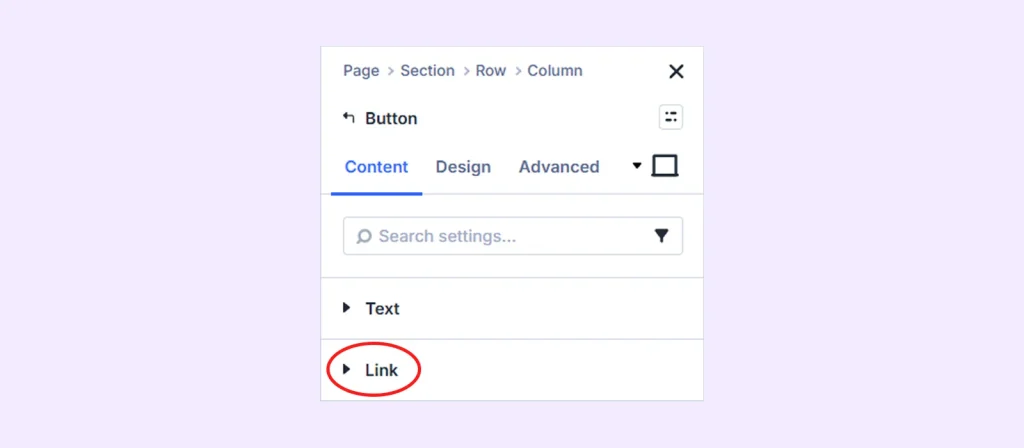
- Paste the copied popup ID into the “Button Link URL” field.
- Save the page.
Step 13: Set your homepage and blog page.
- Go to WordPress Dashboard > Settings > Reading.
- Below “Your homepage displays,” select “A static page.”
- Choose “Home” from the homepage dropdown menu.
- Choose “Blog” from the post page dropdown menu.
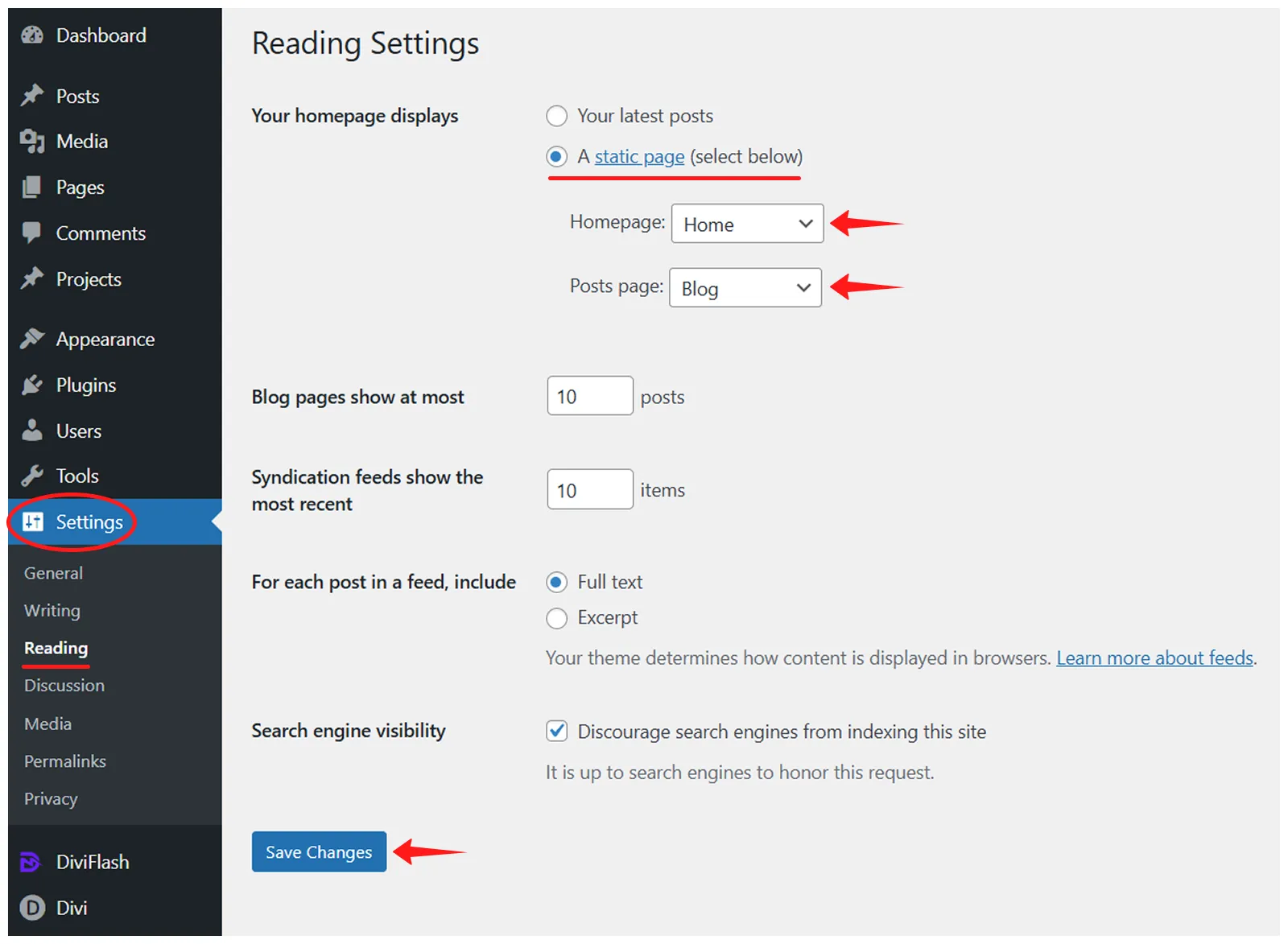
- Click on “Save Changes” to save it.
Step 14: Create a menu for the imported layout. You can follow Divi Layout Menu Customization doc.
Now your website should look exactly the same as the Fitness layout!
Any Questions?
If you have any questions, please feel free to contact our support team at [email protected]