
The DiviFlash Inline Content module lets you combine different content elements like text, icons, and images in a single flowing line.
Activation Required: This module is disabled by default. To use it, you need to enable it manually. Refer to our guide for step-by-step instructions.
Let’s see the settings in brief and how to make better use of it —
Content Tab
This tab has setting options to add, customize, and organize inline content elements.
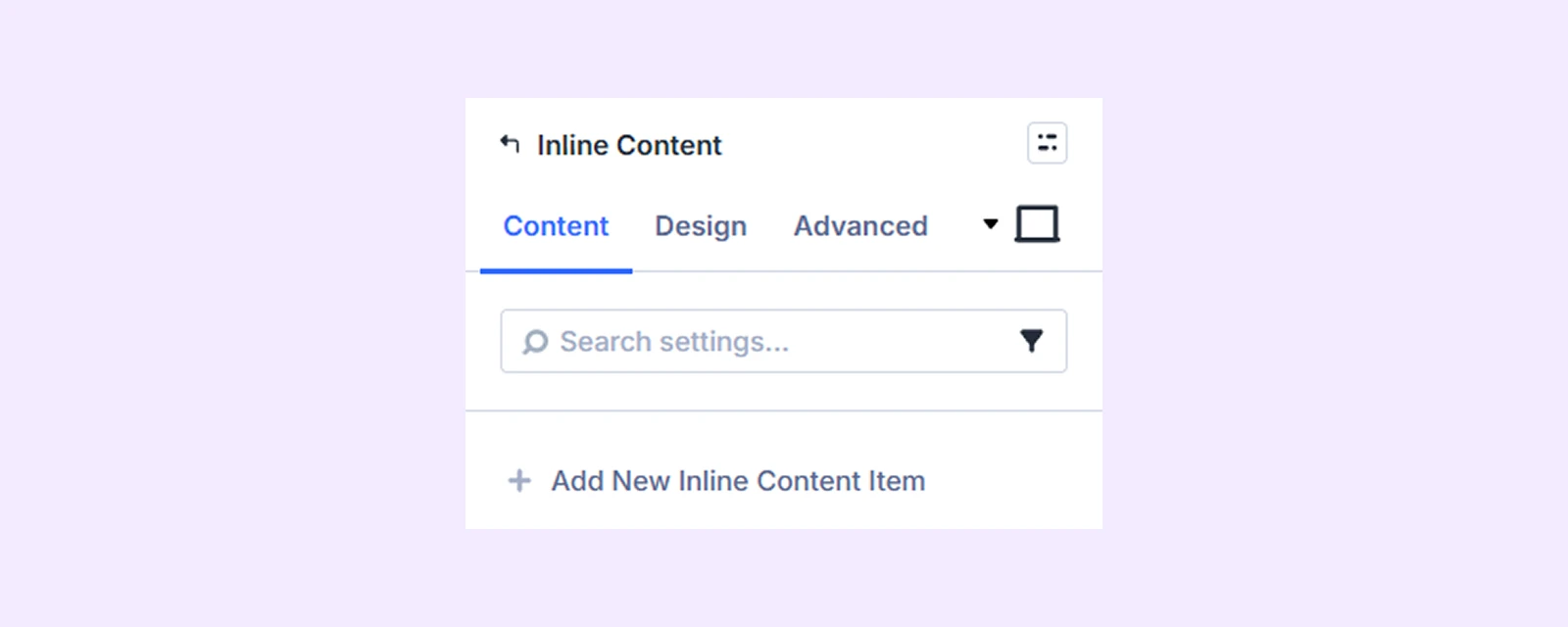
Add New Inline Content
Click the + Add New Inline Content button to add a new content element. This opens a separate settings window where you can choose the content type and style it. To learn more, click here.
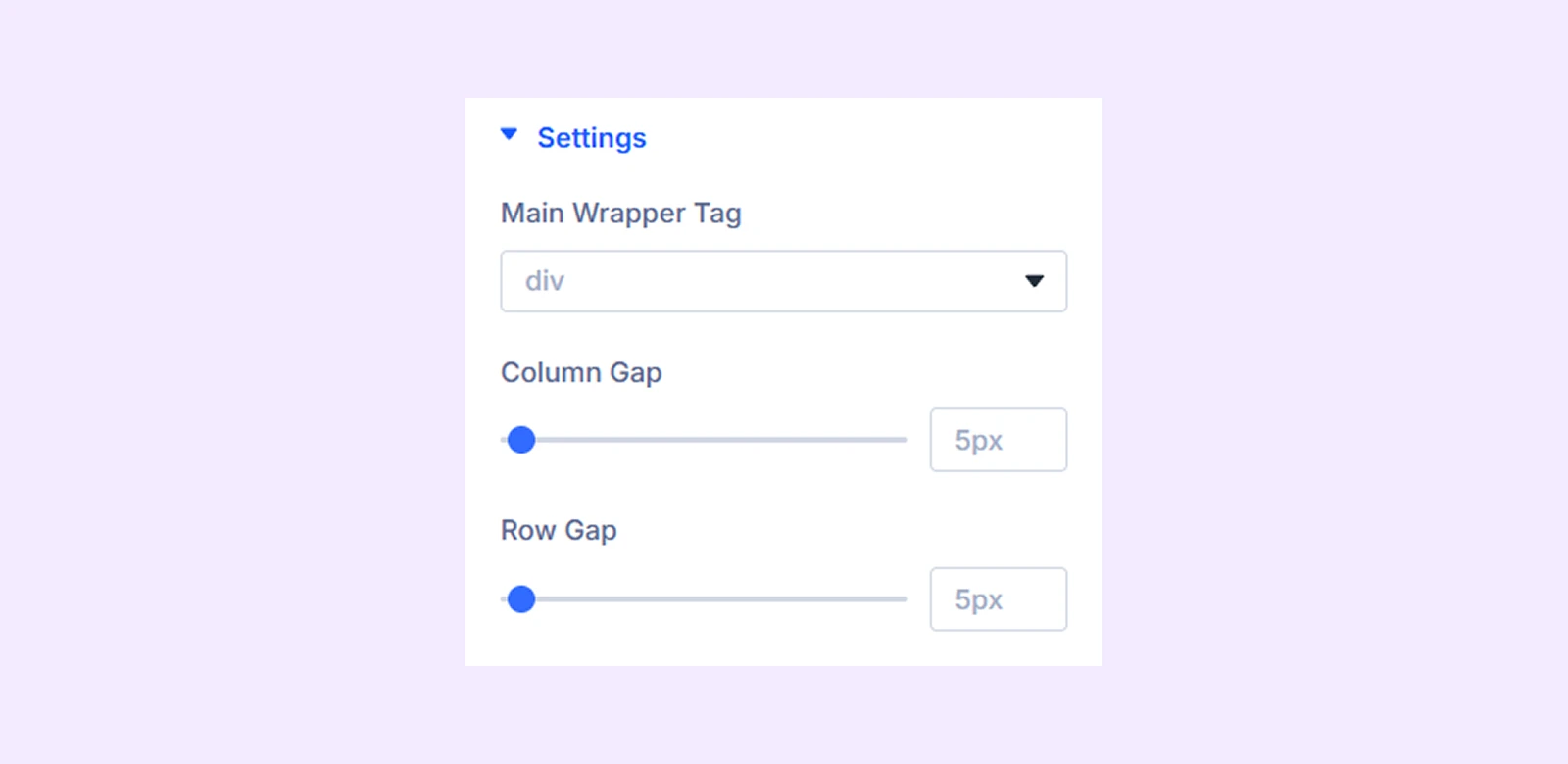
Settings
- Main Wrapper Tag: Choose the HTML tag that wraps your inline content (e.g., div, span, p).
- Column Gap: Controls the horizontal spacing between content elements in the same row.
- Row Gap: Controls the vertical spacing when content wraps to a new line.
Link: Use this default Divi setting to add a link to the entire module.
Background: Add a background color, gradient, image, video, pattern, or mask to the module.
Element Label: Rename the module to organize it more easily in the Divi Builder. (Only you can see this label.)
Design Tab
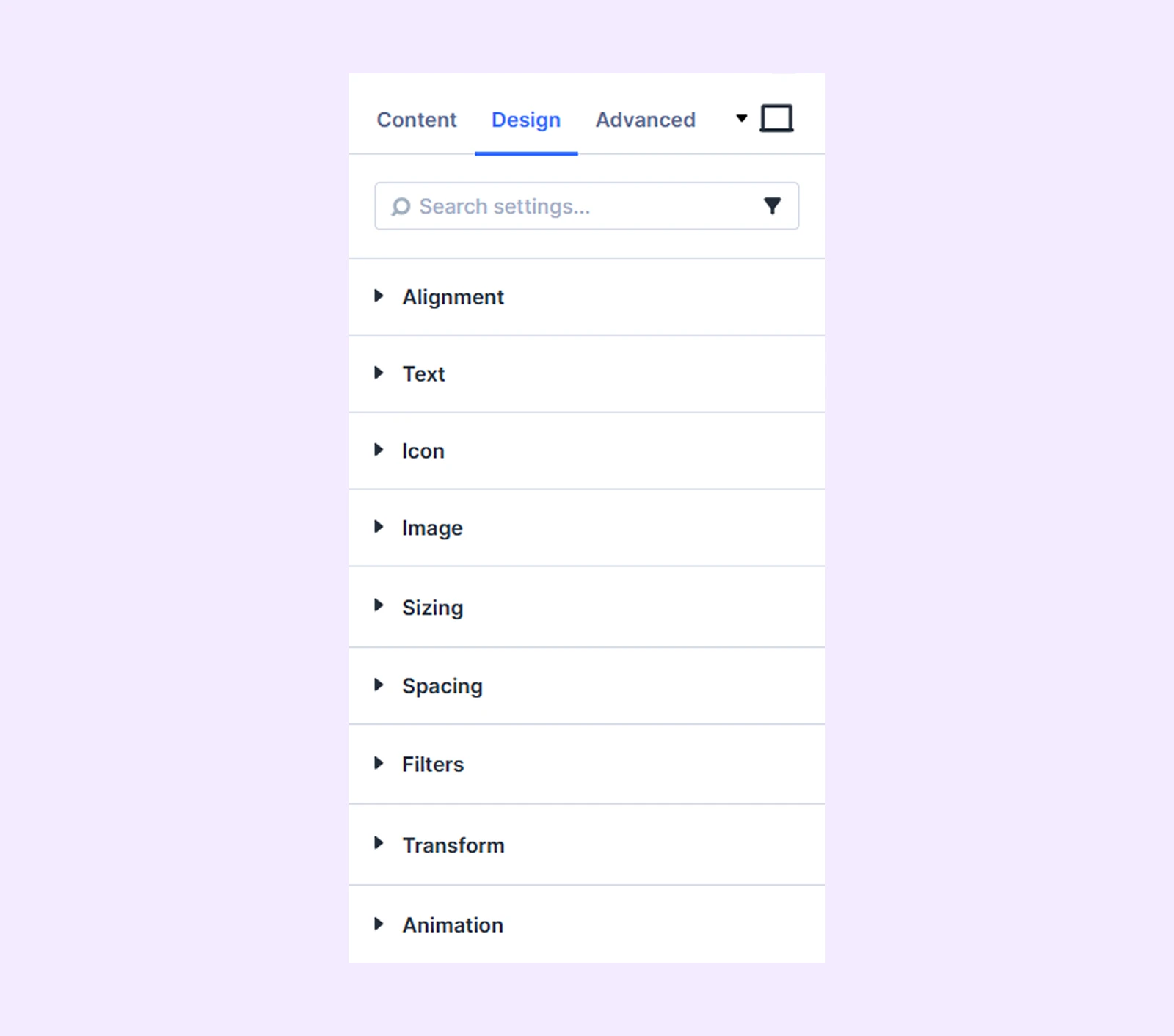
This tab lets you control how your inline content looks visually.
Alignment: Set the vertical and horizontal position of your content.
Text: Adjust the background, typography (font, size, weight, etc.), and border for text elements.
Icon: Change the color, size, and border of icon elements.
Image: Control the size, color treatment, and border of image elements.
Sizing: Adjust the width, height, and alignment of the module.
Spacing: Add custom margin and padding to the module’s container.
Filters: Apply color filters to enhance the appearance.
Transform: Scale, rotate, move, or skew the module.
Animation: Apply reveal animation effects and customize delay, duration, repeat settings, and animation type.
Advanced Tab
This tab provides additional settings for advanced users who want greater control over the module with custom code, conditions, and more.
Inline Content Settings
Each content element has its own settings. These override the main module (parent) settings, allowing you to customize each item individually.
Content Tab
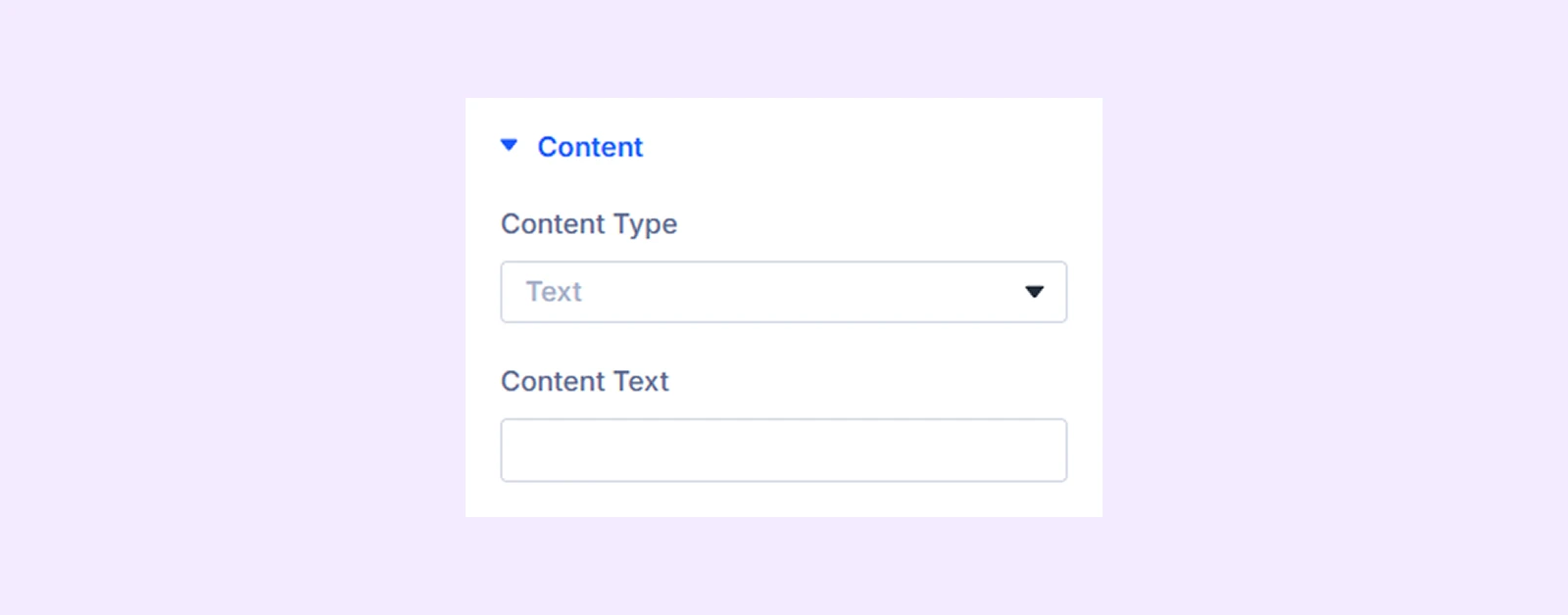
Content
Content Type: Choose the type of the content you want to use. You can use text, image, icon, and line break.
Link: Add a URL to this specific item to make it individually clickable.
Background: Set a background color, gradient, or image for this item only.
Element Label: Rename this item inside the builder for easier identification. Only visible to you.
Design Tab
Text: Available only if you choose “Text” as the content type. You get typography options for the text content.
Icon: Available only if you choose “Icon” as the content type. You get to change the color and the size of the icon.
Image: Available only if you choose “Image” as the content type. You get to adjust the size of the image.
The rest of the sections offer similar functionalities as their counterparts in the parent section.
Advanced Tab
This tab offers advanced settings for users to control inline content items with custom CSS, visibility rules, and other options.
Need Help?
If you have any questions or need assistance, contact our support team: [email protected]