
The DiviFlash Accessibility Checker extension helps you find common accessibility issues on your site, like missing image descriptions and form fields without labels. It scans individual pages, identifies potential problems, and provides suggestions to help you fix them.
Important Note:
- It’s available in DiviFlash 5.7.0 and later, and supports Divi 5 only.
- Only logged-in administrators and editors can use the Accessibility Checker. Visitors cannot access it.
- The scanner detects common accessibility issues but does not guarantee full accessibility compliance.
Let's explore how to enable the extension and use its features.
Enable the Accessibility Checker
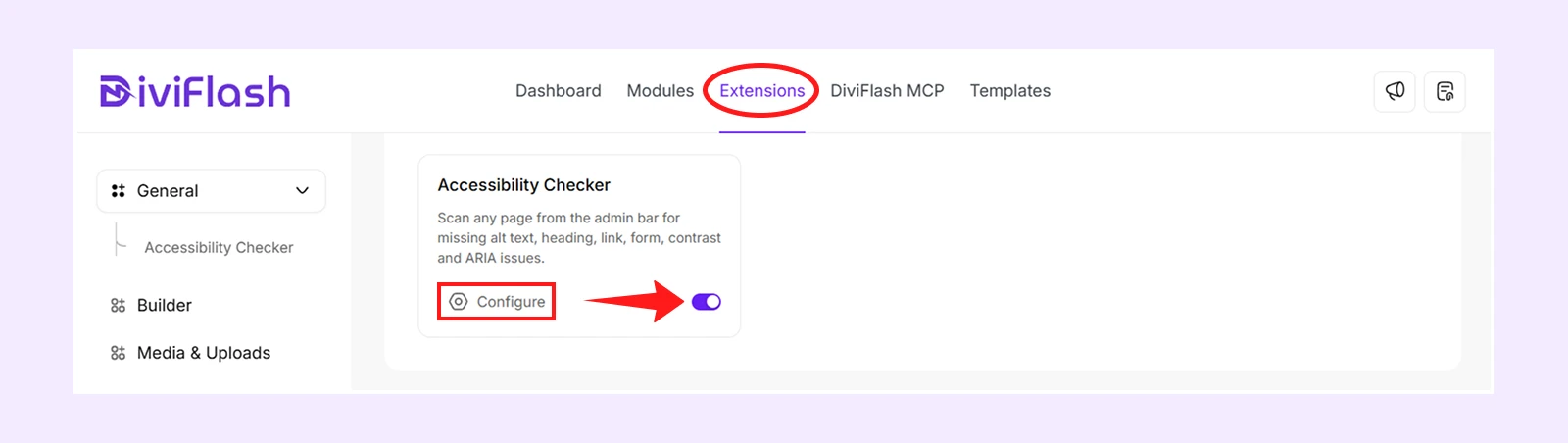
- Go to your WordPress Dashboard.
- Navigate to DiviFlash > Extensions > General.
- Find Accessibility Checker and enable it.
- Click Configure to access the Scan and Settings tabs.
Scan Tab
The Scan tab lets you run accessibility checks on individual pages of your website.
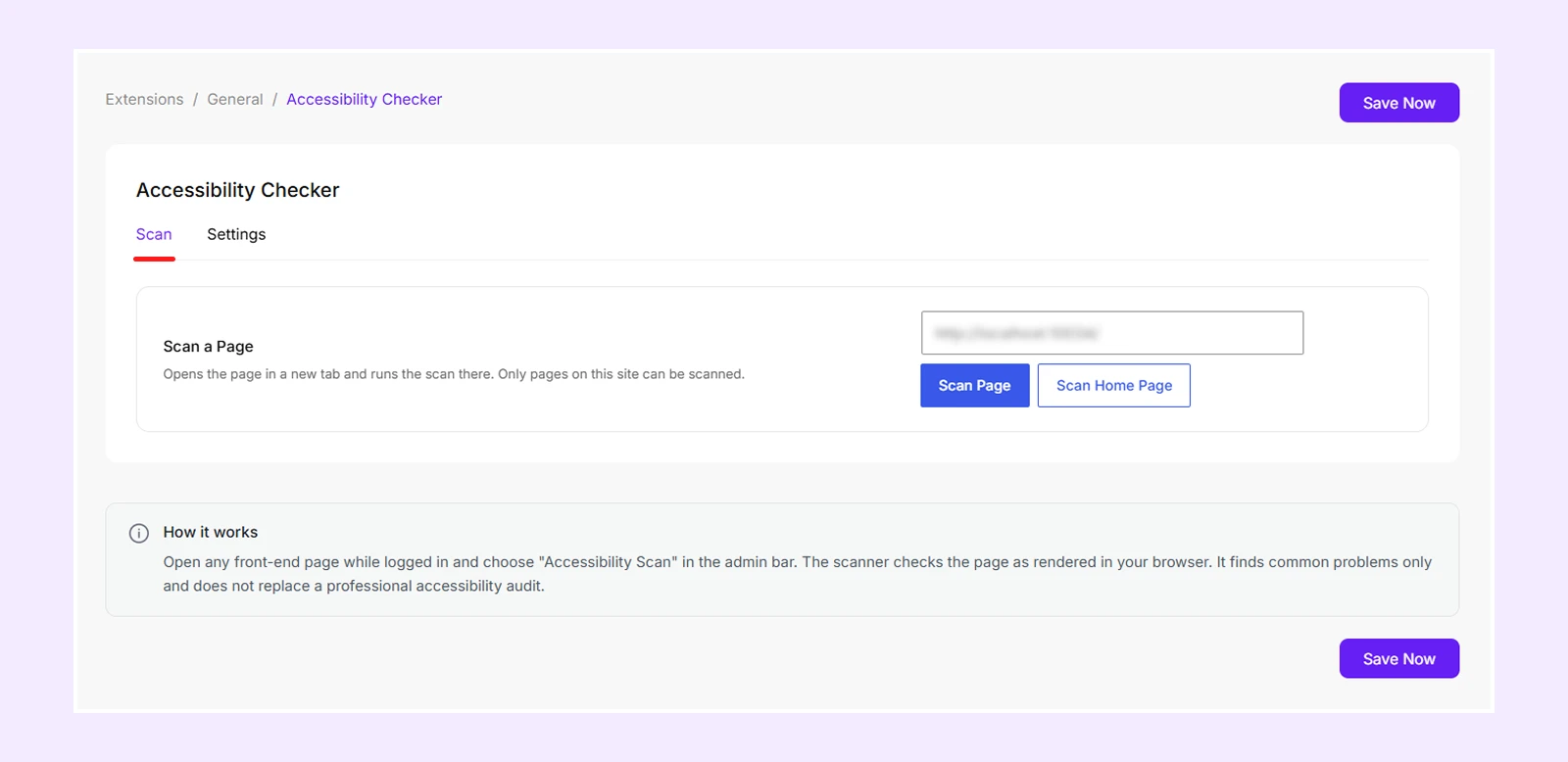
- Scan a Page: Enter a page URL from your website and click Scan Page. The page opens in a new tab, and the scan starts automatically.
- Scan Home Page: Click this button to open your homepage in a new tab and start scanning automatically.
Note: You can only scan pages from your own website. URLs from other websites are not supported.
Scan Directly from a Website Page
You can also run an accessibility scan directly from any page while logged in as an administrator or editor. To do that:
- Open the page you want to scan.
- Click Accessibility Scan in the WordPress admin bar at the top.

Note: To learn how to understand and fix detected issues, see the Review Scan Results section below.
Settings Tab
The Settings tab lets you control how the scanner checks color contrast and unclear link text.
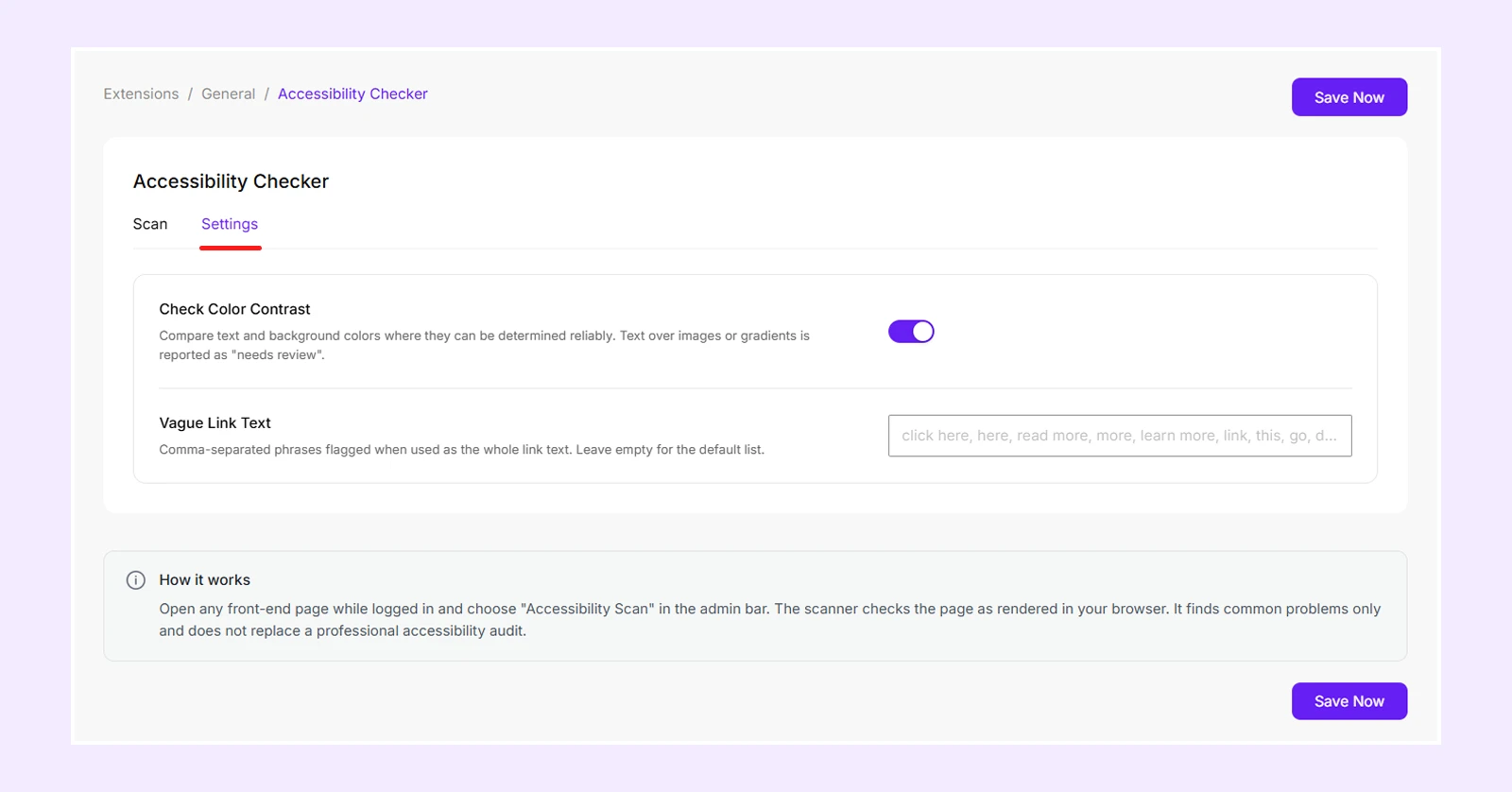
- Check Color Contrast: Check whether text has enough contrast with its background to remain readable. Disable it to skip this check.
- Vague Link Text: Enter comma-separated phrases, such as click here or read more, that the scanner should flag when used as link text.
Note: If you leave Vague Link Text empty, the scanner uses its built-in list of common unclear link phrases.
Review Scan Results
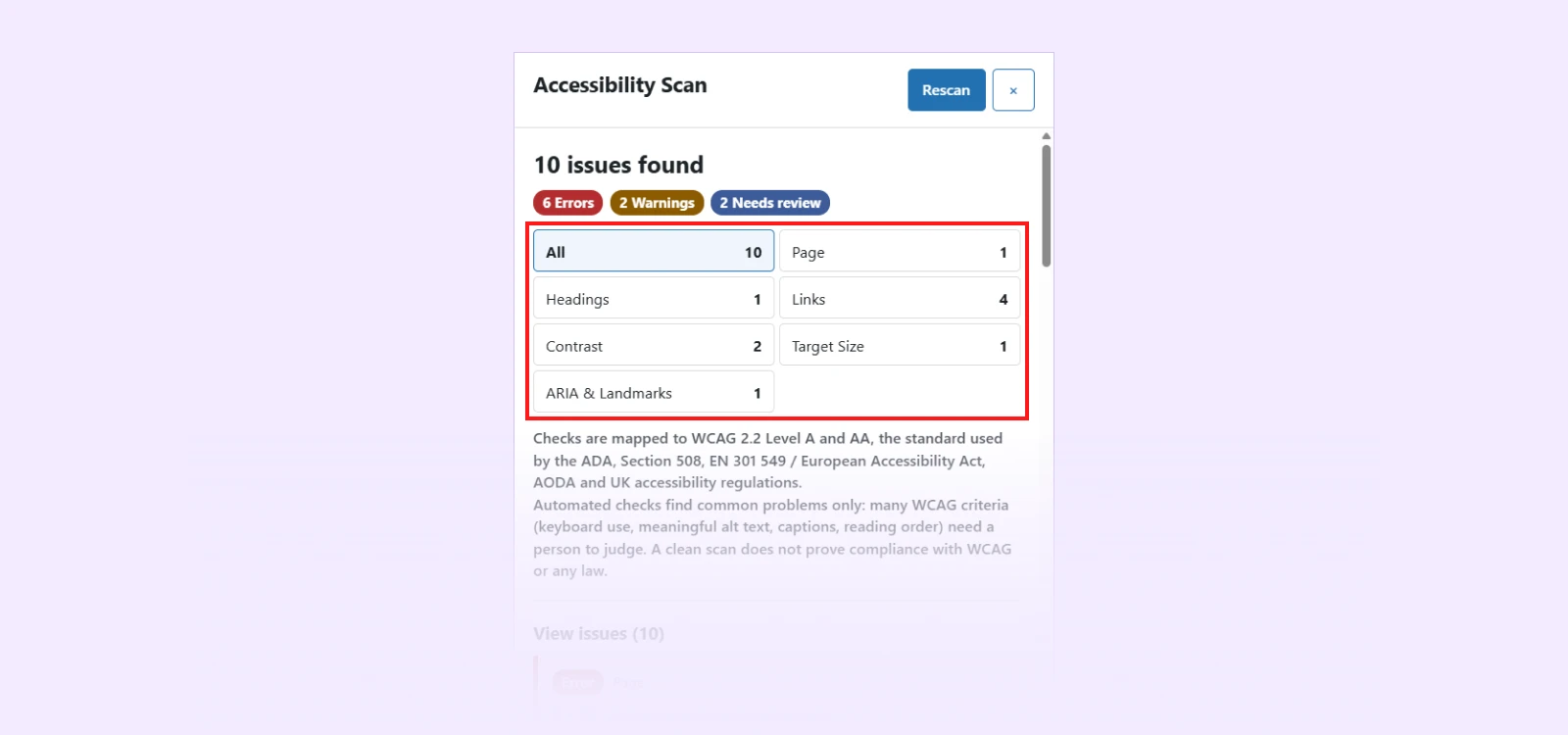
After scanning a page, the Accessibility Checker displays the total number of detected issues, along with a breakdown of Errors, Warnings, and Needs Review. It also organizes issues by category, showing how many problems were found in each.
Accessibility Checks
The scanner checks the following accessibility areas:
| Category | What It Checks |
| Page | Missing page titles and restrictions on mobile zooming. |
| Images | Missing image descriptions or descriptions that only contain file names. |
| Headings | Missing main headings, skipped heading levels, and empty headings. |
| Links | Empty links, icon-only links without accessible labels, and unclear link text. |
| Buttons | Buttons without visible text or accessible labels. |
| Forms | Form fields without labels. |
| Language | Pages without a defined language. |
| Contrast | Text that may be difficult to read against its background. |
| Media & Frames | Automatically playing audio and embedded content without titles. |
| Target Size | Small or closely spaced buttons and other interactive elements that are difficult to tap. |
| ARIA & Landmarks | Missing or incorrect accessibility labels and page landmarks used by assistive technologies. |
Issue Severity
Each detected issue is assigned one of three severity levels:

- Error: A clear accessibility problem that needs to be fixed.
- Warning: A potential accessibility issue that should be checked.
- Needs Review: An issue the scanner cannot fully evaluate and requires manual inspection.
Find and Fix Accessibility Issues
Each result explains the detected issue, identifies the affected element or Divi module, and provides guidance to help you fix it. Depending on the issue, you may see the following options and information:
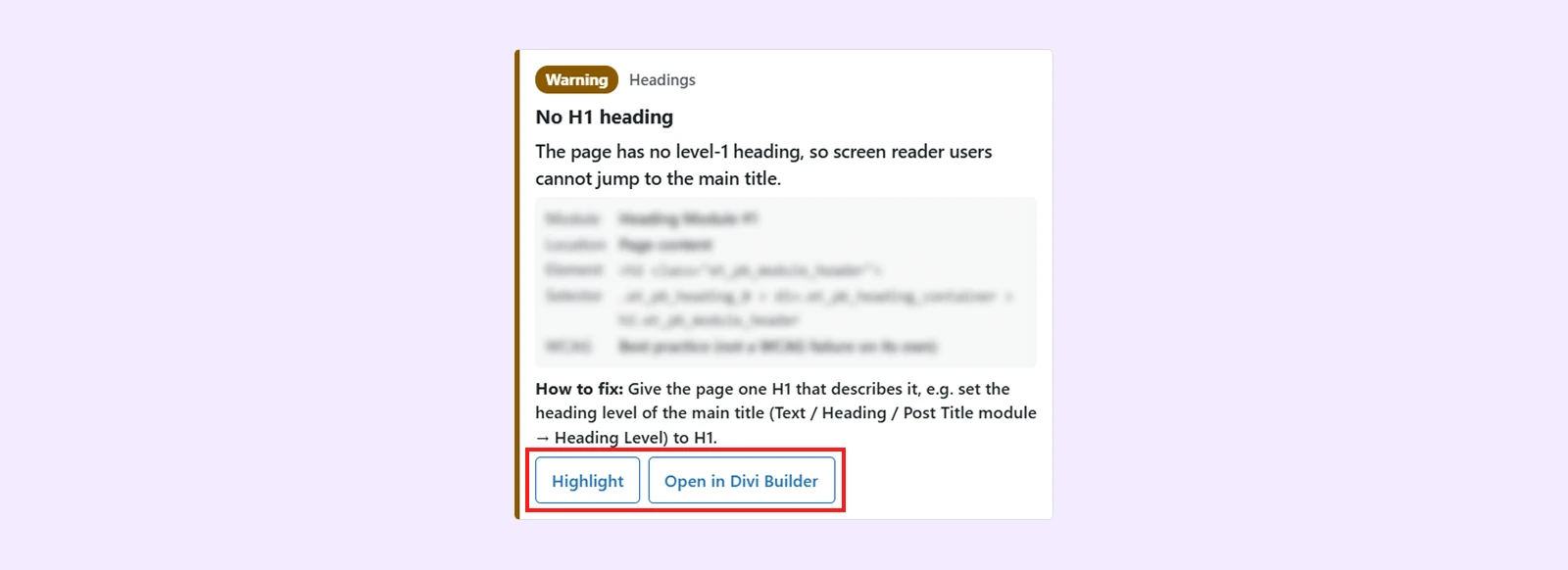
- Highlight: Scroll to the affected element and highlight it on the page.
- Editor Link: Open the relevant editor, such as Divi Builder, Theme Builder, or a popup editor, when available.
- How to Fix: View suggestions for resolving the detected problem.
- Accessibility Reference: View the related accessibility guideline or best-practice recommendation.
You can use the category filters to view specific issues. After making changes, click Rescan to check the page again. To close the scanner, click the close button or press Esc.
Important Notes
- The scanner checks the page at the current browser window size. To check mobile layouts, resize your browser window and run the scan again.
- Text displayed over images or gradients may be marked Needs Review because the scanner cannot accurately measure their contrast.
- Divi's default viewport settings may trigger a mobile pinch-zoom warning.
Need Help?
If you have any questions or need assistance, contact our support team: [email protected].