
The DiviFlash Accessibility Toolbar extension adds a floating accessibility button to your website, allowing visitors to adjust text size, fonts, contrast, reading tools, and other accessibility options to suit their needs.
Important Note:
- It’s available in DiviFlash 5.7.0 and later, and supports Divi 5 only.
- The extension is disabled by default and must be enabled manually.
- The accessibility button appears automatically without adding a Divi module.
- The toolbar helps improve website accessibility but does not guarantee compliance with accessibility standards.
Let's see how to configure the extension and use its settings.
Enable the Accessibility Toolbar
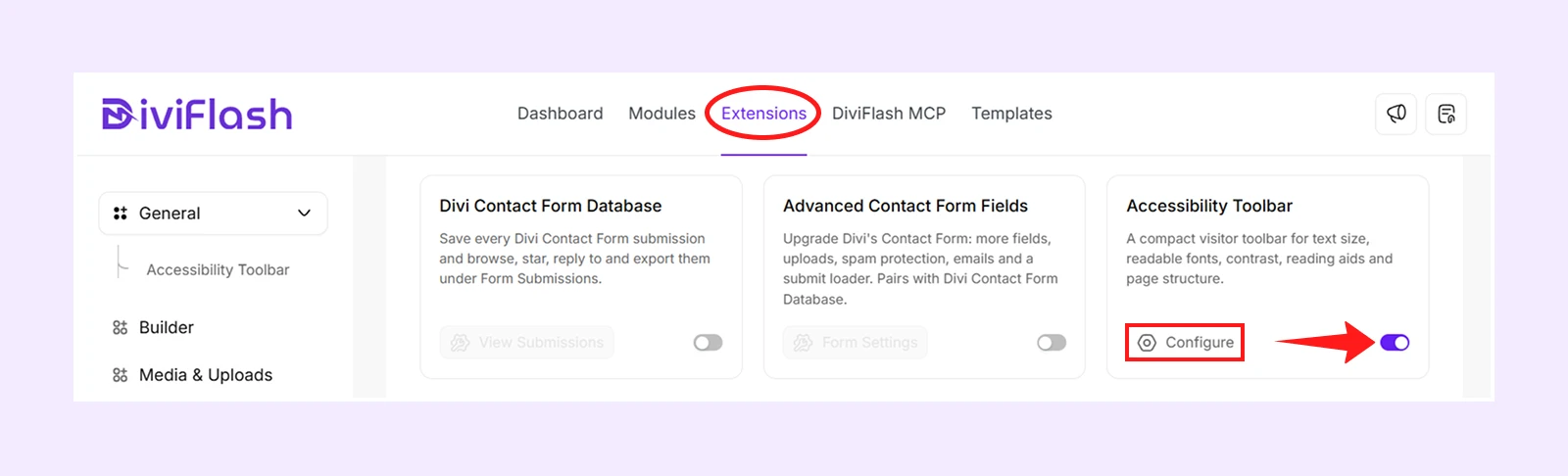
- Go to your WordPress Dashboard.
- Navigate to DiviFlash > Extensions > General.
- Find Accessibility Toolbar and enable it.
- Click Configure to access the Features, Appearance, and Behavior settings.
Features Tab
These settings let you choose which accessibility tools visitors can use on your website. Enable or disable each feature to control its availability in the accessibility panel.
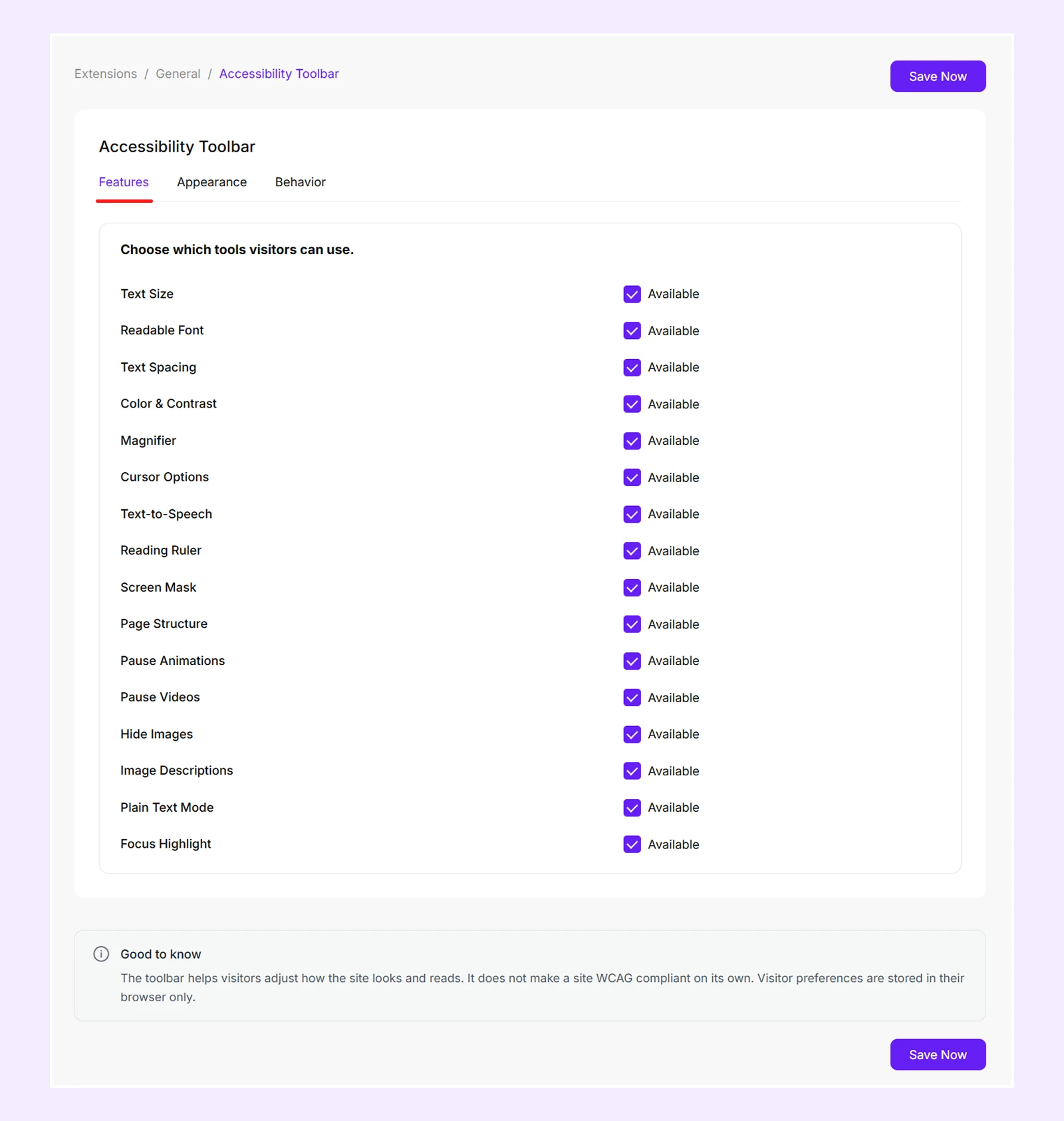
- Text Size: Let visitors increase or decrease text size.
- Readable Font: Allow visitors to switch to an easier-to-read font, including a dyslexia-friendly option.
- Text Spacing: Let visitors adjust line height, letter spacing, and word spacing.
- Color & Contrast: Let visitors switch between normal, dark, high-contrast, and grayscale color modes.
- Magnifier: Allow visitors to enlarge text or images under their mouse pointer.
- Cursor Options: Let visitors use a larger cursor or highlight its position.
- Text-to-Speech: Allow visitors to have page content read aloud.
- Reading Ruler: Display a highlighted strip that follows the cursor to help visitors follow text.
- Screen Mask: Dim areas of the screen outside a horizontal or vertical reading area.
- Page Structure: Let visitors view and navigate the page's headings, sections, links, and images.
- Pause Animations: Allow visitors to stop animations and moving elements.
- Pause Videos: Let visitors stop videos and audio, including automatically playing media.
- Hide Images: Allow visitors to hide images and background pictures.
- Image Descriptions: Display image descriptions when visitors hover over images.
- Plain Text Mode: Let visitors view the page in a simplified, text-only layout.
- Focus Highlight: Highlight links and form fields when visitors navigate using the keyboard.
Note: All 16 features are enabled by default. Disabling a feature removes it from the visitor's accessibility panel. If you disable all features, the floating accessibility button will not appear.
Appearance Tab
These settings control the position, size, colors, and appearance of the floating accessibility button and panel.
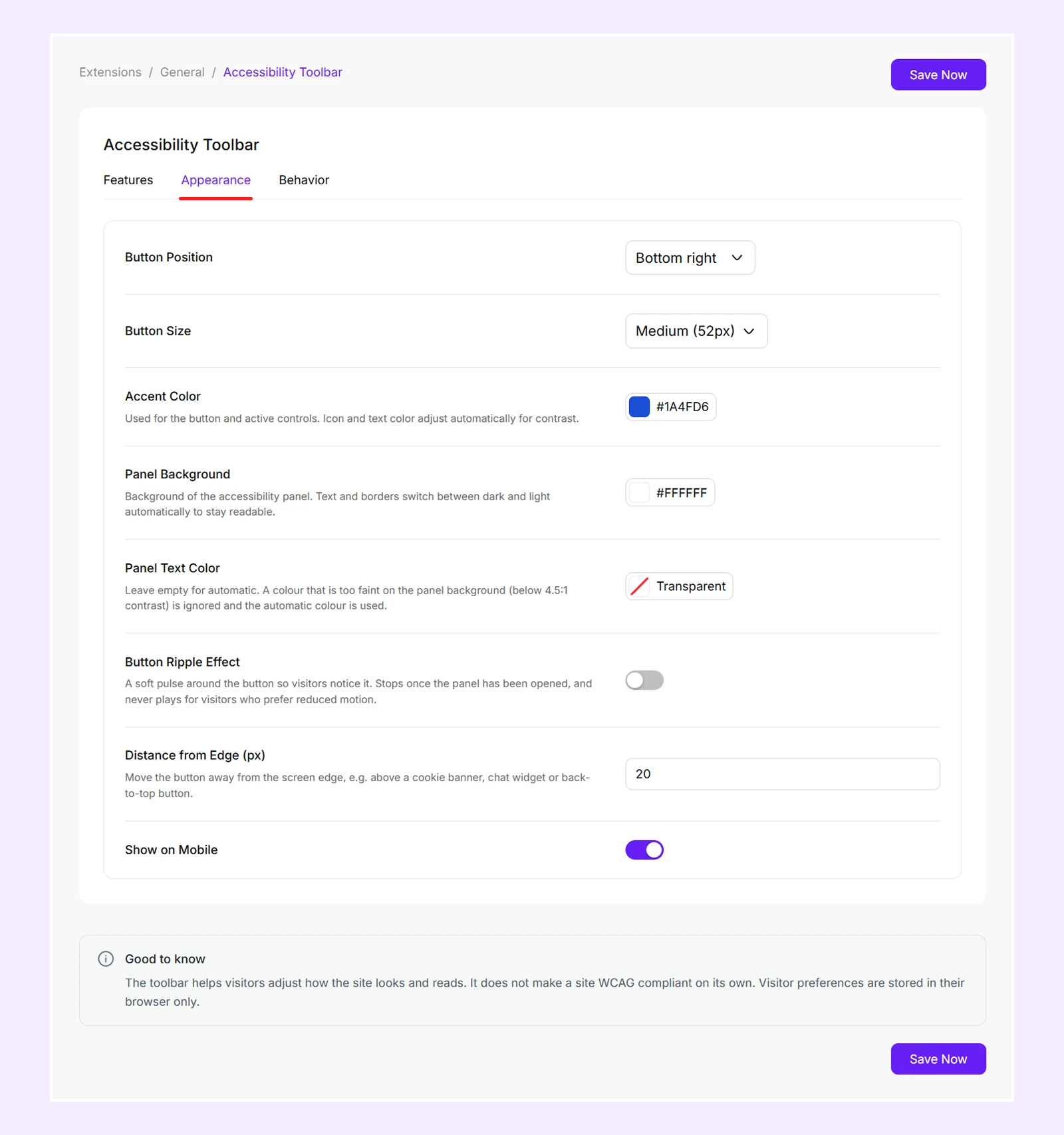
- Button Position: Place the accessibility button at the Bottom Right, Bottom Left, Middle Right, or Middle Left of the screen.
- Button Size: Choose Small, Medium, or Large for the floating button.
- Accent Color: Set the color of the floating button and selected options inside the accessibility panel.
- Panel Background: Change the background color of the accessibility panel.
- Panel Text Color: Set the text color inside the panel. Leave it empty to use an automatically selected readable color.
- Button Ripple Effect: Add a pulsing ripple animation around the accessibility button until visitors open the panel.
- Distance from Edge (px): Adjust the distance between the floating button and the edge of the screen.
- Show on Mobile: Choose whether the accessibility button appears on mobile devices.
Behavior Tab
These settings control how visitor preferences are saved and how the accessibility panel can be opened using a keyboard.
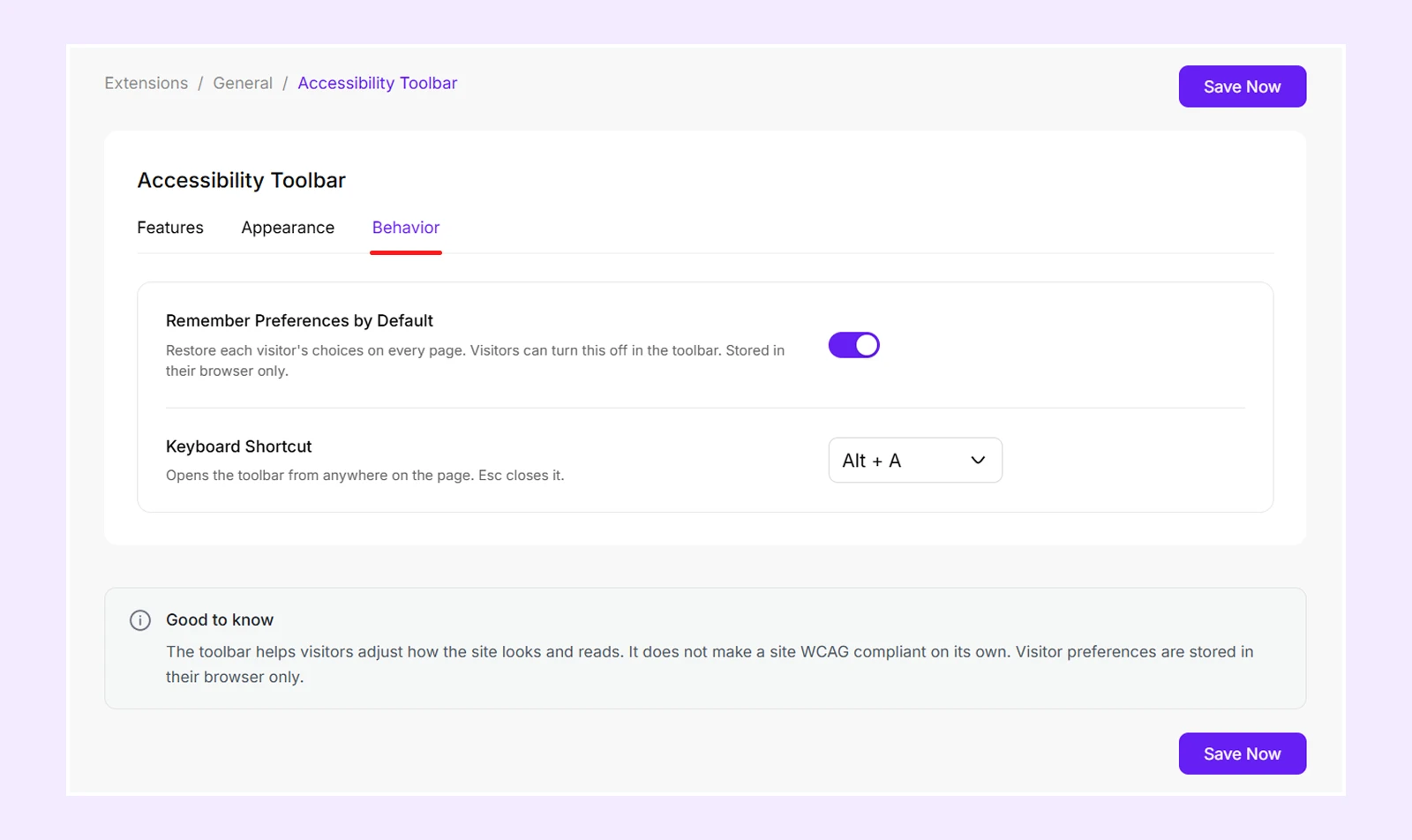
- Remember Preferences by Default: Save visitors' accessibility preferences in their browsers so the settings remain active when they change pages or return later.
- Keyboard Shortcut: Choose a keyboard shortcut to open the accessibility panel. Available options are Alt + A, Alt + Shift + A, Ctrl + Alt + A, or None.
Note: Visitors can turn off preference saving from the accessibility panel. They can also press Esc to close the panel.
Accessibility Tools for Visitors
Once enabled, the Accessibility Toolbar displays a floating button on your website. Visitors can click it to open an accessibility panel with four tabs: Vision, Reading, Page, and Settings.
These tabs allow visitors to adjust their own browsing experience using the tools you have enabled in the Features tab from extension settings
Here is what visitors can do in each tab:
Vision Tab
The Vision tab lets visitors adjust the appearance of website content to make it easier to see and read.
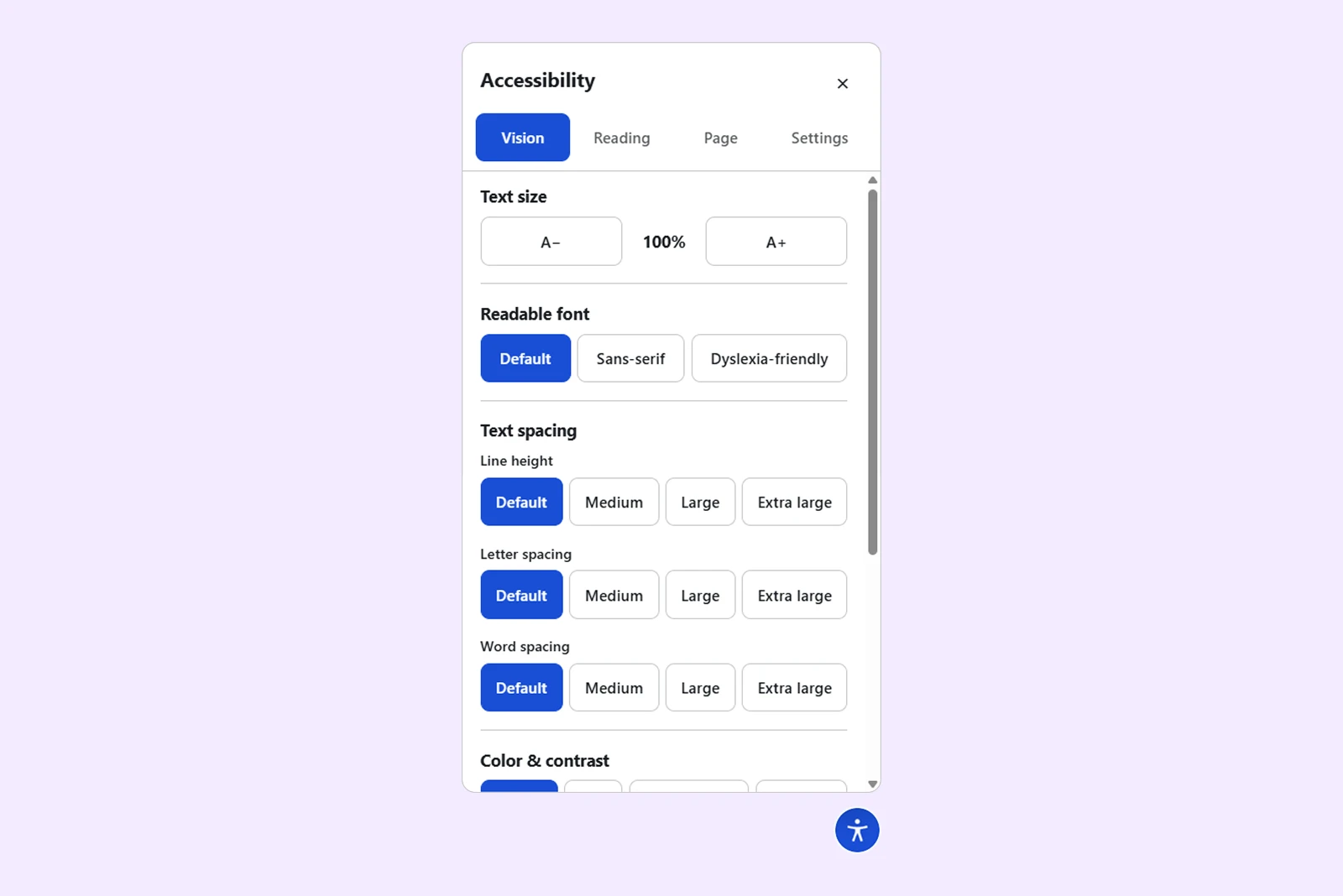
- Text Size: Increase or decrease text size from 90% to 200%.
- Readable Font: Switch between Default, Sans-serif, and Dyslexia-friendly fonts.
- Line Height: Adjust the spacing between text lines using Default, Medium, Large, or Extra Large.
- Letter Spacing: Increase the space between individual letters.
- Word Spacing: Increase the space between words.
- Color & Contrast: Choose Normal, Dark, High Contrast, or Grayscale display modes.
- Magnifier: Enlarge content under the mouse pointer by 1.5×, 2×, or 3×.
- Large Cursor: Make the mouse pointer larger and easier to see.
- Cursor Highlight: Add a yellow circle around the mouse pointer to make it easier to track.
Reading Tab
The Reading tab provides tools to help visitors focus on text, follow content, and listen to the page.
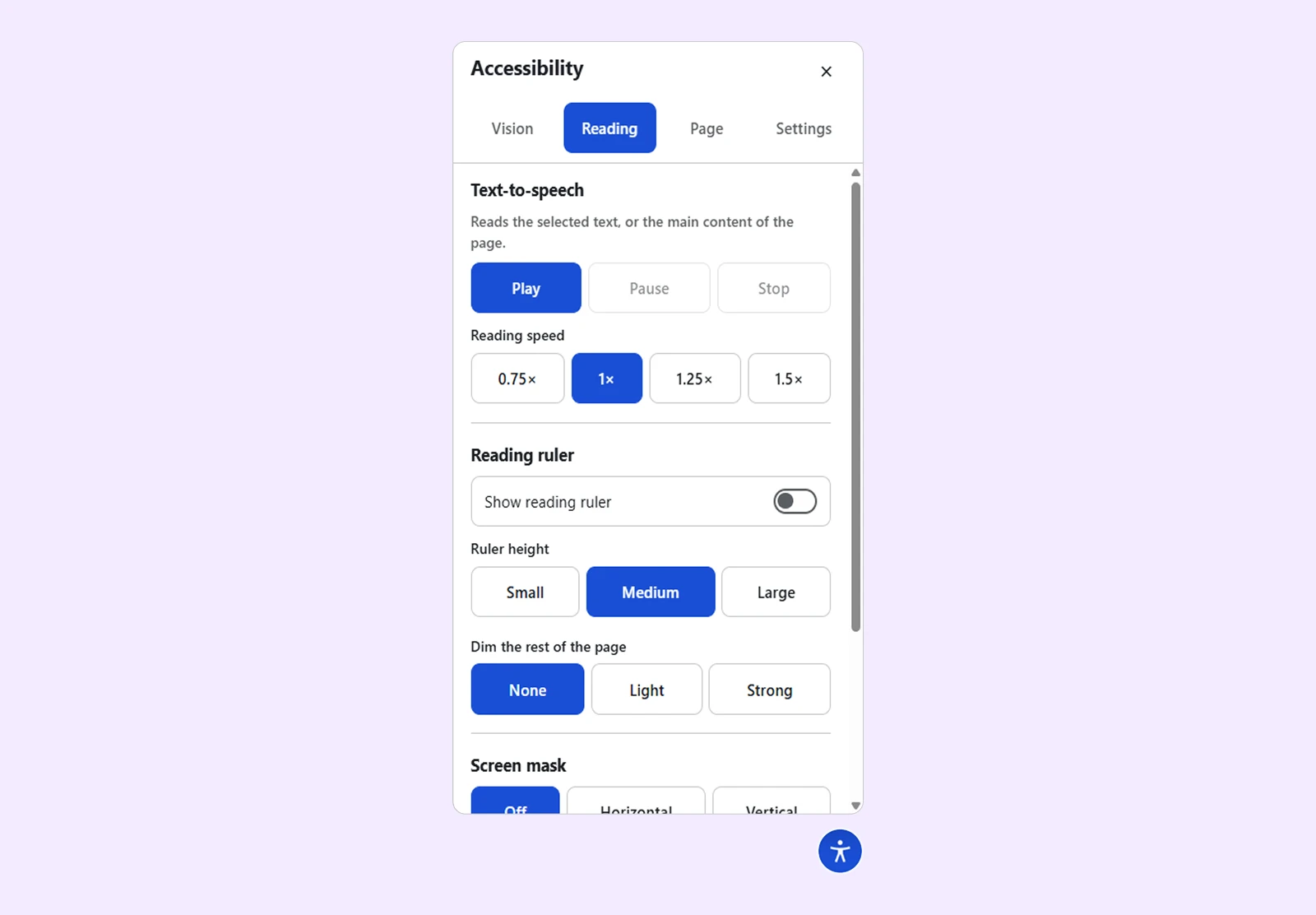
- Text-to-Speech: Read page content aloud with Play, Pause, Resume, and Stop controls. Visitors can also select specific text to hear only that portion.
- Reading Speed: Adjust the text-to-speech speed from 0.75× to 1.5×.
- Show Reading Ruler: Display a highlighted strip that follows the mouse pointer to help visitors follow text.
- Ruler Height: Adjust the reading ruler's height using Small, Medium, or Large.
- Dim the Rest of the Page: Choose None, Light, or Strong to darken the area outside the reading ruler.
- Screen Mask: Display a horizontal or vertical reading area while dimming the surrounding content.
- Mask Opacity: Choose Light, Medium, or Strong to control how dark the covered area appears.
- Mask Color: Choose Black, Navy, Sepia, or Green for the screen mask.
Page Tab
The Page tab lets visitors navigate page content more easily and reduce distracting elements.
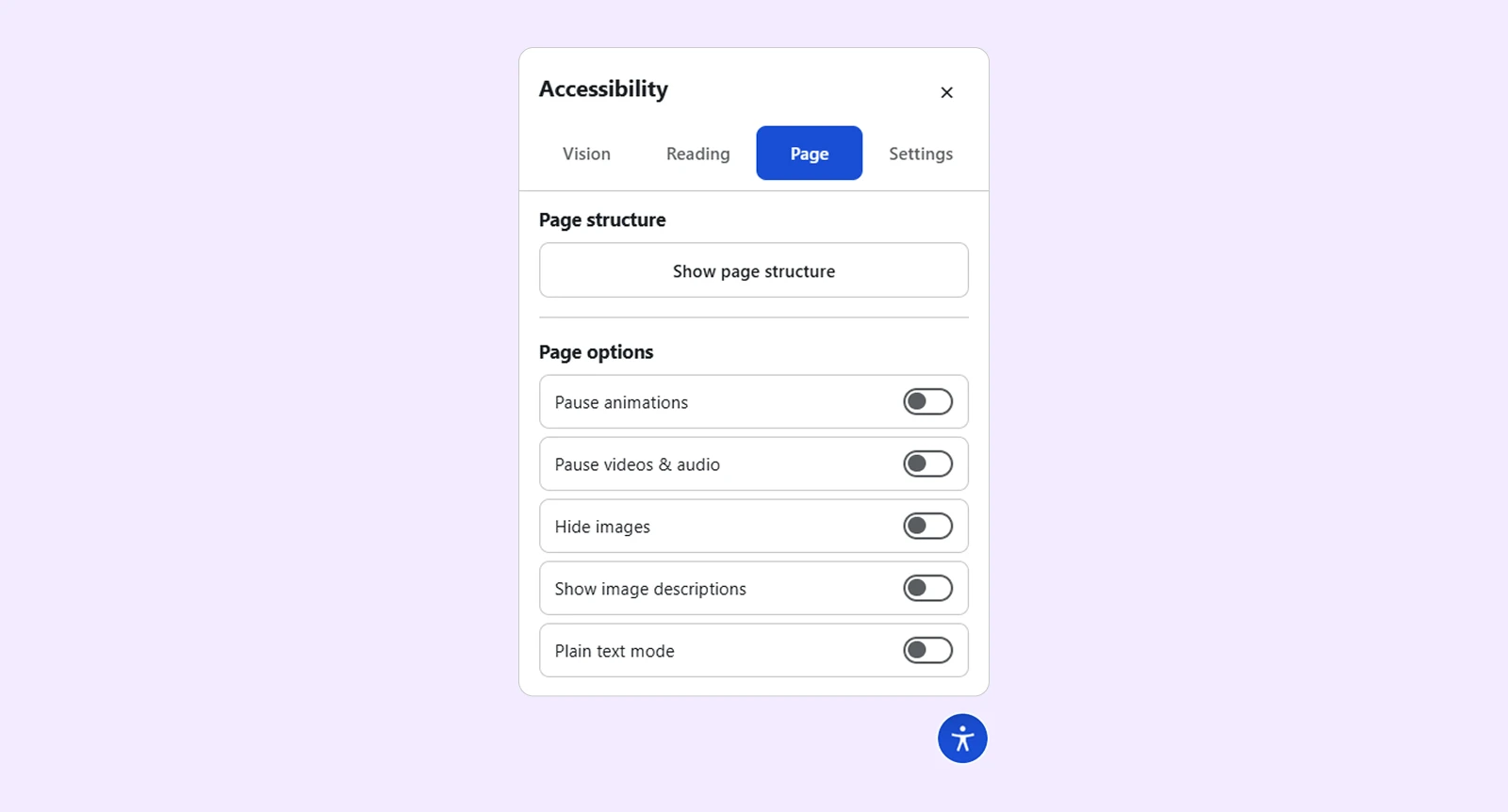
- Show Page Structure: Display an organized list of headings, main sections, links, and images. Visitors can click an item to jump to its location.
- Pause Animations: Stop animations and moving elements on the page.
- Pause Videos & Audio: Stop videos and audio and prevent them from playing automatically.
- Hide Images: Hide images and background pictures while keeping the original layout spacing.
- Show Image Descriptions: Display image descriptions when visitors hover over pictures.
- Plain Text Mode: Open a simplified, text-only view of the page. Visitors can close it using the close button or Esc key.
Settings Tab
The Settings tab lets visitors control and manage their accessibility preferences.
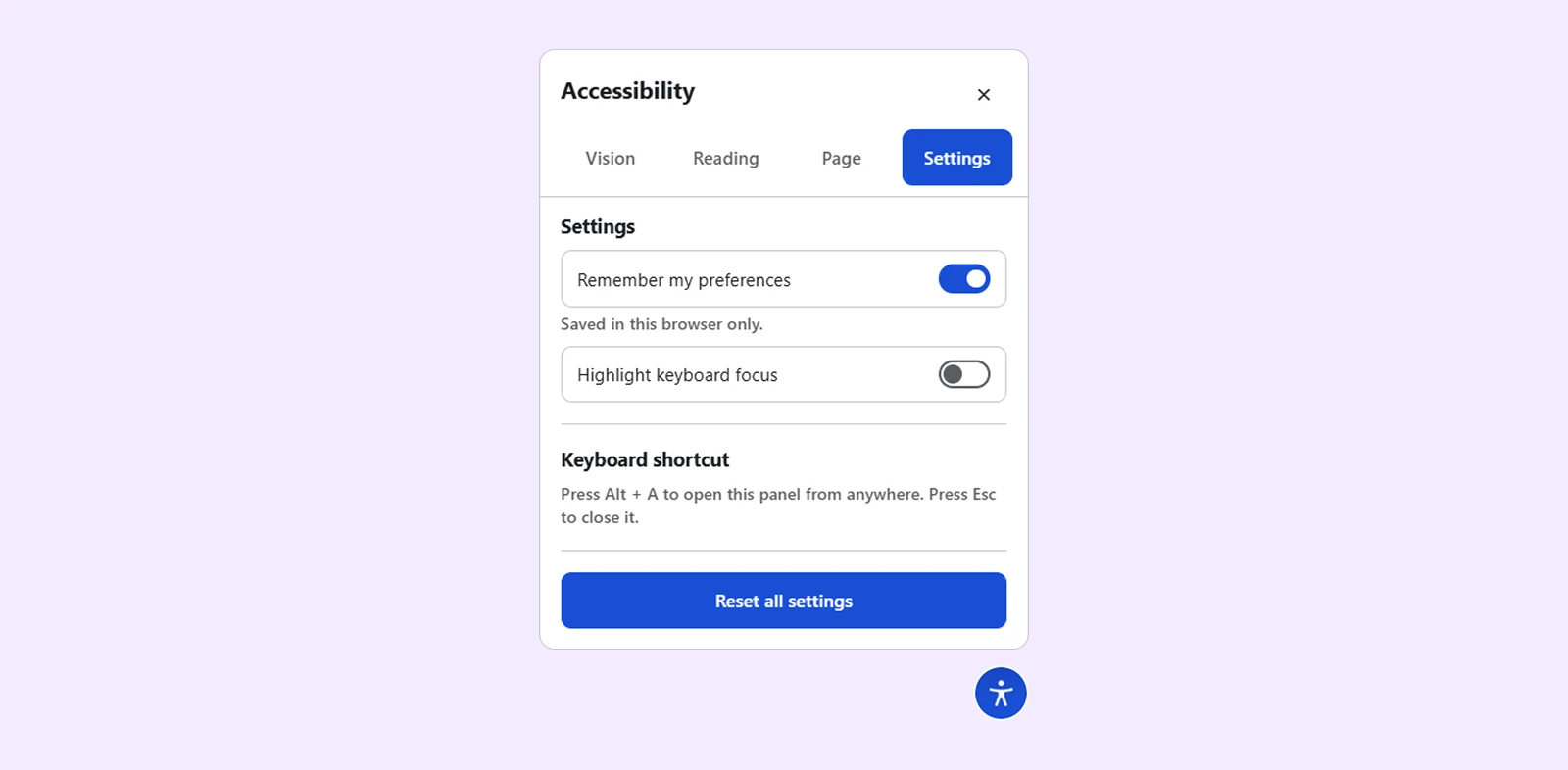
- Remember My Preferences: Save selected accessibility settings in the browser so they remain active across pages and future visits.
- Highlight Keyboard Focus: Add a visible outline around links, buttons, and form fields when navigating with the Tab key.
- Keyboard Shortcut: Display the keyboard shortcut configured for opening the accessibility panel.
- Reset All Settings: Restore the accessibility options to their default values.
Note: The available tools depend on which features you enable in the Features tab. Visitors can only access tools that are enabled in the extension settings.
Important Notes
- The accessibility button appears on the live website, not inside the Divi Builder.
- When a cookie banner is visible, the button moves above it to prevent overlap.
- Dark and High Contrast modes may change website colors and hide background images.
- Animated GIFs cannot be paused, and text-to-speech voices depend on the visitor's browser.
Need Help?
If you have any questions or need assistance, contact our support team: [email protected].