
The DiviFlash Advanced Contact Form Fields extension adds 13 new field types to Divi's built-in Contact Form, along with file uploads, spam protection, autoresponder emails, webhooks, and other features.
Important Note:
- Advanced Contact Form Fields works only with Divi 5.
- The extension adds features to Divi's existing Contact Form modules. You don't need to add a separate module.
Let's see how to configure the extension and use its features.
Enable Advanced Contact Form Fields
- Go to your WordPress Dashboard.
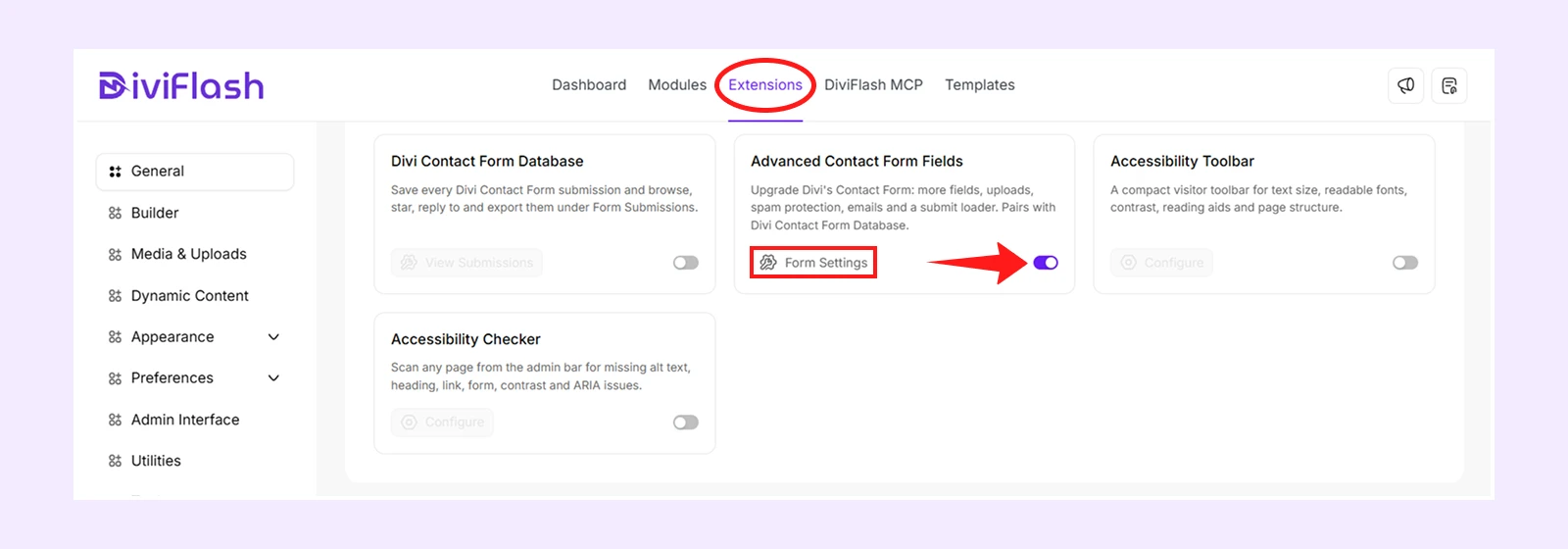
- Navigate to DiviFlash > Extensions.
- Find Advanced Contact Form Fields and enable it.
- Click Form Settings to open the extension's configuration panel.
In the configuration panel, you can manage spam protection, captcha services, file uploads, submit loaders, email templates, webhooks, and other settings.
You can then add advanced fields and customize individual forms using Divi's existing Contact Form module. For details, see the Contact Form Module Settings section below.
Advanced Contact Form Fields Settings
These settings let you manage site-wide defaults for spam protection, file uploads, submit loaders, email templates, webhooks, and other features.
To access the settings, go to DiviFlash > Advanced Contact Form Fields in your WordPress Dashboard and click Form Settings.
Then you will get these settings:
Spam Protection
These settings help protect your contact forms from spam and automated submissions.
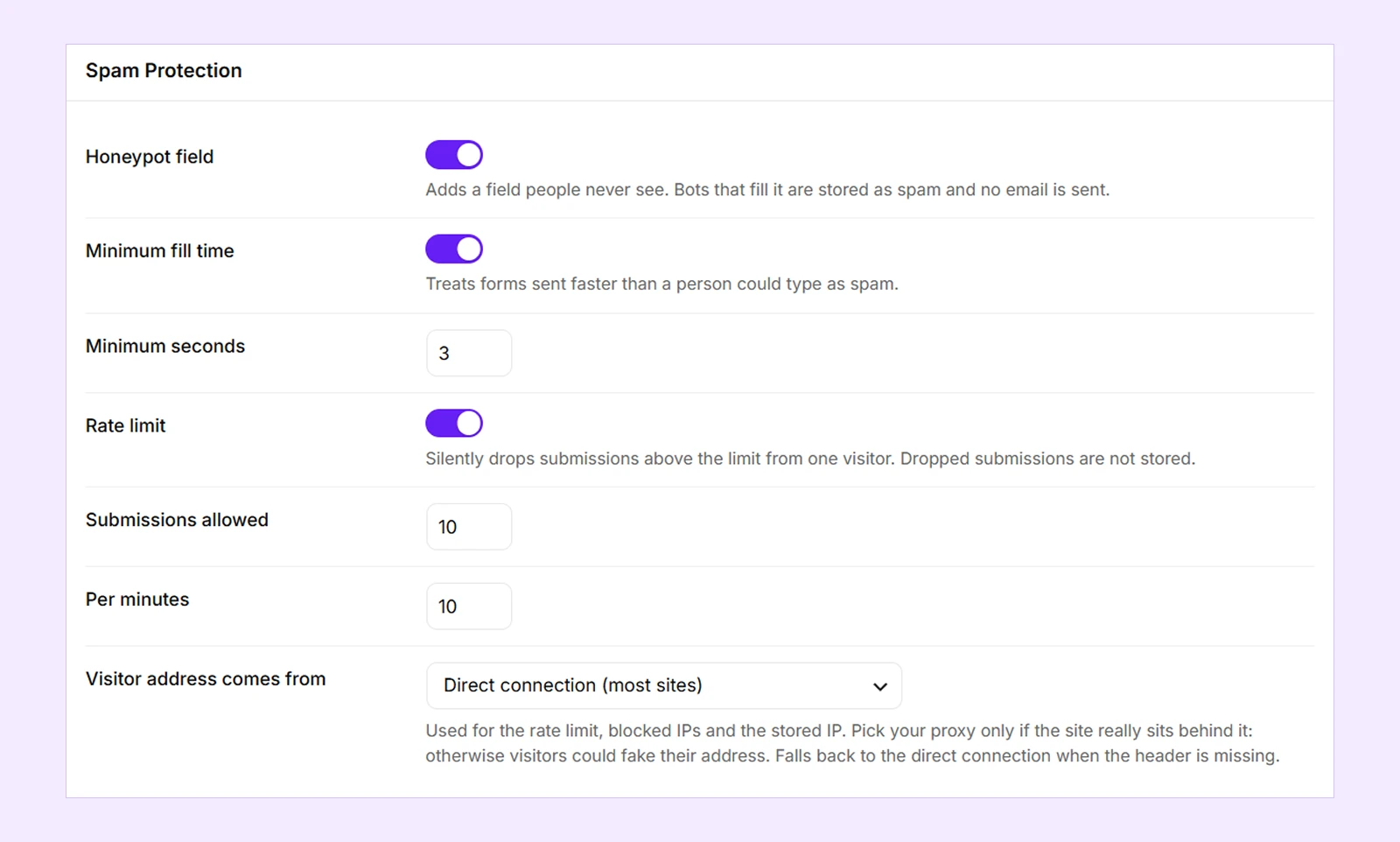
- Honeypot Field: Enable a hidden field to help detect spam bots.
- Minimum Fill Time: Enable a time-based check to detect forms submitted too quickly.
- Minimum Seconds: Set the minimum number of seconds before a form can be submitted.
- Rate Limit: Limit how frequently visitors can submit forms.
- Submissions Allowed: Set the maximum number of submissions allowed within a specified period.
- Per Minutes: Set the time period in minutes for the submission limit.
- Visitor Address Comes From: Choose Direct Connection, Cloudflare, or another proxy to determine how visitor IP addresses are detected.
Captcha Services
These settings let you configure captcha protection for your contact forms.
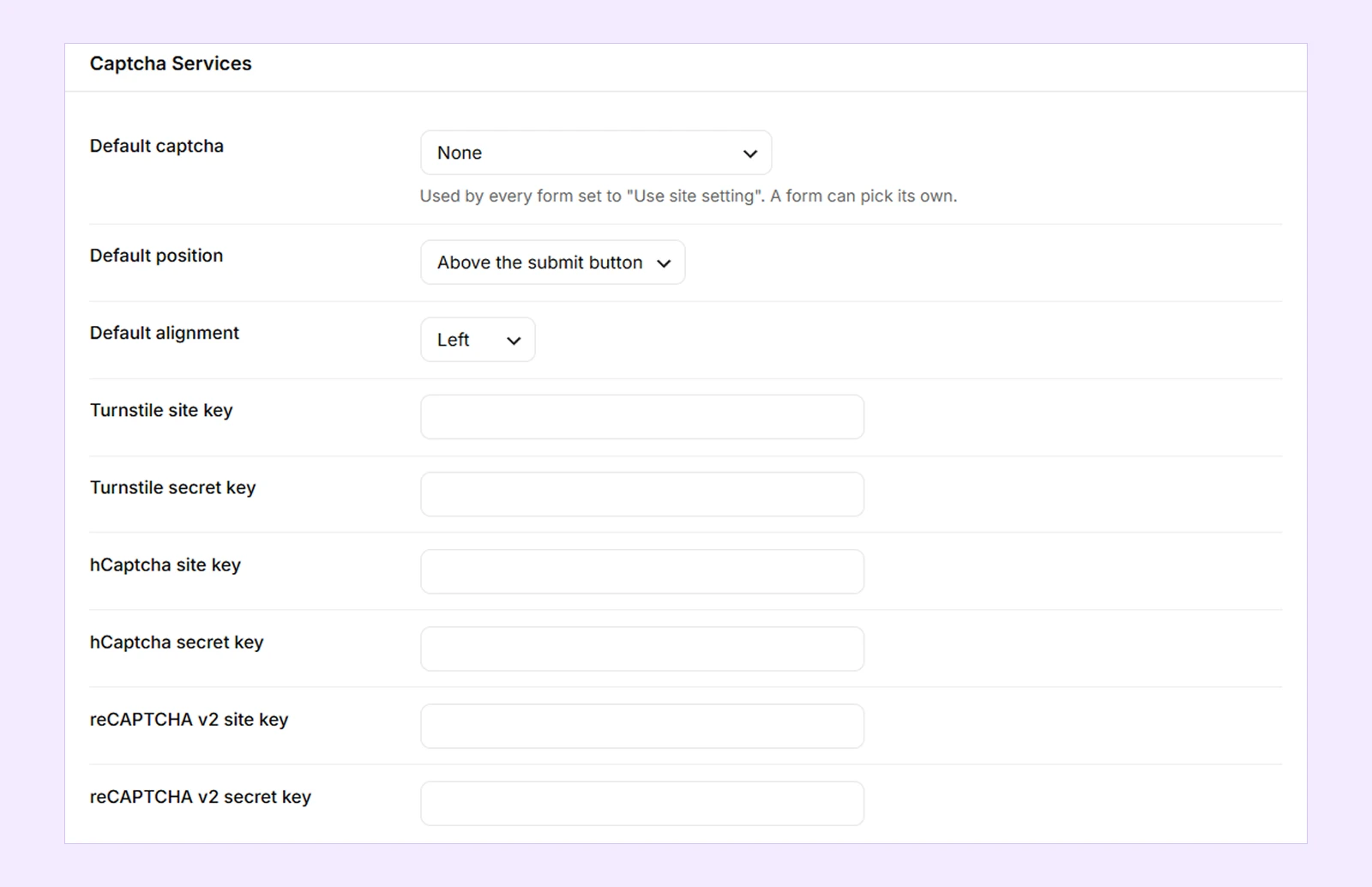
- Default Captcha: Choose None, Cloudflare Turnstile, hCaptcha, or Google reCAPTCHA v2.
- Default Position: Choose whether the captcha appears above the form fields or submit button.
- Default Alignment: Align the captcha to the Left, Center, or Right.
- Turnstile Site Key: Enter your Cloudflare Turnstile site key.
- Turnstile Secret Key: Enter your Cloudflare Turnstile secret key.
- hCaptcha Site Key: Enter your hCaptcha site key.
- hCaptcha Secret Key: Enter your hCaptcha secret key.
- reCAPTCHA v2 Site Key: Enter your Google reCAPTCHA v2 site key.
- reCAPTCHA v2 Secret Key: Enter your Google reCAPTCHA v2 secret key.
Note: Enter the site and secret keys only for the captcha provider you want to use. Saved secret keys remain hidden, and leaving a secret key field empty keeps the previously saved key.
Blocklist
These settings let you block unwanted form submissions based on email addresses, domains, keywords, or IP addresses.
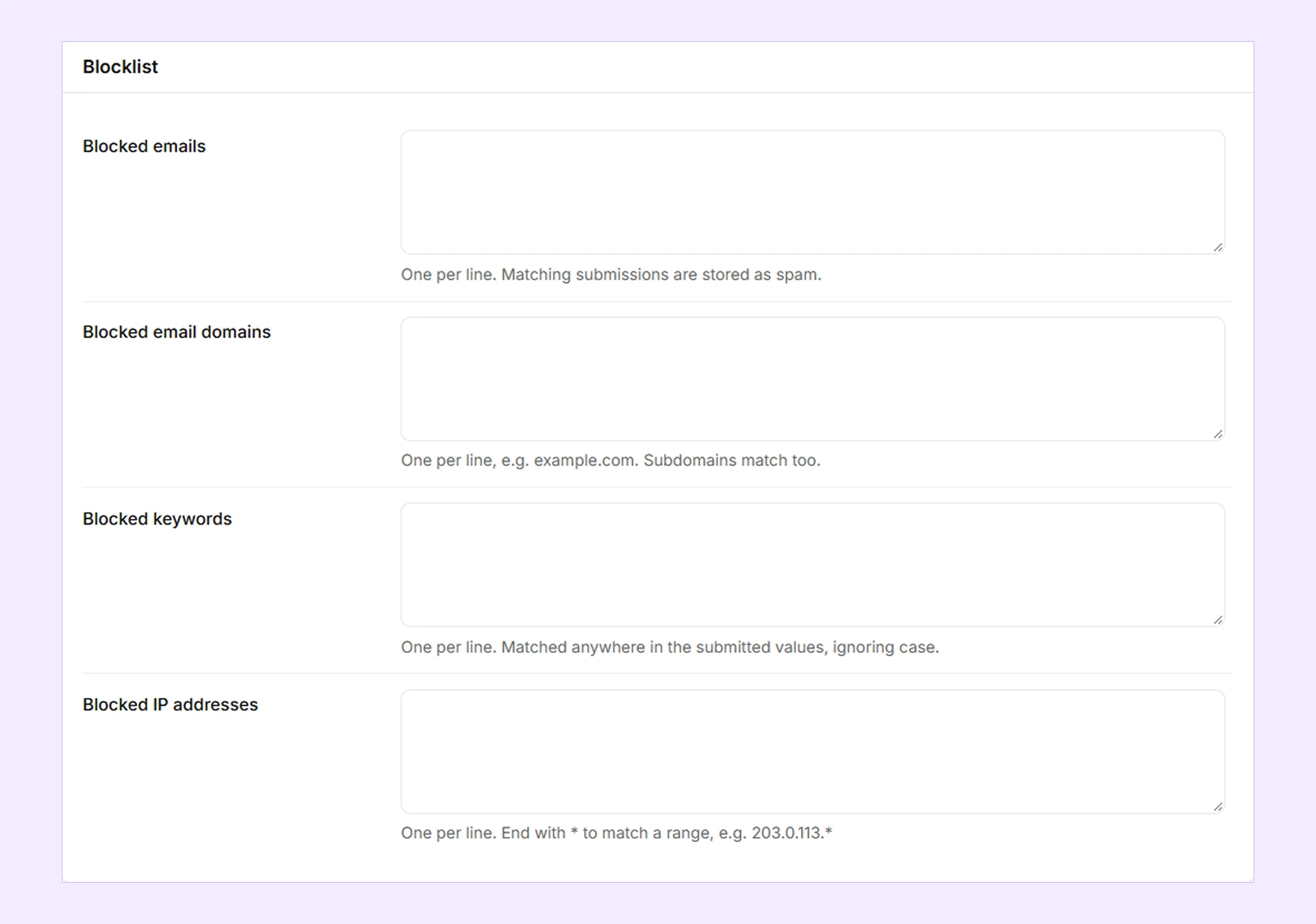
- Blocked Emails: Enter specific email addresses to block.
- Blocked Email Domains: Enter email domains to block, such as example.com.
- Blocked Keywords: Enter words or phrases that will cause submissions to be marked as spam.
- Blocked IP Addresses: Enter specific IP addresses or supported IP patterns to block submissions from those sources.
Enter each value on a separate line.
File Uploads
These settings let you control the size and types of files visitors can upload through contact forms.
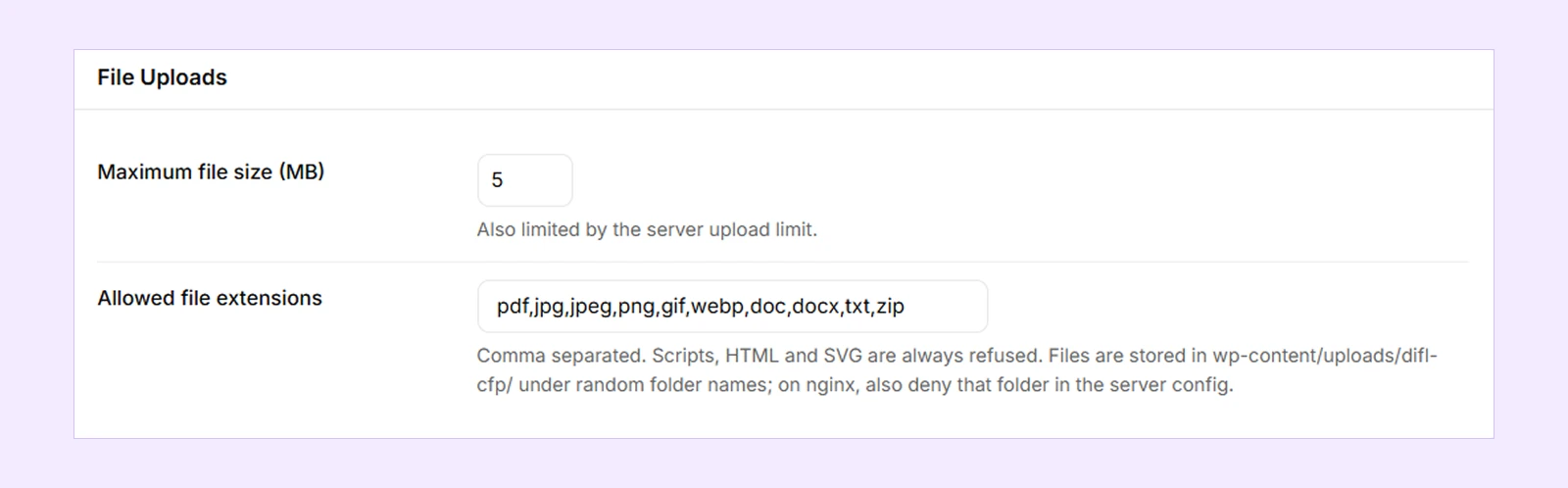
- Maximum File Size (MB): Set the maximum allowed size for each uploaded file.
- Allowed File Extensions: Specify which file types visitors can upload, such as PDF, JPG, or PNG.
Note: Uploaded files are stored privately, not in the WordPress Media Library. Your server's upload size limit still applies, and scripts, HTML, and SVG files cannot be uploaded.
Submit Loader
These settings control the default loading indicator shown during form submission.
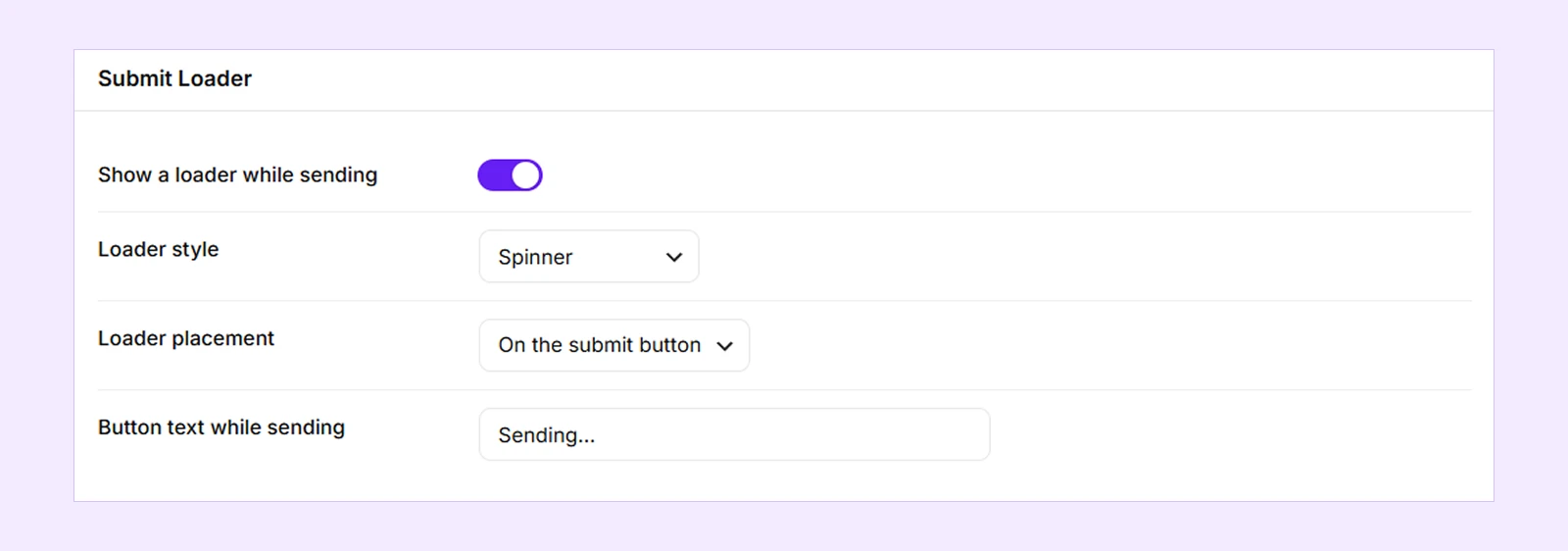
- Show a Loader While Sending: Enable or disable the loading indicator during form submission.
- Loader Style: Choose Spinner, Dots, Pulse, or Button Text Only.
- Loader Placement: Display the loader on the submit button or over the entire form.
- Button Text While Sending: Customize the text shown on the submit button while the form is being submitted.
Email Template
These settings let you customize the appearance of autoresponder and reply emails.
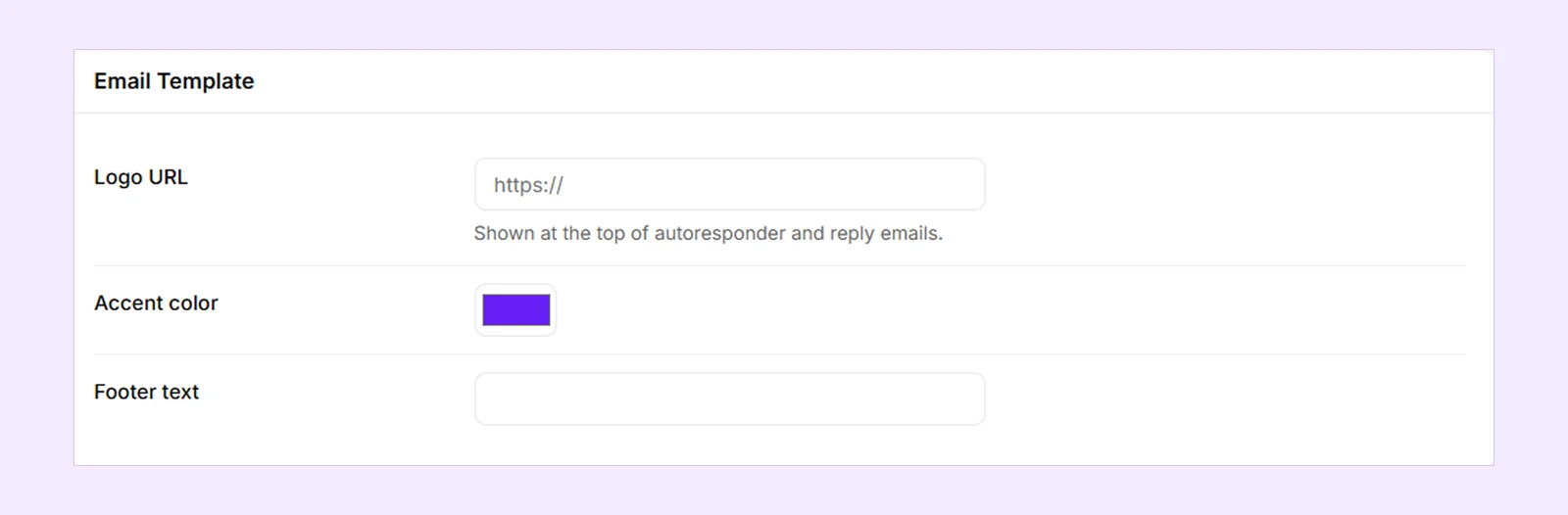
- Logo URL: Enter the URL of your logo to display it in emails.
- Accent Color: Choose the main color for the email template.
- Footer Text: Add custom text to the bottom of emails.
Webhook
These settings let you automatically send form submission data as JSON to external services like Zapier, Make, or a CRM.
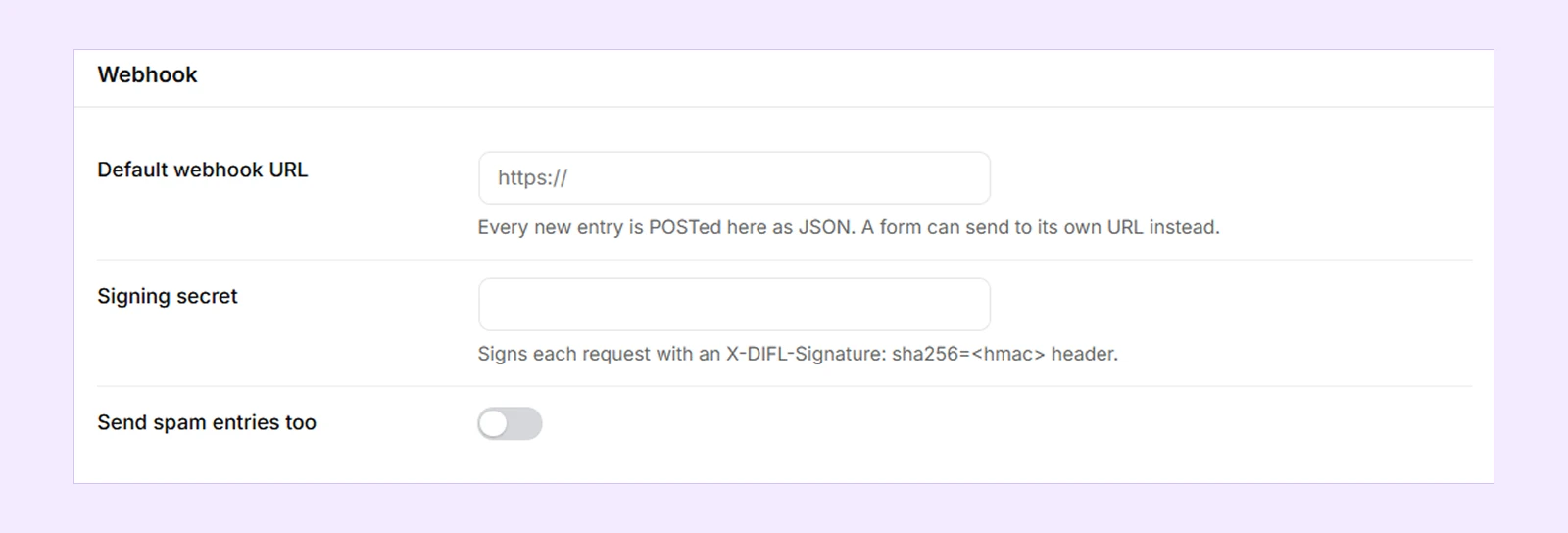
- Default Webhook URL: Enter the URL where form submission data should be sent.
- Signing Secret: Add a secret key to help the receiving service verify that the data came from your website.
- Send Spam Entries Too: Enable this to send submissions marked as spam to the webhook as well.
Individual forms can use a different webhook URL through their Contact Form module settings.
Privacy & Retention
These settings let you control what visitor information is saved and how long form submissions are stored.
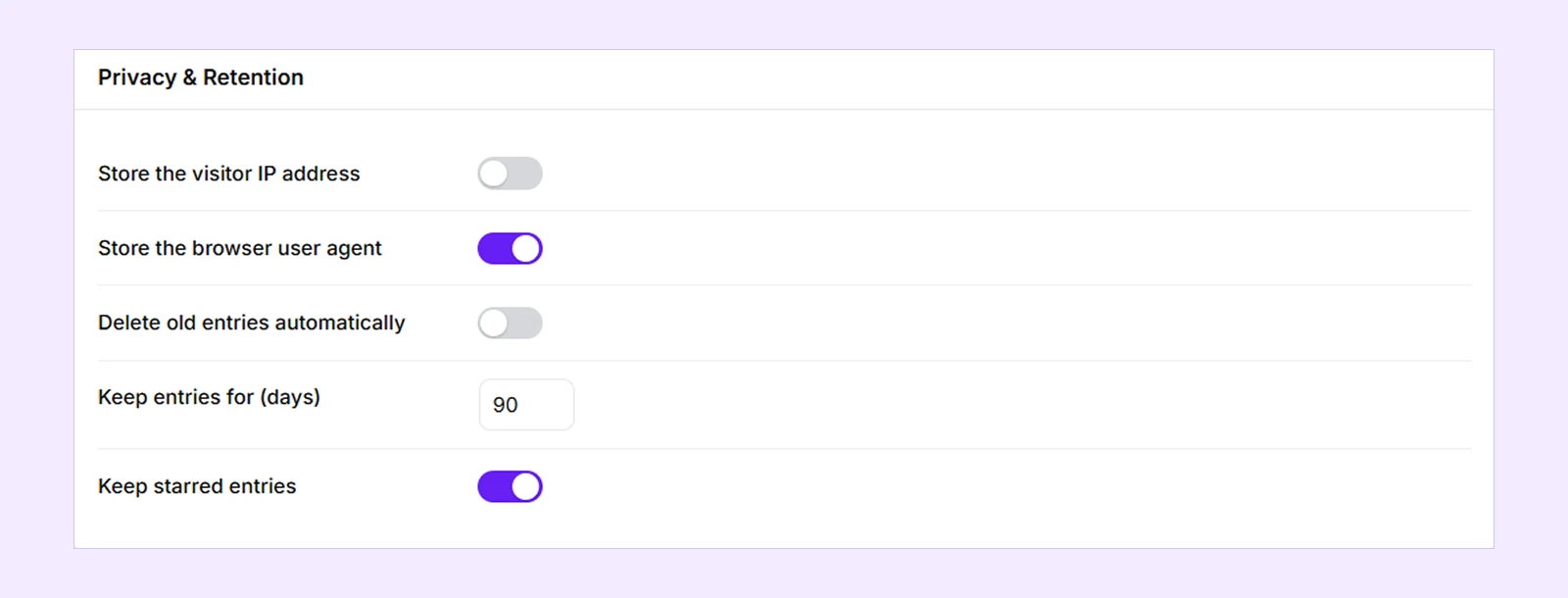
- Store the Visitor IP Address: Enable or disable storing visitors' IP addresses with submissions.
- Store the Browser User Agent: Save visitors' browser and device information with submissions.
- Delete Old Entries Automatically: Enable automatic deletion of old form submissions.
- Keep Entries For (Days): Set how many days submissions are kept before being deleted. (Applies when automatic deletion is enabled.)
- Keep Starred Entries: Prevent starred submissions from being automatically deleted. (Applies when automatic deletion is enabled.)
Note: IP address storage is disabled by default. The extension also supports WordPress's built-in Export Personal Data and Erase Personal Data tools.
Use Advanced Contact Form Fields in Divi Builder
Once the extension is enabled, you can use its features through Divi's existing Contact Form module. You don't need to add a separate module.
The extension adds 13 additional field types to the Contact Field settings and new options to the main Contact Form module.
Add Advanced Contact Fields
To use the additional field types:
- Open a page in the Divi Visual Builder.
- Add a Contact Form module or open an existing one.
- Add a new Contact Field or edit an existing field.
- Go to Field Options > Type and select a field marked (DF).
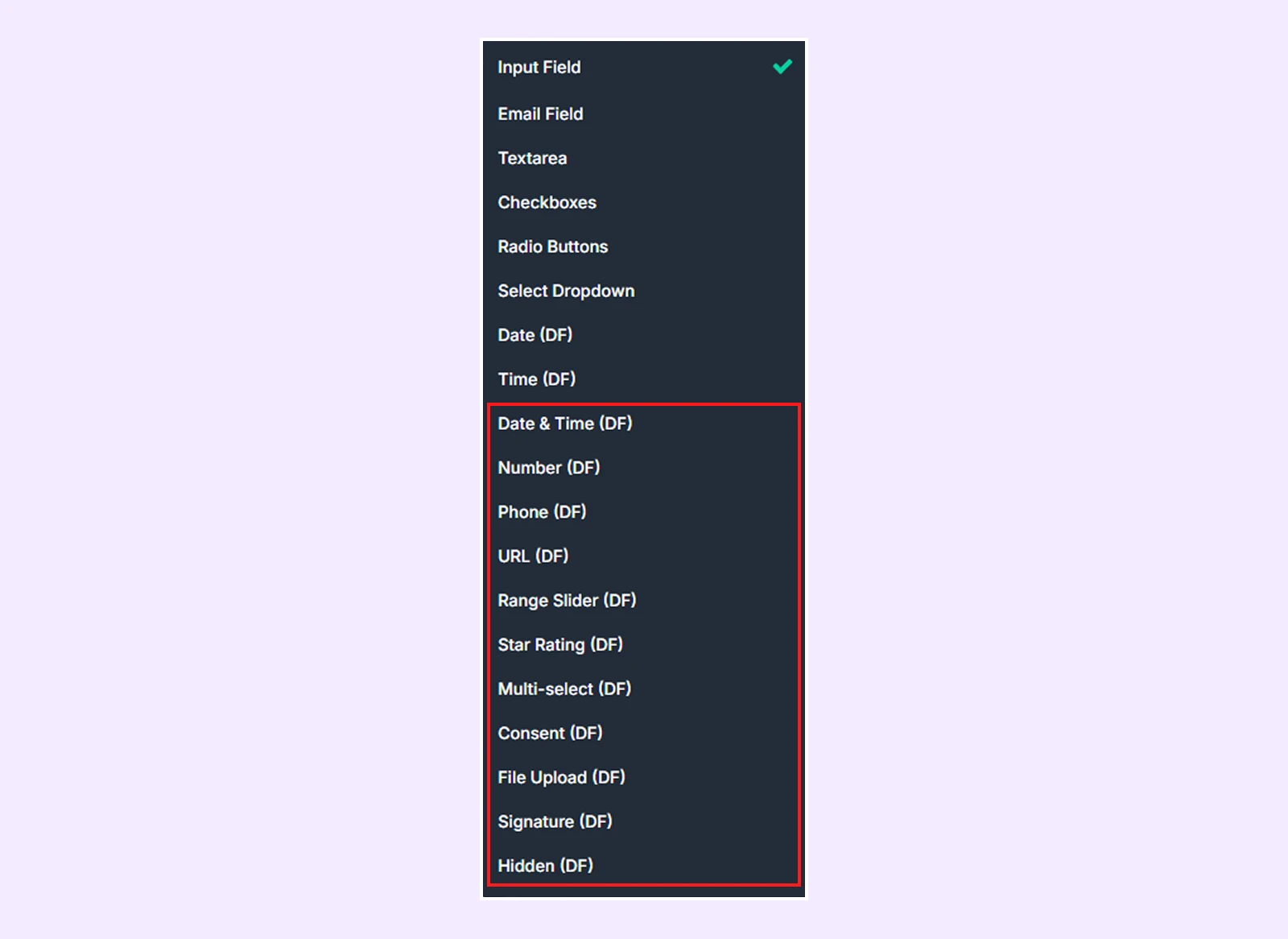
The following field types are available:
| Field Type | Description |
| Date | Add a date picker with minimum, maximum, and default date settings. |
| Time | Add a time picker with minimum, maximum, and default time settings. |
| Date & Time | Let visitors select a date and time, with minimum and maximum limits. |
| Number | Collect numeric values with placeholder, minimum, maximum, step, and default value controls. |
| Phone | Add a phone number field with placeholder text and a mobile-friendly keypad. |
| URL | Add a field for website addresses with customizable placeholder text. |
| Range Slider | Let visitors select a number using a slider with minimum, maximum, step, and default value settings. |
| Star Rating | Add a rating field with 3 to 10 clickable stars. |
| Multi-select | Let visitors select multiple options from a list of choices. |
| Consent | Add a consent checkbox with customizable text and links. |
| File Upload | Allow single or multiple file uploads with file count, size, and extension controls. |
| Signature | Let visitors sign using a mouse, finger, or pen. |
| Hidden | Collect predefined or dynamic information without displaying a visible field. |
Customize Individual Field Settings
After selecting an advanced field type, you can customize it using the additional options under Field Options.
The available settings depend on the field type you have selected.
- Placeholder: Add hint text inside the field. Available for Number, Phone, and URL.
- Minimum: Set the lowest allowed date, time, or number. Available for Date, Time, Date & Time, Number, and Range Slider.
- Maximum: Set the highest allowed date, time, or number. Available for Date, Time, Date & Time, Number, and Range Slider.
- Step: Set the interval between allowed numeric values. Available for Number and Range Slider.
- Default Value: Set a value that appears when the form loads. Available for Date, Time, Number, and Range Slider.
- Number of Stars: Choose how many stars appear, from 3 to 10. Available for Star Rating.
- Options: Add the choices visitors can select, one per line. Available for Multi-select.
- Consent Text: Customize the text beside the consent checkbox, including links. Available for Consent.
- Allow Several Files: Allow visitors to upload multiple files. Available for File Upload.
- Maximum Files: Set the maximum number of files visitors can upload, from 1 to 10. Available for File Upload.
- Maximum File Size (MB): Limit the size of each uploaded file. Available for File Upload.
- Allowed File Extensions: Specify which file types visitors can upload. Available for File Upload.
- Error Message: Customize the message shown when a field contains invalid or missing information. Available for all additional field types except Hidden.
Hidden Field Settings
The Hidden field has two additional settings:
- Value: Choose what information to collect, such as a fixed value, page URL, page title, referrer, UTM parameters, URL query parameters, or logged-in user details.
- Fixed Value / Parameter Name: Enter a fixed value or URL parameter name, depending on the selected Value option.
Contact Form Module Settings
Besides adding advanced fields, the extension also adds new settings to Divi's main Contact Form module.
These settings control how an individual form handles notifications, submissions, spam protection, and loading indicators.
To find them, open your Contact Form module settings in the Divi Visual Builder and explore the following sections.
Content Tab
Notifications
These settings control notification attachments, automatic replies, and webhooks for the selected form.
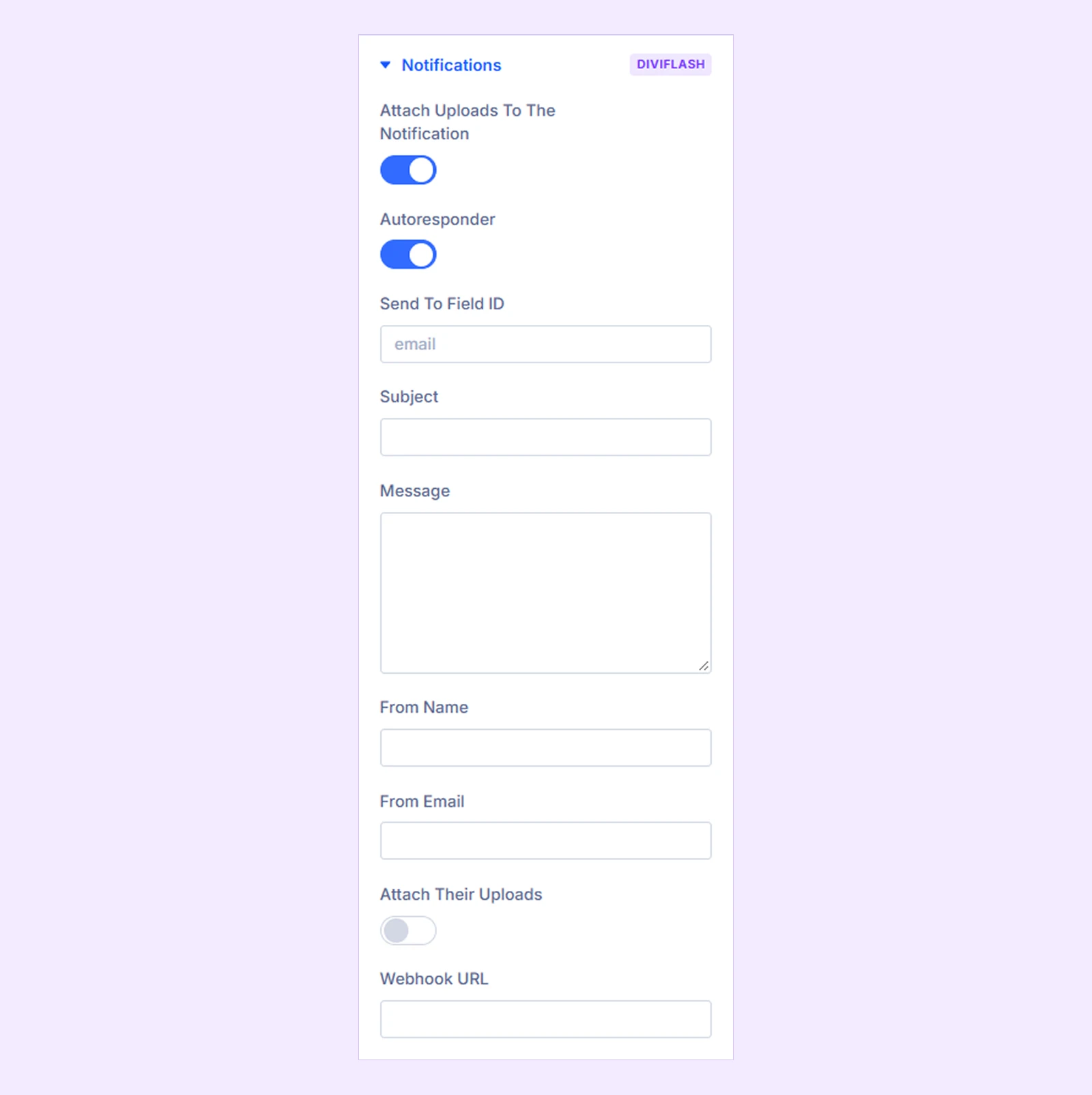
- Attach Uploads to the Notification: Include visitor-uploaded files in the site owner's notification email. Disabled by default, but signatures are always attached.
- Autoresponder: Enable an automatic thank-you email after a visitor submits the form.
- Send To Field ID: Enter the Field ID of the email field that should receive the autoresponder. The default is email.
- Subject: Set the autoresponder email's subject line.
- Message: Write the email content. You can include submitted values and page information using merge tags.
- From Name: Set the name displayed as the email sender.
- From Email: Enter the email address used to send the autoresponder.
- Attach Their Uploads: Include the visitor's uploaded files in their autoresponder email.
You can use merge tags such as %%all_fields%%, %%page_title%%, or %%name%% to automatically insert information into the message. For individual field values, replace name with the relevant Field ID.
- Webhook URL: Enter a webhook URL to send this form's submissions to an external service. Leave it empty to use the site-wide default.
Entries & After Submit
These settings control how form submissions are saved, validated, and handled after visitors submit the form.
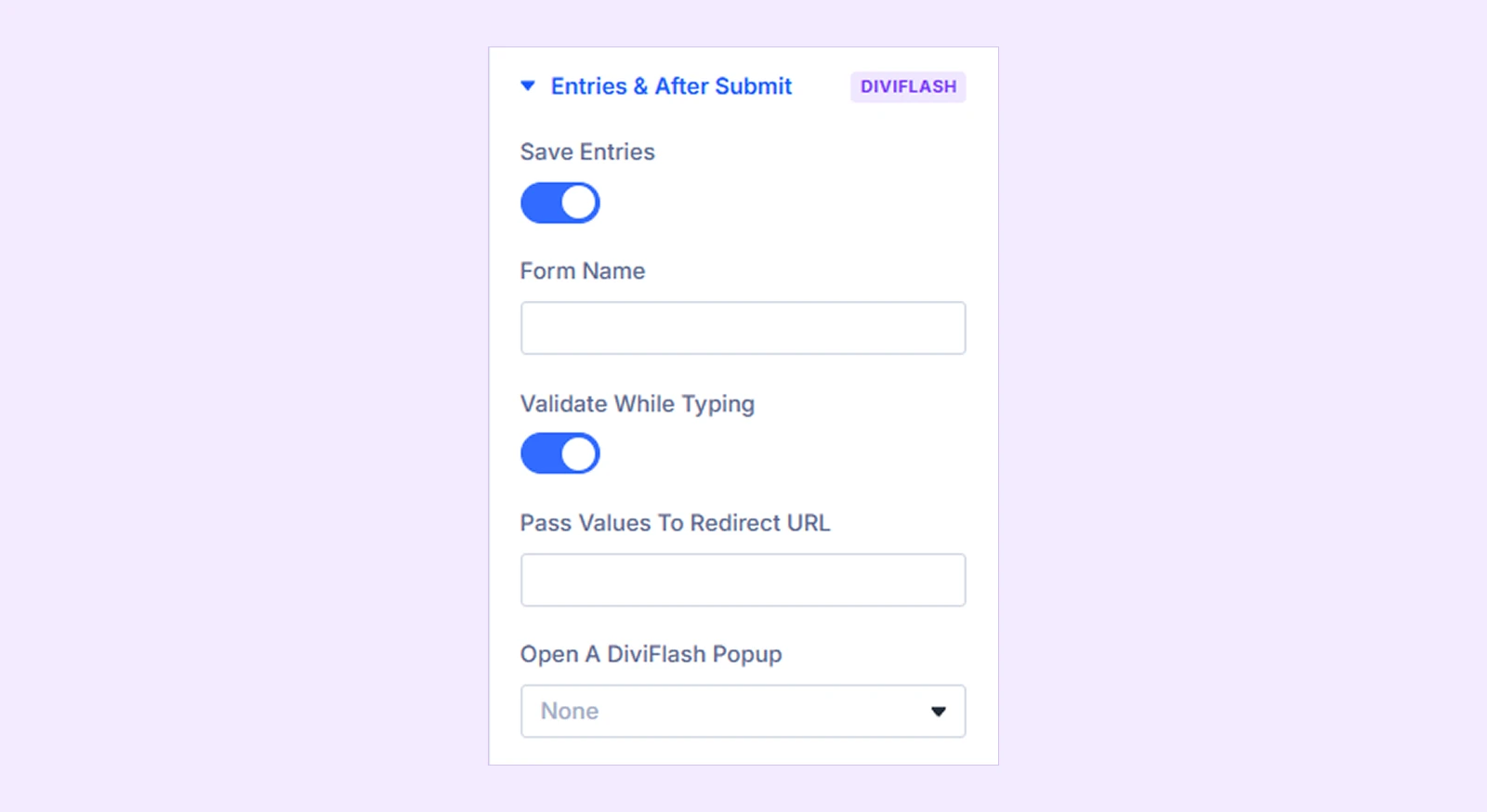
- Save Entries: Save submitted information in Form Submissions. Requires the Divi Contact Form Database extension.
- Form Name: Give the form a name to help identify its submissions.
- Validate While Typing: Show validation errors when visitors leave a field containing missing or invalid information.
- Pass Values To Redirect URL: Enter comma-separated Field IDs, such as email,plan, to pass submitted values to Divi's redirect URL.
- Open a DiviFlash Popup: Select a DiviFlash Popup to display after the form is successfully submitted.
Spam Protection
These settings let you customize spam protection for an individual form instead of relying entirely on the site-wide defaults.
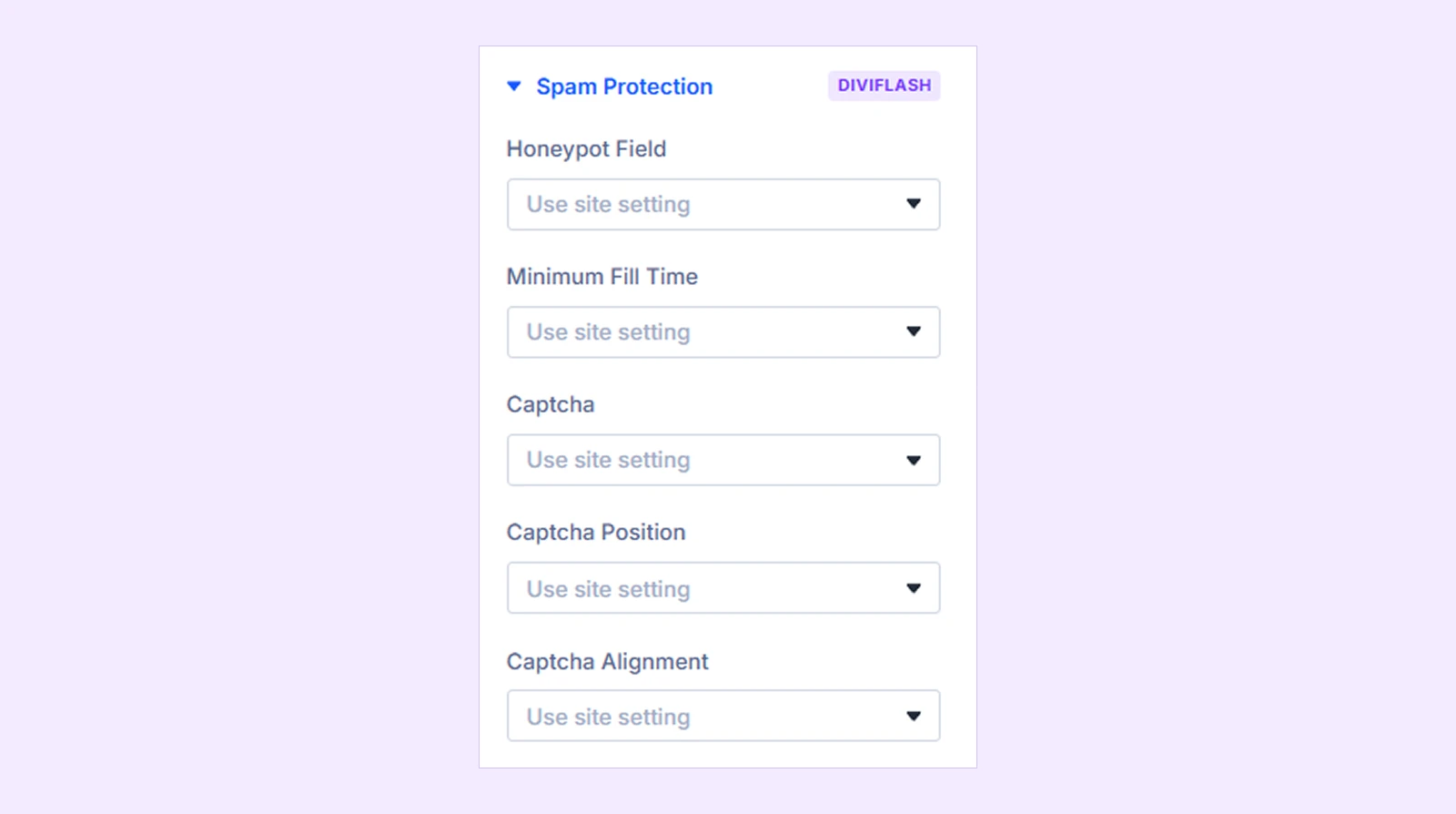
- Honeypot Field: Enable or disable a hidden field that helps detect spam bots, or use the site-wide setting.
- Minimum Fill Time: Enable or disable the minimum submission time check, or use the site-wide setting.
- Captcha: Choose None, Cloudflare Turnstile, hCaptcha, Google reCAPTCHA v2, or use the site-wide default.
- Captcha Position: Display the captcha above the form fields or above the submit button.
- Captcha Alignment: Align the captcha to the Left, Center, or Right.
Note: Captcha services require valid site and secret keys configured in the extension settings.
Design Tab
Submit Loader & Accent
These settings let you customize the loading indicator and accent color for an individual form.
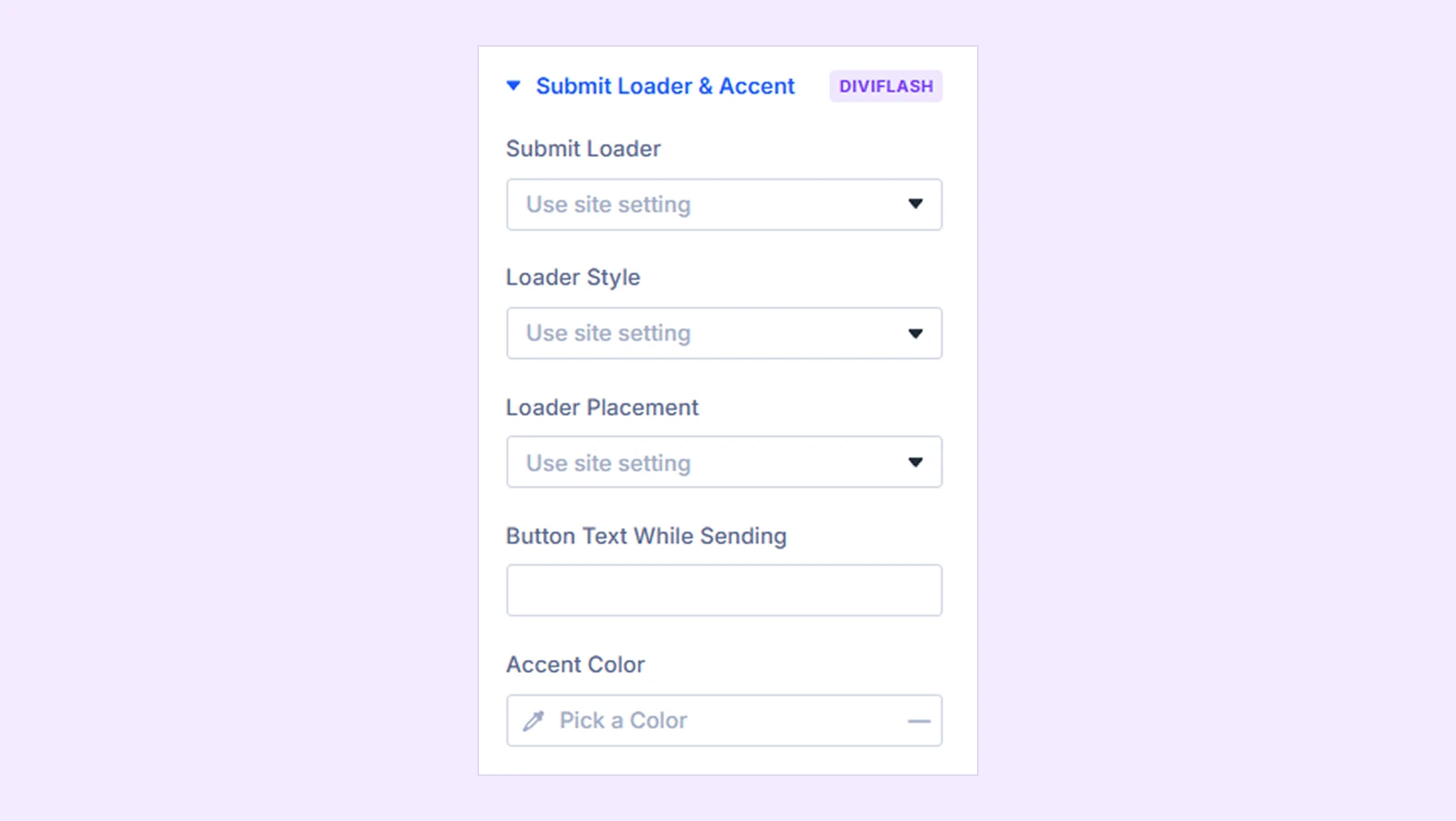
- Submit Loader: Enable or disable the loading indicator during form submission, or use the site-wide default.
- Loader Style: Choose Spinner, Dots, Pulse, or Button Text Only.
- Loader Placement: Display the loader on the submit button or over the entire form.
- Button Text While Sending: Customize the button text displayed while the form is being submitted.
- Accent Color: Choose the color used for the loader, star ratings, multi-select options, range slider, and file upload area.
Need Help?
If you have any questions or need assistance, contact our support team: [email protected].