
To add the eLearning layout to your Divi site, you can use either of the methods below:
- Method 1: Using the DiviFlash layout importer (recommended).
- Method 2: Manually import the layout
This doc will walk you through both methods step by step.
Method 1: Using DiviFlash Layout Importer
Step 1: Install and activate the Divi theme.
Step 2: Install and activate the DiviFlash plugin.
Step 3: Go to WordPress Dashboard > DiviFlash > Layouts, and search for “eLearning”.
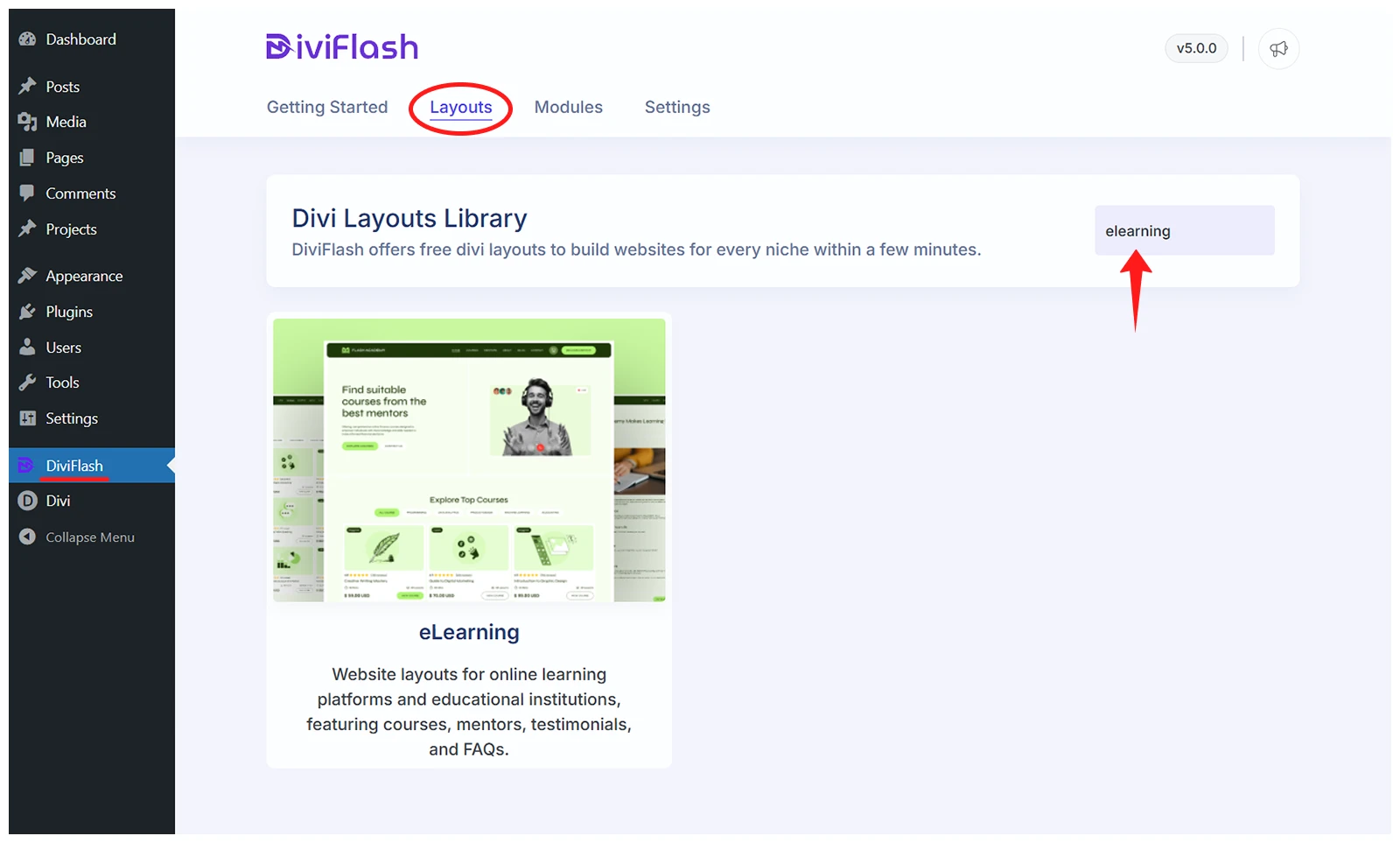
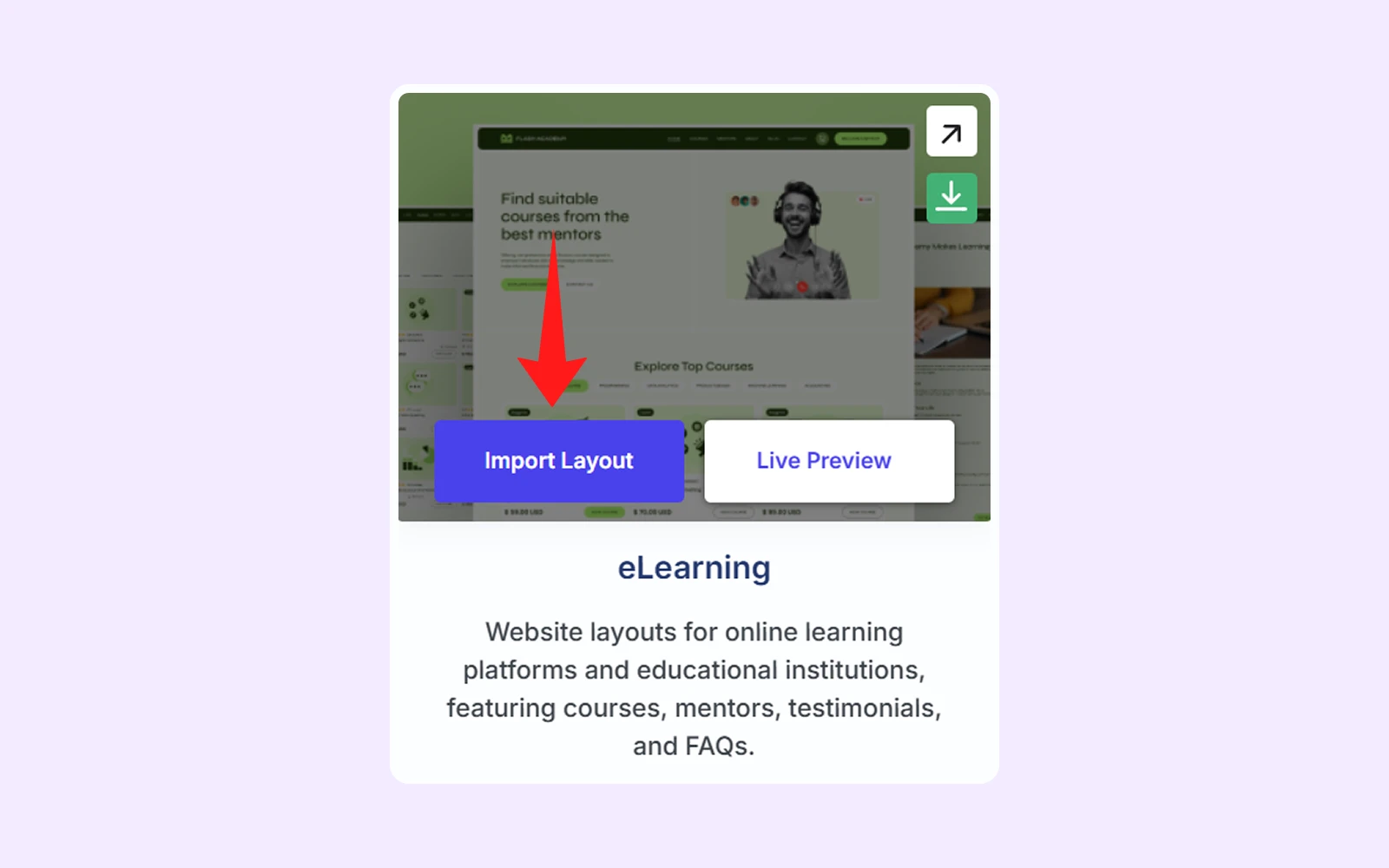
Step 4: Hover your mouse on the “eLearning” layout and click the “Import Layout” button.
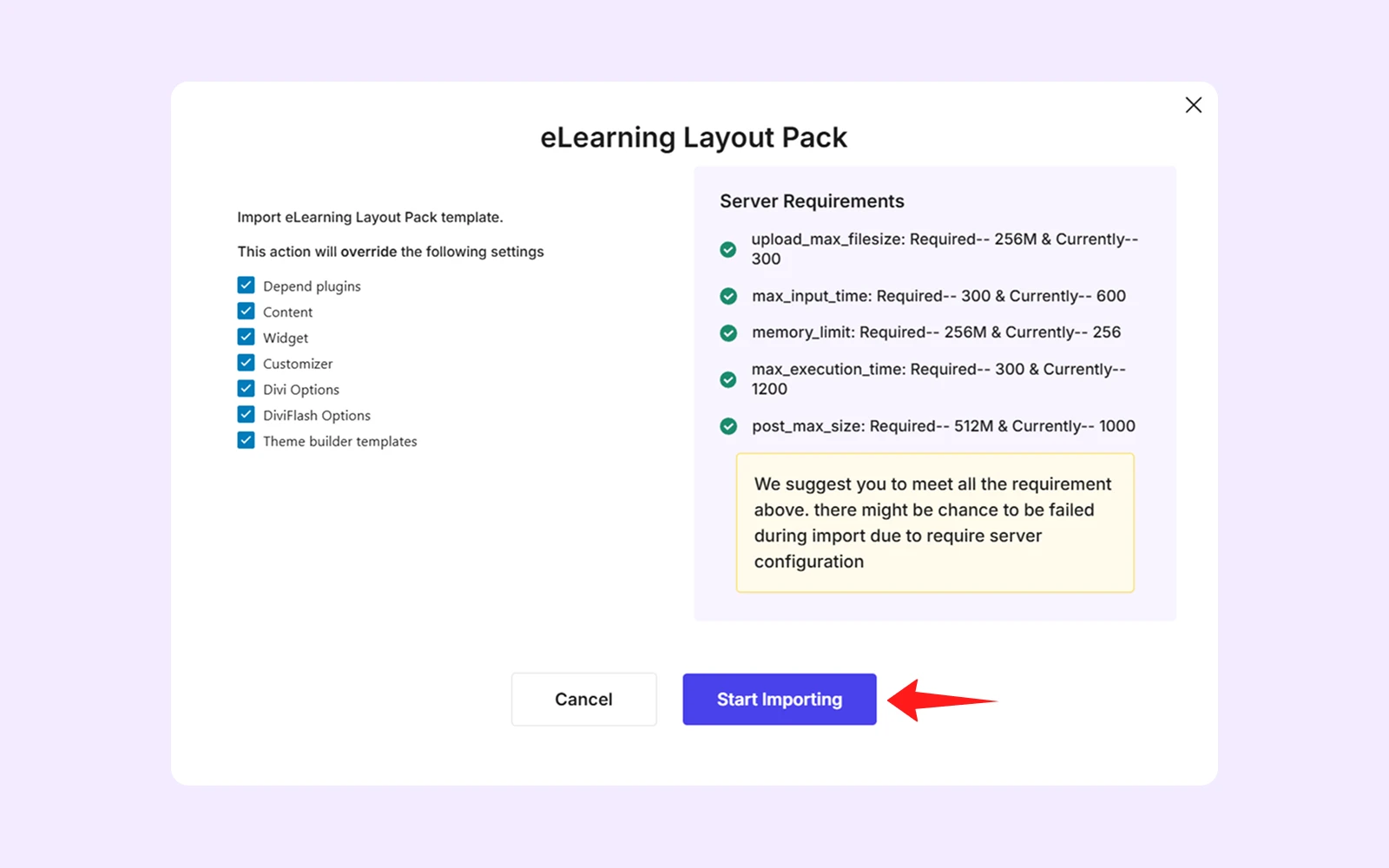
- A popup will appear, displaying layout settings and server requirements. If you see any red crosses, resolve them before clicking “Start Importing.”
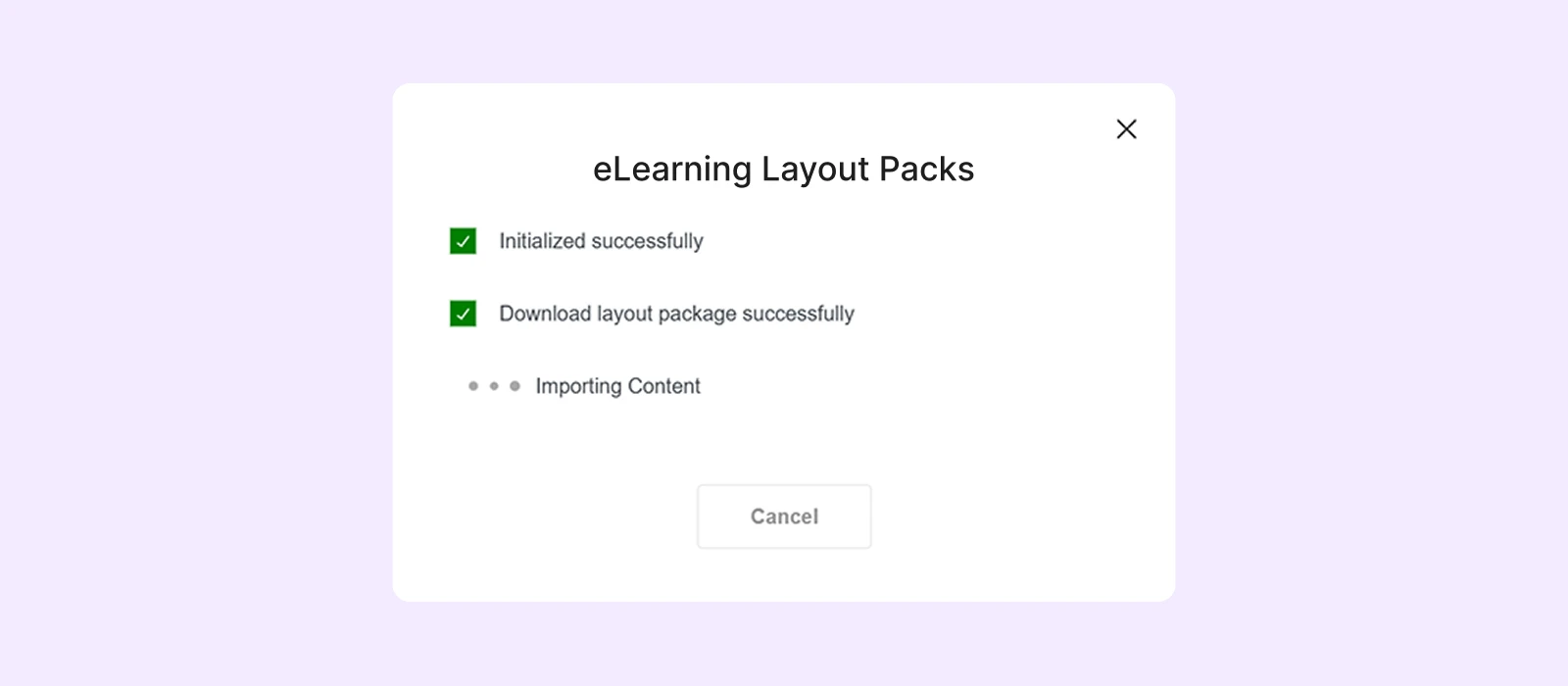
- The import process may take a few minutes.
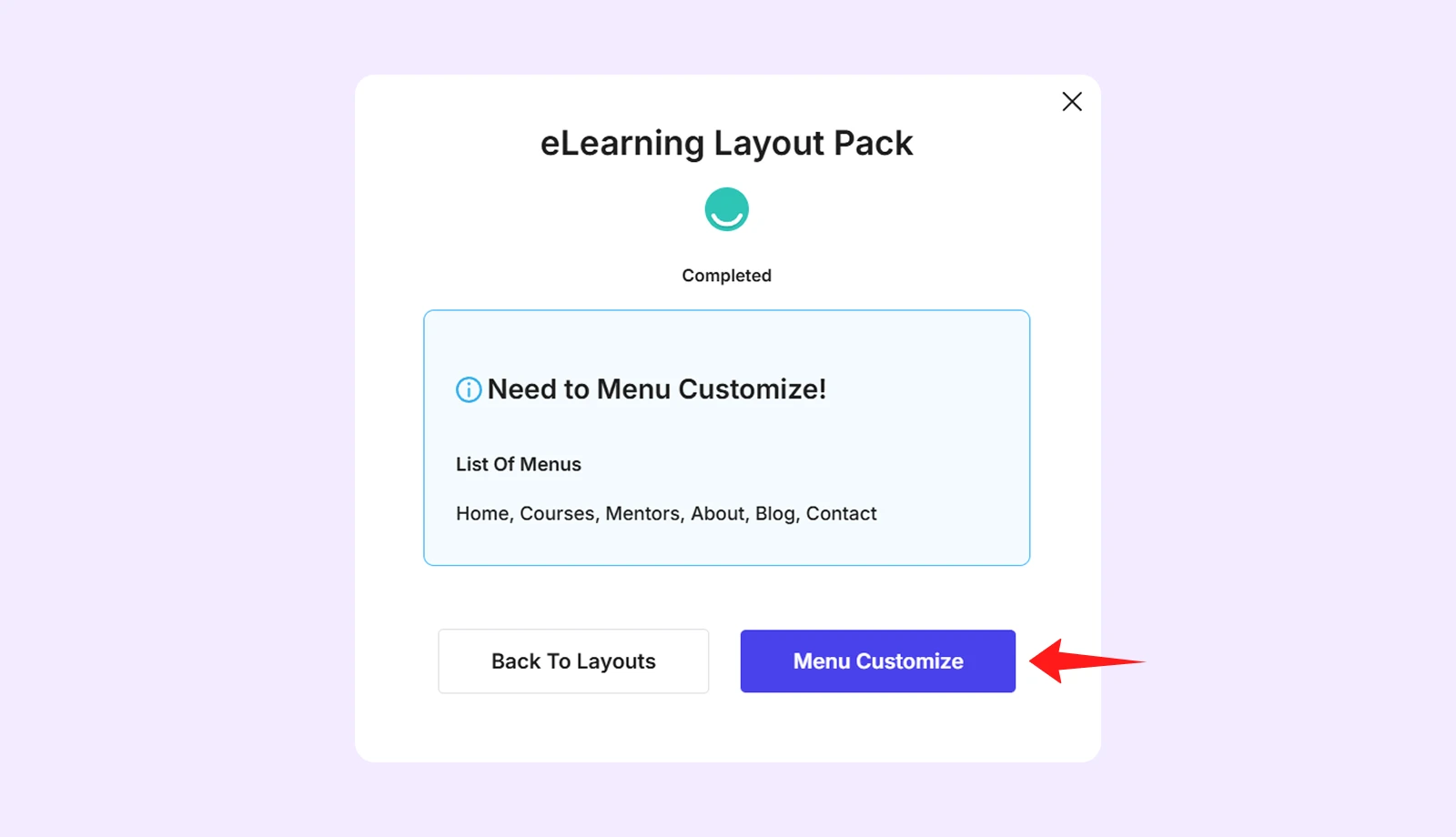
- When the import is done, click on the “Menu Customize” to customize the menu as per your choices. For better understanding, follow the Divi Layout Menu Customization guide.
Step 5: Set your homepage and blog page.
- Go to WordPress Dashboard > Settings > Reading.
- Below “Your homepage displays,” select “A static page.”
- Choose “Home” from the homepage dropdown menu.
- Choose “Blog” from the post page dropdown menu.
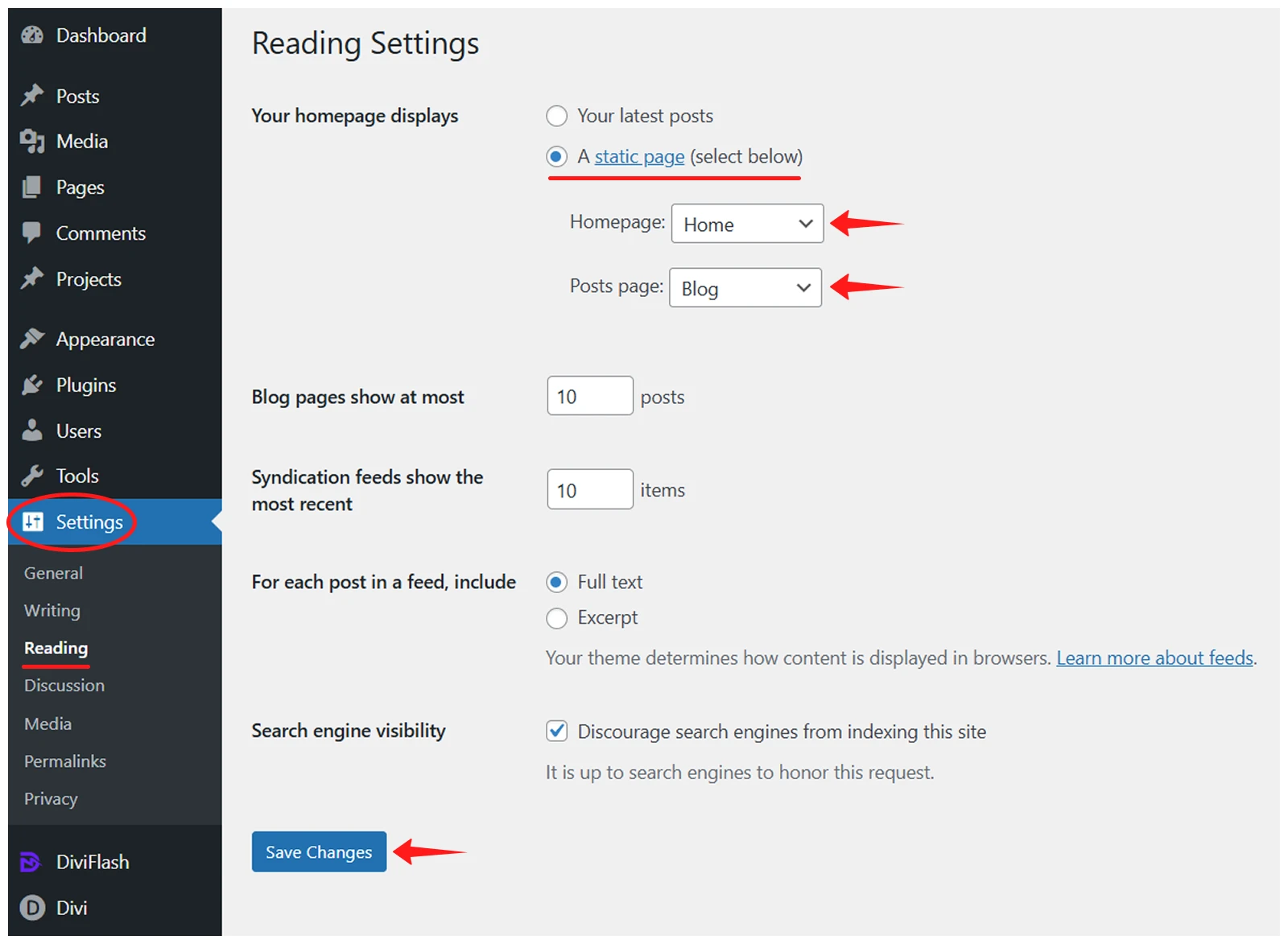
- Click on "Save Changes" to save it.
Step 6: Update Popup
eLearning layout has a popup on the homepage and other pages as well. To show popups to visitors, you need to manually update the popup ID in the location where it is triggered.
Here’s the step-by-step guide:
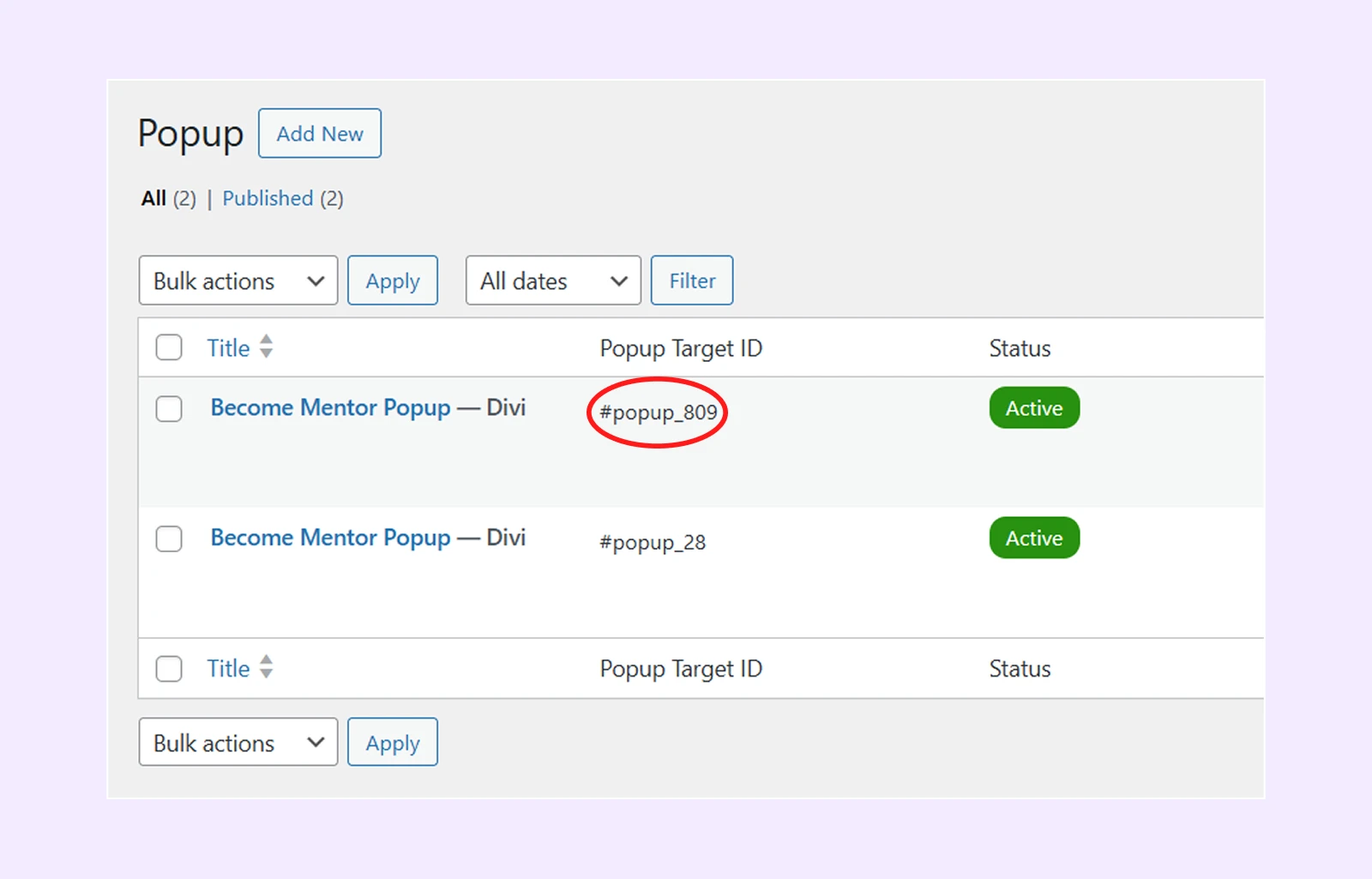
- Go to WordPress Dashboard > DF Popups > All Popups.
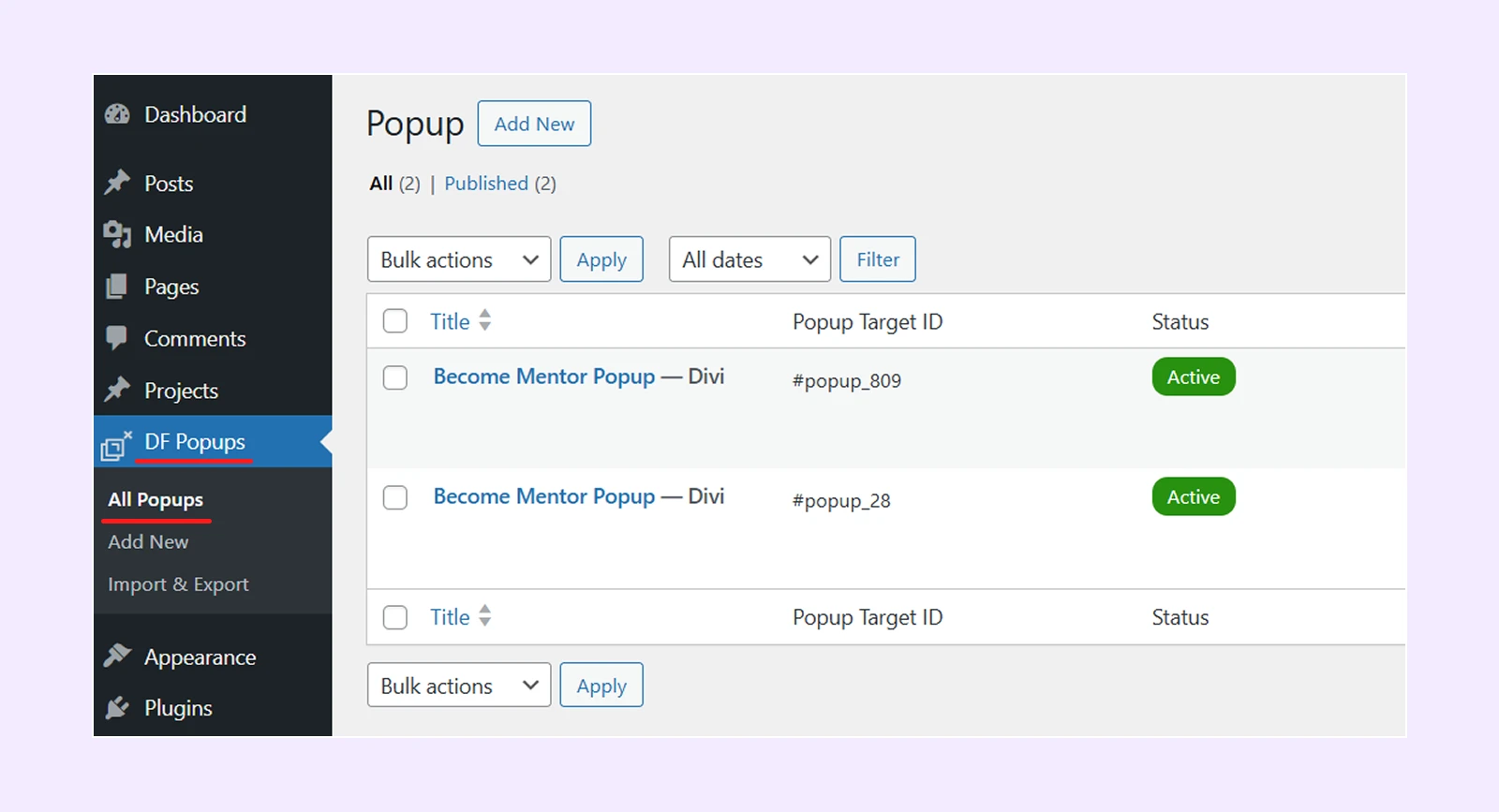
- Copy the Popup Target ID.
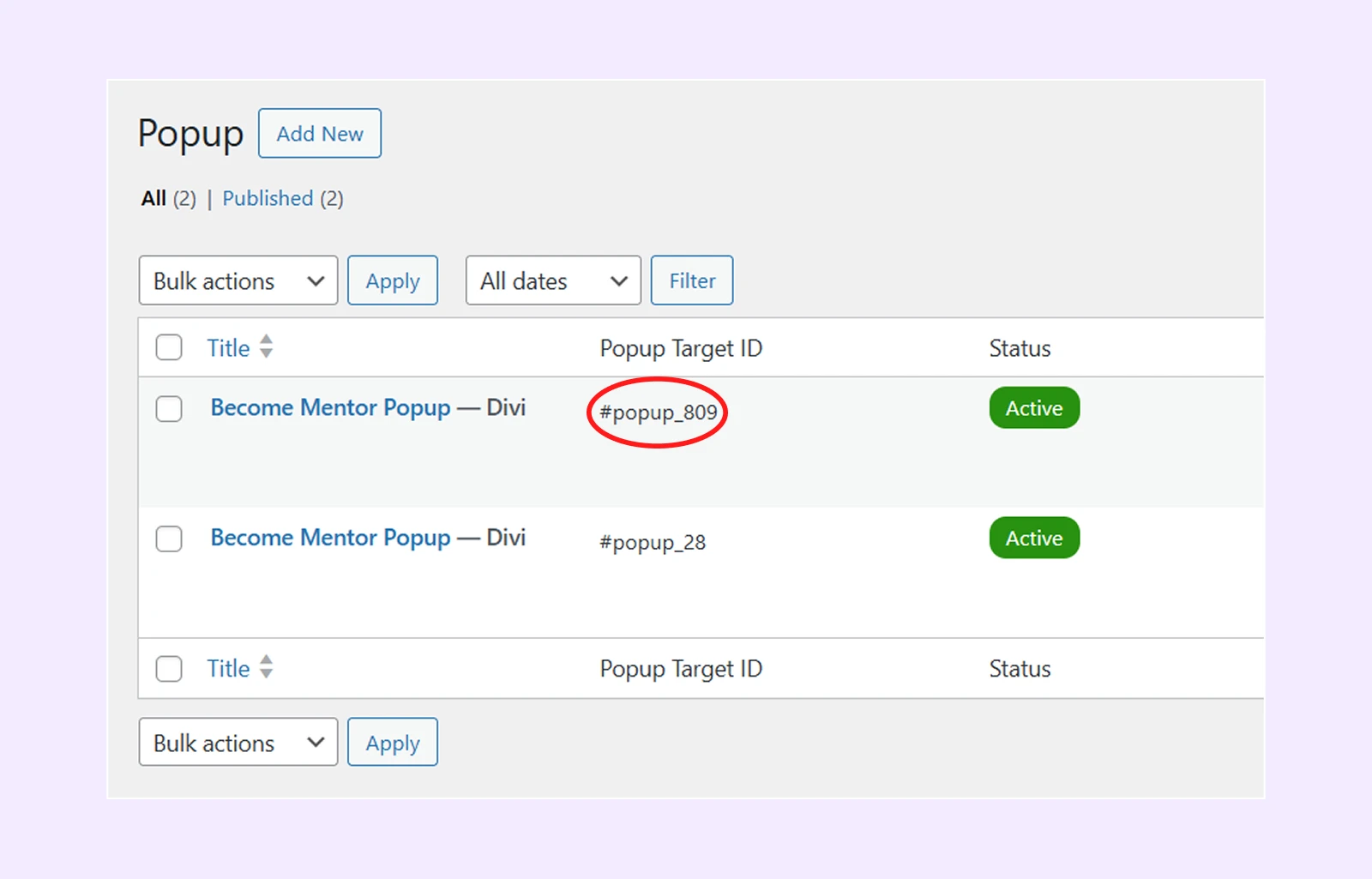
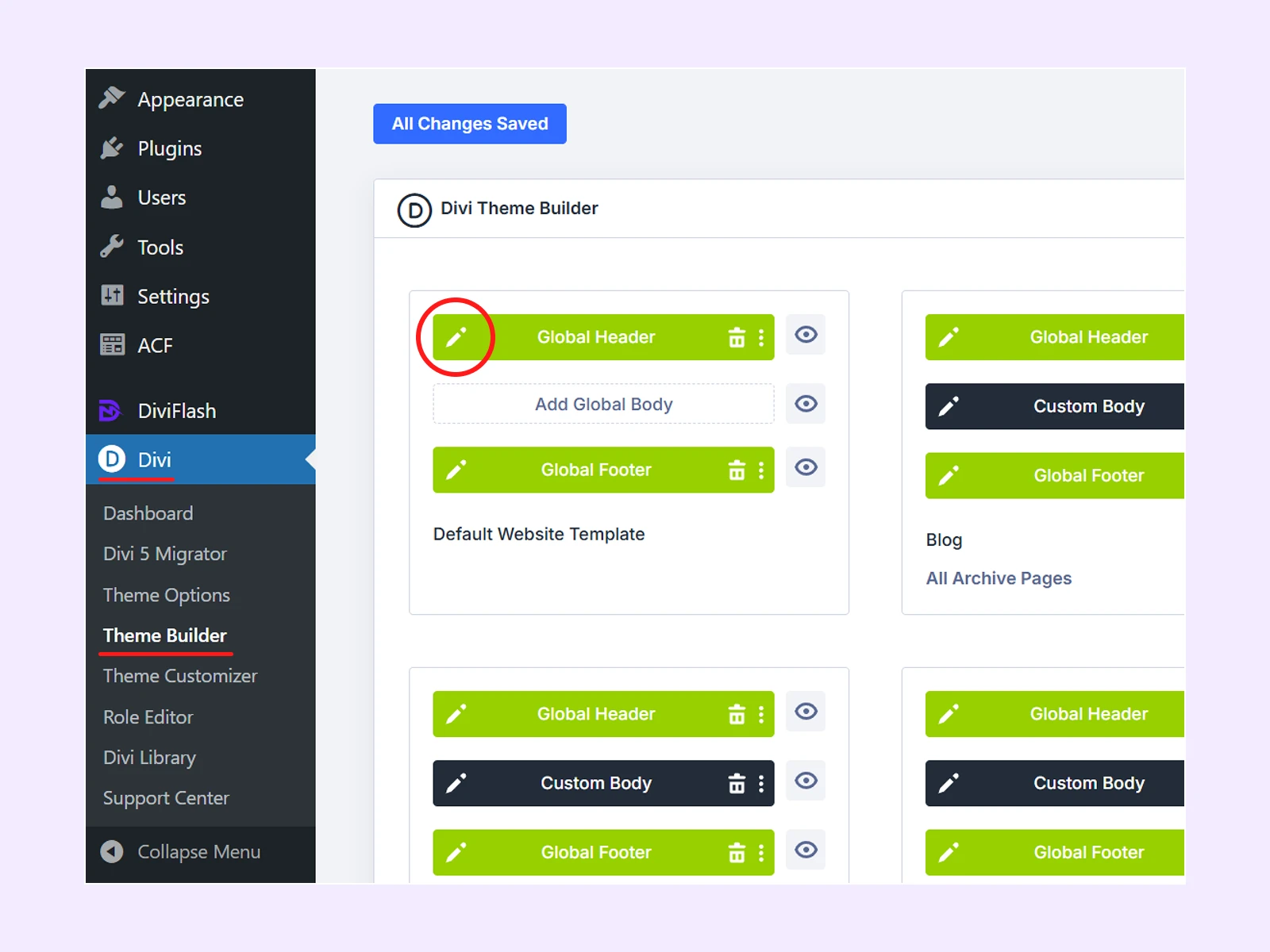
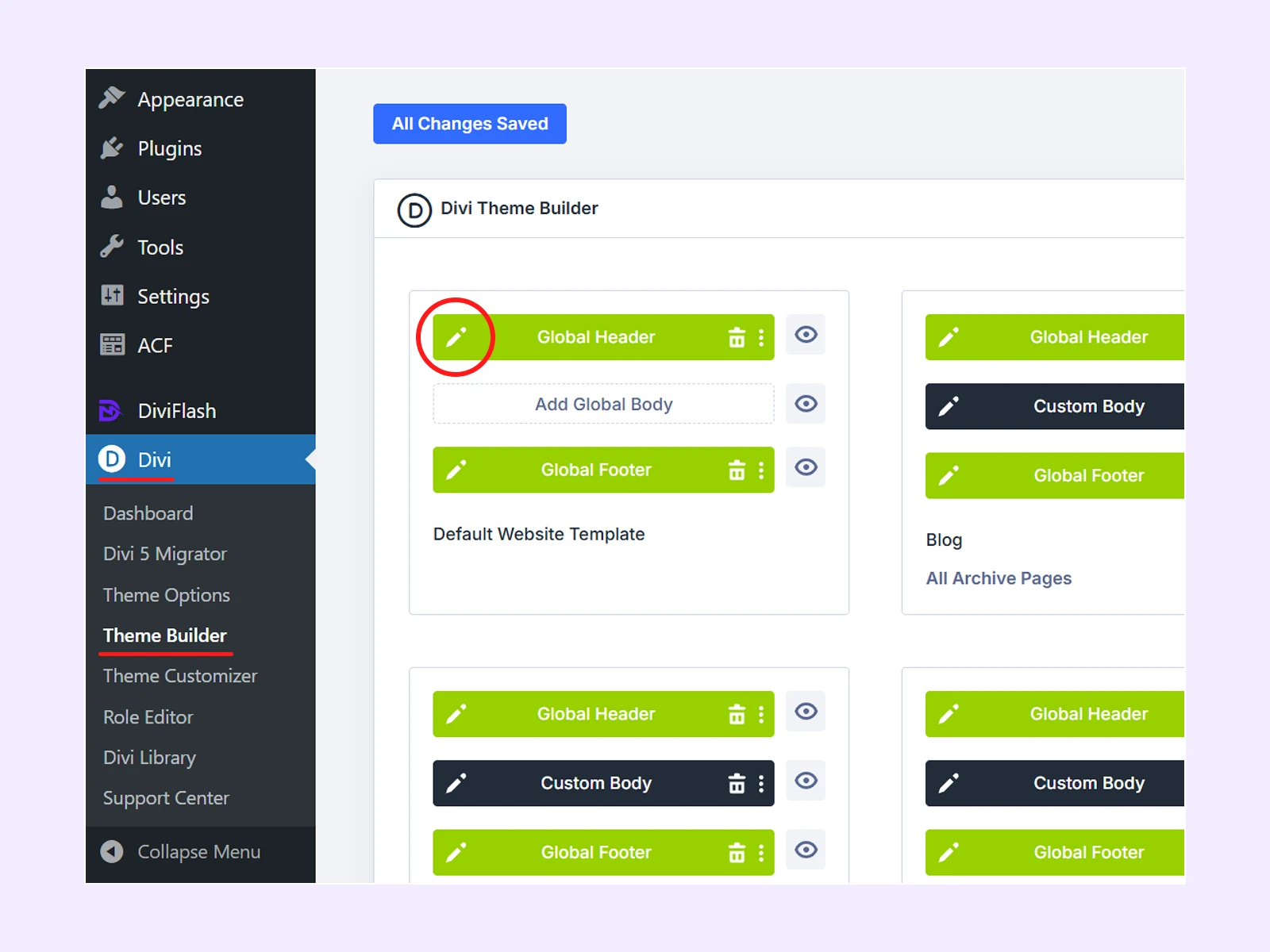
- Go to WordPress Dashboard > Divi > Theme Builder.
- Click the edit icon for the Global Header in the default website template.
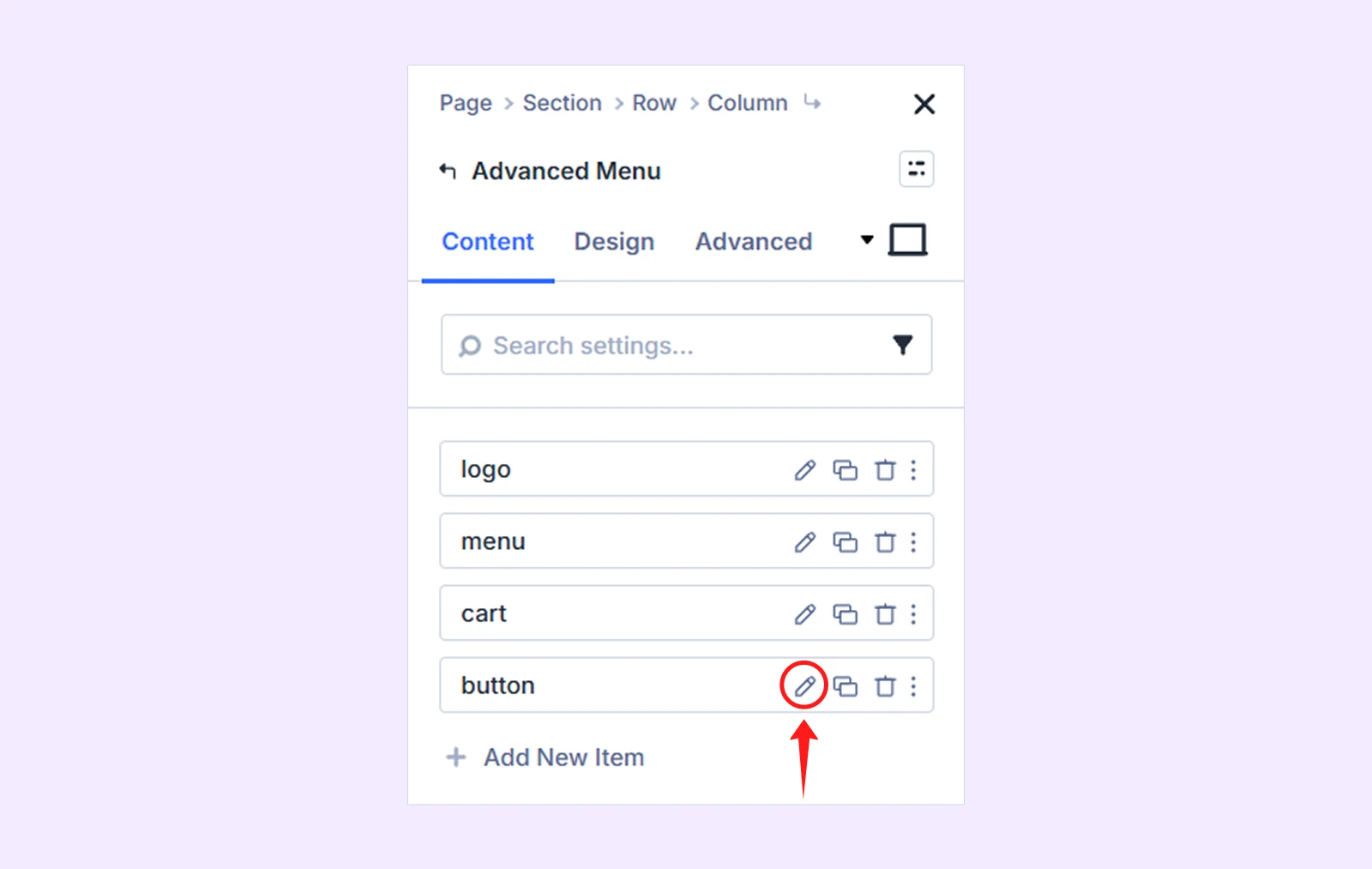
- Hover over the menu and click the Module Settings icon.

- Now click on the edit item of the “Button” item.
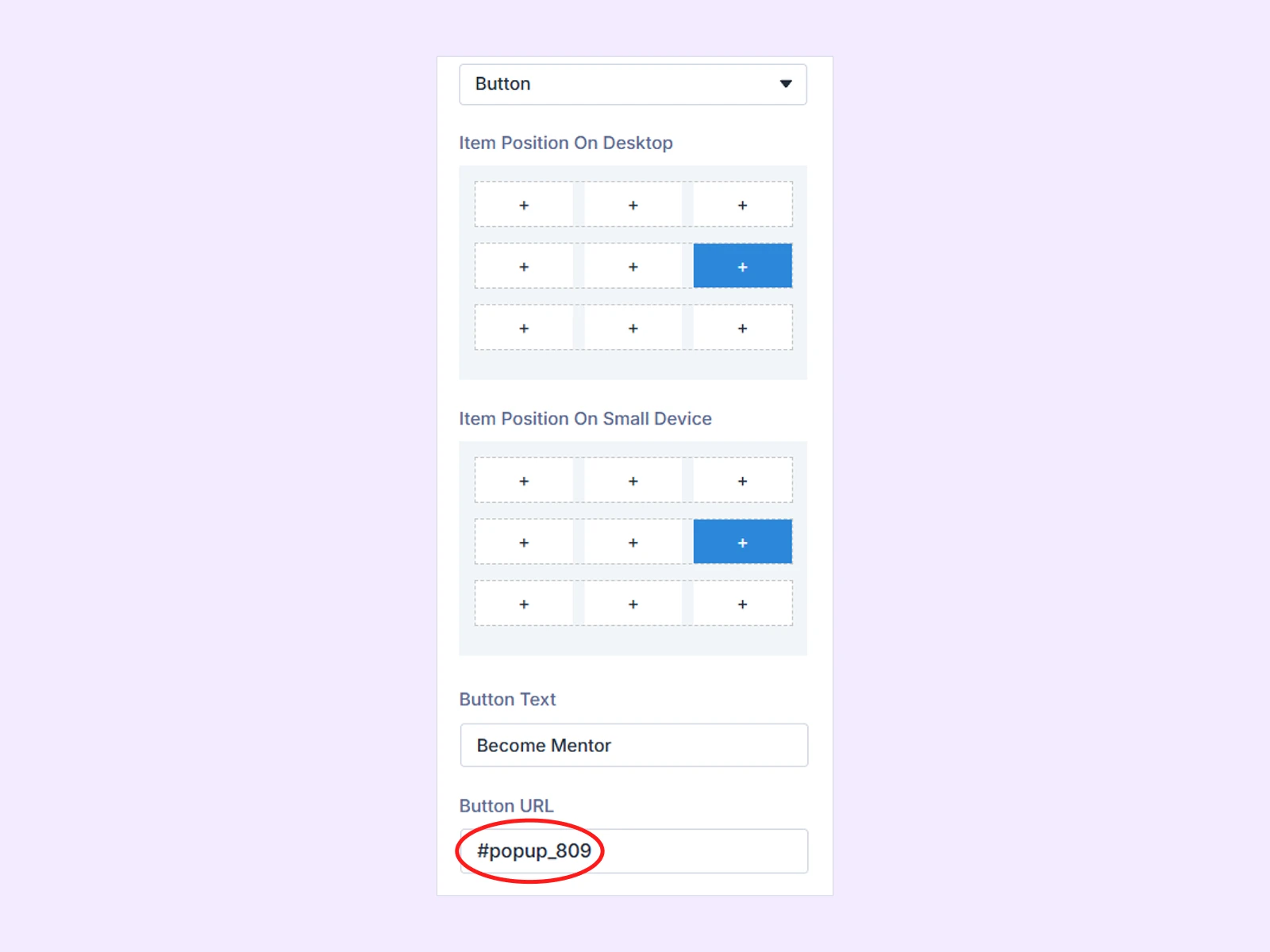
- Scroll down to the “Button URL” field and paste the copied Popup ID.
- Save the page and your popup should now work as expected.
By following the same process, paste the “Popup Target ID” for all the other “Become Mentor” popups in the layout.
The eLearning layout has been successfully imported and is now live on your website.
Method 2: Manually Import the Layout
You can also import the layout manually. Here is the step-by-step guide:
Step 1: Install and activate the Divi theme.
Step 2: Install and activate the DiviFlash plugin.
Step 3: Download the eLearning layout from the DiviFlash website and unzip it.
Step 4: Install and activate the “Advanced Custom Fields” plugin.
Step 5: Import the “ACF - eLearning Layout - DiviFlash.json” file into the ACF plugin.
- Go to the WordPress Dashboard > ACF > Tools.
- Under the “Import” section, click on “Choose File” and select “ACF - eLearning Layout - DiviFlash.json” file.
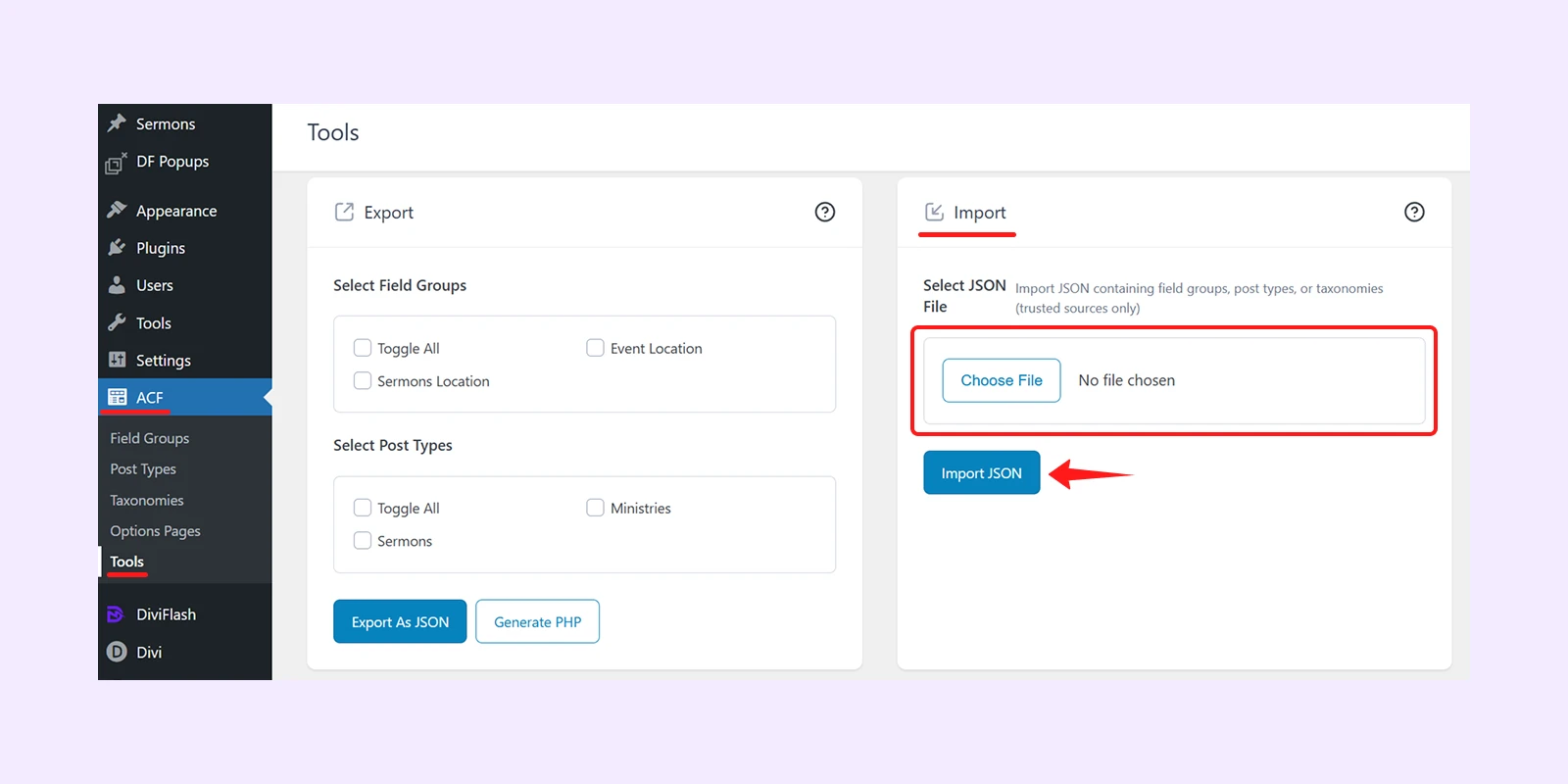
- Now, click on the “Import JSON”.
Step 6: Install and activate the “WooCommerce” plugin.
Step 7: Import the “DiviFlash Dashboard” file into the DiviFlash dashboard panel:
- Go to WordPress Dashboard > DivIFlash > Settings > Import/Export.
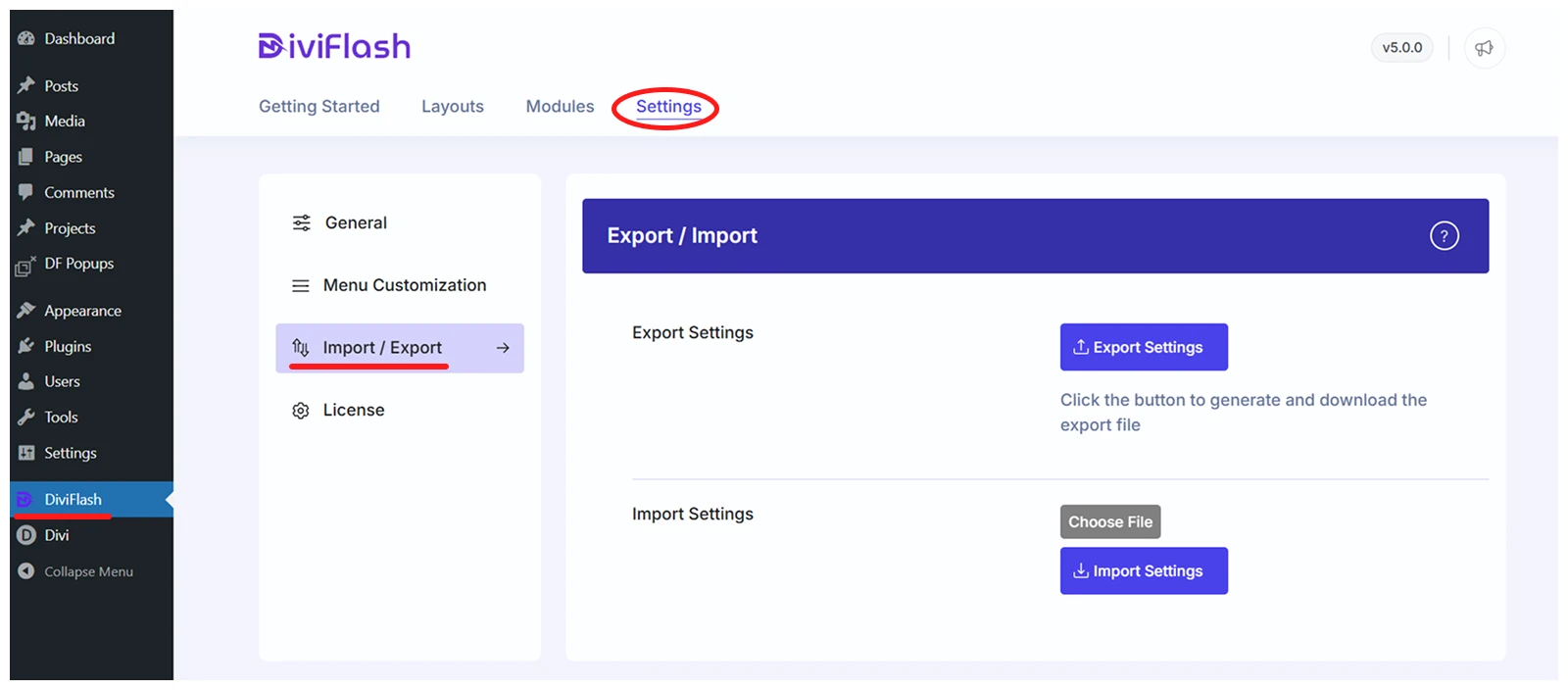
- Click on the “Choose File” and select “DiviFlash Dashboard - eLearning Layout - DiviFlash.Json”.
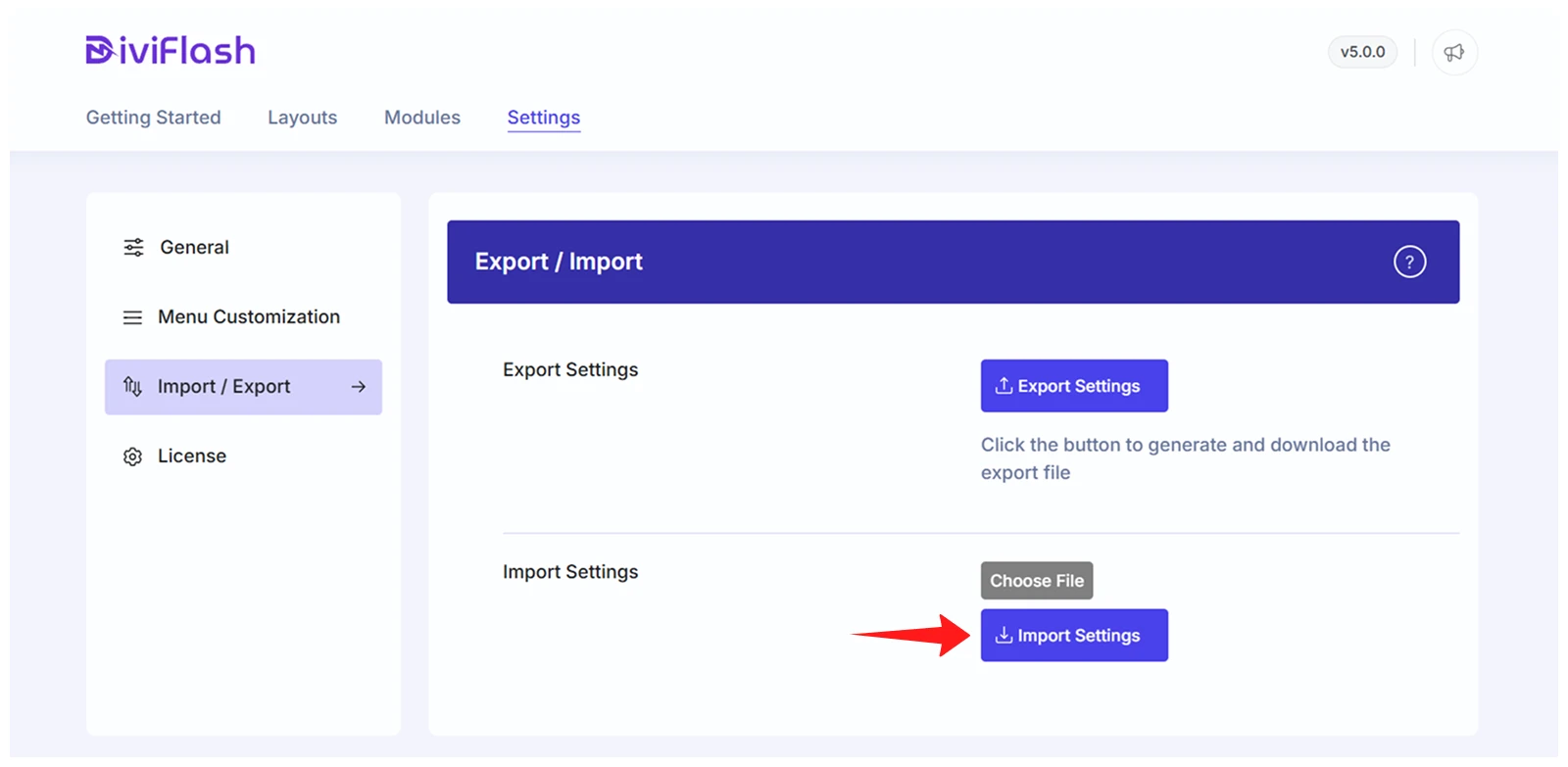
- Now, click on the “Import Settings” button.
Step 8: Import the “Divi Theme Options” setting file into the Divi Theme Options panel:
- Go to WordPress Dashboard > Divi > Theme Options.
- Select the “Import & Export” icon located right side of your screen.
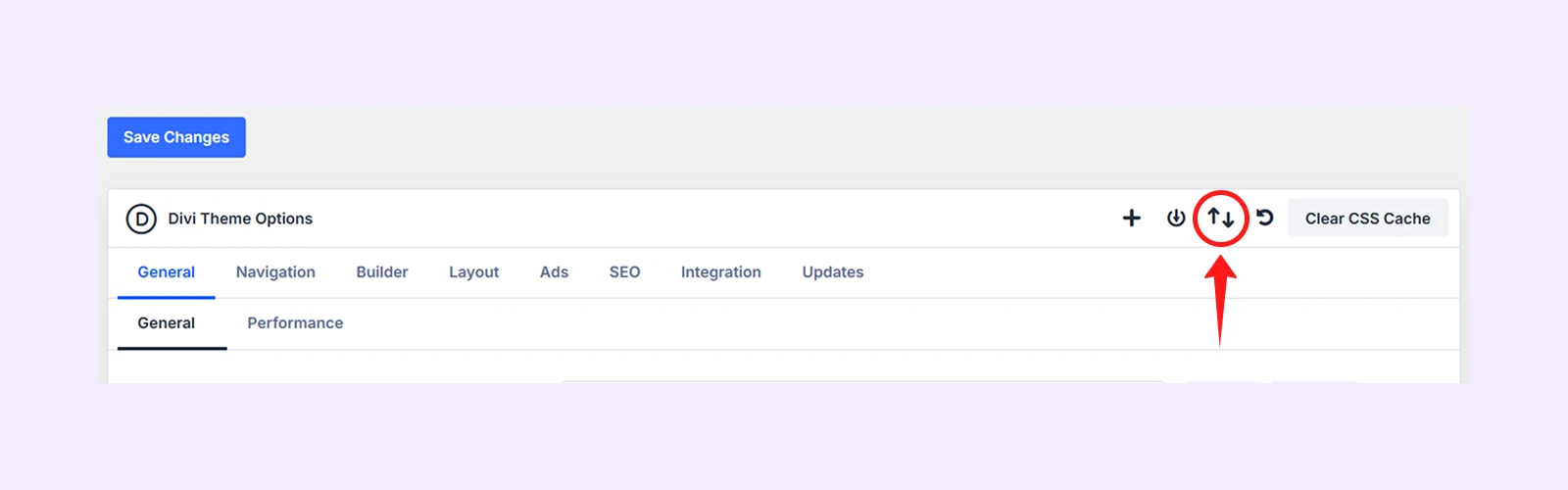
- Select the “Import” tab and choose the JSON file name “Divi Theme Options - eLearning Layout - DiviFlash.json”.
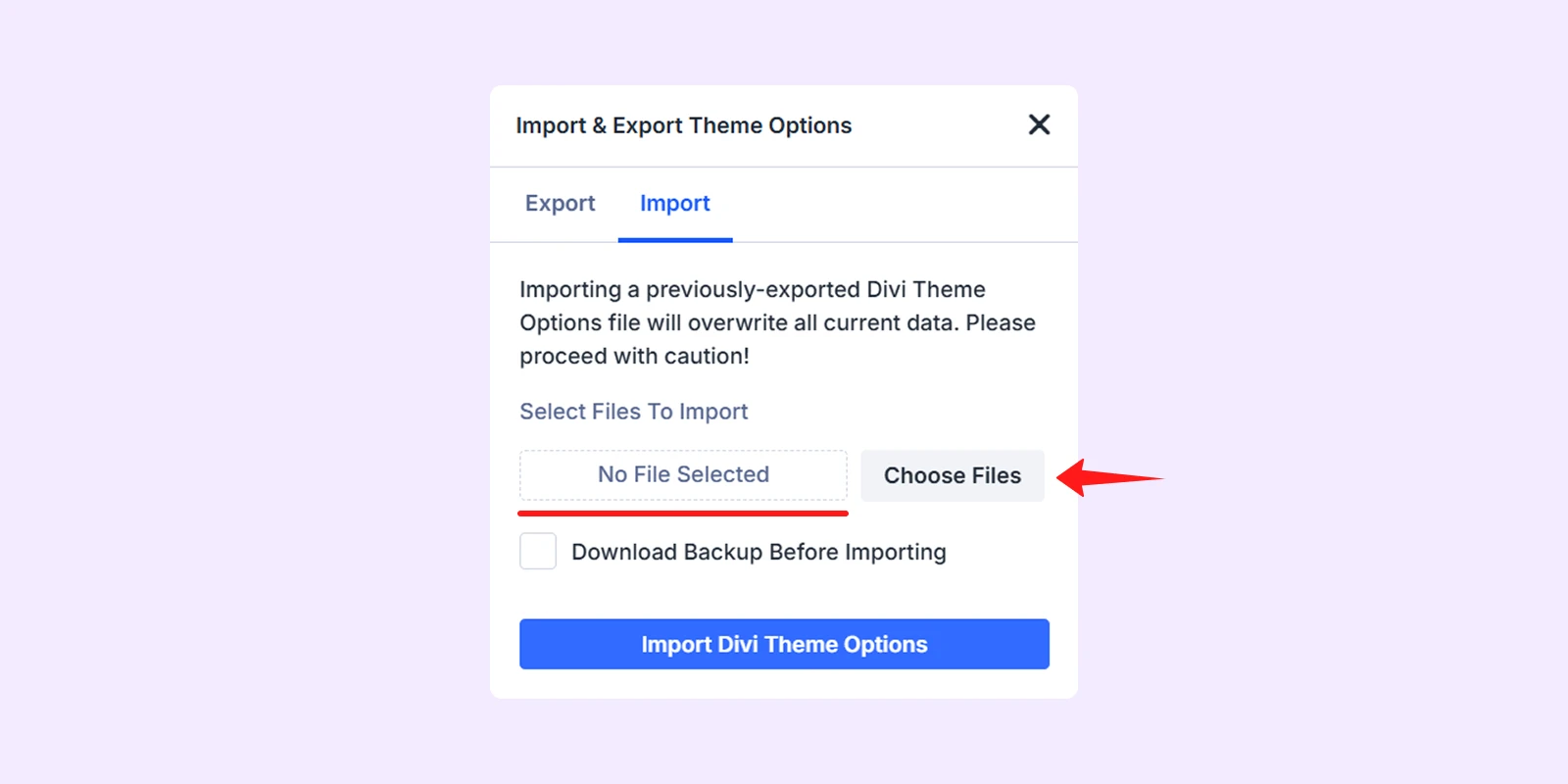
- Now, click on the “Import Divi Theme Options” and then press on the “Save Changes” to save it.
Step 9: Import the “Divi Theme Builder Settings” file into the Divi Theme Builder panel:
- Go to WordPress Dashboard > Divi > Theme Builder.
- Click on the “Import & Export” icon on the right side of the screen.
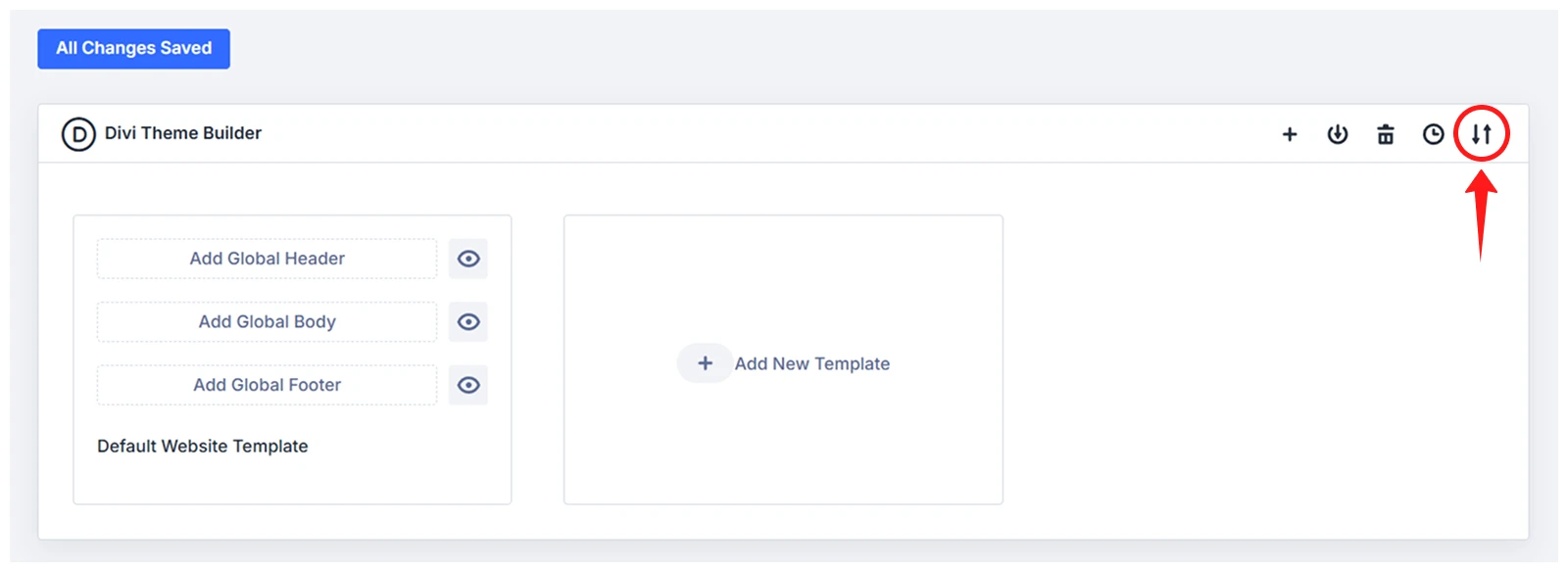
- Now, select the “Import” and choose the JSON file named “Divi Theme Builder Settings - eLearning Layout - DiviFlash.json”.
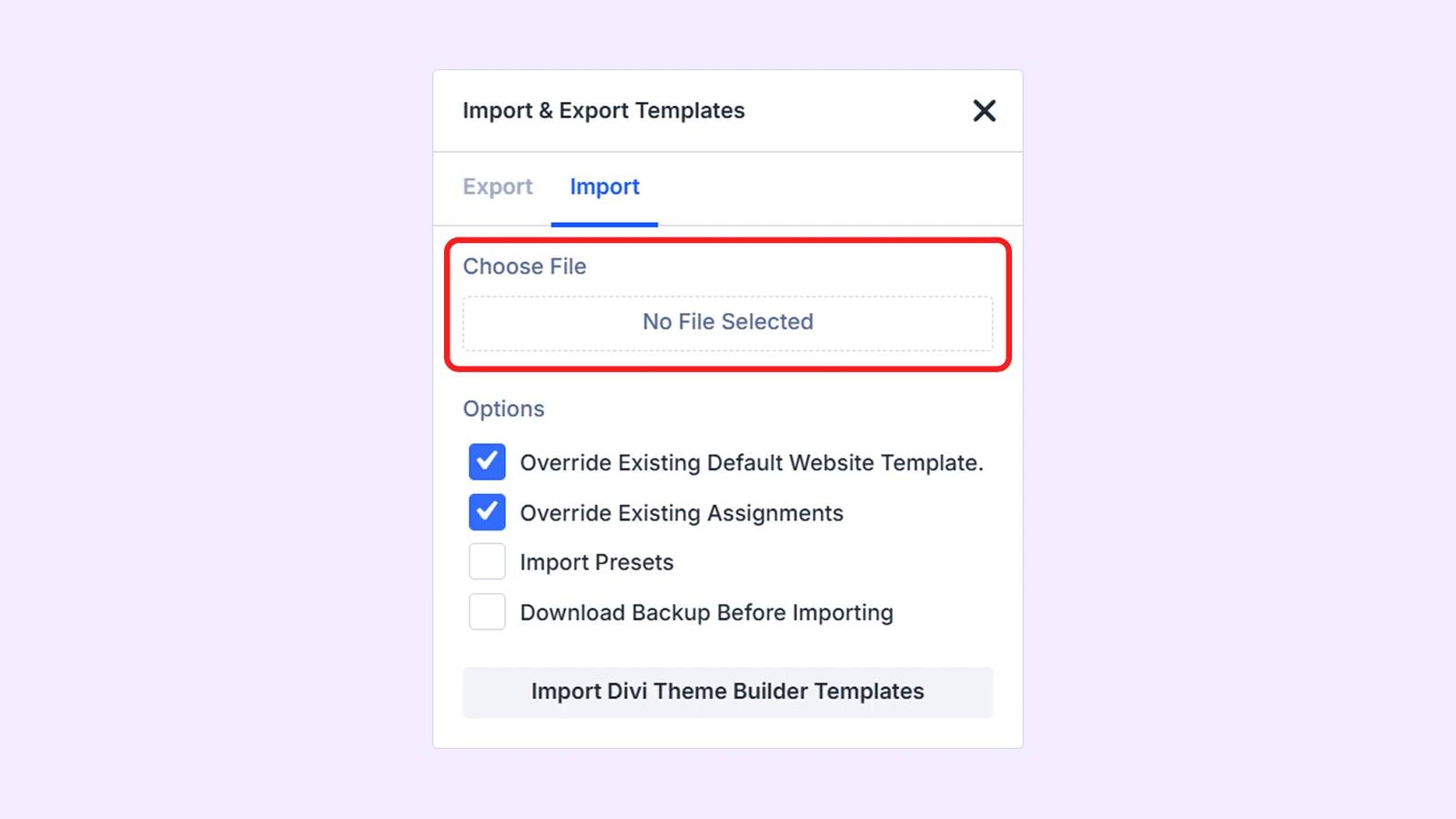
- Finally, click on the “Import Divi Theme Builder Templates” and then press the “Save Changes” button.
Step 10: Import the “Theme Customizer settings” file into the Theme Customizer panel:
- Go to the WordPress Dashboard > Divi > Theme Customizer.
- Click on the “Import & Export” on the left side of your screen.

- Now, select the “Import” and choose the JSON file named “Divi Theme Customizer Settings - eLearning Layout - DiviFlash.json”.
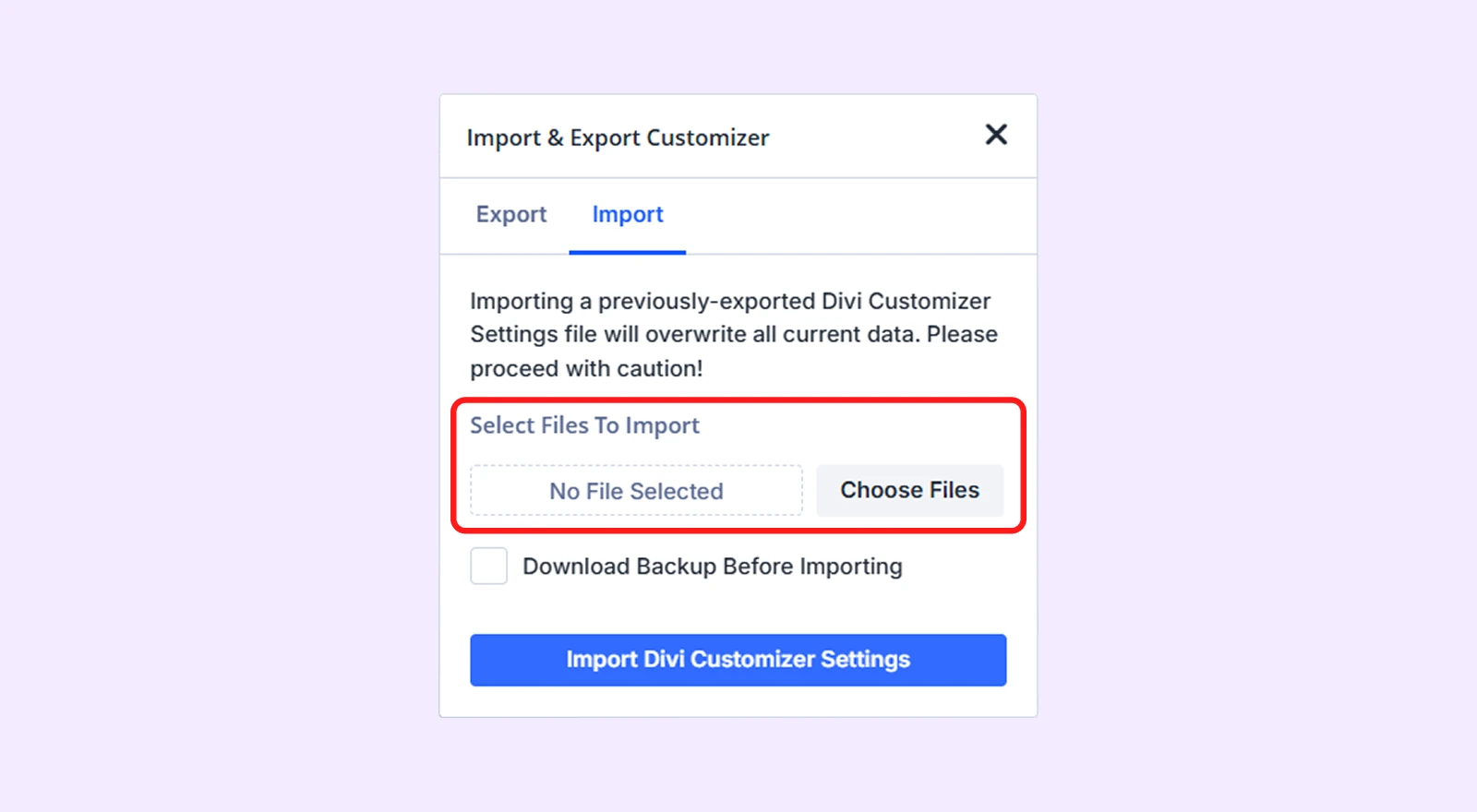
- Lastly, click on the “Import Divi Customizer Settings” button.
Step 11: Import the “Divi Library” file into the Divi Library panel:
- Go to WordPress Dashboard > Divi > Divi Library.
- Click on the “Import & Export” icon on the right side of the corner.
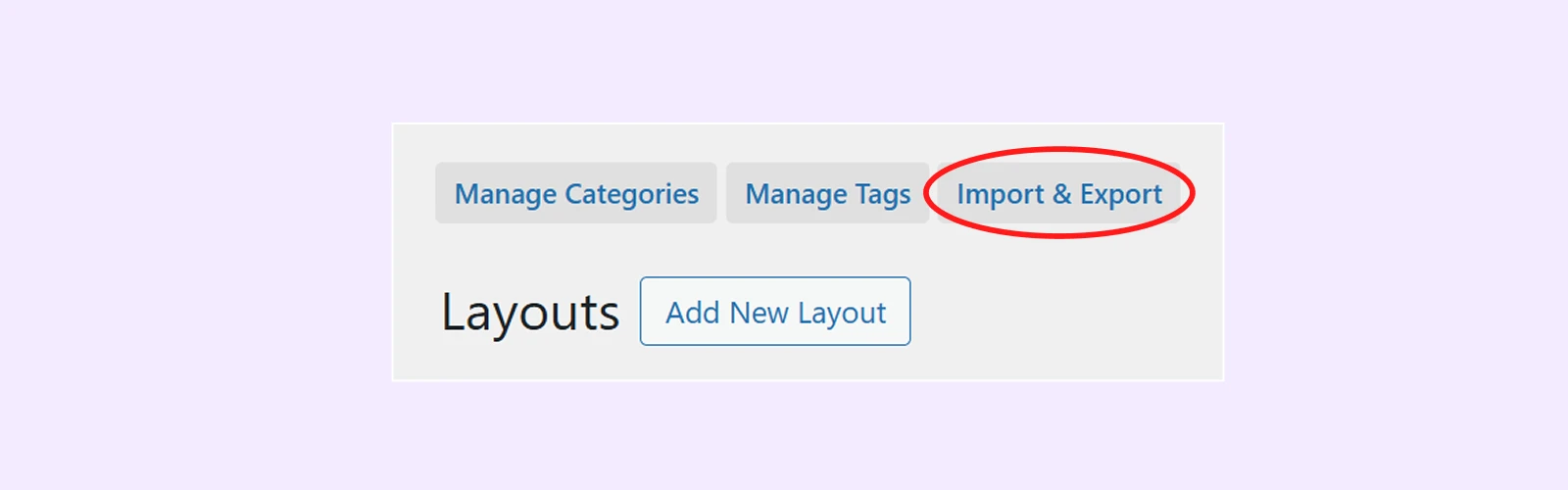
- Choose the “Import” tab and select the JSON file named “All In One - eLearning Layout - DiviFlash.json”.
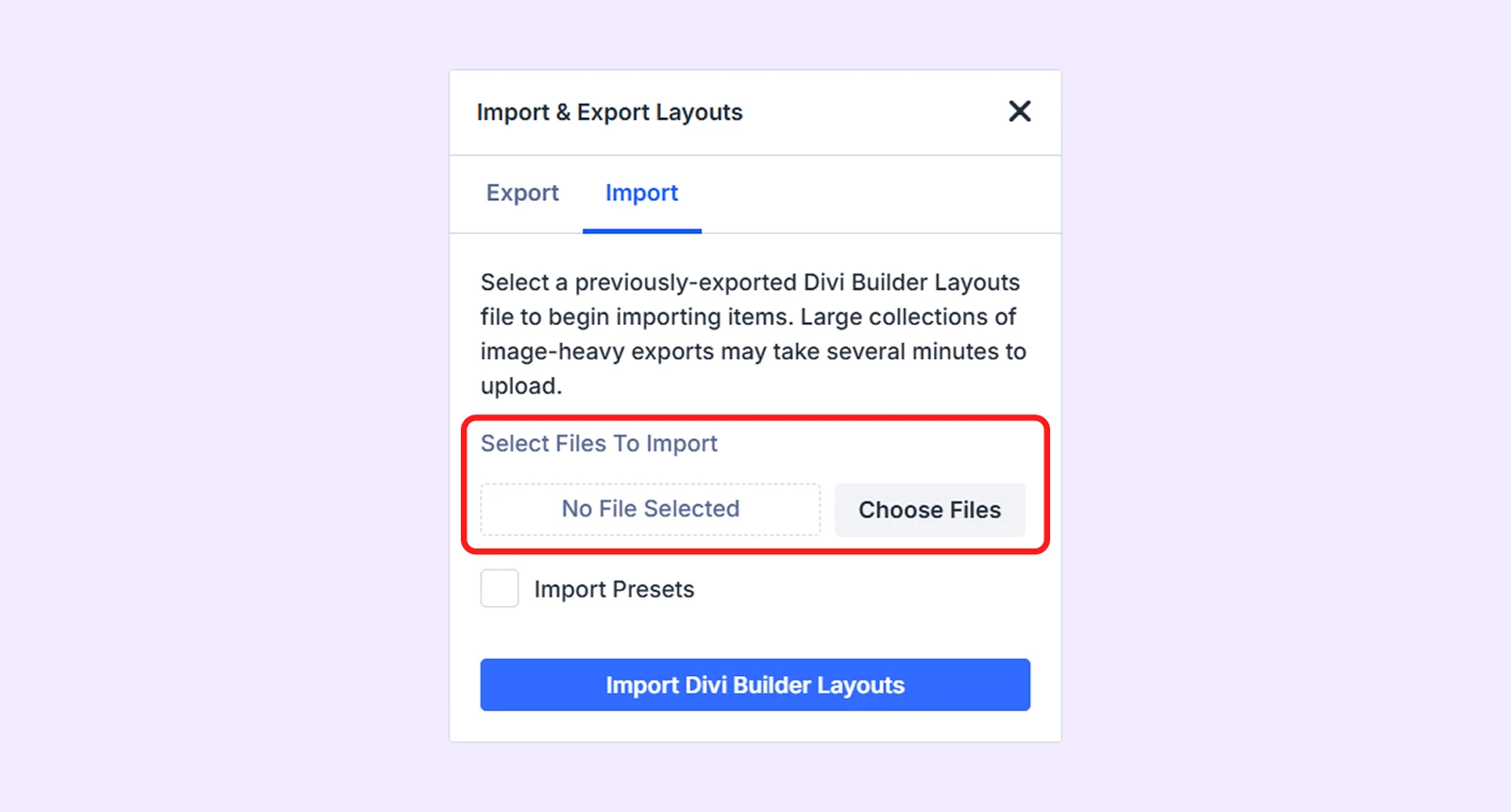
- Now, click on the “Import Divi Builder Layouts".
Your next step is to create new pages using the layouts you've saved in your Divi Library. (Follow our doc How to Create Pages with Divi layouts from Library for better understanding.)
Step 12: Import the Media file for the layout
- Go to WordPress Dashboard > Tools > Import.
- Click on the “Run importer” under the “WordPress” (If you see “Install Now” instead of “Run Importer”, click install.). “Run Importer” will appear then.
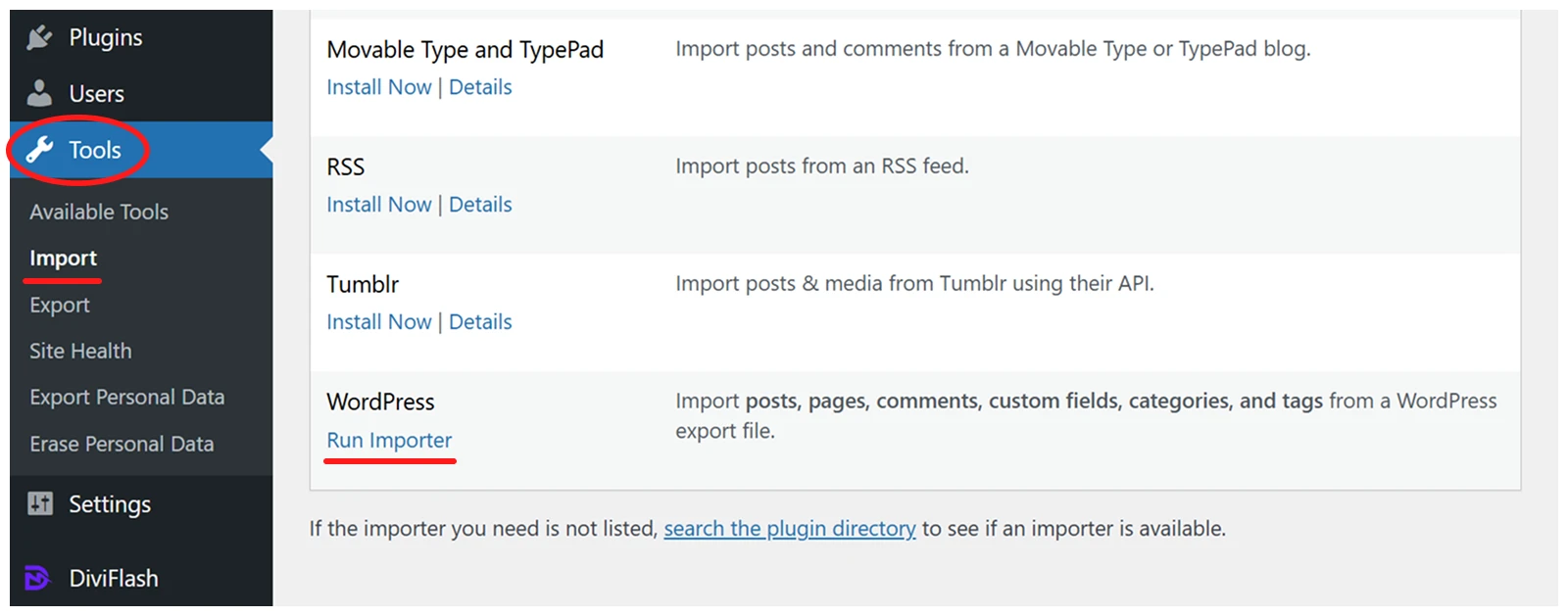
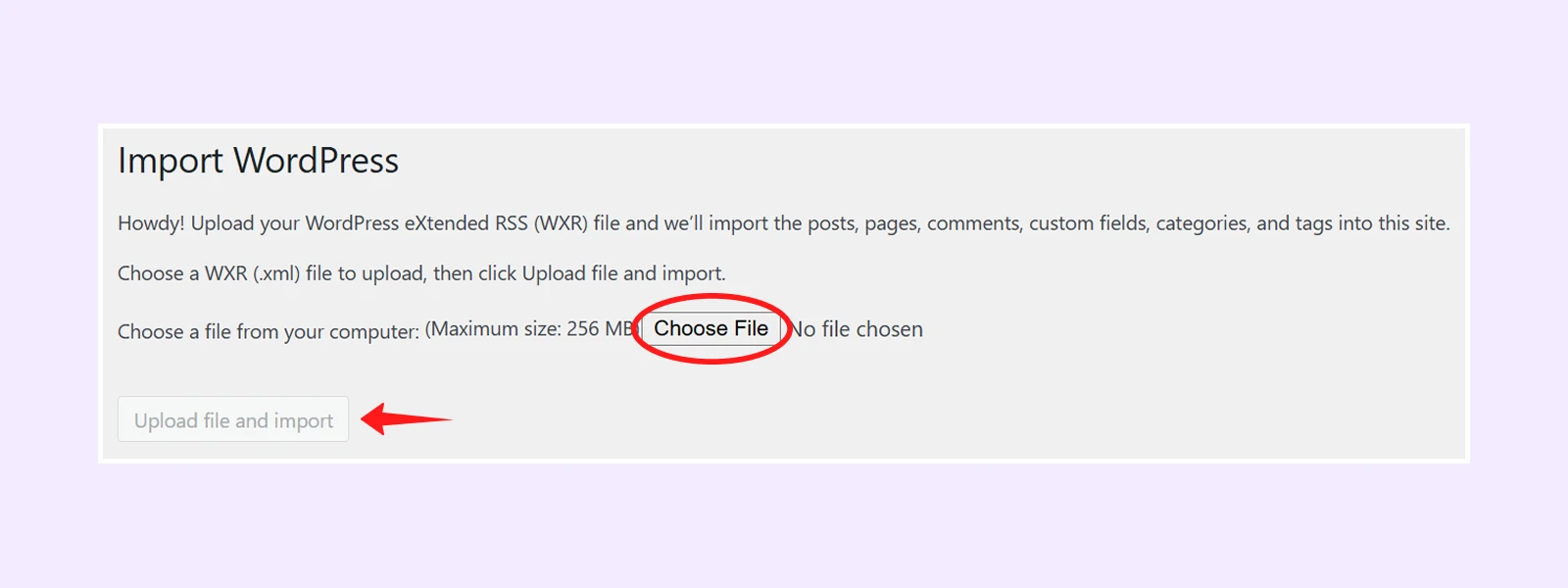
- Click on the “Choose File” and import the file named “Media - eLearning Layout - DiviFlash.xml”, then click on the “Upload file and import”.
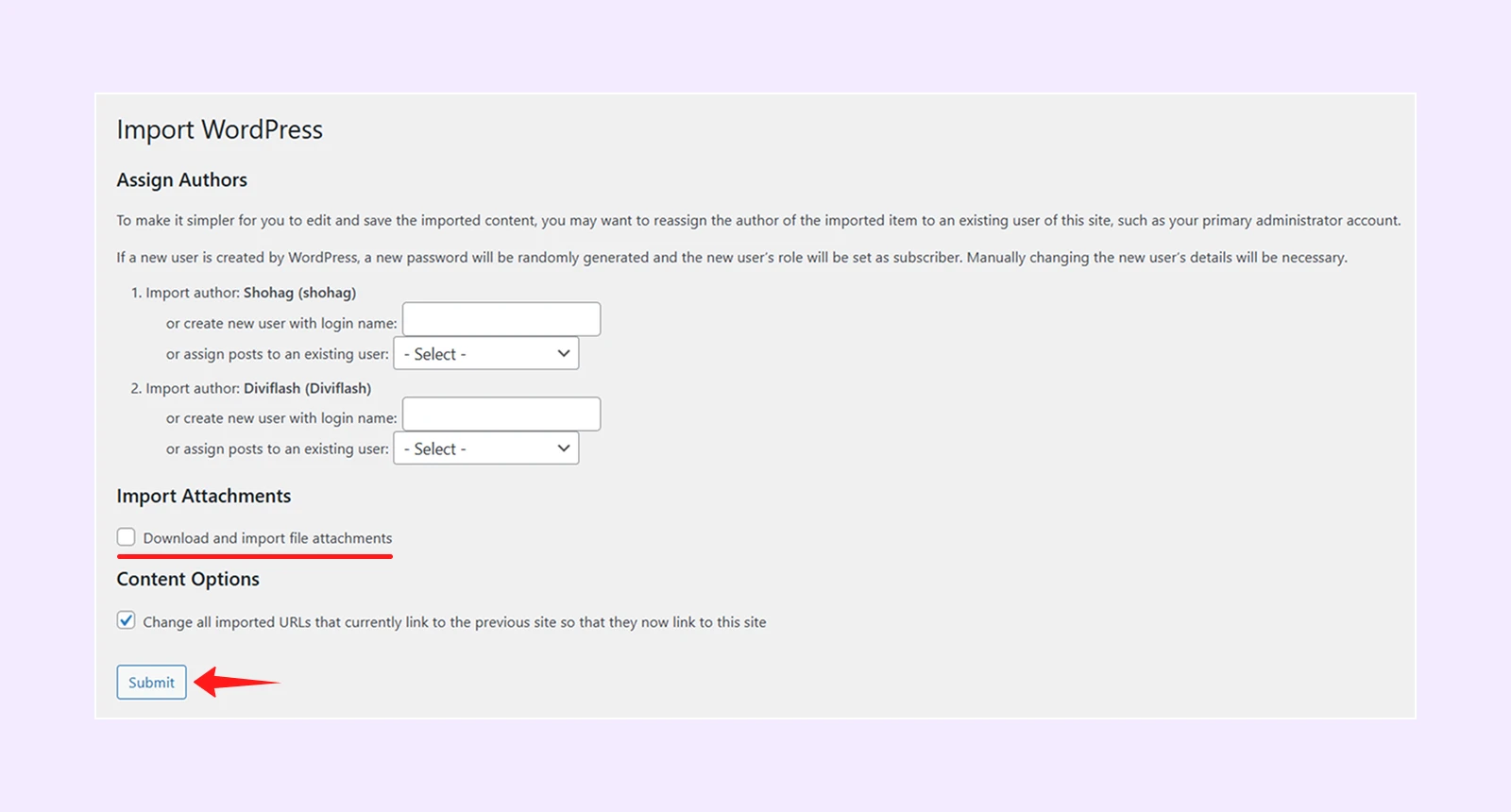
- Assign the author (or you can skip the step). Next, check the “Download and Import File Attachments” and click “submit”.
- By following the same steps, import the xml file for “Posts” and “Products”.
Step 13: Edit or Add Product Details
eLearning layout includes multiple products (courses). You can edit the existing products using the available fields and settings. To add a new product using the layout’s Product Details Template, follow these steps:
- Go to WordPress Dashboard > Products > Add New.
- Add the necessary product details.
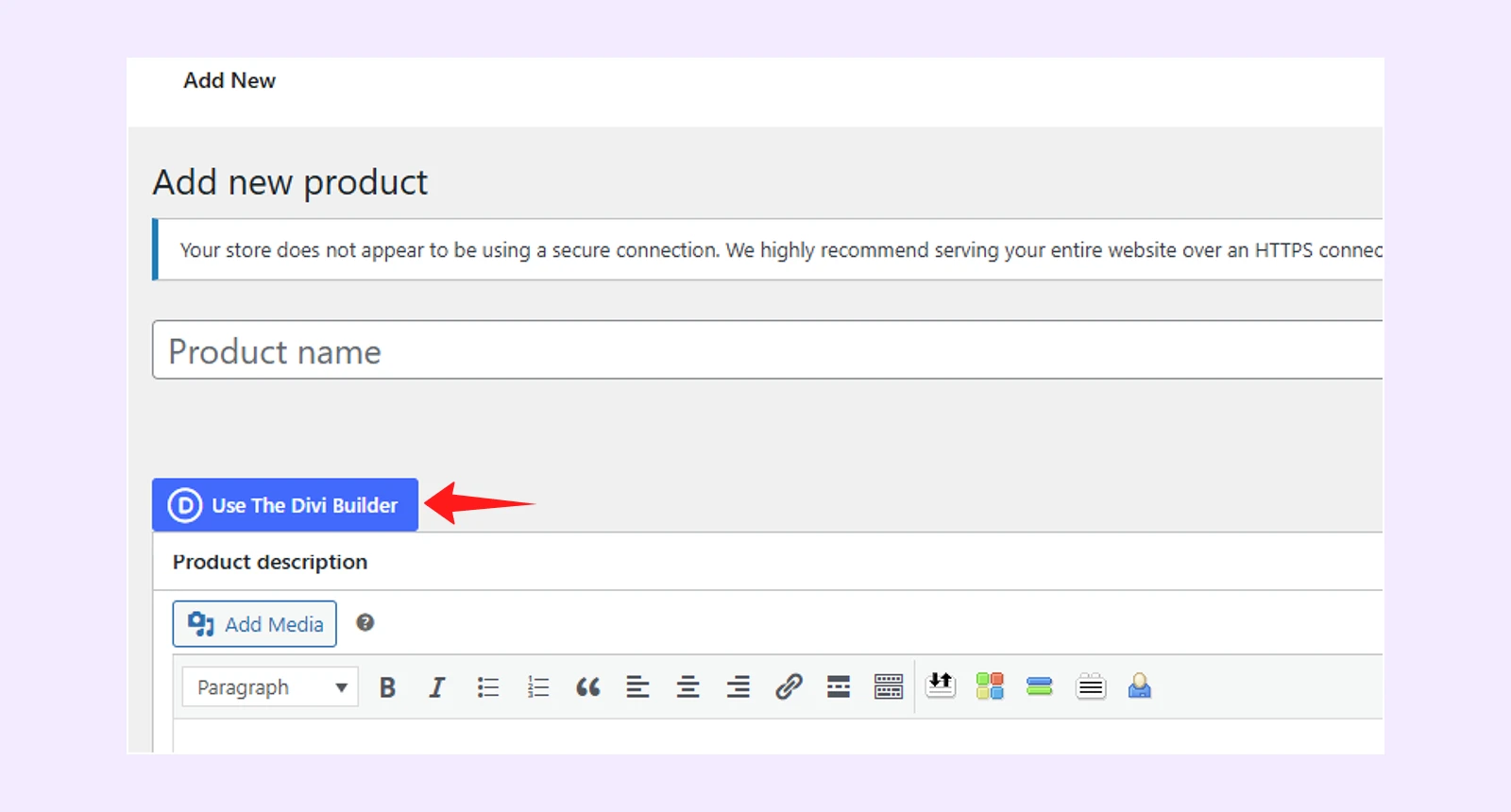
- Click “Use The Divi Builder” in the product description area.
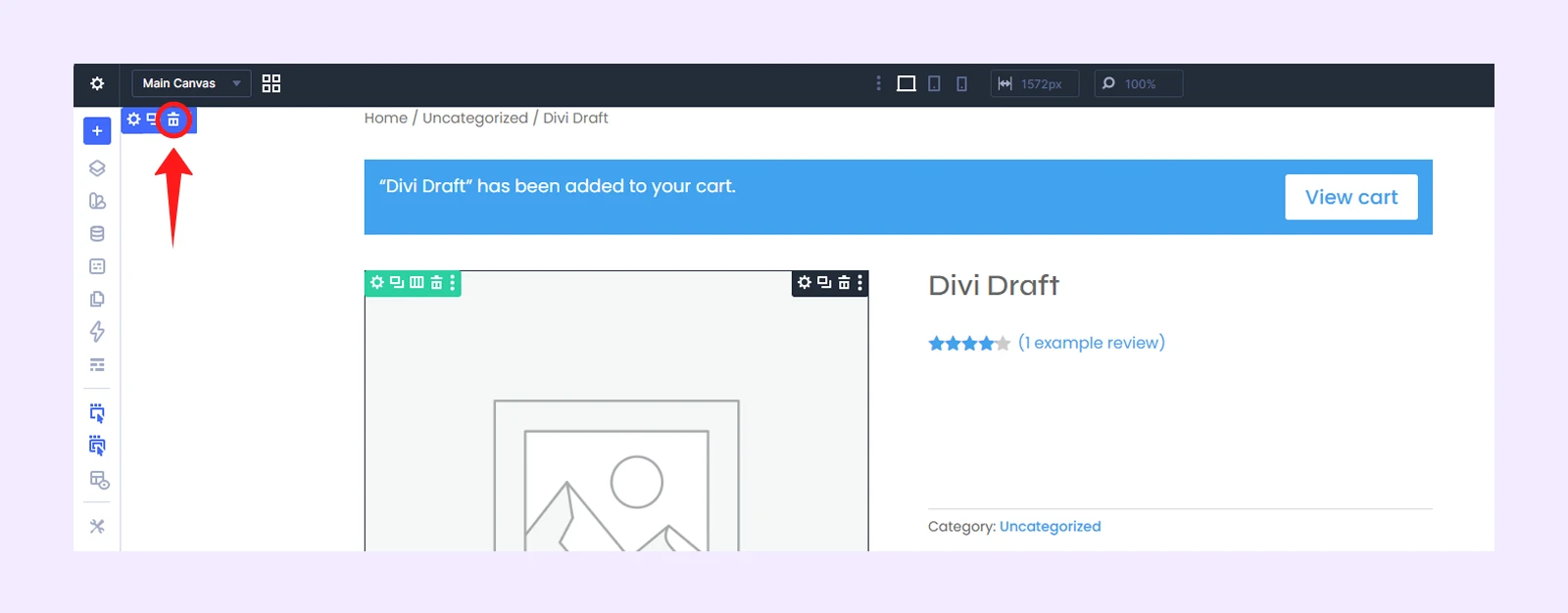
- Delete all existing sections.
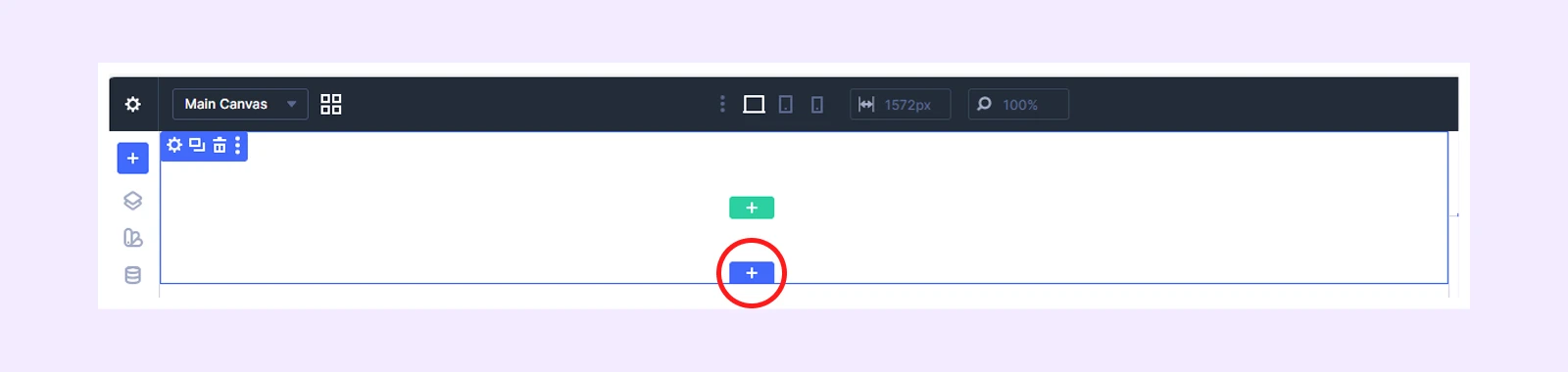
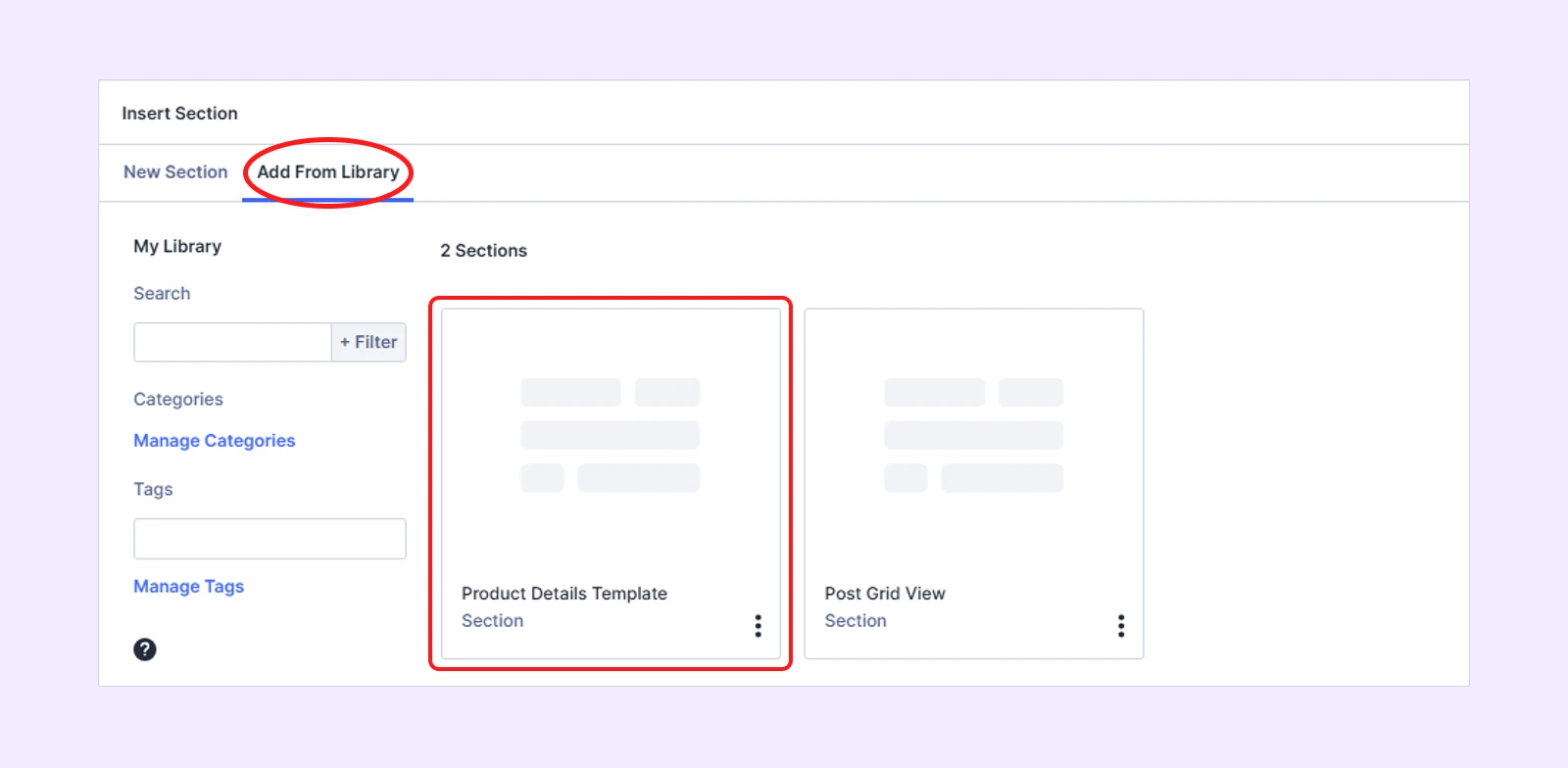
- Click “Add New Section.”
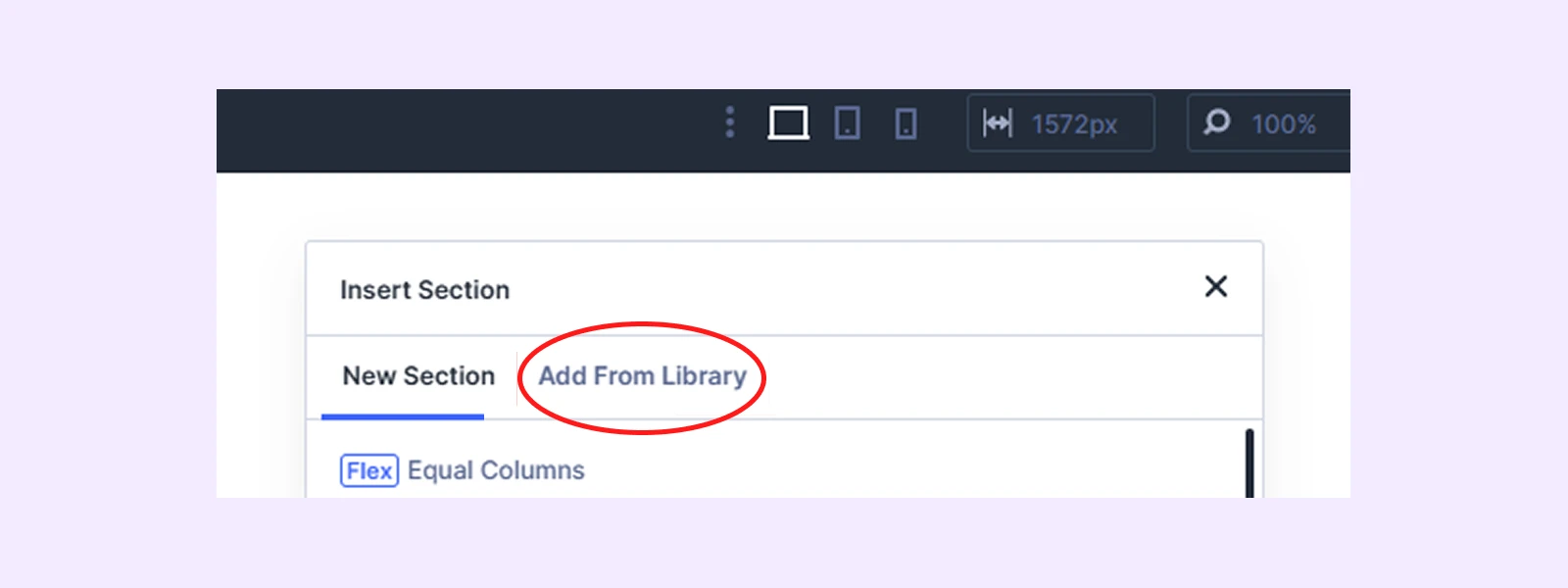
- Click “Add From Library.”
- Choose “Product Details Template.”
- Now click “Use This Section.”
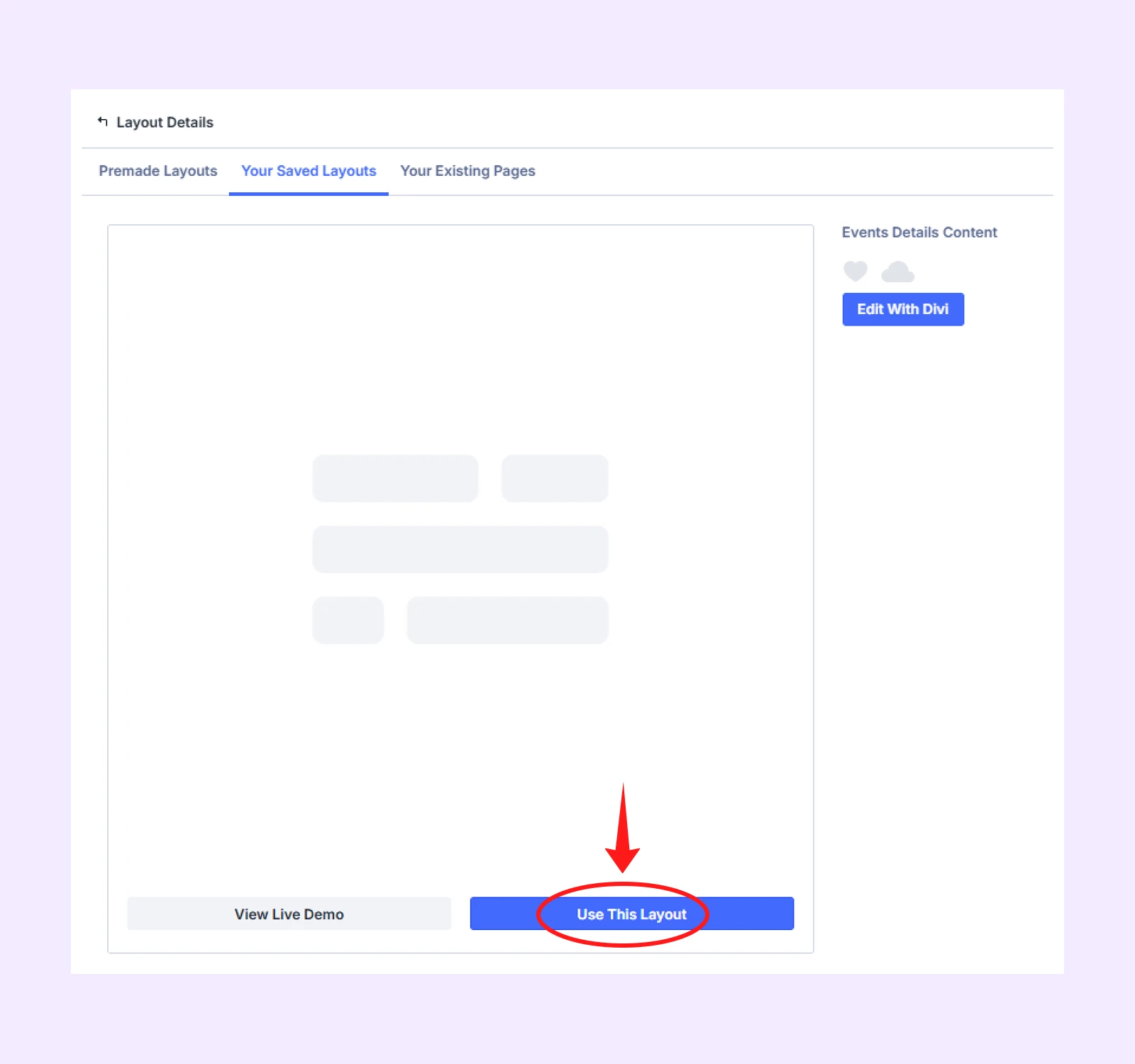
- Delete the empty section above the imported template and click “Save” to apply the template to your product page.
By following the same steps, you can add product details to any product using the same Product Details Template.
Step 14: Import the Popup file
- Go to WordPress Dashboard > DF Popups > Import & Export.
- Under the “Import” section, click on “choose File” and select “Popup - eLearning Layout - DiviFlash.json” file.
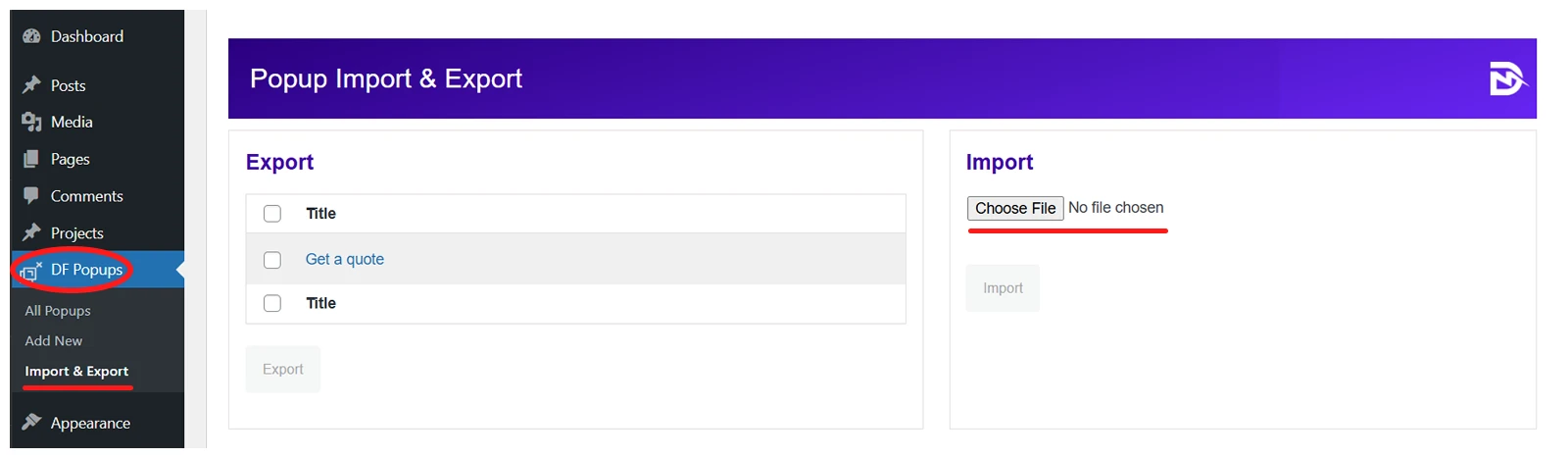
- Click on the “Import” button.
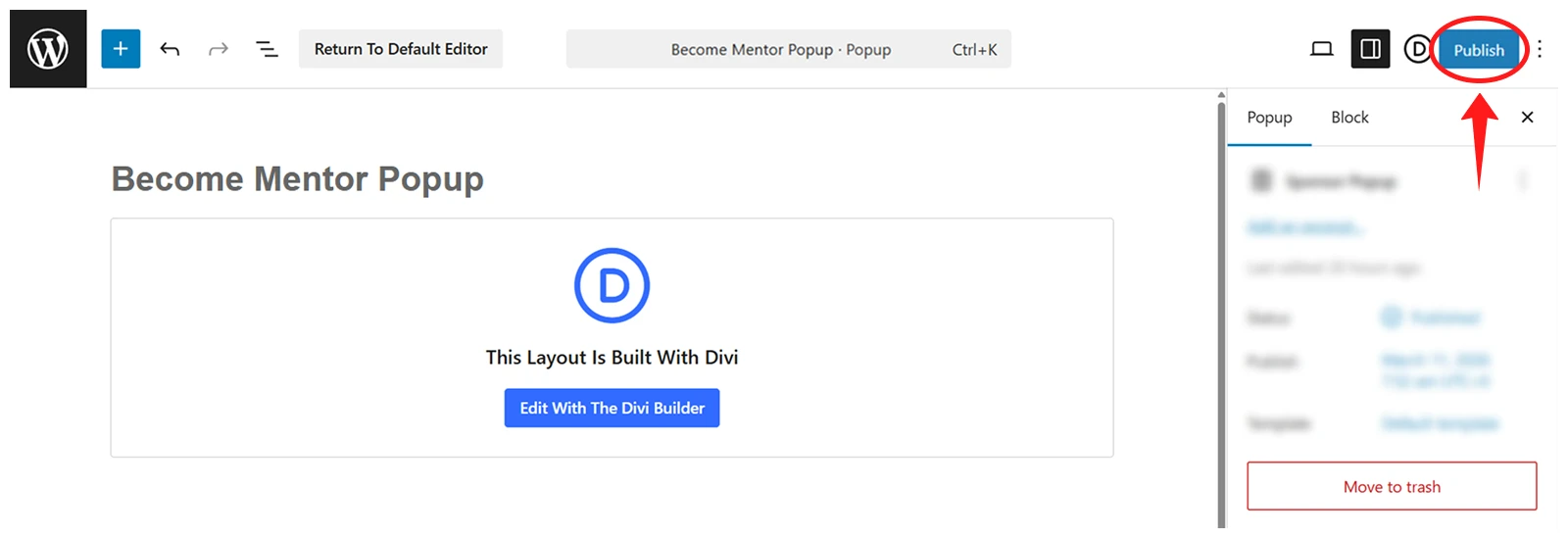
Step 15: Publish the Popup file
After importing the popup, you need to publish it. Here’s how to do it:
- Go to WordPress Dashboard > DF Popups > All Popups.
- Click “Edit” under the popup name.
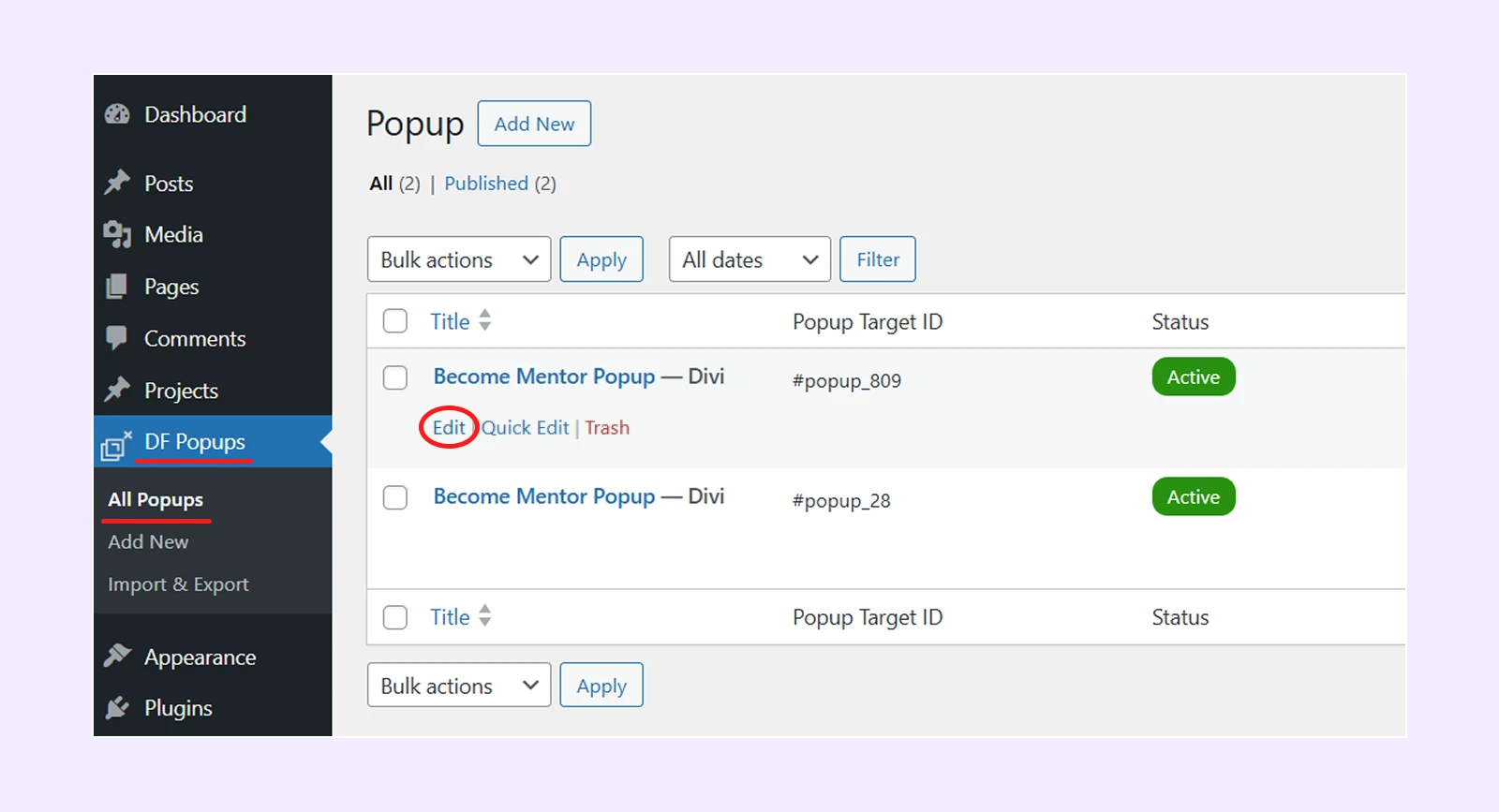
- Click on “Publish” button.
Step 16: Set your Popup in the home page.
- Go to WordPress Dashboard > DF Popups > All Popups, and copy the “popup Target ID” by clicking on it.
- Go to WordPress Dashboard > Divi > Theme Builder.
- Click the edit icon for the Global Header in the default website template.
- Hover over the menu and click the Module Settings icon.

- Now click on the edit item of the “Button” item.
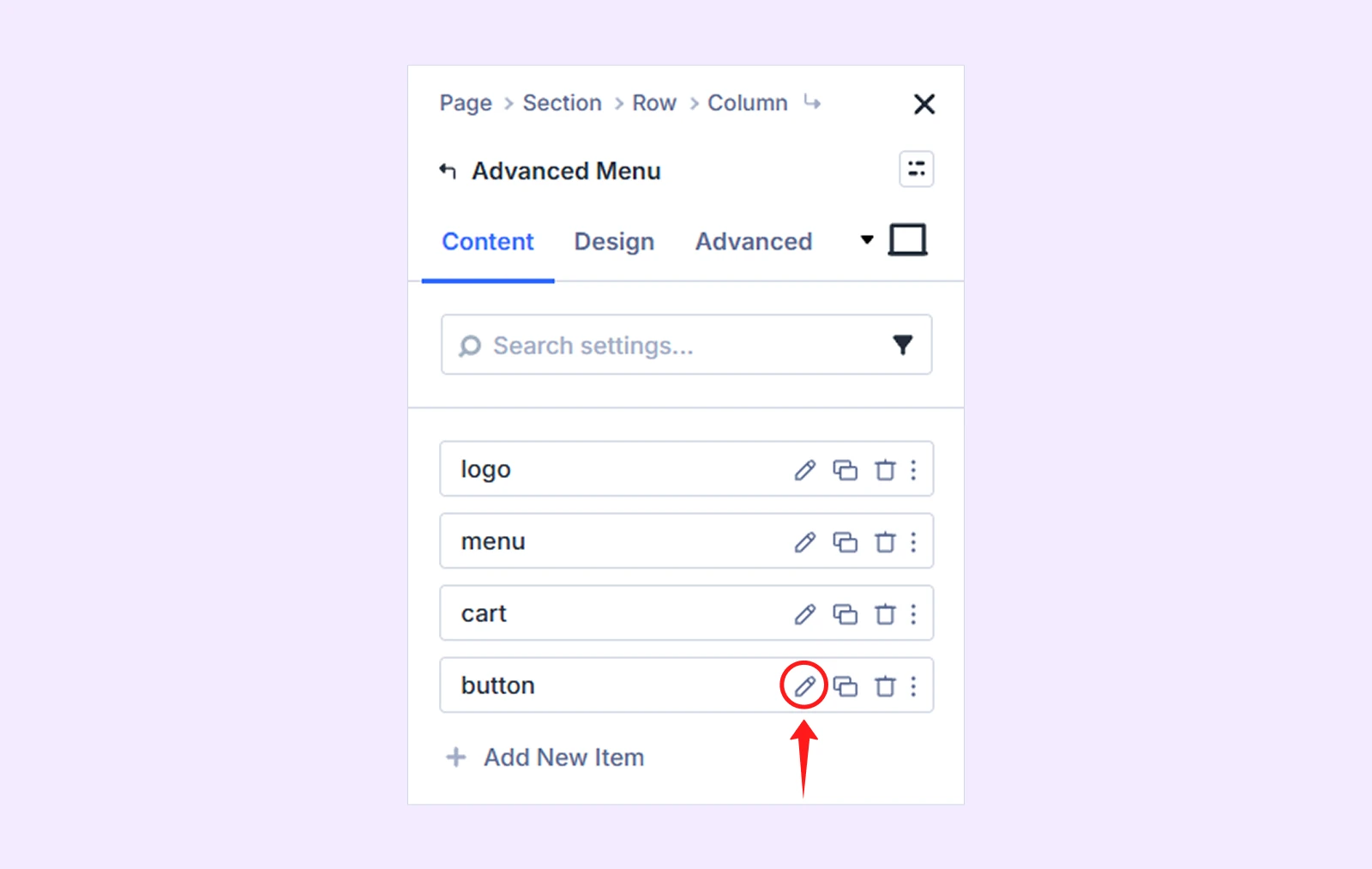
- Scroll down to the “Button URL” field and paste the copied Popup ID.
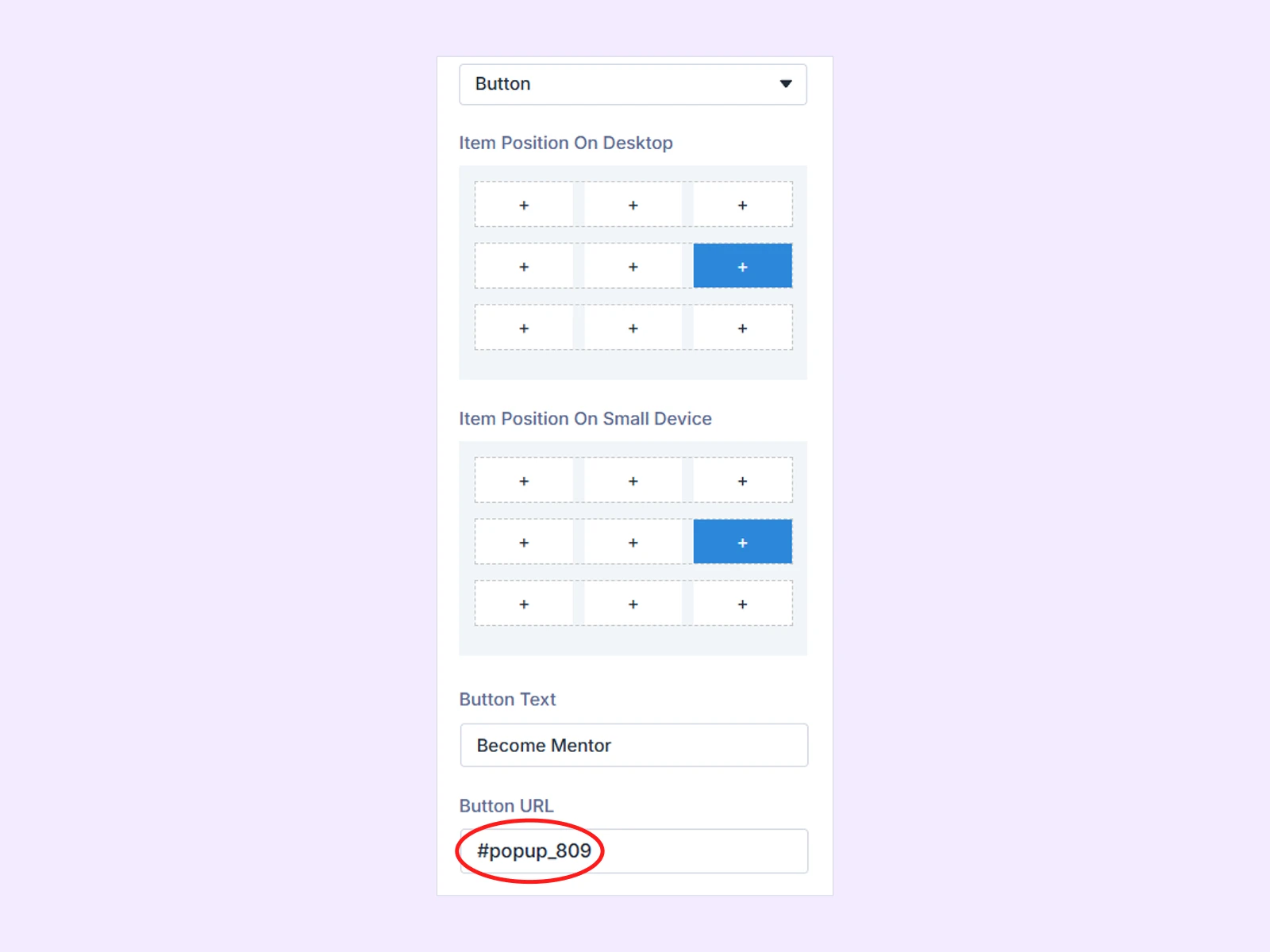
- Save the page and your popup should now work as expected.
By following the same process, paste the “Popup Target ID” for all the “Become Mentor” popups in the layout.
Step 17: Set your homepage and blog page.
- Go to WordPress Dashboard > Settings > Reading.
- Below “Your homepage displays,” select “A static page.”
- Choose “Home” from the homepage dropdown menu.
- Choose “Blog” from the post page dropdown menu.
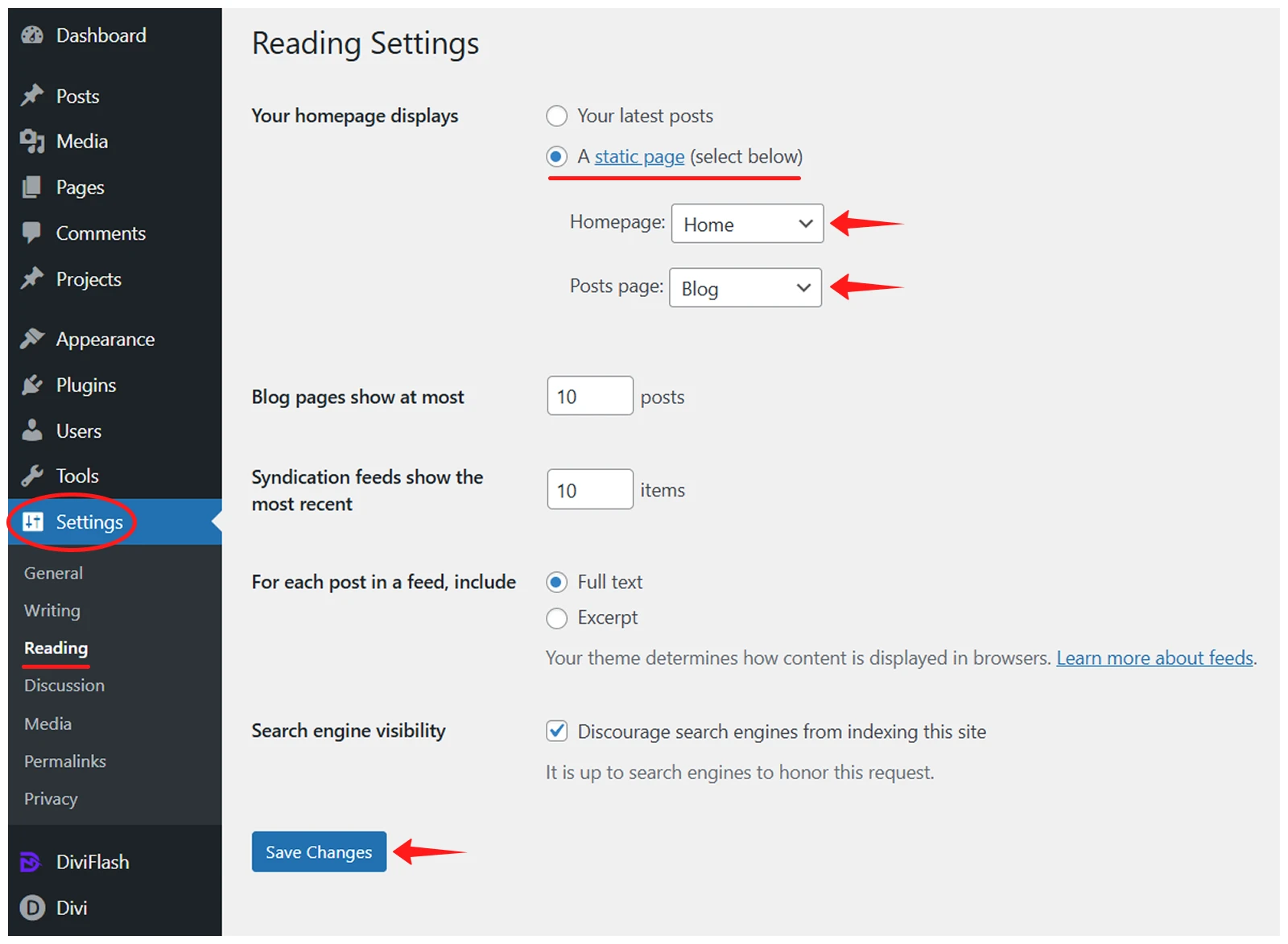
- Click on “Save Changes” to save it.
Step 18: Create the menu for the imported layout. For a better understanding, follow the Divi Layout Menu Customization doc.
Now your website should look exactly the same as the eLearning layout!
Any Questions?
If you have any questions, please feel free to contact our support team at [email protected]