
DiviFlash Spline module (introduced in DiviFlash 5.1.0) allows you to embed and display interactive Spline 3D scenes directly on your Divi website.
Important Note: Spline module is built for Divi 5 only. Also, it will be disabled by default and to use it, you must enable it manually. Refer to our guide for step-by-step instructions.
Let’s see the settings in brief and how to make better use of it —
Content Tab
This tab contains all the essential settings you need to add and configure Spline scene.
Spline Source
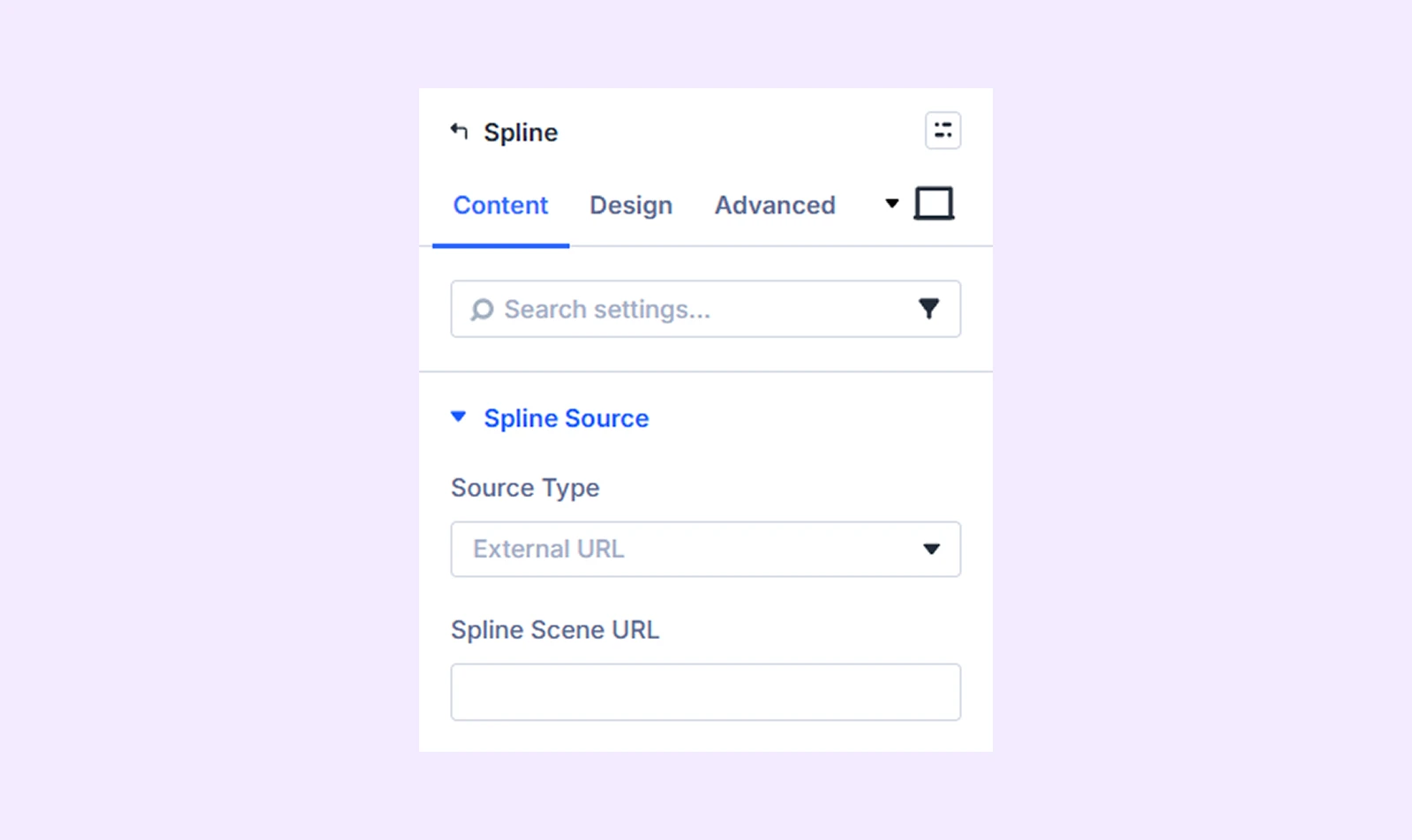
- Source Type: Select how you want to add your Spline scene, either from an external link or by uploading a file.
- Spline Scene URL: Paste your Spline scene link here to load it from an external source.
- Upload Splinecode File: Upload your Spline scene file from your WordPress media library. (Available only when “From Media” is selected)
Note: To upload .splinecode files, enable this option from DiviFlash Dashboard > Settings.
How to Export Spline File
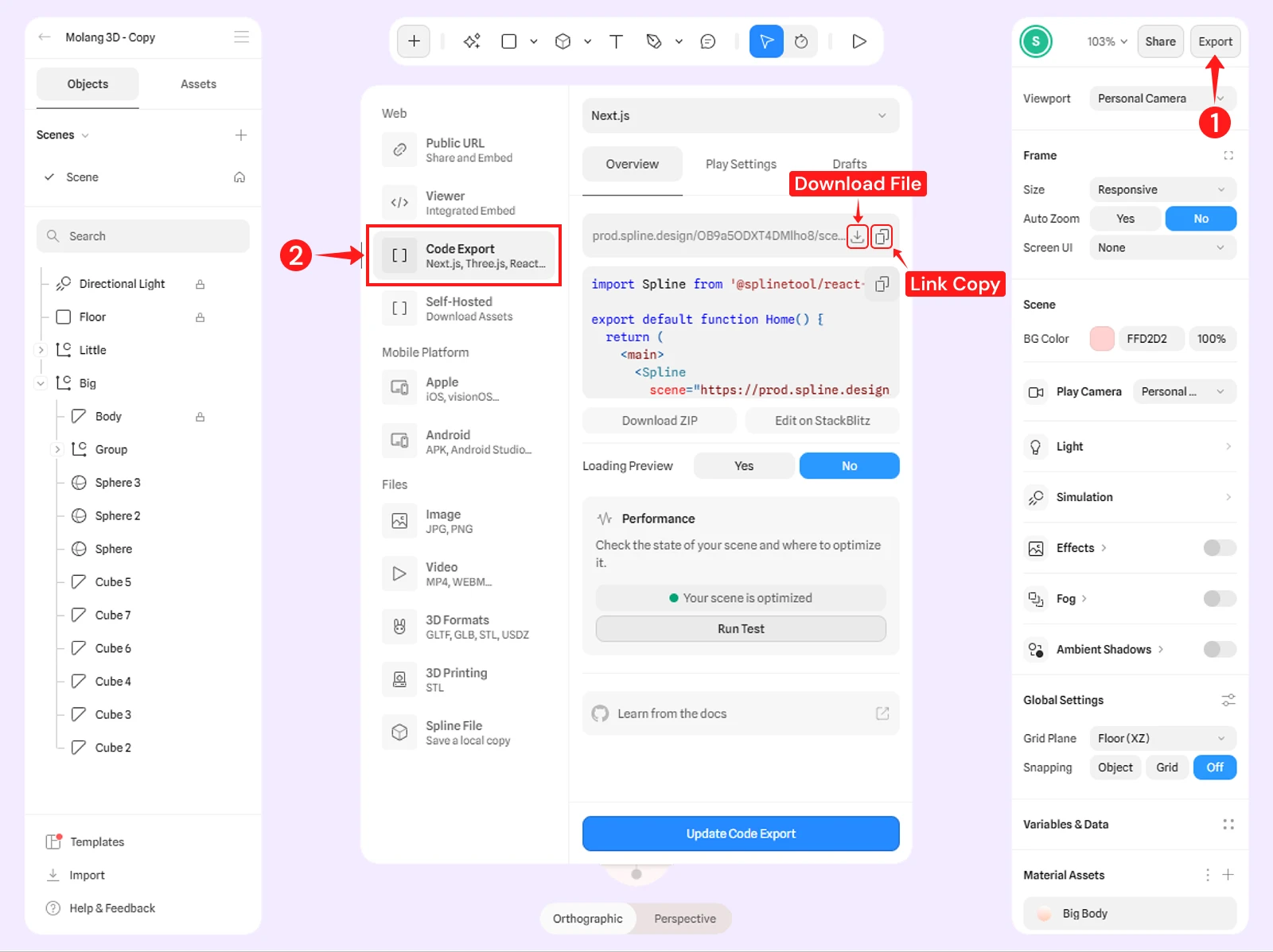
To add a scene to the module, you need to export it in .splinecode format. Here is how:
- Go to spline.design and open an existing project or create a new one.
- Click “Export” in the top-right corner and choose “Code Export.” Then either click the download icon to save the file, or copy the link to use the URL option.
Spline Settings
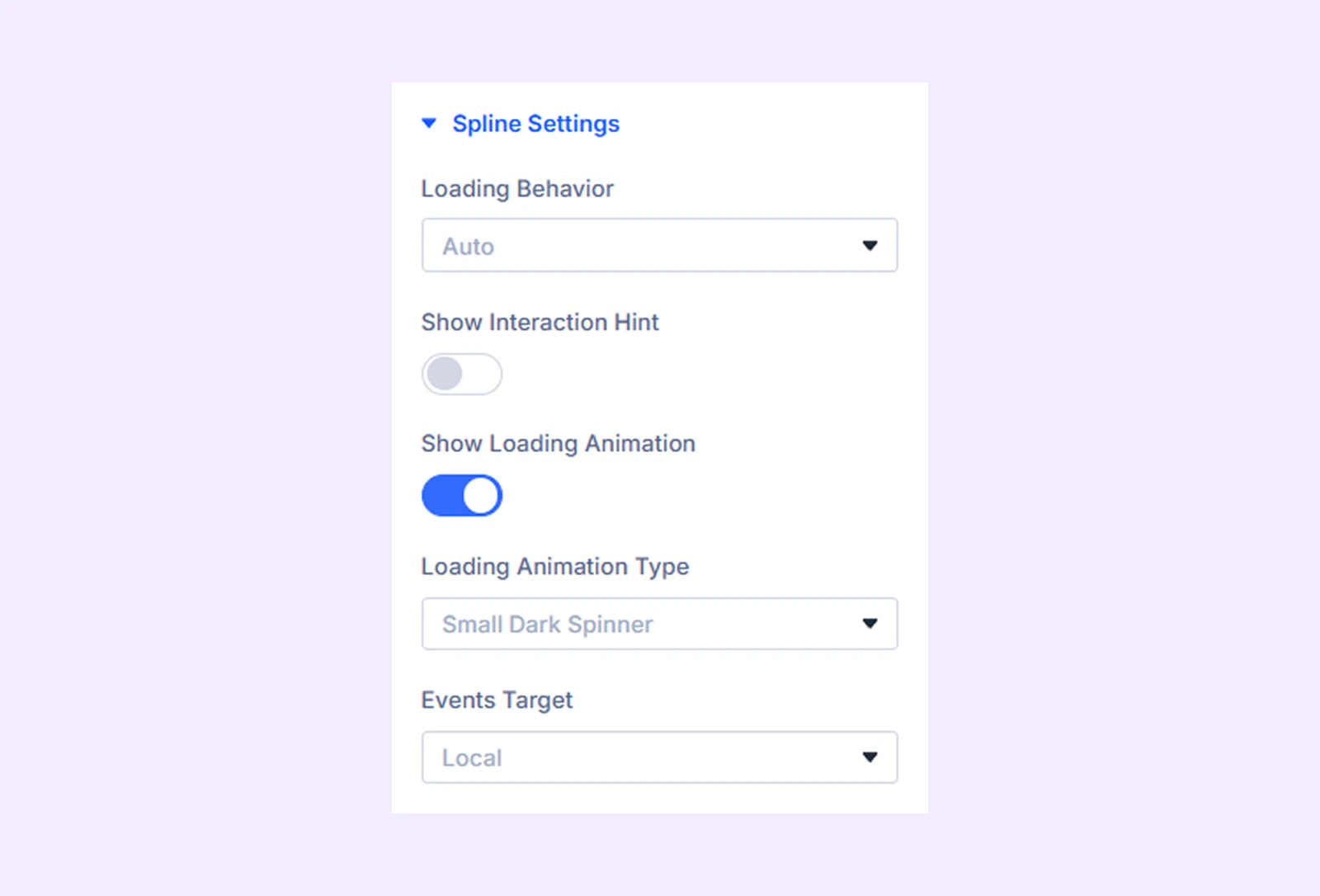
- Loading Behavior: Control how the scene loads on the page:
- Auto: Loads automatically with the page
- Lazy: Loads only when it enters the viewport
- Eager: Loads immediately as soon as possible
- Show Interaction Hint: Enable this to show a small hint that guides users on how to interact with the scene.
- Show Loading Animation: Turn this on or off to show a loading animation before the scene appears. It works like a preloader.
- Loading Animation Type: Select the style of loading animation you prefer.
- Events Target: Controls how the Spline scene responds to mouse or pointer interactions. Use this only if your scene uses mouse or pointer interactions.
- Local: The scene responds only when the user interacts inside the Spline module area.
- Global: The scene responds to user interactions across the entire page, even outside the module area.
Link: Use this default Divi setting to add a link to the entire module.
Background: Add a background color, gradient, image, video, pattern, or mask to the module.
Element Label: Rename the module to organize it more easily in the Divi Builder. (Only you can see this label.)
Design Tab
Customize the appearance of the Spline module with these options:
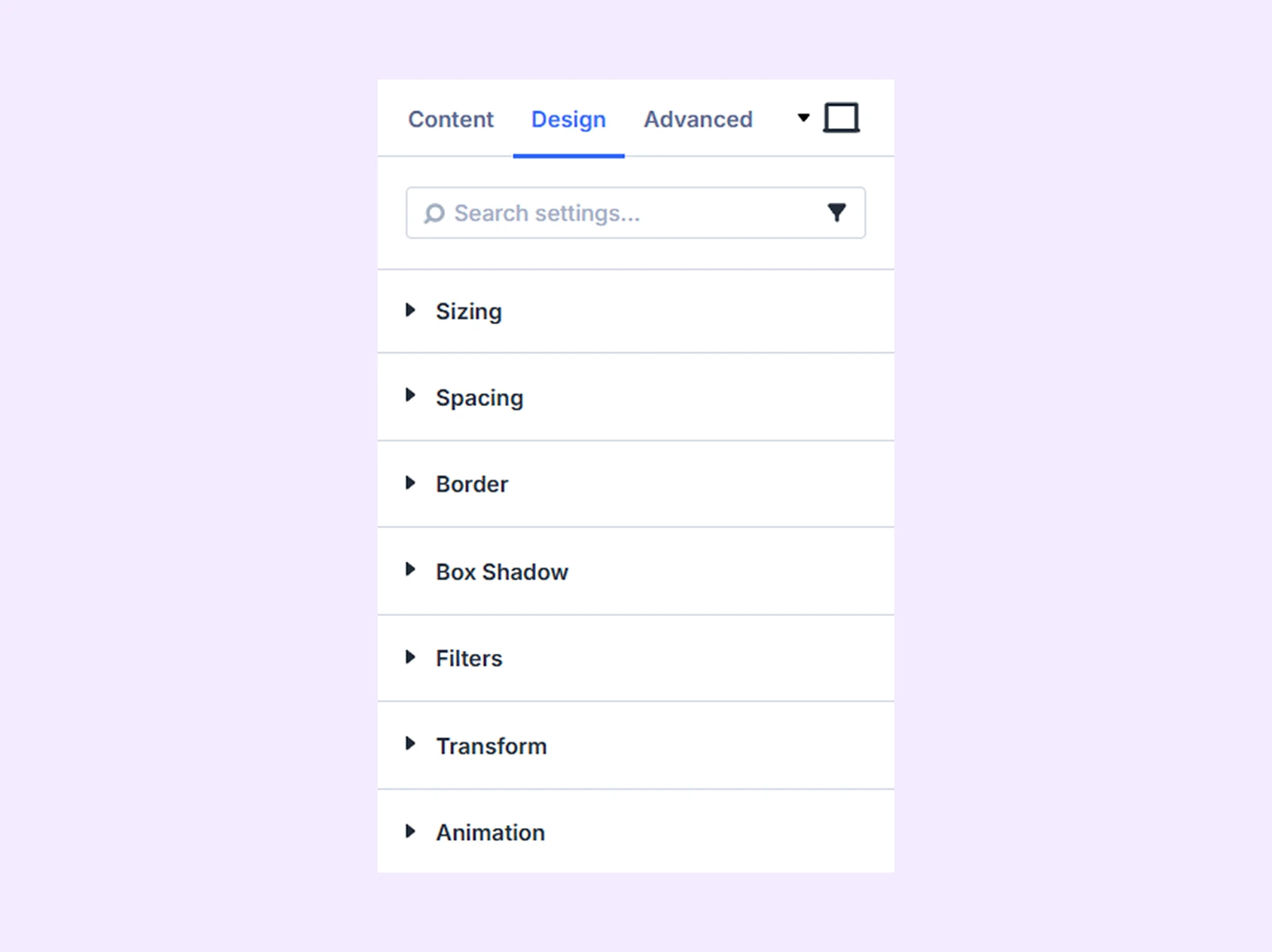
Sizing: Adjust the width, height, and alignment of the module.
Spacing: Add custom margin and padding to the module’s container.
Border: Customize the border style, width, and color. And style each border separately or apply the same style to all sides.
Box Shadow: Add shadow effects to the module.
Filters: Apply color filters to enhance the appearance.
Transform: Scale, rotate, move, or skew the module.
Animation: Apply reveal animation effects and customize delay, duration, repeat settings, and animation type.
Advanced Tab
This tab provides additional settings for advanced users who want greater control over the module with custom code, conditions, and more.
Need Help?
If you have any questions or need assistance, contact our support team: [email protected]