
The DiviFlash Floating Image module is a simple yet powerful way to apply smooth floating animations to images on your website.
Let’s see the settings in brief and how to make better use of it —
Content Tab
This tab contains all the essential settings to add, manage, and customize your floating images.
Add New Item
To add a floating image, click the plus (+) icon labeled “Add New Item.” You will be taken to the Floating Image Item Settings, where you can add and customize each floating image. To learn more about how to add and customize floating images, click here.
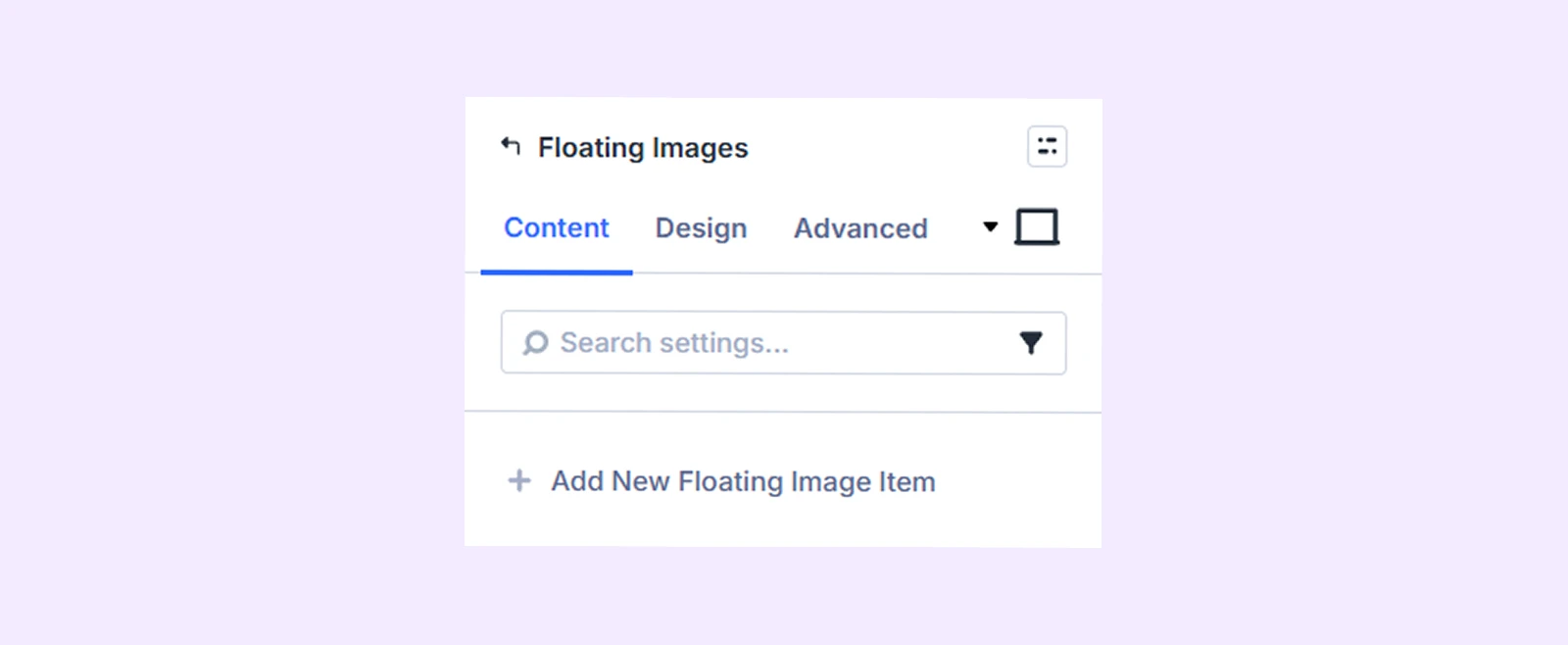
Image Settings
Container Min Height: Set a minimum height for the image containers.

Link: Use this default Divi setting to add a link to the entire module.
Background: Add a background color, gradient, image, video, pattern, or mask to the module.
Element Label: Rename the module to organize it more easily in the Divi Builder. (Only you can see this label.)
Design Tab
Use this tab to customize the appearance of your floating image module.
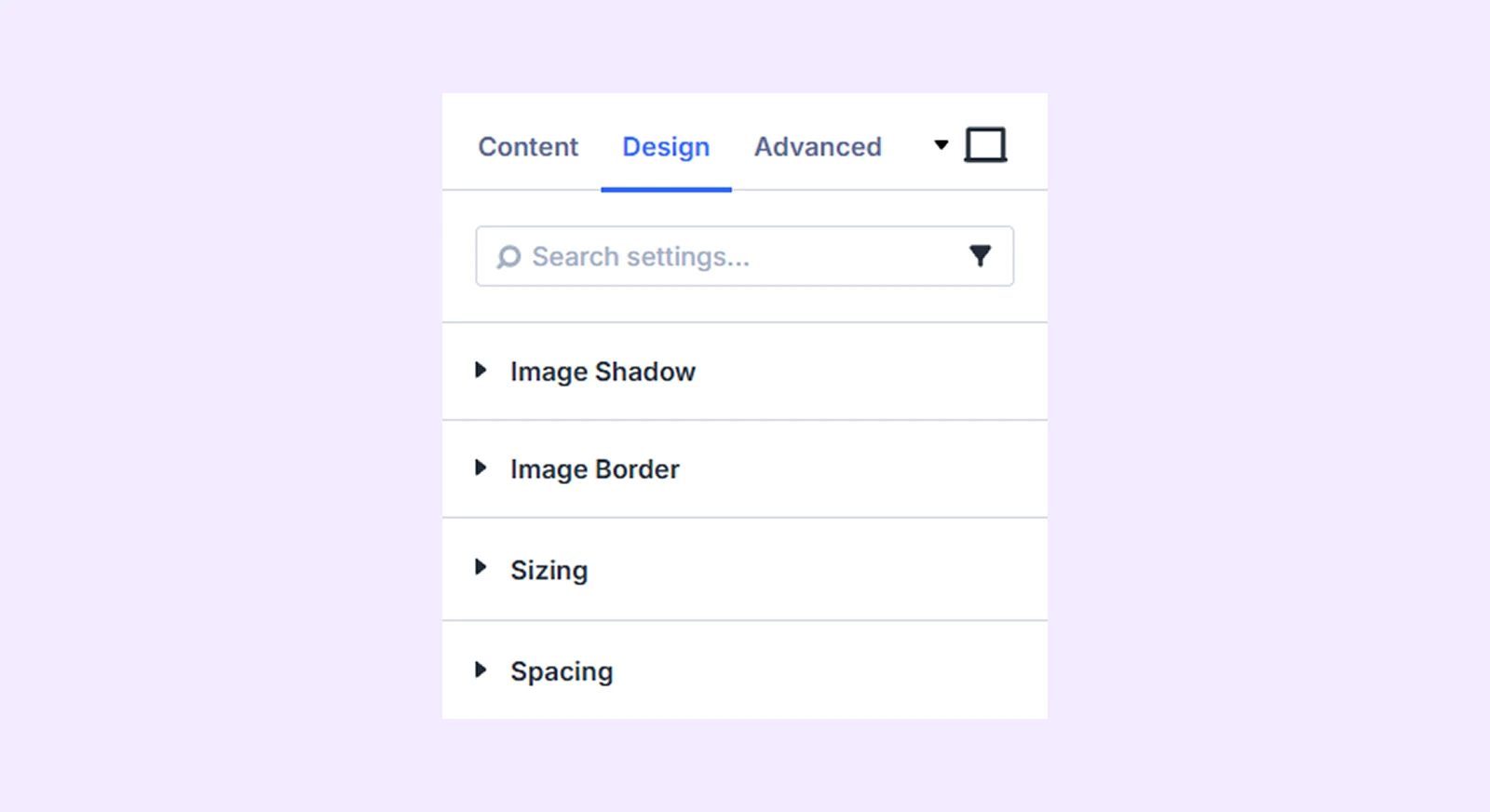
Image Shadow: Apply a shadow effect to the floating images.
Image Border: Customize the border style for your images.
Sizing: Adjust the width, height, and alignment of the module.
Spacing: Add custom margin and padding to the module’s container.
Advanced Tab
This tab provides additional settings for advanced users who want greater control over the widget with custom code, conditions, and more.
Floating Image Item Settings
Each floating image item is a child of the parent module. Settings applied here will override the parent module settings.
Content Tab
Image: Add the image and its alt text.
Image Sizing: Set a maximum width and height limit for the image.
Image Position: Adjust the vertical and horizontal position of the image.
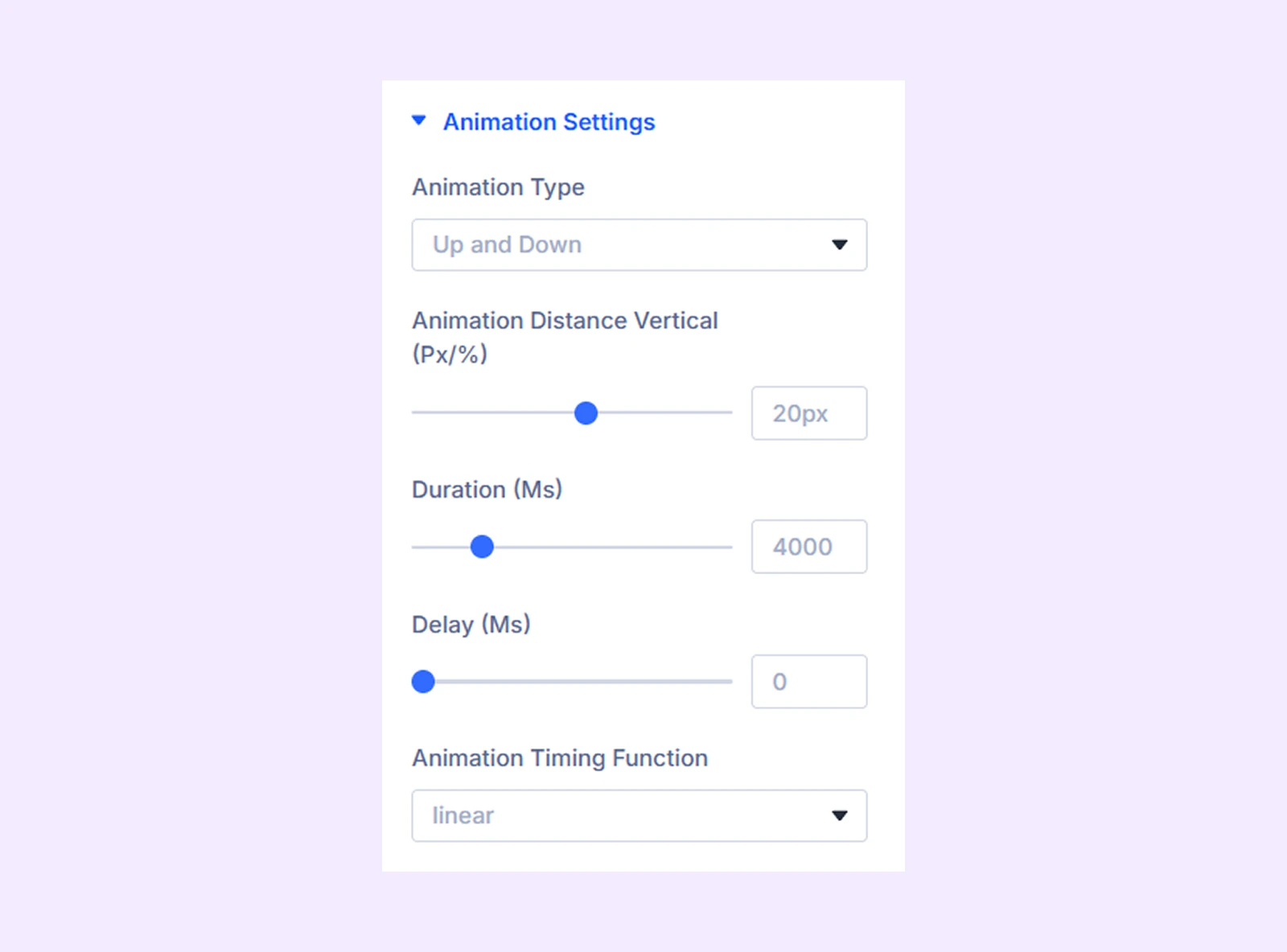
Animation Settings
- Animation Type: Decide whether the images should move up and down or side to side.
- Animation Distance Vertical (Px/%): Define how far the image moves.
- Duration (Ms): Adjust the speed of the animation.
- Delay (Ms): Set a starting delay for the animation.
- Animation Timing Function: Control how the animation progresses over time.
Link: Add a clickable URL to the individual floating image.
Background: Add a background color, gradient, image, video, pattern, or mask to the image item.
Element Label: Rename this floating image item for easier identification in the Divi Builder (visible only to you).
Design Tab
Image Shadow: Apply a shadow effect to the floating image.
Image Border: Border customization options for the floating image.
Spacing: Add custom margin and padding to the floating image’s container.
Border: Border customization options for the floating image’s container.
Filters: Apply different color filters to the floating image.
Advanced Tab
Apply advanced settings, including custom CSS, visibility rules, and other advanced customizations specific to each floating image.
Need Help?
If you have any questions or need assistance, contact our support team: [email protected]