
You can add links, captions, and descriptions to your gallery images directly from the Divi Visual Builder. We will show you how to do it while creating a new gallery or when working with an existing one.
Here is how:
Step 1: Add the Advanced Gallery Module
Open the Divi Builder and insert a DiviFlash gallery module. Currently, DiviFlash offers three gallery modules:
- Advanced Gallery
- Justified Gallery
- Packery Gallery
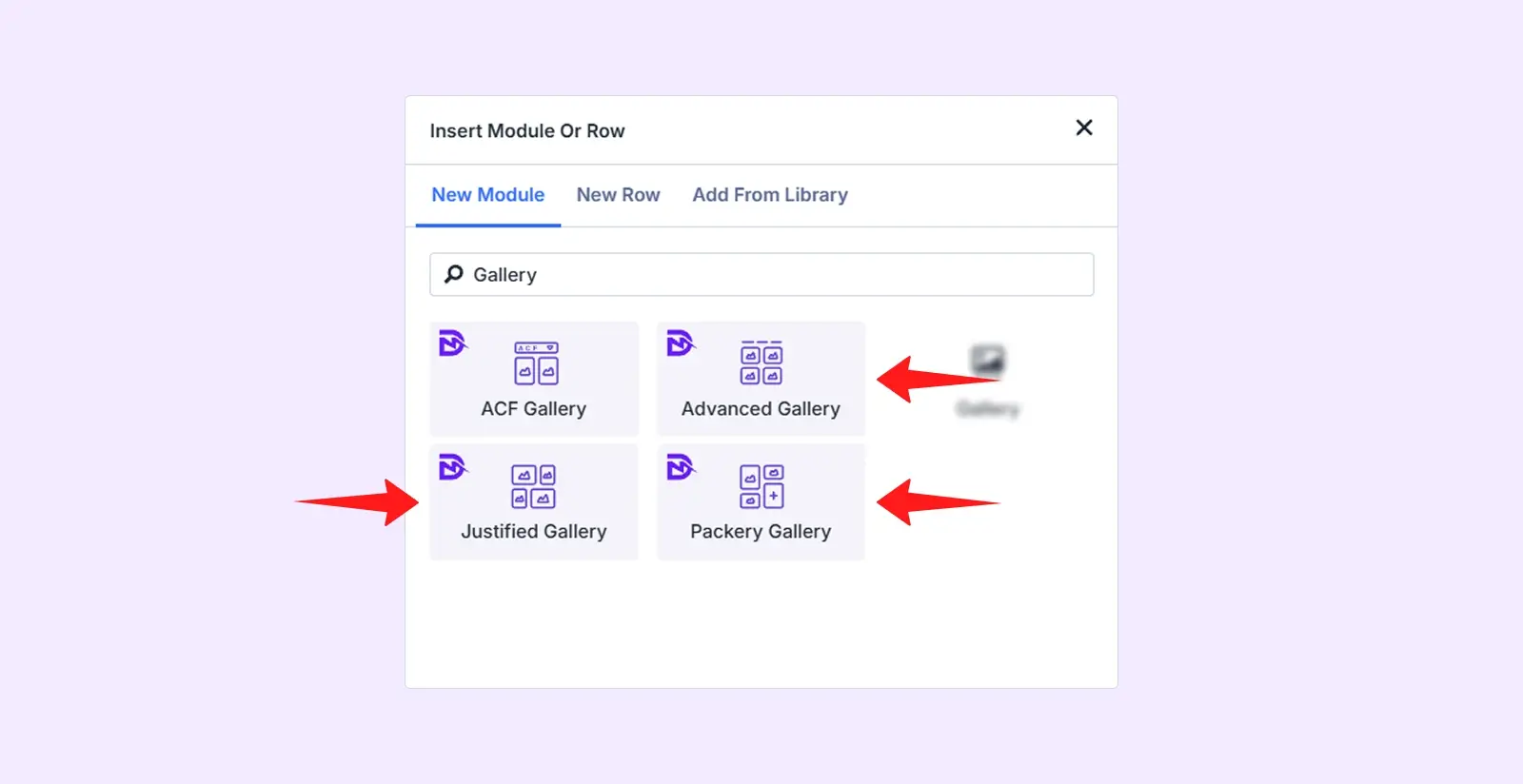
In this guide, we will use the Advanced Gallery module as an example to show you the process.
Step 2: Add a New Gallery Item (Advanced Gallery Only)
In the module settings' Content tab, click “+ Add New Advanced Gallery Item” to create a new gallery item.
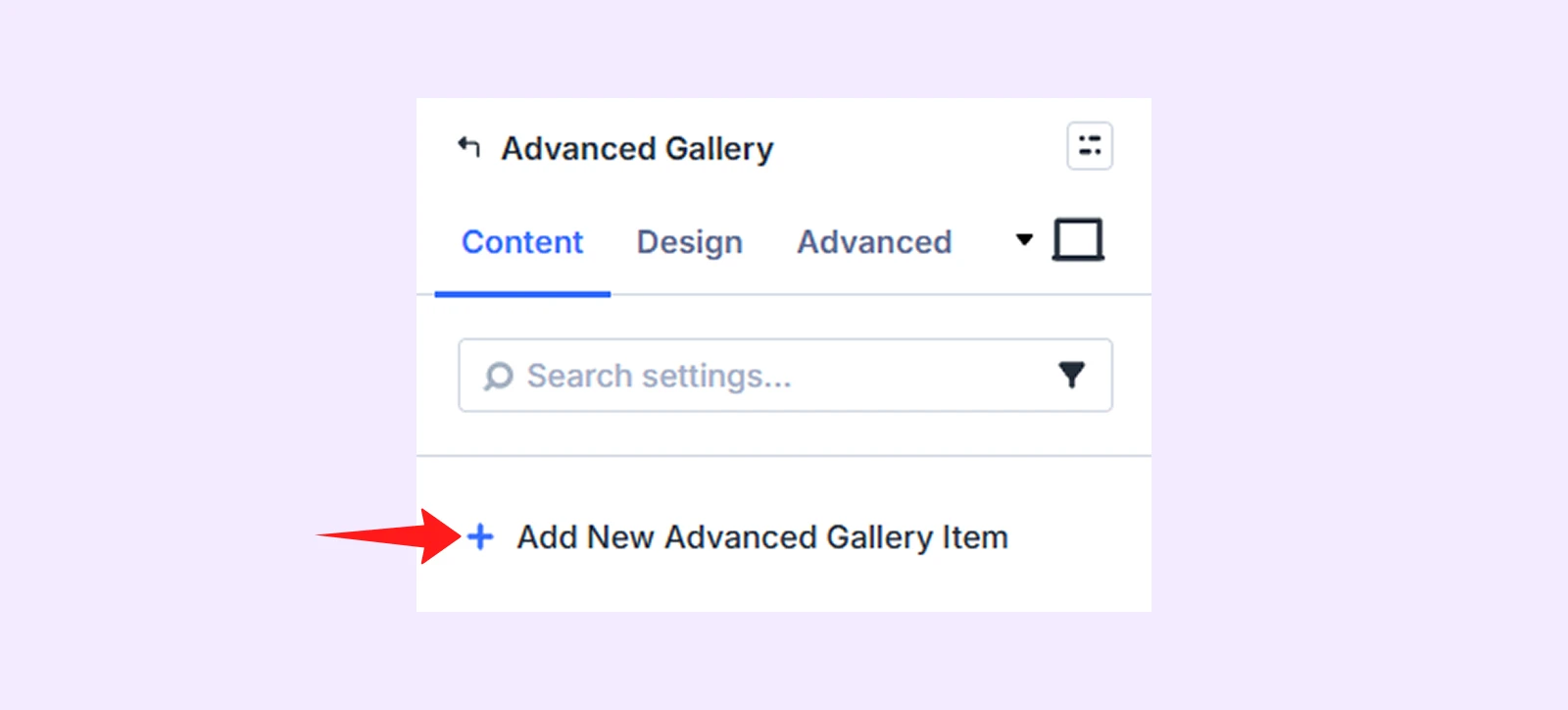
Note: If you are using Justified Gallery or Packery Gallery, skip this step 2.
Step 3: Select Images
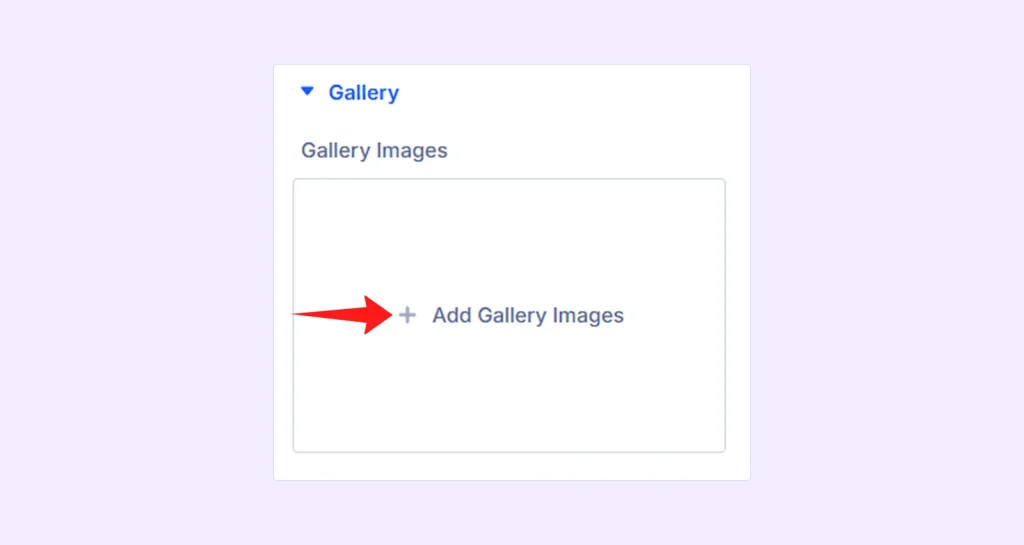
Now click “+ Add Gallery Images” which will open the Media Library. There you can:
- Select images from the Media Library
- Or upload new files
Step 4: Add Details (Caption, Description, Link)
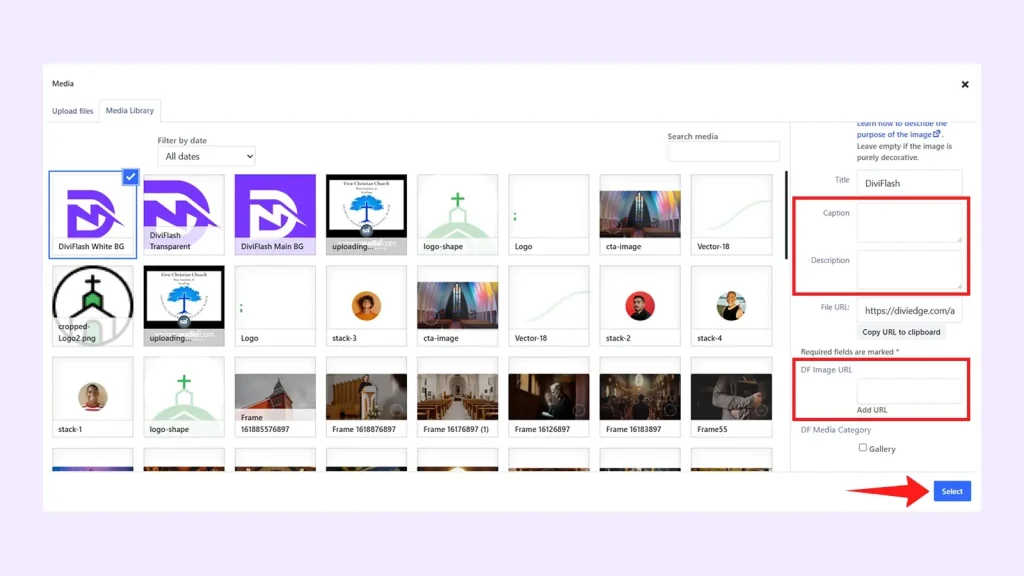
After selecting or uploading an image, you will see certain fields on the right side. From there, fill the following fields:
- Caption: Text displayed with the image
- Description: Additional information about the image
- DF Image URL: A custom link for the image
Once you have added the details, click Select.
Step 5: Repeat for All Images
Repeat Step 3 and Step 4 for each image in your gallery where you want to add a link, caption, or description. Once done, return to the module settings.
Step 6: Enable Link, Caption and Description Display Options
To display the information you added, you have to enable the following options:
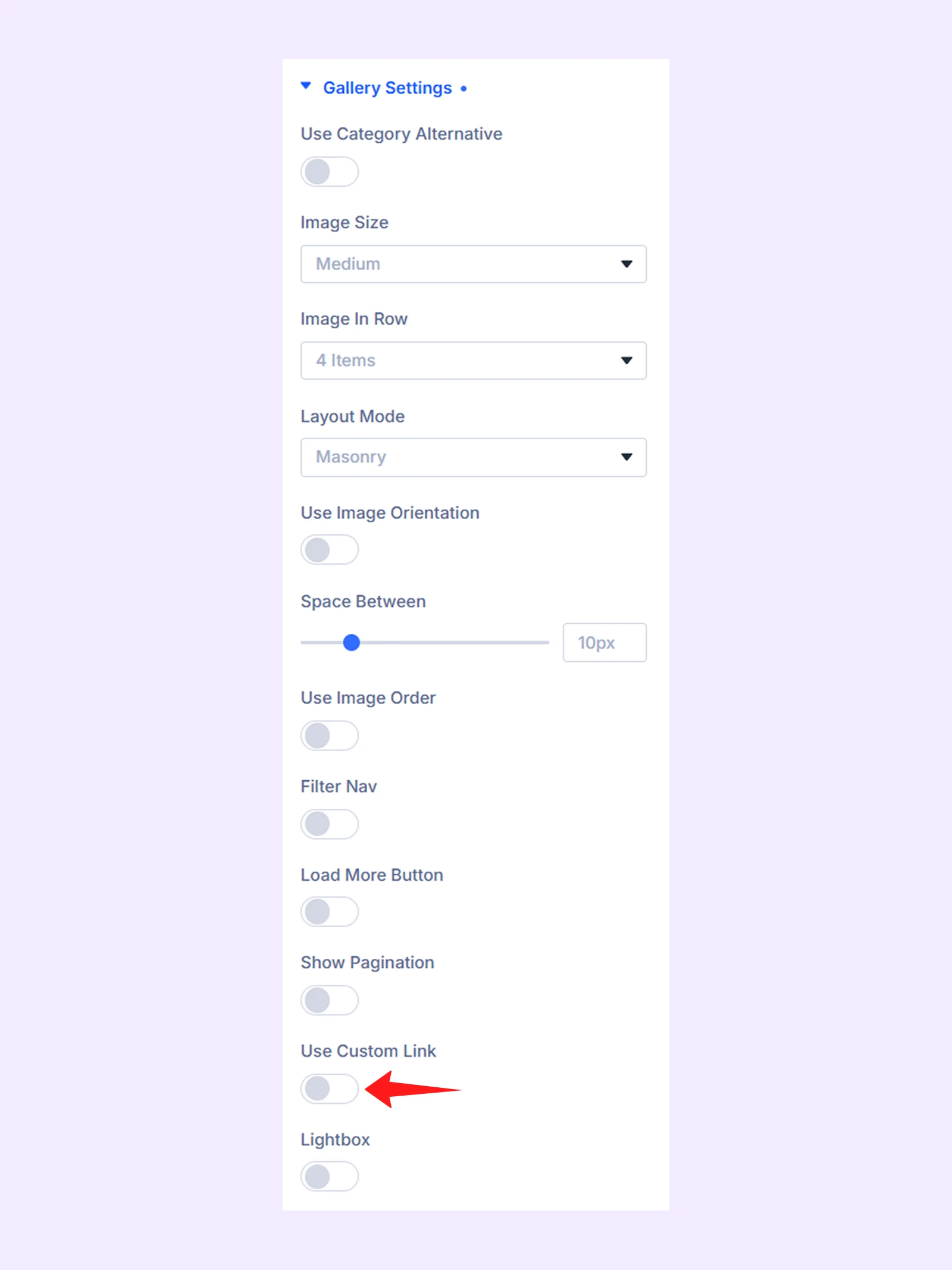
Enable Custom Links
To activate clickable image links:
- Go to the Content tab
- Open Gallery Settings
- Enable Use Custom Link
Show Captions and Descriptions
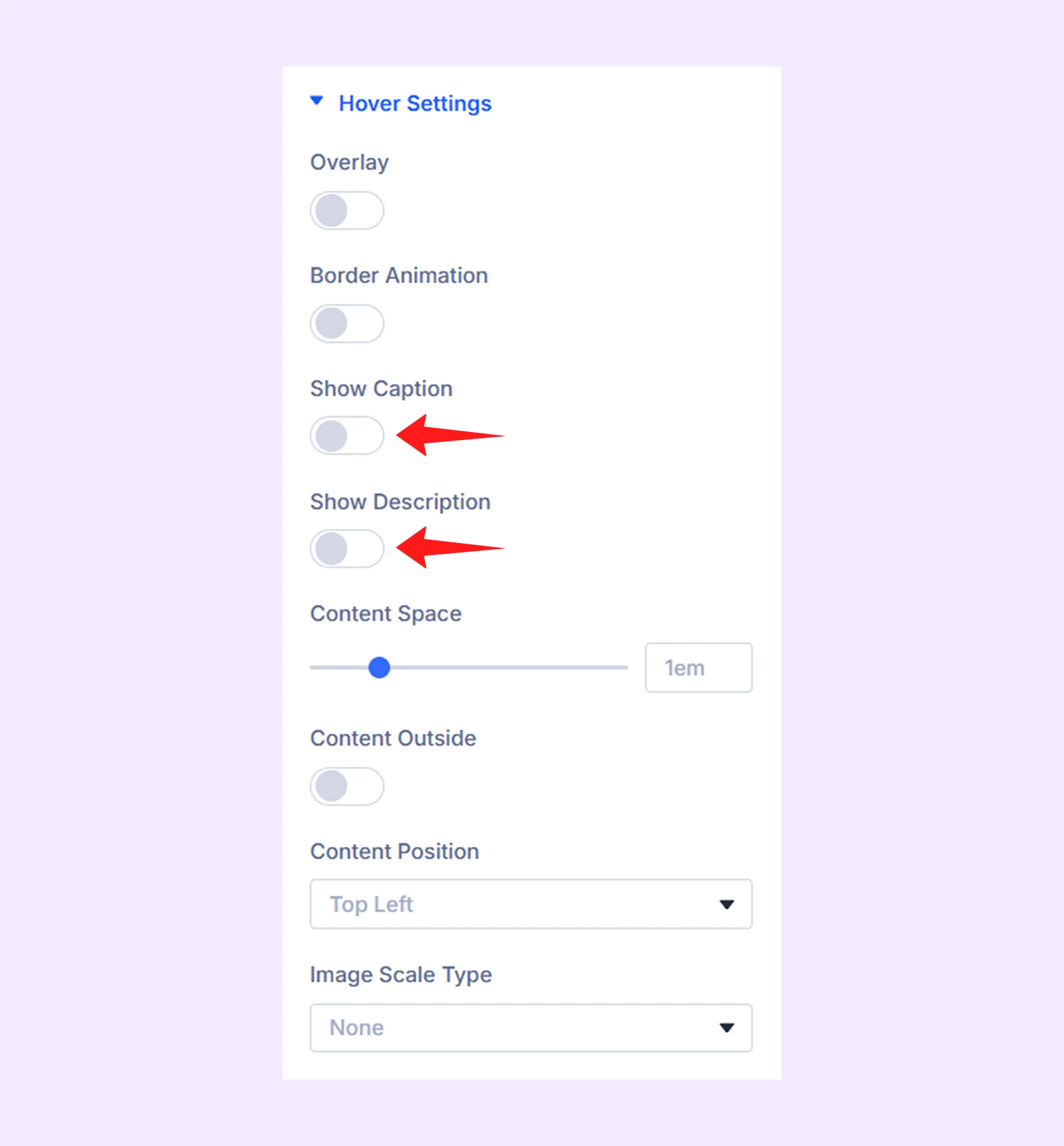
To display captions and descriptions on hover:
- Go to the Content tab
- Open Hover Settings
- Enable Show Caption and Show Description
Step 7: Save Your Changes
Click Save Changes & Exit Visual Builder.
Add Links, Captions & Descriptions to Existing Gallery Images
If you already created a gallery and want to add or update links, captions, or descriptions, here is what you need to do:
- Open the page or post containing the gallery
- Open the Gallery Module Settings
- Go to Gallery Images
- Click the image you want to edit
- Add the Caption, Description, or URL
- And enable the display options from the module settings
Need Help?
If you have any questions or need assistance, contact our support team: [email protected].com