
The DiviFlash Fluent Forms Styler module lets you display and customize forms created with Fluent Forms directly in the Divi Visual Builder.
Important Note:
- It’s available in DiviFlash 5.7.0 and later, and supports Divi 5 only.
- It is disabled by default. Enable it from DiviFlash > Modules > Form Styler > Fluent Forms Styler.
- Install and activate Fluent Forms, and create at least one published form before using the module.
Let’s find out what settings you will find inside the module.
Content Tab
The Content tab lets you select a Fluent Forms form, control which elements appear, and preview different form states in the Visual Builder.
Form
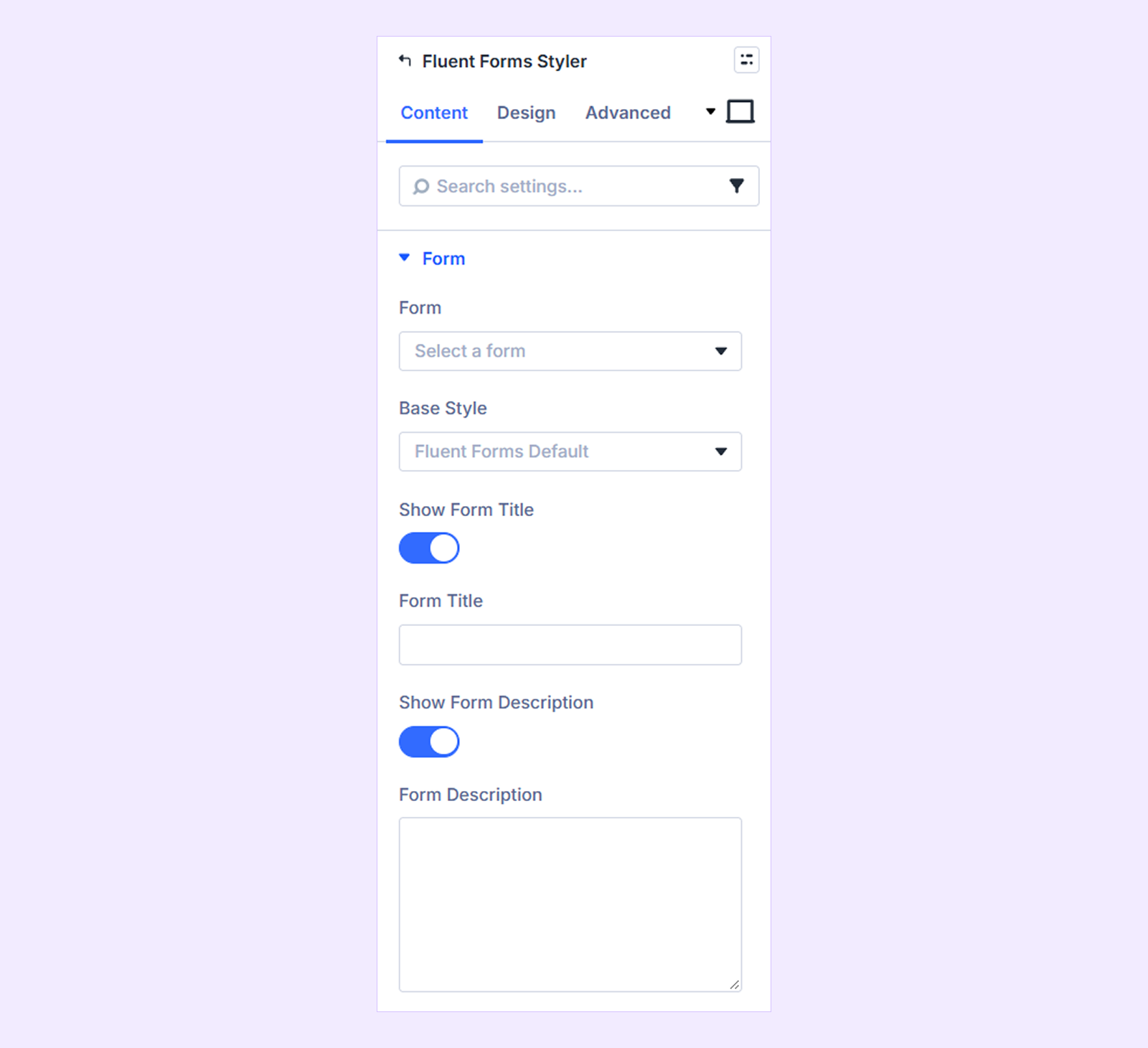
- Form: Select the Fluent Forms form you want to display. Only published forms appear in the list.
- Base Style: Choose the starting appearance of your form from three options:
- Fluent Forms Default
- Clean (Inherit Theme)
- Form's Saved Style
- Show Form Title: Enable this to display a title above the form.
- Form Title: Enter the title you want to display.
- Show Form Description: Enable this to display a description below the form title.
- Form Description: Enter the description text.
Note: Conversational forms are not available in the form selector because they use a separate full-screen layout.
Form Element
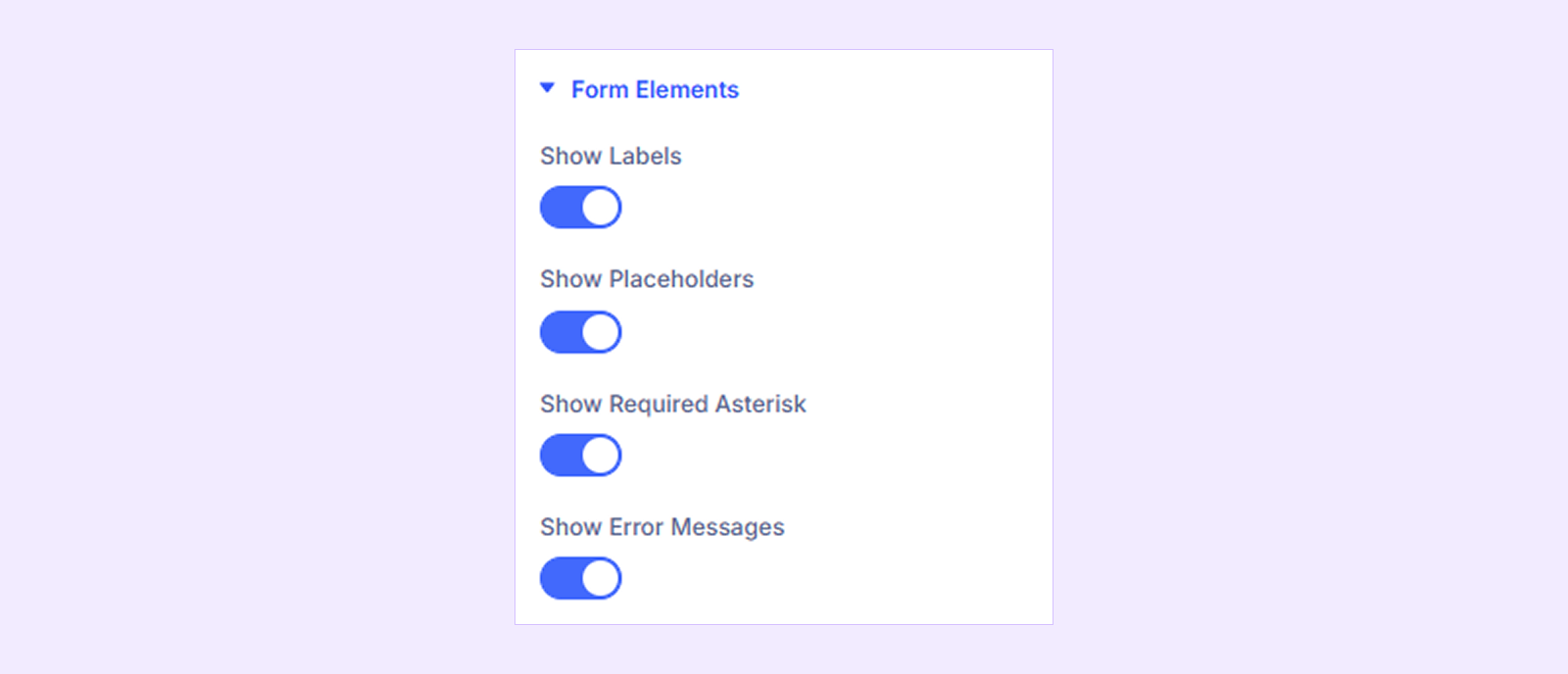
- Show Labels: Show or hide form field labels.
- Show Placeholders: Show or hide placeholder text inside form fields.
- Show Required Asterisk: Show or hide the asterisk (*) next to required fields. (Available for forms with required fields.)
- Show Error Messages: Show or hide validation error messages.
Builder Preview
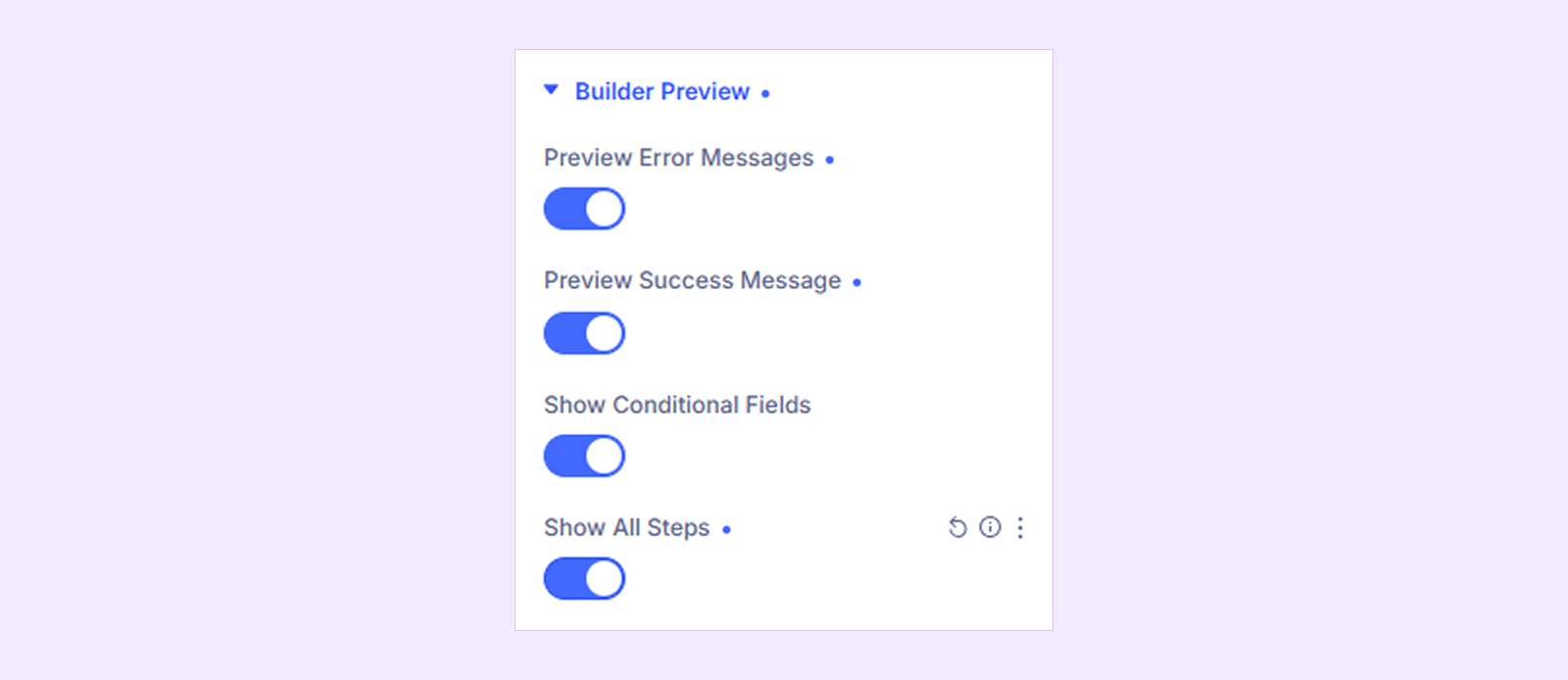
- Preview Error Messages: Display sample validation errors to preview their design.
- Preview Success Message: Display the form's success message to preview its appearance.
- Show Conditional Fields: Display fields that normally appear only when certain conditions are met. (Available for forms with conditional fields.)
- Show All Steps: Display all steps of a multi-step form at once for easier styling. (Available for multi-step forms.)
Note: Builder Preview settings only affect the Visual Builder and do not change the live form.
Background: Customize the background of the entire module using Divi's standard background settings.
Element: Set a custom admin label to identify the module easily in the Divi Builder.
Design Tab
In the design tab, you will find all the styling options that will let you customize each and every element and part of a form created with Fluent Forms.
Note: Some styling options only appear when the selected form contains the corresponding field type.
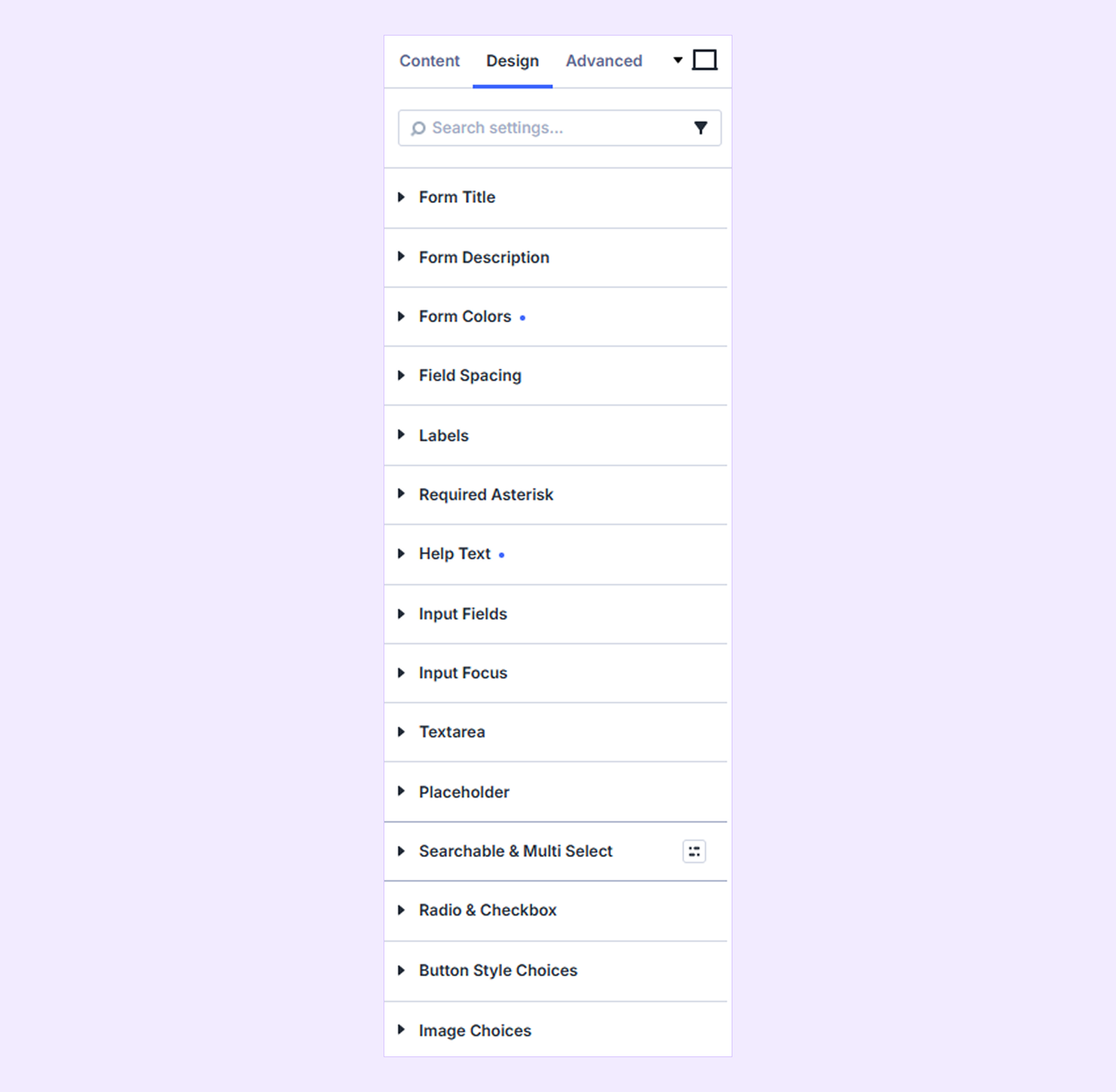
Form Title: Customize the title's typography and spacing. (Available when Show Form Title is enabled.)
Form Description: Customize the description's typography and spacing. (Available when Show Form Description is enabled.)
Form Color
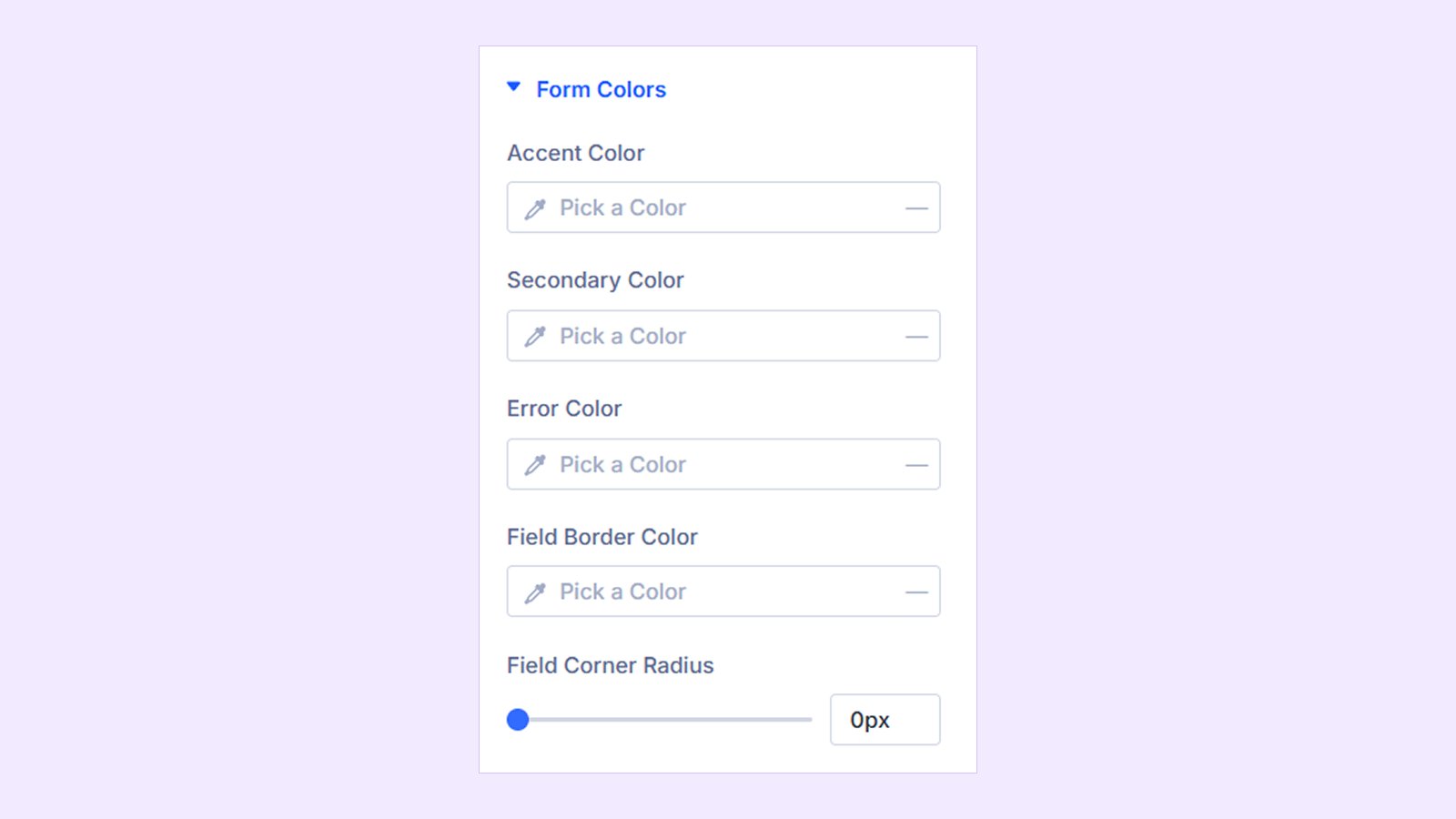
- Accent Color: Set the main color used for focused fields, selected options, progress bars, and links.
- Secondary Color: Set the color of help text and secondary buttons.
- Error Color: Set the color used for validation errors.
- Field Border Color: Set the border color of form fields.
- Field Corner Radius: Adjust the corner rounding of form fields.
Field Spacing

- Space Between Fields: Adjust the space between form fields.
- Space Between Columns: Adjust the space between fields displayed side by side. (Available when the form has two or more fields in the same row.)
Labels: Customize field label typography, spacing, and side label width. (Available when Show Labels is enabled. Side Label Width appears only for forms using side labels.)
Required Asterisk

- Asterisk Color: Set the color of the required field indicator (*). (Available for forms with required fields.)
Help Text: Customize the typography, spacing, and tooltip icon color of field instructions. (Available for forms with help text.)
Input Fields: Customize the background, text, border, shadow, spacing, and height of form fields.
Input Focus: Customize the background, text, border, and shadow of a field when selected.
Textarea
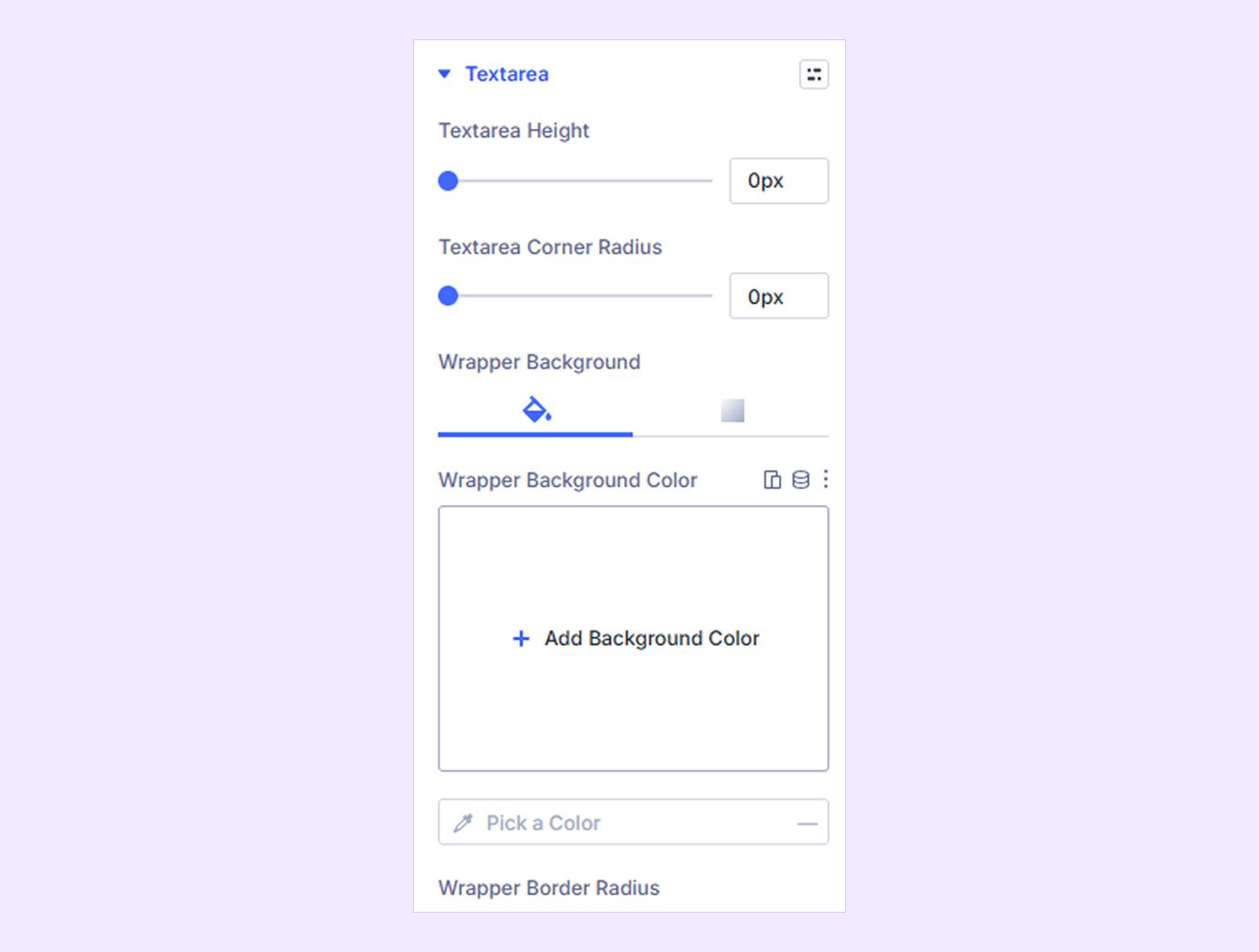
- Textarea Height: Adjust the height of multi-line text fields.
- Textarea Corner Radius: Adjust the corner rounding of textareas.
You will also find styling options for the wrapper background, border, spacing, and more. (Available when the form includes a Textarea field.)
Placeholder: Customize the typography of placeholder text inside form fields. (Available when Show Placeholders is enabled.)
Searchable & Multi Select
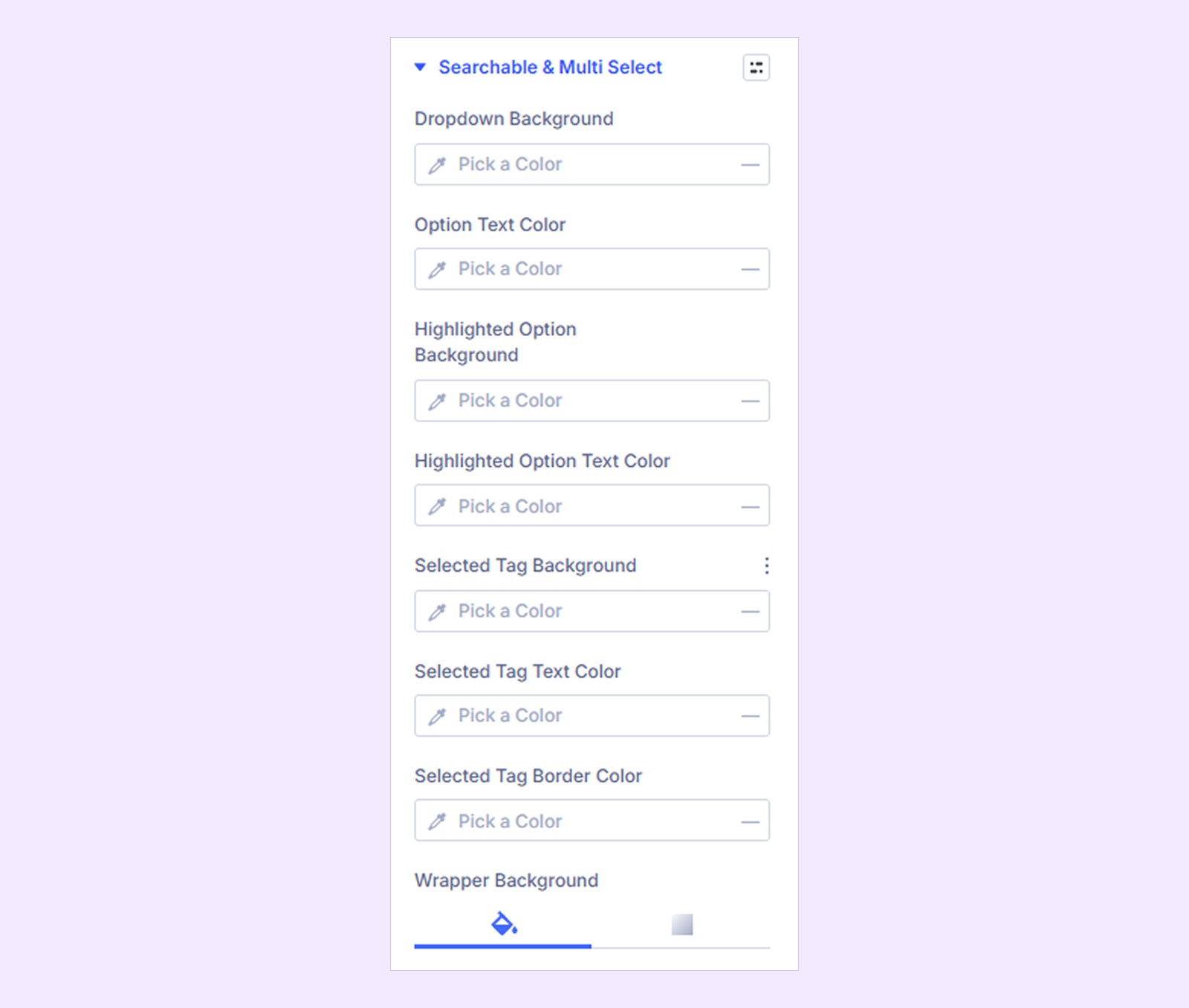
- Dropdown Background: Set the background color of the dropdown list.
- Option Text Color: Set the text color of dropdown options.
- Highlighted Option Background: Set the background color of highlighted options.
- Highlighted Option Text Color: Set the text color of highlighted options.
- Selected Tag Background: Set the background color of selected tags.
- Selected Tag Text Color: Set the text color of selected tags.
- Selected Tag Border Color: Set the border color of selected tags.
You will also find standard styling options for background, border, spacing, and more. (Available when the form includes searchable or multi-select dropdowns. Selected Tag settings appear only for multi-select fields.)
Radio & Checkbox
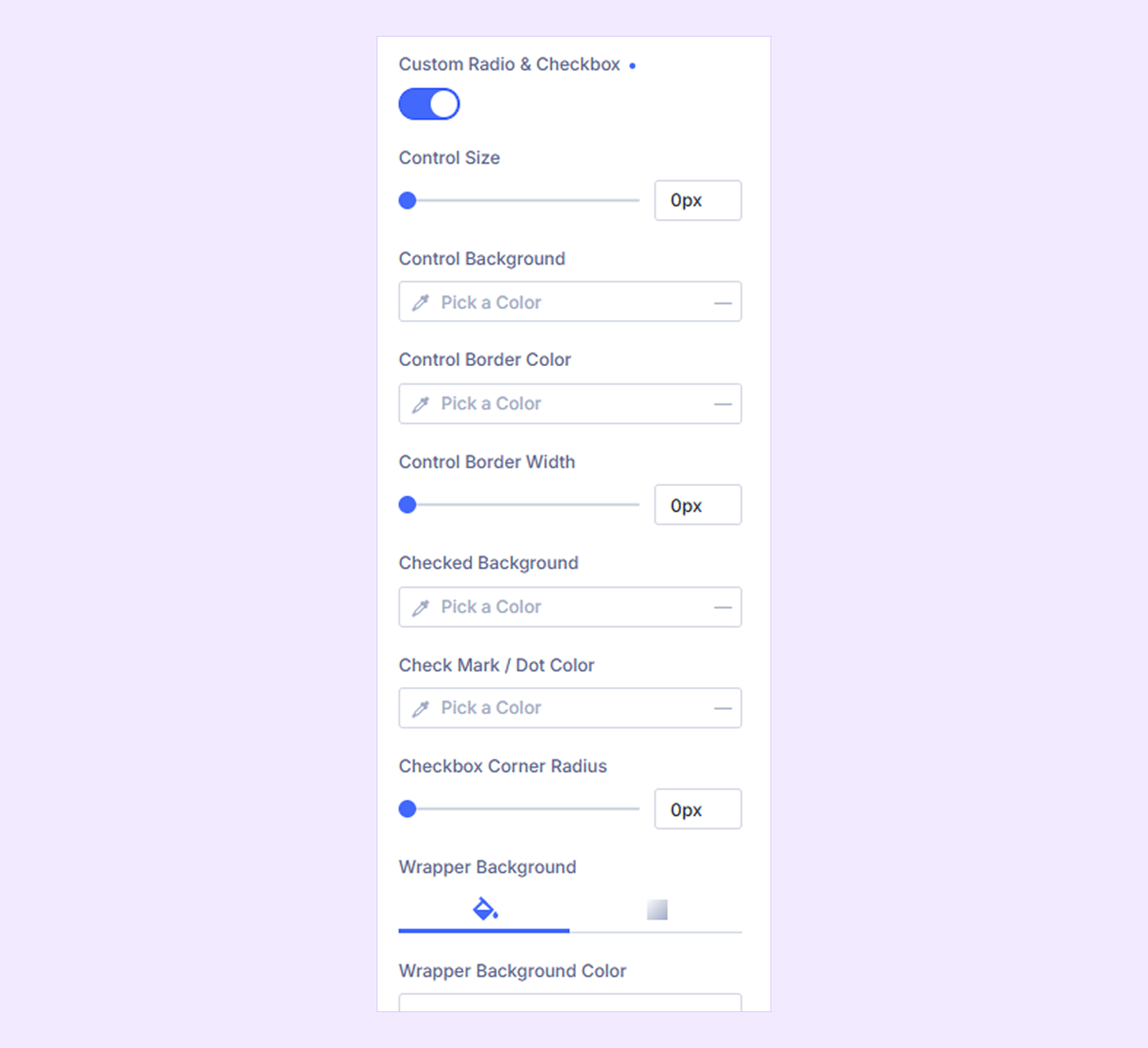
- Custom Radio & Checkbox: Enable this to replace the default radio buttons and checkboxes with customizable controls.
- Control Size: Adjust the size of radio buttons and checkboxes.
- Checked Background: Set the background color of selected controls.
- Check Mark / Dot Color: Choose the color of the checkmark or radio dot.
- Checkbox Corner Radius: Adjust the corner rounding of checkboxes. (Available for forms with checkboxes.)
You will also find standard styling options for typography, spacing, background, border color, and border width.
Note: This section appears only when the form contains radio buttons or checkboxes.
Button Style Choices: Customize the background, text, border, spacing, and selected state of option buttons. (Available when radio or checkbox choices are displayed as buttons.)
Image Choices: Customize the border, shadow, and selected border color of image-based options. (Available when the form includes choices displayed as images.)
Section Break: Customize section headings, descriptions, dividers, and spacing. (Available for forms with section breaks.)
Custom HTML: Customize the typography of text added through Custom HTML fields. (Available for forms with Custom HTML fields.)
Terms & Consent: Customize the typography and link colors of terms and consent text. (Available for forms with Terms or GDPR consent fields.)
Checkable Grid: Customize grid headings, row backgrounds, alternating row colors, and borders. (Available when the form includes a Checkable Grid field.)
Rating
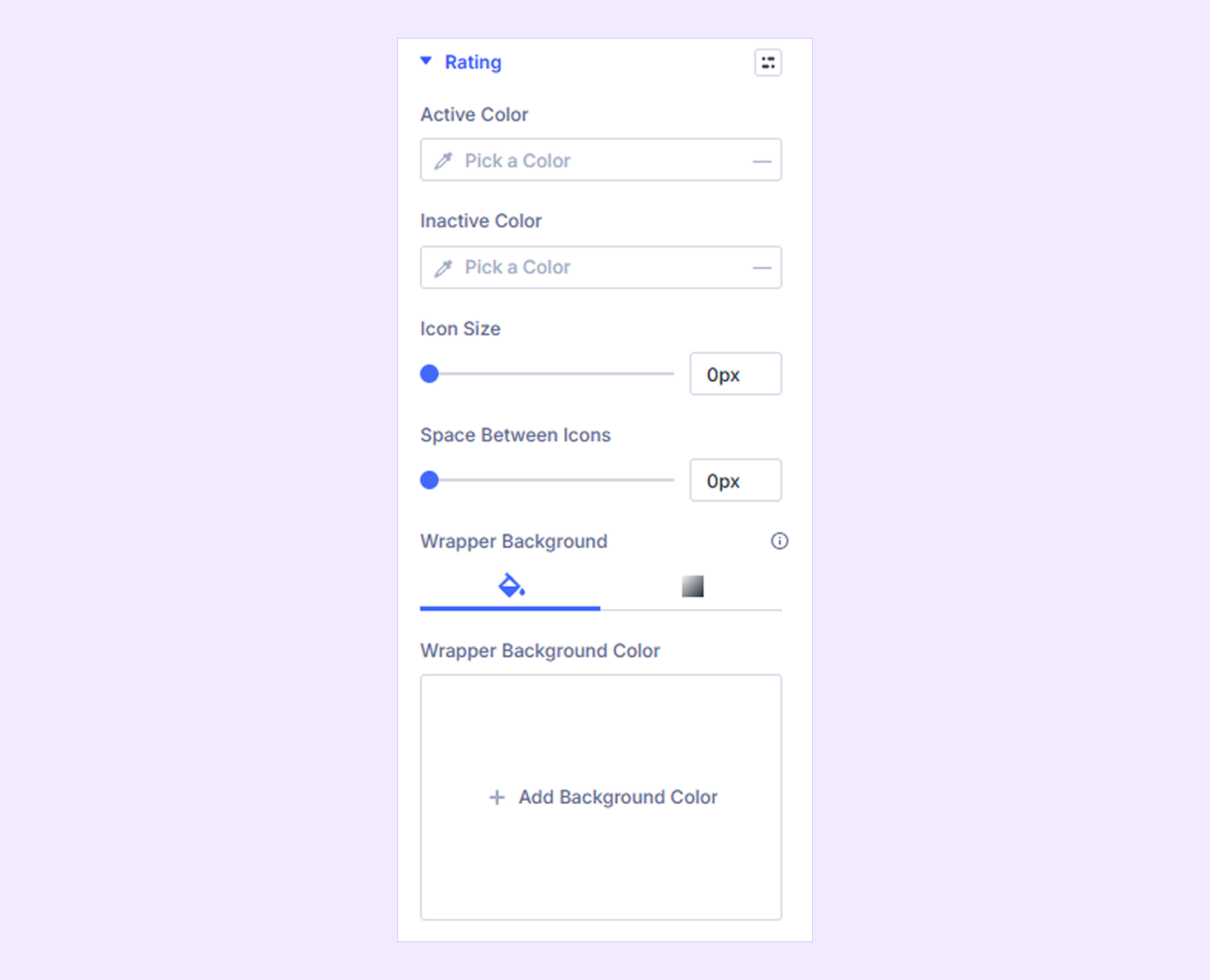
- Active Color: Set the color of selected rating stars.
- Inactive Color: Set the color of unselected stars.
- Icon Size: Adjust the size of the rating icons.
- Space Between Icons: Adjust the spacing between rating icons.
You will also find styling options for background, border radius, spacing, and more. (Available when the form includes a Ratings field.)
File Upload: Customize the upload button's background, text, border, shadow, and spacing. (Available for forms with file or image upload fields.)
Range Slider
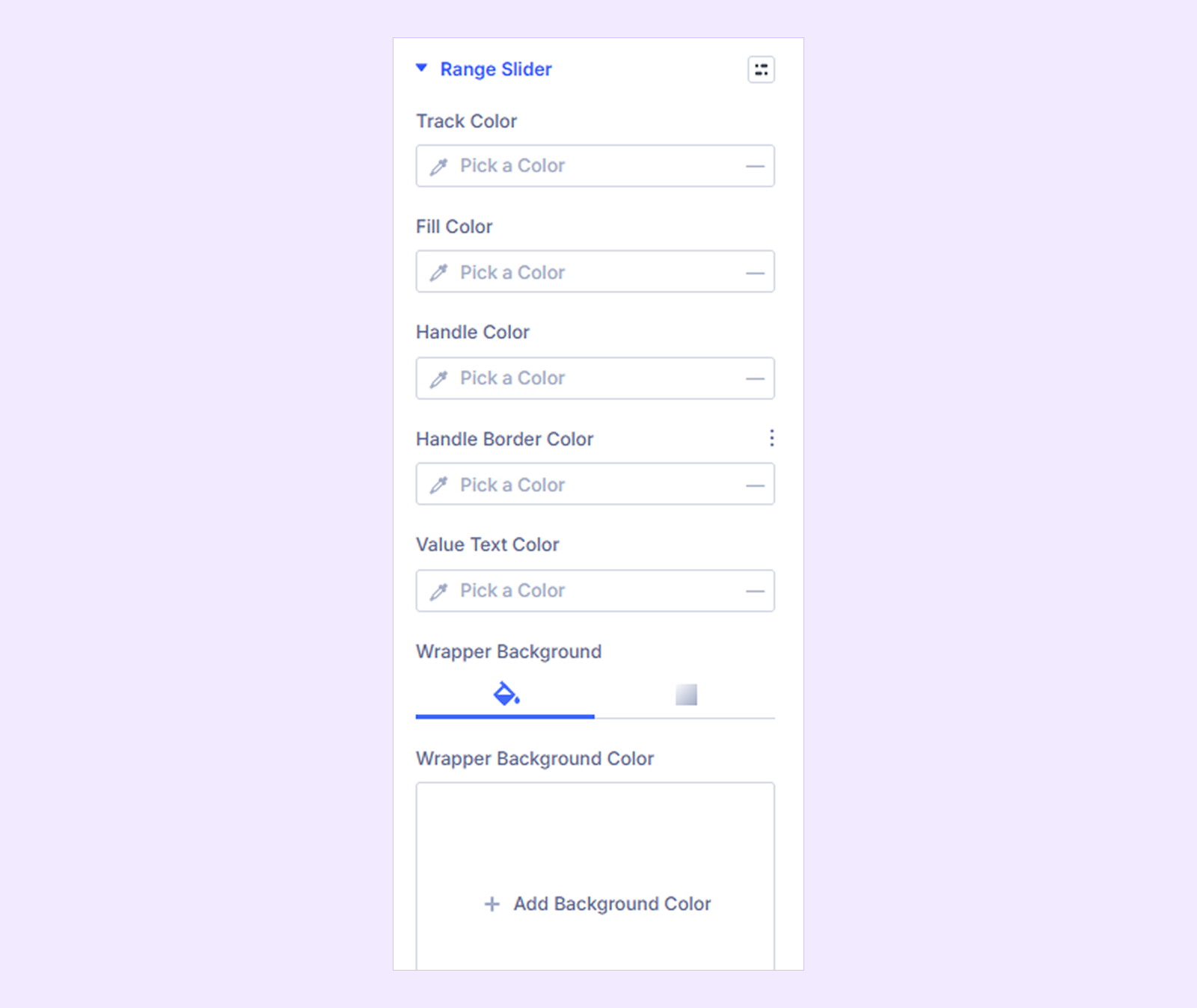
- Track Color: Set the color of the slider track.
- Fill Color: Set the color of the filled portion of the track.
- Handle Color: Set the color of the slider handle.
- Handle Border Color: Customize the handle border color.
- Value Text Color: Set the color of the displayed slider value.
You will also find standard styling options for background, border, spacing, and more. (Available when the form includes a Range Slider field.)
Net Promoter Score: Customize the scale labels, score cells, borders, and selected score appearance. (Available when the form includes a Net Promoter Score field.)
Repeater
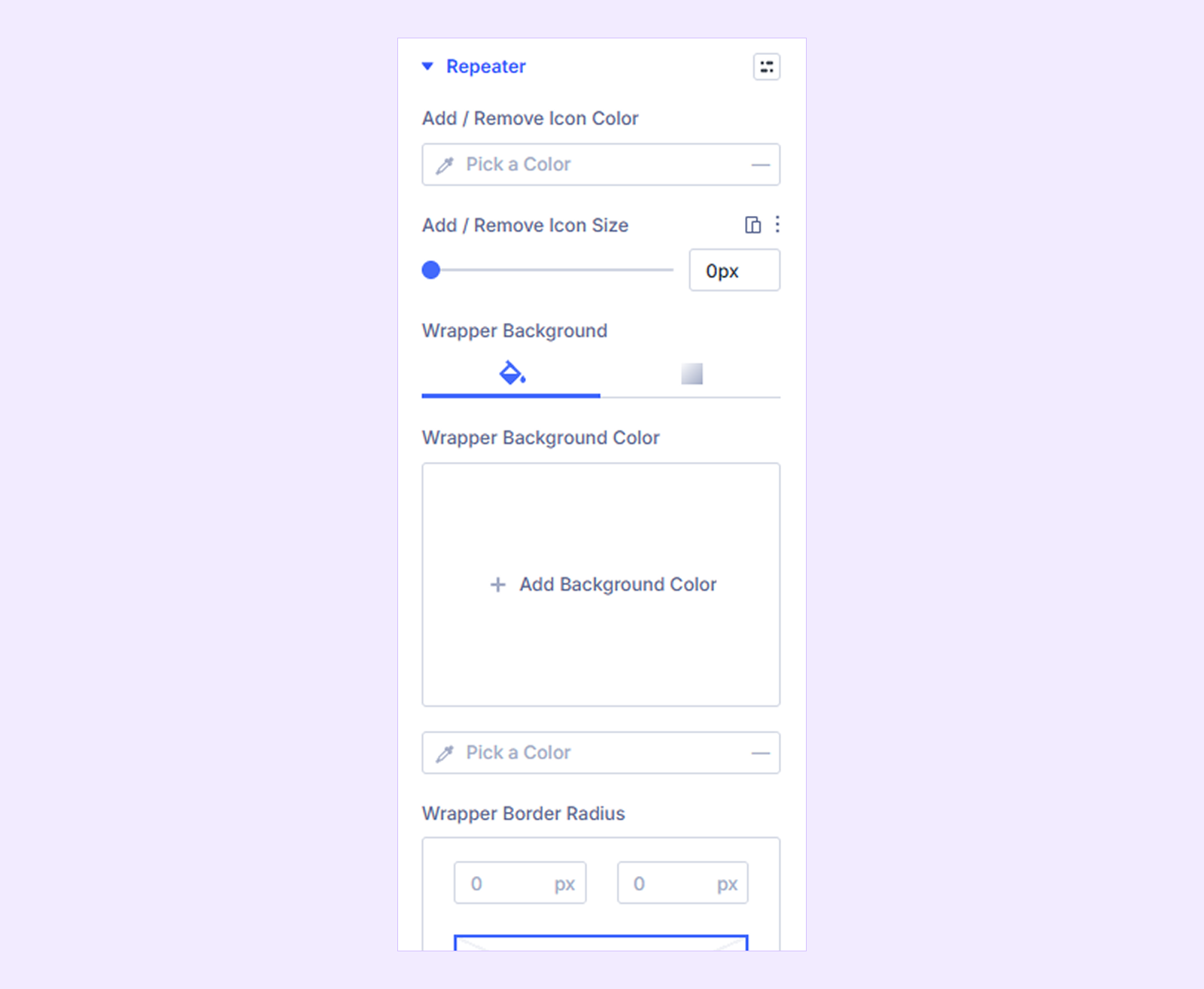
- Add / Remove Icon Color: Set the color of the icons used to add or remove repeating fields.
- Add / Remove Icon Size: Adjust the size of the add and remove icons.
You will also find standard styling options for background, border, and more. (Available when the form includes a Repeater field.)
Accordion
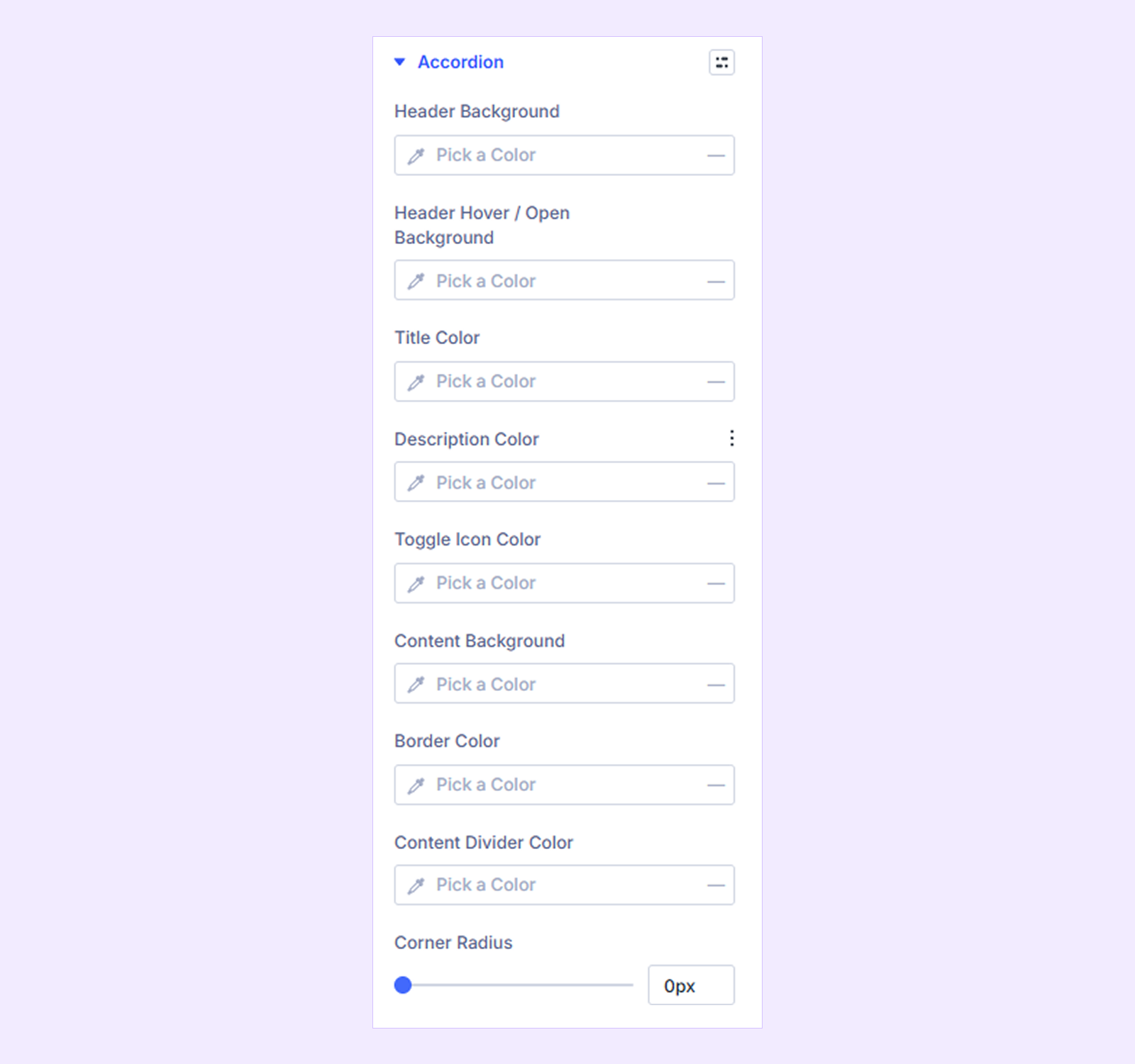
- Header Background: Customize the accordion header background.
- Header Hover/Open Background: Set the background when the accordion is hovered over or expanded.
- Title Color: Set the accordion title color.
- Description Color: Customize the description text color.
- Toggle Icon Color: Set the color of the expand/collapse icon.
- Content Background: Customize the background of expanded content.
- Border Color: Set the accordion border color.
- Content Divider Color: Set the color of the divider between the header and content.
- Corner Radius: Adjust the corner rounding of the accordion.
You will also find standard styling options for box shadow, margin, and padding. (Available when the form includes an Accordion field.)
Payment Summary: Customize the summary text, header background, and borders. (Available when the form includes a Payment Summary field.)
Step Progress: Customize the progress bar, step titles, indicators, and connectors. (Available when the form includes multiple steps with a progress indicator.)
Step Buttons: Customize the background, text, border, shadow, and spacing of the Next and Previous buttons. (Available when the form includes multiple steps.)
Submit Button
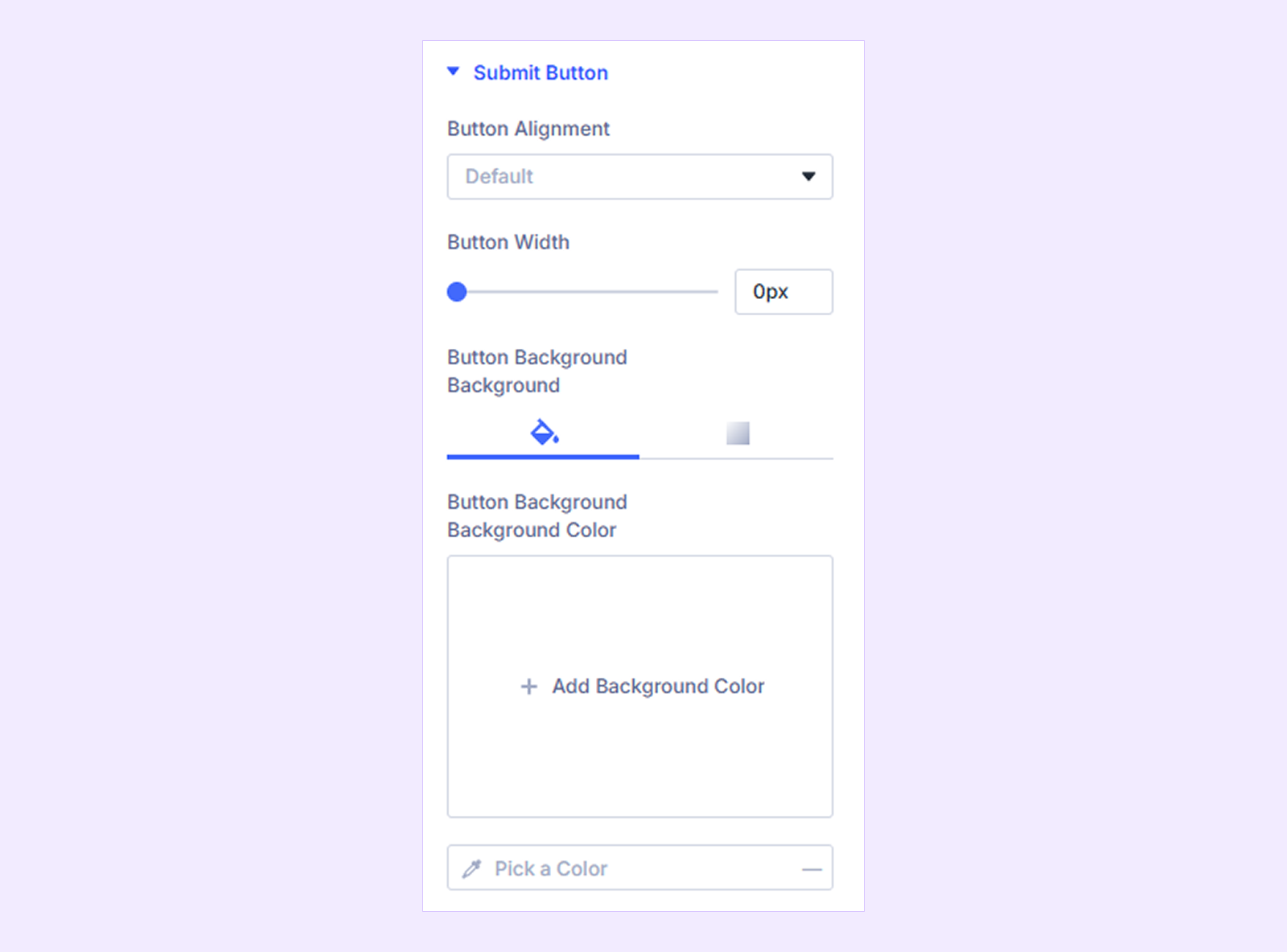
- Button Alignment: Align the submit button to the left, center, or right.
- Button Width: Adjust the width of the submit button.
You can also customize the submit button's background, typography, border, shadow, and spacing.
Error Messages: Customize the error message typography and the background and border colors of invalid fields.
Success Message: Customize the text, background, border, shadow, and spacing of the message shown after form submission.
Sizing: Adjust the width, height, and alignment of the module.
Spacing: Add custom margin and padding to the module’s container.
Border: Customize the border style, width, and color. And style each border separately or apply the same style to all sides.
Box Shadow: Add shadow effects to the module.
Filters: Apply color filters to enhance the appearance.
Transform: Scale, rotate, move, or skew the module.
Animation: Apply reveal animation effects and customize delay, duration, repeat settings, and animation type.
Advanced Tab
The Advanced tab provides additional controls, including Custom CSS, Position, Visibility, Conditions, and other standard Divi settings.
Need Help?
If you have any questions or need assistance, contact our support team at [email protected].