
The DiviFlash Advanced Map module lets you display one or more locations on an interactive Google map with an optional searchable location list. Visitors can select locations, view their details, and explore places without requiring a Google Maps API key.
Important Note:
- It’s available in DiviFlash 5.7.0 and later, and supports Divi 5 only.
- The module is disabled by default. Enable it from DiviFlash > Modules > Creative > Advanced Map.
Let's explore the module settings and how to use them.
Content Tab
The Content tab lets you configure the map, add locations, and manage the location list.
Adding & Editing Locations
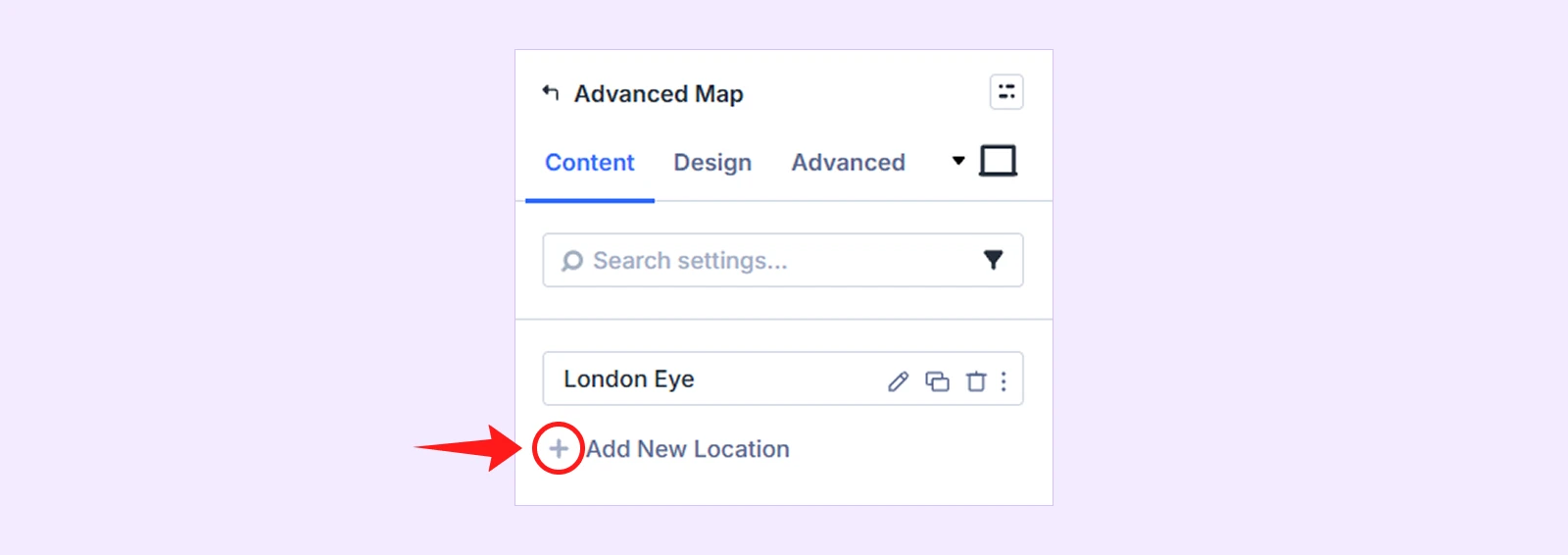
When you first add the Advanced Map module, it includes a sample location. You can edit it or click Add New Location to add more places. Each Location item has its own settings for the name, address and more.
See the Location Item Settings section below for details.
Map
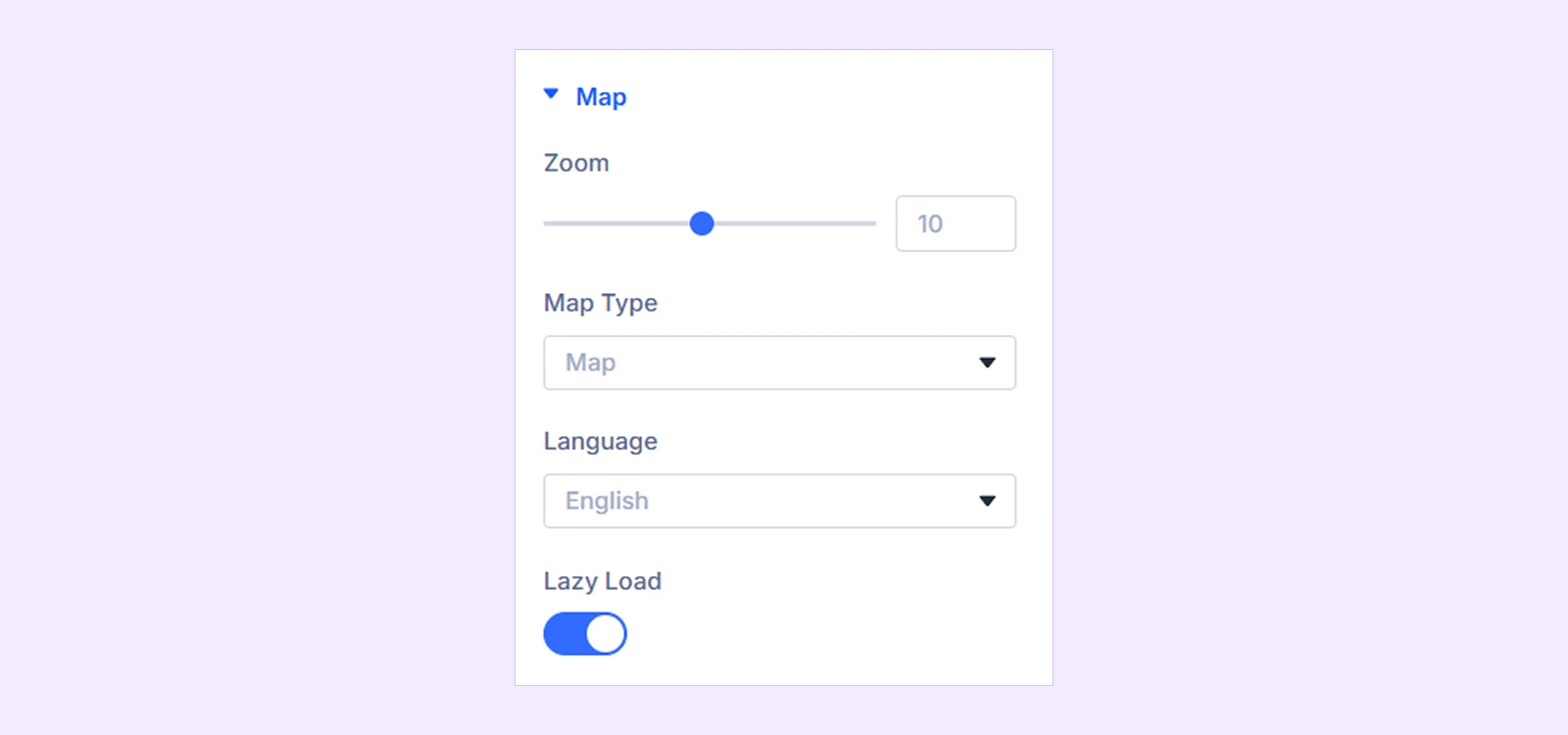
- Zoom: Set the map's zoom level from 1 (world view) to 20 (individual buildings). You can set different zoom levels for desktop, tablet, and mobile.
- Map Type: Choose between Map (street map) and Satellite (aerial imagery with street names).
- Language: Choose the language for map labels and controls, or select Site language to use your WordPress site's language.
- Lazy Load: Load the map only when visitors scroll near it to help improve initial page loading speed.
Location List
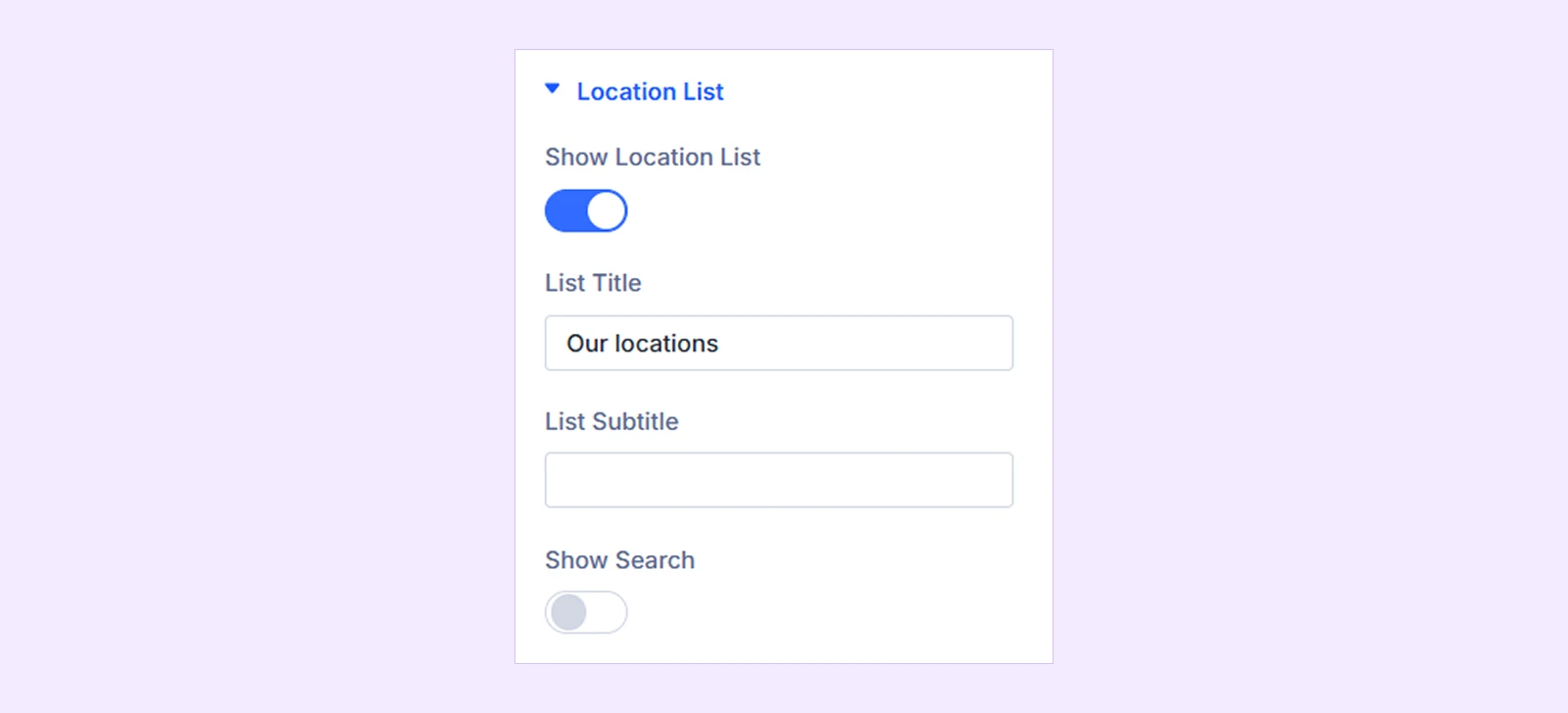
- Show Location List: Show or hide the list of locations beside or around the map. When disabled, only the first location appears on the map.
- List Title: Set the heading displayed above the location list. Leave it empty to hide the title.
- List Subtitle: Add a short description below the list title. Leave it empty to hide it.
- Show Search: Display a search field that lets visitors filter locations by name, address, or opening hours.
- Search Placeholder: Set the placeholder text inside the search field. (Available when Show Search is enabled.)
Background: Customize the module's background using colors, gradients, images, or videos.
Meta: Add an admin label to help identify the module in the Divi Builder.
Design Tab
The Design tab lets you customize the layout and appearance of the location list, cards, icons, text, and selected locations.
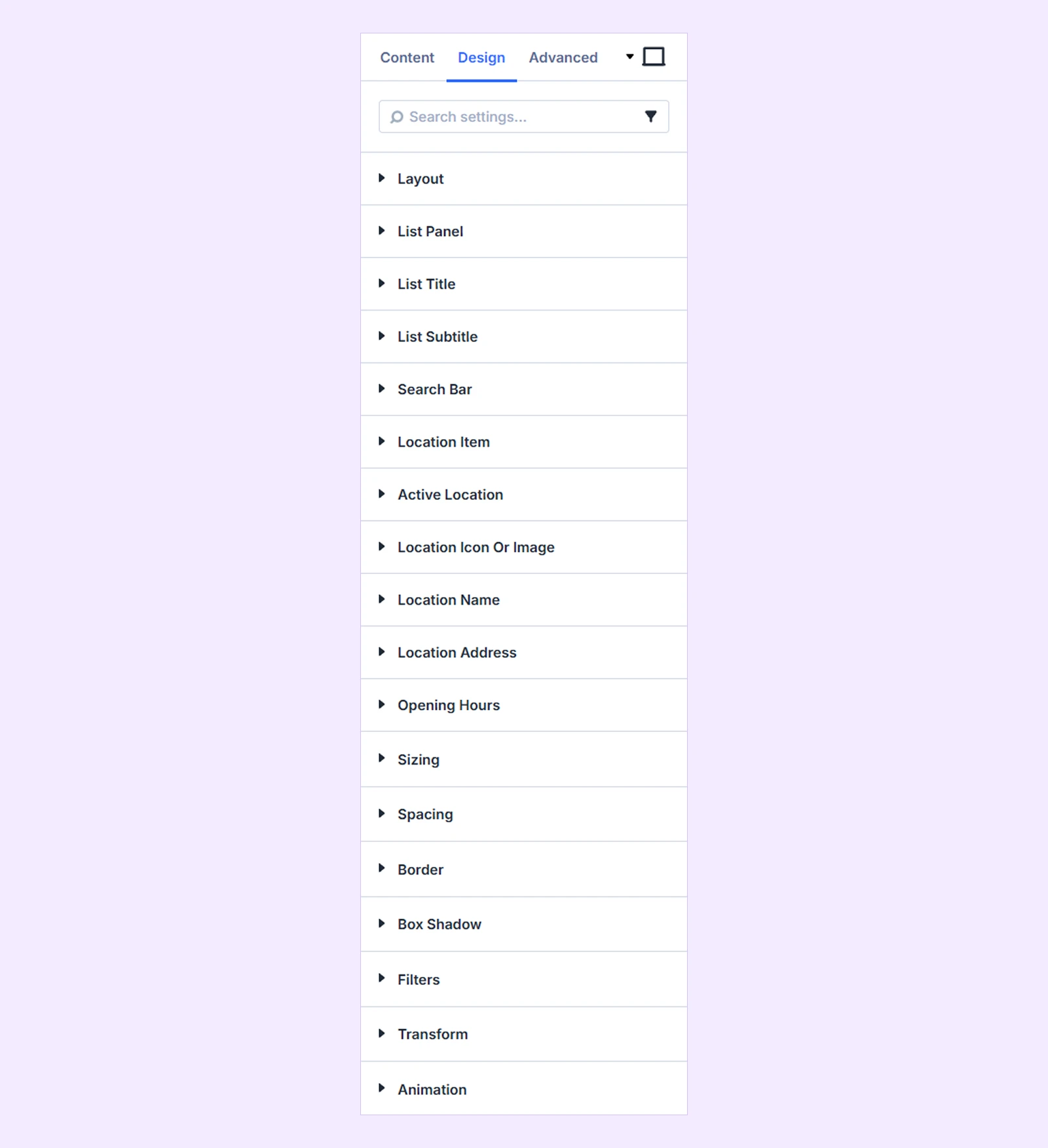
Layout
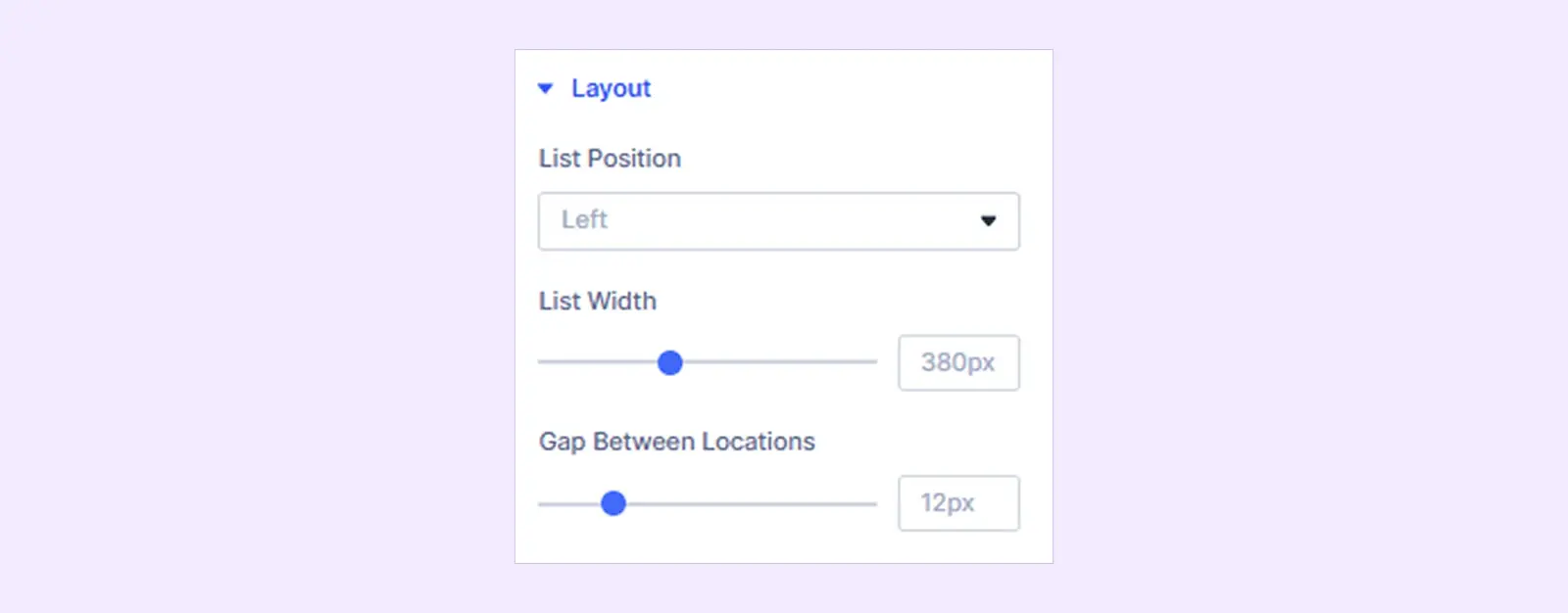
- List Position: Place the location list to the Left, Right, Above Map, or Below Map.
- List Width: Adjust the width of the location list. (Available when List Position is set to Left or Right.)
- Gap Between Locations: Adjust the spacing between location cards.
- Map Height: Set the map's height when the location list appears above or below it. (Available when List Position is set to Above Map or Below Map.)
- Grid Columns: Choose how many location cards appear in each row (1–6). (Available when List Position is set to Above Map or Below Map.)
List Panel: Customize the background, spacing, border, and shadow of the panel containing the list title, search field, and location cards.
List Title: Customize the typography and heading level of the location list title.
List Subtitle: Customize the typography of the location list subtitle.
Search Bar
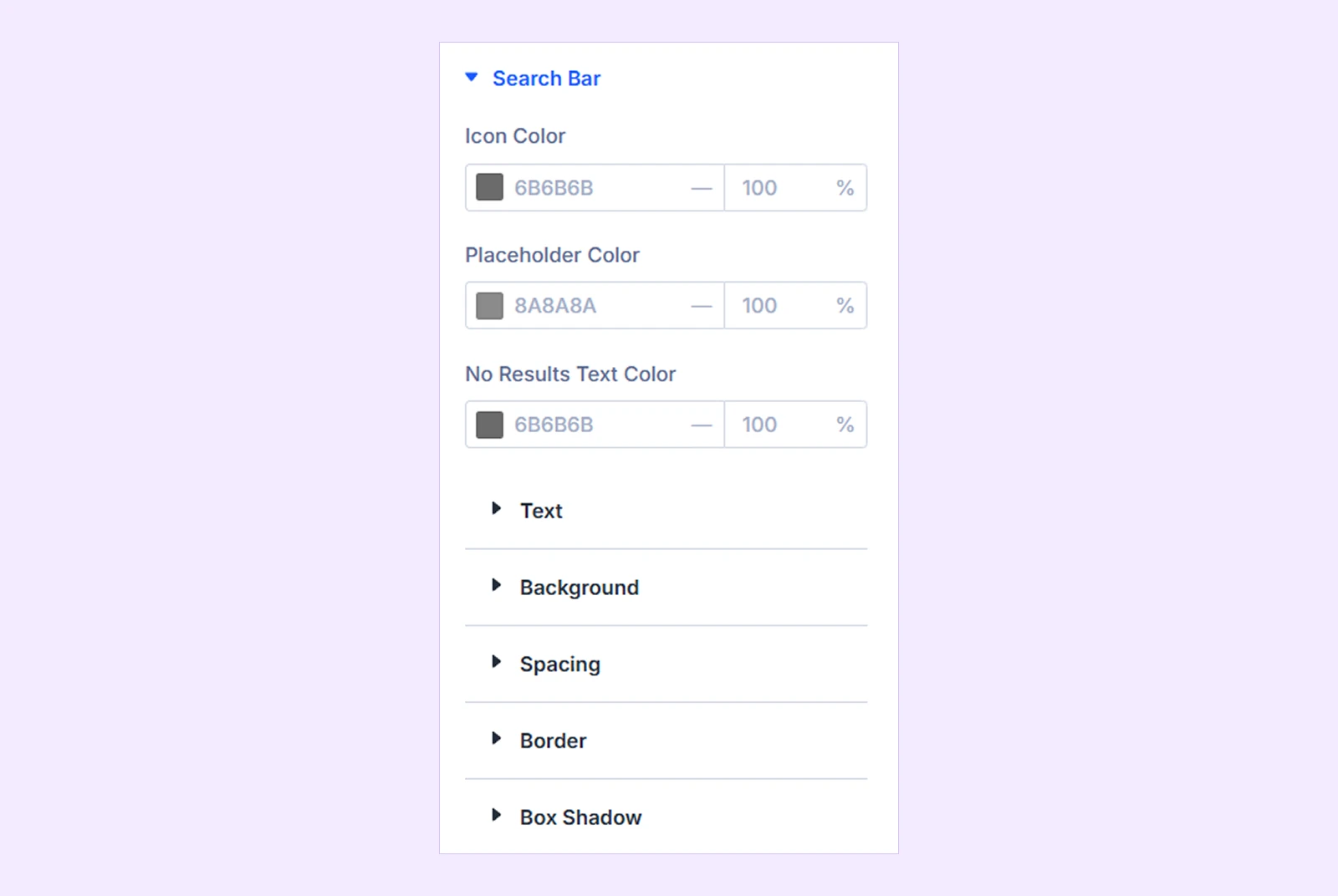
- Icon Color: Set the color of the search icon.
- Placeholder Color: Set the color of the search field's placeholder text.
- No Results Text Color: Set the color of the message displayed when no locations match the search.
You will also find standard styling options for text, background, spacing, border, and box shadow. (Available when Show Search is enabled.)
Location Item
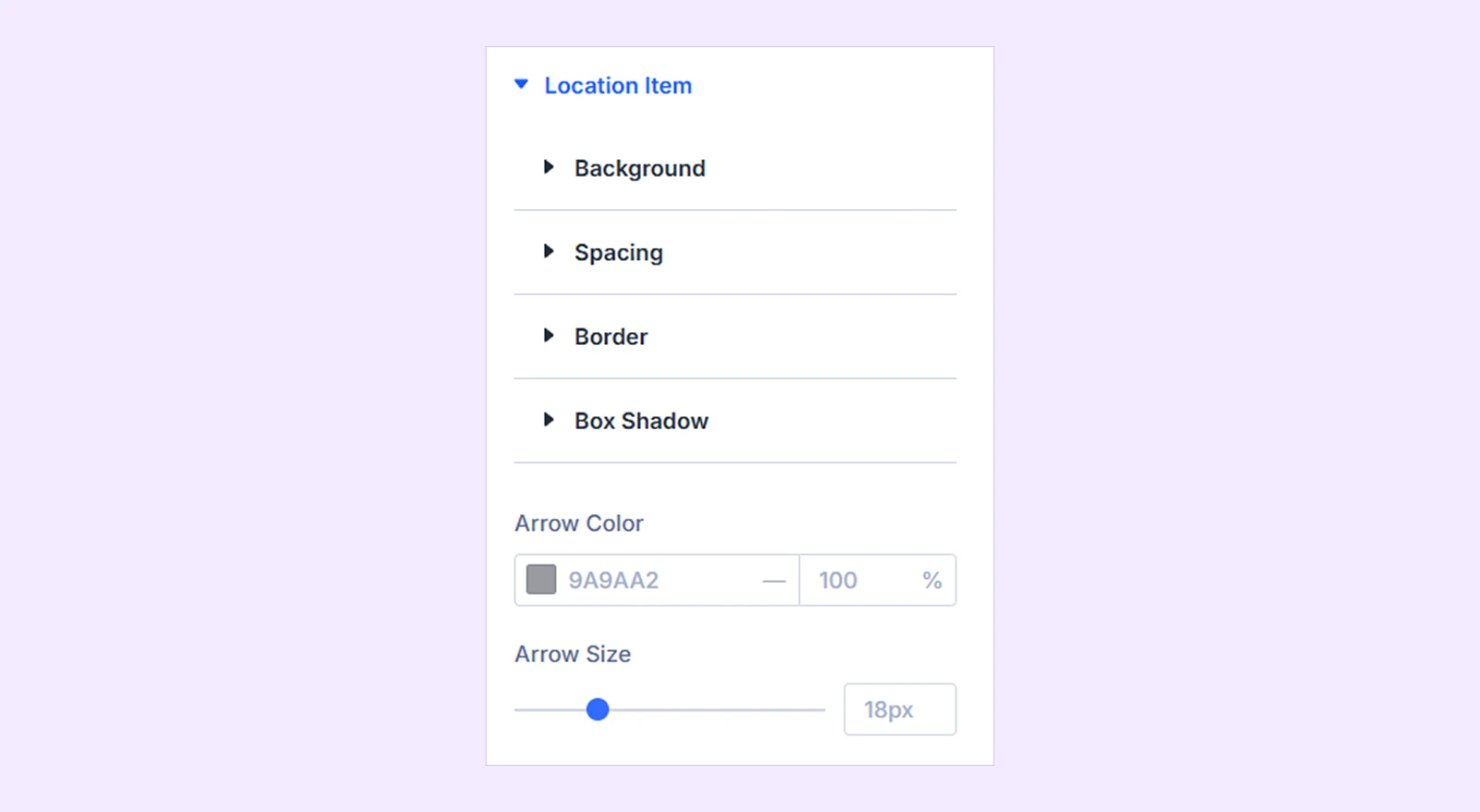
- Arrow Color: Set the color of the arrow displayed on location cards.
- Arrow Size: Adjust the size of the arrow.
You can also customize the background, spacing, border, and shadow of location cards, including their hover appearance.
Active Location
These settings control the appearance of the currently selected location.
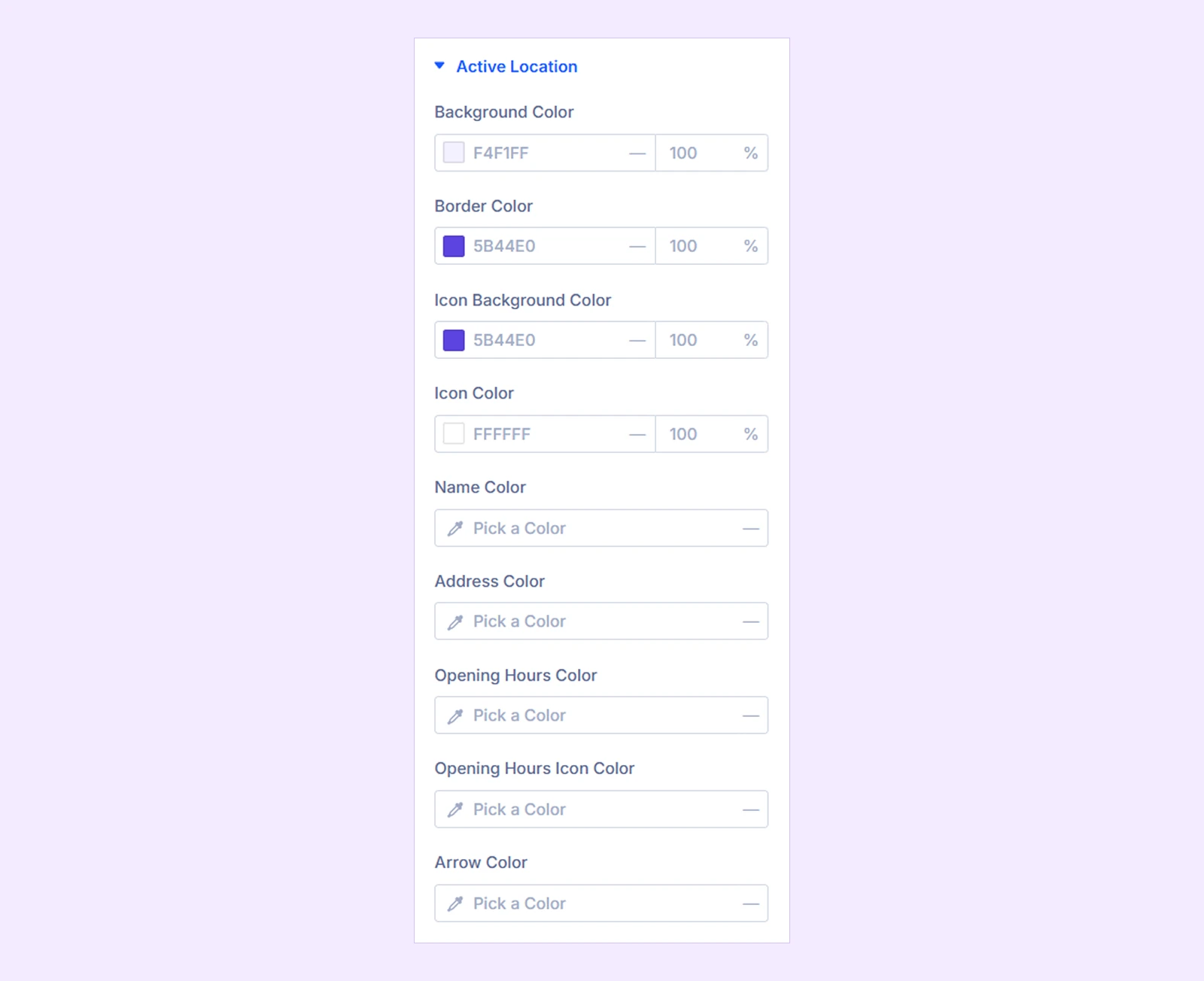
- Background Color: Set the background color of the active location card.
- Border Color: Set the border color of the active location card.
- Icon Background Color: Set the icon background color of the selected location.
- Icon Color: Set the icon color of the selected location.
- Name Color: Set the location name color.
- Address Color: Set the location address color.
- Opening Hours Color: Set the opening hours text color.
- Opening Hours Icon Color: Set the clock icon color.
- Arrow Color: Set the arrow color of the active location card.
Location Icon or Image
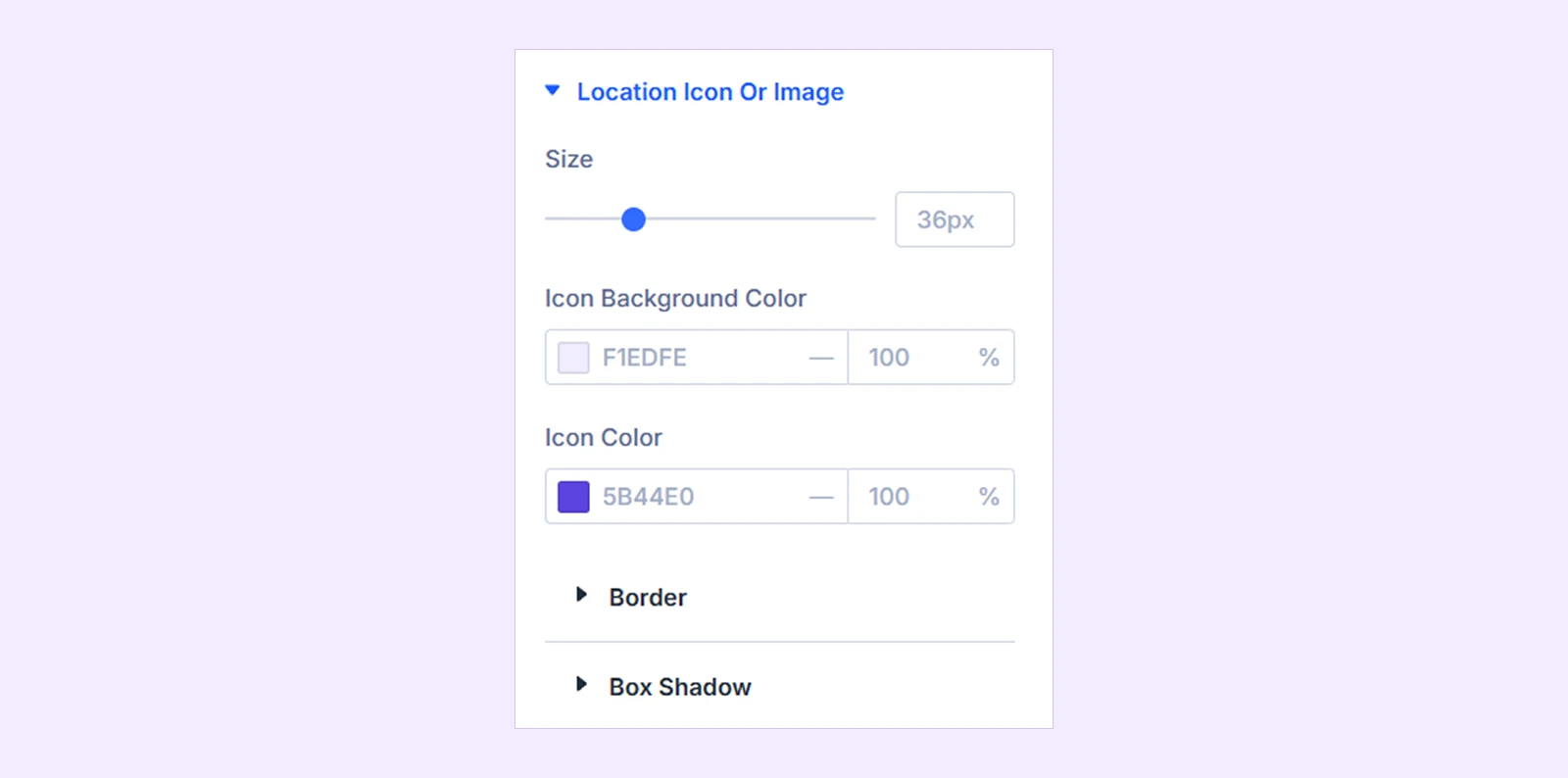
- Size: Adjust the width and height of location icons or images.
- Icon Background Color: Set the background color behind location icons.
- Icon Color: Customize the location icon color.
You will also find standard styling options for border and box shadow.
Location Name: Customize the typography and heading level of location names.
Location Address: Customize the typography of location addresses.
Opening Hours
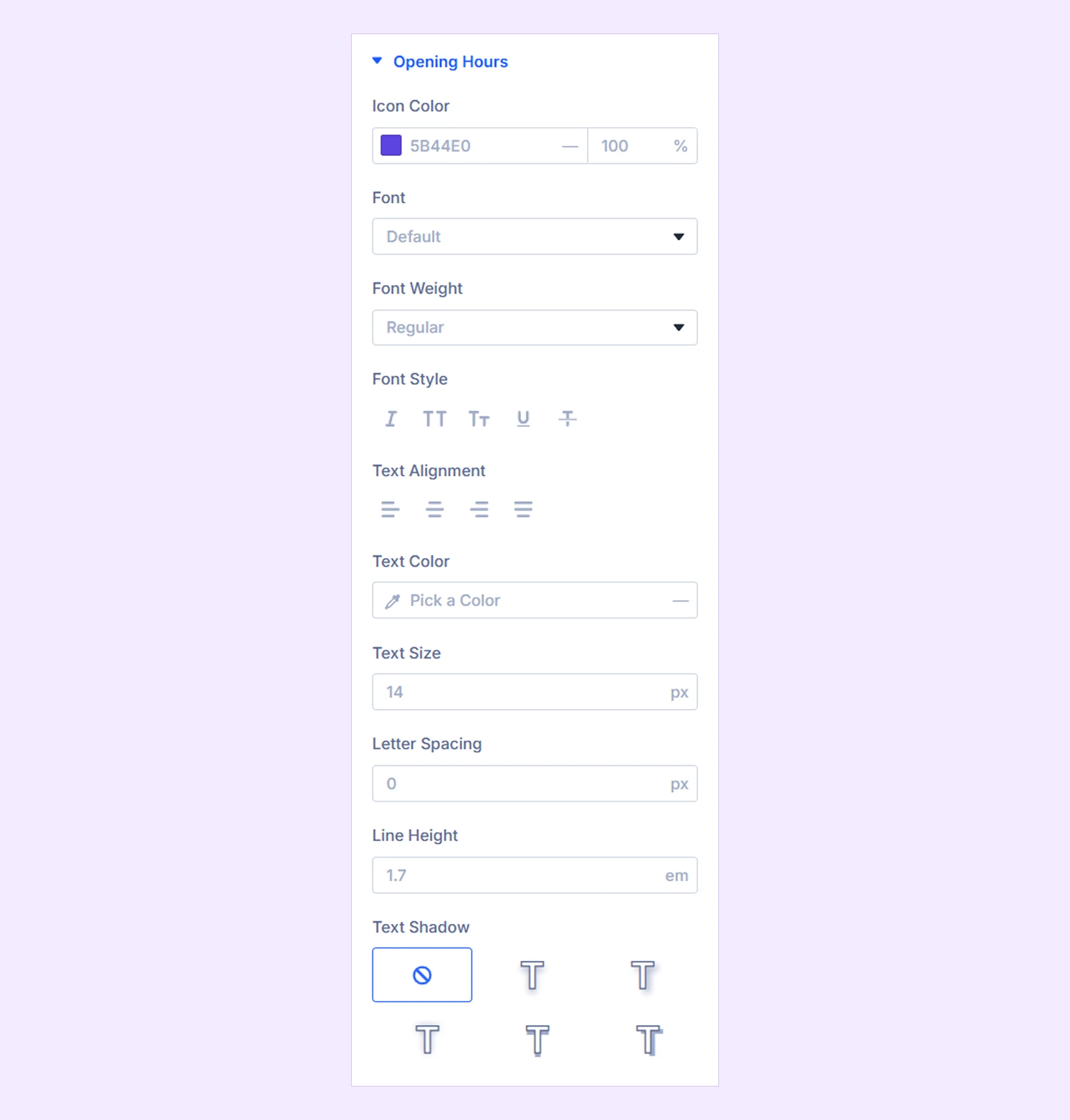
- Icon Color: Set the color of the clock icon displayed beside opening hours.
You will also find text settings to customize the font, size, color, and other typography options for the opening hours.
Sizing: Adjust the module's width, height, and alignment. If you set a custom height, the location list becomes scrollable when its content exceeds the available space.
Spacing: Adjust the margin and padding of the module.
Border: Customize the module's border style, width, color, and corner radius.
Box Shadow: Add shadow effects to the module container.
Filters: Apply color filters to the module.
Transform: Adjust the scale, position, rotation, or skew of the module.
Animation: Apply animation effects and customize their duration, delay, and other settings.
Advanced Tab
The Advanced tab offers additional controls, including Custom CSS for individual map elements, Position, Visibility, Conditions, Interactions, and other standard Divi settings.
Location Item Settings
Each Location item lets you add and customize an individual place on the map. Changes made within a Location item apply only to that location. If you leave a design setting empty, it uses the corresponding setting from the main Advanced Map module.
Content Tab
Location
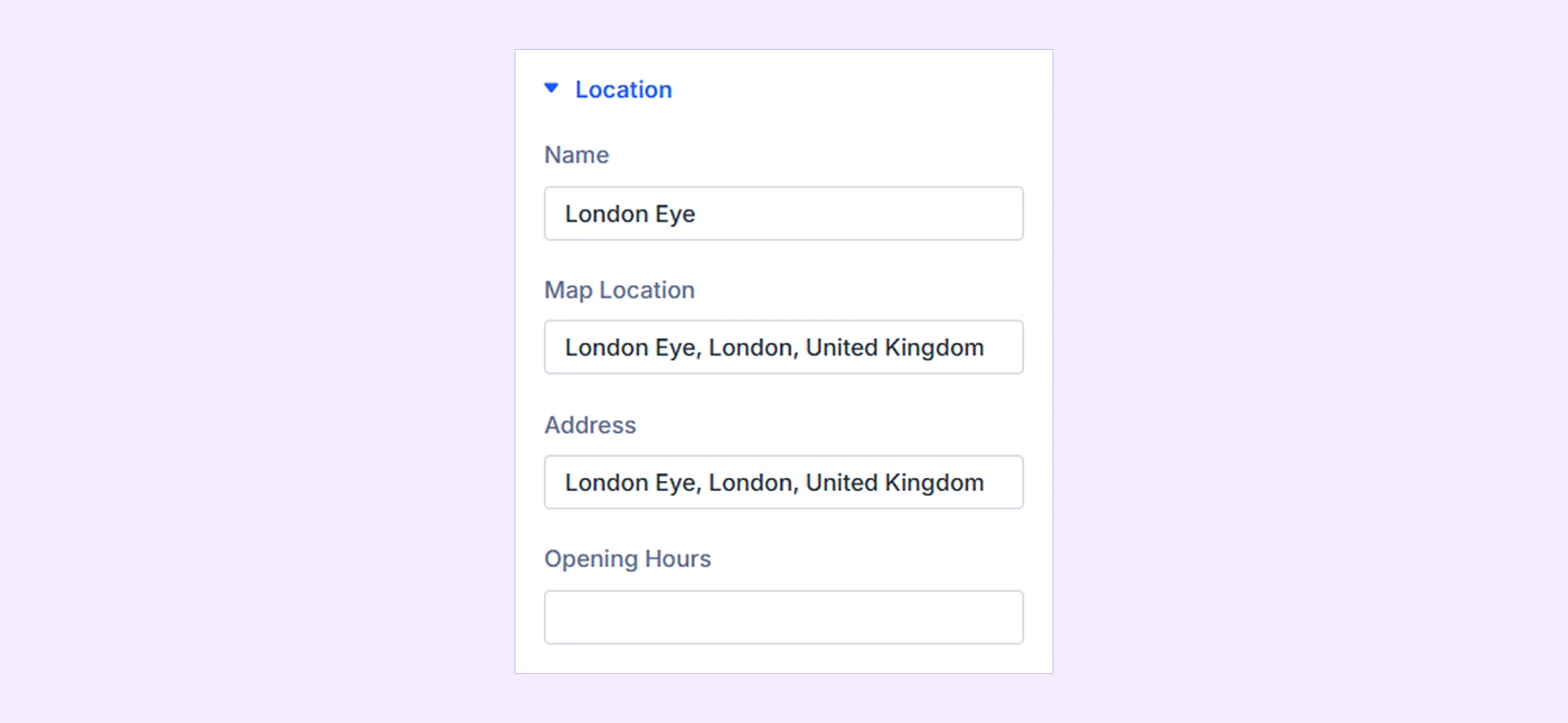
- Name: Enter the location name displayed in the location list.
- Map Location: Enter the place name or full address that Advanced Maps should display when visitors select this location. Leave it empty to use the Address field.
- Address: Enter the address displayed on the location card.
- Opening Hours: Add the location's opening hours, displayed below its address with a clock icon.
Note: Empty name, address, or opening hours fields are hidden from the location card. At least one of Map Location or Address must be filled in to display the location on the map.
Icon or Image
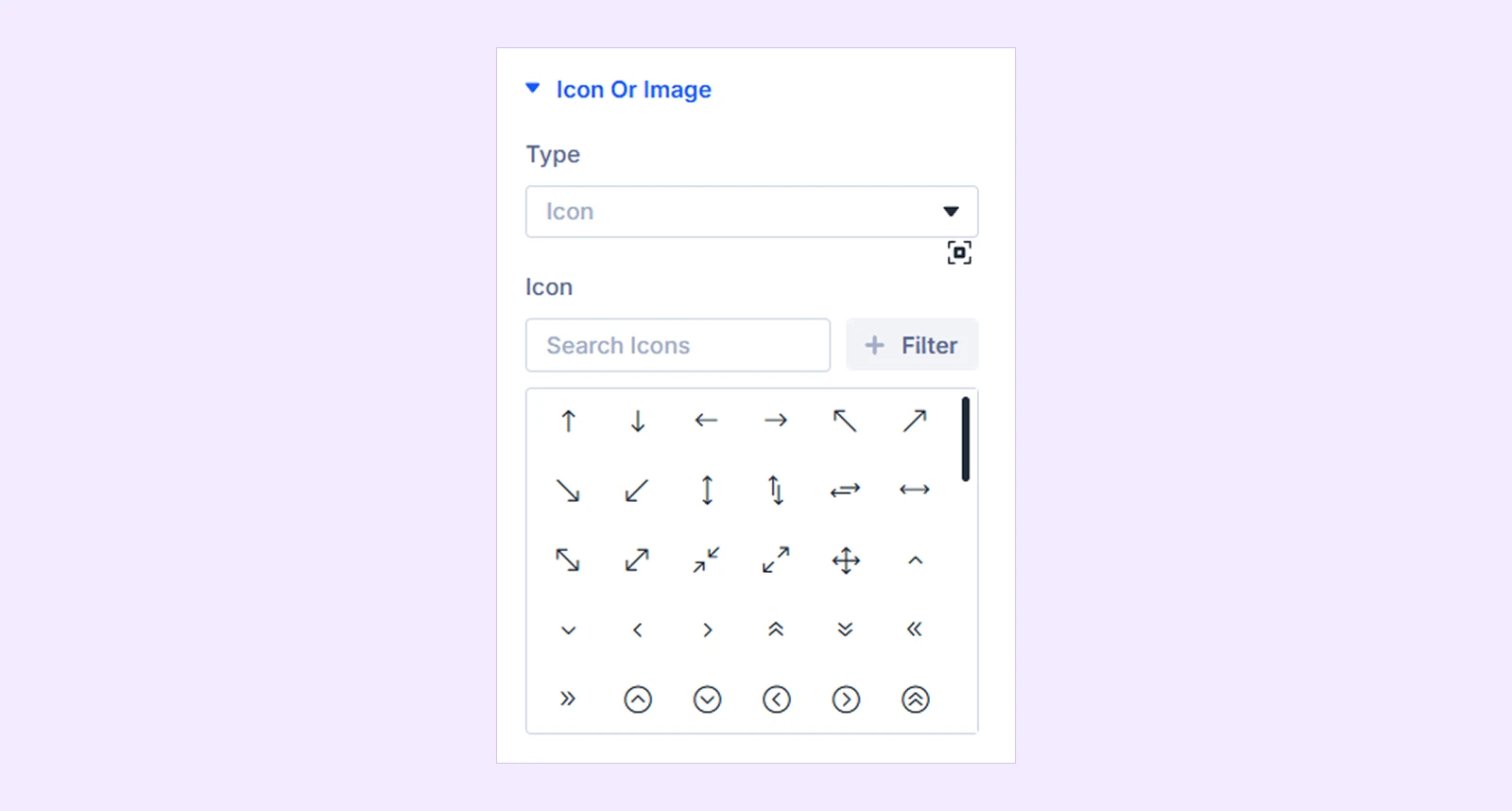
- Type: Choose what to display beside the location details:
- Icon: Display a selected icon.
- Image: Display an uploaded image.
- None: Hide the icon or image.
- Icon: Choose an icon from the available icon library. (Available when Type is set to Icon.)
- Image: Upload an image for the location. (Available when Type is set to Image.)
Background: Customize the background of this specific location card.
Element Label: Rename the Location item for easier identification in the Divi Builder.
Design Tab
The Design tab lets you customize the appearance of individual location items without changing the other locations.
Icon or Image
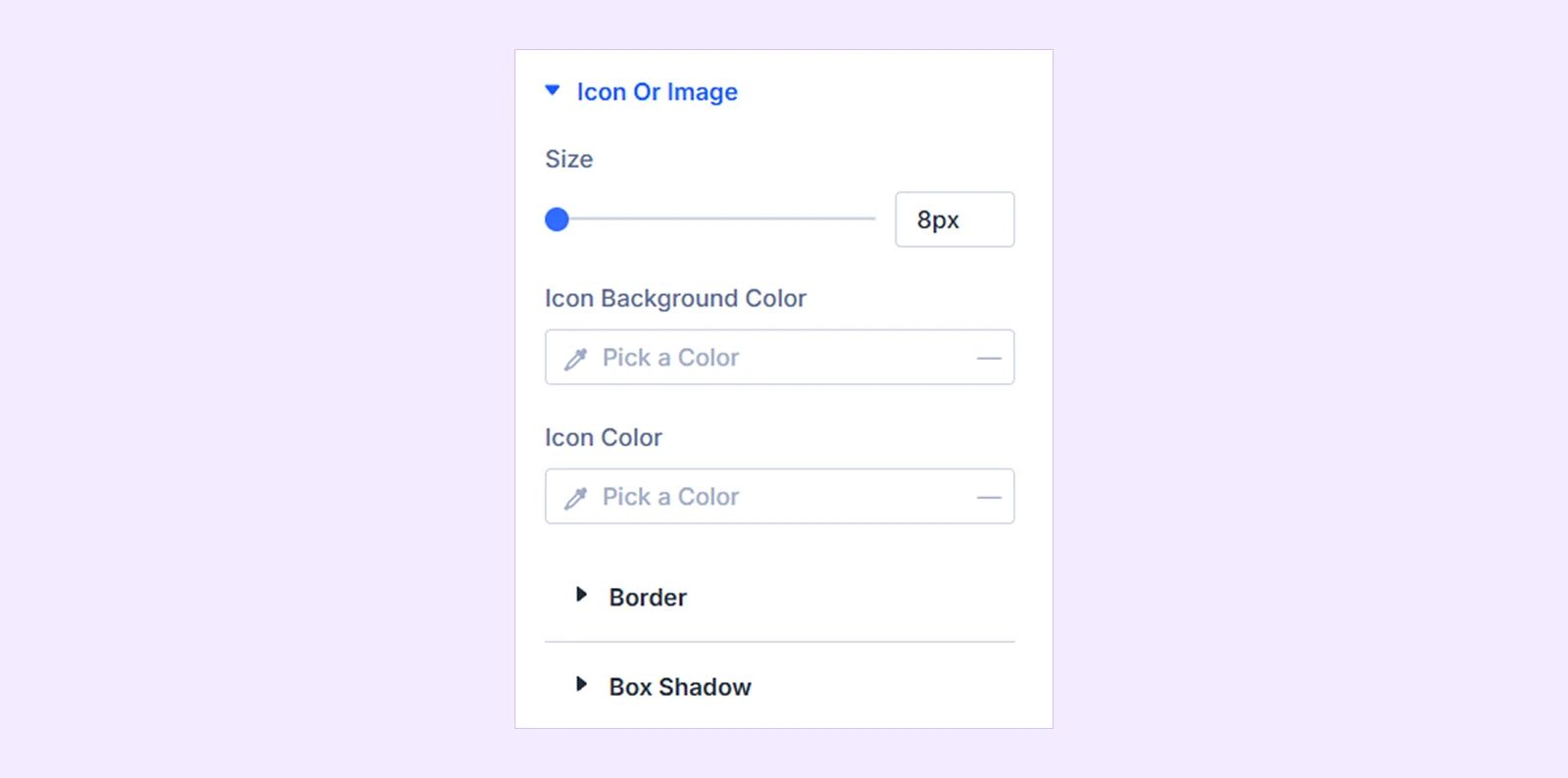
- Size: Adjust the width and height of the location icon or image.
- Icon Background Color: Set the background color behind the location icon.
- Icon Color: Set the color of the location icon.
You can also customize the border and box shadow of the icon or image.
Active Location: Customize the background, border, and icon colors when this location is selected.
Location Name: Customize the typography of the location name.
Location Address: Customize the typography of the location address.
Opening Hours: Customize the clock icon color and opening hours typography.
Spacing: Adjust the internal spacing of the location card.
Border: Customize the border and corner radius of the location card.
Box Shadow: Add or customize the shadow around the location card.
Advanced Tab
The Advanced tab provides additional settings, including custom CSS for the location item, icon or image, name, address, and opening hours.
Need Help?
If you have any questions or need assistance, contact our support team at [email protected].