
The Reading Progress Bar extension shows visitors how far they have progressed through a page or post. You can display it as a horizontal bar or circular indicator and customize its appearance, position, and visibility.
Important Notice: Reading Progress Bar is available in DiviFlash 5.5.0 or later.
Below is a quick overview of how to access the extension and configure its settings.
How to Access the Reading Progress Bar
You can access the Reading Progress Bar settings in two ways.
1. Quick Access from DiviFlash Settings
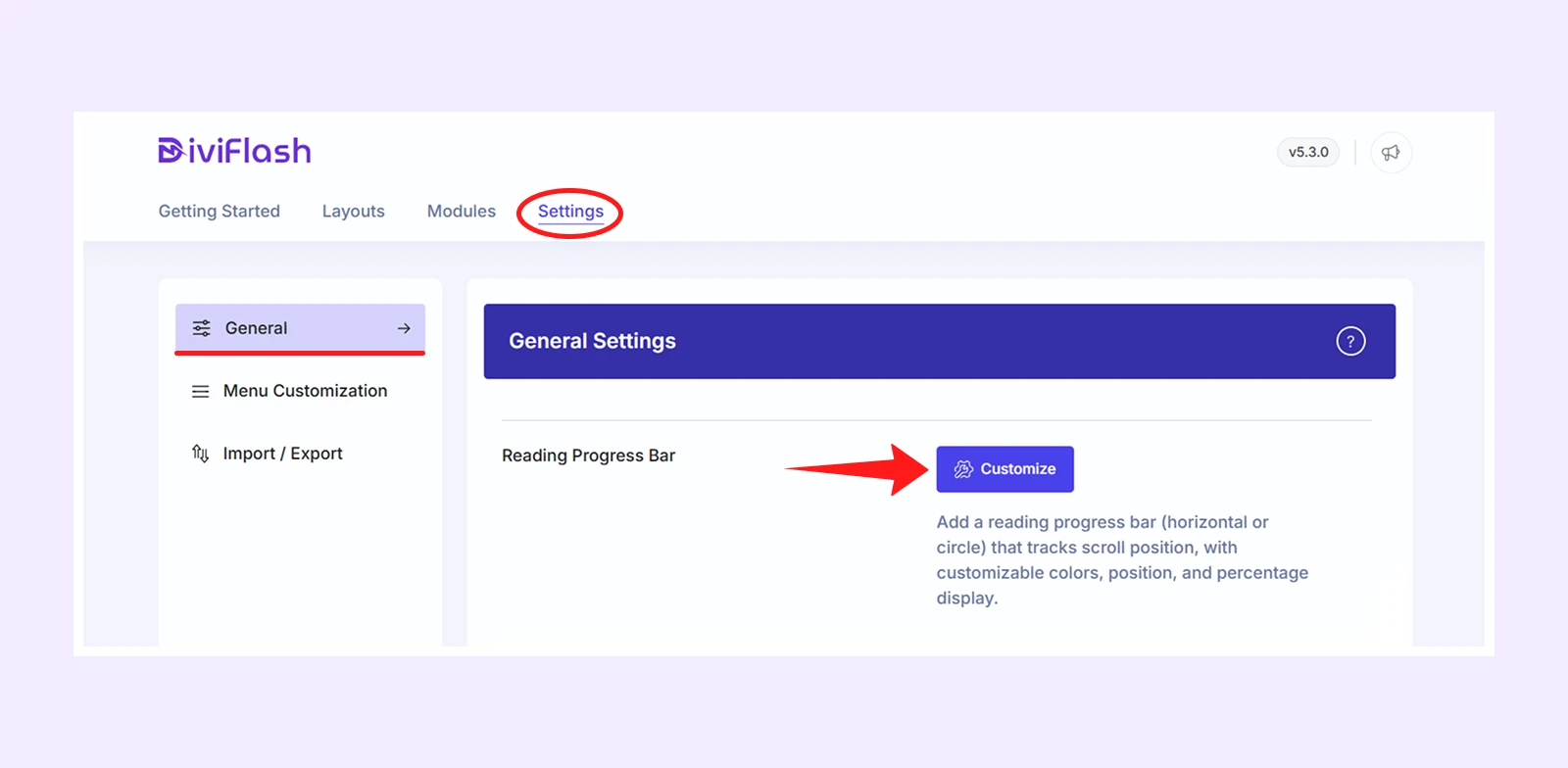
From your WordPress Dashboard, go to: DiviFlash Dashboard > General tab > Reading Progress Bar > Customize. This will open the Theme Customizer directly at the Reading Progress Bar settings.
2. Access from the Divi Theme Customizer
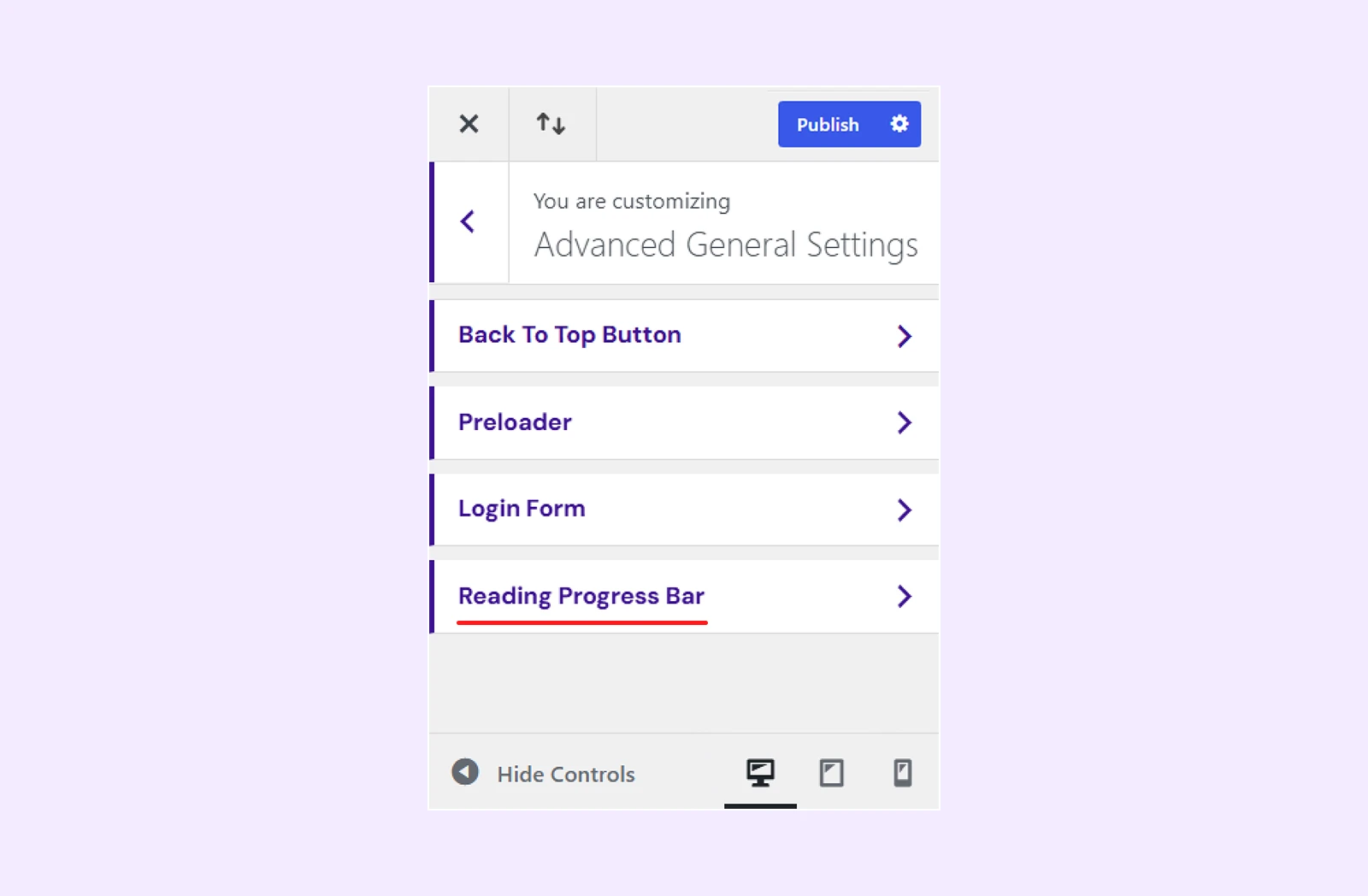
From your WordPress Dashboard, go to: Divi > Theme Customizer > Advanced General Settings > Reading Progress Bar
Enable Reading Progress Bar
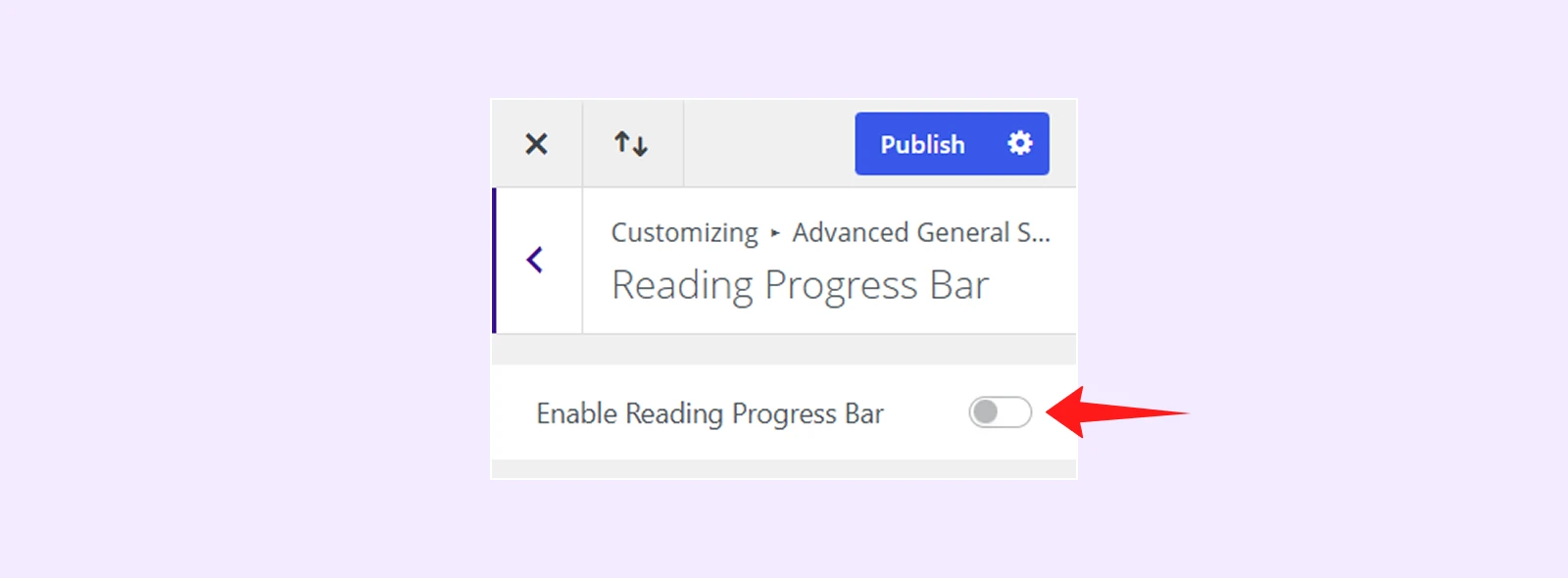
Toggle Enable Reading Progress Bar ON to activate the extension and access all available settings.
Reading Progress Bar Settings
The settings are organized into three tabs: Content, Design, and Advanced.
Content Tab
Bar Type: Choose between Horizontal Bar and Circle Bar. And the available settings change based on your selection.
If you choose Horizontal Bar, you will get these settings:
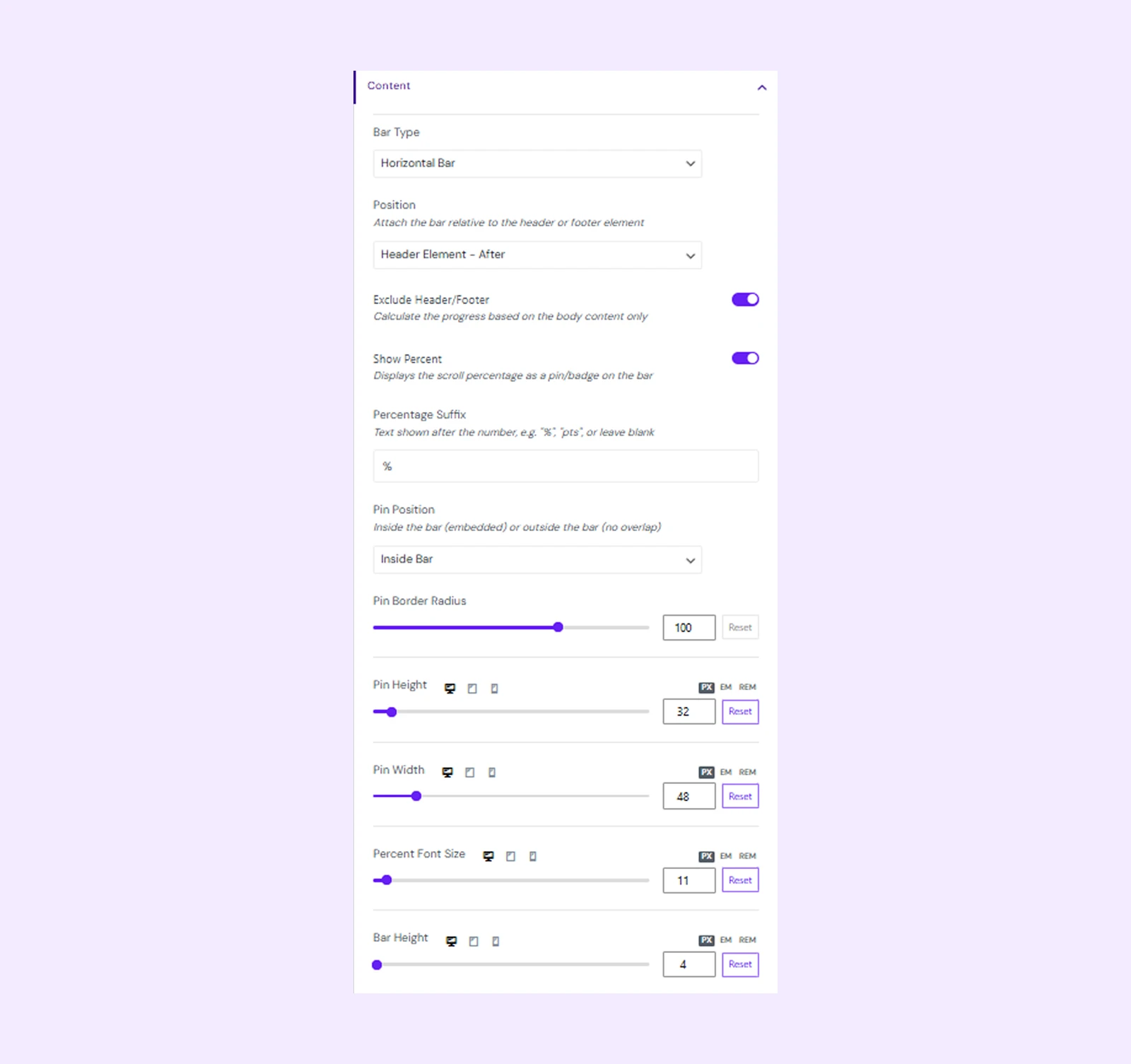
- Position: Choose where the horizontal bar appears:
- Header Element - Before
- Header Element - After
- Footer Element - Before
- Footer Element - After
- Exclude Header/Footer: Exclude the header and footer from the scroll progress calculation.
- Show Percent: Show the current scroll percentage. Enabling this will bring the following settings:
- Percentage Suffix: Add text after the percentage, such as %.
- Pin Position: Choose whether the percentage pin appears Inside Bar or Outside Bar.
- Outside Bar Position: Choose whether the pin appears above or below the progress bar. (Available only when Outside Bar is selected.)
- Space with Progress Bar: Adjust the space between the pin and the progress bar. (Available only when Outside Bar is selected.)
- Pin Border Radius: Set the roundness of the pin corners.
- Pin Height: Set the height of the percentage pin.
- Pin Width: Set the width of the percentage pin.
- Percent Font Size: Set the size of the percentage text.
- Bar Height: Set the thickness of the horizontal progress bar.
If you choose Circle Bar, you will get these settings:
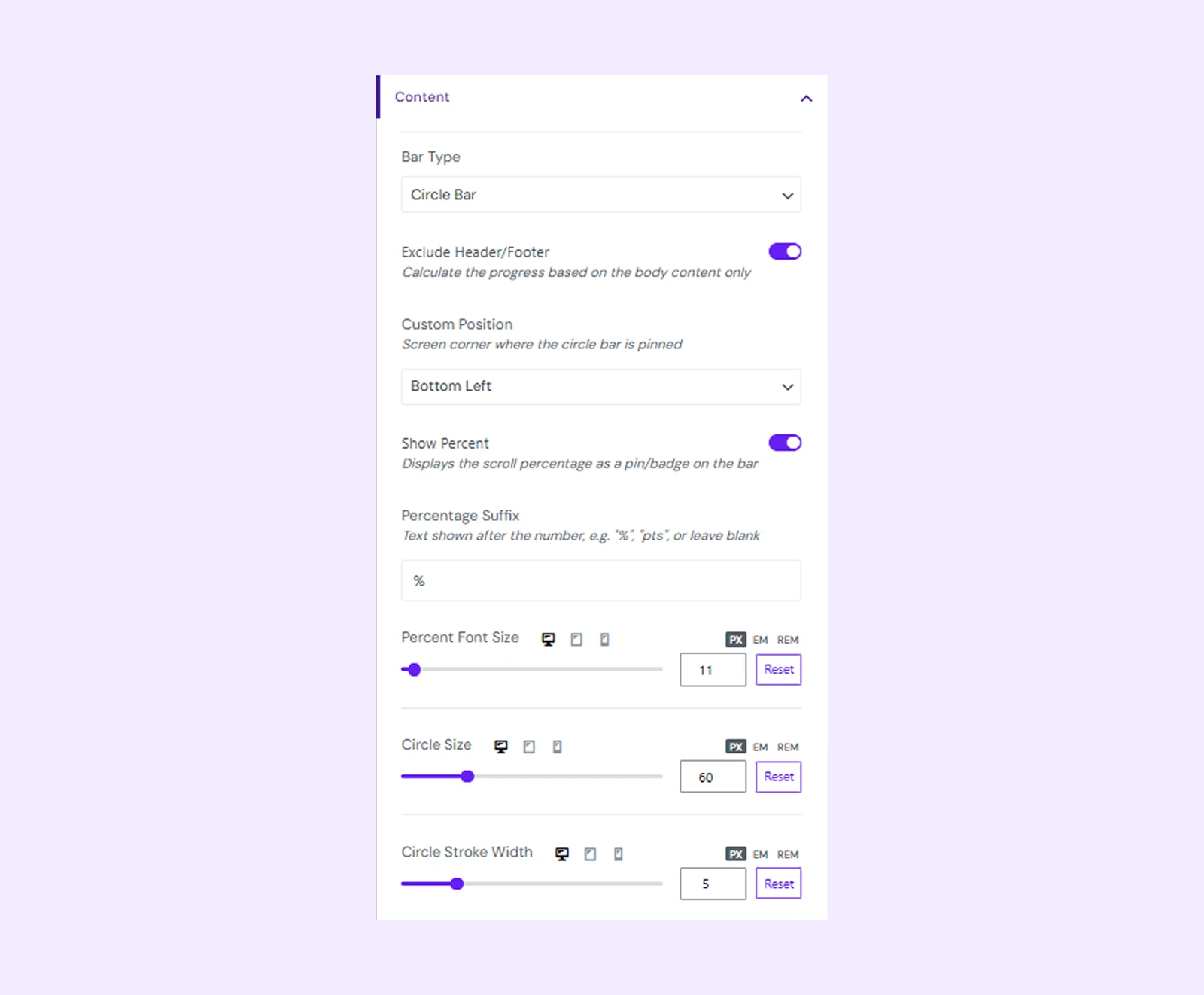
- Custom Position: Choose where the circle bar appears on the screen: Top Left, Top Right, Bottom Left, or Bottom Right.
- Exclude Header/Footer: Exclude the header and footer from the scroll progress calculation.
- Show Percent: Display the current scroll percentage on the circle bar.
- Percentage Suffix: Add text after the percentage, such as %.
- Percent Font Size: Set the size of the percentage text.
- Circle Size: Set the overall size of the circle bar.
- Circle Stroke Width: Set the thickness of the circular progress line.
Design Tab
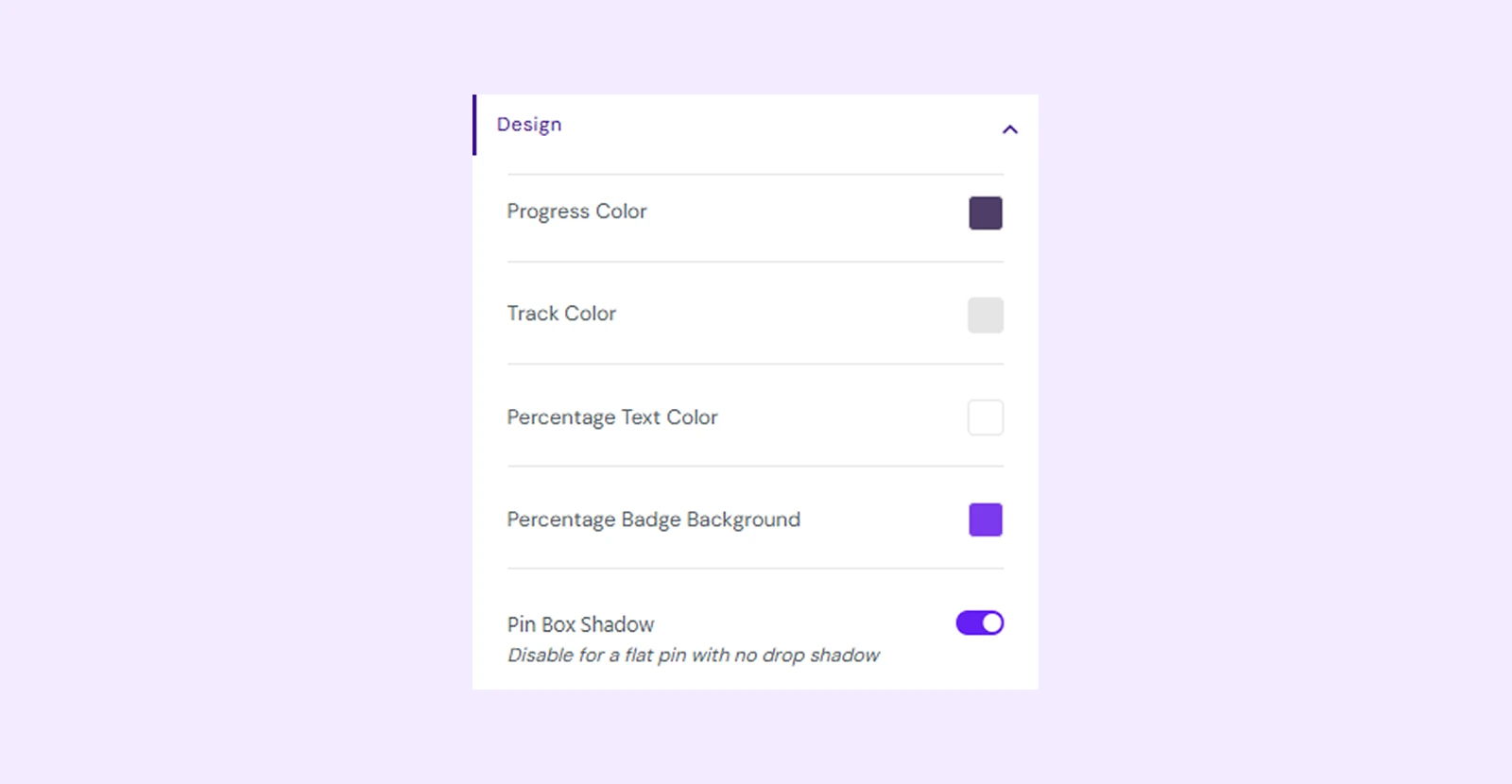
- Progress Color: Set the color of the filled portion of the progress bar.
- Track Color: Set the color of the unfilled background track.
- Percentage Text Color: Set the color of the percentage text. (Available only when Show Percent is enabled)
- Percentage Badge Background: Set the background color behind the percentage value. (Available only when Show Percent is enabled)
- Pin Box Shadow: Enable or disable the shadow around the percentage pin. (Available only for Horizontal Bar when Show Percent is enabled.)
Advanced Tab
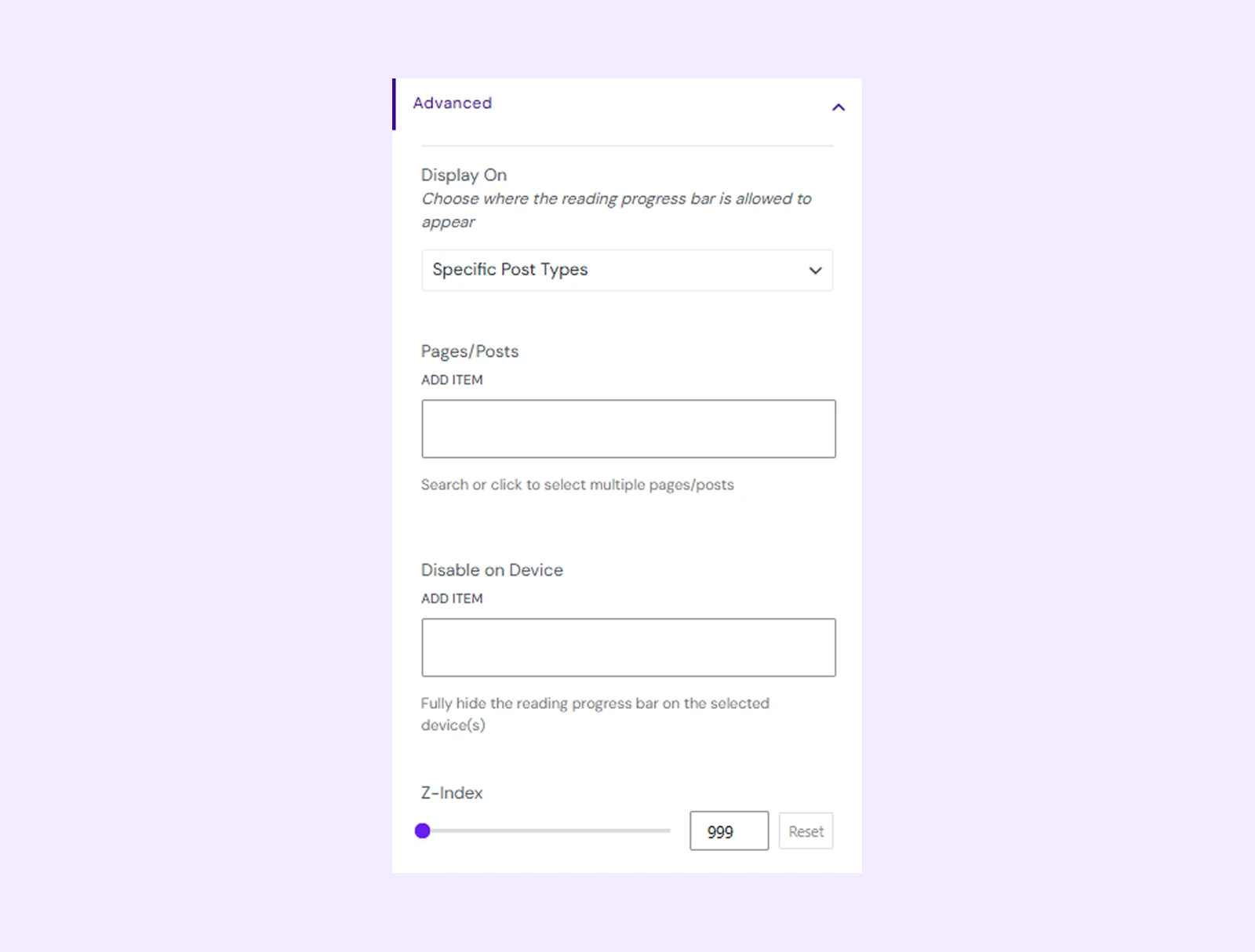
- Display On: Choose where the bar appears: Entire Site, Specific Post Types, or Specific Pages/Posts. Your selection determines which additional settings appear below.
- Post Types: Select which post types to show the bar on. (Appears only when Specific Post Types is selected.)
- Pages/Posts: Select individual pages or posts where you want to show the bar. (Appears only when Specific Pages/Posts is selected.)
Note: Specific post type and page/post conditions apply only to single content pages. Archive, search, and 404 pages will show the progress bar only when Entire Site is selected.
- Disable on Device: Choose whether to hide the progress bar on Desktop, Tablet, or Mobile devices.
- Z-index: Set the bar’s stacking order so it appears above or below other elements. The default value is 999, and you can set it from 0 to 999999.
Need Help?
Have questions or run into an issue? Our support team is ready to help at [email protected].