
The DiviFlash Data Table module helps you present structured data using advanced table features.
Let’s see the settings in brief and how to make better use of it —
Content Tab
This tab contains the settings for importing data and configuring the table.
Table Content
- Table Type: Choose the source of the table you want to upload or import. You get five different options:
- CSV Upload: Upload a CSV file from your device.
- Import Table: Manually paste CSV data into the code editor.
- Google Sheets: Import data from a Google Sheets document using the Google API key and sheet ID. You can also choose the sheet range and manage the cache settings.
- Database Table: Create a table from existing database tables on your website.
- Tablepress: Import tables created using the TablePress WordPress plugin.
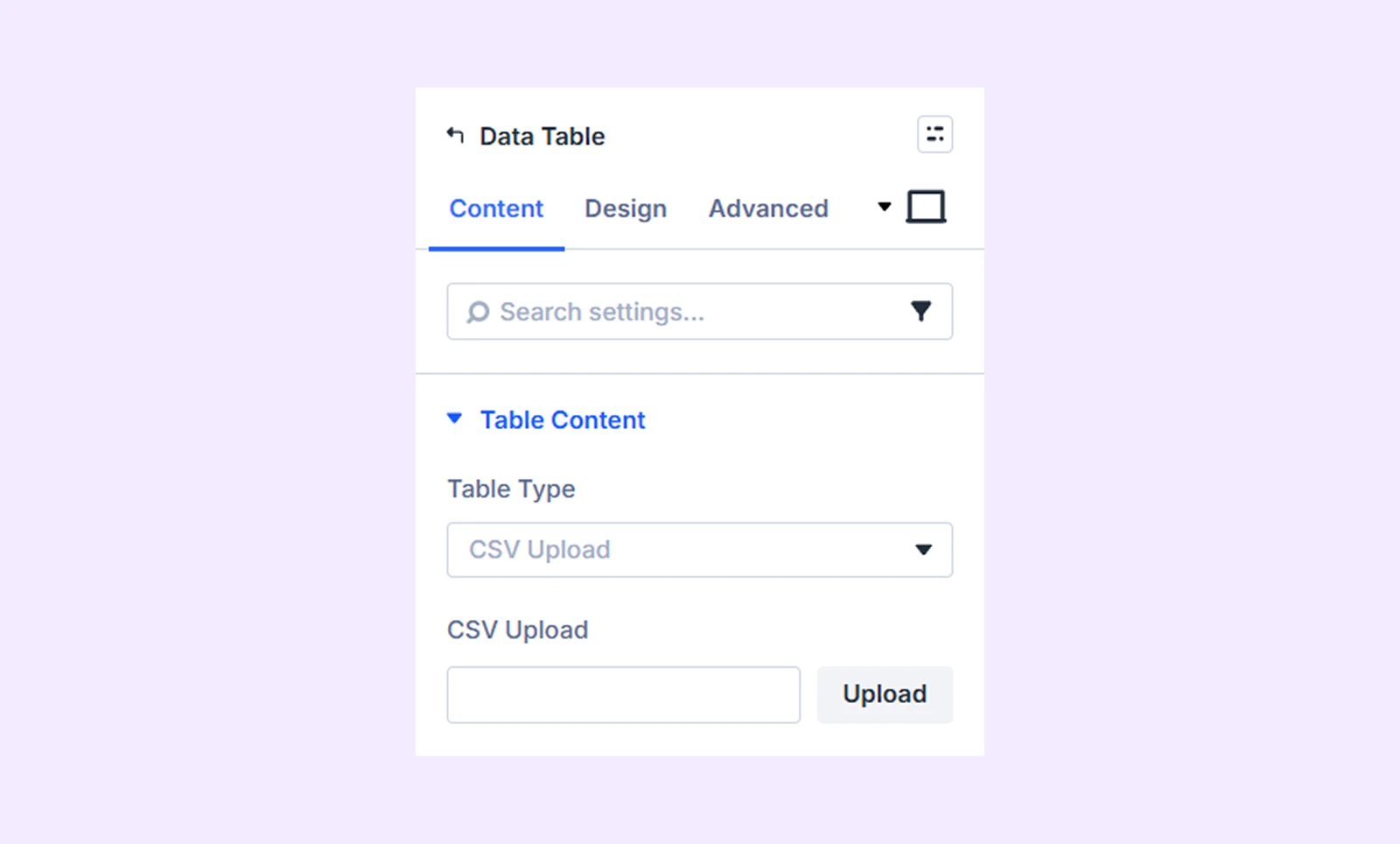
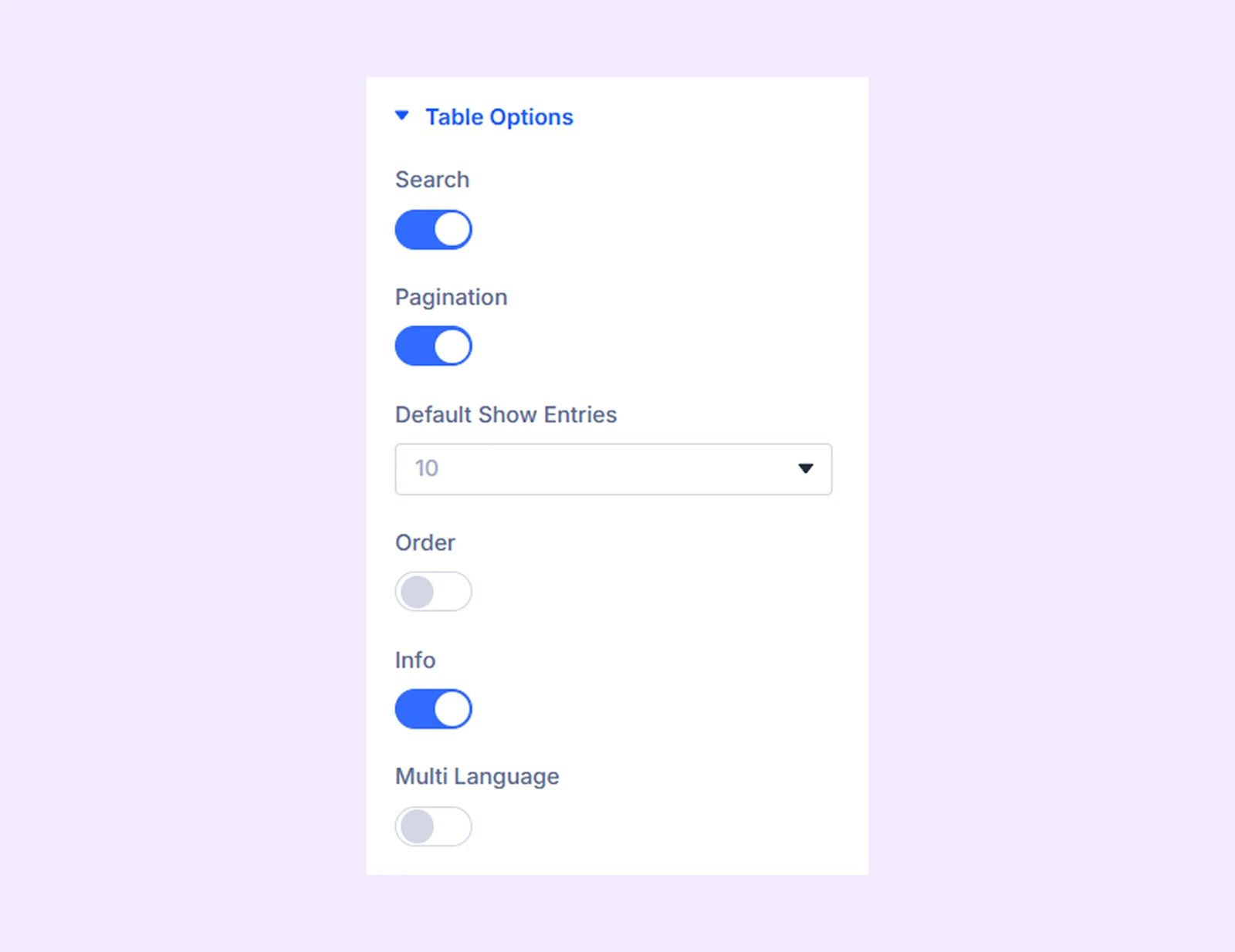
Table Options
Enable or disable table features such as search, pagination, ordering, and other interactive options.
Background: Add a background color, gradient, image, video, pattern, or mask to the module.
Element Label: Rename the module to organize it more easily in the Divi Builder. (Only you can see this label.)
Design Tab
Use this tab to customize the visual appearance of the data table.
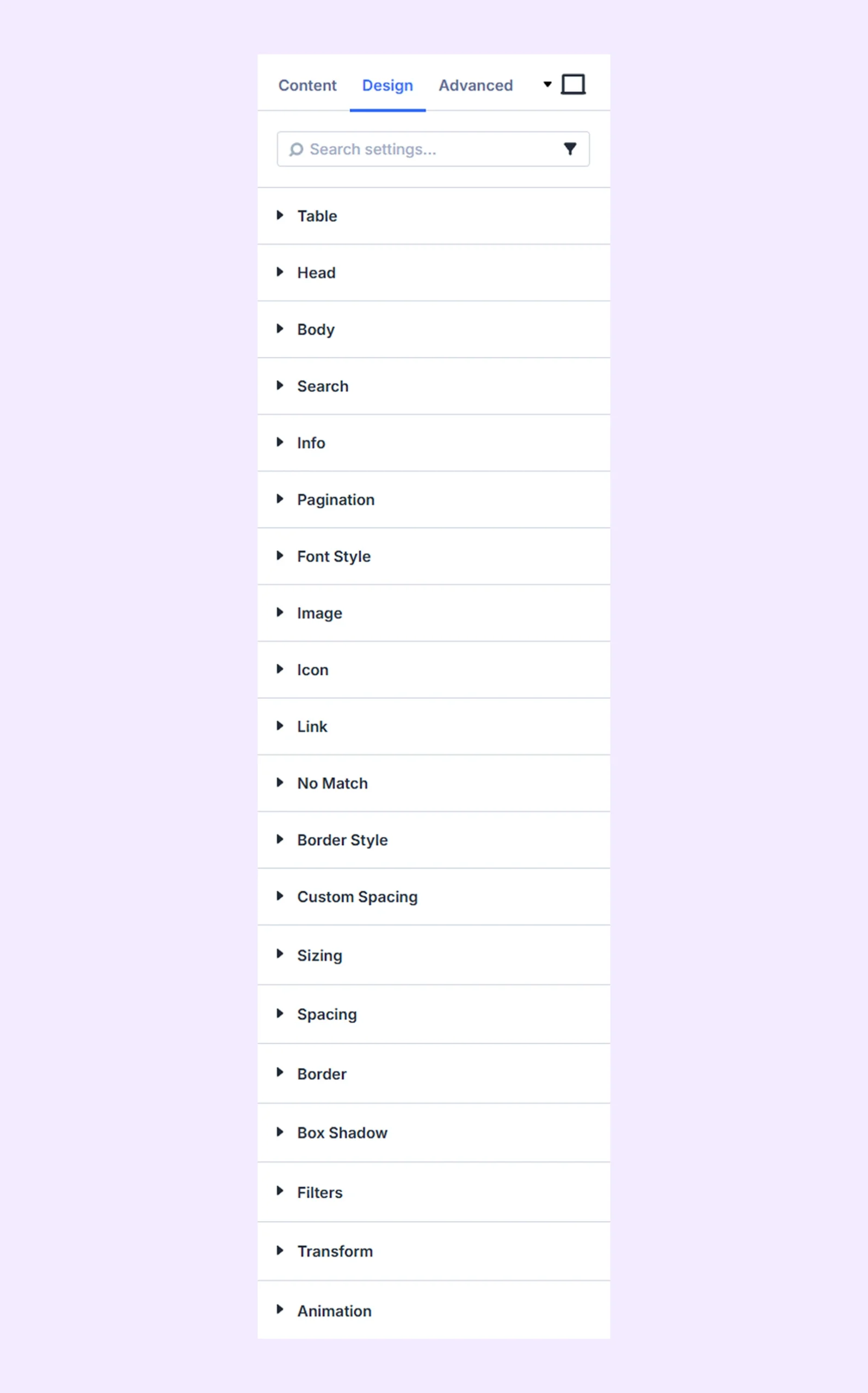
Table: Customize the background and border settings of the table.
Head: Customize the background, typography, and border settings of the table header.
Body: Customize the background, typography, and border settings of the table body. Separate background options are available for even and odd rows.
Search: Customize the background, typography, and border settings of the search bar. (Available only when search is enabled.)
Info: Customize the background, typography, and border settings of the table information displayed above or below the table. (Available when the Info option is enabled.)
Pagination
- Button Background: Customize the background or gradient of the pagination buttons.
- Active Button: Customize the background or gradient of the active pagination button.
- Dot Size: Adjust the size of the pagination dots.
- Dot Color: Choose the color of the pagination dots.
Additional options allow you to customize the typography and border settings of the pagination elements.
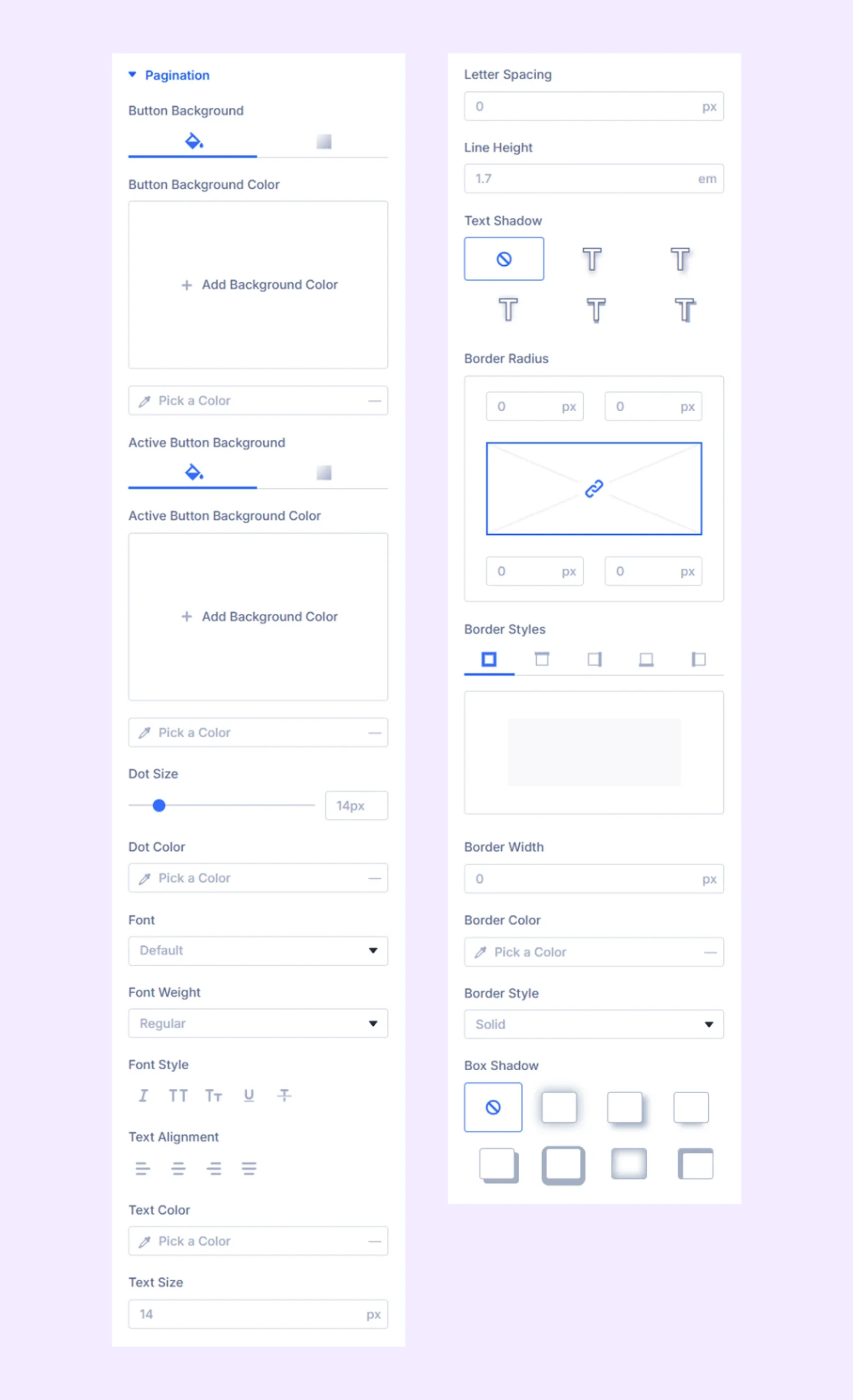
Font Styles: Customize the typography of the search input text, active pagination button, and disabled pagination button.
Image: Customize the size and border settings of images inside the table.
Icon: Customize the color, size, and border settings of icons inside the table.
Link: Customize the typography, background, spacing, and border settings of link texts inside the table.
No Match: Customize the typography settings of the message displayed when no search results are found.
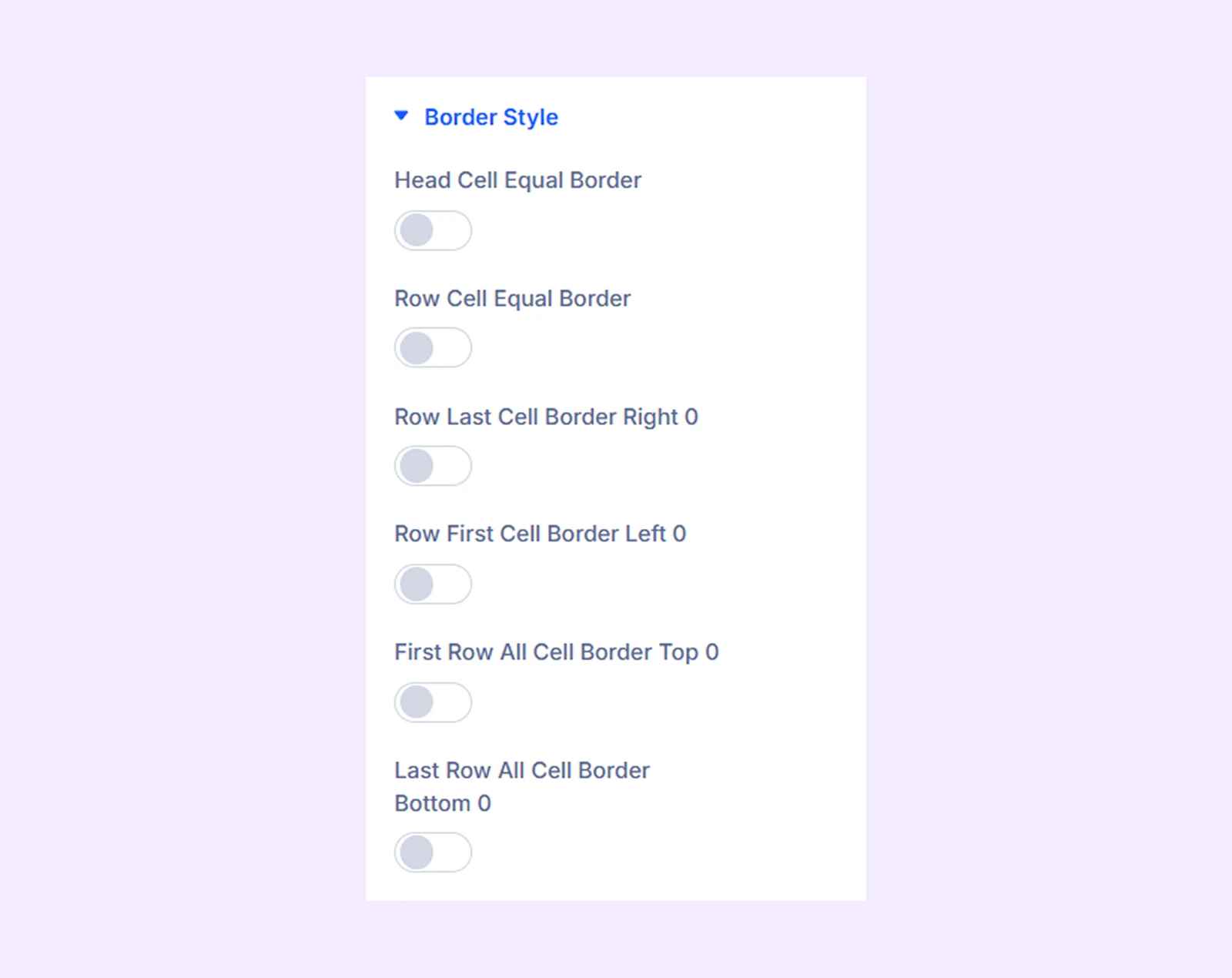
Border Style
Enable or disable specific table borders.
Custom Spacing: Adjust the margins and padding of individual table components.
Sizing: Adjust the width, height, and alignment of the module.
Spacing: Adjust the margins and padding of the module container.
Border: Customize the border using radius, style, width, and color settings.
Box Shadow: Add shadow effects to the module container.
Transform: Adjust the scale, position, rotation, and size of the module.
Animation: Add reveal animation effects and control the animation style, delay, duration, and more.
Advanced Tab
This tab provides additional settings for advanced users who want greater control over the module with custom code, conditions, and more.
Need Help?
If you have any questions or need assistance, contact our support team: [email protected]